2013 FORD ESCAPE USB
[x] Cancel search: USBPage 333 of 423

"BROWSE""USB" 2
"Help"
1 If equipped with SIRIUS® satellite radio.
2 For more commands in SD card or USB mode, see the "SD Card and USB Port" section
of this chapter.
AM/FM Radio
Press the lower left corner of the
touchscreen and then select the
AM or FM tab. To change between AM and FM presets,
just touch the AM or FM tab.
You Can
When You Select
Save a station by pressing and holding one of the memory
preset areas. There is a brief mute while the station is being
saved, then sound returns when it's done.
Preset
Enter the desired station number when prompted. Press
Enter.
Direct Tune
Allows you to receive radio broadcasts digitally (where
available), providing free, crystal clear sound.
HD Radio
Go to the next strong AM or FM radio station.
Scan
Adjust more audio system settings:
Options
· Sound Settings adjusts Bass, Treble, Midrange, Balance
and Fade, THX Deep Note Demo (if equipped), DSP (if
equipped), Occupancy Mode (if equipped), and Speed
Compensated Volume settings.
· Set PTY for Seek/Scan allows you to select a category
of music you would like to search for and then choose to
either seek or scan for the stations.
· RDS Text Display allows you to always view the
information broadcast by FM stations by selecting On.
· Auto Presets (AST) allows you to have the system
automatically store the six strongest stations in your
current location.
333
MyFord Touch®
E142611
Page 346 of 423

SD Card Slot and USB Port
SD Card
Note:Your SD card slot is spring-loaded.
To remove the SD card, press the card in
and the system ejects it. Do not attempt to
pull the card to remove it as this could cause
damage.
The card slot can also be used for your
navigation system (if equipped). See
Navigation (page 371).
The SD card slot is located either in the
center console or behind a small access
door in the instrument panel. To access
and play music from your device, press the
lower left corner of the touchscreen.
SD logo is a trademark of SD-3C, LLC. USB Port
The USB ports are located either in the
center console or behind a small access
door in the instrument panel. To access
and play music from your device, press the
lower left corner of the touchscreen.
This feature allows you to plug in media
playing devices, memory sticks, flash drives
or thumb drives, and also charge devices
if they support this feature.
Playing Music from Your Device
Insert your device and select the
USB or SD Card tab once the
system recognizes it. You can
choose from the following options:
346
MyFord Touch®
E142619
E142620
E142621
E142611
Page 348 of 423
To view song information such as Title,
Artist, File, Folder, Album, and Genre, touch
the on-screen album art. You can also
press What's Playing? to hear how the
system pronounces the current band and
song. This can be helpful when using voice
commands to make sure the system
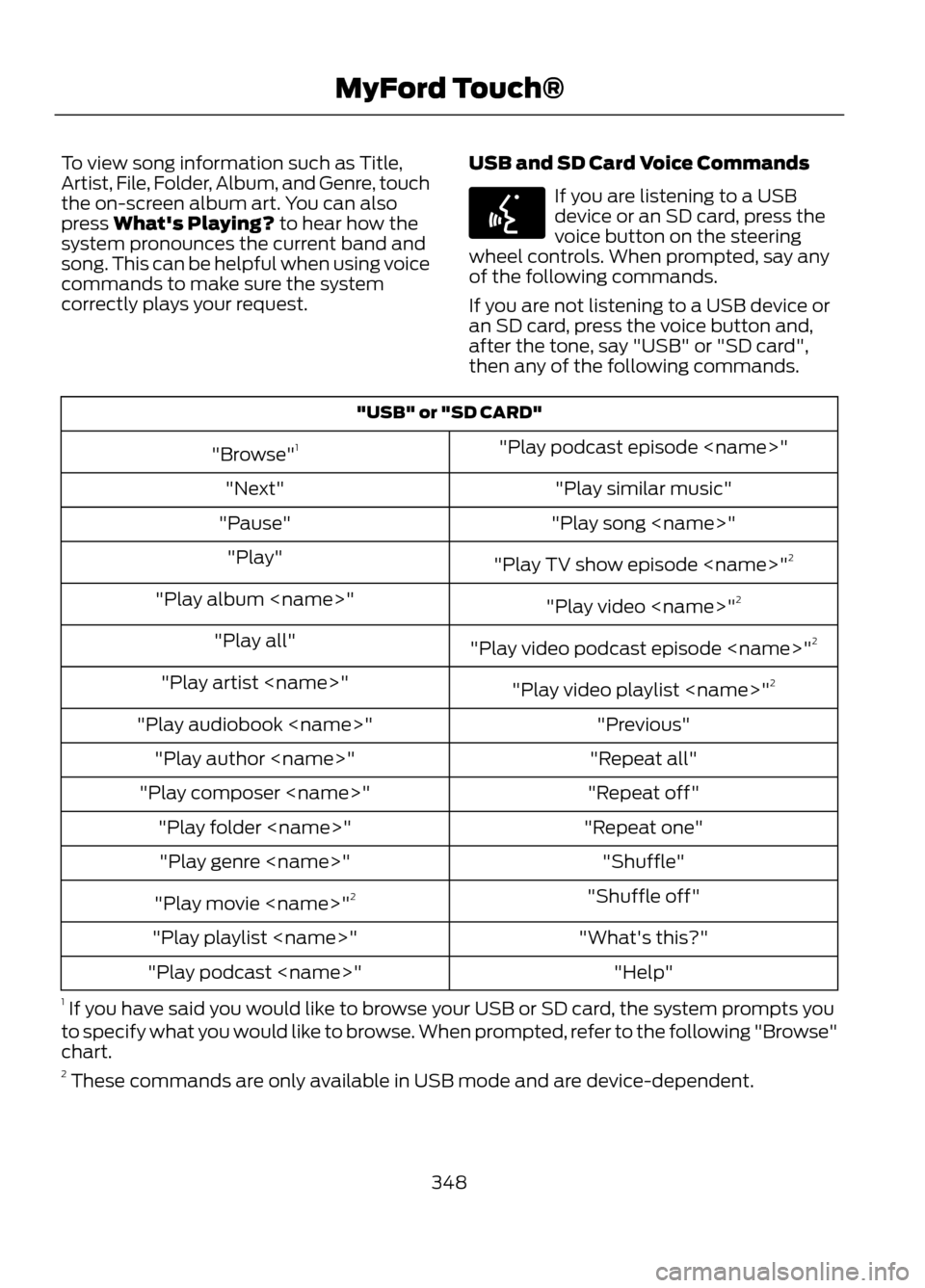
correctly plays your request.USB and SD Card Voice Commands
If you are listening to a USB
device or an SD card, press the
voice button on the steering
wheel controls. When prompted, say any
of the following commands.
If you are not listening to a USB device or
an SD card, press the voice button and,
after the tone, say "USB" or "SD card",
then any of the following commands.
"USB" or "SD CARD"
"Play podcast episode
"Browse" 1
"Play similar music"
"Next"
"Play song
"Pause"
"Play TV show episode
"Play"
"Play video
"Play album
"Play video podcast episode
"Play all"
"Play video playlist
"Play artist
"Previous"
"Play audiobook
"Repeat all"
"Play author
"Repeat off"
"Play composer
"Repeat one"
"Play folder
"Shuffle"
"Play genre
"Shuffle off"
"Play movie
"What's this?"
"Play playlist
"Help"
"Play podcast
1 If you have said you would like to browse your USB or SD card, the system prompts you
to specify what you would like to browse. When prompted, refer to the following "Browse"
chart.
2 These commands are only available in USB mode and are device-dependent.
348
MyFord Touch®
E142599
Page 349 of 423

"BROWSE""All video podcasts" *
"Album
"All videos"*
"All albums"
"Artist
"All artists"
"Audiobook
"All audiobooks"
"Author
"All authors"
"Composer
"All composers"
"Folder
"All folders"
"Genre
"All genres"
"Playlist
"All movies" *
"Podcast
"All music videos" *
"TV show
"All playlists"
"Video
"All podcasts"
"Video playlist
"All songs"
"Video podcast
"All TV shows" *
"Help"
"All video playlists" *
* These commands are only available in USB mode and are device-dependent.
Supported Media Players, Formats
and Metadata Information
SYNC is capable of hosting nearly any
digital media player, including iPod®,
Zune ™, "plays from device" players, and
most USB drives. Supported audio formats
include MP3, WMA, WAV and AAC. It is also able to organize your indexed
media from your playing device by
metadata tags. Metadata tags are
descriptive software identifiers embedded
in the media files which provide
information about the file.
If your indexed media files contain no
information embedded in these metadata
tags, SYNC may classify the empty
metadata tags as Unknown.
349
MyFord Touch®
Page 350 of 423

In order to playback video from your iPod®
or iPhone®, (if compatible), you MUST
have a special combination USB/RCA
composite video cable (available for
purchase from Apple® ). When the cable
is connected to your iPod® or iPhone®,
plug the other end into both the RCA jacks
and the USB port.
Bluetooth Audio
Your system allows you to stream audio
over your vehicle's speakers from your
connected, Bluetooth-enabled mobile
phone.
To access, press the lower left
corner on the touchscreen, then
select the BT tab.Bluetooth Audio Voice Commands
Note:
If your Bluetooth device supports
streaming metadata, all the commands
below are available. If your device does not,
only "Next song", "Pause", "Play" and
"Previous song" are available.
If you are listening to a Bluetooth
audio device, press the voice
button on the steering wheel
controls. When prompted, say any of the
commands in the following chart.
If you are not listening to a Bluetooth audio
device, press the voice button and, after
the tone, say “Bluetooth Audio ”, then any
of the commands in the following chart.
"BLUETOOTH AUDIO"
"Play genre
"Browse composer
"Browse album
"Play playlist
"Browse folder
"Browse all albums"
"Play podcast episode
"Browse genre
"Browse all artists"
"Play similar music"
"Browse playlist
"Browse all audiobooks"
"Play song
"Browse podcast
"Browse all authors"
"Previous"
"Next"
"Browse all composers"
"Repeat all"
"Pause"
"Browse all folders"
"Repeat off"
"Play"
"Browse all genres"
"Repeat one"
"Play album
"Browse all playlists"
"Shuffle"
"Play artist
"Browse all podcasts"
"Shuffle album"
"Play audiobook
"Browse all songs"
"Shuffle off"
"Play author
"Browse artist
"What’s this?"
"Play composer
"Browse audiobook
"Help"
"Play folder
"Browse author
350
MyFord Touch®
E142611
E142599
Page 351 of 423

A/V Inputs
Note:For safety reasons, connecting or
adjusting the settings on your portable
music player should not be attempted while
the vehicle is moving. Also, the portable
music player should be stored in a secure
location, such as the center console or the
glove box, when the vehicle is in motion. The
audio extension cable must be long enough
to allow the portable music player to be
safely stored while the vehicle is in motion.
Your A/V inputs allow you to connect an
auxiliary audio/video source (e.g. game
systems or personal camcorders) by
connecting RCA cords (not included) to
these input jacks. The jacks are yellow, red
and white and are located either in the
center console or behind a small access
door in the instrument panel.
You can also use the A/V inputs as an
auxiliary input jack (AIJ) to play music from
your portable music player over your
vehicle's speakers. Plug in your one-eighth
inch (3.5 millimeter) RCA adapter into the
two left A/V input jacks (red and white).
Press the lower left corner of the
touchscreen, then select the A/V Inputs
tab. To use the auxiliary input jack feature,
make sure that your portable music player
is designed to be used with headphones
and that it is fully charged. You also need
an audio extension cable with stereo male
one-eighth inch (3.5 millimeter)
connectors at one end and a RCA jack at
the other.
1. Begin with the vehicle parked and the
radio and portable device are turned
off.
2. Attach one end of the audio extension
cable to the headphone output of your
player and the other end into the
adaptor in one of the two left A/V input
jacks (white or red) inside the center
console.
3. Press the lower left corner on the touchscreen. Select either a tuned
station from the FM tab or the CD tab
(if there is a CD already loaded into the
system.) Adjust the volume to a
comfortable listening level.
4. Turn the portable music player on and adjust the volume to one-half.
5. Press the lower left corner on the touchscreen. Select the A/V Input tab.
(You should hear audio from your
portable music player although it may
be low.)
6. Adjust the sound on your portable music player until it reaches the level
of the FM station or CD by switching
back and forth between the controls.
In order to playback video from your iPod®
or iPhone®, (if compatible), you MUST
have a special combination USB/RCA
composite video cable (available for
purchase from Apple® ). When the cable
is connected to your iPod® or iPhone®,
plug the other end into both the RCA jacks
and the USB port.
351
MyFord Touch®
E142622
Page 415 of 423

E
Eco Mode.........................................................175Resetting Eco Mode........................................... 175
Type 1....................................................................... 175
Type 2 and 3.......................................................... 175
Economical Driving......................................194
Emission Control System..........................143 On-Board Diagnostics (OBD-II)................... 144
Readiness for Inspection/Maintenance (I/M) Testing................................................... 145
End User License Agreement.................380 SYNC® End User License Agreement
(EULA)............................................................. 380
Engine Block Heater....................................138 Using the Engine Block Heater...................... 139
Engine Coolant Check................................222 Adding Engine Coolant.................................... 222
Checking the Engine Coolant........................ 222
Recycled Engine Coolant................................ 223
Severe Climates................................................. 224
What you Should Know About Fail-Safe Cooling.............................................................. 224
Engine Immobilizer See: Passive Anti-Theft System..................... 62
Engine Oil Check...........................................221 Adding Engine Oil................................................ 221
Resetting the Oil Life Monitoring System.............................................................. 222
Engine Oil Dipstick - 1.6L EcoBoost®...................................................221
Engine Oil Dipstick - 2.5L/2.0L EcoBoost®...................................................221
Engine Specifications.................................267 Drivebelt Routing................................................ 267
Entertainment...............................................332 A/V Inputs............................................................. 351
AM/FM Radio...................................................... 333
Bluetooth Audio................................................. 350
Browsing Device Content................................ 332
CD........................................................................\
.... 344
SD Card Slot and USB Port........................... 346
SIRIUS® Satellite Radio (If Activated)........................................................ 339
Supported Media Players, Formats and Metadata Information................................ 349Essential Towing Checks..........................190
Before Towing a Trailer.................................... 190
Hitches................................................................... 190
Safety Chains...................................................... 190
Trailer Brakes....................................................... 190
Trailer Lamps....................................................... 190
When Towing a Trailer....................................... 191
Event Data Recording See: Data Recording.............................................. 9
Export Unique Options..................................13
Exterior Mirrors.................................................75 Blind Spot Monitor............................................... 76
Fold-Away Exterior Mirrors................................ 75
Heated Exterior Mirrors....................................... 75
Integrated Blind Spot Mirrors........................... 76
Memory Mirrors..................................................... 75
Power Exterior Mirrors......................................... 75
F
Fastening the Safety Belts..........................27 How to Extract Safety Belts in the Rear
Outboard Positions........................................ 29
Restraint of Pregnant Women......................... 27
Safety Belt Extension Assembly.................... 29
Safety Belt Locking Modes............................... 28
Floor Mats.......................................................195
Fog Lamps - Front See: Front Fog Lamps......................................... 72
Ford Credit..........................................................11 (U.S. Only)................................................................. 11
Ford Extended Service Plan (ESP).......276 SERVICE PLANS (CANADA ONLY).............277
SERVICE PLANS (U.S. only).......................... 276
Four-Wheel Drive...........................................151
Front Fog Lamps.............................................72
Front Passenger Sensing System.............37
Fuel and Refueling.......................................140
Fuel Consumption........................................145 Calculating Fuel Economy.............................. 146
Filling the Tank.................................................... 146
Fuel Cut-Off Switch....................................198
Fuel Filter........................................................225
Fuel Quality......................................................141 Choosing the Right Fuel.................................... 141
Octane Recommendations............................. 141
Fuses................................................................207
415
Index
Page 421 of 423

U
Under Hood Overview - 1.6LEcoBoost®...................................................218
Under Hood Overview - 2.0L EcoBoost®...................................................219
Under Hood Overview - 2.5L...................220
Universal Garage Door Opener...............128 Homelink® Wireless Control System.........128
USB Port...........................................................110
Using Cruise Control....................................170 Switching Off Cruise Control.......................... 170
Switching On Cruise Control.......................... 170
Using Four-Wheel Drive..............................151 Driving in Special Conditions With
Four-Wheel Drive........................................... 152
Using MyKey With Remote Start Systems..........................................................50
Vehicles Equipped with Intelligent Access Key (Push Button Start)................................ 51
Vehicles Equipped with Traditional Keys....................................................................... 51
Using Snow Chains.....................................256
Using Stability Control...............................160 AdvanceTrac® with Roll Stability Control ™
(RSC®)............................................................. 160
Using SYNC® With Your Media Player.............................................................301
Accessing Your Play Menu............................. 305
Connecting Your Digital Media Player to the USB Port........................................................... 301
Media Menu Features...................................... 303
Media Voice Commands................................. 301
System Settings................................................ 306
What's Playing?.................................................. 301
Using SYNC® With Your Phone.............283 Accessing Features through the Phone
Menu................................................................. 288
Accessing Your Phone Settings..................... 291
Making Calls........................................................ 286
Pairing a Phone for the First Time...............283
Pairing Subsequent Phones.......................... 284
Phone Options during an Active Call.........286
Phone Voice Commands................................ 284
Receiving Calls................................................... 286
System Settings................................................. 292
Text Messaging.................................................. 289Using Traction Control................................158
System Indicator Lights and
Messages.......................................................... 158
Using Voice Recognition............................281 Helpful Hints........................................................ 281
Initiating a Voice Session................................. 281
System Interaction and Feedback..............282
Utilizing the Mediation/Arbitration Program (Canada Only)........................203
V
Vehicle Care...................................................236 General Information......................................... 236
Vehicle Certification Label.......................270
Vehicle Identification Number................269
Vehicle Storage............................................240 Battery.................................................................... 241
Body........................................................................\
. 241
Brakes...................................................................... 241
Cooling system.................................................... 241
Engine...................................................................... 241
Fuel system........................................................... 241
General.................................................................. 240
Miscellaneous...................................................... 241
Removing Vehicle From Storage..................242
Tires........................................................................\
. 241
Ventilation See: Climate Control.......................................... 113
VIN See: Vehicle Identification Number............269
Voice Control...................................................66 MyFord Touch® Controls.................................. 66
421
Index