2013 CHEVROLET TRAVERSE audio
[x] Cancel search: audioPage 206 of 444

Black plate (26,1)Chevrolet Traverse Owner Manual - 2013 - CRC 2nd Edition - 11/13/12
7-26 Infotainment System
.Maximum of 1,000 files on
a disc.
.Recorded on a CD-R or CD-RW
with a maximum capacity of
700 MB.
.The Artist/Album/Song Titles/
Genre information requires a CD
to be fully scanned before the
music navigator works with
these menus.
MP3 Audio
Press the Menu screen button while
that source is active to access the
CD Audio Menu.
Press any of the following buttons
on the CD Audio Menu:
Folders: Press to view the folders
stored on the disc. Select a folder to
view the list of all songs in that
folder. There might be a delay
before the list displays. Select a
song from the list to begin playback.
Playlists: Press to view the
playlists stored on the disc. Select a
playlist to view the list of all songs in
that playlist. There might be a delay
before the list displays. Select a
song from the list to begin playback.
Artists: Press to view the list of
artists stored on the disc. Select an
artist name to view a list of all songs by the artist. There might be a delay
before the list displays. Select a
song from the list to begin playback.
Genres:
Press to view the genres.
Select a genre to view a list of all
songs of that genre. Select a song
from the list to begin playback.
Albums: Press to view the albums
on the disc. Select the album to
view a list of all songs on the album.
There might be a delay before the
list displays. Select a song from the
list to begin playback.
Composers: Press to view the
Composers stored on the disc.
There might be a delay before the
list displays. The Composers menu
displays. Select a composer to
display a list of albums from the
composer.
Tracks (Song Titles): Press to
display a list of all songs on the
disc. Songs are displayed as stored
on the disc. There might be a delay
before the list displays. To begin
playback, select a song from the list.
Page 207 of 444

Black plate (27,1)Chevrolet Traverse Owner Manual - 2013 - CRC 2nd Edition - 11/13/12
Infotainment System 7-27
Root Directory
The root directory is treated as a
folder. All files contained directly
under the root directory are
accessed prior to any root directory
folders.
Empty Folders
If a root directory or folder is empty
or contains only folders, the player
advances to the next folder in the
file structure that contains a
compressed audio file. The empty
folder(s) are not displayed or
numbered.
No Folder
When the CD only contains
compressed audio files without any
folders or playlists, all files are
under the root folder.
File System and Naming
The song titles, artists, albums, and
genres are taken from the file's ID3
tag and are only displayed if present
in the tag. If a song title is notpresent in the ID3 tag, the radio
displays the file name as the
track name.
Preprogrammed Playlists
The radio recognizes
preprogrammed playlists; however,
there is no editing capability. These
playlists are treated as special
folders containing compressed
audio song files.
Music Navigator
Folders
The folder structure can support up
to five levels of depth. The folders
and then songs will display in
alphabetical order.
Press one of the options from the
Root Folder to display other folders
of that option type. Keep pressing to
display each screen until all levels
have been reached. The last level
usually contains the desired song
to play.
Playlists
Page 209 of 444

Black plate (29,1)Chevrolet Traverse Owner Manual - 2013 - CRC 2nd Edition - 11/13/12
Infotainment System 7-29
Composers
Press the Composers screen button
displayed on the Root Folder menu.
The Composers menu displays.
Select a composer to display a list
of Albums from the composer.
Select the Album to display a list of
songs. Select the desired song for
playback.
MP3 (Radio without
Touchscreen)
Format
Radios that have the capability of
playing MP3s can play .mp3 or .wma
files that were recorded onto a
CD-R or CD-RW disc. The files can
be recorded with the following fixed
bit rates: 32 kbps, 40 kbps, 56 kbps,
64 kbps, 80 kbps, 96 kbps,
112 kbps, 128 kbps, 160 kbps,
192 kbps, 224 kbps, 256 kbps, and
320 kbps or a variable bit rate.
Radios that have a USB port can
play .mp3 and .wma files stored on a
USB storage device as well as AAC
files that are stored on an iPod.Compressed Audio or Mixed Mode
Discs
The radio can play discs that
contain both uncompressed CD
audio and MP3/WMA files. If both
formats are on the disc, the radio
plays both file formats in the order in
which they were recorded to
the disc.
CD‐R or CD‐RW Supported File
and Folder Structure
The radio supports:
.Up to 50 folders.
.Up to eight folders in depth.
.Up to 15 playlists.
.Up to 512 files and folders.
.Playlists with an .m3u or .wpl
extension.
.Files with an .mp3, .wma, or .cda
file extension.
Page 210 of 444

Black plate (30,1)Chevrolet Traverse Owner Manual - 2013 - CRC 2nd Edition - 11/13/12
7-30 Infotainment System
USB Supported File and Folder
Structure
The radio supports:
.Up to 700 folders.
.Up to eight folders in depth.
.Up to 65,535 files.
.Folder and file names up to
64 bytes.
.Files with an .mp3 or .wma file
extension.
.AAC files stored on an iPod.
.FAT16
.FAT32
Root Directory
The root directory of the disc is
treated as a folder. If the root
directory has compressed audio
files, the directory displays on the
radio as the CD label. If a disc contains both
uncompressed CD audio and MP3/
WMA files, a folder under the root
directory called CD accesses all of
the CD audio tracks on the disc.
Empty Folder
Folders that do not contain files are
skipped, and the player advances to
the next folder that contains files.
Order of Play
Compressed audio files are
accessed in the following order:
.Playlists (Px).
.Files stored in the root directory.
.Files stored in folders in the root
directory.
Tracks are played in the following
order:
.Play begins from the first track in
the first playlist and continues
sequentially through all tracks in
each playlist. When the last track of the last playlist has
played, play continues from the
first track of the first playlist.
.Play begins from the first track in
the first folder and continues
sequentially through all tracks in
each folder. When the last track
of the last folder has played,
play continues from the first
track of the first folder.
When play enters a new folder, the
display does not automatically show
the new folder name unless the
folder mode has been chosen as
the default display. The new track
name displays.
File System and Naming
The song name that displays is the
song name contained in the ID3 tag.
If the song name is not present in
the ID3 tag, the radio displays the
file name without the extension
(such as .mp3) as the track name.
Page 211 of 444

Black plate (31,1)Chevrolet Traverse Owner Manual - 2013 - CRC 2nd Edition - 11/13/12
Infotainment System 7-31
Track names longer than 32
characters or four pages are
shortened. Parts of words on the
last page of text and the extension
of the filename do not display.
Preprogrammed Playlists
Preprogrammed playlists that were
created using WinAmp™,
MusicMatch™, or Real Jukebox™
software can be accessed; however,
they cannot be edited using the
radio. These playlists are treated as
special folders containing
compressed audio song files.
Playlists that have an .m3u or .pls
file extension and are stored on a
USB device may be supported by
the radio with a USB port.
Playing a CD-R or CD-RW MP3
f(Tune):Turn to select MP3/WMA
files.
©SEEK: Press to go to the start of
the track, if more than 10 seconds
have played. Press and hold or
press multiple times to continue
moving backward through tracks.
¨SEEK: Press to go to the next
track. Press and hold or press
multiple times to continue moving
forward through tracks.
sREV (Reverse): Press and hold
to reverse playback quickly. Sound
is heard at a reduced volume and
the elapsed time of the file displays.
Release
sREV to resume playing.
\FWD (Fast Forward): Press
and hold to advance playback
quickly. Sound is heard at a reduced
volume and the elapsed time of the
file displays. Release
\FWD to
resume playing. The elapsed time of
the file displays.
S c(Previous Folder): Press
the softkey below
S cto go to the
first track in the previous folder.
cT (Next Folder): Press the
softkey below
cT to go to the first
track in the next folder.
RDM (Random): Files on the disc
can be listened to in random, rather
than sequential order. To use random, press the softkey under the
RDM tab until Random Current Disc
displays to play songs in random
order. Press the same softkey again
to turn off random play.
h(Music Navigator):
Press the
softkey below
hto play files in
order by artist or album.
The player scans the disc to sort the
files by artist and album ID3 tag
information. It can take several
minutes to scan the disc depending
on the number of files on the disc.
The radio may begin playing while it
is scanning in the background.
When the scan is finished, the disc
begins playing files in order by
artist. The current artist playing is
shown on the second line of the
display. Once all songs by that artist
are played, the player moves to the
next artist in alphabetical order and
begins playing files by that artist.
To listen to files by another artist,
press the softkey below either arrow
tab. The disc goes to the next or
previous artist in alphabetical order.
Page 215 of 444

Black plate (35,1)Chevrolet Traverse Owner Manual - 2013 - CRC 2nd Edition - 11/13/12
Infotainment System 7-35
Shuffle Functionality
To use Shuffle:
Press the softkey below
>,2,
C, or=to select between
Shuffle Off, Shuffle All Songs/
Shuffle Songs, Shuffle Album,
or Shuffle Folder.
>(Shuffle Off): This is the
default mode when a USB storage
device or iPod is first connected.
2(Shuffle All Songs/Shuffle
Songs): Shuffles all songs on the
USB storage device or iPod.
C(Shuffle Album): Shuffles all
songs in the current album on
an iPod.
=(Shuffle Folder): Shuffles all
songs in the current folder on a USB
storage device.
Auxiliary Devices
The vehicle may have a 3.5 mm
(1/8 in) auxiliary input jack on the
faceplate. For vehicles with a USB
port, it is in the instrument panel
storage area.
Using the 3.5 mm (1/8 in)
Auxiliary Input Jack
This is not an audio output; do not
plug a headphone set into the front
auxiliary input jack. Connect an
auxiliary input device such as an
iPod, laptop computer, MP3 player,
CD player, or cassette tape player
to the auxiliary input jack for use as
another source for audio listening.
Drivers are encouraged to set up
any auxiliary device while the
vehicle is in P (Park). See
Defensive Driving on page 9‑2 for
more information on driver
distraction. To use an auxiliary input device,
connect a 3.5 mm (1/8 in) cable to
the radio's front auxiliary input jack.
Press CD/AUX or SRCE to select
the device.
Using the USB Port
For vehicles with a USB port, the
connector is in the instrument panel
storage area. See
Instrument Panel
Storage on page 4‑1.
Radios with a USB port can control
a USB storage device or an iPod
using the radio buttons and knobs.
See MP3 (Radio with Touchscreen)
on page 7‑25 orMP3 (Radio without
Touchscreen) on page 7‑29 for
information about how to connect
and control a USB storage device or
an iPod.
Page 216 of 444

Black plate (36,1)Chevrolet Traverse Owner Manual - 2013 - CRC 2nd Edition - 11/13/12
7-36 Infotainment System
USB Supported Devices
.USB Flash Drives
.Portable USB Hard Drives
.Fifth generation or later iPod
.iPod nano®
.iPod touch®
.iPod classic®
Not all iPods and USB drives are
compatible with the USB port.
Make sure the iPod has the latest
firmware from Apple
®for proper
operation. iPod firmware can be
updated using the latest iTunes
®
application. See www.apple.com/
itunes.
For help identifying your iPod, go to
www.apple.com/support.
Rear Seat
Infotainment
Rear Seat Audio (RSA)
System
The vehicle may have a DVD Rear
Seat Entertainment (RSE) system.
The RSE system works with the
vehicle's audio system. The DVD
player is part of the front radio. The
RSE system includes a radio with a
DVD player, a video display screen,
audio/video jacks, two wireless
headphones, and a remote control.
See Operation (Radio without
Touchscreen) on page 7‑6 or
Operation (Radio with Touchscreen)
on page 7‑8 for more information on
the vehicle's infotainment system.
Before Driving
The RSE is designed for rear seat
passengers only. The driver cannot
safely view the video screen while
driving and should not try to do so. In severe or extreme weather
conditions, the RSE system might or
might not work until the temperature
is within the operating range. The
operating range for the RSE system
is above
−20°C (−4°F) or below
60°C (140°F). If the temperature of
the vehicle is outside of this range,
heat or cool the vehicle until the
temperature is within the operating
range of the RSE system.
Parental Control
The RSE system may have a
Parental Control feature, depending
on the radio. To enable Parental
Control, press and hold the radio
power button for more than
two seconds to stop all system
features such as: radio, video
screen, RSA, DVD and/or CD. While
Parental Control is on,
Qdisplays.
When the radio is turned back on,
Parental Control is unlocked.
Page 217 of 444
Black plate (37,1)Chevrolet Traverse Owner Manual - 2013 - CRC 2nd Edition - 11/13/12
Infotainment System 7-37
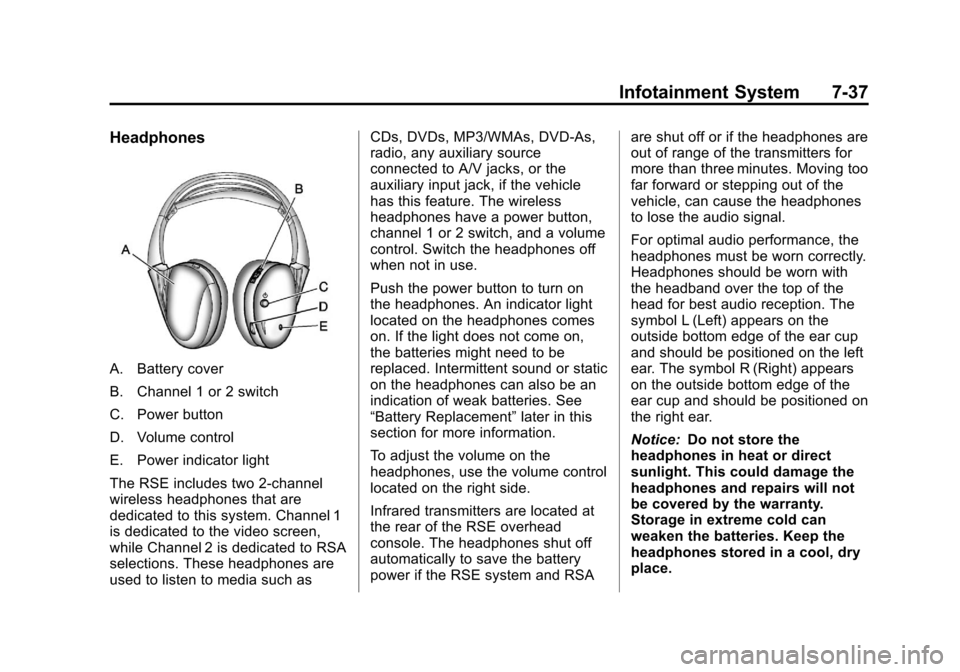
Headphones
A. Battery cover
B. Channel 1 or 2 switch
C. Power button
D. Volume control
E. Power indicator light
The RSE includes two 2-channel
wireless headphones that are
dedicated to this system. Channel 1
is dedicated to the video screen,
while Channel 2 is dedicated to RSA
selections. These headphones are
used to listen to media such asCDs, DVDs, MP3/WMAs, DVD-As,
radio, any auxiliary source
connected to A/V jacks, or the
auxiliary input jack, if the vehicle
has this feature. The wireless
headphones have a power button,
channel 1 or 2 switch, and a volume
control. Switch the headphones off
when not in use.
Push the power button to turn on
the headphones. An indicator light
located on the headphones comes
on. If the light does not come on,
the batteries might need to be
replaced. Intermittent sound or static
on the headphones can also be an
indication of weak batteries. See
“Battery Replacement”
later in this
section for more information.
To adjust the volume on the
headphones, use the volume control
located on the right side.
Infrared transmitters are located at
the rear of the RSE overhead
console. The headphones shut off
automatically to save the battery
power if the RSE system and RSA are shut off or if the headphones are
out of range of the transmitters for
more than three minutes. Moving too
far forward or stepping out of the
vehicle, can cause the headphones
to lose the audio signal.
For optimal audio performance, the
headphones must be worn correctly.
Headphones should be worn with
the headband over the top of the
head for best audio reception. The
symbol L (Left) appears on the
outside bottom edge of the ear cup
and should be positioned on the left
ear. The symbol R (Right) appears
on the outside bottom edge of the
ear cup and should be positioned on
the right ear.
Notice:
Do not store the
headphones in heat or direct
sunlight. This could damage the
headphones and repairs will not
be covered by the warranty.
Storage in extreme cold can
weaken the batteries. Keep the
headphones stored in a cool, dry
place.