2013 CHEVROLET MALIBU center console
[x] Cancel search: center consolePage 114 of 436
Black plate (6,1)Chevrolet Malibu Owner Manual - 2013 - CRC - 6/6/12
5-6 Instruments and Controls
The outlet is powered when the
ignition is in ON/RUN or ACC/
ACCESSORY, or until the driver
door is opened within 10 minutes of
turning off the vehicle. SeeRetained
Accessory Power (RAP) on
page 9‑22.
Open the protective cover to use the
accessory power outlet.
Certain electrical accessories may
not be compatible with the
accessory power outlets and could
overload vehicle or adapter fuses.
If there is a problem, see your
dealer.
When adding electrical equipment,
be sure to follow the installation
instructions included with the
equipment. See Add-On Electrical
Equipment on page 9‑50.
Notice: Hanging heavy
equipment from the power outlet
can cause damage not covered
by the vehicle warranty. The
power outlets are designed for
accessory power plugs only, such
as cell phone charge cords.Power Outlet 120 Volt
Alternating Current
The vehicle may have a power
outlet that can be used to plug in
electrical equipment that uses a
maximum limit of 150 watts.
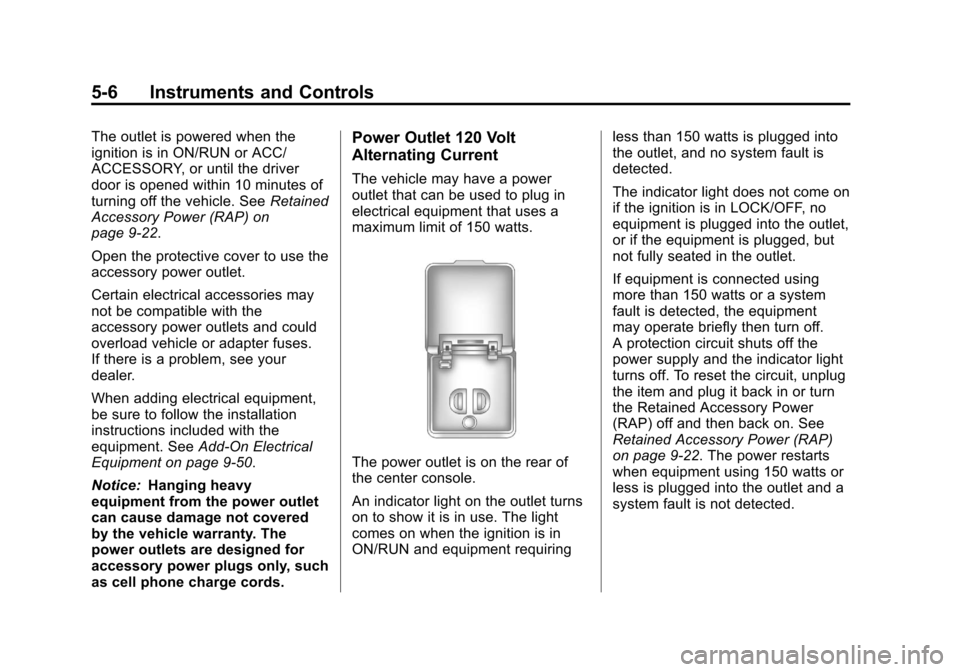
The power outlet is on the rear of
the center console.
An indicator light on the outlet turns
on to show it is in use. The light
comes on when the ignition is in
ON/RUN and equipment requiring less than 150 watts is plugged into
the outlet, and no system fault is
detected.
The indicator light does not come on
if the ignition is in LOCK/OFF, no
equipment is plugged into the outlet,
or if the equipment is plugged, but
not fully seated in the outlet.
If equipment is connected using
more than 150 watts or a system
fault is detected, the equipment
may operate briefly then turn off.
A protection circuit shuts off the
power supply and the indicator light
turns off. To reset the circuit, unplug
the item and plug it back in or turn
the Retained Accessory Power
(RAP) off and then back on. See
Retained Accessory Power (RAP)
on page 9‑22. The power restarts
when equipment using 150 watts or
less is plugged into the outlet and a
system fault is not detected.
Page 185 of 436
Black plate (25,1)Chevrolet Malibu Owner Manual - 2013 - CRC - 6/6/12
Infotainment System 7-25
Genres:Press to view the genres.
Select a genre to view a list of all
songs of that genre. Select a song
from the list to begin playback.
Folders: Press to open a folder list
to access the files within the folder
structure.
Root Directory
The root directory is treated as a
folder. All files contained directly
under the root directory are
accessed prior to any root directory
folders.
Empty Folders
If a root directory or folder is empty
or contains only folders, the player
advances to the next folder in the
file structure that contains a
compressed audio file. The empty
folder(s) are not displayed or
numbered. No Folder
When the CD only contains
compressed audio files without any
folders or playlists, all files are
under the root folder.
File System and Naming
The song titles, artists, albums, and
genres are taken from the file's ID3
tag and are only displayed if present
in the tag. If a song title is not
present in the ID3 tag, the radio
displays the file name as the
track name.
Preprogrammed Playlists
The radio recognizes
preprogrammed playlists; however,
there is no editing capability. These
playlists are treated as special
folders containing compressed
audio song files.Auxiliary Devices
This vehicle has an auxiliary input
jack in the center console. Possible
auxiliary audio sources include:
.Laptop computer
.MP3 player
.Tape player
This jack is not an audio output. Do
not plug headphones into the
auxiliary input jack. Drivers are
encouraged to set up any auxiliary
device while the vehicle is in
P (Park).
Connect a 3.5 mm (1/8 in) cable
from the auxiliary device to the
auxiliary input jack. When a device
is connected, the system
automatically begins playing audio
from the device over the vehicle
speakers.
Page 186 of 436
Black plate (26,1)Chevrolet Malibu Owner Manual - 2013 - CRC - 6/6/12
7-26 Infotainment System
If an auxiliary device has already
been connected, but a different
source is currently active, press the
CD/AUX button on the radio
faceplate or the Now Playing screen
button on the Home Page, then
press SOURCE repeatedly to cycle
through all of the available audio
source screens, until the AUX
source screen is selected.
Portable devices are controlled by
using the menu system described in
Overview (Radio with CD and
Touchscreen) on page 7‑5or
Overview (Radio with CD) on
page 7‑2.
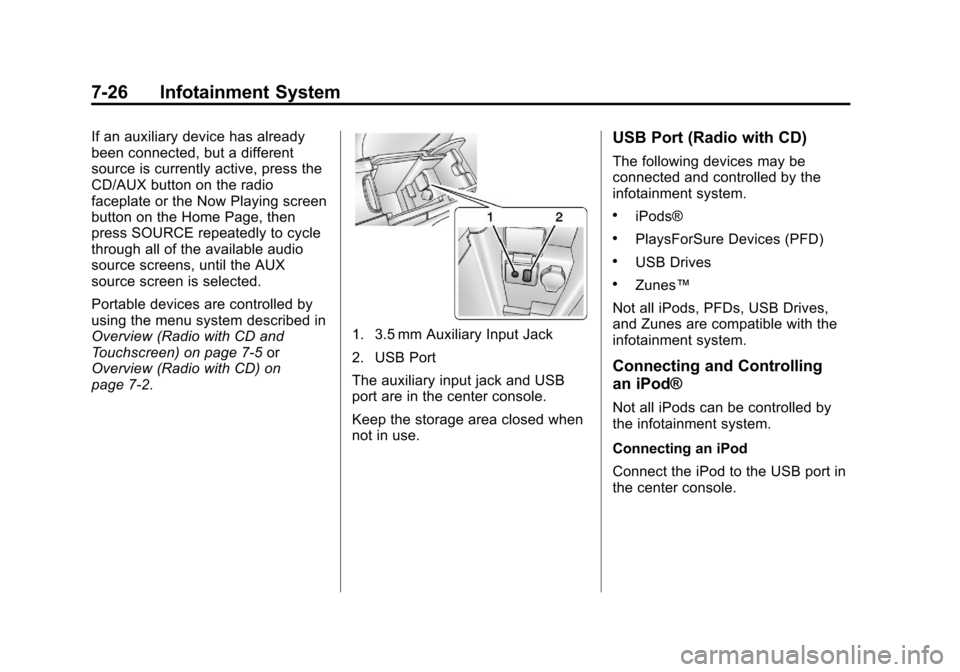
1. 3.5 mm Auxiliary Input Jack
2. USB Port
The auxiliary input jack and USB
port are in the center console.
Keep the storage area closed when
not in use.
USB Port (Radio with CD)
The following devices may be
connected and controlled by the
infotainment system.
.iPods®
.PlaysForSure Devices (PFD)
.USB Drives
.Zunes™
Not all iPods, PFDs, USB Drives,
and Zunes are compatible with the
infotainment system.
Connecting and Controlling
an iPod®
Not all iPods can be controlled by
the infotainment system.
Connecting an iPod
Connect the iPod to the USB port in
the center console.
Page 187 of 436
Black plate (27,1)Chevrolet Malibu Owner Manual - 2013 - CRC - 6/6/12
Infotainment System 7-27
Searching for a Track
Tracks can be searched for by:
.Playlists
.Artists
.Albums
.Song Titles
.Podcasts
.Genres
.Audiobooks
.Composers
To search for tracks:
1. Turn the TUNE/MENU knob.
2. Select Search.
3. Select: Playlists, Artists, Albums, Song Titles, Podcasts, Genres,
Audiobooks, or Composers.
4. Select the track. Shuffle
Turn the TUNE/MENU knob and set
Shuffle Songs (Random) to On or
Off, then press the BACK
/button
to return to the main screen.
On: Plays tracks in the current
folder in random order.
Off: Plays tracks in the current
folder in sequential order.
Repeat
Turn the TUNE/MENU knob and set
Repeat to On or Off, then press the
BACK
/button to return to the main
screen.
On: Repeats the current track.
Off: Playback starts from the
beginning of the current track after
the last track finishes.
Connecting and Controlling a
PlaysForSure Device (PFD)
or Zune™
Connecting a PFD or Zune
Connect the PFD or Zune to the
USB port in the center console.
Searching for a Track
Tracks can be searched for by:
.Playlists
.Artists
.Albums
.Song Titles
.Podcasts
.Genres
To search for tracks:
1. Turn the TUNE/MENU knob.
2. Select Search.
3. Select: Playlists, Artists, Albums, Song Titles, Podcasts,
or Genres.
4. Select the track.
Page 188 of 436
Black plate (28,1)Chevrolet Malibu Owner Manual - 2013 - CRC - 6/6/12
7-28 Infotainment System
Shuffle Functionality
Turn the TUNE/MENU knob and set
Shuffle Songs (Random) to On
or Off.
On:Plays current tracks in random
order.
Off: Plays current tracks in
sequential order.
Repeat Functionality
Turn the TUNE/MENU knob and set
Repeat to On or Off.
Repeat On: Repeats the current
track.
Repeat Off: Playback starts from
the beginning of the current track
after the last track finishes.
Connecting and Controlling a
USB Drive
The infotainment system can only
play back .mp3 and .wma files from
a USB drive.
Only the first 10,000 songs are
recognized on the device. When a device is not supported, the
message
“No supported data found.
You can safely disconnect the
device” appears.
Connecting a USB Drive
Connect the USB drive to the USB
port in the center console.
Searching for a Track
It is normal for the search feature to
take some time to display the
information after reading the device
due to the amount of information
stored.
Files that do not have any meta
data stored in the ID3 tag display as
Unknown.
Tracks can be searched for by:
.Playlists*
.Artists
.Albums
.Song Titles
.Genres
.Folder View *This only displays if a playlist is
found on the device.
To search for tracks:
1. Turn the TUNE/MENU knob.
2. Select Search.
3. Select: Playlists, Artists, Albums,
Song Titles, Genres,
or Folder View.
4. Select the track.
Shuffle Functionality
Turn the TUNE/MENU knob and set
Shuffle Songs (Random) to On
or Off.
On: Plays current tracks in random
order.
Off: Plays current tracks in
sequential order.
Repeat Functionality
Turn the TUNE/MENU knob and set
Repeat to On or Off.
Repeat On: Repeats the current
track.
Page 191 of 436
Black plate (31,1)Chevrolet Malibu Owner Manual - 2013 - CRC - 6/6/12
Infotainment System 7-31
Controlling a Bluetooth Device
Bluetooth devices that support
AVRCP (Audio/Video Remote
Control Profile) version 1.0 may be
able to be controlled by the
infotainment system.
Press and release
©or¨to skip
tracks.
Playing from a USB (Radio
with CD and Touchscreen)
A USB mass storage device or
Microsoft Transfer Protocal (MTP)
device can be connected to the
USB port.
The USB port is in the center
console.
The USB icon displays when the
USB device is connected.
USB MP3 Player and USB Drives
.The USB MP3 players and USB
drives connected must comply
with the USB Mass Storage
Class specification (USB MSC).
.Only USB MP3 players and USB
drives with a sector size of
512 bytes and a cluster size
smaller or equal to 32 kbytes in
the FAT32 file system are
supported.
.Hard disk drives are not
supported.
.The following restrictions apply
for the data stored on a USB
MP3 player or USB device:
‐ Maximum folder structure
depth: 11 levels.
‐ Maximum number of MP3/
WMA files that can be
displayed: 1,000.
.WMA with Digital Rights
Management (DRM) from online
music shops cannot be played.
WMA files can only be played
back safely if they were created
with Windows Media Player
version 8 or later.
‐Applicable playlist
extensions: .m3u, .pls. ‐
Playlist entries must be in the
form of relative paths.
‐ The system attribute for
folders/files that contain audio
data must not be set.
To play a USB device, do one of the
following:
.Connect the USB and it begins
to play.
.Press the Now Playing screen
button on the Home Page, then
press the SOURCE button on
the faceplate repeatedly to cycle
through all of the available audio
source screens, until the USB
source screen is selected.
While the USB source is active, use
the following to operate USB
function:
w j(Play/Pause): Press to start,
pause, or resume play of the current
media source.
Page 193 of 436
Black plate (33,1)Chevrolet Malibu Owner Manual - 2013 - CRC - 6/6/12
Infotainment System 7-33
Playing from an iPod®
This feature supports the following
iPod models:
.iPod nano® (1st, 2nd, 3rd, and
4th generation)
.iPod with video (5.0 and 5.5
generation). Video is not shown;
only audio is supported.
.iPod classic® (6th generation)
.iPod touch® (1st and 2nd
generation)
There may be problems with
operation and function in the
following situations:
.When connecting an iPod on
which a more recent version of
the firmware is installed than is
supported by the infotainment
system.
.When connecting an iPod on
which firmware from other
providers is installed. To connect and control an iPod,
connect one end of the standard
iPod USB cable to the iPod's dock
connector. Connect the other end to
the USB port in the center console.
iPod music information displays on
the radio’s display and begins
playing through the vehicle’s audio
system.
The iPod battery recharges
automatically while the vehicle is on.
When the vehicle is off while an
iPod is connected using the iPod
USB cable, the iPod battery stops
charging and the iPod automatically
turns off.
If the iPod is an unsupported model,
it can still be listened to in the
vehicle by connecting to the
auxiliary input jack using a standard
3.5 mm (1/8 in) stereo cable.
iPod Menu
Shuffle Songs:
Press to play the
tracks randomly. Press again to stop
shuffle. Press any of the following buttons
on the iPod Menu:
Playlists:
1. Press to view the playlists stored
on the iPod.
2. Select a playlist name to view a list of all songs in the playlist.
3. Select the desired song from the list to begin playback.
Artists:
1. Press to view the artists stored on the iPod.
2. Select an artist name to view a list of all songs by the artist.
3. Select the desired song from the list to begin playback.
Albums:
1. Press to view the albums stored on the iPod.
2. Select an album name to view a list of all songs on the album or
select All Songs to view all
songs by the artist.
Page 240 of 436
Black plate (24,1)Chevrolet Malibu Owner Manual - 2013 - CRC - 6/6/12
9-24 Driving and Operating
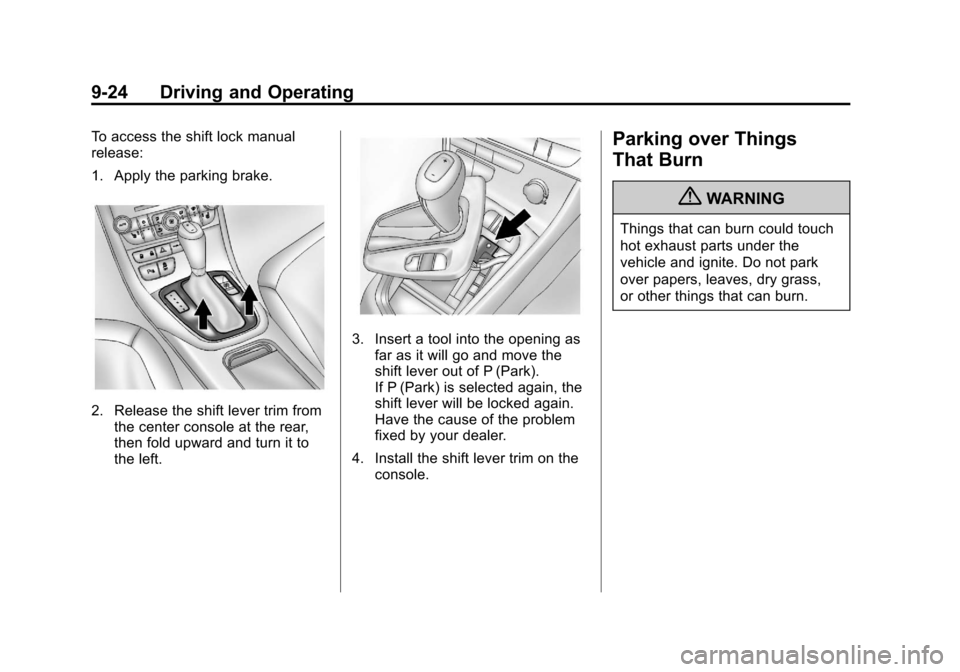
To access the shift lock manual
release:
1. Apply the parking brake.
2. Release the shift lever trim fromthe center console at the rear,
then fold upward and turn it to
the left.
3. Insert a tool into the opening asfar as it will go and move the
shift lever out of P (Park).
If P (Park) is selected again, the
shift lever will be locked again.
Have the cause of the problem
fixed by your dealer.
4. Install the shift lever trim on the console.
Parking over Things
That Burn
{WARNING
Things that can burn could touch
hot exhaust parts under the
vehicle and ignite. Do not park
over papers, leaves, dry grass,
or other things that can burn.