2013 CHEVROLET IMPALA ABS
[x] Cancel search: ABSPage 155 of 350
Black plate (7,1)Chevrolet Impala Owner Manual - 2013 - crc - 8/27/12
Infotainment System 7-7
double beep sounds. The radio
goes to a stored preset, plays for
a few seconds, then goes to the
next stored preset. Press
©
SEEK again to stop scanning
preset stations.
¨SEEK:Press to seek or scan
stations with a strong signal in the
selected band.
.To seek stations, press and
release
¨SEEK to go to the
next station and stay there.
.To scan stations, press and hold¨SEEK for a few seconds until
the radio beeps once. The radio
goes to a station, plays for a few
seconds, then goes to the next
station. Press
¨SEEK again to
stop scanning.
.To scan preset stations in the
selected band, press and hold
¨
SEEK for four seconds until a
double beep sounds. The radio
goes to a stored preset, plays for
a few seconds, then goes to the next stored preset. Press
¨
SEEK again to stop scanning
preset stations.
Storing Radio Stations
Drivers are encouraged to store
radio station while the vehicle is
parked. See
Defensive Driving on
page 9‑2. Tune to stored radio
stations using the presets, favorites
button, and steering wheel controls,
if the vehicle has this feature.
Radios that have a FAV button store
radio stations as favorites, up to
36 stations can be programmed as
favorites using the 6 softkeys below
the radio station frequency tabs and
by using the FAV button. Press the
FAV button to go through up to
6 pages of favorites, each having
6 favorite stations available per
page. Each page of favorites can
contain any combination of AM, FM,
or XM, if equipped, stations.
Radios that do not have a FAV
button store radio stations as
presets, up to 18 stations (6 FM1, 6 FM2, and 6 AM), can be
programmed on the 6 numbered
pushbuttons.
Storing a Radio Station as a
Preset, Radio with CD (Base)
Radios that have numbered
pushbuttons store radio stations as
presets.
Up to 18 stations (6 FM1, 6 FM2,
and 6 AM), can be programmed on
the six numbered buttons.
To store preset stations:
1. Tune to a radio station.
2. Press and hold one of the
6 numbered pushbuttons for
3 seconds until a beep sounds.
3. Repeat Steps 1 and 2 to store additional radio stations.
Storing a Radio Station as a
Favorite, Radio with CD (MP3)
Radios that have a FAV button store
radio stations as favorites.
To store a station as a favorite:
1. Tune to a radio station.
Page 156 of 350
Black plate (8,1)Chevrolet Impala Owner Manual - 2013 - crc - 8/27/12
7-8 Infotainment System
2. Press the FAV button to displaythe page where the station will
be stored.
3. Press and hold one of the 6 softkeys until a beep sounds.
4. Repeat Steps 1 through 3 to store additional radio stations.
The number of favorites pages can
be set up using the MENU button.
To set up the number of favorites
pages:
1. Press the MENU button.
2. Press the softkey located below the FAV 1-6 tab.
3. Select the number of favorites pages by pressing the softkey
located below the displayed
page numbers.
4. Press the FAV button, or let the menu time out, to return to the
original main radio screen
showing the radio station
frequency tabs and to begin the
process of programming
favorites.Satellite Radio
SiriusXM®Satellite Radio
Service
SiriusXM is a satellite radio service
that is based in the 48 contiguous
United States and 10 Canadian
provinces. SiriusXM Satellite Radio
has a wide variety of programming
and commercial-free music,
coast-to-coast, and in digital-quality
sound. A service fee is required to
receive the XM service. If SiriusXM
Service needs to be reactivated, the
radio will display “No Subscription
Please Renew” on channel XM1.
For more information, contact
SiriusXM at www.siriusxm.com or
call 1-866-635-2349 (U.S.) and
www.xmradio.ca or call
1-877-209-0079 (Canada).
4(Information) (SiriusXM Satellite
Radio Service): For vehicles with
SiriusXM, press
4to display
additional text information related to
the current SiriusXM channel.
If information is available, the song title information displays on the top
line of the display and artist
information displays on the bottom
line. When information is not
available,
“NO INFO” displays.
Auto Text (Satellite Radio
Service): If additional information is
available for the current song being
played, Auto Text will automatically
page/scroll the information every
three seconds above the FAV
presets on the radio display. By
default, Auto Text is enabled.
To change the Auto Text setting:
1. Press MENU to display the radio setup menu.
2. Press the softkey under AUTO TXT tab on the radio display.
3. Press the softkey under the ON or OFF tab on the radio display.
If
4is pressed and the song title or
artist information is longer than what
can be displayed, the extra
information will page every
three seconds when Auto Text is
activated.
Page 157 of 350

Black plate (9,1)Chevrolet Impala Owner Manual - 2013 - crc - 8/27/12
Infotainment System 7-9
Finding an SiriusXM Channel
BAND:Press to switch between
AM, FM, or SiriusXM, if equipped.
f(Tune): Turn to manually select a
SiriusXM channel.
©SEEK: Press to go to the
previous SiriusXM channel.
.To scan stations, press and hold©SEEK for a few seconds until
the radio beeps once. The radio
goes to a channel, plays for a
few seconds, then goes to the
next station. Press
©SEEK
again to stop scanning.
¨SEEK: Press to go to the next
SiriusXM channel.
.To scan stations, press and hold¨SEEK for a few seconds until
the radio beeps once. The radio
goes to a station, plays for a few
seconds, then goes to the next
station. Press
¨SEEK again to
stop scanning.
sREV: Press to go to the
previous SiriusXM category.
\FWD: Press to go to the next
SiriusXM category.
Finding a Category (CAT)
Channel
To find SiriusXM channels in a
category:
1. Press the CAT button to display the category tabs. Continue
pressing the CAT button until the
desired category name displays.
.Radios with CD and DVD
can also navigate the
category list by pressing the
\FWD or thesREV
button.
2. Press either of the two softkeys below the desired category tab
to immediately tune to the first
SiriusXM station in that category.
To go to the previous or next
SiriusXM station in the selected
category, do one of the
following:
.Turn thefknob.
.Press the softkey below the
right or left arrows in the
category tab.
.Press©SEEK or¨SEEK.
3. To exit the category search mode, press the FAV button or
BAND button to display the
favorites again.
Adding and Removing Categories
Categories cannot be added or
removed while the vehicle is moving
faster than 8 km/h (5 mph).
To add or remove a category:
1. Press the MENU button.
2. Press the softkey located below the SiriusXM CAT tab.
3. Turn the
fknob to display the
category you want to add or
remove.
4. Press the softkey located under the Add or Remove tab.
To restore all removed
categories, press the softkey
under the Restore All tab.
Page 158 of 350
Black plate (10,1)Chevrolet Impala Owner Manual - 2013 - crc - 8/27/12
7-10 Infotainment System
5. Repeat the steps to removemore categories.
Storing SiriusXM Channels
Drivers are encouraged to store
radio station while the vehicle is
parked. See Defensive Driving on
page 9‑2. Tune to stored radio
stations using the presets, favorites
button, and steering wheel controls,
if the vehicle has this feature.
Up to 36 stations can be
programmed as favorites using the
6 softkeys below the radio station
frequency tabs and by using the
FAV button. Press the FAV button to
go through up to 6 pages of
favorites, each having 6 favorite
stations available per page. Each
page of favorites can contain any
combination of AM, FM,
or SiriusXM, if equipped, stations.
Storing an SiriusXM Channel as a
Favorite
To store a station as a favorite:
1. Tune to an SiriusXM channel. 2. Press the FAV button to display
the page where the station will
be stored.
3. Press and hold one of the 6 softkeys until a beep sounds.
4. Repeat Steps 1 through 3 to store additional radio stations.
The number of favorites pages can
be set up using the MENU button.
To set up the number of favorites
pages:
1. Press the MENU button.
2. Press the softkey located below the FAV 1-6 tab.
3. Select the number of favorites pages by pressing the softkey
located below the displayed
page numbers.
4. Press the FAV button, or let the menu time out, to return to the
original main radio screen
showing the radio station
frequency tabs and to begin the
process of programming
favorites.
SiriusXM Radio Messages
XL (Explicit Language
Channels): These channels, or any
others, can be blocked at a
customer's request, by calling
1-866-635-2349 (U.S.) and
1-877-209-0079 (Canada).
XM Updating: The encryption code
in the receiver is being updated, and
no action is required. This process
should take no longer than
30 seconds.
No XM Signal: The system is
functioning correctly, but the vehicle
is in a location that is blocking the
SiriusXM signal. When the vehicle is
moved into an open area, the signal
should return.
Loading XM: The audio system is
acquiring and processing audio and
text data. No action is needed. This
message should disappear shortly.
Channel Off Air: This channel is
not currently in service. Tune in to
another channel.
Page 163 of 350
Black plate (15,1)Chevrolet Impala Owner Manual - 2013 - crc - 8/27/12
Infotainment System 7-15
Softkeys
The six softkeys below the radio
display are used to control functions
that display as tabs.
The softkeys below the radio display
control the following features.
RDM (Random):Tracks can be
listened to in random, rather than
sequential order.
To use random:
1. Press the softkey below the
RDM tab until Random Current
Disc displays.
2. Press the softkey again to turn off random play.
MP3 Supported Files
The Radio with CD (MP3) has the
capability of playing an MP3 CD-R
or CD-RW disc.
The radio can also play discs that
contain both uncompressed CD
audio and MP3 files. When a disc contains both types of audio, the CD
player reads all MP3 files first, then
the uncompressed CD audio files.
Supported File and Folder
Structure
The radio supports:
.Up to 50 folders.
.Up to 8 folders in depth.
.Up to 50 playlists.
.Up to 255 files.
.Playlists with an .m3u or .wpl
extension.
.Files with an .mp3 or .cda file
extension.
Root Directory
The root directory is treated as a
folder. Files are stored in the root
directory when the disc or storage
device does not contain folders.
Files accessed from the root
directory of a disc display as
F1 ROOT. Empty Folder
Folders that do not contain files are
skipped, and the player advances to
the next folder that contains files.
File Naming
The song name that displays is the
song name that is contained in the
ID3 tag. If the song name is not
present in the ID3 tag, then the
radio displays the file name without
the file extension as the track name.
Track names longer than 32
characters or 4 pages are
shortened. The display does not
show parts of words on the last
page of text and the extension of
the filename is not displayed.
Playlists
Discs that have playlists that were
created using WinAmp™,
MusicMatch™, or Real Jukebox™
software can be accessed; however,
there is no playlist editing capability
using the radio. These playlists are
treated as special folders containing
compressed audio song files.
Page 164 of 350
Black plate (16,1)Chevrolet Impala Owner Manual - 2013 - crc - 8/27/12
7-16 Infotainment System
Playing an MP3
Order of Play
Tracks are played in the following
order:
.Play begins from the first track in
the first playlist and continues
sequentially through all tracks in
each playlist. When the last
track of the last playlist has
played, play continues from the
first track of the first playlist.
.Play begins from the first track in
the first folder and continues
sequentially through all tracks in
each folder. When the last track
of the last folder has played,
play continues from the first
track of the first folder.
When playback starts from a new
folder, the new track name displays
unless folder mode has been
chosen as the default display, then
the new folder name displays. Buttons and Knobs
The buttons and knobs on the radio
control the following features.
f(Tune):
Turn to select MP3 files
on the disc.
©SEEK: Press to go to the start of
the track, if more than 10 seconds
have played. Press and hold or
press multiple times to continue
moving backward through tracks.
¨SEEK: Press to go to the next
track. Press and hold or press
multiple times to continue moving
forward through tracks.
sREV (Reverse): Press and hold
to reverse playback quickly. Sound
is heard at a reduced volume and
the elapsed time of the track
displays. Release
sREV to
resume playing.
\FWD (Fast Forward): Press
and hold to advance playback
quickly. Sound is heard at a reduced volume and the elapsed time of the
track displays. Release
\FWD to
resume playing.
4(Information): Press to display
available additional information
about the current track.
BAND: Press to listen to the radio
while an MP3 disc is playing. The
MP3 disc remains inside the CD
player.
CD/AUX (CD/Auxiliary): Press to
play an MP3 disc while listening to
the radio or a portable audio device.
Press this button again and the
system automatically searches for
an auxiliary input device, such as a
portable audio player. If a portable
audio player is not connected, No
Aux Input Device Found may
display.
Softkeys
The six softkeys below the radio
display are used to control functions
that display as tabs.
The softkeys below the radio display
control the following features.
Page 181 of 350
Black plate (1,1)Chevrolet Impala Owner Manual - 2013 - crc - 8/27/12
Driving and Operating 9-1
Driving and
Operating
Driving Information
Distracted Driving . . . . . . . . . . . . . 9-2
Defensive Driving . . . . . . . . . . . . . 9-2
Drunk Driving . . . . . . . . . . . . . . . . . 9-3
Control of a Vehicle . . . . . . . . . . . 9-3
Braking . . . . . . . . . . . . . . . . . . . . . . . 9-3
Steering . . . . . . . . . . . . . . . . . . . . . . . 9-3
Off-Road Recovery . . . . . . . . . . . . 9-4
Loss of Control . . . . . . . . . . . . . . . . 9-4
Driving on Wet Roads . . . . . . . . . 9-5
Highway Hypnosis . . . . . . . . . . . . 9-6
Hill and Mountain Roads . . . . . . 9-6
Winter Driving . . . . . . . . . . . . . . . . . 9-7
If the Vehicle Is Stuck . . . . . . . . . 9-8
Vehicle Load Limits . . . . . . . . . . . 9-9
Starting and Operating
New Vehicle Break-In . . . . . . . . 9-13
Ignition Positions . . . . . . . . . . . . 9-13
Starting the Engine . . . . . . . . . . 9-15
Engine Heater . . . . . . . . . . . . . . . 9-16Retained Accessory
Power (RAP) . . . . . . . . . . . . . . . 9-17
Shifting Into Park . . . . . . . . . . . . 9-17
Shifting out of Park . . . . . . . . . . 9-18
Parking over Things That Burn . . . . . . . . . . . . . . . . . . 9-19
Engine Exhaust
Engine Exhaust . . . . . . . . . . . . . . 9-19
Running the Vehicle WhileParked . . . . . . . . . . . . . . . . . . . . . 9-20
Automatic Transmission
Automatic Transmission . . . . . 9-20
Manual Mode . . . . . . . . . . . . . . . . 9-22
Brakes
Antilock BrakeSystem (ABS) . . . . . . . . . . . . . . 9-23
Parking Brake . . . . . . . . . . . . . . . 9-24
Ride Control Systems
Traction Control System (TCS) . . . . . . . . . . . . . . 9-25
Electronic Stability Control (ESC) . . . . . . . . . . . . . . 9-26
Cruise Control
Cruise Control . . . . . . . . . . . . . . . 9-28
Fuel
Fuel . . . . . . . . . . . . . . . . . . . . . . . . . 9-30
Recommended Fuel . . . . . . . . . 9-31
Gasoline Specifications . . . . . . 9-31
California FuelRequirements . . . . . . . . . . . . . . 9-31
Fuels in Foreign Countries . . . 9-31
Fuel Additives . . . . . . . . . . . . . . . 9-32
Fuel E85 (85% Ethanol) . . . . . 9-33
Filling the Tank . . . . . . . . . . . . . . 9-34
Filling a Portable Fuel Container . . . . . . . . . . . . . . . . . . . 9-35
Towing
General TowingInformation . . . . . . . . . . . . . . . . . 9-36
Driving Characteristics and Towing Tips . . . . . . . . . . . . . . . . 9-36
Trailer Towing . . . . . . . . . . . . . . . . 9-39
Towing Equipment . . . . . . . . . . . 9-40
Conversions and Add-Ons
Add-On Electrical Equipment . . . . . . . . . . . . . . . . . 9-41
Page 184 of 350
Black plate (4,1)Chevrolet Impala Owner Manual - 2013 - crc - 8/27/12
9-4 Driving and Operating
If power steering assist is lost
because the engine stops or
because of a system malfunction,
the vehicle can be steered but may
require increased effort. See your
dealer if there is a problem.
Curve Tips
.Take curves at a reasonable
speed.
.Reduce speed before entering a
curve.
.Maintain a reasonable steady
speed through the curve.
.Wait until the vehicle is out of
the curve before accelerating
gently into the straightaway.
Steering in Emergencies
.There are some situations when
steering around a problem may
be more effective than braking.
.Holding both sides of the
steering wheel allows you to turn
180 degrees without removing
a hand.
.Antilock Brake System (ABS)
allows steering while braking.
Off-Road Recovery
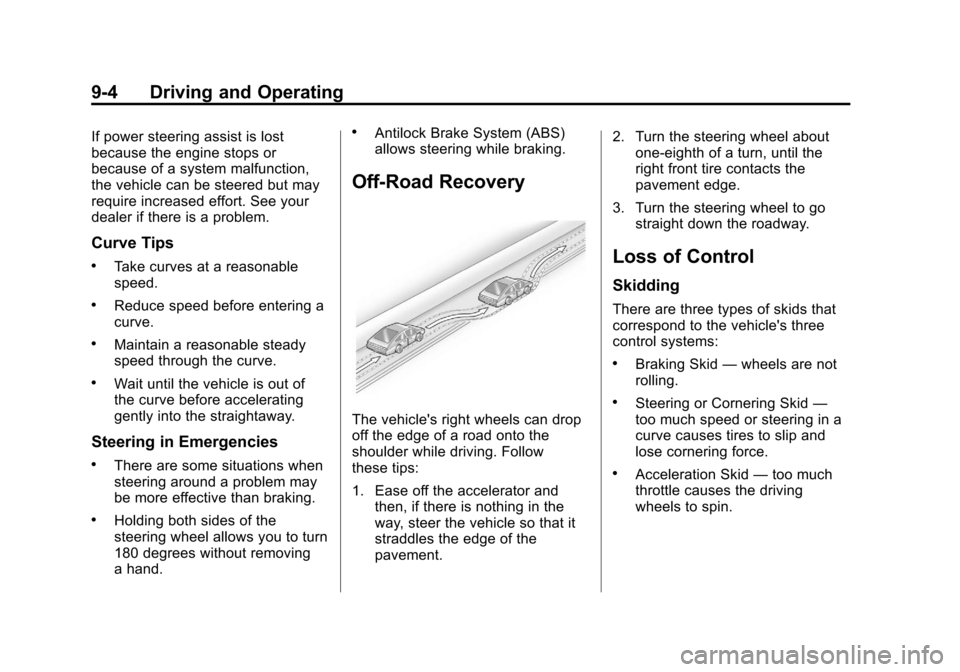
The vehicle's right wheels can drop
off the edge of a road onto the
shoulder while driving. Follow
these tips:
1. Ease off the accelerator andthen, if there is nothing in the
way, steer the vehicle so that it
straddles the edge of the
pavement. 2. Turn the steering wheel about
one-eighth of a turn, until the
right front tire contacts the
pavement edge.
3. Turn the steering wheel to go straight down the roadway.
Loss of Control
Skidding
There are three types of skids that
correspond to the vehicle's three
control systems:
.Braking Skid —wheels are not
rolling.
.Steering or Cornering Skid —
too much speed or steering in a
curve causes tires to slip and
lose cornering force.
.Acceleration Skid —too much
throttle causes the driving
wheels to spin.