2013 CHEVROLET AVALANCHE ECO mode
[x] Cancel search: ECO modePage 181 of 494
Black plate (55,1)Chevrolet Avalanche Owner Manual - 2013 - CRC - 8/27/12
Instruments and Controls 5-55
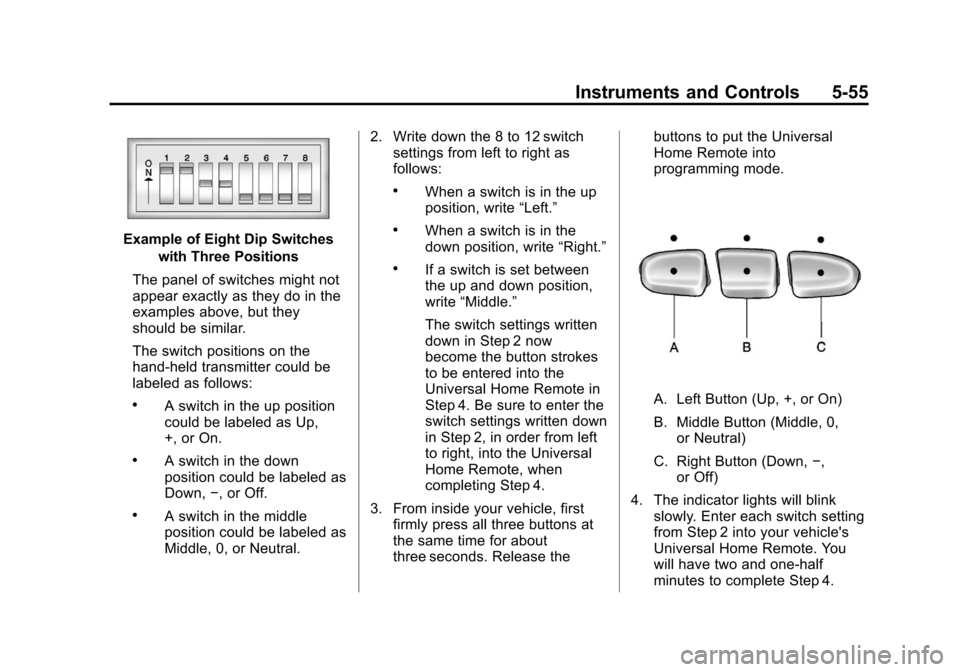
Example of Eight Dip Switcheswith Three Positions
The panel of switches might not
appear exactly as they do in the
examples above, but they
should be similar.
The switch positions on the
hand-held transmitter could be
labeled as follows:
.A switch in the up position
could be labeled as Up,
+, or On.
.A switch in the down
position could be labeled as
Down, −, or Off.
.A switch in the middle
position could be labeled as
Middle, 0, or Neutral. 2. Write down the 8 to 12 switch
settings from left to right as
follows:
.When a switch is in the up
position, write “Left.”
.When a switch is in the
down position, write “Right.”
.If a switch is set between
the up and down position,
write“Middle.”
The switch settings written
down in Step 2 now
become the button strokes
to be entered into the
Universal Home Remote in
Step 4. Be sure to enter the
switch settings written down
in Step 2, in order from left
to right, into the Universal
Home Remote, when
completing Step 4.
3. From inside your vehicle, first firmly press all three buttons at
the same time for about
three seconds. Release the buttons to put the Universal
Home Remote into
programming mode.
A. Left Button (Up, +, or On)
B. Middle Button (Middle, 0,
or Neutral)
C. Right Button (Down, −,
or Off)
4. The indicator lights will blink slowly. Enter each switch setting
from Step 2 into your vehicle's
Universal Home Remote. You
will have two and one-half
minutes to complete Step 4.
Page 189 of 494

Black plate (5,1)Chevrolet Avalanche Owner Manual - 2013 - CRC - 8/27/12
Lighting 6-5
not operating, these lamps turn off.
Move the exterior lamp control
to
Por;to disable this feature.
Hazard Warning Flashers
|(Hazard Warning Flashers):
Press this button to make the front
and rear turn signal lamps flash on
and off. Press again to turn the
flashers off.
When the hazard warning flashers
are on, the vehicle's turn signals will
not work.
Turn and Lane-Change
Signals
An arrow on the instrument cluster
flashes in the direction of the turn or
lane change.
Move the turn signal lever all the
way up or down to signal a turn.
Raise or lower the lever until the
arrow starts to flash to signal
a lane change. The turn signals
automatically flash three times.
It will flash six times if the
tow-haul mode is active. Holding
the turn signal lever for more than
one second causes the turn signals
to flash until the lever is released.
The lever returns to its starting
position when it is released. If after signaling a turn or a lane
change the arrows flash rapidly or
do not come on, a signal bulb may
be burned out.
Have any burned out bulbs
replaced. If the bulb is not burned
out, check the fuse. See
Instrument
Panel Fuse Block on page 10‑39
and Engine Compartment Fuse
Block on page 10‑34.
Turn Signal On Chime
If the turn signal is left on for more
than 1.2 km (0.75 mi), a chime
sounds at each flash of the turn
signal and the message TURN
SIGNAL ON also appears in the
DIC. See Lamp Messages on
page 5‑38. To turn the chime and
message off, move the turn signal
lever to the off position.
Page 200 of 494
Black plate (8,1)Chevrolet Avalanche Owner Manual - 2013 - CRC - 8/27/12
7-8 Infotainment System
Setting the Tone (Bass/
Midrange/Treble)
BASS/MID/TREB (Bass, Midrange,
or Treble):To adjust the bass,
midrange, or treble:
1. Press the
fknob until the tone
control tabs display.
2. Highlight the desired tone control tab by doing one of the
following:
.Pressing thefknob.
.Press the softkey under the
desired tab.
3. Adjust the setting by doing one of the following:
.Turn thefknob clockwise
or counterclockwise.
.Press the¨SEEK,
or
©SEEK button.
.Press the\FWD,
or
sREV button. If a station's frequency is weak or if
there is static, decrease the treble.
To quickly adjust bass, midrange,
or treble to the middle position,
press the softkey positioned under
the BASS, MID, or TREB tab for
more than two seconds. A beep
sounds and the level adjusts to the
middle position.
To quickly adjust all tone and
speaker controls to the middle
position, press the
fknob for more
than two seconds until a beep
sounds.
EQ (Equalization): Press this
button to choose bass and treble
equalization settings designed for
different types of music. Selecting
MANUAL or changing bass or
treble, returns the EQ to the manual
bass and treble settings.
Unique EQ settings can be saved
for each source. If the radio has a Bose audio
system, the EQ settings are either
MANUAL or TALK.
Digital Signal Processing (DSP):
Press the EQ button to change the
DSP settings (only available on
Bose systems with the LTZ option
package). DSP settings provide
a choice of different listening
experiences.
The following DSP settings are
available:.Normal
—Select this setting to
adjust the audio for normal
mode. This provides the best
sound quality for all seating
positions.
.Driver —Select this setting to
adjust the audio for the driver to
receive the best possible sound
quality.
.Rear —Select this setting to
adjust the audio for the rear seat
passengers to receive the best
possible sound quality.
Page 209 of 494
Black plate (17,1)Chevrolet Avalanche Owner Manual - 2013 - CRC - 8/27/12
Infotainment System 7-17
portable audio player is not
connected,“No Input Device Found”
displays.
4(Information): Press to display
additional text information related to
the current song. If information is
available, the song title information
displays on the top line of the
display and artist information
displays on the bottom line. When
information is not available, “NO
INFO” displays.
f(Tune): Turn to select tracks on
the CD that is currently playing.
©SEEK: Press to go to the start of
the current track, if more than ten
seconds on the CD have played.
Press to go to the previous track if
less than ten seconds on the CD
have played.
Press and hold, or press multiple
times to continue moving backward
through the tracks on the CD.
¨SEEK: Press to go to the next
track. Press and hold, or press multiple
times to continue moving forward
through the tracks on the CD.
sREV (Fast Reverse):
Press
and hold to reverse playback quickly
within a track.
\FWD (Fast Forward): Press
and hold to advance playback
quickly within a track.
RDM (Random): Press to listen to
tracks in random, rather than
sequential order. To use random:
1. Press the softkey positioned under the RDM tab until Random
Current Disc displays.
2. Press the softkey again to turn off random play.
MP3 Supported Files
The Radio with CD (MP3) and the
Radio with USB and CD (MP3),
have the capability of playing an
MP3 CD-R or CD-RW disc. Format
Radios that have the capability of
playing MP3s can play .mp3 or .wma
files that were recorded onto a
CD-R or CD-RW disc. The files can
be recorded with the following fixed
bit rates: 32 kbps, 40 kbps, 56 kbps,
64 kbps, 80 kbps, 96 kbps, 112 kbps,
128 kbps, 160 kbps, 192 kbps,
224 kbps, 256 kbps, and 320 kbps or
a variable bit rate.
Compressed Audio or Mixed Mode
Discs
The radio can play discs that
contain both uncompressed CD
audio and MP3 files. If both formats
are on the disc, the radio reads
all MP3 files first, then the
uncompressed CD audio files.
CD‐R or CD‐RW Supported File
and Folder Structure
The radio supports:
.Up to 50 folders.
.Up to eight folders in depth.
.Up to 50 playlists.
Page 212 of 494
Black plate (20,1)Chevrolet Avalanche Owner Manual - 2013 - CRC - 8/27/12
7-20 Infotainment System
To listen to files by another artist,
press the softkey located below
either arrow tab. The disc goes to
the next or previous artist in
alphabetical order. Continue
pressing either softkey below the
arrow tab until the desired artist
displays.
To change from playback by artist to
playback by album:
1. Press the softkey located belowthe Sort By tab.
2. Press one of the softkeys below the album tab from the sort
screen.
3. Press the softkey below the back tab to return to the main
music navigator screen.
The album name displays on the
second line between the arrows and
songs from the current album
begins to play. Once all songs from
that album have played, the player
moves to the next album in alphabetical order on the CD and
begins playing MP3 files from that
album.
To exit music navigator mode, press
the softkey below the Back tab to
return to normal MP3 playback.
CD Player Messages
CHECK DISC:
If this message
displays and/or the CD ejects, it
could be for one of the following
reasons:
.It is very hot. When the
temperature returns to normal,
the CD should play.
.The road is very rough. When
the road becomes smoother, the
CD should play.
.The CD is dirty, scratched, wet,
or upside down.
.The air is very humid. If so, wait
about an hour and try again.
.There could have been a
problem while burning the CD.
.The label could be caught in the
CD player.
If the CD is not playing correctly, for
any other reason, try a known
good CD.
If any error occurs repeatedly or if
an error cannot be corrected,
contact your dealer. If the radio
displays an error message, write it
down and provide it to your dealer
when reporting the problem.
CD/DVD Player
Care of the CD and DVD Player
Do not add any label to a disc.
It could get caught in the CD or
DVD player. If a disc is recorded
on a personal computer and a
description label is needed, try
labeling the top of the recorded disc
with a marking pen.
The use of CD/DVD lens cleaners is
not advised, due to the risk of
contaminating the lens of the optics
with lubricants internal to the CD
and DVD player mechanism.
Page 215 of 494
Black plate (23,1)Chevrolet Avalanche Owner Manual - 2013 - CRC - 8/27/12
Infotainment System 7-23
If a front auxiliary device is
connected, the DVD/CD AUX button
cycles through all available options,
such as: DVD slot, CD slot, Front
Auxiliary, and Rear Auxiliary (if
available). See“Using the Auxiliary
Input Jack” inAuxiliary Devices on
page 7‑31 or“Audio/Video (A/V)
Jacks” underRear Seat
Entertainment (RSE) System on
page 7‑36 for more information.
If a disc is inserted into the top DVD
slot, the rear seat operator can turn
on the video screen and use the
remote control to navigate the CD
(tracks only) through the remote
control.
4(Information): Press to display
additional text information related to
the current song. If information is
available, the song title information
displays on the top line of the
display and artist information
displays on the bottom line. When
information is not available, “NO
INFO” displays.
f(Tune): Turn to select tracks on
the disc that is currently playing.
©SEEK: Press to go to the start of
the current track, if more than
five seconds on the CD have
played.
Press to go to the previous track if
less than five seconds on the CD
have played.
Press and hold, or press multiple
times, to continue moving backward
through the tracks on the CD.
¨SEEK: Press to go to the next
track.
Press and hold, or press multiple
times, to continue moving forward
through the tracks on the CD.
sREV (Fast Reverse): Press
and hold to reverse playback quickly
within a track.
\FWD (Fast Forward): Press
and hold to advance playback
quickly within a track. RDM (Random):
Press to listen to
tracks in random, rather than
sequential order. To use random:
1. Press the softkey under the
RDM tab until Random Current
Disc displays.
2. Press the softkey again to turn off random play.
MP3 and WMA Supported Files
Format
The radio can play .mp3 or .wma
files that were recorded onto a
CD-R or CD-RW disc.
Compressed Audio or Mixed Mode
Discs
The radio plays discs that contain
both uncompressed CD audio and
MP3/WMA files depending on which
slot the disc is loaded into.
The DVD player only reads
uncompressed audio and ignores
MP3/WMA files on a mixed
mode disc.
Page 216 of 494
Black plate (24,1)Chevrolet Avalanche Owner Manual - 2013 - CRC - 8/27/12
7-24 Infotainment System
The CD player reads both
uncompressed audio and MP3/
WMA files on a mixed mode disc.
Uncompressd audio is played
before MP3/WMA files. Press the
CAT (category) button to toggle
between uncompressed audio and
MP3/WMA files.
CD‐R or CD‐RW Supported File
and Folder Structure
The DVD player supports:
.Up to 255 folders.
.Up to eight folders in depth.
.Up to 15 playlists.
.Up to 40 sessions.
.Playlists with an .m3u or .wpl
extension.
.Files with an .mp3, .wma, or .cda
file extension.
The CD player supports:
.Up to 512 files and folders.
.Up to 8 folders in depth.
.Playlists with an .m3u or .wpl
extension.
.Files with an .mp3, .wma, or .cda
file extension.
Root Directory
The root directory of the disc is
treated as a folder. If the root
directory has compressed audio
files, the directory displays as F1
ROOT on the radio.
If a disc contains both
uncompressed CD audio and
MP3/WMA files, a folder under the
root directory called CD accesses
all of the CD audio tracks on
the disc.
Empty Folder
Folders that do not contain files are
skipped, and the player advances to
the next folder that contains files.
No Folder
When the disc contains only
compressed files, the files are
located under the root folder. The
next and previous folder function does not function on a disc that was
recorded without folders or playlists.
When displaying the name of the
folder, the radio displays ROOT.
When the disc contains only
playlists and compressed audio
files, but no folders, all files are
located under the root folder. The
folder down and the folder up
buttons search playlists first and
then go to the root folder. When the
radio displays the name of the
folder, the radio displays ROOT.
Order of Play
Compressed audio files are
accessed in the following order:
.Playlists (Px).
.Files stored in the root directory.
.Files stored in folders in the root
directory.
Tracks are played in the following
order:
.Play begins from the first track in
the first playlist and continues
sequentially through all tracks in
Page 217 of 494
Black plate (25,1)Chevrolet Avalanche Owner Manual - 2013 - CRC - 8/27/12
Infotainment System 7-25
each playlist. When the last
track of the last playlist has
played, play continues from the
first track of the first playlist.
.Play begins from the first track in
the first folder and continues
sequentially through all tracks in
each folder. When the last track
of the last folder has played,
play continues from the first
track of the first folder.
When play enters a new folder, the
display does not automatically show
the new folder name unless the
folder mode has been chosen as
the default display. The new track
name displays.
File System and Naming
The song name that displays is the
song name that is contained in the
ID3 tag. If the song name is not
present in the ID3 tag, then the
radio displays the file name without
the extension (such as .mp3) as the
track name. Track names longer than
32 characters or 4 pages are
shortened. Parts of words on the
last page of text and the extension
of the file name do not display.
Preprogrammed Playlists
Preprogrammed playlists that
were created using WinAmp™,
MusicMatch™, or Real Jukebox™
software can be accessed; however,
they cannot be edited using the
radio. These playlists are treated
as special folders containing
compressed audio song files.
Playlists that have an .m3u or .pls
file extension and are stored on a
USB device may be supported by
the radio with a USB port.
Playing an MP3 or WMA (in
Either the DVD or CD Slot)
If a disc is inserted into the top DVD
slot, the rear seat operator can turn
on the video screen and use the
remote control to navigate the CD
(tracks only).
f(Tune):
Turn to select MP3/WMA
files.
©SEEK: Press to go to the start of
the track, if more than five seconds
have played. Press and hold or
press multiple times, if less than
five seconds have played, to
continue moving backward through
tracks.
¨SEEK: Press to go to the next
track.
Press and hold, or press multiple
times, to continue moving forward
through tracks.
sREV (Reverse): Press and hold
to reverse playback quickly.
\FWD (Fast Forward): Press
and hold to advance playback
quickly.
S c(Previous Folder): Press
the softkey below the
S ctab to
go to the first track in the previous
folder.