2013 BMW M3 CONVERTIBLE trans
[x] Cancel search: transPage 210 of 311

205
Te l e p h o n e
Communications
Operation
Adjusting volume
Turn the knob until the desired volume is
reached. The setting is
stored for the remote
control currently in use.
The vehicle automatically adjusts the volume of
the microphone on the mobile phone and the
volume of the person on the phone with you.
Depending on the mobile phone, it may be
necessary to adjust the volumes.
Adjustments are only possible during a call and
must be carried out separately for each phone.
When the telephone is unpaired, this deletes
the settings.
1. "Settings"
2. "Tone"
3. "Volume settings"
4. To select the desired setting:
"Microphone" or "Loudspeak."
5. To adjust: turn the controller.
6. To store: press the controller.
Incoming call
Receiving calls
If the number of the caller is stored in the phone
book and is transmitted by the network, then
the name and number of the contact are
displayed; otherwise, only the number is
displayed.
If a contact is assigned more than one phone
number, then only the name of the caller is
displayed. With calls to the auxiliary phone, only the
number is displayed if it is transmitted by the
network.
An incoming call to a phone is automatically
rejected if a call on the other phone is currently
active.
Accepting a call
Press the button on
the steering wheel
or "Accept"
Rejecting a call
"Reject"
The caller is connected to your mailbox if it has
been activated.
Ending a call
Press the button on the steering wheel
or
1. "Telephone"
2. "End call"
00320051004F004C00510048000300280047004C0057004C005200510003
Page 213 of 311
208
CommunicationsTe l e p h o n e
Editing a contact
Changing entries in the "Contacts" menu. If a
contact is changed, the changes are not stored
in the mobile phone. A copy of the entry is
stored in the vehicle.
1. Highlight the contact.
2. Open "Options".
3. "Edit entry"
The contact can be edited.
Redialing
General information
The list of dialed numbers in the mobile phone
are transferred to the vehicle, depending on the
mobile phone. In some cases, only numbers
that were dialed from the vehicle are displayed.
The last 20 phone numbers dialed are dis-
played. The sorting of the phone numbers
depends on the mobile phone.
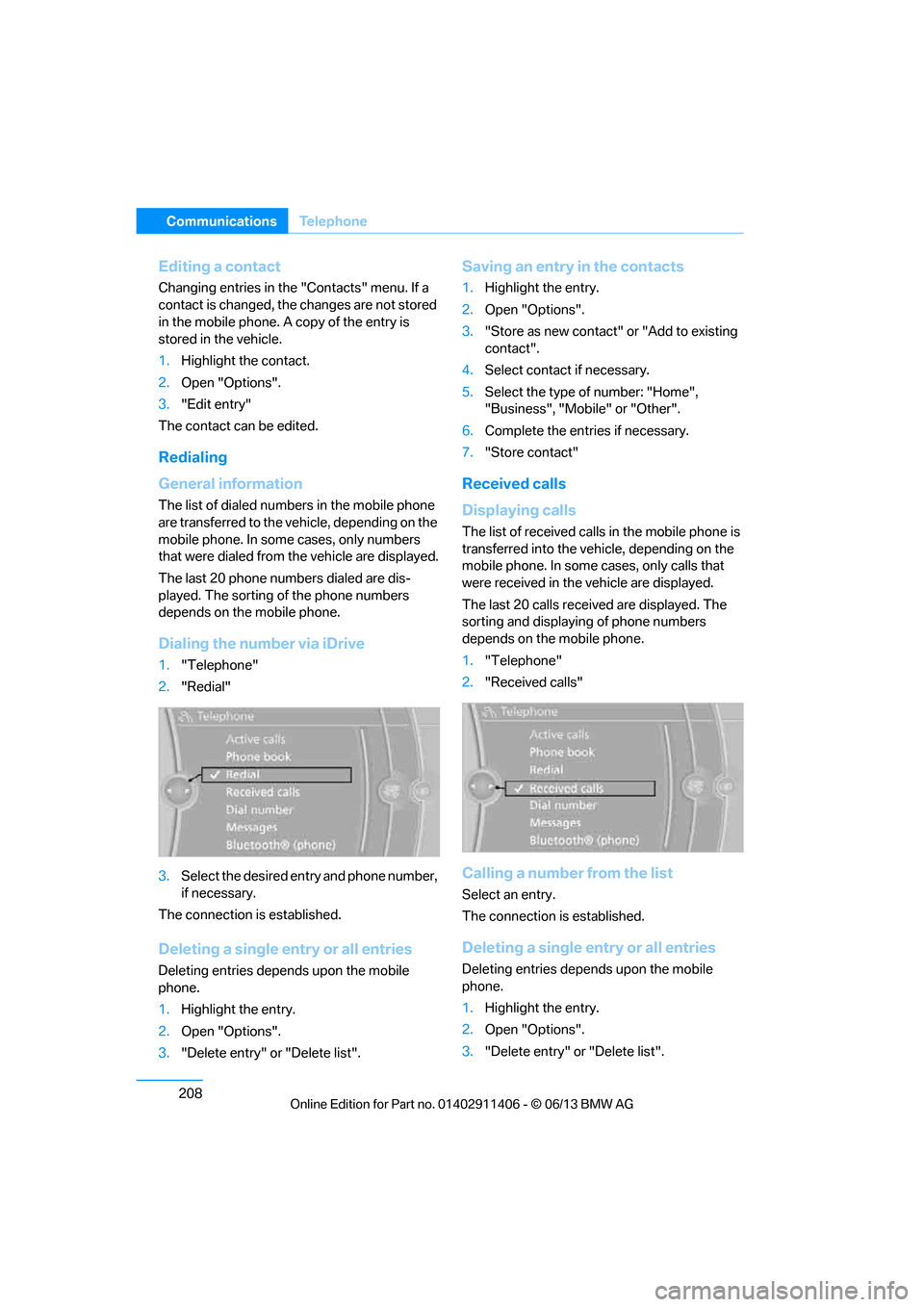
Dialing the number via iDrive
1. "Telephone"
2. "Redial"
3. Select the desired entry and phone number,
if necessary.
The connection is established.
Deleting a single entry or all entries
Deleting entries depends upon the mobile
phone.
1. Highlight the entry.
2. Open "Options".
3. "Delete entry" or "Delete list".
Saving an entry in the contacts
1.Highlight the entry.
2. Open "Options".
3. "Store as new contact" or "Add to existing
contact".
4. Select contact if necessary.
5. Select the type of number: "Home",
"Business", "Mobile" or "Other".
6. Complete the entries if necessary.
7. "Store contact"
Received calls
Displaying calls
The list of received calls in the mobile phone is
transferred into the vehi cle, depending on the
mobile phone. In some cases, only calls that
were received in the vehicle are displayed.
The last 20 calls received are displayed. The
sorting and displaying of phone numbers
depends on the mobile phone.
1. "Telephone"
2. "Received calls"
Calling a number from the list
Select an entry.
The connection is established.
Deleting a single entry or all entries
Deleting entries depends upon the mobile
phone.
1.Highlight the entry.
2. Open "Options".
3. "Delete entry" or "Delete list".
00320051004F004C00510048000300280047004C0057004C005200510003
Page 218 of 311

213
Office
Communications
Office
Vehicle equipment
In this chapter, all production, country, and
optional equipment that is offered in the model
range is described. Equipment is also described
that is not available because of, for example,
selected options or coun
try version. This also
applies to safety related functions and systems.
Overview
General information
Contacts, appointments, tasks, notes, text
messages and mobile phone e-mails can be
displayed using the Control Display if the
mobile phone compatibly supports these
functions and the requ ired Bluetooth radio
standards.
For information about which mobile phones and
functions support the functions of Office, go to
www.bmwusa.com/bluetooth.
A limited number of compatible mobile phones
are available for Office.
Contents are only displayed completely when
the vehicle is stopped.
Only read access to the mobile phone is
possible.
Do not use Office while driving. Make
entries only when tr affic and road condi-
tions permit; otherwise, you may endanger
vehicle occupants and other road users by
being distracted. <
Requirements
>A suitable mobile phone is paired with the
vehicle and connected. In some mobile
phones, the data acce ss to the mobile
phone must be confirmed. >
Time zone, time, and date, refer to page90,
are correctly set on the Control Display and
on the mobile phone in order, for example,
to correctly display appointments.
> Office is activate d, refer to page201.
Updating
Every time that the mob ile phone is connected
to the vehicle, data are updated. Appointments,
tasks, notes and reminders can be updated
separately.
1. "Office"
2. "Current office", "Calendar", "Tasks",
"Notes" or "Reminders"
3. Open "Options".
4. "Update data"
Data from the mobile phone are again
transferred to the vehicle.
Current office
The number of unread messages and active
tasks as well as upcoming appointments are
displayed.
1."Office"
2. "Current office"
3. Selecting the desired entry to display
details.
00320051004F004C00510048000300280047004C0057004C005200510003
Page 221 of 311
216
CommunicationsOffice
4."Configure Bluetooth®"
5. "Show images"
The display of all contact pictures is activated or
deactivated.
Deleting contacts
Only contacts that are stored in the vehicle are
deleted. The contacts on the mobile phone
cannot be deleted.
1. "Office"
2. "Contacts"
3. Highlight the contact.
4. "Options"
5. "Delete contact" or "Delete all contacts".
Messages
General information
The displaying of text messages and emails
from the mobile phone depends on whether the
mobile phone supports transmission into the
vehicle from the mobile phone. Text messages
and e-mails may not be supported by the ser-
vice provider or the fu nction may have to be
separately activated. Af ter a mobile phone is
paired for the first time, the transmission may
take several minutes. Messages are only dis-
played completely when the vehicle is stopped.
Messages from the auxiliary phone are not
transmitted.
To display various messages:
> Text messages.
> Messages from My info.
> Messages from the BMW Concierge
service.
> Messages from BMW Info.
> Emails from the mobile phone.
Displaying messages
1."Office"
2. "Messages"
Message type
A symbol indicates the type of message.
Read message.
Unread message.
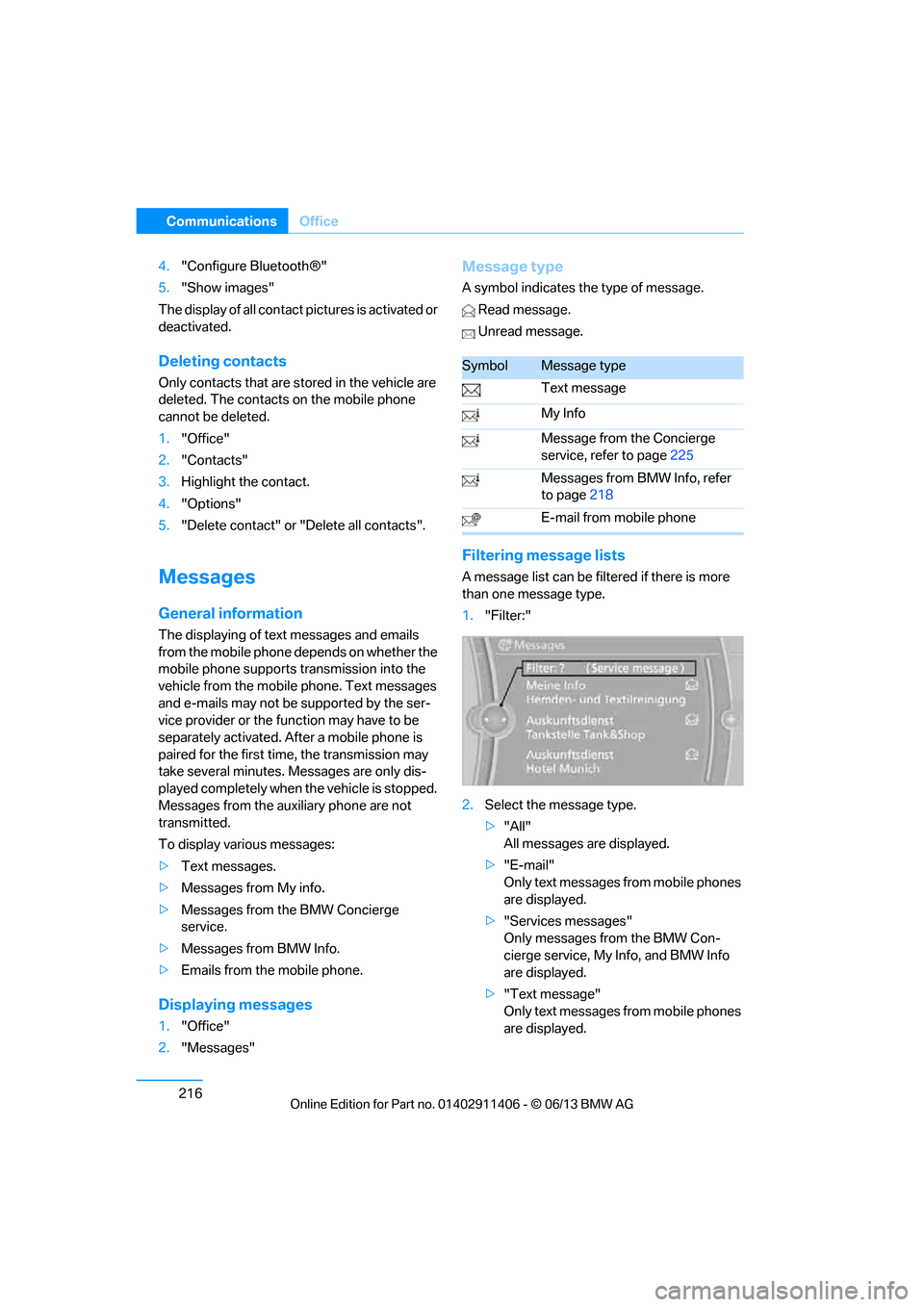
Filtering me ssage lists
A message list can be filtered if there is more
than one message type.
1."Filter:"
2. Select the message type.
>"All"
All messages are displayed.
> "E-mail"
Only text messages from mobile phones
are displayed.
> "Services messages"
Only messages from the BMW Con-
cierge service, My Info, and BMW Info
are displayed.
> "Text message"
Only text messages from mobile phones
are displayed.
SymbolMessage type
Text message
My Info
Message from the Concierge
service, refer to page 225
Messages from BMW Info, refer
to page 218
E-mail from mobile phone
00320051004F004C00510048000300280047004C0057004C005200510003
Page 223 of 311

218
CommunicationsOffice
BMW Info
General information
Messages from BMW about technical
campaigns and news from BMW.
Displaying messages
Select the desired message.
Selecting additional functions
The following functions are available when a
message is selected:
E-mail
Displaying e-mail
1."Office"
2. "Messages"
3. Select the desired message.
Displaying e-mail contacts
If the sender and receiv er of an e-mail were
transmitted from a mobile phone, they will be
displayed in the e-mail.
"Sender/Recipient"
If the e-mail address is stored in the contacts,
then the contact is displa yed. Select contact to
display details.
If the e-mail address is not stored in the con-
tacts, then it may be that only the e-mail
address is displayed.
Using contact data
Contact data from dead lines, tasks, text mes-
sages, e-mails and notes can be stored or
selected, see page 220.
Deactivating entire display
When opening an e-mail when in the vehicle, it
is completely transferred to the vehicle. This
may result in charges.
1."Office"
2. "Messages"
3. Open "Options".
"Select phone number"
If the message contains more than
one number, select the desired
number from the list. A telephone
connection is established.
"Further information"
Displaying additional information.
SymbolFunction
"Further information"
Detailed information about a mes-
sage is displayed. This does not
incur any costs.
"Start guidance" or "Add as another
destination"
SymbolFunction
"Call"
If the message contains a number, a
telephone connection is estab-
lished.
"Select phone number"
If the message contains more than
one number, select the desired
number from the list. A telephone
connection is established.
SymbolFunction
00320051004F004C00510048000300280047004C0057004C005200510003
Page 229 of 311

224
CommunicationsConnectedDrive
ConnectedDrive
Vehicle equipment
In this chapter, all production, country, and
optional equipment that is offered in the model
range is described. Equipment is also described
that is not available because of, for example,
selected options or country version. This also
applies to safety related functions and systems.
BMW Assist
General information
BMW Assist provides a number of different ser-
vices. For example, the position data of the
vehicle can be transmitted to the BMW Assist
Response Center when an Emergency Request
is sent.
Many BMW Assist services depend on the
contract individually agreed upon.
After the contract has expired, the BMW Assist
system will be deactivated by the BMW Assist
Response Center without you having to visit a
BMW center. After the BMW Assist system has
been deactivated, no BM W Assist services will
be available. The BMW Assist system can be
reactivated by a BMW center after a new
contract has been signed.
Requirements
> The installed BMW Assist system is logged
into a mobile phone network. This network
must be capable of transmitting the
services.
> To transmit position data, the vehicle must
be able to determine its current position.
> To activate and update BMW Assist, a GPS
signal must be available. >
The BMW Assist service contract was
signed with your BMW center or with the
BMW Assist Response Center. The service
must have been fully enabled.
> BMW Assist is activated.
Services offered
>Emergency Request: when you press the
SOS button, a connection to the BMW
Assist Response Center is established. The
BMW Assist Response Center then speaks
with you and takes further steps to help you.
> Automatic Emergency Request: under cer-
tain conditions, a connection to the BMW
Assist Response Center is established after
a serious accident. If possible, the BMW
Assist Response Center then speaks with
you and takes further steps to help you.
> Enhanced Roadside Assistance: BMW
Roadside Assistance can be contacted if
assistance is needed in the event of a
breakdown. If possible, the vehicle data and
position data are tran smitted during this
call.
> Customer Relations: connection to Cus-
tomer Relations for information on all
aspects of your vehicle.
> BMW TeleService: the data on your vehi-
cle's service status or required inspections
are transmitted to your BMW center, either
automatically before a service due date or
when you request a service appointment.
> Remote Door Unlock: the BMW Assist
Response Center provides assistance if, for
example, the remote control is not available
and the vehicle needs to be opened.
> Stolen Vehicle Recovery: after you report to
the police that your vehicle was stolen, the
BMW Assist Response Center can deter-
mine its position.
00320051004F004C00510048000300280047004C0057004C005200510003
Page 230 of 311

225
ConnectedDrive
Communications
>
In addition, the optional Convenience Plan
offers Concierge servic e and information on
route planning, the traffic situation and
weather. Using Critical Calling, a limited
number of calls can be made via the BMW
Assist Response Center, for example if the
mobile phone is not available or discharged.
Press the SOS button to contact the BMW
Assist Response Center.
TeleService
General information
TeleService supports comm unication with your
BMW center.
> Data on the vehicle's service requirements
can be sent directly to the BMW center. In
this way, the BMW center can plan its work
in advance. This shor tens the duration of
the service appointment.
> In the event of a breakdown, data on the
vehicle's condition can be sent directly to
Roadside Assistance.
> The service varies by country.
> Connection may incur charges.
> Services may be restricted abroad.
Requirements
>BMW Assist is activated.
> Wireless reception is available.
> Ignition switched on.
Using TeleService
Generally, TeleService is activated in the
vehicle.
If TeleService is not activated, it is possible to
establish a voice contact to the BMW Group
Mobile Service.
For additional uses or to deactivate the ser-
vices, consult your BMW center or contact
Customer Relations.
Concierge service
General information
The Concierge service of BMW Assist will
inform you, for example, about upcoming
events, filling station, or hotels and supplies you
with their phone numbers and addresses. Many
hotels can be booked directly through the BMW
Assist Concierge service. Use of the Concierge
service requires an additi onal activation by the
BMW Assist Response Center.
Starting the Concierge service
1. "BMW Assist" or "ConnectedDrive"
2. "Concierge"
3. "Start service"
A voice contact with the BMW Concierge
service is established. Phone numbers and
addresses can be transmitted as a message.
Messages
Information about messages, refer to page 216.
Roadside Assistance
At a glance
BMW Roadside Assistance can be contacted if
assistance is needed in the event of a break-
down.
Contact with BMW Roadside Assistance can
also be established using a Check Control
message, refer to page92.
00320051004F004C00510048000300280047004C0057004C005200510003
Page 231 of 311

226
CommunicationsConnectedDrive
Starting BMW Roadside Assistance
without BMW Assist or TeleService
1."BMW Assist" or "ConnectedDrive"
2. "Roadside Assistance"
The Roadside Assistance number is
displayed. If a mobile phone is paired, a
connection to BMW Roadside Assistance is
established.
Starting BMW Road side Assistance
with BMW Assist or TeleService
In a vehicle with TeleServ ice, assistance is first
offered through the TeleService Diagnosis and
then if necessary, th rough the TeleService
Help.
1. "BMW Assist" or "ConnectedDrive"
2. "Roadside Assistance"
3. "Start service"
BMW TeleService Diagnosis
Teleservice Diagnosis enables the wireless
transmission of detailed vehicle data that are
critical to vehicle diag nosis. These data are
automatically transmitted.
After transmission of the data, a voice connec-
tion is established to Roadside Assistance.
BMW Online
Overview
You can use BMW Online to search the yellow
pages.
License conditions:
This product contains NetFront Browser soft-
ware of ACCESS Co., Ltd. Copyright © 2007
ACCESS Co., Ltd. All rights reserved.
NetFront is a trademark or registered trademark
of ACCESS Co., Ltd., in Japan and other
countries.
T h i s s o f t w a r e i s b a s e d i n p a r t o n t h e w o r k o f t h e
Independent JPEG Group.
Requirements
> Subscription to the optional Convenience
Plan.
> The vehicle is located within wireless
network coverage.
> The date setting on th e Control Display is
current.
Starting BMW Online
1. "BMW Assist" or "ConnectedDrive"
2. "BMW Online"
3. "OK" if necessary
The BMW Online start page is displayed.
00320051004F004C00510048000300280047004C0057004C005200510003