2013 BMW 135I CONVERTIBLE stop
[x] Cancel search: stopPage 182 of 284
181
External devices
Entertainment
>
Sound is output over the vehicle speakers.
> The volume of the sound output depends
on the device. If necessary, change the
volume setting on the device.
> Up to four external devices can be paired
with the vehicle.
Requirements
>Suitable device. For information, go to
www.bmwusa.com/bluetooth.
> Device operational.
> Ignition switched on.
> Bluetooth activated in vehicle, refer to
page 189, and in the device.
> Activating Bluetooth audio, refer to
page 189.
> Bluetooth presets in the device are
required, e.g. connection not confirmed or
visible, refer to Owner's Manual for the
device.
> A number with at least 4 and at most
16 digits has been established as the
Bluetooth passkey. Only required once for
pairing.
Pairing and connecting
Only pair the device when the vehicle is
stopped; otherwise, inattention may lead
to endangerment of passengers or other road
users. <
1. "CD/Multimedia"
2. "Bluetooth® (audio)"
3. "Bluetooth® audio" if applicable
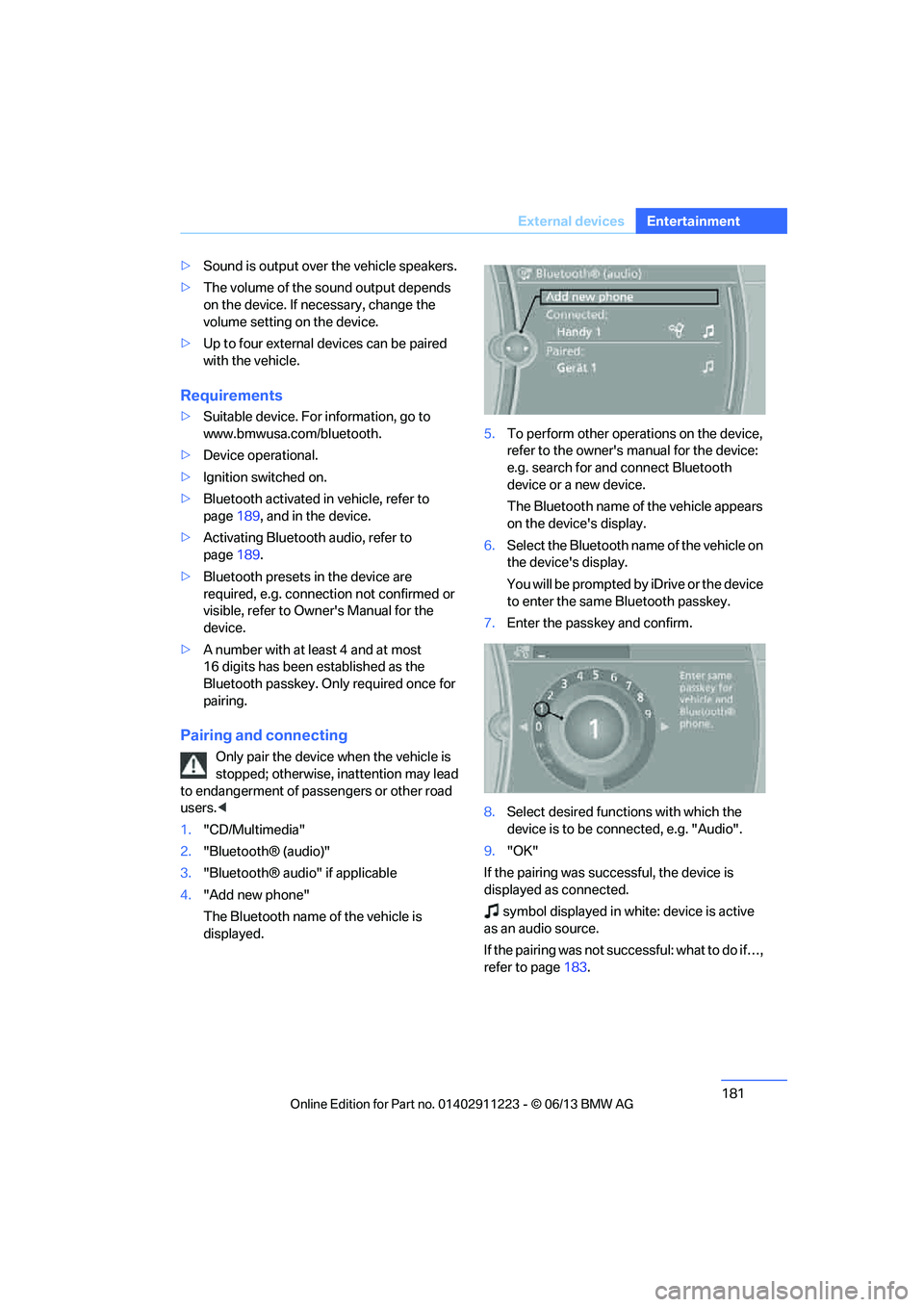
4. "Add new phone"
The Bluetooth name of the vehicle is
displayed. 5.
To perform other operations on the device,
refer to the owner's ma nual for the device:
e.g. search for and connect Bluetooth
device or a new device.
The Bluetooth name of the vehicle appears
on the device's display.
6. Select the Bluetooth na me of the vehicle on
the device's display.
You will be prompted by iDrive or the device
to enter the same Bluetooth passkey.
7. Enter the passkey and confirm.
8. Select desired functions with which the
device is to be connected, e.g. "Audio".
9. "OK"
If the pairing was successful, the device is
displayed as connected.
symbol displayed in white: device is active
as an audio source.
If the pairing was not succ e s s f u l : w h a t t o d o i f … ,
refer to page 183.
00320051004F004C00510048000300280047004C0057004C005200510003
Page 185 of 284
184
EntertainmentExternal devices
Disconnect one of the two connections, e.g.
the audio connection, refer to page 183,
and start playback again.
If you have gone through all items in the list and
still cannot activate the de sired function, please
contact Customer Relations or your BMW
center.
Software update
The vehicle supports various external devices,
depending on the software it is currently using.
A software update can enable the vehicle to
support, for example, new mobile phones or
new external devices.
Software updates and associated, up-to-date
instructions are available on the web page
www.bmwusa.com/update.
Displaying cu rrent version
The currently installed software is displayed.
1."Settings"
2. "Software update"
3. "Show current version"
Select the desired versio n to display additional
information.
Updating software by USB
The software update can only be performed
when stopped.
1. Save the file for the so ftware update in the
main directory of a USB data storage
device.
2. Connect the USB data storage device to the
USB audio interface in the center armrest. It
is not possible to perform the update using
the USB interface in the glove compart-
ment.
3. "Settings"
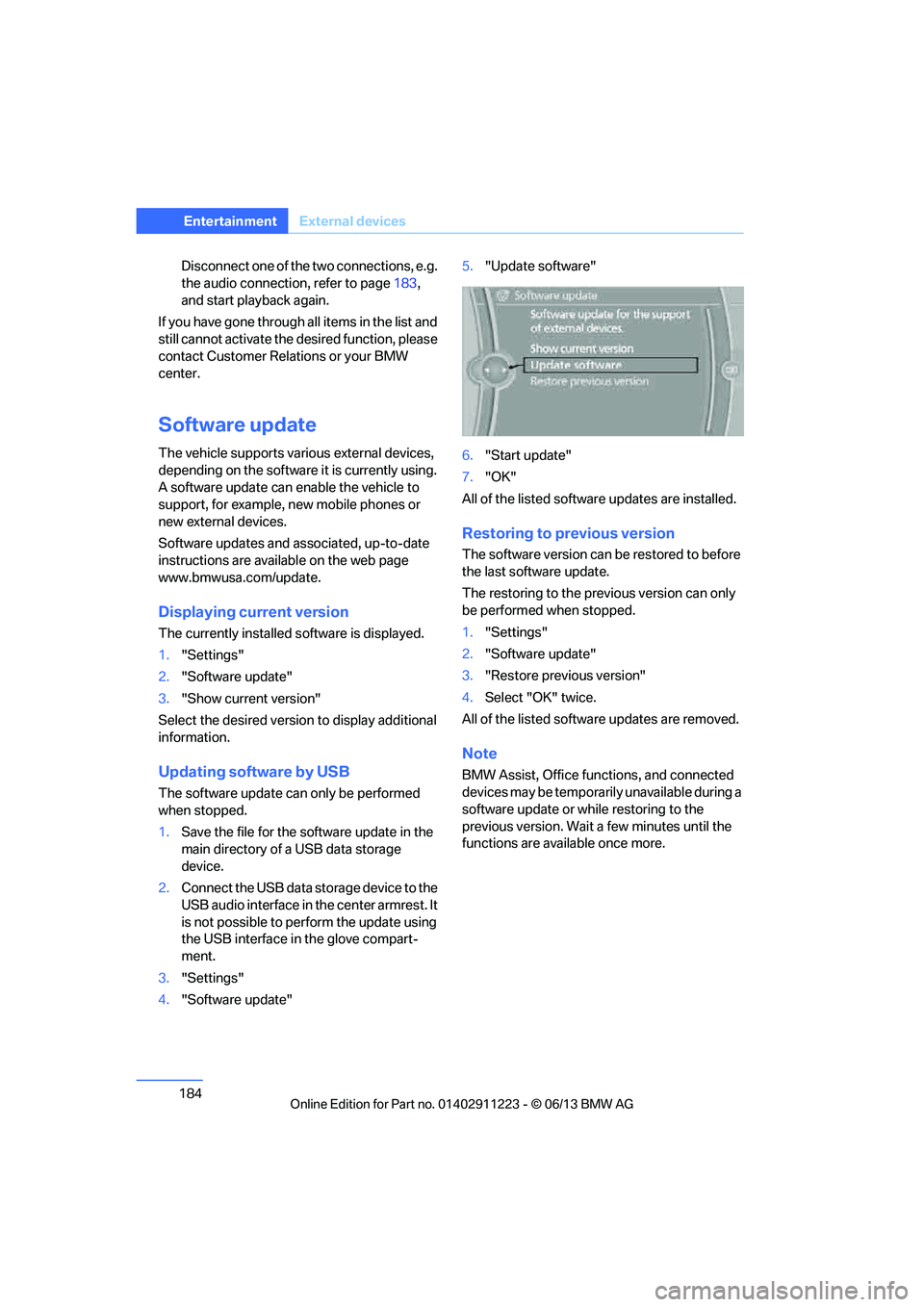
4. "Software update" 5.
"Update software"
6. "Start update"
7. "OK"
All of the listed software updates are installed.
Restoring to previous version
The software version can be restored to before
the last software update.
The restoring to the prev ious version can only
be performed when stopped.
1. "Settings"
2. "Software update"
3. "Restore previous version"
4. Select "OK" twice.
All of the listed softwa re updates are removed.
Note
BMW Assist, Office functions, and connected
devices may be temporarily unavailable during a
software update or while restoring to the
previous version. Wait a few minutes until the
functions are available once more.
00320051004F004C00510048000300280047004C0057004C005200510003
Page 191 of 284
190
CommunicationsTe l e p h o n e
4."Configure Bluetooth®"
5. Select the desired additional function:
>"Additional telephone"
> "Office"
> "Bluetooth® audio"
If an additional function is deactivated, it cannot
be assigned to a phone.
Pairing and connecting a device
Only pair the device when the vehicle is
stopped; otherwise, inattention may lead
to endangerment of passengers or other road
users. <
1. "Telephone"
2. "Bluetooth® (phone)"
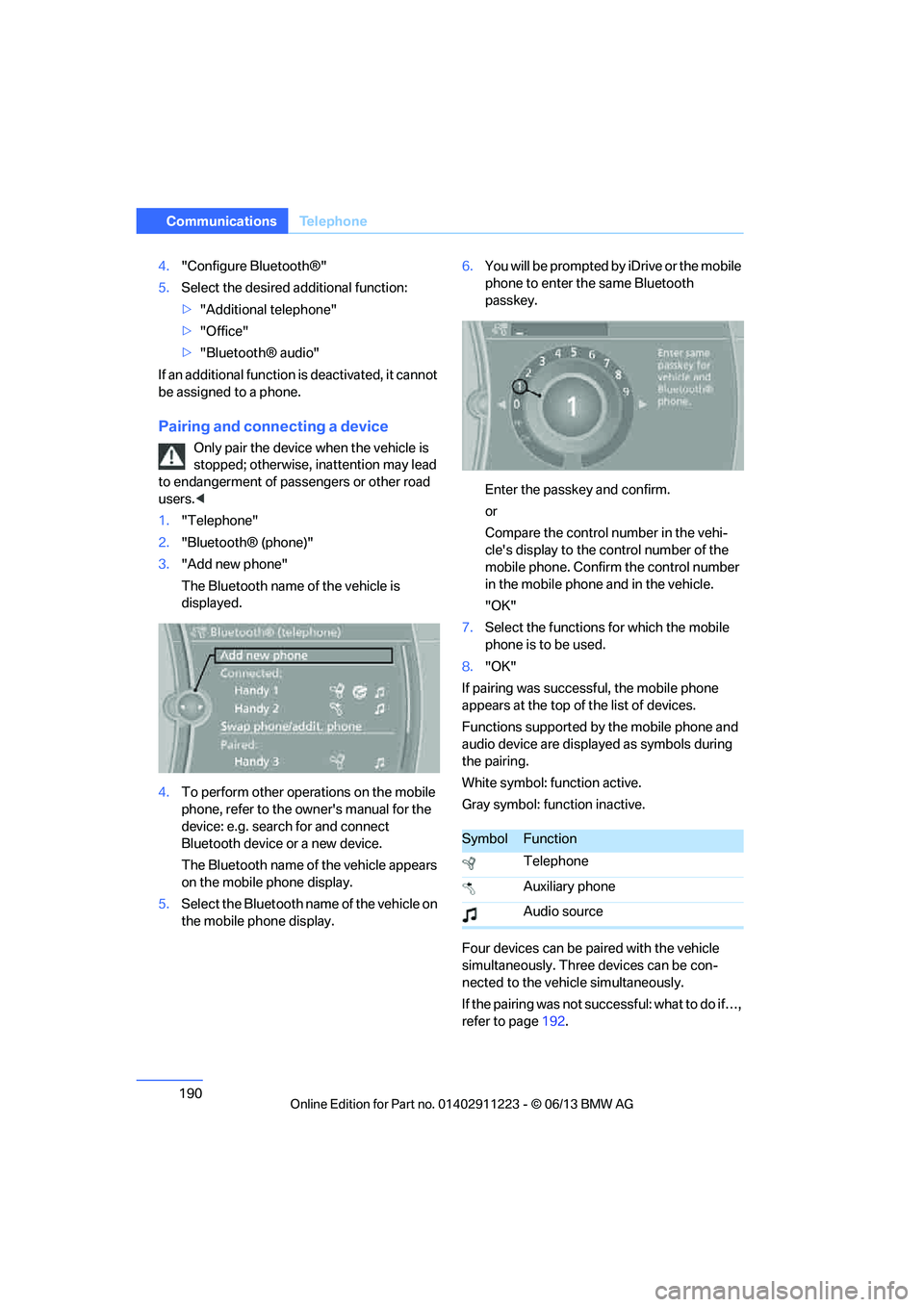
3. "Add new phone"
The Bluetooth name of the vehicle is
displayed.
4. To perform other operations on the mobile
phone, refer to the owner's manual for the
device: e.g. search for and connect
Bluetooth device or a new device.
The Bluetooth name of the vehicle appears
on the mobile phone display.
5. Select the Bluetooth name of the vehicle on
the mobile phone display. 6.
You will be prompted by iDrive or the mobile
phone to enter the same Bluetooth
passkey.
Enter the passkey and confirm.
or
Compare the control number in the vehi-
cle's display to the co ntrol number of the
mobile phone. Confirm the control number
in the mobile phone and in the vehicle.
"OK"
7. Select the functions for which the mobile
phone is to be used.
8. "OK"
If pairing was successful, the mobile phone
appears at the top of the list of devices.
Functions supported by the mobile phone and
audio device are displayed as symbols during
the pairing.
White symbol: function active.
Gray symbol: function inactive.
Four devices can be paired with the vehicle
simultaneously. Three devices can be con-
nected to the vehicle simultaneously.
If the pairing was not succ essful: what to do if…,
refer to page 192.
SymbolFunction
Telephone
Auxiliary phone
Audio source
00320051004F004C00510048000300280047004C0057004C005200510003
Page 202 of 284
201
Office
Communications
Office
Vehicle equipment
In this chapter, all production, country, and
optional equipment that is offered in the model
range is described. Equipment is also described
that is not available because of, for example,
selected options or coun
try version. This also
applies to safety related functions and systems.
Overview
General information
Contacts, appointments, tasks, notes, text
messages and mobile phone e-mails can be
displayed using the Control Display if the
mobile phone compatibly supports these func-
tions and the required Bluetooth radio stan-
dards.
For information about which mobile phones and
functions support the functions of Office, go to
www.bmwusa.com/bluetooth.
A limited number of compatible mobile phones
are available for Office.
Contents are only displayed completely when
the vehicle is stopped.
Only read access to the mobile phone is
possible.
Do not use Office while driving. Make
entries only when tr affic and road condi-
tions permit; otherwise, you may endanger
vehicle occupants and other road users by
being distracted. <
Requirements
>A suitable mobile phone is paired with the
vehicle and connected. In some mobile
phones, the data acce ss to the mobile
phone must be confirmed. >
Time zone, time, and date, refer to page82,
are correctly set on the Control Display and
on the mobile phone in order, for example,
to correctly display appointments.
> Office is activate d, refer to page189.
Updating
Every time that the mob ile phone is connected
to the vehicle, data are updated. Appointments,
tasks, notes and reminders can be updated
separately.
1. "Office"
2. "Current office", "Calendar", "Tasks",
"Notes" or "Reminders"
3. Open "Options".
4. "Update data"
Data from the mobile phone are again
transferred to the vehicle.
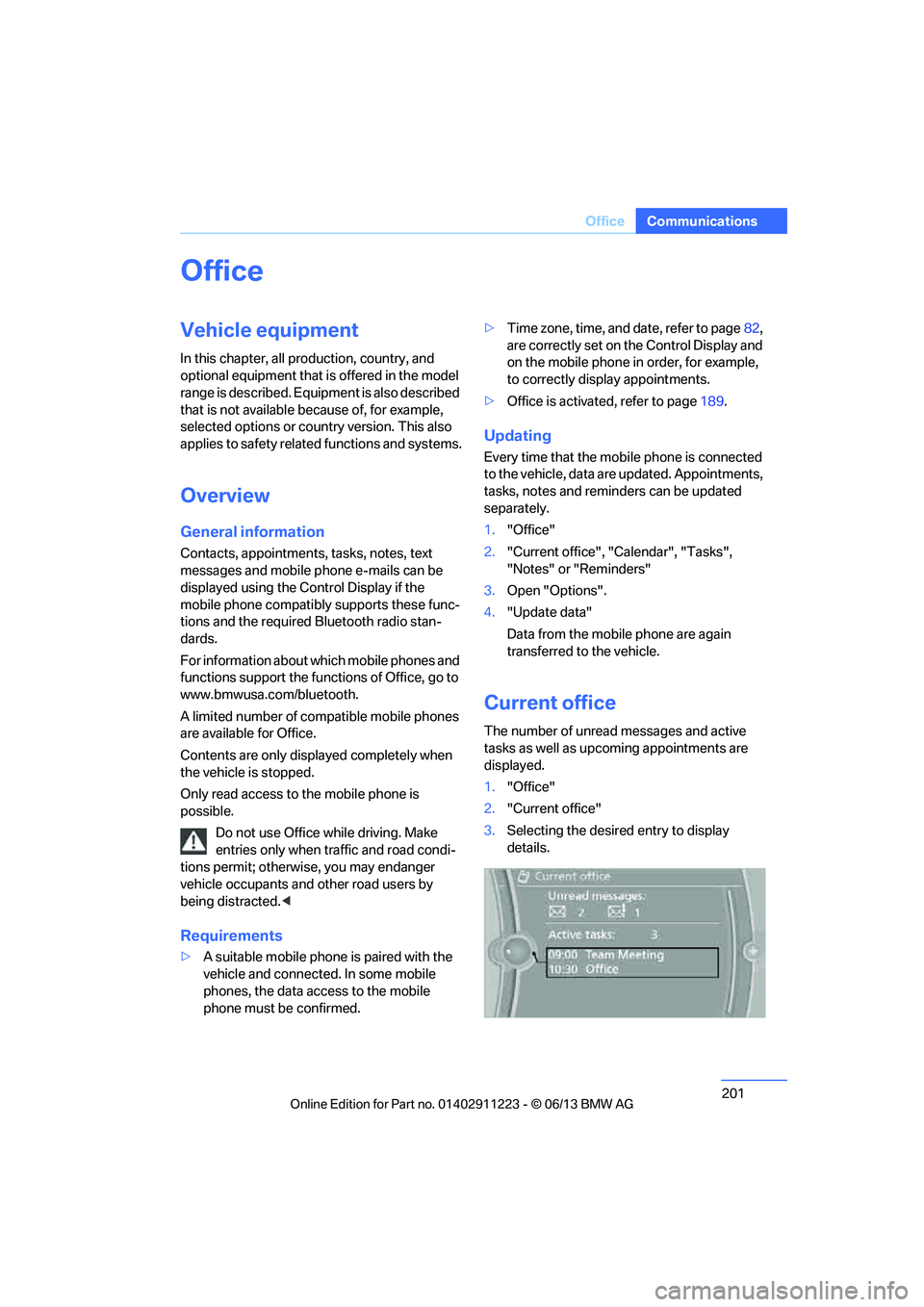
Current office
The number of unread messages and active
tasks as well as upcoming appointments are
displayed.
1."Office"
2. "Current office"
3. Selecting the desired entry to display
details.
00320051004F004C00510048000300280047004C0057004C005200510003
Page 205 of 284
204
CommunicationsOffice
4."Configure Bluetooth®"
5. "Show images"
The display of all contact pictures is activated or
deactivated.
Deleting contacts
Only contacts that are stored in the vehicle are
deleted. The contacts on the mobile phone
cannot be deleted.
1. "Office"
2. "Contacts"
3. Highlight the contact.
4. "Options"
5. "Delete contact" or "Delete all contacts".
Messages
General information
The displaying of text messages and emails
from the mobile phone depends on whether the
mobile phone supports transmission into the
vehicle from the mobile phone. Text messages
and e-mails may not be supported by the ser-
vice provider or the fu nction may have to be
separately activated. Af ter a mobile phone is
paired for the first time, the transmission may
take several minutes. Messages are only dis-
played completely when the vehicle is stopped.
Messages from the auxiliary phone are not
transmitted.
To display various messages:
> Text messages.
> Messages from My info.
> Messages from the BMW Concierge
service.
> Messages from BMW Info.
> Emails from the mobile phone.
Displaying messages
1."Office"
2. "Messages"
Message type
A symbol indicates the type of message.
Read message.
Unread message.
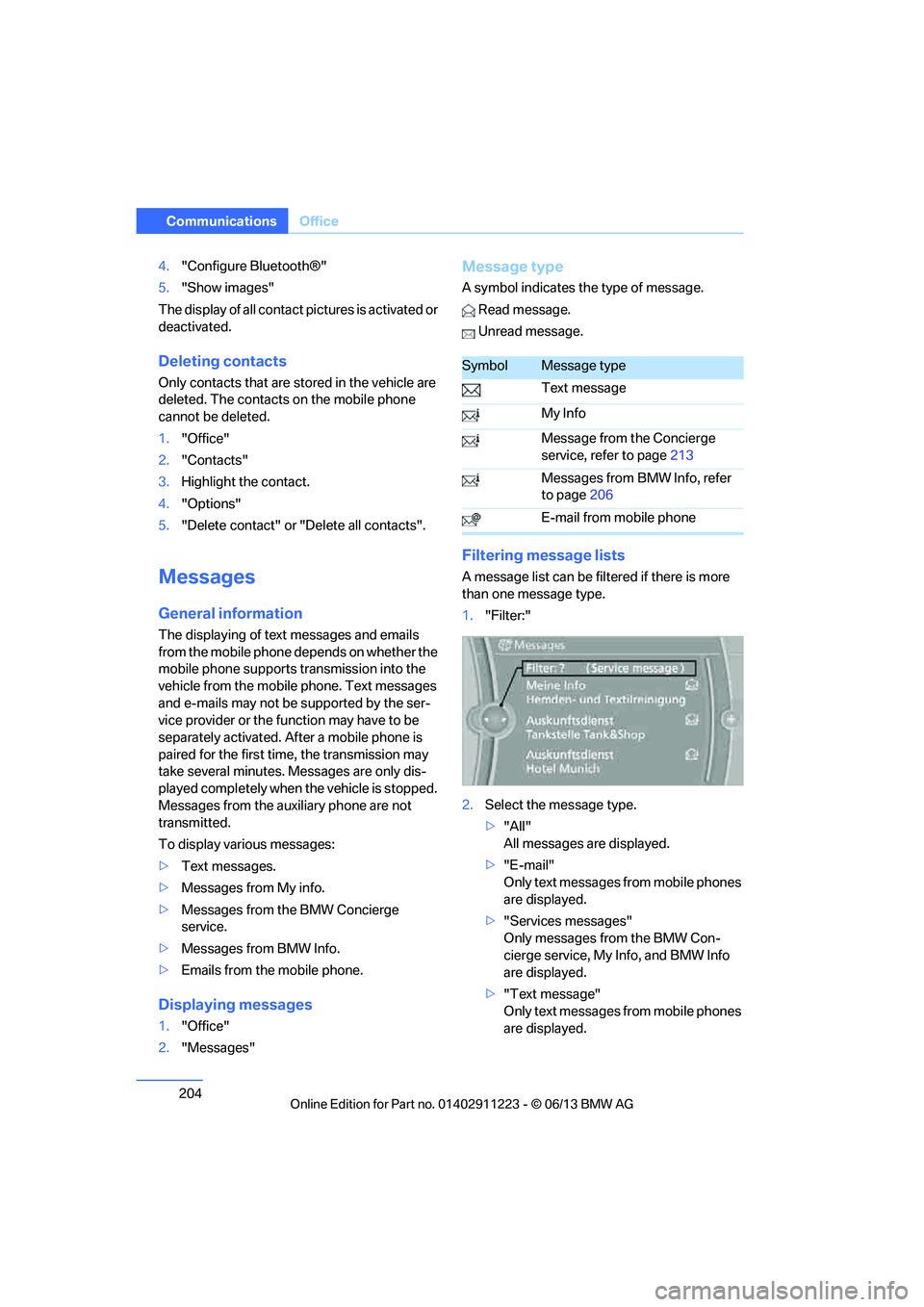
Filtering me ssage lists
A message list can be filtered if there is more
than one message type.
1."Filter:"
2. Select the message type.
>"All"
All messages are displayed.
> "E-mail"
Only text messages from mobile phones
are displayed.
> "Services messages"
Only messages from the BMW Con-
cierge service, My Info, and BMW Info
are displayed.
> "Text message"
Only text messages from mobile phones
are displayed.
SymbolMessage type
Text message
My Info
Message from the Concierge
service, refer to page 213
Messages from BMW Info, refer
to page 206
E-mail from mobile phone
00320051004F004C00510048000300280047004C0057004C005200510003
Page 217 of 284
216
CommunicationsConnectedDrive
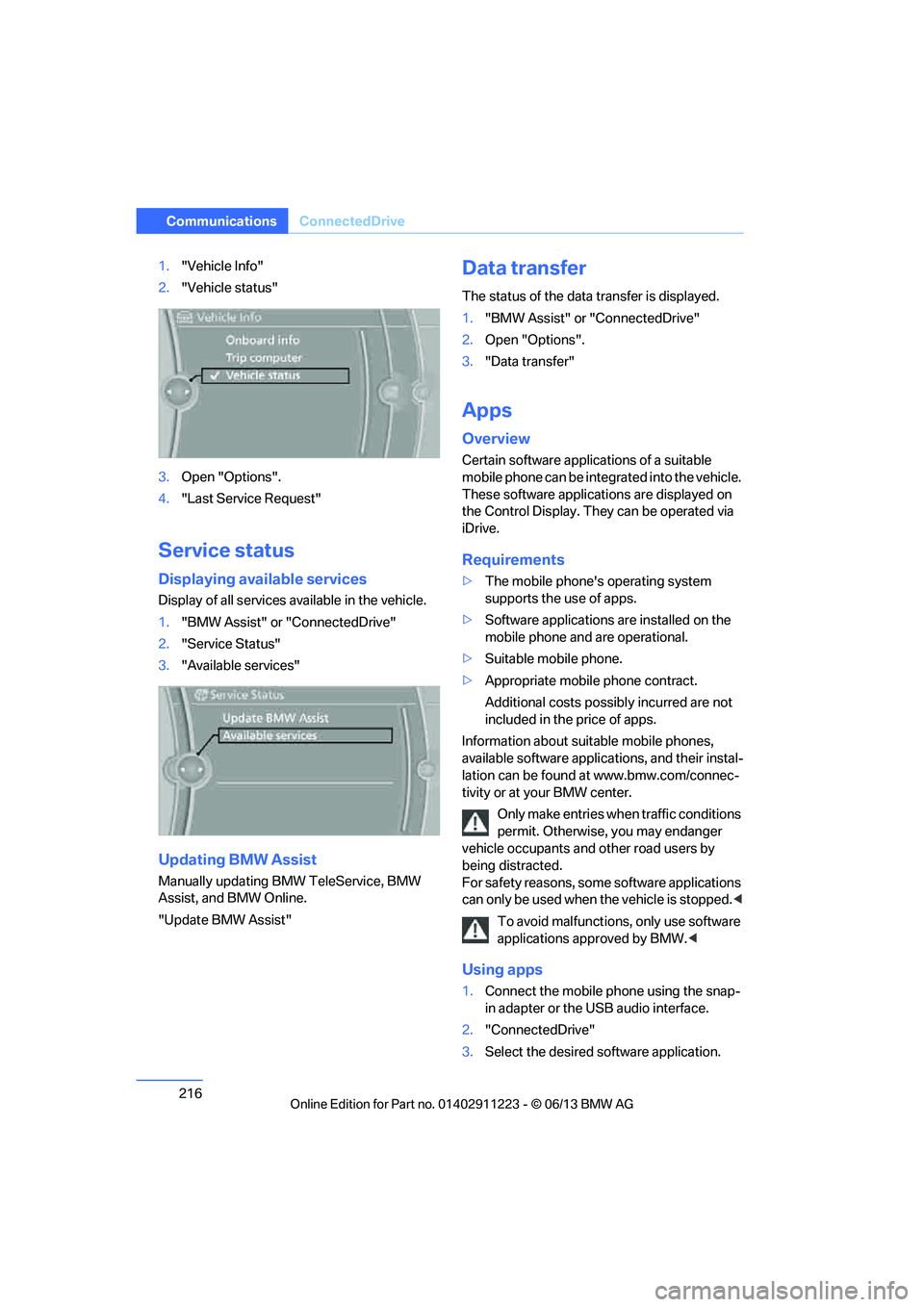
1."Vehicle Info"
2. "Vehicle status"
3. Open "Options".
4. "Last Service Request"
Service status
Displaying available services
Display of all services available in the vehicle.
1. "BMW Assist" or "ConnectedDrive"
2. "Service Status"
3. "Available services"
Updating BMW Assist
Manually updating BM W TeleService, BMW
Assist, and BMW Online.
"Update BMW Assist"
Data transfer
The status of the data transfer is displayed.
1. "BMW Assist" or "ConnectedDrive"
2. Open "Options".
3. "Data transfer"
Apps
Overview
Certain software applications of a suitable
mobile phone can be integrated into the vehicle.
These software applicat ions are displayed on
the Control Display. They can be operated via
iDrive.
Requirements
> The mobile phone's operating system
supports the use of apps.
> Software applications are installed on the
mobile phone and are operational.
> Suitable mobile phone.
> Appropriate mobile phone contract.
Additional costs possibly incurred are not
included in the price of apps.
Information about suit able mobile phones,
available software applic ations, and their instal-
lation can be found at www.bmw.com/connec-
tivity or at your BMW center.
Only make entries when traffic conditions
permit. Otherwise, you may endanger
vehicle occupants and other road users by
being distracted.
For safety reasons, some software applications
can only be used when the vehicle is stopped. <
To avoid malfunctions, only use software
applications approved by BMW. <
Using apps
1.Connect the mobile phone using the snap-
in adapter or the USB audio interface.
2. "ConnectedDrive"
3. Select the desired software application.
00320051004F004C00510048000300280047004C0057004C005200510003
Page 229 of 284
228
MobilityWheels and tires
Tire identification marks
Knowledge of the labeling on the side of the tire
makes it easier to identify and choose the right
tires.
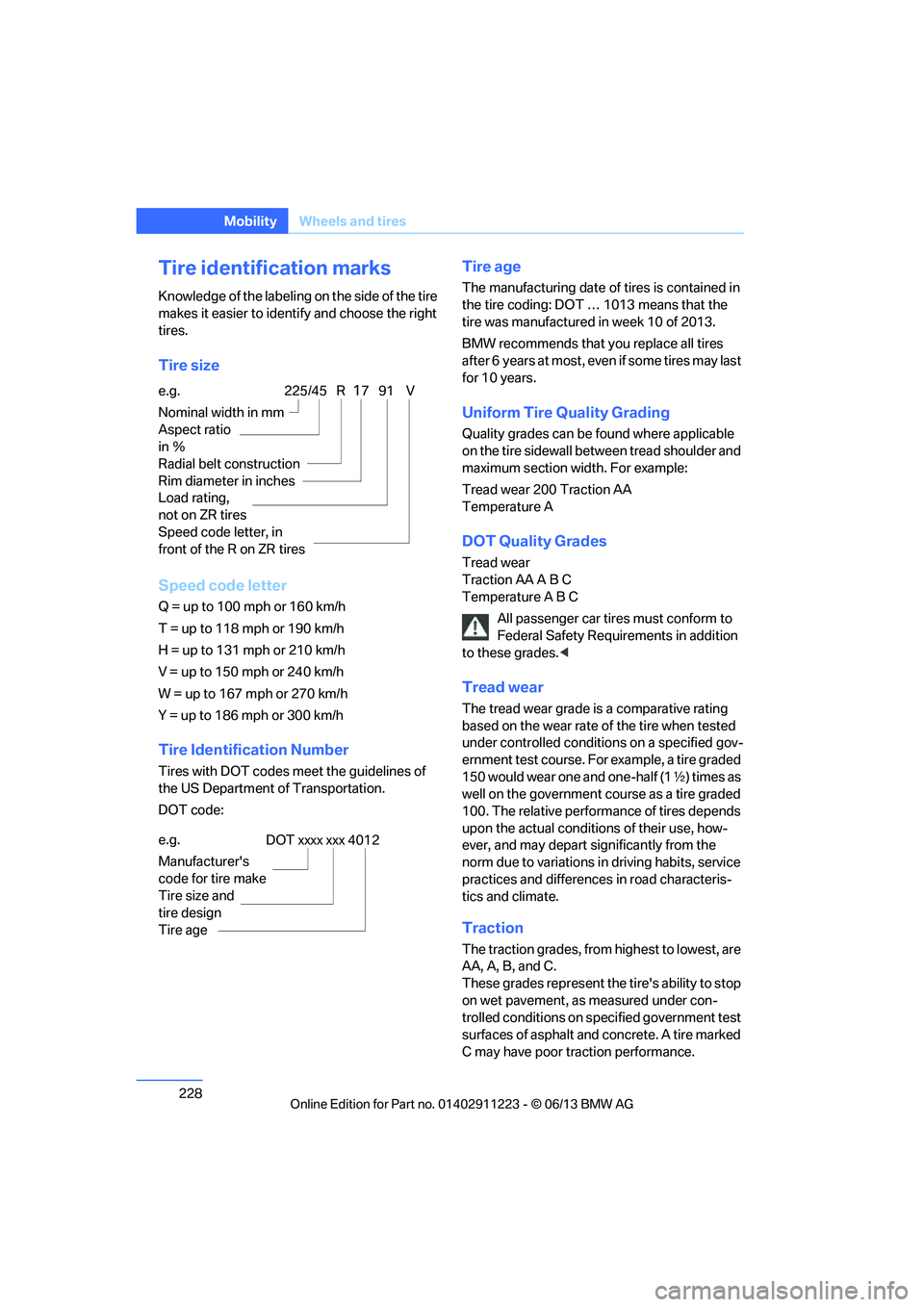
Tire size
Speed code letter
Q = up to 100 mph or 160 km/h
T = up to 118 mph or 190 km/h
H = up to 131 mph or 210 km/h
V = up to 150 mph or 240 km/h
W = up to 167 mph or 270 km/h
Y = up to 186 mph or 300 km/h
Tire Identification Number
Tires with DOT codes meet the guidelines of
the US Department of Transportation.
DOT code:
Tire age
The manufacturing date of tires is contained in
the tire coding: DOT … 1013 means that the
tire was manufactured in week 10 of 2013.
BMW recommends that you replace all tires
after 6 years at most, even if some tires may last
for 10 years.
Uniform Tire Quality Grading
Quality grades can be found where applicable
on the tire sidewall betw een tread shoulder and
maximum section width. For example:
Tread wear 200 Traction AA
Temperature A
DOT Quality Grades
Tread wear
Traction AA A B C
Temperature A B C
All passenger car tires must conform to
Federal Safety Requir ements in addition
to these grades. <
Tread wear
The tread wear grade is a comparative rating
based on the wear rate of the tire when tested
under controlled conditio ns on a specified gov-
ernment test course. For example, a tire graded
150 would wear one and one-half (1 γ) times as
well on the government course as a tire graded
100. The relative performance of tires depends
upon the actual conditio ns of their use, how-
ever, and may depart significantly from the
norm due to variations in driving habits, service
practices and differences in road characteris-
tics and climate.
Traction
The traction grades, from highest to lowest, are
AA, A, B, and C.
These grades represent the tire's ability to stop
on wet pavement, as measured under con-
trolled conditions on specified government test
surfaces of asphalt and concrete. A tire marked
C may have poor traction performance.
e.g.
Nominal width in mm
Aspect ratio
in
Ξ
Radial belt construction
Rim diameter in inches
Load rating,
not on ZR tires
Speed code letter, in
front of the R on ZR tires
225/45 R1791 V
e.g.
Manufacturer's
code for tire make
Tire size and
tire design
Tire ageDOT xxxx xxx 4012
00320051004F004C00510048000300280047004C0057004C005200510003
Page 234 of 284
233
Engine compartment
Mobility
Releasing
Pull the lever.
Opening
To avoid damage, make sure that the
wiper arms are against the windshield
before you open the engine compartment. Do
not open the engine hood before the engine has
cooled down; otherwise, injuries may result. <
Press the release handle and open the hood.
Closing
Close the hood from a height of approx. 16 in/
40 cm with momentum. It must be clearly heard
to engage. Make sure that the
closing path of the
hood is clear; otherwise, injuries may
result.
If you see any signs while driving your vehicle
that the hood is not comp letely closed, stop at
once and close it securely. <
Engine oil
General information
The engine oil consumption is dependent on
driving style and operating conditions; for
example, the engine oil consumption is signifi-
cantly higher with a very sporty driving style.
For this reason, regularly check the oil level
after each time you refuel.
Checking oil level
Your car is equipped with an electronic oil-level
monitor.
For precise measurement and display of the oil
level, the engine must be at operating tempera-
ture, i.e. following at least 6.2 miles/10 km of
uninterrupted driving. Yo u can have the oil level
displayed while you are driving, or while the
vehicle is at a standstill on a level surface and
the engine is running.
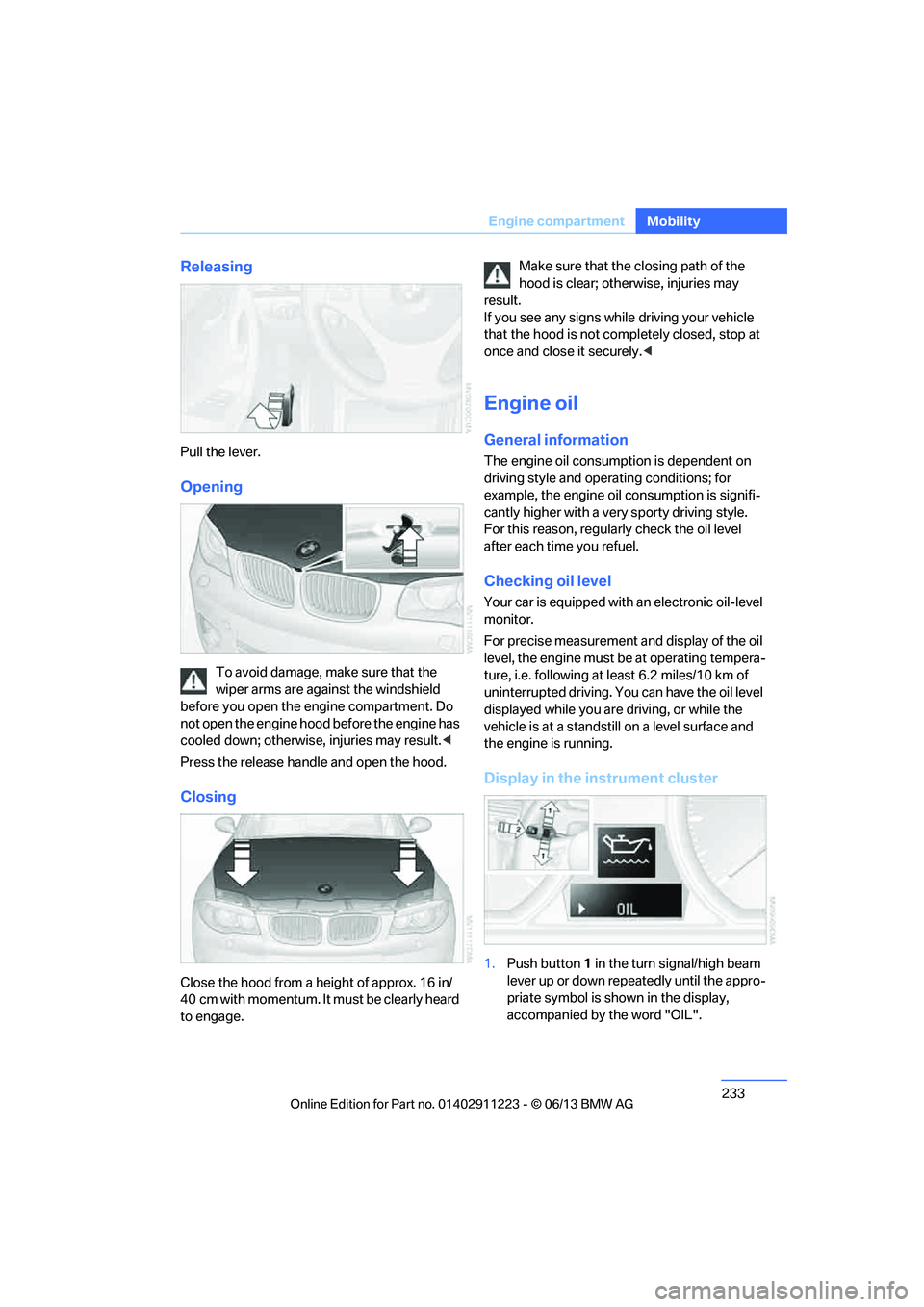
Display in the instrument cluster
1. Push button 1 in the turn signal/high beam
lever up or down repeatedly until the appro-
priate symbol is shown in the display,
accompanied by the word "OIL".
00320051004F004C00510048000300280047004C0057004C005200510003