Page 232 of 336
05
230
Adding a waypoint Organising waypoints
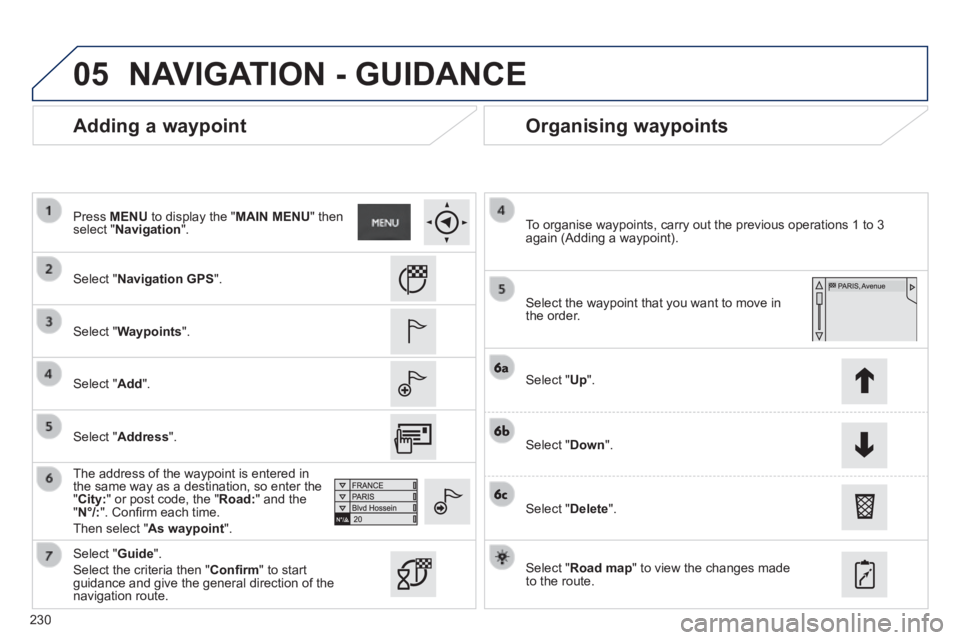
Select " Navigation GPS ".
Select " Waypoints ".
Select " Add ".
The address of the waypoint is entered in the same way as a destination, so enter the " City: " or post code, the " Road: " and the " N°/: ". Confi rm each time.
Then select " As waypoint ".
Select the waypoint that you want to move in the order.
To organise waypoints, carry out the previous operations 1 to 3 again (Adding a waypoint).
Select " Up ".
Select " Down ".
Select " Delete ".
Select " Road map " to view the changes made to the route.
Select " Guide ".
Select the criteria then " Confi rm " to start guidance and give the general direction of the navigation route.
Press MENU to display the " MAIN MENU " then select " Navigation ".
NAVIGATION - GUIDANCE
Select " Address ".
Page 233 of 336
05
231
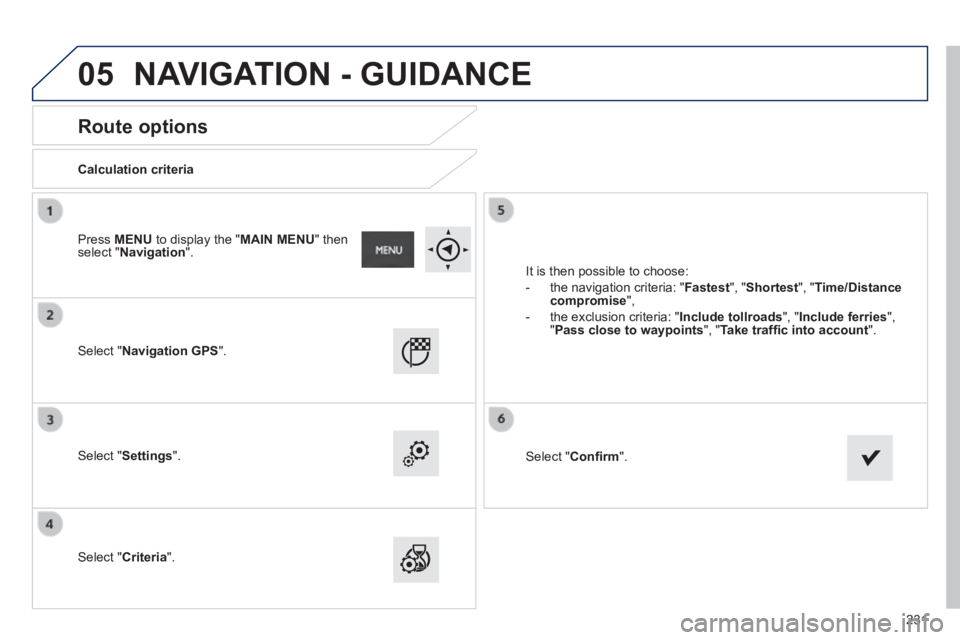
Route options
Calculation criteria
Select " Navigation GPS ".
Select " Settings ".
Select " Criteria ".
It is then possible to choose:
- the navigation criteria: " Fastest ", " Shortest ", " Time/Distance compromise ",
- the exclusion criteria: " Include tollroads ", " Include ferries ", " Pass close to waypoints ", " Take traffi c into account ".
Select " Confi rm ".
Press MENU to display the " MAIN MENU " then select " Navigation ".
NAVIGATION - GUIDANCE
Page 234 of 336
05
232
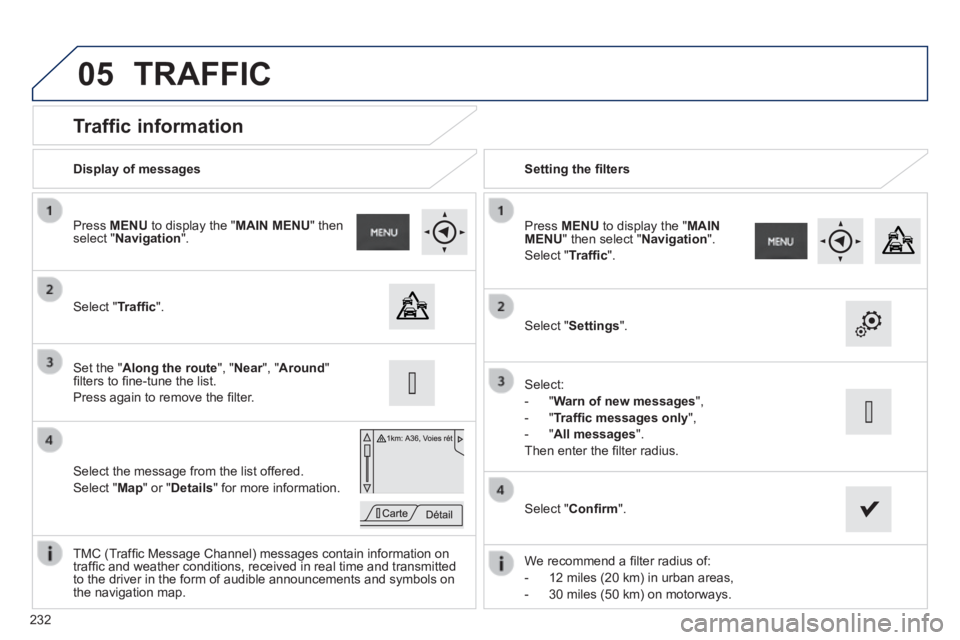
Traffic information
Select " Traffi c ".
Press MENU to display the " MAIN MENU " then select " Navigation ".
Select the message from the list offered.
Select " Map " or " Details " for more information.
Set the " Along the route ", " Near ", " Near ", " NearAround " fi lters to fi ne-tune the list.
Press again to remove the fi lter.
Select " Settings ".
Select:
- " Warn of new messages ",
- " Traffi c messages only ",
- " All messages ".
Then enter the fi lter radius.
Press MENU to display the " MAIN MENU " then select " Navigation ".
Select " Traffi c ".
Display of messages Setting the fi lters
We recommend a fi lter radius of:
- 12 miles (20 km) in urban areas,
- 30 miles (50 km) on motorways.
TMC (Traffi c Message Channel) messages contain information on traffi c and weather conditions, received in real time and transmitted to the driver in the form of audible announcements and symbols on the navigation map.
Select " Confi rm ".
TRAFFIC
Page 236 of 336
05
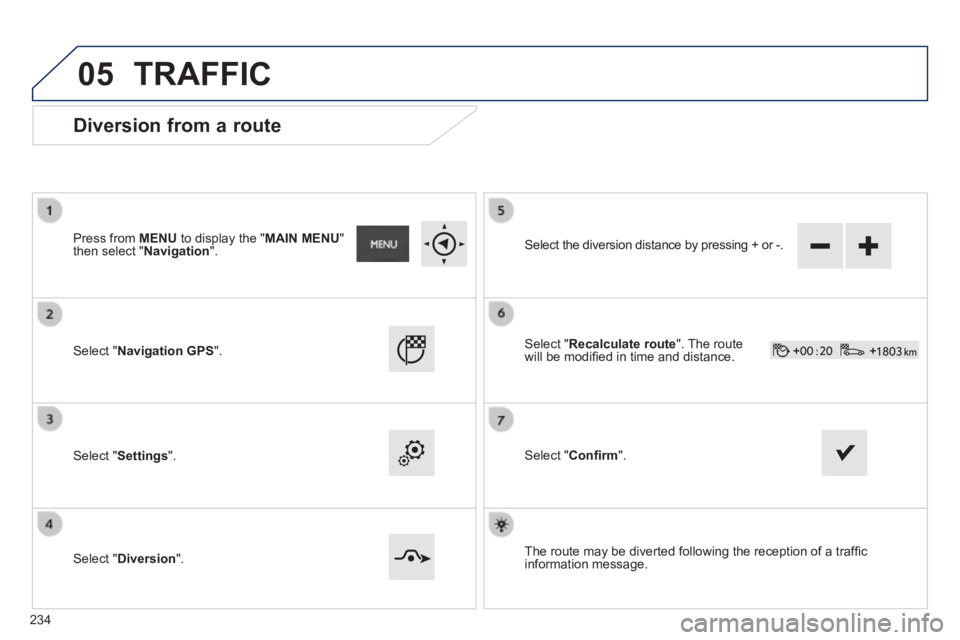
Diversion from a route
Press from MENU to display the " MAIN MENU " then select " Navigation ".
Select " Navigation GPS ".
Select " Settings ".
Select " Diversion ".
Select the diversion distance by pressing + or -.
Select " Recalculate route ". The route will be modifi ed in time and distance.
Select " Confi rm ".
The route may be diverted following the reception of a traffi c information message.
TRAFFIC
234
Page 237 of 336
05
235
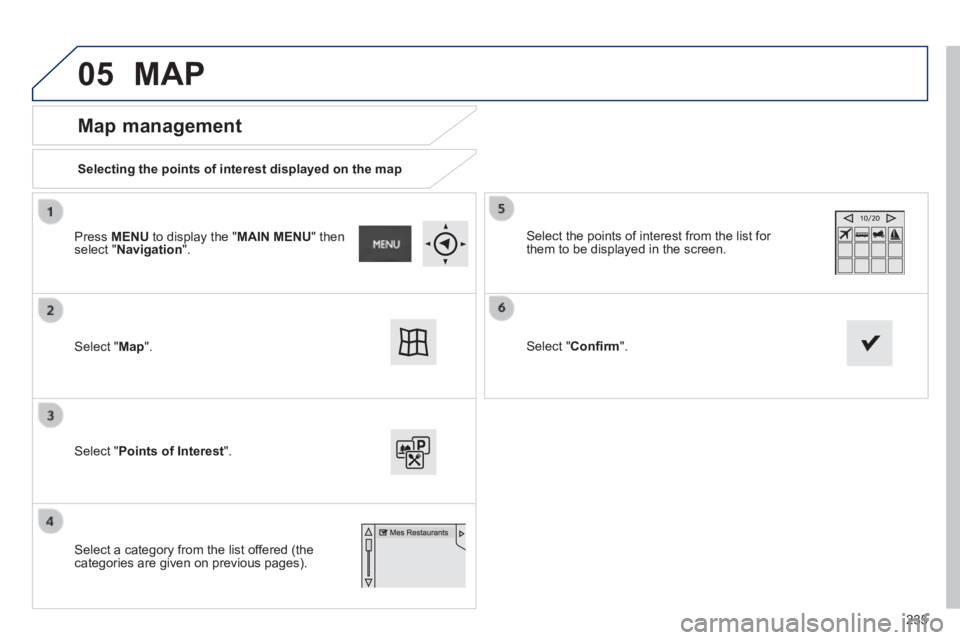
Map management
Selecting the points of interest displayed on the map
Select " Map ".
Select " Points of Interest ".
Select the points of interest from the list for them to be displayed in the screen.
Select a category from the list offered (the categories are given on previous pages).
Select " Confi rm ".
Press MENU to display the " MAIN MENU " then select " Navigation ".
MAP
Page 238 of 336
05
Map orientation
Select " Map ".
Select " Map heading ".
Select:
- " Flat map view " to display the map in 2D,
- " Perspective map view " to display a perspective view.
With " Flat map view ":
- " North heading " to keep the map always North up,
- " Vehicle heading " to have the map follow the direction of travel,
Street names are visible on the map from the 100 m scale.
Map colour
Select " Map colour ". Map colour ". Map colour
Select:
- " Automatic day/night mode " to have the brightness of the map adjusted automatically according to the ambient light level, using the vehicle's sunshine sensor,
- " Map in day mode " to have the map always in day mode,
- " Map in night mode " to have the map always in night mode.
Then " Confi rm " to save the modifi cations.
Press MENU to display the " MAIN MENU " then select " Navigation ".
Select " Map ".
Press MENU to display the " MAIN MENU " then select " Navigation ".
MAP
Then " Confi rm " to save the modifi cations.
236
Page 239 of 336
05
237
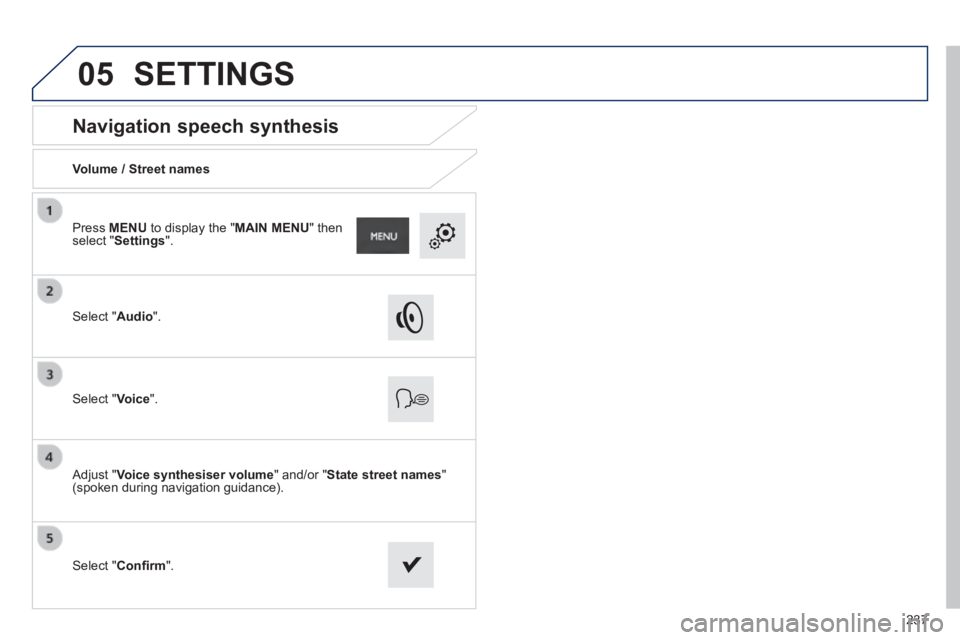
Navigation speech synthesis
Volume / Street names
Select " Audio ".
Select " Voice ".
Adjust " Voice synthesiser volume " and/or " State street names " (spoken during navigation guidance).
Select " Confi rm ".
Press MENU to display the " MAIN MENU " then select " Settings ".
SETTINGS
Page 257 of 336

255
Level 1Level 2Level 3Comments
Communications
Contacts
See contacts Map Press a number to start a call or on the address to start navigation. Info
Call log Consult the Call log and the contacts saved in the vehicle. Consult
Keypad Enter a number using the keypad.
Guide Start navigation towards the selected contact, using their address.
Call
Keypad "Micro OFF": switches off the microphone temporarily so that your contact cannot hear your conversation with a passenger.
"Privacy mode": switch to your mobile for a private conversation or to leave the vehicle without ending the call.
"Swap": change contact while maintaining the current contact.
"Conference": accept the incoming call to allow communication between all.
Micro OFF
Privacy mode
Contacts
Enter a number using the keypad.
Swap
Conference call
Communications
Call log
Consult
Contacts management
New Create a new contact.
Modify Modify the displayed contact.
Delete Delete the displayed contact.
Delete Delete all information on the displayed contact.
Status Used or free contacts, percentage used of internal directory and Bluetooth contacts.
Call After making choices, start the call.
Add contact Add a new contact.
Contacts
After making choices, start the call. Keypad
Call