Page 256 of 860
256 2-2. Instrument cluster and information display
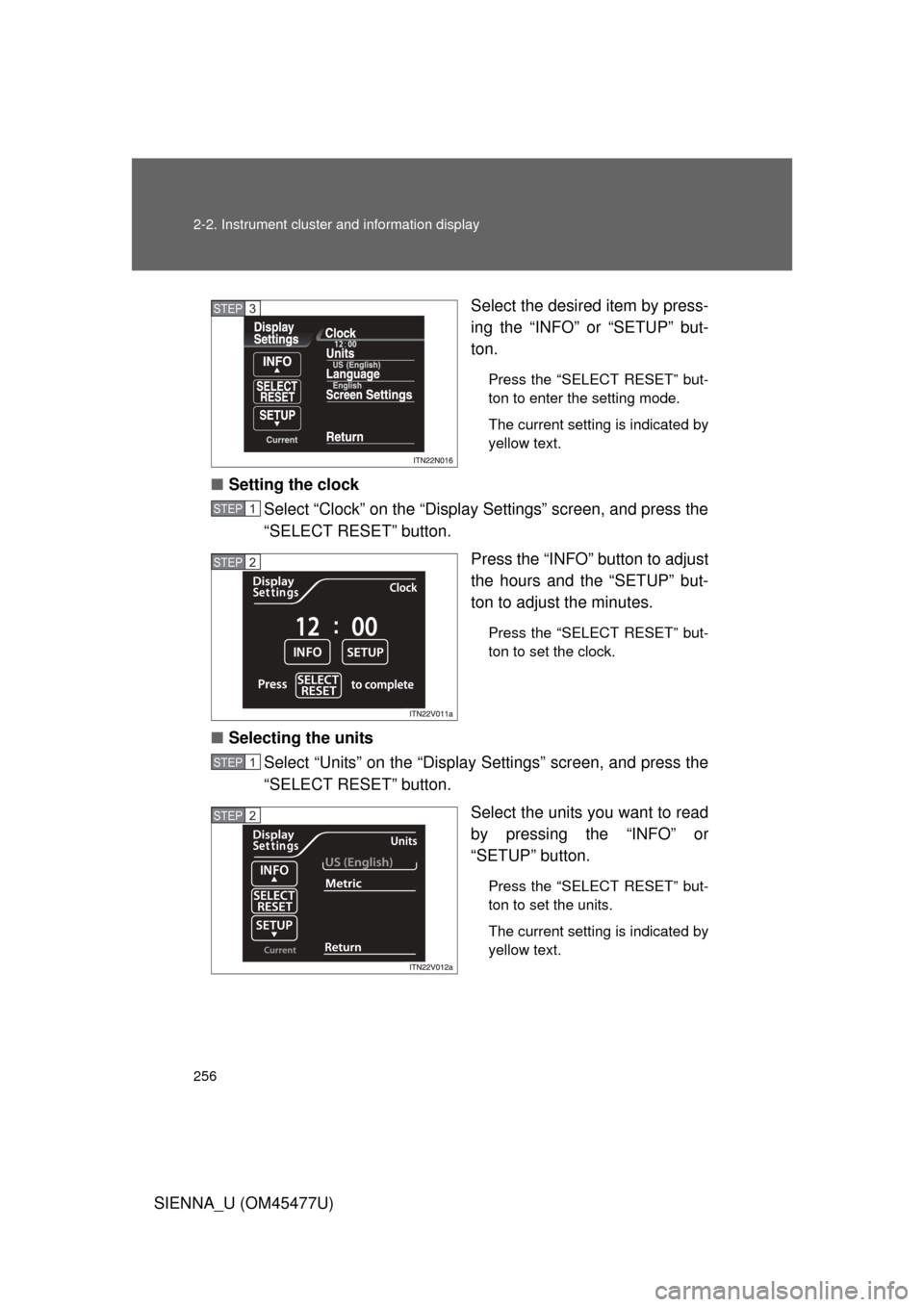
SIENNA_U (OM45477U)Select the desired item by press-
ing the “INFO” or “SETUP” but-
ton.
Press the “SELECT RESET” but-
ton to enter the setting mode.
The current setting is indicated by
yellow text.
■
Setting the clock
Select “Clock” on the “Display Settings” screen, and press the
“SELECT RESET” button.
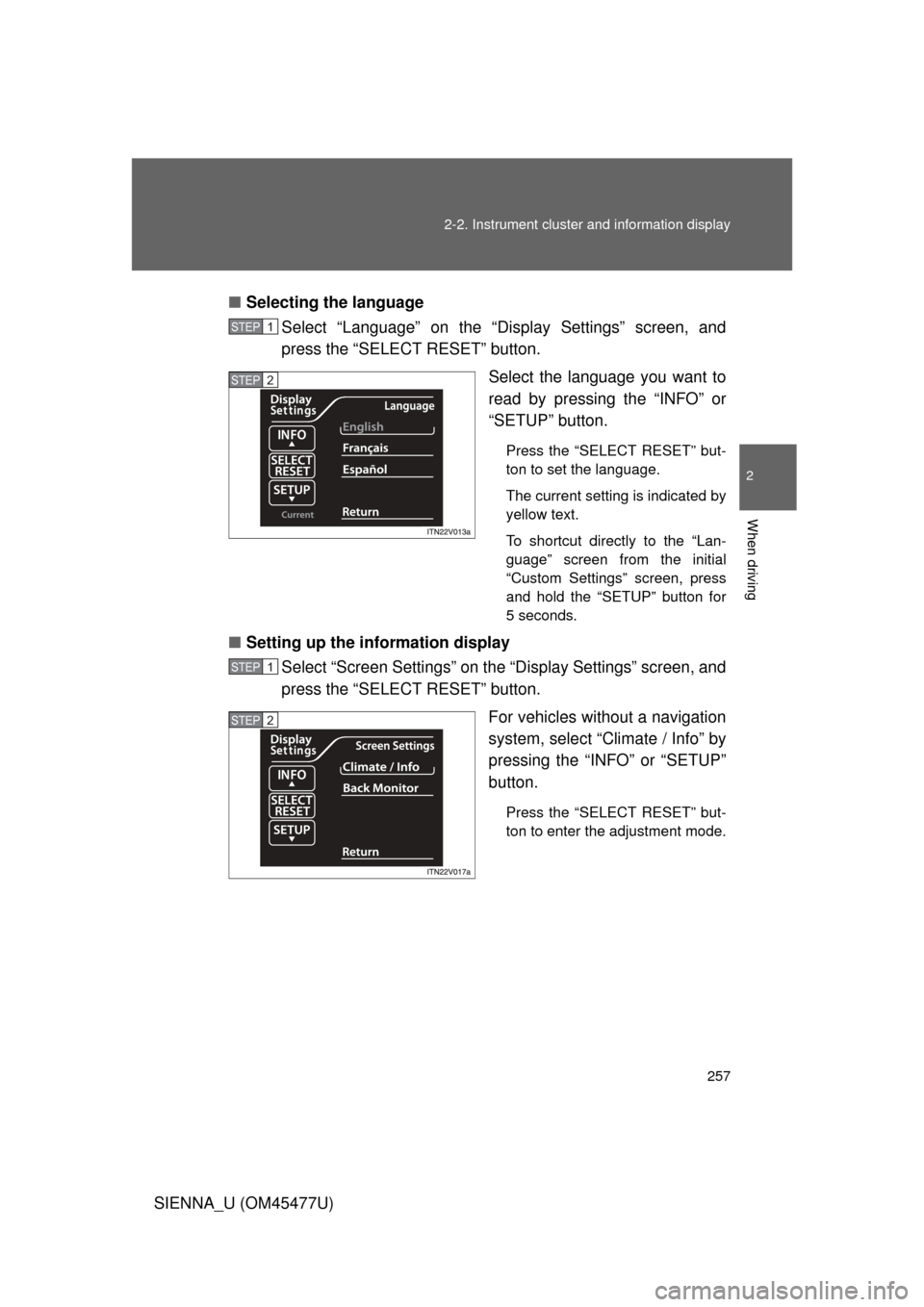
Press the “INFO” button to adjust
the hours and the “SETUP” but-
ton to adjust the minutes.
Press the “SELECT RESET” but-
ton to set the clock.
■Selecting the units
Select “Units” on the “Display Settings” screen, and press the
“SELECT RESET” button.
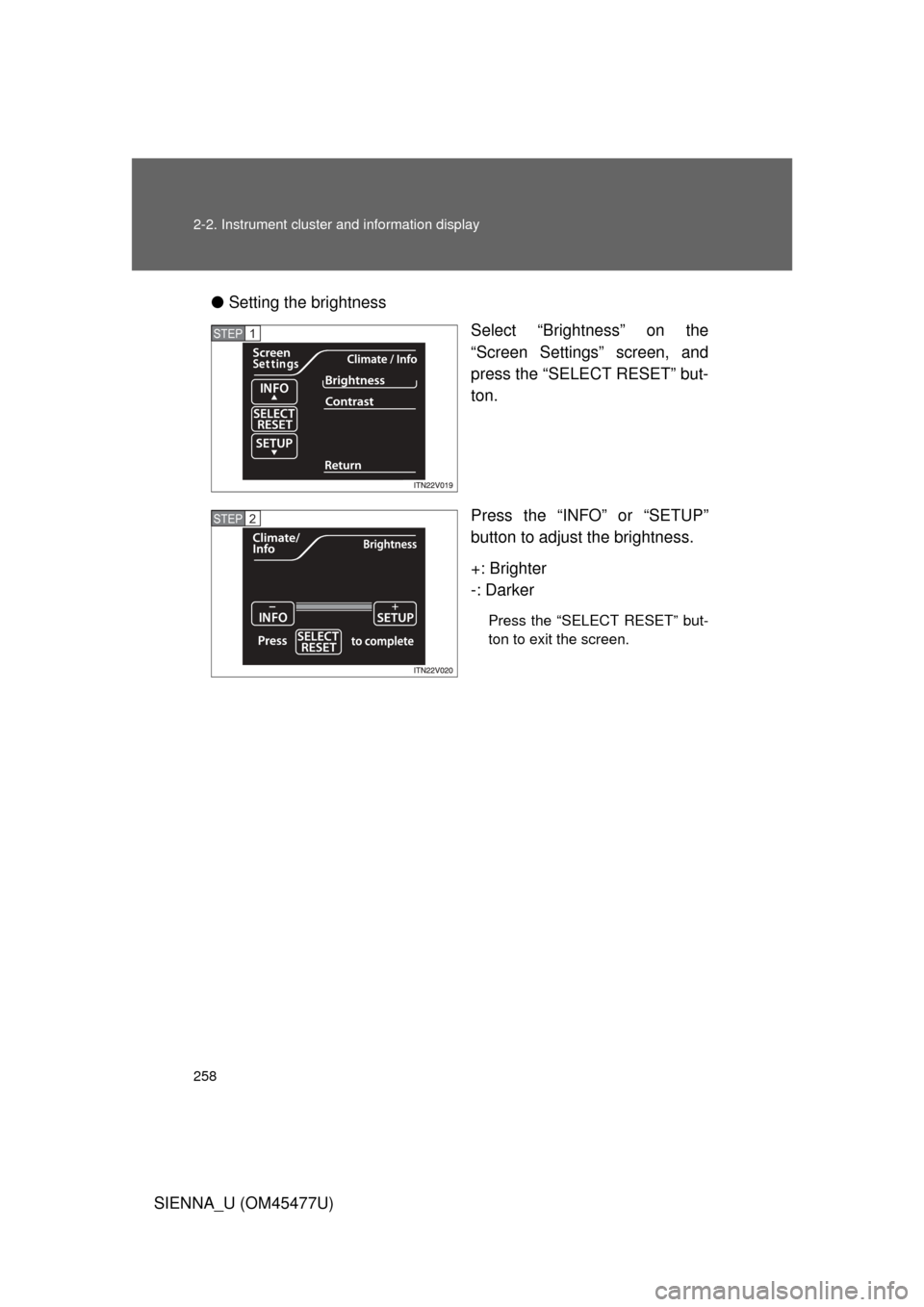
Select the units you want to read
by pressing the “INFO” or
“SETUP” button.
Press the “SELECT RESET” but-
ton to set the units.
The current setting is indicated by
yellow text.
STEP3
STEP1
STEP2
STEP1
STEP2
Page 257 of 860
257
2-2. Instrument cluster and information display
2
When driving
SIENNA_U (OM45477U)
■
Selecting the language
Select “Language” on the “Display Settings” screen, and
press the “SELECT RESET” button.
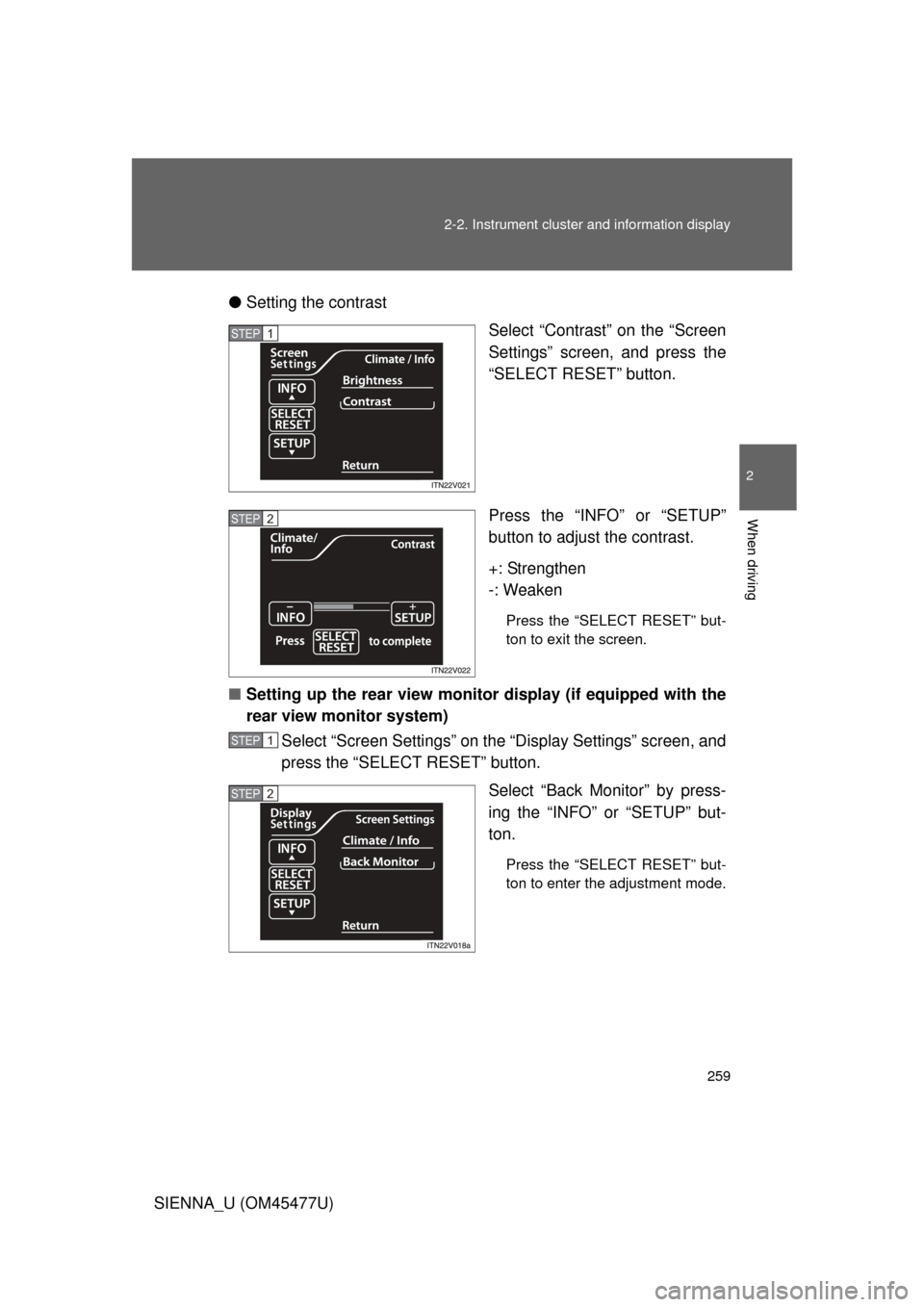
Select the language you want to
read by pressing the “INFO” or
“SETUP” button.
Press the “SELECT RESET” but-
ton to set the language.
The current setting is indicated by
yellow text.
To shortcut directly to the “Lan-
guage” screen from the initial
“Custom Settings” screen, press
and hold the “SETUP” button for
5 seconds.
■Setting up the information display
Select “Screen Settings” on the “Display Settings” screen, and
press the “SELECT RESET” button.
For vehicles without a navigation
system, select “Climate / Info” by
pressing the “INFO” or “SETUP”
button.
Press the “SELECT RESET” but-
ton to enter the adjustment mode.
STEP1
STEP2
STEP1
STEP2
Page 258 of 860
258 2-2. Instrument cluster and information display
SIENNA_U (OM45477U)●
Setting the brightness
Select “Brightness” on the
“Screen Settings” screen, and
press the “SELECT RESET” but-
ton.
Press the “INFO” or “SETUP”
button to adjust the brightness.
+: Brighter
-: Darker
Press the “SELECT RESET” but-
ton to exit the screen.
STEP1
STEP2
Page 259 of 860
259
2-2. Instrument cluster and information display
2
When driving
SIENNA_U (OM45477U)
●
Setting the contrast
Select “Contrast” on the “Screen
Settings” screen, and press the
“SELECT RESET” button.
Press the “INFO” or “SETUP”
button to adjust the contrast.
+: Strengthen
-: Weaken
Press the “SELECT RESET” but-
ton to exit the screen.
■ Setting up the rear view monitor display (if equipped with the
rear view monitor system)
Select “Screen Settings” on the “Display Settings” screen, and
press the “SELECT RESET” button.
Select “Back Monitor” by press-
ing the “INFO” or “SETUP” but-
ton.
Press the “SELECT RESET” but-
ton to enter the adjustment mode.
STEP1
STEP2
STEP1
STEP2
Page 260 of 860
260 2-2. Instrument cluster and information display
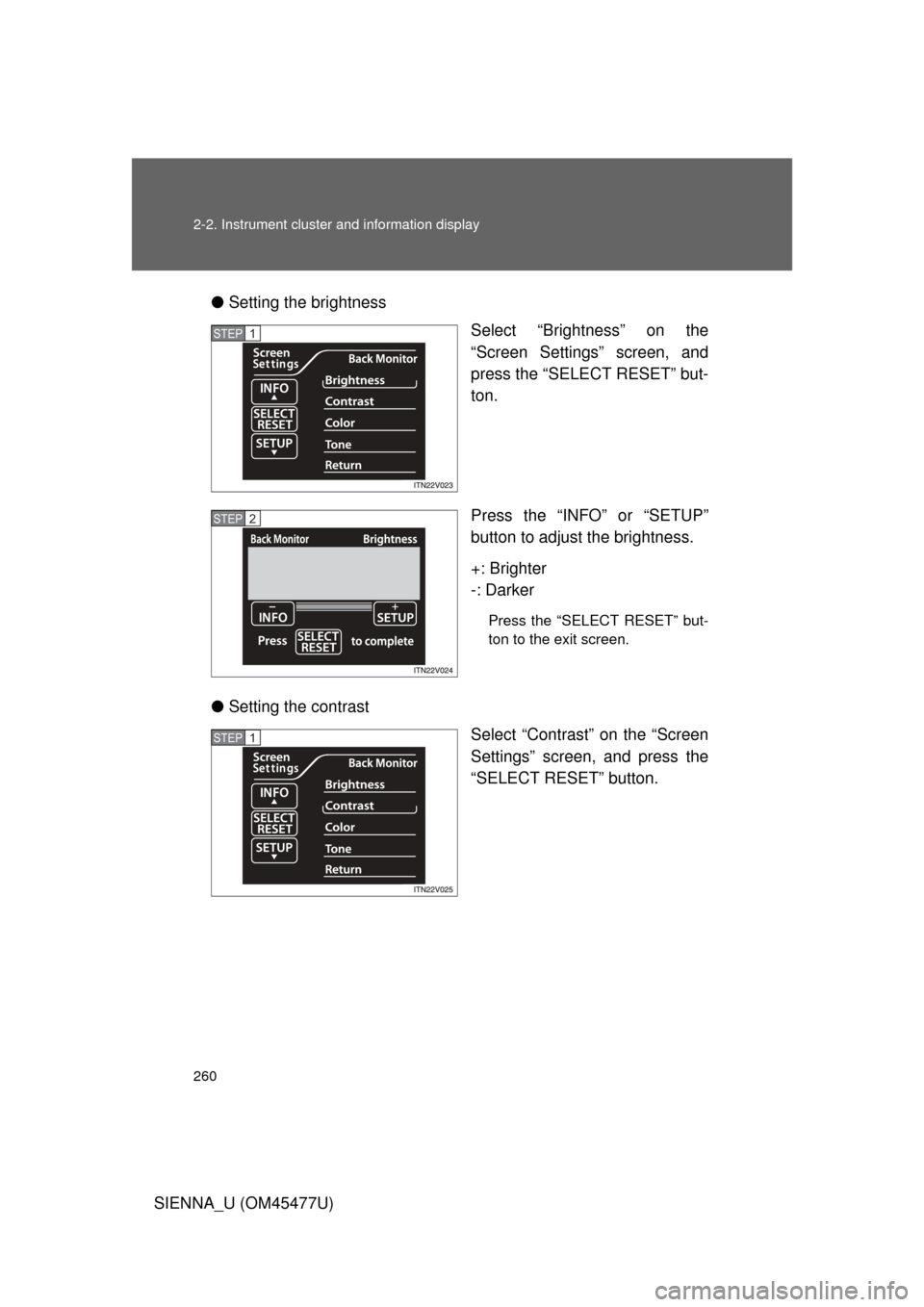
SIENNA_U (OM45477U)●
Setting the brightness
Select “Brightness” on the
“Screen Settings” screen, and
press the “SELECT RESET” but-
ton.
Press the “INFO” or “SETUP”
button to adjust the brightness.
+: Brighter
-: Darker
Press the “SELECT RESET” but-
ton to the exit screen.
● Setting the contrast
Select “Contrast” on the “Screen
Settings” screen, and press the
“SELECT RESET” button.
STEP1
STEP2
STEP1
Page 261 of 860
261
2-2. Instrument cluster and information display
2
When driving
SIENNA_U (OM45477U)
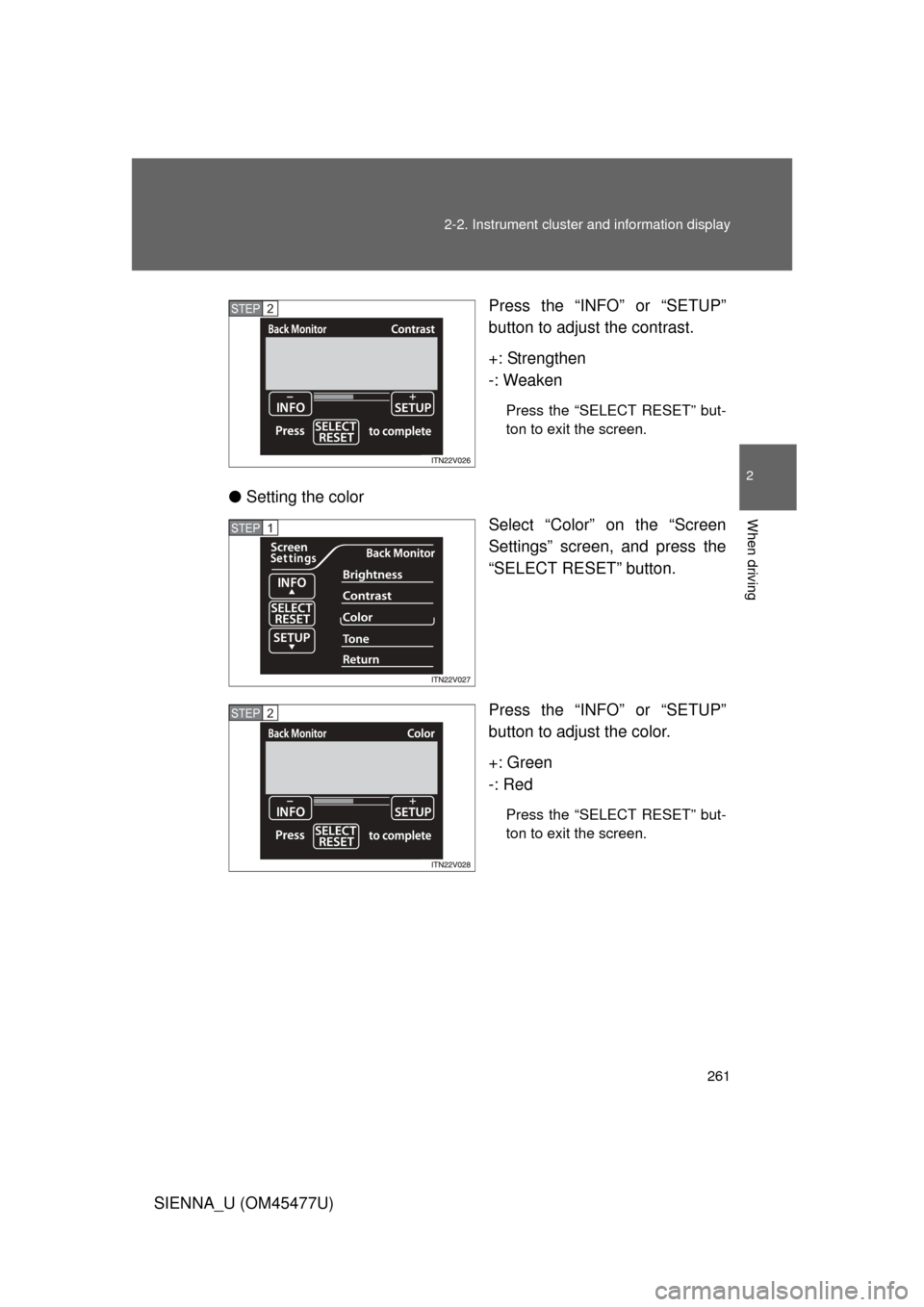
Press the “INFO”
or “SETUP”
button to adjust the contrast.
+: Strengthen
-: Weaken
Press the “SELECT RESET” but-
ton to exit the screen.
● Setting the color
Select “Color” on the “Screen
Settings” screen, and press the
“SELECT RESET” button.
Press the “INFO” or “SETUP”
button to adjust the color.
+: Green
-: Red
Press the “SELECT RESET” but-
ton to exit the screen.
STEP2
STEP1
STEP2
Page 262 of 860
262 2-2. Instrument cluster and information display
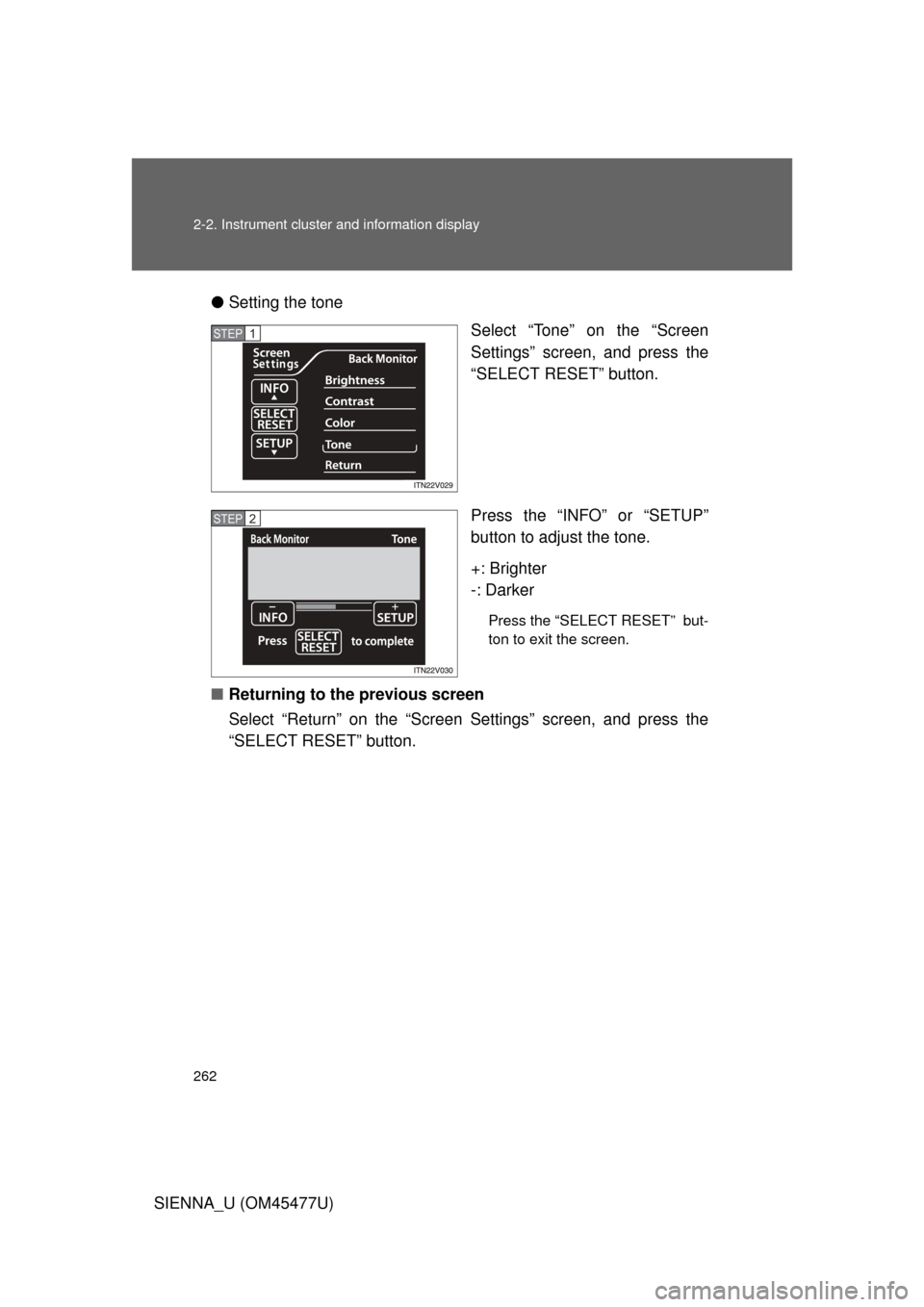
SIENNA_U (OM45477U)●
Setting the tone
Select “Tone” on the “Screen
Settings” screen, and press the
“SELECT RESET” button.
Press the “INFO” or “SETUP”
button to adjust the tone.
+: Brighter
-: Darker
Press the “SELECT RESET” but-
ton to exit the screen.
■ Returning to the previous screen
Select “Return” on the “Screen Settings” screen, and press the
“SELECT RESET” button.
STEP1
STEP2
Page 296 of 860
296 2-4. Using other driving systems
SIENNA_U (OM45477U)
■Cruise control can be set when
● The shift lever is in D or more than range 4 of S has been selected.
● Vehicle speed is above approximately 25 mph (40 km/h).
■ Accelerating after setting the vehicle speed
● The vehicle can be accelerated normally. After acceleration, the set
speed resumes.
● Even without canceling the cruise control, the set speed can be
increased by first accelerating the vehicle to the desired speed and then
pushing the lever down to set the new speed.
■ Automatic cruise control cancelation
Cruise control will stop maintaining the vehicle speed in any of the following
situations.
● Actual vehicle speed falls more than approximately 10 mph (16 km/h)
below the preset vehicle speed.
At this time, the memorized set speed is not retained.
● Actual vehicle speed is below approximately 25 mph (40 km/h).
● Enhanced VSC is activated.
■ If the cruise control indicator light flashes
Press the “ON-OFF” button once to deactivate the system, and then press
the button again to reactivate the system.
If the cruise control speed cannot be set or if the cruise control cancels
immediately after being activated, there may be a malfunction in the cruise
control system. Have the vehicle inspected by your Toyota dealer.