Page 43 of 330
BASIC FUNCTIONS
43
�
To display building information
Information is available only for buildings
for which information is recorded on the
map disc.
Touch “Info.” while the foot print map is
displayed.
Details of POIs in some buildings may be
displayed.
For detailed POI information, touch the
building name. You can see details of the
selected POIs. The orientation of the map can be changed
from North−
up to Heading −up by touching
the orientation symbol at the top left of the
screen.
Touch
or .
� Northup screen
�Headingup screen
Northup symbol
Regardless of the direction of vehicle trav-
el, North is always up.
Headingup symbol
The direction of vehicle travel is always up.
A red arrow indicates North.
— Orientation of the map
Page 49 of 330
BASIC FUNCTIONS
49
�
Speech command example:Chang-
ing map scale
1. Push the talk switch.
2. Say “Command list”.
3. Say “Zoom in” or “Zoom out”.
To confirm commands on the screen,
touch
or to scroll through the
command list. This function is available
only when the vehicle is not moving.
When
or is touched, push the talk
switch again and say the command.
The scale of the map display is changed.
Page 52 of 330
DESTINATION SEARCH
52
U002ADNS
Push the “DEST” button.
You can use one of 10 different methods to
search your destination. (See pages 54
through 71.)
INFORMATION
When searching the destination, the
response to the touch screen button
may be slow.
Change the selected region in order to set
a destination from a different region by us-
ing “Address”, “Point of Interest” or “Inter-
section & Freeway”.
1. Touch “Search Area” to display a
map of the United States and Canada
divided into 12 regions. (For map data-
base information and updates, see “Map
database information and updates” on
page 310.)
2. Touch one of “US1” through “CAN”
to select a region to search.
3. Touch “OK” and the previous
screen returns.
Destination search —— Selecting the search area
Page 54 of 330
DESTINATION SEARCH
54
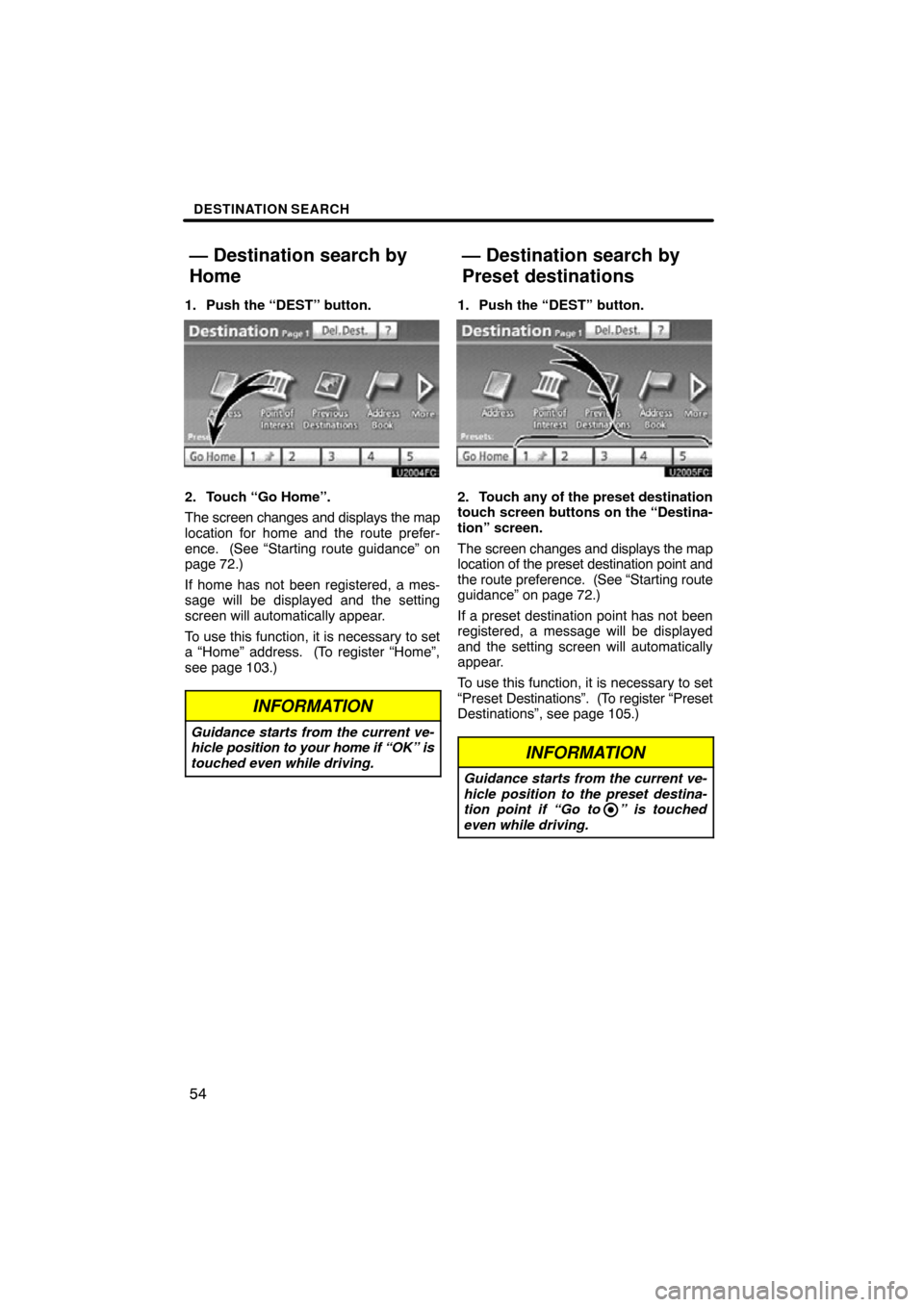
1. Push the “DEST” button.
2. Touch “Go Home”.
The screen changes and displays the map
location for home and the route prefer-
ence. (See “Starting route guidance” on
page 72.)
If home has not been registered, a mes-
sage will be displayed and the setting
screen will automatically appear.
To use this function, it is necessary to set
a “Home” address. (To register “Home”,
see page 103.)
INFORMATION
Guidance starts from the current ve-
hicle position to your home if “OK” is
touched even while driving.
1. Push the “DEST” button.
2. Touch any of the preset destination
touch screen buttons on the “Destina-
tion” screen.
The screen changes and displays the map
location of the preset destination point and
the route preference. (See “Starting route
guidance” on page 72.)
If a preset destination point has not been
registered, a message will be displayed
and the setting screen will automatically
appear.
To use this function, it is necessary to set
“Preset Destinations”. (T o register “Preset
Destinations”, see page 105.)
INFORMATION
Guidance starts from the current ve-
hicle position to the preset destina-
tion point if “Go to ” is touched
even while driving.
— Destination search by
Home
— Destination search by
Preset destinations
Page 56 of 330
DESTINATION SEARCH
56
6. Input the street name and touch
“OK”.
7. When the desired street name is
found, touch the corresponding but-
ton.
The screen changes and displays the map
location of the selected destination and the
route preference. (See “Starting route
guidance” on page 72.)
8. Input a house number.
If the same address exists in more than
one city, the current screen changes to the
address list screen.
Page 57 of 330
DESTINATION SEARCH
57
SELECTING FROM THE LAST 5 CITIES
1. Touch “Last 5 Cities”.
2. Touch the button of the desired city
name.
If the navigation system has never been
used, this function will not be available.
The current screen changes to the screen
for inputting a street name. (See “(a) Se-
lecting a city to search” on page 55.) (b) Search by street address
1. Push the “DEST” button.
2. Touch “Address” on the “Destina-
tion” screen.
3. Touch “Street Address”.
4. Touch numbers directly on the
screen to input a house number.
After inputting a house number, touch
“OK”
to display the screen for inputting a
street name.
5. Input the street name and touch
“OK”.
Page 58 of 330
DESTINATION SEARCH
58
6. When the desired street name is
found, touch the corresponding but-
ton.
The screen changes and displays the map
location of the selected destination and the
route preference. (See “Starting route
guidance” on page 72.)
If the same address exists in more than
one city, the current screen changes input-
ting the city name or to the address list
screen.
7. Input a city name.
8. Touch the button of the desired city
name from the displayed list.
INFORMATION
You can search for a street name us-
ing just the body.
Example : S WESTERN AVE
You can input “S WESTERN AVE”,
“WESTERN AVE” or “WESTERN”
Page 59 of 330
DESTINATION SEARCH
59
There are 3 ways to search by Points of In-
terest.
(a) Search by name
(b) Search by category
(c) Search by phone #
1. Push the “DEST” button.
2. Touch “Points of Interest” on the
“Destination” screen.
3. Touch the button for the desired
method. (a) Search by “Name”
1. Push the “DEST” button.
2. Touch “Point of Interest” on the
“Destination” screen.
3. Touch “Name” on the “Point of In-
terest” screen.
4. Input the name of the Point of Inter-
est.
5. Touch
the button of the desired des-
tination.
The screen changes and displays the map
location of the selected destination and the
route preference. (See “Starting route
guidance” on page 72.)
When inputting the name of a specific
Point of Interest, and there are two or more
sites with the same name, the list screen
is displayed.
INFORMATION
To search for a facility name using
multiple search words, put a space
between each word.
— Destination search by
“Point of Interest”


