Page 87 of 357
87
2. ROUTE GUIDANCE
3
NAVIGATION SYSTEM
PRIUS (US) NAVI 47719U
11.10.26 15:37
4Touch “OK”.
5After selecting the destinations, touch
“OK”.
The system searches for the guidance
route again, and displays the entire route.
1Touch “Route” .
2Touch “Delete” .
When more than 1 destination is set, a list
will be displayed on the screen.
3Touch the destination to be deleted.
“Delete All” : Touch to delete all destina-
tions on the list.
A message appears to confirm the request
to delete.
4Touch “Yes” to delete the destina-
tion(s).
If “Yes” is touched, the data cannot be
recovered. If more than 1 destination has
been set, the system will recalculate the
route(s) to the set destination(s) as neces-
sary.
If “No” is touched, the previous screen
will be displayed.
DELETING DESTINATIONS
A set destination can be deleted.
Page 97 of 357
97
3
NAVIGATION SYSTEM
PRIUS (US) NAVI 47719U
11.10.26 15:37
3. ADDRESS BOOK
1. NAVIGATION SETTINGS
1Press the “SETUP” button.
2Touch “Navigation” .
3Touch the desired items to be set.
On this screen, the following operations
can be performed:
Points or areas on the map can be reg-
istered.
The registered points can be used on
the “Destination” screen. (See “DESTI-
NATION SEARCH BY HOME” on
page 59, and “DESTINATION
SEARCH BY “Address Book”” on page
69.)
Registered areas to avoid, will be
avoided when the system searches for
a route.No.FunctionPage
Touch to set home.98
Touch to set preset desti-
nations.100
Touch to set the address
book.102
Touch to set areas to
avoid.107
Touch to delete previous
destinations.111
Touch to set detailed navi-
gation settings.11 3
Page 100 of 357
100
3. ADDRESS BOOK
PRIUS (US) NAVI 47719U
11.10.26 15:37
1Press the “SETUP” button.
2Touch “Navigation” on the “Setup”
screen.
3Touch “Preset Destinations” .
4Touch the desired screen button.
1Press the “SETUP” button.
2Touch “Navigation” on the “Setup”
screen.
3Touch “Preset Destinations” on the
“Navigation Settings” screen.
4Touch “Set”.
5Touch the desired screen button and
enter the location in the same way as
for a destination search. (See “DESTI-
NATION SEARCH” on page 58.)
SETTING UP THE “Preset
Destinations”
If preset destination has been regis-
tered, that information can be recalled
by using “Preset Destinations” on
the “Navigation Settings” screen. (See
“DESTINATION SEARCH BY PRE-
SET DESTINATIONS” on page 59.)
No.FunctionPage
Registering a preset desti-
nation100
Editing a preset destination101
Deleting a preset destina-
tion102
REGISTERING PRESET
DESTINATIONS
Page 101 of 357
101
3. ADDRESS BOOK
3
NAVIGATION SYSTEM
PRIUS (US) NAVI 47719U
11.10.26 15:37
6Touch a position for this preset desti-
nation.
When registration of a preset destination
is completed, the “Edit Preset Destination”
screen will be displayed.
7Touch “OK”.
1Press the “SETUP” button.
2Touch “Navigation” on the “Setup”
screen.
3Touch “Preset Destinations” on the
“Navigation Settings” screen.
4Touch “Edit”.
5Touch the screen button of the desired
preset destination.
6Touch “Edit” next to the item to be ed-
ited.
“Show Name on Map”: The name of a pre-
set destination can be set to be displayed
on the map by touching “On” or “Off” .
(See page 105.)
7Touch “OK”.
To edit registered information, see
“EDITING PRESET DESTINATIONS”
on page 101.
EDITING PRESET
DESTINATIONS
No.FunctionPage
To edit the preset destina-
tion name. The name can
be displayed on the map.
105
To edit location informa-
tion.105
To edit the phone number.106
To change the icon to be
displayed on the map.104
Page 102 of 357
102
3. ADDRESS BOOK
PRIUS (US) NAVI 47719U
11.10.26 15:37
1Press the “SETUP” button.
2Touch “Navigation” on the “Setup”
screen.
3Touch “Preset Destinations” on the
“Navigation Settings” screen.
4Touch “Delete” .
5Touch the preset destination to be de-
leted.
6Touch “Delete” .
7Touch “Yes” to delete the preset des-
tination and touch “No” to cancel the
deletion.
1Press the “SETUP” button.
2Touch “Navigation” on the “Setup”
screen.
3Touch “Address Book” .
4Touch the desired screen button.
DELETING PRESET
DESTINATIONS
Screen buttonFunction
“Select All”Touch to select all preset
destinations.
“Unselect All”Touch to cancel the
“Select All” function.
SETTING UP THE “Address
Book”
Points or areas on the map can be reg-
istered.
No.FunctionPage
Registering address book
entries103
Editing address book en-
tries103
Deleting address book en-
tries106
Page 111 of 357
111
3. ADDRESS BOOK
3
NAVIGATION SYSTEM
PRIUS (US) NAVI 47719U
11.10.26 15:37
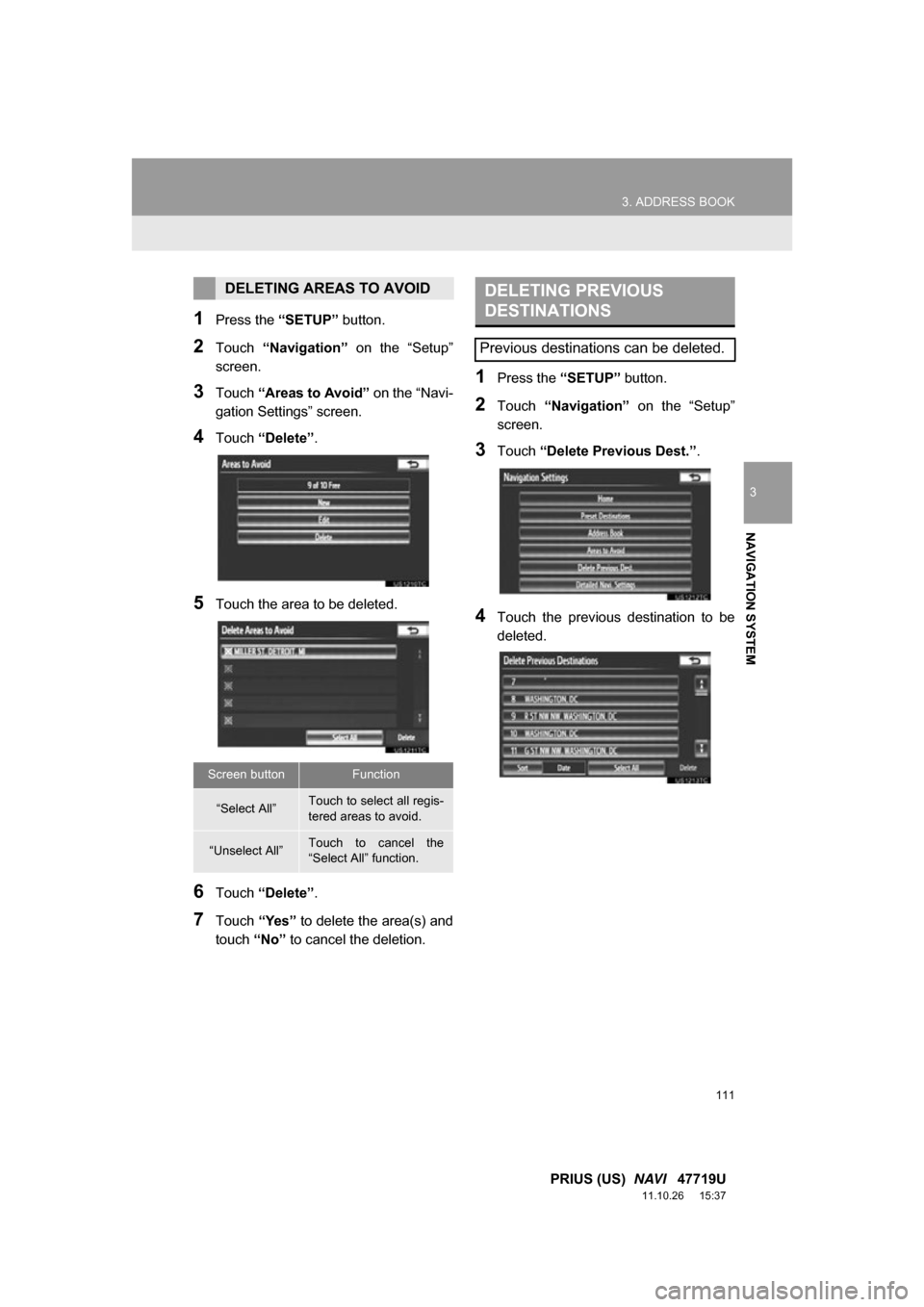
1Press the “SETUP” button.
2Touch “Navigation” on the “Setup”
screen.
3Touch “Areas to Avoid” on the “Navi-
gation Settings” screen.
4Touch “Delete” .
5Touch the area to be deleted.
6Touch “Delete” .
7Touch “Yes” to delete the area(s) and
touch “No” to cancel the deletion.
1Press the “SETUP” button.
2Touch “Navigation” on the “Setup”
screen.
3Touch “Delete Previous Dest.” .
4Touch the previous destination to be
deleted.
DELETING AREAS TO AVOID
Screen buttonFunction
“Select All”Touch to select all regis-
tered areas to avoid.
“Unselect All”Touch to cancel the
“Select All” function.
DELETING PREVIOUS
DESTINATIONS
Previous destinations can be deleted.
Page 112 of 357
112
3. ADDRESS BOOK
PRIUS (US) NAVI 47719U
11.10.26 15:37
5Touch “Delete” .
6Touch “Yes” to delete the destina-
tion(s) and touch “No” to cancel the
deletion.
Screen buttonFunction
“Select All”Touch to select all previ-
ous destinations.
“Unselect All”Touch to cancel the
“Select All” function.
Page 324 of 357

324
ALPHABETICAL INDEX
PRIUS (US) NAVI 47719U
11.10.26 15:37
A
Adding destinations................................... 86
Address book .......................................... 102
Address book entries .............................. 102
AM........................................................... 200
AM button................................................ 192
Apps ........................................................ 306
Audio ....................................................... 192
AUDIO button.......................................... 192
Audio language code .............................. 230
Audio settings ......................................... 267
HD Radio™ system sett ings ............... 267
iPod settings ........................................ 268
Audio/video remote controls (Steering switches) .............................. 255
Audio/video system ......... ..................... ... 192
Audio/video system operating hints ........ 257
Caring for your DVD player and disc ... 259
CD-R and CD-RW discs ...................... 263
iPod ..................................................... 258
MP3/WMA files .................................... 261
Radio reception ................................... 257
Terms .................................................. 263
USB memory ....................................... 259
Automatic Sound Levelizer (ASL) ........... 197
AUX port ................................................. 199
B
Basic function ............................................26
Bluetooth®...............................................132
Bluetooth® audio .....................................245
Connecting a Bluetooth
® audio player ...................248
Playing Bluetooth® audio.....................249
Bluetooth® phone ....................................139
Bluetooth® phone message function.......154
Checking messages ............................154
New message notification....................156
Replying (Quick reply) .........................155
Bluetooth
® settings .................................179
Detailed Bluetooth® settings................186
Registered devices ..............................179
Selecting a Bluetooth
® phone .............183
Selecting portable player .....................185
Brightness .........................................31, 226
C
Call on the Bluetooth® phone..................143
By call history ......................................145
By dial ..................................................143
By phonebook......................................143
By POI call ...........................................149
By speed dial .......................................145
By voice recognition ............................147
Calling using an SMS/MMS message ........................149
CD ...........................................................215
CLOSE button .........................................192
Color..................................................47, 226
Command list ..........................................279
Contrast.............................................31, 226
Current position calibration .....................118
Current position display.............................33
ALPHABETICAL INDEX