Page 21 of 357
21
3. QUICK REFERENCE
1
QUICK GUIDE
PRIUS (US) NAVI 47719U
11.10.26 15:37
“Del.Dest.”Touch to delete set destinations.74
“Emergency”
Touch to select one of the 4 categories of emer-
gency service points that have already been
stored in the system’s database.
70
“Intersection &
Freeway”
Touch to enter the names of 2 intersecting streets
or a freeway (interstate) entrance or exit. This is
helpful if only the general vicinity, not the specific
address, is known.
70
“Map”Touch to enable setting a destination by touching
a location on the map screen.73
“Coordinates”Touch to enter latitude and longitude coordinates.73
Preset destina-
tion buttons
Touch to select one of the 5 preset destination
points as a destination. If a preset destination
point has not been registered, a message will be
displayed asking if it is desirable to set a destina-
tion to the preset screen button. (To register a
preset destination, see “REGISTERING PRE-
SET DESTINATIONS” on page 100.)
59
“Go Home”
Touch to select your personal home address
without having to enter the address each time. If
a home address has not been registered, a mes-
sage will be displayed and the setting screen will
automatically appear. (To register home, see
“REGISTERING HOME” on page 98.)
59
No.NameFunctionPage
Page 56 of 357
56
PRIUS (US) NAVI 47719U
11.10.26 15:37
1. DESTINATION SEARCH............... 58
SELECTING THE SEARCH AREA ........ 58
DESTINATION SEARCH BY HOME...... 59
DESTINATION SEARCH
BY PRESET DESTINATIONS ............. 59
DESTINATION SEARCH BY “Address” ....................... 60
DESTINATION SEARCH BY “Point of Interest” ........... 63
DESTINATION SEARCH BY “Previous Destinations”........................ 69
DESTINATION SEARCH BY “Address Book” .............. 69
DESTINATION SEARCH BY “Emergency” .................. 70
DESTINATION SEARCH BY “Intersection & Freeway”...................... 70
DESTINATION SEARCH BY “Map” ....... 73
DESTINATION SEARCH BY “Coordinates” ................. 73
DELETING SET DESTINATIONS .......... 74
2. STARTING ROUTE GUIDANCE ... 75
1DESTINATION SEARCH
3
NAVIGATION SYSTEM
Page 57 of 357
3
57
1
2
3
4
5
6
7
8
9
PRIUS (US) NAVI 47719U
11.10.26 15:37
1. ROUTE GUIDANCE SCREEN ....... 79
2. TYPICAL VOICE GUIDANCE
PROMPTS.....................................82
3. DISTANCE AND TIME TO DESTINATION ............................. 85
4. SETTING AND DELETING DESTINATIONS........................... 86
ADDING DESTINATIONS ..................... 86
REORDERING DESTINATIONS ........... 86
DELETING DESTINATIONS ................. 87
5. SETTING ROUTE .......................... 88
DETOUR SETTING ............................... 88
ROUTE OVERVIEW.............................. 89
ROUTE PREFERENCE ........................ 90
PAUSING AND
RESUMING GUIDANCE ..................... 92
SHOW ON MAP .................................... 93
ROUTE TRACE ..................................... 96
1. NAVIGATION SETTINGS ............. 97
SETTING UP THE “Home” .................... 98
SETTING UP THE “Preset Destinations” ......................... 100
SETTING UP THE “Address Book” ..... 102
SETTING UP THE “Areas to Avoid” .... 107
DELETING PREVIOUS DESTINATIONS ............ 111
1. DETAILED NAVIGATION SETTINGS ......... 113
SCREENS
FOR NAVIGATION SETTINGS ......... 113
2. VEHICLE SETTINGS .................. 121
MAINTENANCE ................................... 121
VEHICLE CUSTOMIZATION ............... 126
1. LIMITATIONS OF THE NAVIGATION SYSTEM ............ 127
2ROUTE GUIDANCE3ADDRESS BOOK
4SETUP
5GPS (GLOBAL POSITIONING
SYSTEM)
NAVIGATION SYSTEM
Page 59 of 357
59
1. DESTINATION SEARCH
3
NAVIGATION SYSTEM
PRIUS (US) NAVI 47719U
11.10.26 15:37
1Press the “DEST” button.
2Touch “Go Home” .
Your home address is set as the destina-
tion. The navigation system performs a
search for the route.
3Touch “OK”.
1Press the “DEST” button.
2Touch any of the preset destination
buttons ( 1-5) on the “Destination”
screen.
The selected preset destination point is
set as the destination. The navigation sys-
tem performs a search for the route. (See
“STARTING ROUTE GUIDANCE” on
page 75.)
3Touch “OK”.
DESTINATION SEARCH BY
HOME
To use this function, it is necessary to
set a home address. (To register home,
see page 98.)
INFORMATION
●If a home address has not been regis-
tered, a message confirming if it is desir-
able to set a home will be displayed, and
the setting screen will appear.
● Guidance starts from the current posi-
tion to the set home address if “OK” is
touched even while driving.
DESTINATION SEARCH BY
PRESET DESTINATIONS
To use this function, it is necessary to
set preset destinations to the preset
screen buttons ( 1-5). (See “REGISTER-
ING PRESET DESTINATIONS” on
page 100.)
INFORMATION
● If a preset destination point has not been
registered, a message confirming if it is
desirable to set a preset destination will
be displayed, and the setting screen will
appear.
● Guidance starts from the current posi-
tion to the preset destination point if
“OK” is touched even while driving.
Page 69 of 357
69
1. DESTINATION SEARCH
3
NAVIGATION SYSTEM
PRIUS (US) NAVI 47719U
11.10.26 15:37
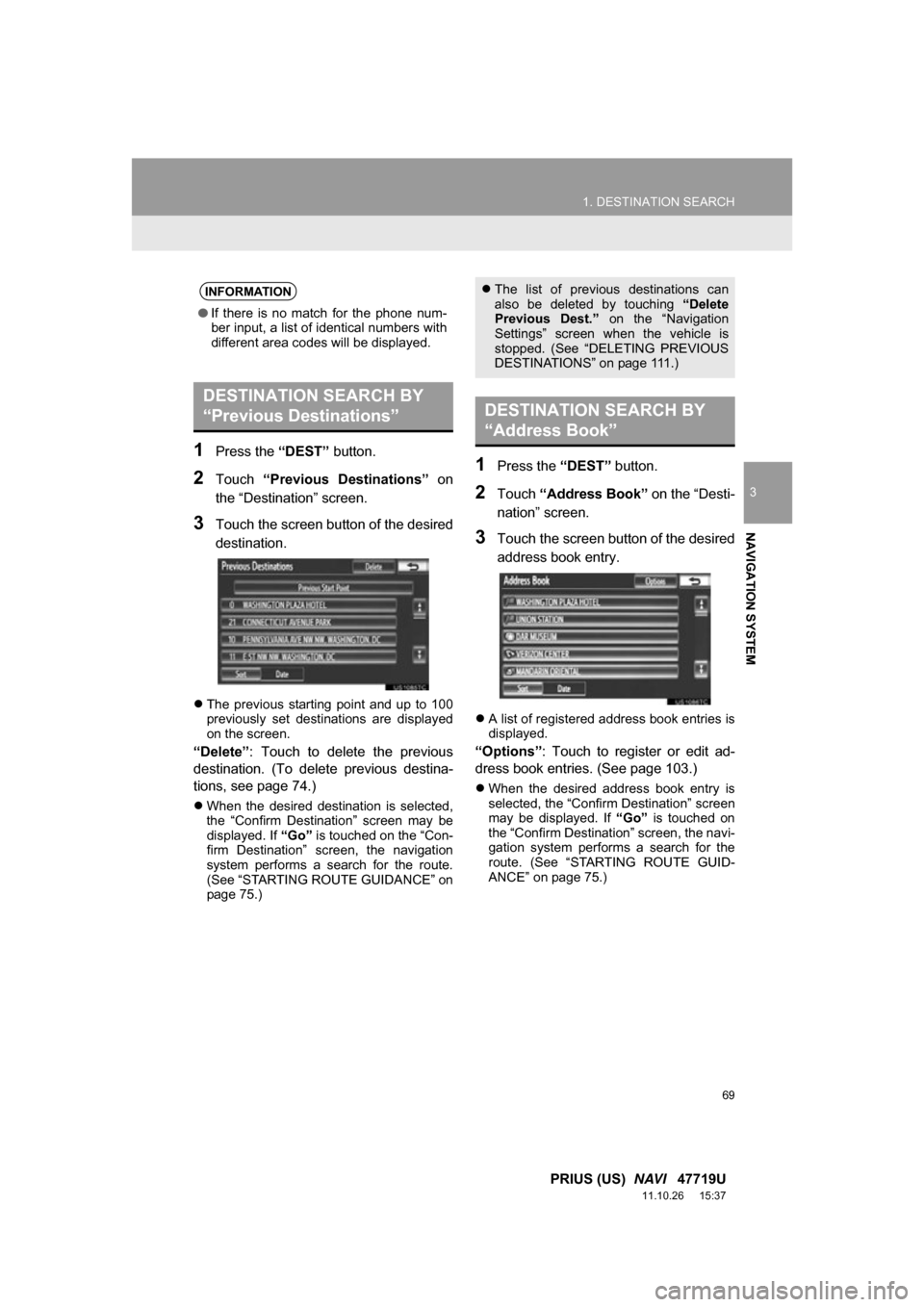
1Press the “DEST” button.
2Touch “Previous Destinations” on
the “Destination” screen.
3Touch the screen button of the desired
destination.
The previous starting point and up to 100
previously set destinations are displayed
on the screen.
“Delete” : Touch to delete the previous
destination. (To delete previous destina-
tions, see page 74.)
When the desired destination is selected,
the “Confirm Destination” screen may be
displayed. If “Go” is touched on the “Con-
firm Destination” screen, the navigation
system performs a search for the route.
(See “STARTING ROUTE GUIDANCE” on
page 75.)
1Press the “DEST” button.
2Touch “Address Book” on the “Desti-
nation” screen.
3Touch the screen button of the desired
address book entry.
A list of registered address book entries is
displayed.
“Options”: Touch to register or edit ad-
dress book entries. (See page 103.)
When the desired address book entry is
selected, the “Confirm Destination” screen
may be displayed. If “Go” is touched on
the “Confirm Destination” screen, the navi-
gation system performs a search for the
route. (See “STARTING ROUTE GUID-
ANCE” on page 75.)
INFORMATION
● If there is no match for the phone num-
ber input, a list of identical numbers with
different area codes will be displayed.
DESTINATION SEARCH BY
“Previous Destinations”
The list of previous destinations can
also be deleted by touching “Delete
Previous Dest.” on the “Navigation
Settings” screen when the vehicle is
stopped. (See “DELETING PREVIOUS
DESTINATIONS” on page 111.)
DESTINATION SEARCH BY
“Address Book”
Page 74 of 357
74
1. DESTINATION SEARCH
PRIUS (US) NAVI 47719U
11.10.26 15:37
1Press the “DEST” button.
2Touch “Del.Dest.” on the “Destina-
tion” screen.
When more than 1 destination is set, a list
will be displayed on the screen.
3Touch the destination to be deleted.
“Delete All” : Touch to delete all destina-
tions on the list.
4Touch “Yes” to delete the destina-
tion(s).
A message appears to confirm the request
to delete.
If “Yes” is touched, the data cannot be
recovered. If more than 1 destination has
been set, the system will recalculate the
route(s) to the set destination(s) as neces-
sary.
If “No” is touched, the previous screen
will be displayed.
DELETING SET
DESTINATIONS
A set destination can be deleted.
Set destinations can also be deleted by
touching “Route”. (See “DELETING
DESTINATIONS” on page 87.)
Page 78 of 357
78
1. DESTINATION SEARCH
PRIUS (US) NAVI 47719U
11.10.26 15:37
1Touch “Edit Route” .
2This screen is displayed.
EDIT ROUTE
Conditions for the route to the destina-
tion can be set again.No.FunctionPage
Touch to add destinations.86
Touch to delete destina-
tions.87
Touch to reorder destina-
tions.86
Touch to display the choic-
es available when setting
the conditions the system
uses to determine the route
to the destination.
90
INFORMATION
● Even if the “Freeways” indicator is
dimmed, the route cannot avoid includ-
ing a freeway in some cases.
● If the calculated route includes a trip by
ferry, the route guidance shows a sea
route. After you travel by ferry, the cur-
rent position may be incorrect. Upon
reception of GPS signals, it is automati-
cally corrected.
Page 86 of 357
86
2. ROUTE GUIDANCE
PRIUS (US) NAVI 47719U
11.10.26 15:37
4. SETTING AND DELE TING DESTINATIONS
1Touch “Route” .
2Touch “Add”.
3Input an additional destination in the
same way as a destination search.
(See “DESTINATION SEARCH” on
page 58.)
4Touch the desired “Add Destination
Here” to insert the new destination into
the route.
1Touch “Route” .
2Touch “Reorder” .
3Touch the desired destination and
touch “Move Up” or “Move Down” to
change the arrival order.
ADDING DESTINATIONS
Destinations can be added and routes
can be searched again.
REORDERING
DESTINATIONS
When more than 1 destination is set,
the arrival order of the destinations can
be changed.