Page 219 of 529
219
3-1. Using the air conditioning system and defogger
3
Interior features
Rear window and outside rear view mirror defoggers
■Outside rear view mirror defoggers (if equipped)
Turning the rear window defogger on will turn the outside rear view mirror
defoggers on.
CAUTION
■Outside rear view mirror defoggers (if equipped)
The surfaces of the outside rear view mirrors become hot. Do not touch
them to prevent from burning yourself.
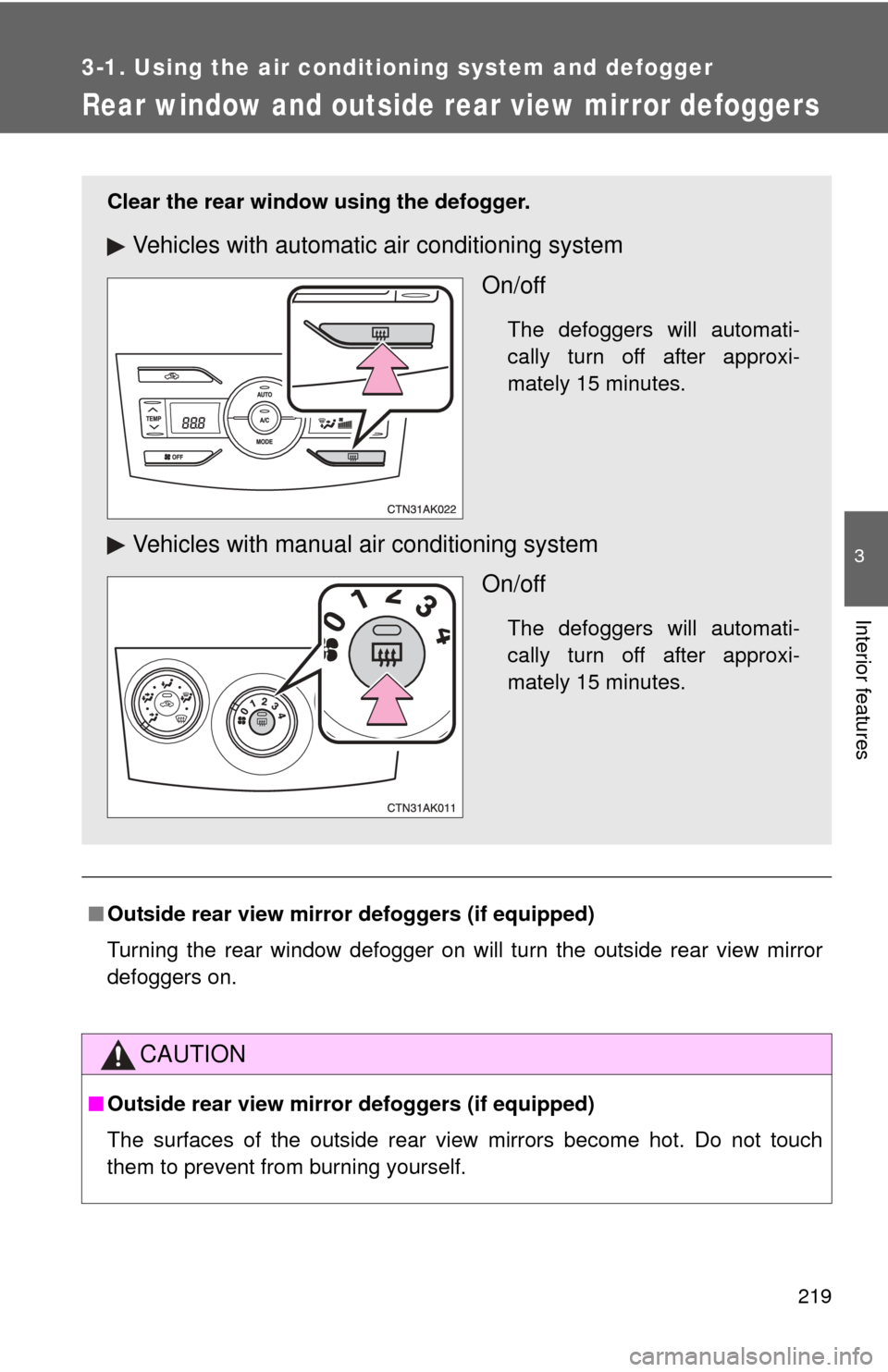
Clear the rear window using the defogger.
Vehicles with automatic air conditioning system
On/off
The defoggers will automati-
cally turn off after approxi-
mately 15 minutes.
Vehicles with manual air conditioning systemOn/off
The defoggers will automati-
cally turn off after approxi-
mately 15 minutes.
Page 240 of 529
240 3-2. Using the audio system
■Error messages
“ERROR” (type B): This indicates a problem either in the CD or inside the
player.
“CD CHECK”: The CD may be dirty, damaged or inserted up-side down.
“WAIT” or “PLEASE WAIT”: Operation has stopped due to a high tempera- ture inside the player. Wait for a while and then
press or . If the CD still
cannot be played back, contact your Toyota
dealer.
■ Discs that can be used
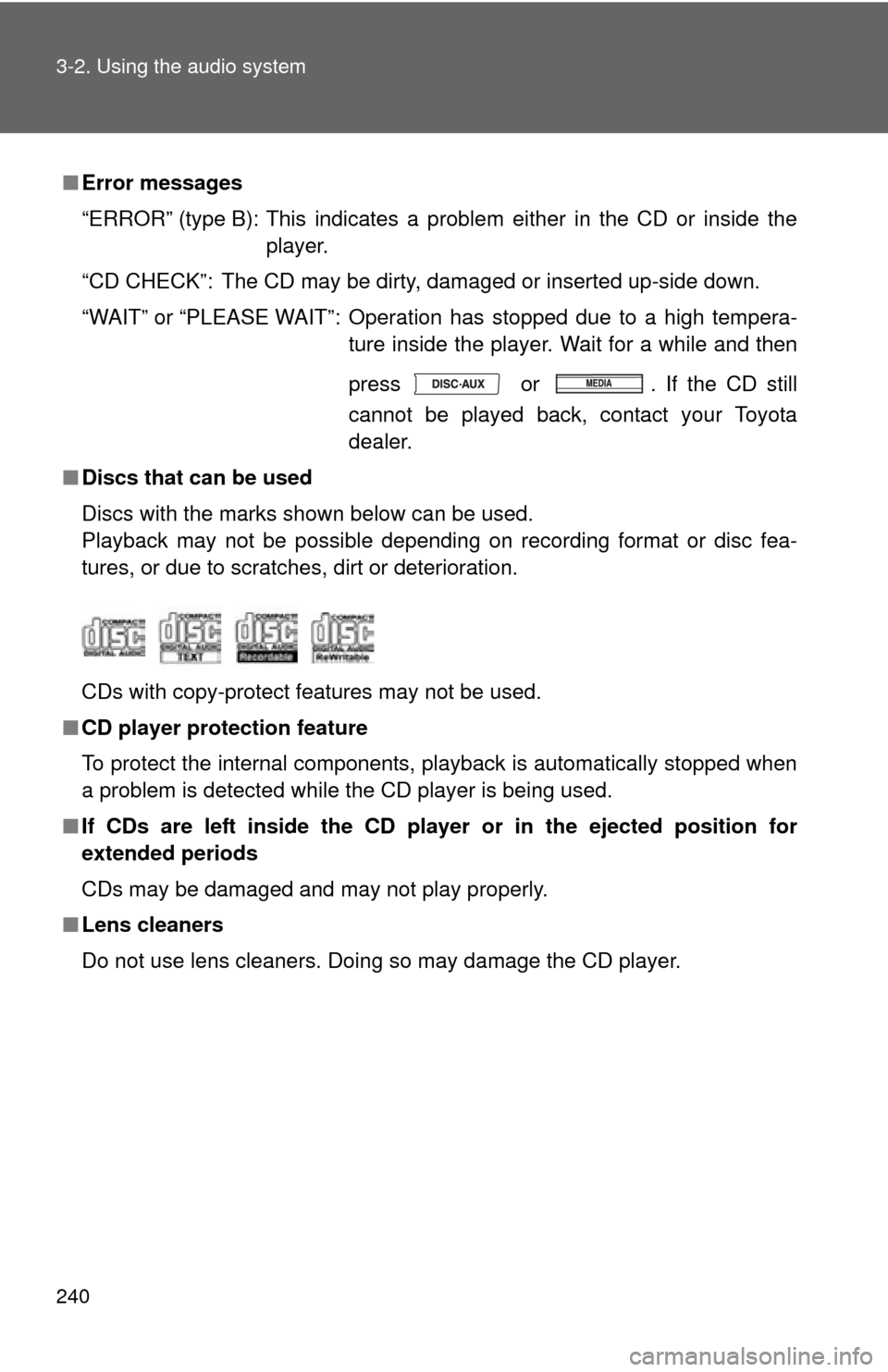
Discs with the marks shown below can be used.
Playback may not be possible depending on recording format or disc fea-
tures, or due to scratches, dirt or deterioration.
CDs with copy-protect features may not be used.
■ CD player protection feature
To protect the internal components, playback is automatically stopped when
a problem is detected while the CD player is being used.
■ If CDs are left inside the CD player or in the ejected position for
extended periods
CDs may be damaged and may not play properly.
■ Lens cleaners
Do not use lens cleaners. Doing so may damage the CD player.
Page 272 of 529
272 3-2. Using the audio system
■Adjusting the Automatic Sound Levelizer (ASL)
When “ASL” is selected, turning or to the right
changes the amount of “ASL” in the order of “LOW”, “MID” and
“HIGH”.
Turning or to the left turns “ASL” off.
ASL automatically adjusts the volume and tone quality according to vehi-
cle speed.
■Trademark owned by SRS Labs, Inc. (provided to the audio models
with SRS Labs technology)
The audio systems utilize SRS FOCUS
® and SRS TruBass® audio
enhancement technologies, under license from SRS Labs, Inc., in all modes
except AM radio mode.
FOCUS, TruBass, SRS and symbol are trademarks of SRS Labs,
Inc.
FOCUS and TruBass technologies are incorporated under license from
SRS Labs, Inc.
SRS TruBass
® enhances the perception of bass frequencies to provide
deep, rich bass response from any size speaker.
SRS FOCUS
® raises the audio image from non-optimally placed speakers
up to the natural listening height at ear level.
Page 284 of 529
284 3-3. Using the Bluetooth
® audio system
Using the Bluetooth® audio/phone for the first time
Before using the Bluetooth
® audio/phone, it is nec essary to register a
Bluetooth® device in the system. Follow the procedure below to reg-
ister (pair) a device:
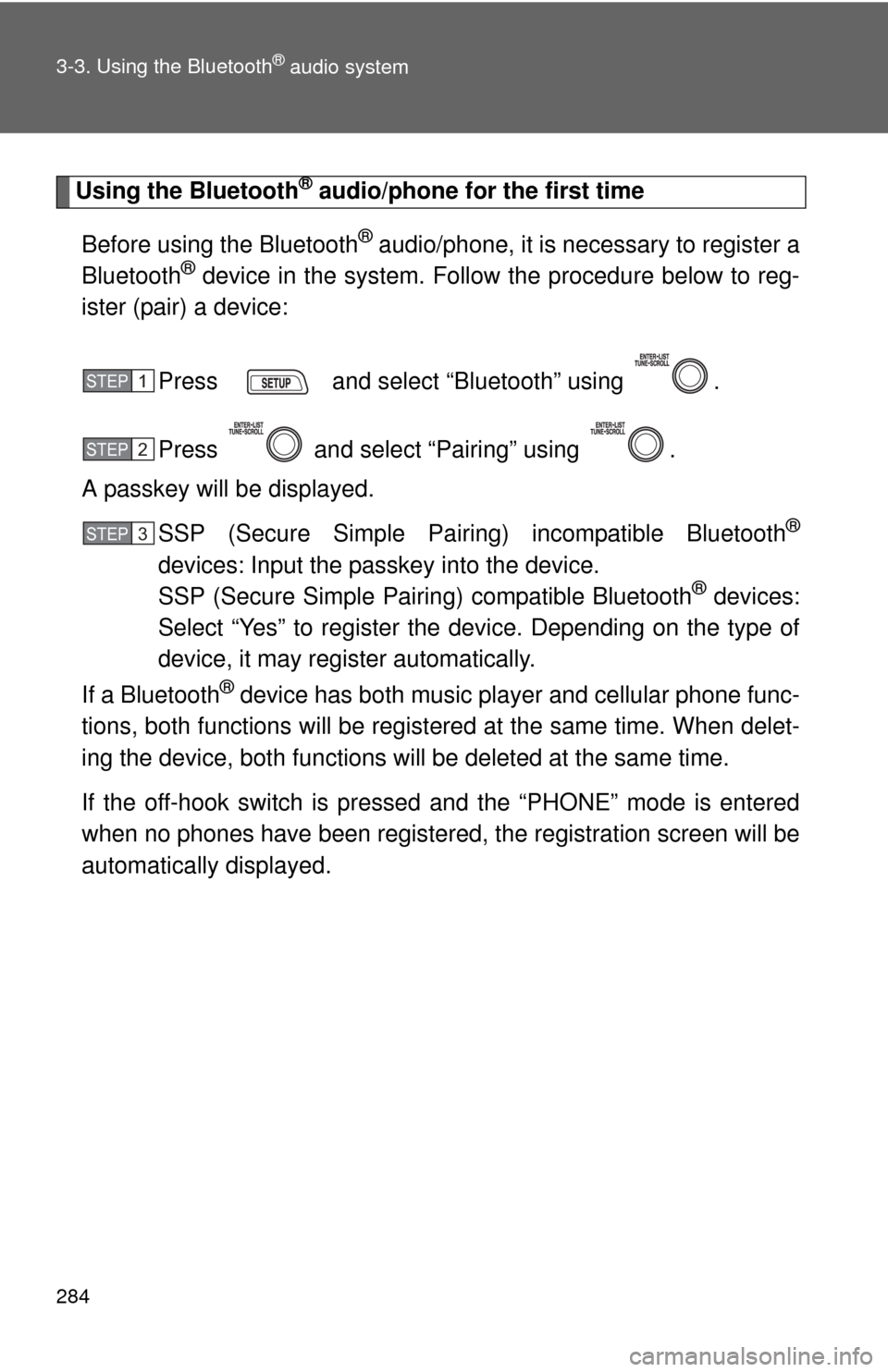
Press and select “Bluetooth” using .
Press and select “Pairing” using .
A passkey will be displayed.
SSP (Secure Simple Pairing) incompatible Bluetooth
®
devices: Input the passkey into the device.
SSP (Secure Simple Pairing) compatible Bluetooth® devices:
Select “Yes” to register the device. Depending on the type of
device, it may register automatically.
If a Bluetooth
® device has both music player and cellular phone func-
tions, both functions will be regist ered at the same time. When delet-
ing the device, both f unctions will be deleted at the same time.
If the off-hook switch is pressed and the “PHONE” mode is entered
when no phones have been registered, the re gistration screen will be
automatically displayed.
STEP 1
STEP 2
STEP 3
Page 285 of 529
285
3-3. Using the Bluetooth
® audio system
3
Interior features
Menu list of the Bluetooth® audio/phone
First menuSecond menuThird menuOperation details
“Bluetooth” “BT Pairing” -
Registering a
Bluetooth
® device
“List Phone” - Listing the registered
cellular phones
“List Audio” - Listing the registered
portable players
“Passkey” - Changing the passkey
“BT Power” - Setting automatic
connection of the device
on or off
“Bluetooth info” “Device Name”
“Device
Address”Displaying the device
status
“Display
Setting” -Setting the automatic
connection confirmation
display to on or off
“Initialize” - Initializing the settings
Page 294 of 529
294 3-4. Using the hands-free phone system (for cellular phone)
Adjusting the ringtone volume when receiving a call
Change the ringtone volume using .
To decrease the volume: Turn counterclockwise.
To increase the volume: Turn clockwise.
■When talking on the phone
●Do not talk simultaneously with the other party.
● Keep the volume of the received voice down. Otherwise, voice echo will
increase.
■ Automatic volume adjustment
When vehicle speed is 50 mph (80 km/h) or more, the volume automatically
increases. The volume returns to the previous volume setting when vehicle
speed drops to 43 mph (70 km/h) or less.
■ Phone call system functions
Depending on the cellular phone, certain functions may not be available.
■ Situations where the system m ay not recognize your voice
● When driving on a rough road
● When driving at high speeds
● When air is blowing out of the vents onto the microphone
● When the air conditioning fan emits a loud noise
Page 295 of 529
295
3-4. Using the hands-free phone system (for cellular phone)
3
Interior features
Using the “SET UP” menu (“Bluetooth” menu)
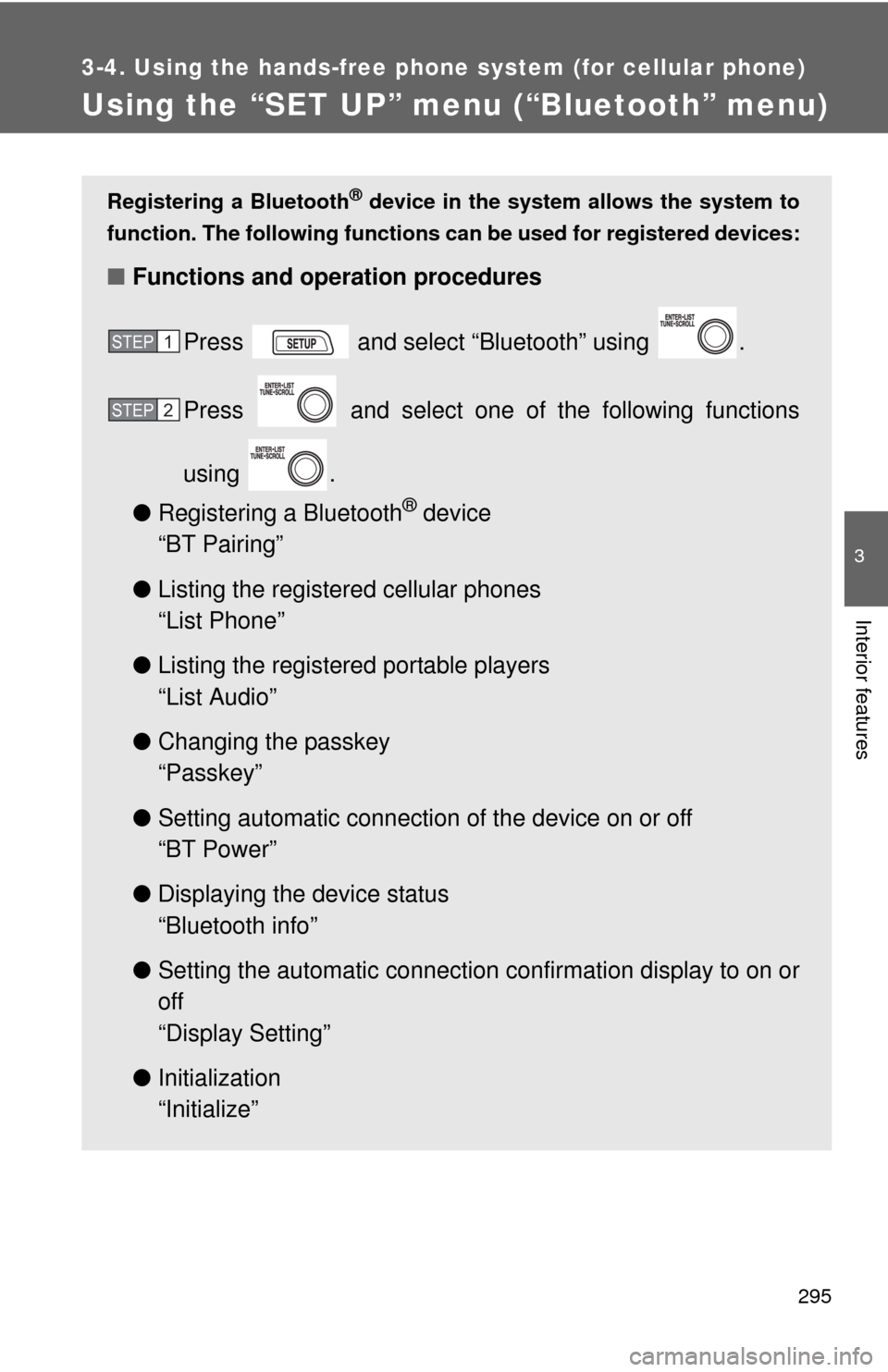
Registering a Bluetooth® device in the system allows the system to
function. The following functions can be used for registered devices:
■Functions and operation procedures
Press and select “Bluetooth” using .
Press and select one of the following functions
using .
● Registering a Bluetooth
® device
“BT Pairing”
● Listing the registered cellular phones
“List Phone”
● Listing the registered portable players
“List Audio”
● Changing the passkey
“Passkey”
● Setting automatic connection of the device on or off
“BT Power”
● Displaying the device status
“Bluetooth info”
● Setting the automatic connection confirmation display to on or
off
“Display Setting”
● Initialization
“Initialize”
STEP 1
STEP 2
Page 298 of 529
298 3-4. Using the hands-free phone system (for cellular phone)
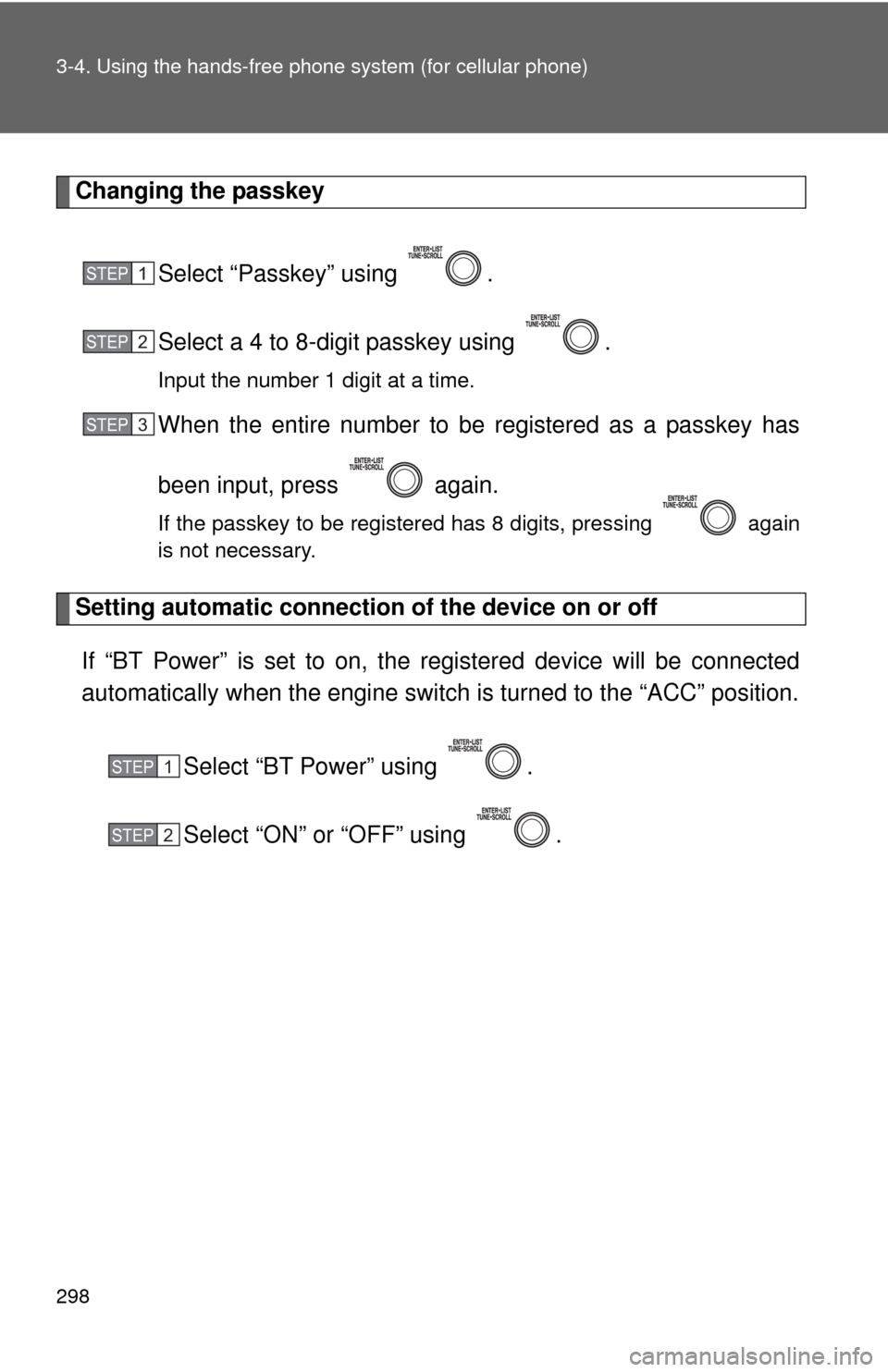
Changing the passkey
Select “Passkey” using .
Select a 4 to 8-digit passkey using .
Input the number 1 digit at a time.
When the entire number to be registered as a passkey has
been input, press again.
If the passkey to be registered has 8 digits, pressing again
is not necessary.
Setting automatic connection of the device on or offIf “BT Power” is set to on, the r egistered device will be connected
automatically when the engine switch is turned to the “ACC” position.
Select “BT Power” using .
Select “ON” or “OFF” using .
STEP 1
STEP 2
STEP 3
STEP 1
STEP 2