2012 NISSAN MAXIMA instrument panel
[x] Cancel search: instrument panelPage 301 of 450
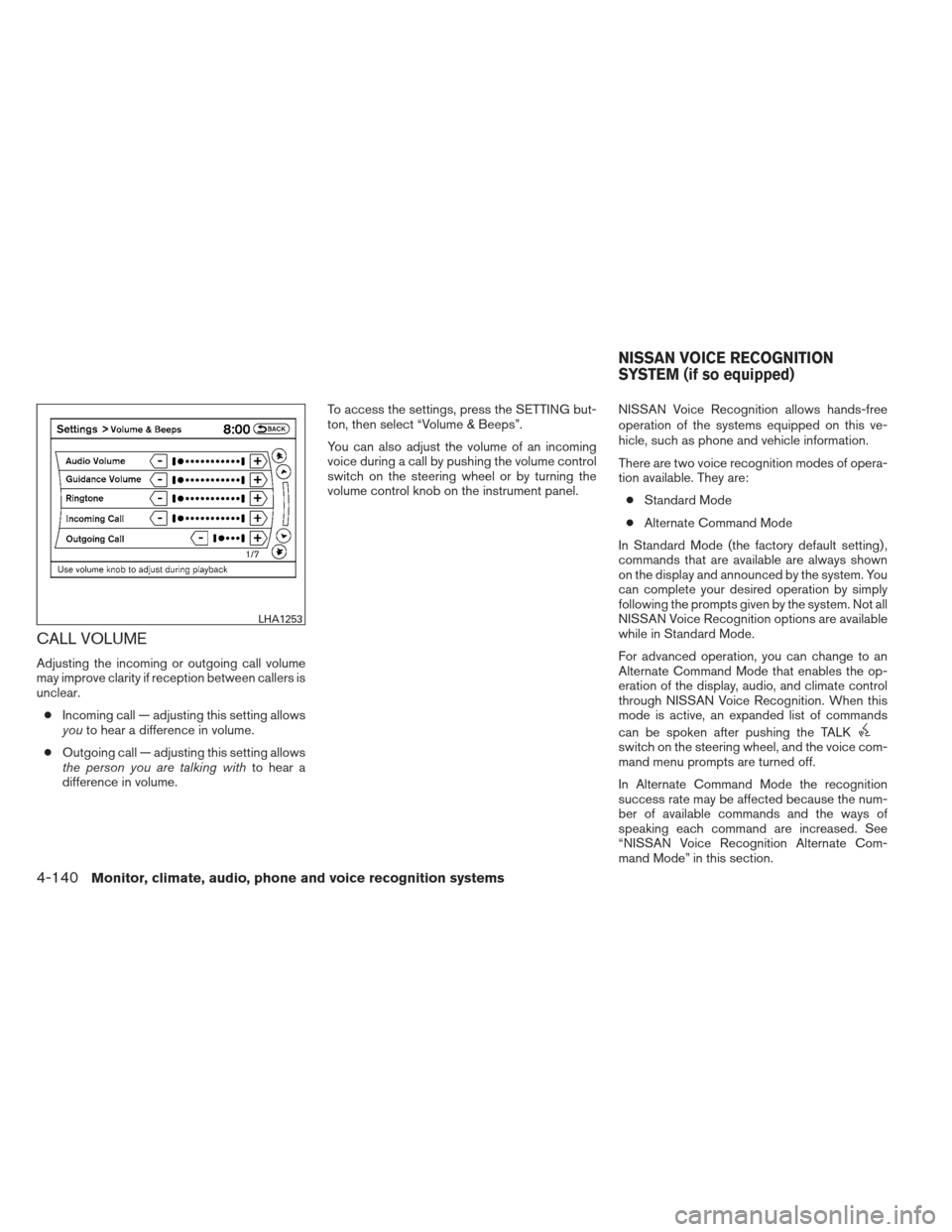
CALL VOLUME
Adjusting the incoming or outgoing call volume
may improve clarity if reception between callers is
unclear.● Incoming call — adjusting this setting allows
you to hear a difference in volume.
● Outgoing call — adjusting this setting allows
the person you are talking with to hear a
difference in volume. To access the settings, press the SETTING but-
ton, then select “Volume & Beeps”.
You can also adjust the volume of an incoming
voice during a call by pushing the volume control
switch on the steering wheel or by turning the
volume control knob on the instrument panel.
NISSAN Voice Recognition allows hands-free
operation of the systems equipped on this ve-
hicle, such as phone and vehicle information.
There are two voice recognition modes of opera-
tion available. They are:
● Standard Mode
● Alternate Command Mode
In Standard Mode (the factory default setting) ,
commands that are available are always shown
on the display and announced by the system. You
can complete your desired operation by simply
following the prompts given by the system. Not all
NISSAN Voice Recognition options are available
while in Standard Mode.
For advanced operation, you can change to an
Alternate Command Mode that enables the op-
eration of the display, audio, and climate control
through NISSAN Voice Recognition. When this
mode is active, an expanded list of commands
can be spoken after pushing the TALK
switch on the steering wheel, and the voice com-
mand menu prompts are turned off.
In Alternate Command Mode the recognition
success rate may be affected because the num-
ber of available commands and the ways of
speaking each command are increased. See
“NISSAN Voice Recognition Alternate Com-
mand Mode” in this section.
LHA1253
NISSAN VOICE RECOGNITION
SYSTEM (if so equipped)
4-140Monitor, climate, audio, phone and voice recognition systems
Page 302 of 450
To improve the recognition success rate when
Alternate Command Mode is active, try using the
Speaker Adaptation Function available in that
mode. See “Speaker Adaptation Function” in this
section. Otherwise, it is recommended that Alter-
nate Command Mode be turned off and Standard
Mode be used for the best recognition perfor-
mance.
While using the NISSAN Voice Recognition sys-
tem for certain Phone and Navigation features,
you can switch to using manual controls (touch-
screen, NISSAN controller, steering wheel con-
trols) and the information you have already en-
tered by voice control will be retained. To switch
to manual controls, select the “Manual Controls”
key on the display when it appears. The system
will respond by speaking “Changing to manual
operation. Please use manual controls to con-
tinue.”
For the voice commands for the navigation sys-
tem, refer to the Navigation System Owner’s
Manual of your vehicle.
For vehicles in the U.S., the factory default setting
is the Standard Mode. See “Standard Mode” in
this section. For vehicles in Canada, the factory
default setting is the Alternate Command Mode.
See “Alternate Command Mode” in this section.NISSAN VOICE RECOGNITION
STANDARD MODE
The Standard Mode enables control of naviga-
tion, phone and vehicle information. With this
setting active, commands that are available are
always shown on the display and announced by
the system.
Displaying user guide
If you use the NISSAN Voice Recognition system
for the first time or you do not know how to
operate it, you can display the User Guide for
confirmation.
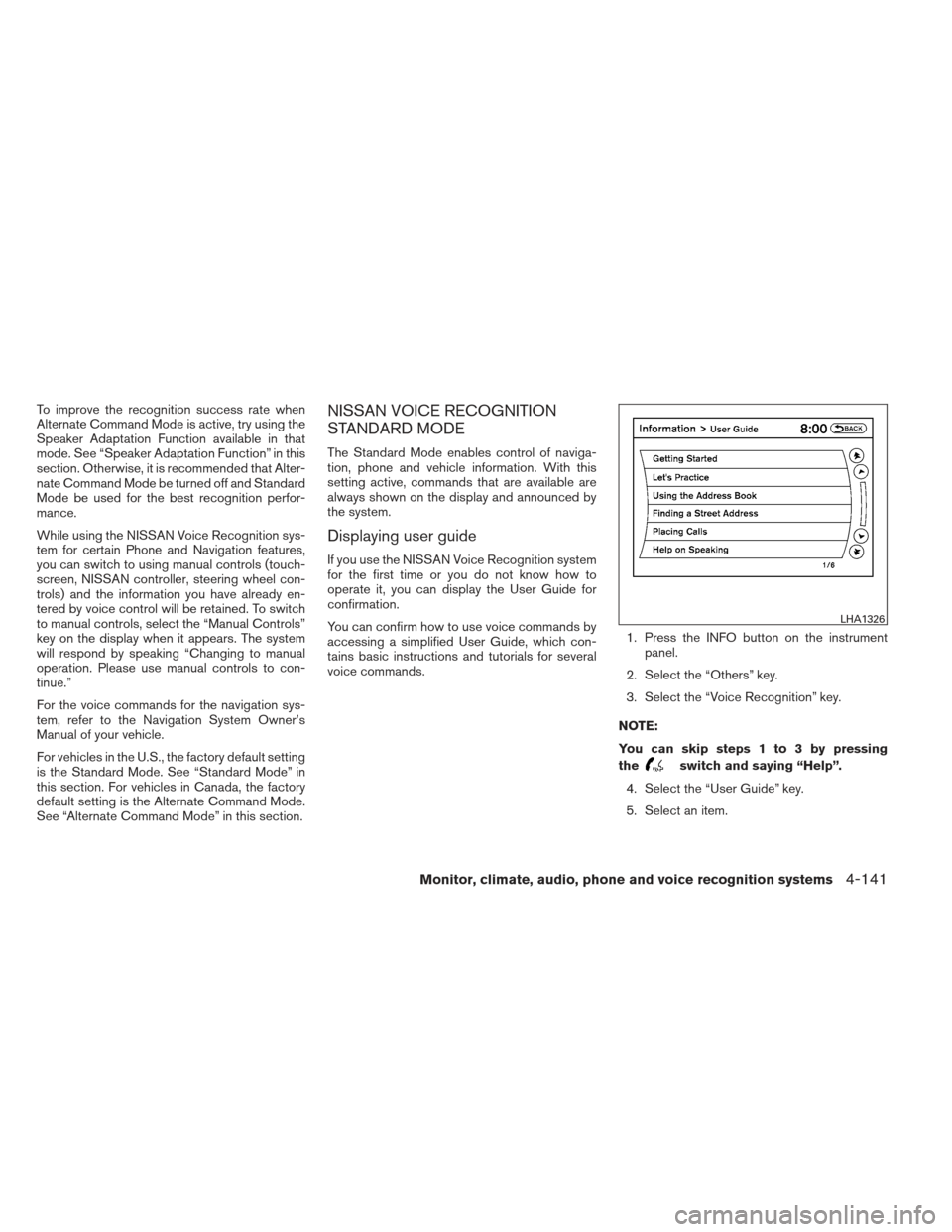
You can confirm how to use voice commands by
accessing a simplified User Guide, which con-
tains basic instructions and tutorials for several
voice commands.1. Press the INFO button on the instrument
panel.
2. Select the “Others” key.
3. Select the “Voice Recognition” key.
NOTE:
You can skip steps 1 to 3 by pressing
the
switch and saying “Help”.
4. Select the “User Guide” key.
5. Select an item.
LHA1326
Monitor, climate, audio, phone and voice recognition systems4-141
Page 315 of 450
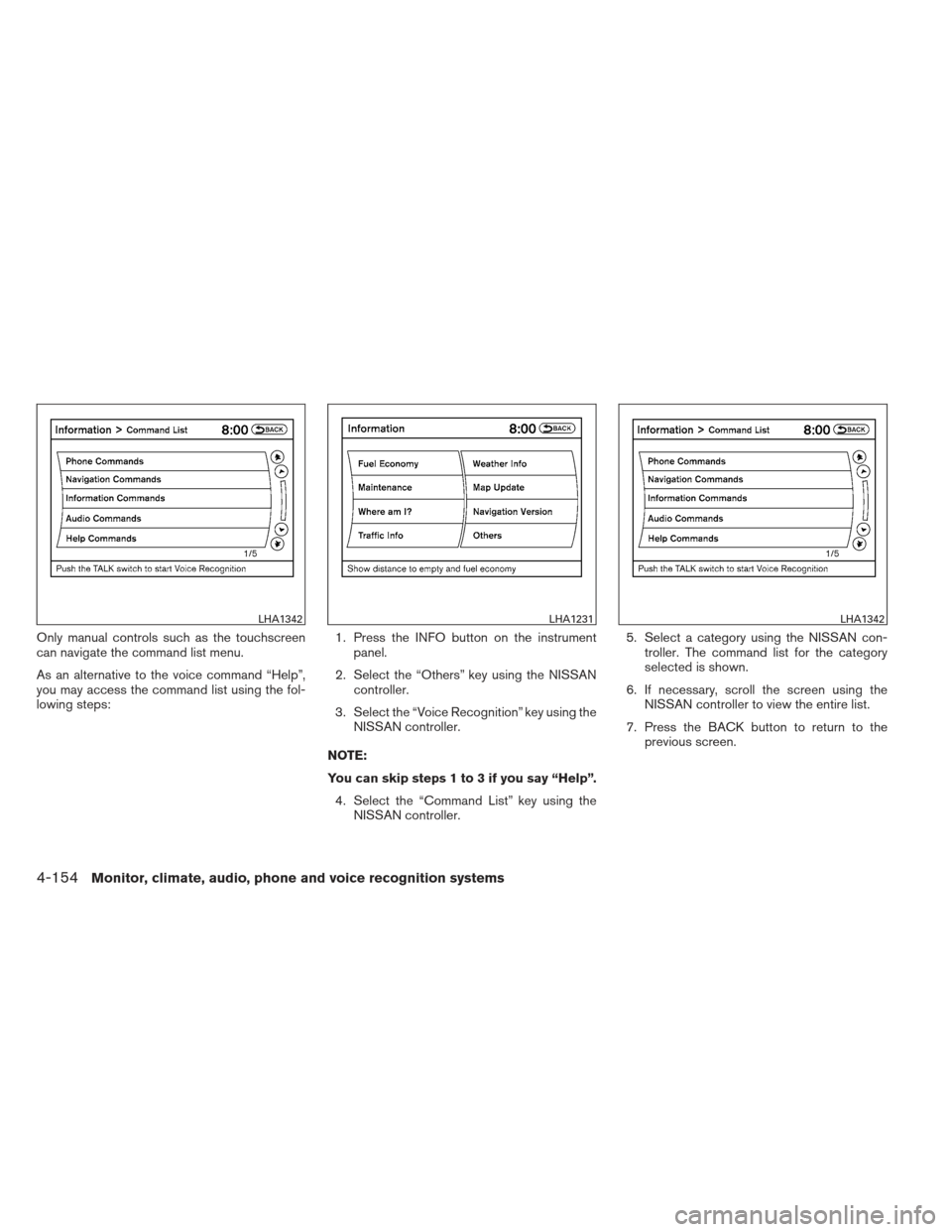
Only manual controls such as the touchscreen
can navigate the command list menu.
As an alternative to the voice command “Help”,
you may access the command list using the fol-
lowing steps:1. Press the INFO button on the instrument
panel.
2. Select the “Others” key using the NISSAN controller.
3. Select the “Voice Recognition” key using the NISSAN controller.
NOTE:
You can skip steps 1 to 3 if you say “Help”. 4. Select the “Command List” key using the NISSAN controller. 5. Select a category using the NISSAN con-
troller. The command list for the category
selected is shown.
6. If necessary, scroll the screen using the NISSAN controller to view the entire list.
7. Press the BACK button to return to the previous screen.
LHA1342LHA1231LHA1342
4-154Monitor, climate, audio, phone and voice recognition systems
Page 318 of 450
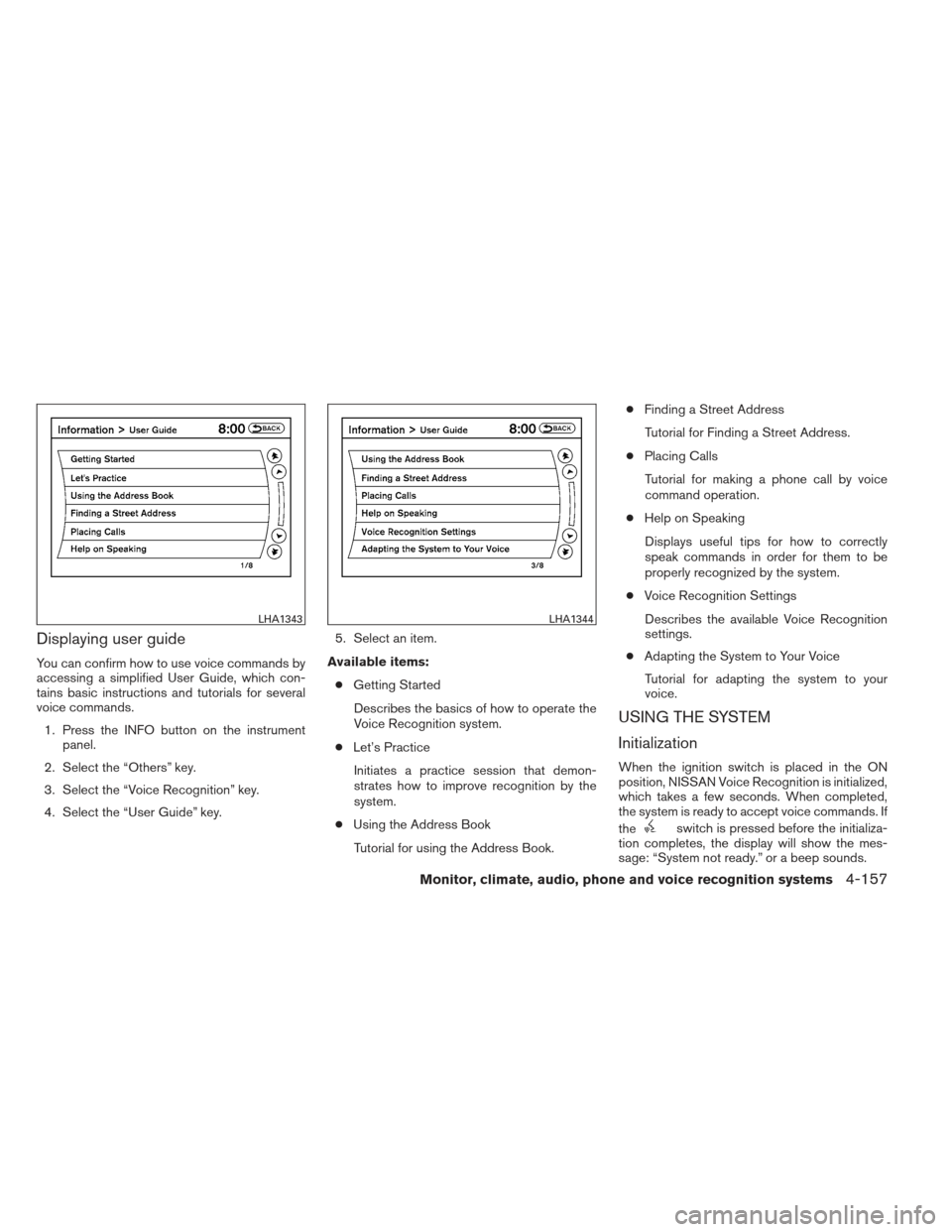
Displaying user guide
You can confirm how to use voice commands by
accessing a simplified User Guide, which con-
tains basic instructions and tutorials for several
voice commands.1. Press the INFO button on the instrument panel.
2. Select the “Others” key.
3. Select the “Voice Recognition” key.
4. Select the “User Guide” key. 5. Select an item.
Available items: ● Getting Started
Describes the basics of how to operate the
Voice Recognition system.
● Let’s Practice
Initiates a practice session that demon-
strates how to improve recognition by the
system.
● Using the Address Book
Tutorial for using the Address Book. ●
Finding a Street Address
Tutorial for Finding a Street Address.
● Placing Calls
Tutorial for making a phone call by voice
command operation.
● Help on Speaking
Displays useful tips for how to correctly
speak commands in order for them to be
properly recognized by the system.
● Voice Recognition Settings
Describes the available Voice Recognition
settings.
● Adapting the System to Your Voice
Tutorial for adapting the system to your
voice.
USING THE SYSTEM
Initialization
When the ignition switch is placed in the ON
position, NISSAN Voice Recognition is initialized,
which takes a few seconds. When completed,
the system is ready to accept voice commands. If
the
switch is pressed before the initializa-
tion completes, the display will show the mes-
sage: “System not ready.” or a beep sounds.
LHA1343LHA1344
Monitor, climate, audio, phone and voice recognition systems4-157
Page 341 of 450
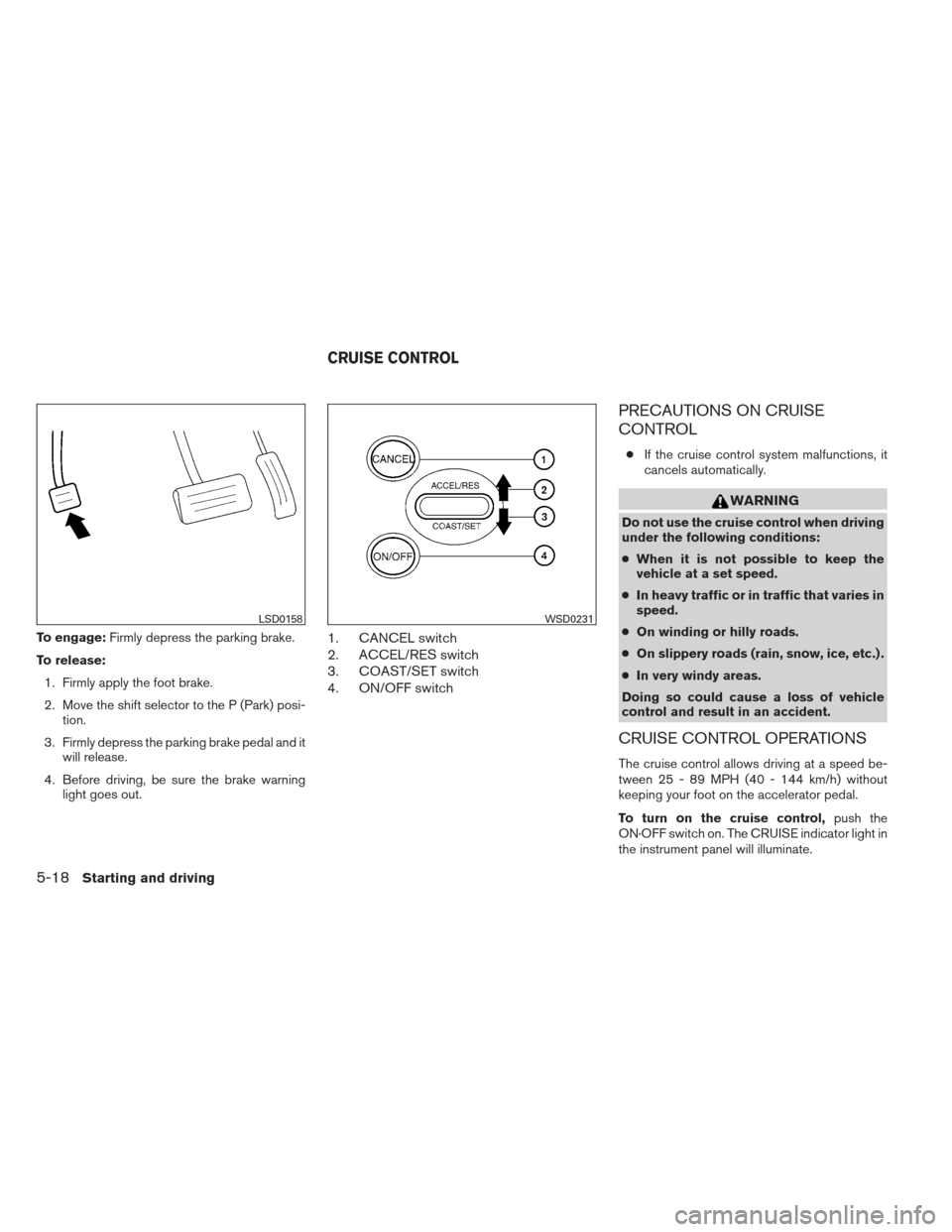
To engage:Firmly depress the parking brake.
To release: 1. Firmly apply the foot brake.
2. Move the shift selector to the P (Park) posi- tion.
3. Firmly depress the parking brake pedal and it will release.
4. Before driving, be sure the brake warning light goes out.1. CANCEL switch
2. ACCEL/RES switch
3. COAST/SET switch
4. ON/OFF switch
PRECAUTIONS ON CRUISE
CONTROL
●If the cruise control system malfunctions, it
cancels automatically.
WARNING
Do not use the cruise control when driving
under the following conditions:
● When it is not possible to keep the
vehicle at a set speed.
● In heavy traffic or in traffic that varies in
speed.
● On winding or hilly roads.
● On slippery roads (rain, snow, ice, etc.) .
● In very windy areas.
Doing so could cause a loss of vehicle
control and result in an accident.
CRUISE CONTROL OPERATIONS
The cruise control allows driving at a speed be-
tween 25 - 89 MPH (40 - 144 km/h) without
keeping your foot on the accelerator pedal.
To turn on the cruise control, push the
ON·OFF switch on. The CRUISE indicator light in
the instrument panel will illuminate.
LSD0158WSD0231
CRUISE CONTROL
5-18Starting and driving
Page 342 of 450
To set cruising speed,accelerate the vehicle to
the desired speed, push the COAST/SET switch
and release it. Take your foot off the accelerator
pedal. Your vehicle maintains the set speed.
● To pass another vehicle, depress the ac-
celerator pedal. When you release the
pedal, the vehicle returns to the previously
set speed.
● The vehicle may not maintain the set speed
when going up or down steep hills. If this
happens, drive without the cruise control.
To cancel the preset speed, use one of the
following three methods.
● Push the CANCEL button.
● Tap the brake pedal.
● Push the ON·OFF switch off. The CRUISE
indicator light in the instrument panel goes
out.
The cruise control is automatically canceled if: ● you depress the brake pedal while pushing
the ACCEL/RES or SET/COAST switch.
The preset speed is deleted from memory.
● the vehicle slows down more than 8 MPH
(13 km/h) below the set speed.
● you move the shift selector to N (Neutral) . To reset at a faster cruising speed,
use one
of the following three methods.
● Depress the accelerator pedal. When the
vehicle attains the desired speed, push and
release the COAST/SET switch.
● Push and hold the ACCEL/RES switch.
When the vehicle attains the speed you de-
sire, release the switch.
● Push and release the ACCEL/RES switch.
Each time you do this, the set speed in-
creases by about 1 MPH (1.6 km/h) .
To reset at a slower cruising speed, use one
of the following three methods.
● Lightly tap the brake pedal. When the ve-
hicle attains the desired speed, push the
COAST/SET switch and release it.
● Push and hold the COAST/SET switch. Re-
lease the switch when the vehicle slows to
the desired speed.
● Push and release the COAST/SET switch.
Each time you do this, the set speed de-
creases by about 1 MPH (1.6 km/h) .
To resume the preset speed, push and re-
lease the ACCEL/RES switch. The vehicle re-
turns to the last set cruising speed when the
vehicle speed is over 25 MPH (40 km/h) .CAUTION
During the first 1,200 miles (2,000 km) ,
follow these recommendations to obtain
maximum engine performance and en-
sure the future reliability and economy of
your new vehicle. Failure to follow these
recommendations may result in short-
ened engine life and reduced engine
performance.
● Avoid driving for long periods at constant
speed, either fast or slow, and do not run the
engine over 4,000 rpm.
● Do not accelerate at full throttle in any gear.
● Avoid quick starts.
● Avoid hard braking as much as possible.
● Do not tow a trailer for the first 500 miles
(800 km) . Your engine, axle or other parts
could be damaged.
BREAK-IN SCHEDULE
Starting and driving5-19
Page 346 of 450
This procedure is described in the vehicle service
manual and can be performed by a NISSAN
dealer.
ANTI-LOCK BRAKING SYSTEM
(ABS)
WARNING
●The Anti-lock Braking System (ABS) is a
sophisticated device, but it cannot pre-
vent accidents resulting from careless
or dangerous driving techniques. It can
help maintain vehicle control during
braking on slippery surfaces. Remem-
ber that stopping distances on slippery
surfaces will be longer than on normal
surfaces even with ABS. Stopping dis-
tances may also be longer on rough,
gravel or snow covered roads, or if you
are using tire chains. Always maintain a
safe distance from the vehicle in front
of you. Ultimately, the driver is respon-
sible for safety.
● Tire type and condition may also affect
braking effectiveness.
– When replacing tires, install the specified size of tires on all four
wheels. – When installing a spare tire, make
sure that it is the proper size and type
as specified on the Tire and Loading
Information label. See “Tire and
Loading Information label” in the
“Technical and consumer informa-
tion” section of this manual.
– For detailed information, see “Wheels and tires” in the “Mainte-
nance and do-it-yourself” section of
this manual.
The Anti-lock Braking System (ABS) controls the
brakes so the wheels do not lock during hard
braking or when braking on slippery surfaces.
The system detects the rotation speed at each
wheel and varies the brake fluid pressure to pre-
vent each wheel from locking and sliding. By
preventing each wheel from locking, the system
helps the driver maintain steering control and
helps to minimize swerving and spinning on slip-
pery surfaces.
Using the system
Depress the brake pedal and hold it down. De-
press the brake pedal with firm steady pressure,
but do not pump the brakes. The ABS will oper-
ate to prevent the wheels from locking up. Steer
the vehicle to avoid obstacles.
WARNING
Do not pump the brake pedal. Doing so
may result in increased stopping
distances.
Self-test feature
The ABS includes electronic sensors, electric
pumps, hydraulic solenoids and a computer. The
computer has a built-in diagnostic feature that
tests the system each time you start the engine
and move the vehicle at a low speed in forward or
reverse. When the self-test occurs, you may hear
a “clunk” noise and/or feel a pulsation in the brake
pedal. This is normal and does not indicate a
malfunction. If the computer senses a malfunc-
tion, it switches the ABS off and illuminates the
ABS warning light on the instrument panel. The
brake system then operates normally, but without
anti-lock assistance.
If the ABS warning light illuminates during the
self-test or while driving, have the vehicle
checked by a NISSAN dealer.
Normal operation
The ABS operates at speeds above3-6MPH(5
- 10 km/h) . The speed varies according to road
conditions.
Starting and driving5-23
Page 347 of 450
When the ABS senses that 1 or more wheels are
close to locking up, the actuator rapidly applies
and releases hydraulic pressure. This action is
similar to pumping the brakes very quickly. You
may feel a pulsation in the brake pedal and hear a
noise from under the hood or feel a vibration from
the actuator when it is operating. This is normal
and indicates that the ABS is operating properly.
However, the pulsation may indicate that road
conditions are hazardous and extra care is re-
quired while driving.The Vehicle Dynamic Control (VDC) system uses
various sensors to monitor driver inputs and ve-
hicle motion. Under certain driving conditions,
the VDC System helps to perform the following
functions:
● Controls brake pressure to reduce wheel
slip on one slipping drive wheel so power is
transferred to a non slipping drive wheel on
the same axle.
● Controls brake pressure and engine output
to reduce drive wheel slip based on vehicle
speed (traction control function) .
● Controls brake pressure at individual wheels
and engine output to help the driver maintain
control of the vehicle in the following condi-
tions:
– understeer (vehicle tends to not follow the steered path despite increased steer-
ing input)
– oversteer (vehicle tends to spin due to certain road or driving conditions)
The VDC system can help the driver to maintain
control of the vehicle, but it cannot prevent loss of
vehicle control in all driving situations.
When the VDC system operates, the
indi-
cator in the instrument panel flashes so note the
following: ●
The road may be slippery or the system may
determine some action is required to help
keep the vehicle on the steered path.
● You may feel a pulsation in the brake pedal
and hear a noise or vibration from under the
hood. This is normal and indicates that the
VDC system is working properly.
● Adjust your speed and driving to the road
conditions.
See “Slip indicator light” and ”Vehicle Dynamic
Control (VDC) off indicator light” in the ”Instru-
ments and controls” section.
If a malfunction occurs in the system, the
andindicator lights come on in the instru-
ment panel. The VDC system automatically turns
off when these indicator lights are on.
The VDC OFF switch is used to turn off the VDC
system. The
indicator illuminates to indi-
cate the VDC system is off.
When the VDC switch is used to turn off the
system, the VDC system still operates to prevent
one drive wheel from slipping by transferring
power to a non slipping drive wheel. The
indicator flashes if this occurs. All other VDC
functions are off and the
indicator will not
flash.
VEHICLE DYNAMIC CONTROL (VDC)
SYSTEM
5-24Starting and driving