2012 NISSAN CUBE light
[x] Cancel search: lightPage 133 of 331
SPA2336
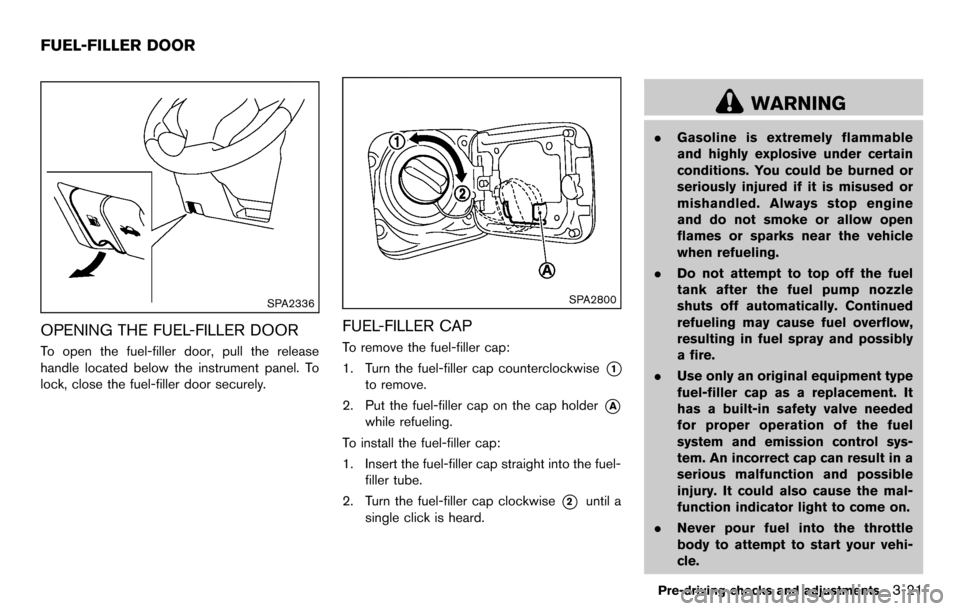
OPENING THE FUEL-FILLER DOOR
To open the fuel-filler door, pull the release
handle located below the instrument panel. To
lock, close the fuel-filler door securely.
SPA2800
FUEL-FILLER CAP
To remove the fuel-filler cap:
1. Turn the fuel-filler cap counterclockwise
*1
to remove.
2. Put the fuel-filler cap on the cap holder
*A
while refueling.
To install the fuel-filler cap:
1. Insert the fuel-filler cap straight into the fuel- filler tube.
2. Turn the fuel-filler cap clockwise
*2until a
single click is heard.
WARNING
. Gasoline is extremely flammable
and highly explosive under certain
conditions. You could be burned or
seriously injured if it is misused or
mishandled. Always stop engine
and do not smoke or allow open
flames or sparks near the vehicle
when refueling.
. Do not attempt to top off the fuel
tank after the fuel pump nozzle
shuts off automatically. Continued
refueling may cause fuel overflow,
resulting in fuel spray and possibly
a fire.
. Use only an original equipment type
fuel-filler cap as a replacement. It
has a built-in safety valve needed
for proper operation of the fuel
system and emission control sys-
tem. An incorrect cap can result in a
serious malfunction and possible
injury. It could also cause the mal-
function indicator light to come on.
. Never pour fuel into the throttle
body to attempt to start your vehi-
cle.
Pre-driving checks and adjustments3-21
FUEL-FILLER DOOR
Page 134 of 331
3-22Pre-driving checks and adjustments
.Do not fill a portable fuel container
in the vehicle or trailer. Static elec-
tricity can cause an explosion of
flammable liquid, vapor or gas in
any vehicle or trailer. To reduce the
risk of serious injury or death when
filling portable fuel containers:
— Always place the container on
the ground when filling.
— Do not use electronic devices when filling.
— Keep the pump nozzle in contact with the container while you are
filling it.
— Use only approved portable fuel containers for flammable liquid.
CAUTION
. The LOOSE FUEL CAP warning
message will be displayed if the
fuel-filler cap is not properly tigh-
tened. It may take a few driving trips
for the message to be displayed.
Failure to tighten the fuel-filler cap
properly after the LOOSE FUEL CAP
warning message is displayed may cause the
Malfunction Indicator
Light (MIL) to illuminate.
. Failure to tighten the fuel-filler cap
properly may cause the
mal-
function indicator light (MIL) to
illuminate. If the
light illumi-
nates because the fuel-filler cap is
loose or missing, tighten or install
the cap and continue to drive the
vehicle. The
light should turn off
after a few driving trips. If the
light does not turn off after a few
driving trips, have the vehicle in-
spected by a NISSAN dealer.
For additional information, see
“Malfunction Indicator Light (MIL)”
(P.2-17) .
. If fuel is spilled on the vehicle body,
flush it away with water to avoid
paint damage.
SIC4712
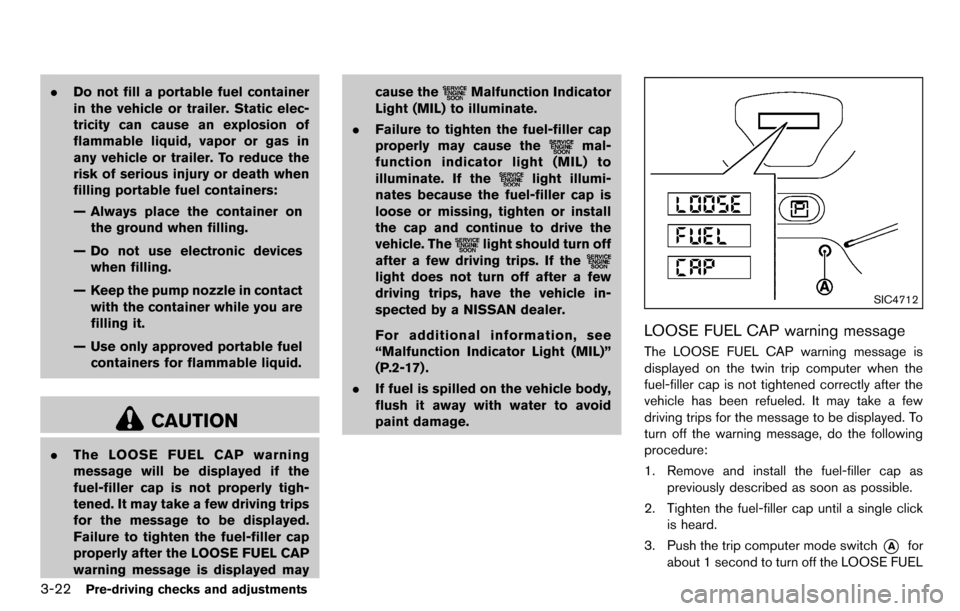
LOOSE FUEL CAP warning message
The LOOSE FUEL CAP warning message is
displayed on the twin trip computer when the
fuel-filler cap is not tightened correctly after the
vehicle has been refueled. It may take a few
driving trips for the message to be displayed. To
turn off the warning message, do the following
procedure:
1. Remove and install the fuel-filler cap as
previously described as soon as possible.
2. Tighten the fuel-filler cap until a single click is heard.
3. Push the trip computer mode switch
*Afor
about 1 second to turn off the LOOSE FUEL
Page 136 of 331
3-24Pre-driving checks and adjustments
SIC2872
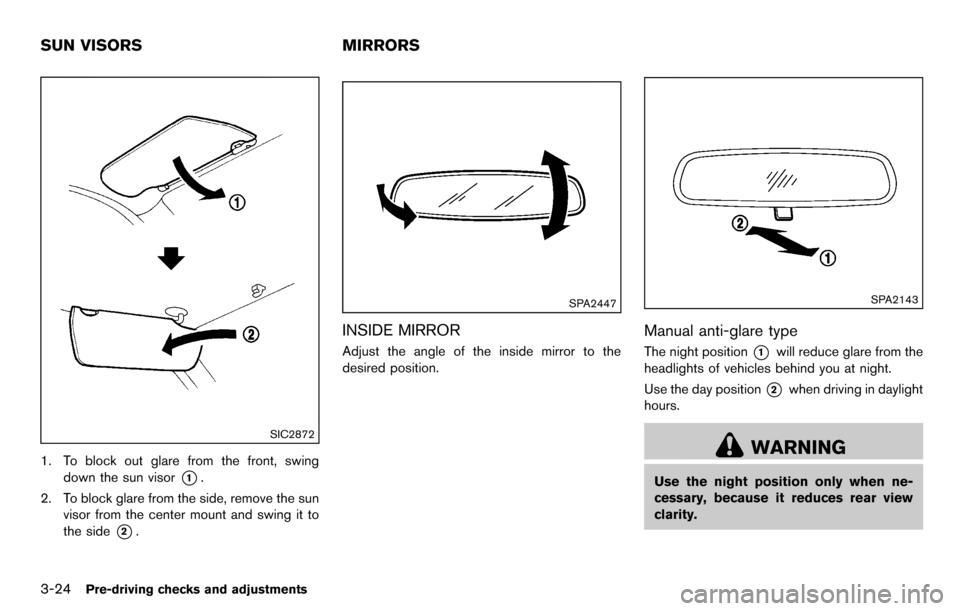
1. To block out glare from the front, swingdown the sun visor
*1.
2. To block glare from the side, remove the sun visor from the center mount and swing it to
the side
*2.
SPA2447
INSIDE MIRROR
Adjust the angle of the inside mirror to the
desired position.
SPA2143
Manual anti-glare type
The night position*1will reduce glare from the
headlights of vehicles behind you at night.
Use the day position
*2when driving in daylight
hours.
WARNING
Use the night position only when ne-
cessary, because it reduces rear view
clarity.
SUN VISORS MIRRORS
Page 144 of 331
4-4Center display, heater, air conditioner, audio and phone systems
SAA3387
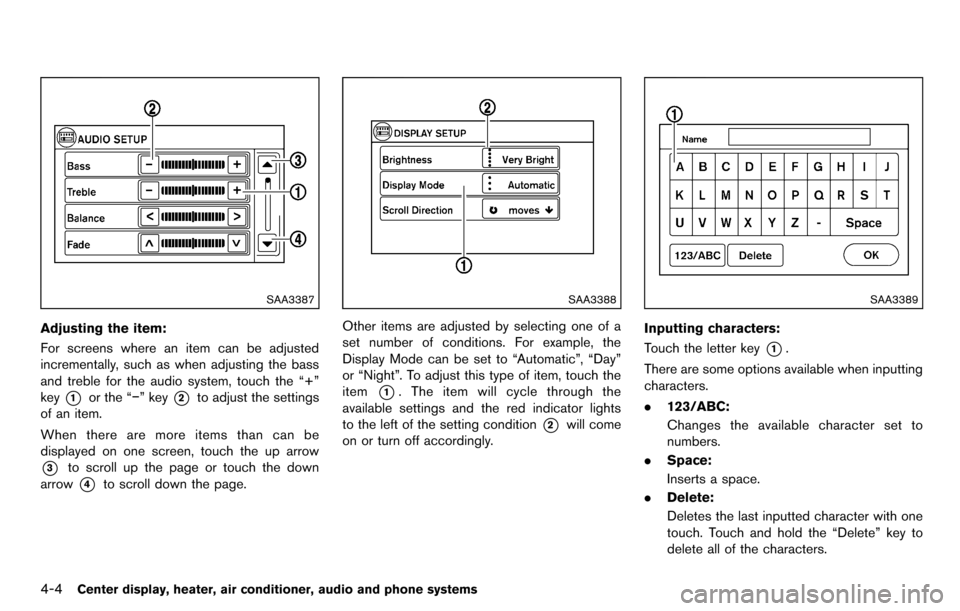
Adjusting the item:
For screens where an item can be adjusted
incrementally, such as when adjusting the bass
and treble for the audio system, touch the “+”
key
*1or the “−” key*2to adjust the settings
of an item.
When there are more items than can be
displayed on one screen, touch the up arrow
*3to scroll up the page or touch the down
arrow
*4to scroll down the page.
SAA3388
Other items are adjusted by selecting one of a
set number of conditions. For example, the
Display Mode can be set to “Automatic”, “Day”
or “Night”. To adjust this type of item, touch the
item
*1. The item will cycle through the
available settings and the red indicator lights
to the left of the setting condition
*2will come
on or turn off accordingly.
SAA3389
Inputting characters:
Touch the letter key
*1.
There are some options available when inputting
characters.
. 123/ABC:
Changes the available character set to
numbers.
. Space:
Inserts a space.
. Delete:
Deletes the last inputted character with one
touch. Touch and hold the “Delete” key to
delete all of the characters.
Page 146 of 331
4-6Center display, heater, air conditioner, audio and phone systems
to disable the feature entirely.
AUX Level:
Controls the volume level of incoming sound
when an auxiliary device is connected to the
system. Available options are Quiet, Medium
and Loud.
Navigation setup
Refer to the separate Navigation System Own-
er’s Manual for information regarding this item.
XM setup
For XM setup, refer to .“FM-AM-SAT radio with
Compact Disc (CD) player (Type C)” (P.4-42)SAA3391
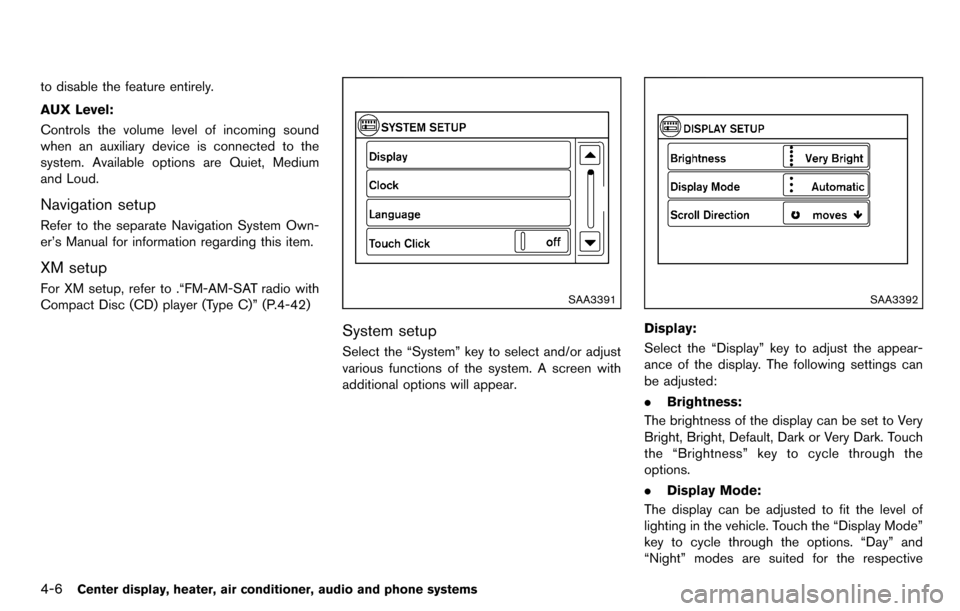
System setup
Select the “System” key to select and/or adjust
various functions of the system. A screen with
additional options will appear.
SAA3392
Display:
Select the “Display” key to adjust the appear-
ance of the display. The following settings can
be adjusted:
.Brightness:
The brightness of the display can be set to Very
Bright, Bright, Default, Dark or Very Dark. Touch
the “Brightness” key to cycle through the
options.
. Display Mode:
The display can be adjusted to fit the level of
lighting in the vehicle. Touch the “Display Mode”
key to cycle through the options. “Day” and
“Night” modes are suited for the respective
Page 147 of 331
times of day, while “Automatic” controls the
display automatically.
.Scroll Direction:
The direction that menus scroll can be adjusted.
Choose either “up” or “down”.
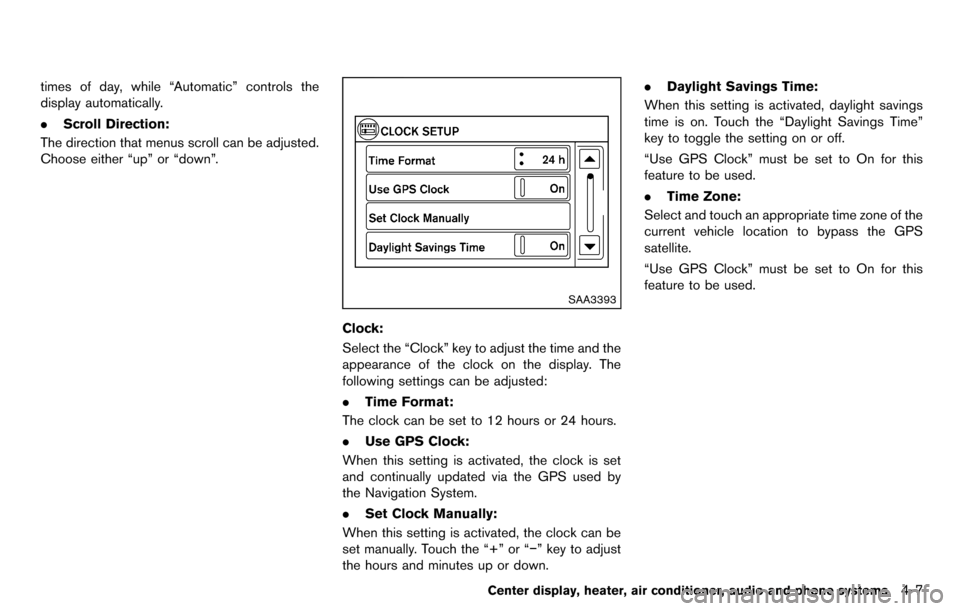
SAA3393
Clock:
Select the “Clock” key to adjust the time and the
appearance of the clock on the display. The
following settings can be adjusted:
. Time Format:
The clock can be set to 12 hours or 24 hours.
. Use GPS Clock:
When this setting is activated, the clock is set
and continually updated via the GPS used by
the Navigation System.
. Set Clock Manually:
When this setting is activated, the clock can be
set manually. Touch the “+” or “−” key to adjust
the hours and minutes up or down. .
Daylight Savings Time:
When this setting is activated, daylight savings
time is on. Touch the “Daylight Savings Time”
key to toggle the setting on or off.
“Use GPS Clock” must be set to On for this
feature to be used.
. Time Zone:
Select and touch an appropriate time zone of the
current vehicle location to bypass the GPS
satellite.
“Use GPS Clock” must be set to On for this
feature to be used.
Center display, heater, air conditioner, audio and phone systems4-7
Page 152 of 331
4-12Center display, heater, air conditioner, audio and phone systems
course.
HOW TO ADJUST THE SCREEN
To adjust the Brightness and Contrast of the
RearView Monitor, push theSETUPbutton until
the desired mode is displayed with the RearView
Monitor on, and turn the TUNE control dial to
adjust the brightness and contrast of the screen
to the preferred level.
OPERATING TIPS
. When the selector lever is shifted to the R
(Reverse) position, the monitor screen auto-
matically changes to the RearView Monitor
mode. However, the radio can be heard.
. It may take some time until the RearView
Monitor or the normal screen is displayed
after the selector lever has been shifted to R
from another position or to another position
from R. Objects may be distorted momenta-
rily until the RearView Monitor screen is
displayed completely.
. When the temperature is extremely high or
low, the screen may not clearly display
objects. This is not a malfunction.
. When strong light directly enters the cam-
era, objects may not be displayed clearly.
This is not a malfunction.
. Vertical lines may be seen in objects on the
screen. This is due to strong reflected light from the bumper. This is not a malfunction.
. The screen may flicker under fluorescent
light. This is not a malfunction.
. The colors of objects on the RearView
Monitor may differ somewhat from those of
the actual object.
. Objects on the monitor may not be clear in a
dark place or at night. This is not a
malfunction.
. If dirt, rain or snow attaches to the camera,
the RearView Monitor may not clearly dis-
play objects. Clean the camera.
. Do not use alcohol, benzine or thinner to
clean the camera. This will cause discolora-
tion. To clean the camera, wipe with a cloth
dampened with diluted mild cleaning agent
and then wipe with a dry cloth.
. Do not damage the camera as the monitor
screen may be adversely affected.
. Do not use wax on the camera window.
Wipe off any wax with a clean cloth
dampened with mild detergent diluted with
water.
SAA2343
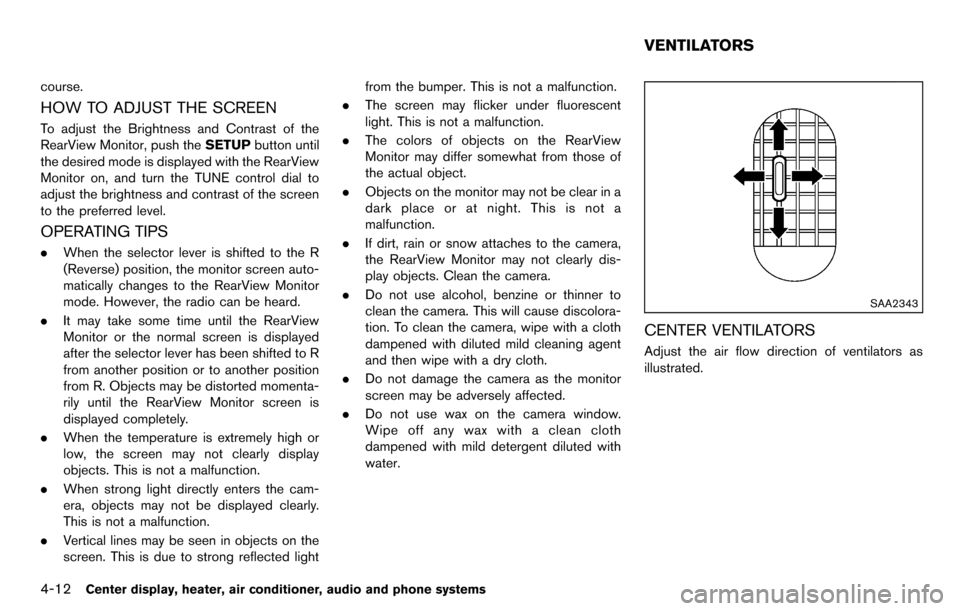
CENTER VENTILATORS
Adjust the air flow direction of ventilators as
illustrated.
VENTILATORS
Page 154 of 331
4-14Center display, heater, air conditioner, audio and phone systems
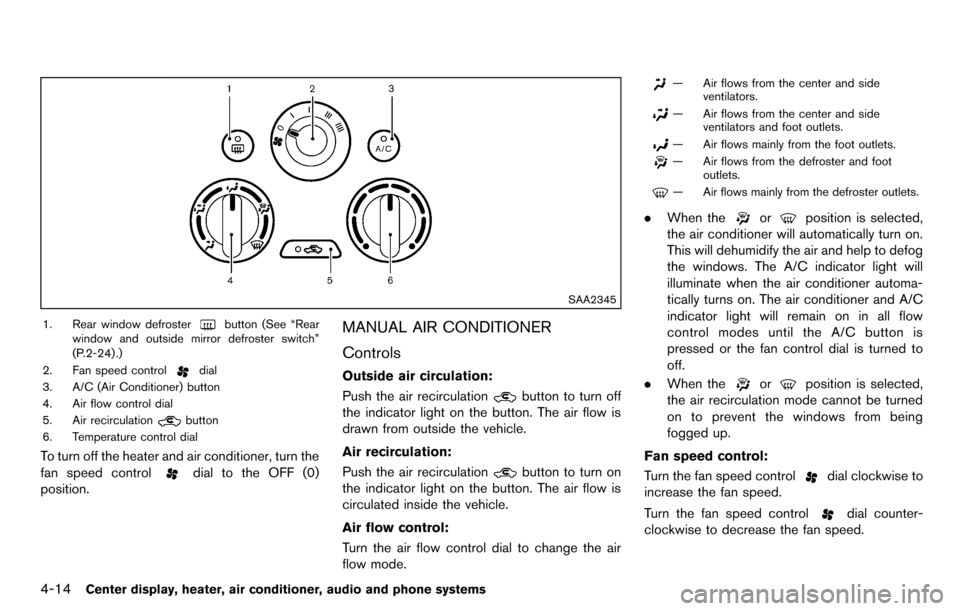
SAA2345
1. Rear window defrosterbutton (See “Rear
window and outside mirror defroster switch”
(P.2-24) .)
2. Fan speed control
dial
3. A/C (Air Conditioner) button
4. Air flow control dial
5. Air recirculation
button
6. Temperature control dial
To turn off the heater and air conditioner, turn the
fan speed control
dial to the OFF (0)
position.
MANUAL AIR CONDITIONER
Controls
Outside air circulation:
Push the air recirculation
button to turn off
the indicator light on the button. The air flow is
drawn from outside the vehicle.
Air recirculation:
Push the air recirculation
button to turn on
the indicator light on the button. The air flow is
circulated inside the vehicle.
Air flow control:
Turn the air flow control dial to change the air
flow mode.
— Air flows from the center and side ventilators.
— Air flows from the center and sideventilators and foot outlets.
— Air flows mainly from the foot outlets.
— Air flows from the defroster and footoutlets.
— Air flows mainly from the defroster outlets.
.When theorposition is selected,
the air conditioner will automatically turn on.
This will dehumidify the air and help to defog
the windows. The A/C indicator light will
illuminate when the air conditioner automa-
tically turns on. The air conditioner and A/C
indicator light will remain on in all flow
control modes until the A/C button is
pressed or the fan control dial is turned to
off.
. When the
orposition is selected,
the air recirculation mode cannot be turned
on to prevent the windows from being
fogged up.
Fan speed control:
Turn the fan speed control
dial clockwise to
increase the fan speed.
Turn the fan speed control
dial counter-
clockwise to decrease the fan speed.