2012 MINI COUPE ROADSTER CONVERTIBLE phone
[x] Cancel search: phonePage 195 of 283
COMMUNICATIONSOffice
194
Contacts
General information
Contacts can be created and edited. The con-
tacts from the mobile phone are displayed as
well if this function is supported by the mobile
phone. The addresses can be used as destina-
tions for navigation and the phone numbers can
be dialed.
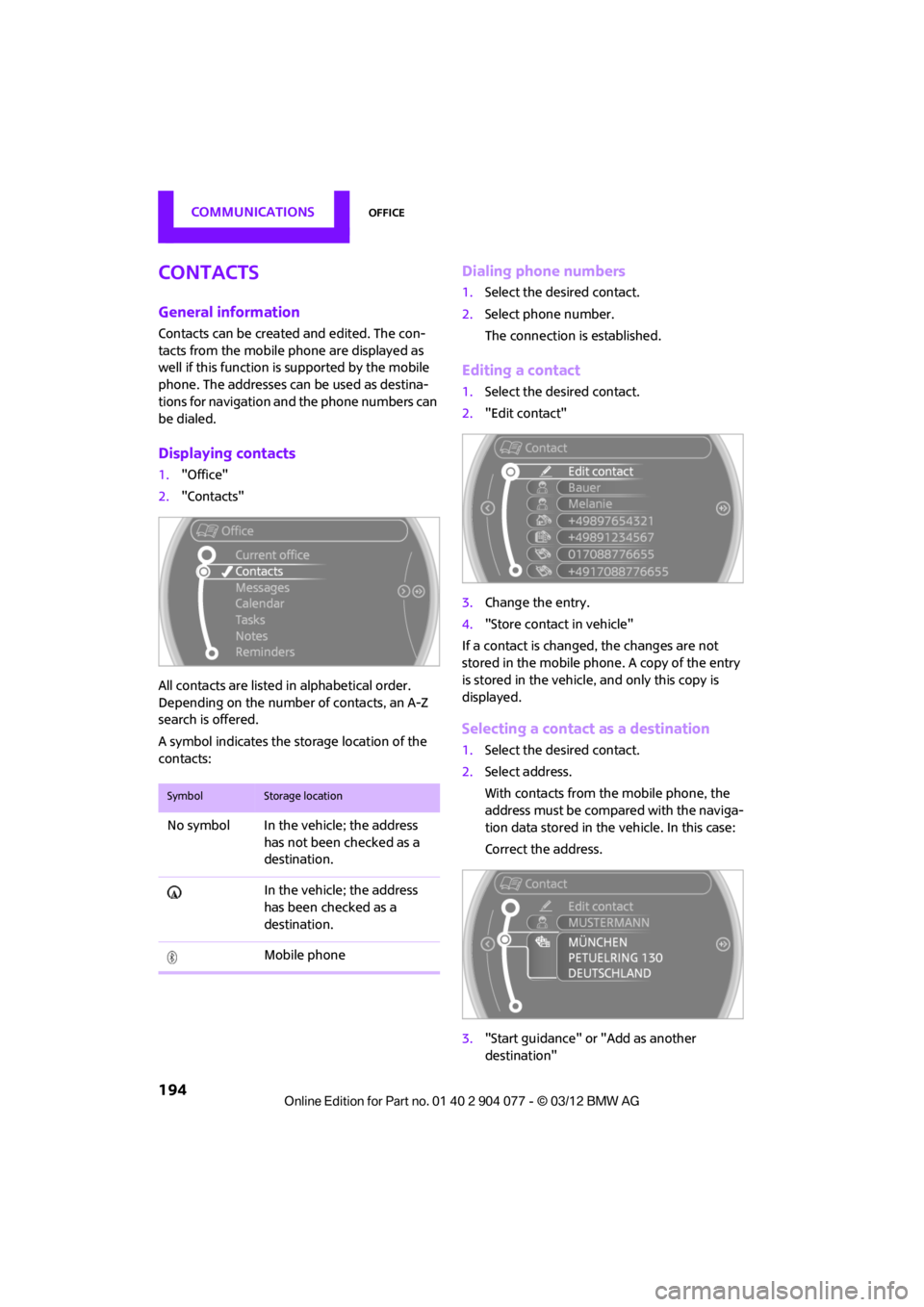
Displaying contacts
1. "Office"
2. "Contacts"
All contacts are listed in alphabetical order.
Depending on the number of contacts, an A-Z
search is offered.
A symbol indicates the st orage location of the
contacts:
Dialing phone numbers
1. Select the desired contact.
2. Select phone number.
The connection is established.
Editing a contact
1.Select the desired contact.
2. "Edit contact"
3. Change the entry.
4. "Store contact in vehicle"
If a contact is change d, the changes are not
stored in the mobile phone. A copy of the entry
is stored in the vehicle, and only this copy is
displayed.
Selecting a contact as a destination
1. Select the desired contact.
2. Select address.
With contacts from the mobile phone, the
address must be compared with the naviga-
tion data stored in the vehicle. In this case:
Correct the address.
3. "Start guidance" or "Add as another
destination"
SymbolStorage location
No symbol In the vehicle; the address
has not been checked as a
destination.
In the vehicle; the address
has been checked as a
destination.
Mobile phone
00320051004F004C00510048000300280047004C0057004C005200510003
Page 196 of 283
OfficeCOMMUNICATIONS
195
Checking the address as a destination
An address that is to be used in route guidance
must correspond to the navigation data stored
in the vehicle. The address can be checked to
ensure this.
1.Select the desired contact and highlight the
address.
2. Open "Options".
3. "Check as destination"
4. Correct and store the address, if necessary.
If the address is corrected and stored, a copy of
it is stored in the vehicle. The address is not
changed on the mobile phone.
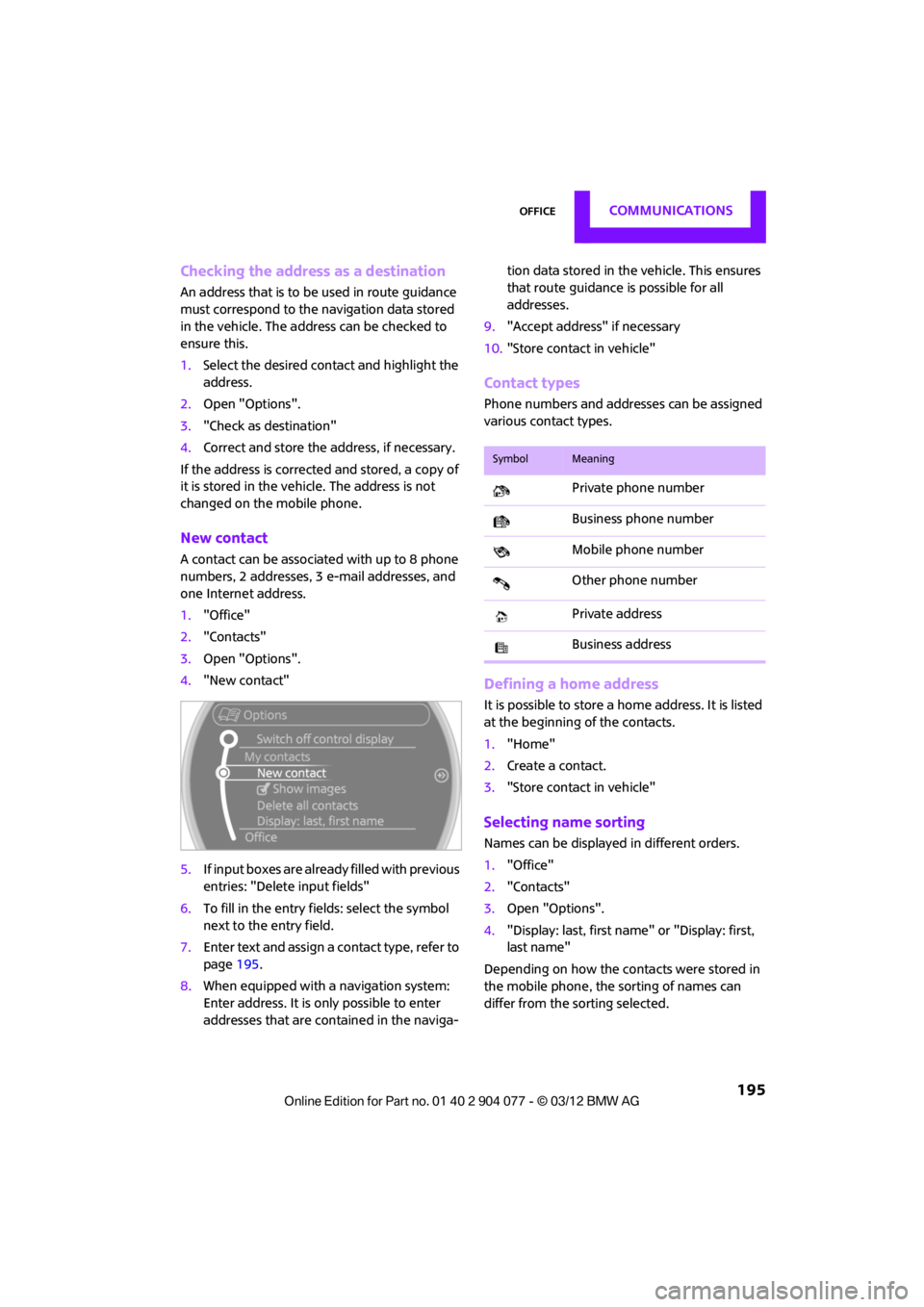
New contact
A contact can be associated with up to 8 phone
numbers, 2 addresses, 3 e-mail addresses, and
one Internet address.
1. "Office"
2. "Contacts"
3. Open "Options".
4. "New contact"
5. If input boxes are already filled with previous
entries: "Delete input fields"
6. To fill in the entry fields: select the symbol
next to the entry field.
7. Enter text and assign a contact type, refer to
page 195.
8. When equipped with a navigation system:
Enter address. It is only possible to enter
addresses that are cont ained in the naviga- tion data stored in the vehicle. This ensures
that route guidance is possible for all
addresses.
9. "Accept address" if necessary
10. "Store contact in vehicle"
Contact types
Phone numbers and addresses can be assigned
various contact types.
Defining a home address
It is possible to store a ho me address. It is listed
at the beginning of the contacts.
1. "Home"
2. Create a contact.
3. "Store contact in vehicle"
Selecting name sorting
Names can be displayed in different orders.
1."Office"
2. "Contacts"
3. Open "Options".
4. "Display: last, first name " or "Display: first,
last name"
Depending on how the contacts were stored in
the mobile phone, the sorting of names can
differ from the sorting selected.
SymbolMeaning
Private phone number
Business phone number
Mobile phone number
Other phone number
Private address
Business address
00320051004F004C00510048000300280047004C0057004C005200510003
Page 197 of 283
COMMUNICATIONSOffice
196
Displaying contact pictures
Pictures stored with contacts are stored in the
vehicle when the mobile phone is connected to
the vehicle. The number of pictures transmitted
depends on the mobile phone. The mobile
phone must support this function.
1."Office"
2. "Contacts"
3. Open "Options".
4. "Configure Bluetooth®"
5. "Show images"
The display of all contact pictures is activated or
deactivated.
Deleting contacts
Only contacts that are stored in the vehicle are
deleted. The contacts on the mobile phone
cannot be deleted.
1. "Office"
2. "Contacts"
3. Highlight the contact.
4. "Options"
5. "Delete contact" or "Delete all contacts".
Messages
General information
The displaying of text messages and e-mails
depends on whether the mobile phone supports
transmission to the vehicle. Text messages and
e-mails may not be supported by the service
provider or the function may have to be sepa-
rately activated. After a mobile phone is paired
for the first time, the transmission may take sev-
eral minutes. Messages are only displayed com-
pletely when the vehicle is stopped. Messages
from the auxiliary phone are not transmitted.
Displaying messages
1."Office"
2. "Messages"
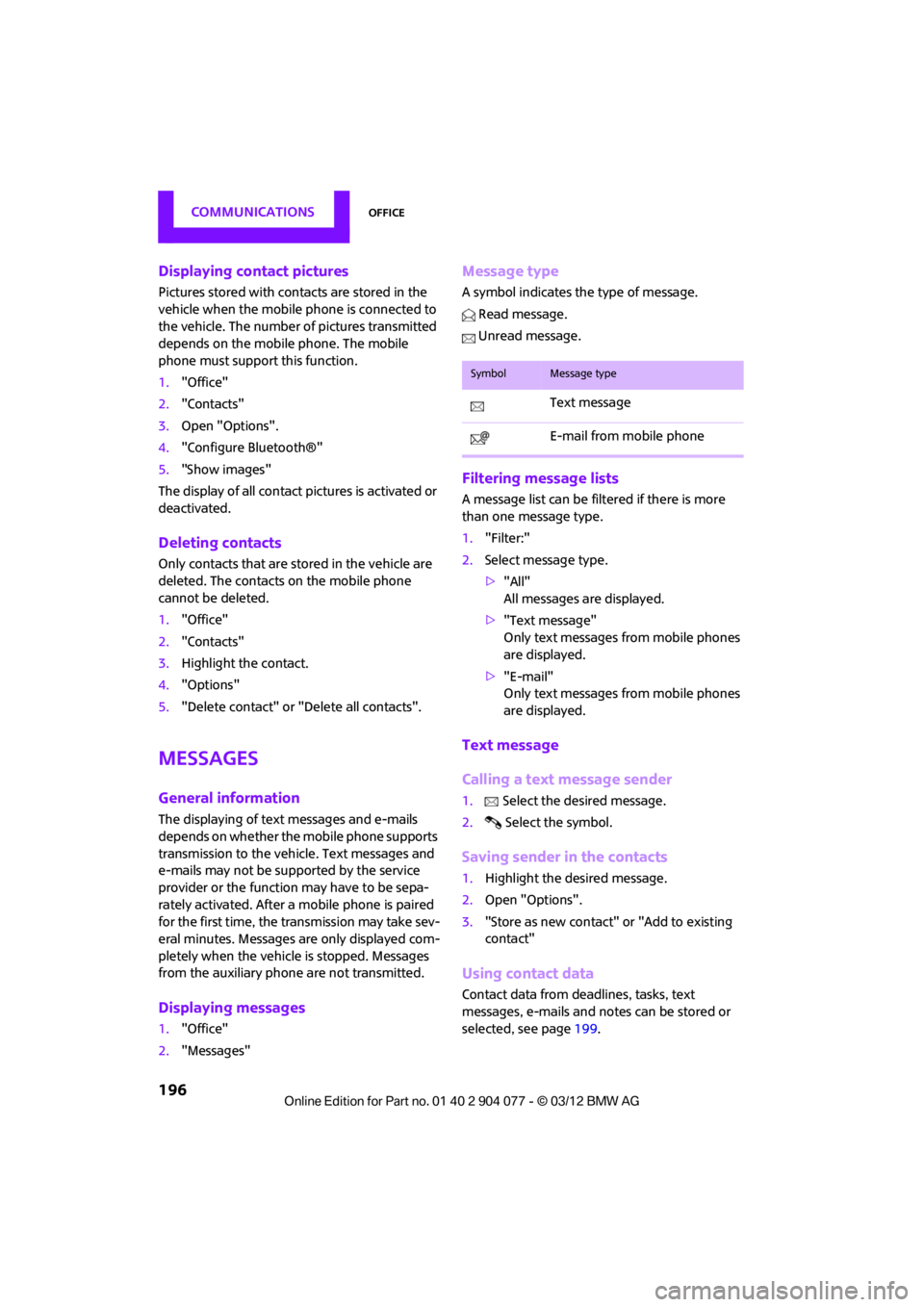
Message type
A symbol indicates the type of message.
Read message.
Unread message.
Filtering message lists
A message list can be filtered if there is more
than one message type.
1. "Filter:"
2. Select message type.
>"All"
All messages are displayed.
> "Text message"
Only text messages from mobile phones
are displayed.
> "E-mail"
Only text messages from mobile phones
are displayed.
Text message
Calling a text message sender
1. Select the desired message.
2. Select the symbol.
Saving sender in the contacts
1.Highlight the desired message.
2. Open "Options".
3. "Store as new contact" or "Add to existing
contact"
Using contact data
Contact data from deadlines, tasks, text
messages, e-mails and notes can be stored or
selected, see page 199.
SymbolMessage type
Text message
E-mail from mobile phone
00320051004F004C00510048000300280047004C0057004C005200510003
Page 198 of 283
OfficeCOMMUNICATIONS
197
Reading text messages aloud
Reading text messages aloud, refer to page199.
E-mail
Displaying e-mail
1."Office"
2. "Messages"
3. Select the desired message.
Displaying e-mail contacts
If the sender and receiver of an e-mail were
transmitted from a mobile phone, they will be
displayed in the e-mail.
"Sender/Recipient"
If the e-mail address is stored in the contacts,
then the contact is displayed. Select contact to
display details.
If the e-mail address is not stored in the con-
tacts, then it may be that only the e-mail address
is displayed.
Using contact data
Contact data from deadlines, tasks, text mes-
sages, e-mails and notes can be stored or
selected, see page 199.
Deactivating entire display
When opening an e-mail when in the vehicle, it
is completely transferred to the vehicle. This
may result in charges.
1."Office"
2. "Messages"
3. Open "Options".
4. "Fully download e-mails"
Only a part of an e-mail from a mobile
phone is loaded into the vehicle.
Reading e-mail
Reading e-mail, see page 199.
Calendar
Displaying calendar
Appointments from the last 20 days and the
next 50 days can be displayed.
1."Office"
2. "Calendar"
Appointments of the current day are
displayed.
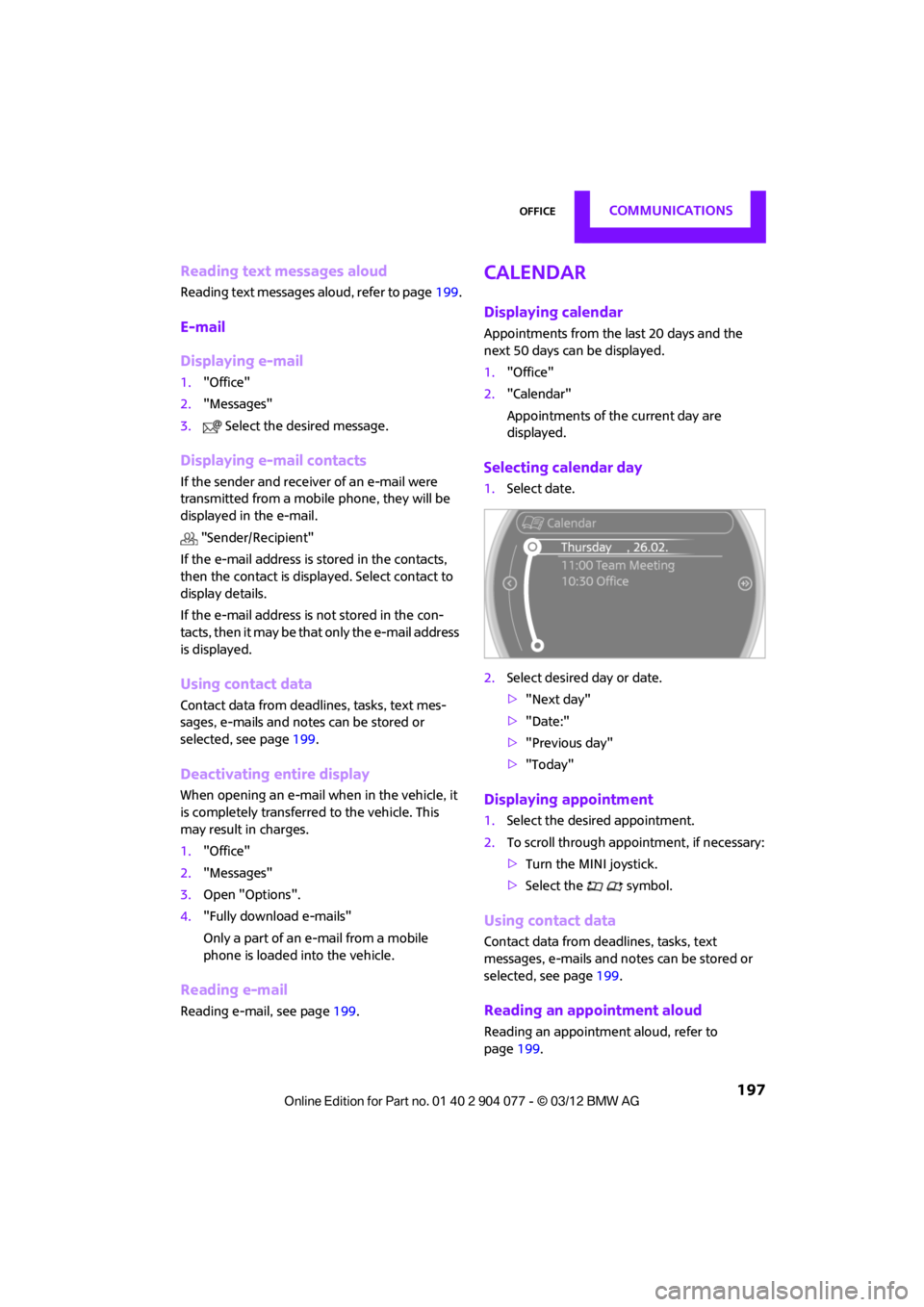
Selecting calendar day
1.Select date.
2. Select desired day or date.
>"Next day"
> "Date:"
> "Previous day"
> "Today"
Displaying appointment
1. Select the desired appointment.
2. To scroll through appointment, if necessary:
>Turn the MINI joystick.
> Select the symbol.
Using contact data
Contact data from deadlines, tasks, text
messages, e-mails and no tes can be stored or
selected, see page 199.
Reading an appointment aloud
Reading an appointment aloud, refer to
page199.
00320051004F004C00510048000300280047004C0057004C005200510003
Page 200 of 283
OfficeCOMMUNICATIONS
199
Using contact data
Overview
Contact data from deadlines, tasks, text
messages, e-mails and notes can be stored or
selected.
To display a contact or dial a phone
number
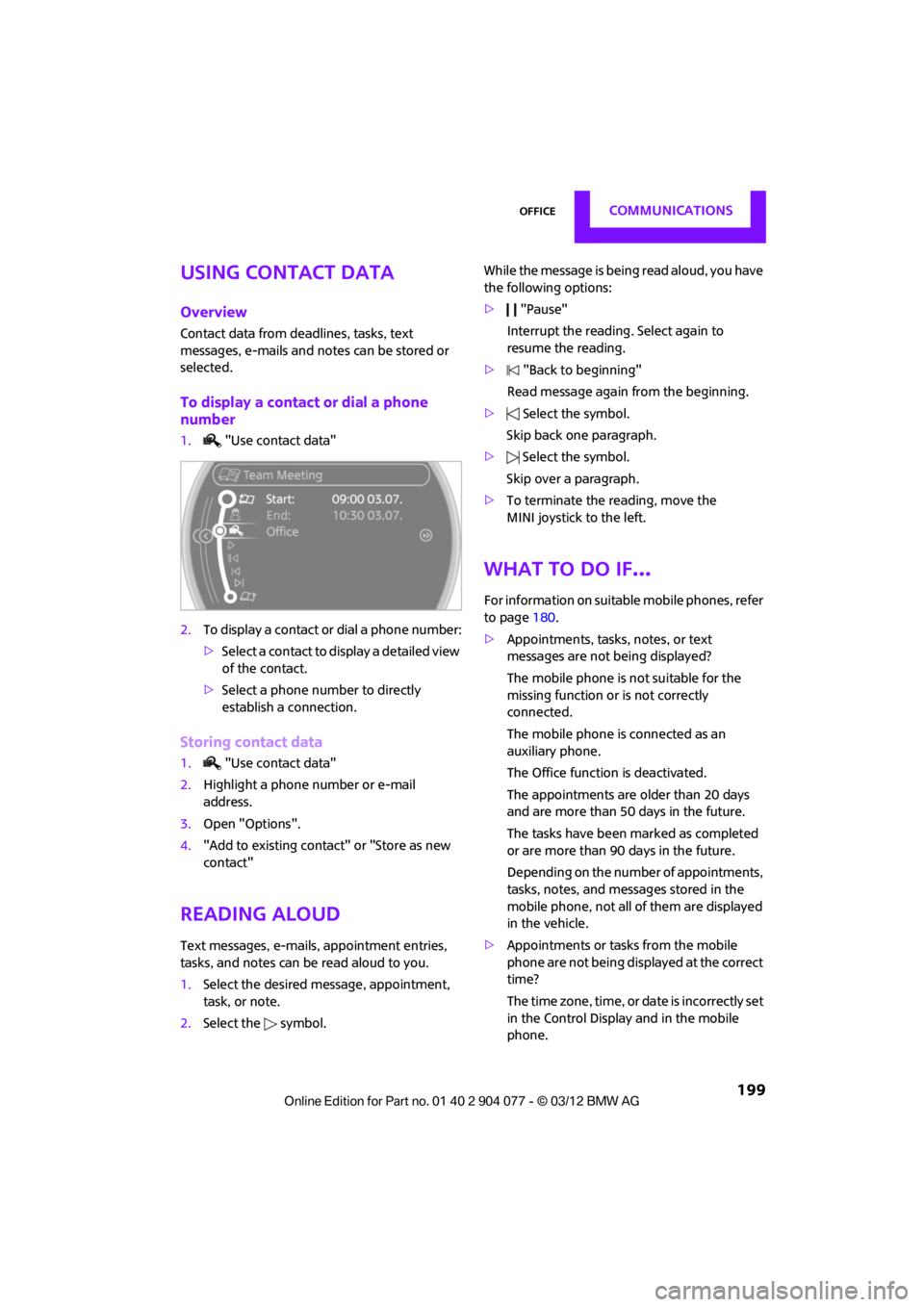
1. "Use contact data"
2. To display a contact or dial a phone number:
>Select a contact to display a detailed view
of the contact.
> Select a phone number to directly
establish a connection.
Storing contact data
1. "Use contact data"
2. Highlight a phone number or e-mail
address.
3. Open "Options".
4. "Add to existing contact" or "Store as new
contact"
Reading aloud
Text messages, e-mails, appointment entries,
tasks, and notes can be read aloud to you.
1. Select the desired message, appointment,
task, or note.
2. Select the symbol. While the message is being read aloud, you have
the following options:
>
"Pause"
Interrupt the reading. Select again to
resume the reading.
> "Back to beginning"
Read message again from the beginning.
> Select the symbol.
Skip back one paragraph.
> Select the symbol.
Skip over a paragraph.
> To terminate the reading, move the
MINI joystick to the left.
What to do if…
For information on suitable mobile phones, refer
to page 180.
> Appointments, tasks, notes, or text
messages are not being displayed?
The mobile phone is not suitable for the
missing function or is not correctly
connected.
The mobile phone is connected as an
auxiliary phone.
The Office function is deactivated.
The appointments are older than 20 days
and are more than 50 days in the future.
The tasks have been marked as completed
or are more than 90 days in the future.
Depending on the number of appointments,
tasks, notes, and mess ages stored in the
mobile phone, not all of them are displayed
in the vehicle.
> Appointments or tasks from the mobile
phone are not being displayed at the correct
time?
The time zone, time, or date is incorrectly set
in the Control Display and in the mobile
phone.
00320051004F004C00510048000300280047004C0057004C005200510003
Page 201 of 283

COMMUNICATIONSOffice
200
>Texts of entries are not displayed
completely?
Texts are already shortened by the mobile
phone.
Synchronization between the mobile phone
and vehicle can take a few minutes.
> Contact pictures are not being displayed?
Up to max. 200 contact pictures can be
stored in the vehicle.
> If you have gone through all items in the list
and still cannot activate the desired function
please contact the Hotline or your MINI
dealer.
00320051004F004C00510048000300280047004C0057004C005200510003
Page 202 of 283
MINI ConnectedCOMMUNICATIONS
201
MINI Connected
Vehicle equipment
In this chapter, all production, country, and
optional equipment that is offered in the model
range is described. Equipment is also described
that is not available because of, for example,
selected options or count ry version. This also
applies to safety related functions and systems.
Overview
The concept
You can use MINI Connected to integrate certain
software applications of a suitable mobile phone
into your MINI. These software applications are
displayed on the Control Display. They are oper-
ated using the MINI joystick.
The range of software applications can be
country-specific.
Requirements
The following requirements must be met for the
function of MINI Connected:
> The operating system of the mobile phone
must support the software applications of
MINI Connected.
> The software applications are installed on
the mobile phone and are operational.
> Suitable mobile phone.
> Appropriate mobile phone contract.
Possible additional costs incurred are not
included with MINI Connected.
Only make entries when the traffic
situation allows you to do so. If you do not
observe this precaution, your being distracted
can endanger vehicle occupants and other road
users.
For safety reasons, some software applications
can only be used when the vehicle is stopped.
wise, malfunctions may result. <
Notes
For information on suitable mobile phones,
available software applications, and their
installation:
> At: www.mini.com/connectivity
> At your MINI dealer.
Connecting a mobile
phone
Connecting via the USB audio interface
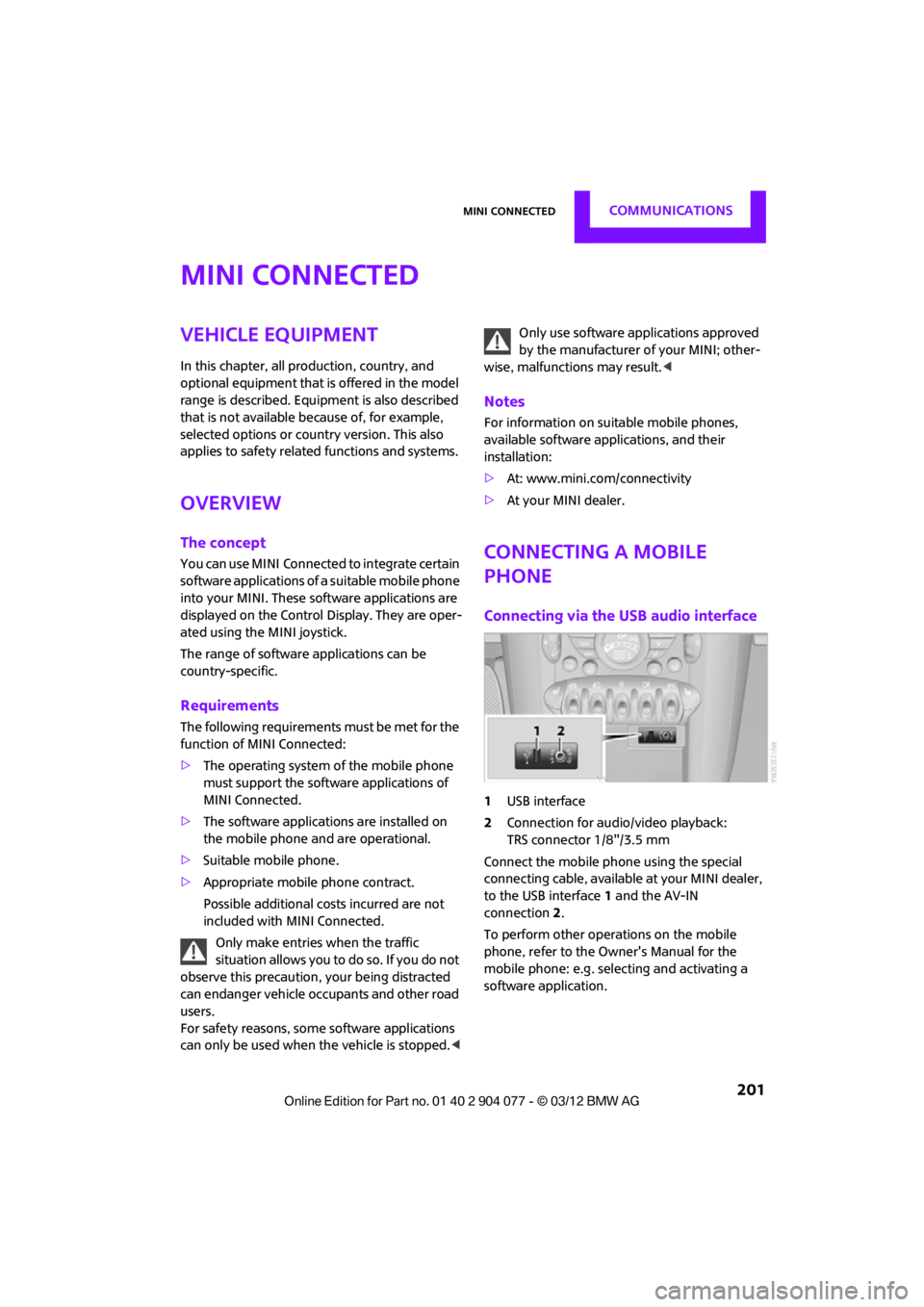
1USB interface
2 Connection for audi o/video playback:
TRS connector 1/8"/3.5 mm
Connect the mobile phone using the special
connecting cable, available at your MINI dealer,
to the USB interface 1 and the AV-IN
connection 2.
To perform other operations on the mobile
phone, refer to the Owner's Manual for the
mobile phone: e.g. selecting and activating a
software application.
00320051004F004C00510048000300280047004C0057004C005200510003
Page 203 of 283
COMMUNICATIONSMINI Connected
202
Connecting via the snap-in adapter
The mobile phone can also be connected using
the snap-in adapter, refer to page191.
Using MINI Connected
After successful connection of the mobile phone
to the vehicle and activation of MINI Connected,
the applications are di splayed on the Control
Display and can be operated using the MINI
joystick.
Volume adjustments can be made using the
buttons on the steering wheel, refer to page 10,
or using the volume control knob on the radio,
refer to page 147.
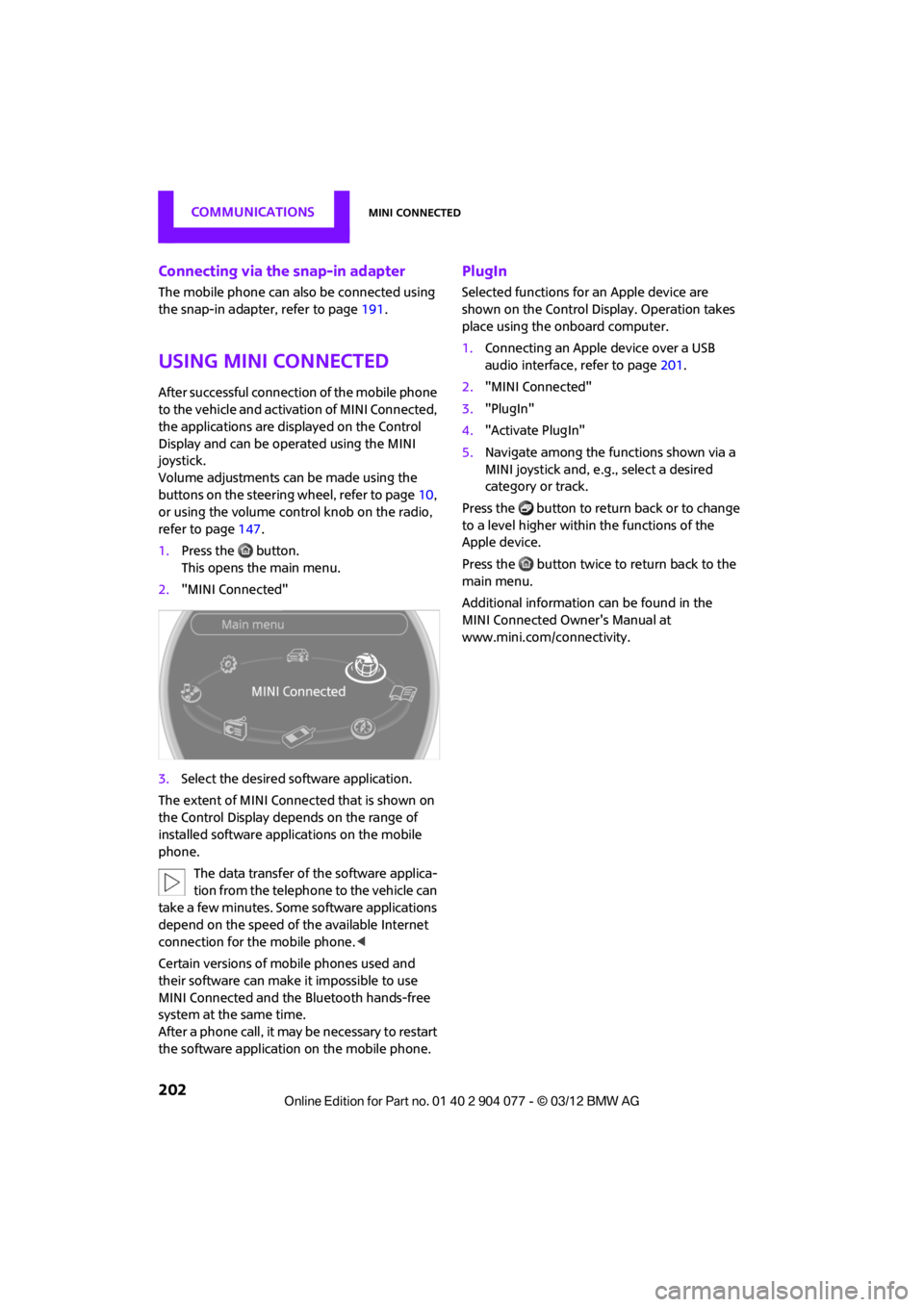
1. Press the button.
This opens the main menu.
2. "MINI Connected"
3. Select the desired so ftware application.
The extent of MINI Connected that is shown on
the Control Display depends on the range of
installed software applic ations on the mobile
phone.
The data transfer of the software applica-
tion from the telephone to the vehicle can
take a few minutes. Some software applications
depend on the speed of the available Internet
connection for the mobile phone. <
Certain versions of mobile phones used and
their software can make it impossible to use
MINI Connected and the Bluetooth hands-free
system at the same time.
After a phone call, it may be necessary to restart
the software application on the mobile phone.
PlugIn
Selected functions for an Apple device are
shown on the Control Display. Operation takes
place using the onboard computer.
1. Connecting an Apple device over a USB
audio interface, refer to page 201.
2. "MINI Connected"
3. "PlugIn"
4. "Activate PlugIn"
5. Navigate among the functions shown via a
MINI joystick and, e. g., select a desired
category or track.
Press the button to return back or to change
to a level higher within the functions of the
Apple device.
Press the button twice to return back to the
main menu.
Additional information can be found in the
MINI Connected Owner's Manual at
www.mini.com/c onnectivity.
00320051004F004C00510048000300280047004C0057004C005200510003