2012 MERCEDES-BENZ S-CLASS SEDAN service
[x] Cancel search: servicePage 201 of 536
Ra valid and operational SIM card must be
inserted in the mobile phone.
R the mobile phone is connected to COMAND
via Bluetooth ®
.
If you cannot make an emergency call, you
must arrange rescue measures yourself.XEnter numbers using the number keypad
( Y page 204).XPress the 6 button.
The telephone makes the connection.XWait for the emergency call center to
respond and then describe the emergency.
i If no SIM card has been inserted in a GSM
phone or if there is no service available for
a CDMA phone, the NO SERVICE message
appears in COMAND. In this case, an
emergency call can only be transmitted via
the mobile phone itself and not via
COMAND.
Telephony via the Bluetooth ®
interface
Conditions
On the mobile phone
For telephony via COMAND's Bluetooth ®
interface, a Bluetooth ®
-capable mobile
phone is required.
i Not all mobile phones available on the
market are equally suitable. More detailed
information on suitable mobile phones and
on connecting Bluetooth ®
-capable mobile
phones with COMAND can be found on the
Internet at
http://www.mbusa-mobile.com . Or call
the Mercedes-Benz Customer Assistance
Center on
1-800-FOR-MERCedes(1-800-367-6372)
(for the USA) or Customer Relations on
1-800-387-0100 (for Canada).
The battery of the mobile phone should
always be kept sufficiently charged in order
to prevent malfunctions.
In preparation for telephoning via the
Bluetooth ®
interface, you should check the
following items on your mobile phone (see the
mobile phone operating instructions):XHands-Free Profile
The mobile phone must support Hands-
Free Profile 1.0 or above.
i Certain displays and functions (e.g. signal
strength display, conference connection)
are available, depending on the supported
version of the Hands-Free Profile.
XBluetooth ®
visibility
On certain mobile phones, the device itself
must be made "visible" for other devices,
as well as activating the Bluetooth ®
function (see the mobile phone operating
instructions).XBluetooth ®
device name
Every Bluetooth ®
device has its own
Bluetooth ®
device name. This device name
is freely definable, but can be identical for
all devices from the same manufacturer. It
is therefore recommended that you change
this name so that you can easily recognize
your mobile phone (see the mobile phone
operating instructions).XSwitch on the mobile phone and enter the
PIN when prompted to do so (see the
mobile phone operating instructions).XActivate Bluetooth ®
functions and, where
necessary, Bluetooth ®
visibility on the
mobile phone (see the mobile phone
operating instructions).
In COMAND
XActivate the Bluetooth ®
function in
COMAND ( Y page 151).
Connecting a mobile phone
General information
Before using your mobile phone with
COMAND for the first time, you will need to
connect it.
Telephone199COMANDZ
Page 221 of 536
XSelect a channel by turning cVd the
COMAND controller and press W to
confirm.
or
XPress a number key on the telephone
keypad, e.g. 4, at any time.
Displaying station information
This function is only available for analog FM
and digital AM/FM programs (HD Radio).
Information relevant to the current station is
shown below the main function bar.
XSelect Radio in the radio display by sliding
V Æ and turning cVd the COMAND
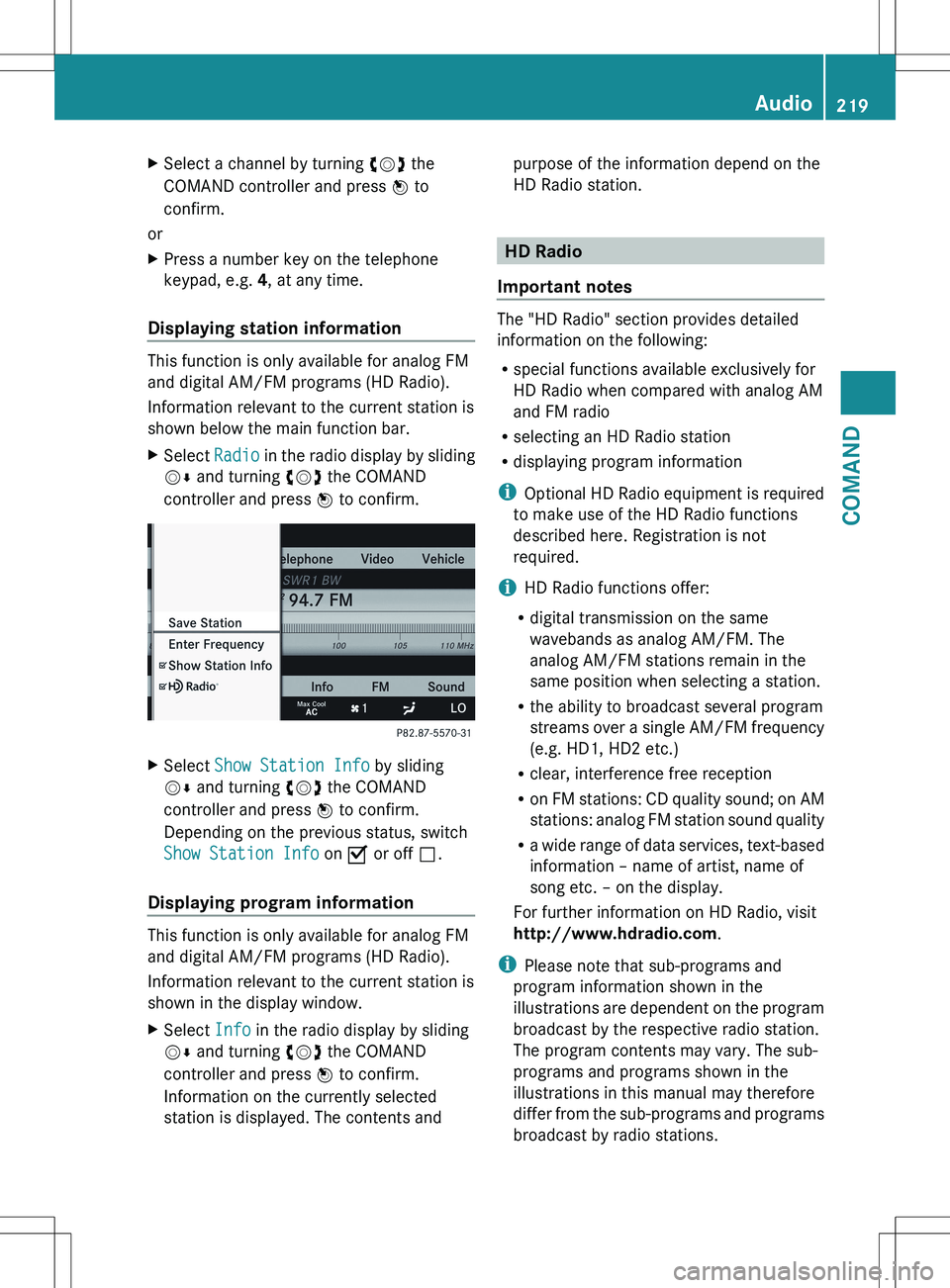
controller and press W to confirm.XSelect Show Station Info by sliding
V Æ and turning cVd the COMAND
controller and press W to confirm.
Depending on the previous status, switch
Show Station Info on O or off ª.
Displaying program information
This function is only available for analog FM
and digital AM/FM programs (HD Radio).
Information relevant to the current station is
shown in the display window.
XSelect Info in the radio display by sliding
V Æ and turning cVd the COMAND
controller and press W to confirm.
Information on the currently selected
station is displayed. The contents andpurpose of the information depend on the
HD Radio station.
HD Radio
Important notes
The "HD Radio" section provides detailed
information on the following:
R special functions available exclusively for
HD Radio when compared with analog AM
and FM radio
R selecting an HD Radio station
R displaying program information
i Optional HD Radio equipment is required
to make use of the HD Radio functions
described here. Registration is not
required.
i HD Radio functions offer:
R digital transmission on the same
wavebands as analog AM/FM. The
analog AM/FM stations remain in the
same position when selecting a station.
R the ability to broadcast several program
streams over a single AM/FM frequency
(e.g. HD1, HD2 etc.)
R clear, interference free reception
R on FM stations: CD quality sound; on AM
stations: analog FM station sound quality
R a wide range of data services, text-based
information – name of artist, name of
song etc. – on the display.
For further information on HD Radio, visit
http://www.hdradio.com .
i Please note that sub-programs and
program information shown in the
illustrations are dependent on the program
broadcast by the respective radio station.
The program contents may vary. The sub-
programs and programs shown in the
illustrations in this manual may therefore
differ from the sub-programs and programs
broadcast by radio stations.
Audio219COMANDZ
Page 223 of 536
Displaying program informationXSelect Audio in the main function bar by
sliding ZV and turning cVd the COMAND
controller and press W to confirm.XSelect Audio by sliding ZV the COMAND
controller and pressing W to confirm.
The audio menu appears.XSelect HD Radio by sliding ZV the
COMAND controller and press W to
confirm.XSelect Info in the HD Radio display by
sliding ZV the COMAND controller and
press W to confirm.
Information on the currently selected
station is displayed. The contents and
purpose of the information depend on the
HD Radio station.
Satellite radio
Important notes
This section provides detailed information on
the following topics:
R selecting a channel and program category
R memory functions
R sound settings
i The satellite radio mode described below
requires optionally available satellite radio
equipment and registration with a satellite
radio provider.
i Note that the categories and channels
shown in the illustrations depend on the
program content offered by the provider.
The program contents may vary. The
illustrations and descriptions in these
operating instructions may therefore differ
from the channels and categories offered
by the provider.
Satellite radio mode may be temporarily
unavailable or interrupted for a variety of
reasons. These reasons include
environmental or topographical conditions
as well as other issues beyond the control
of Mercedes-Benz USA, LLC. Operation
may also be impaired in certain locations
(e.g. tunnels, multi-storey car parks or
within as well as close to buildings).
i SIRIUS XM Radio offers more than 130
digital-quality radio channels providing
100% commercial-free music, sport, news
and entertainment.
SIRIUS XM Radio employs a fleet of high-
performance satellites to broadcast around
the clock throughout the USA and Canada.
The satellite radio program is available for
a monthly fee. Details are available from
the SIRIUS XM Service Center and at
http://www.sirius.com (USA) or
http://www.siriuscanada.com
(Canada).
Registering satellite radioXSelect Audio in the main function bar by
sliding ZV and turning cVd the COMAND
controller and press W to confirm.XSelect Sat. Radio and press W to
confirm.
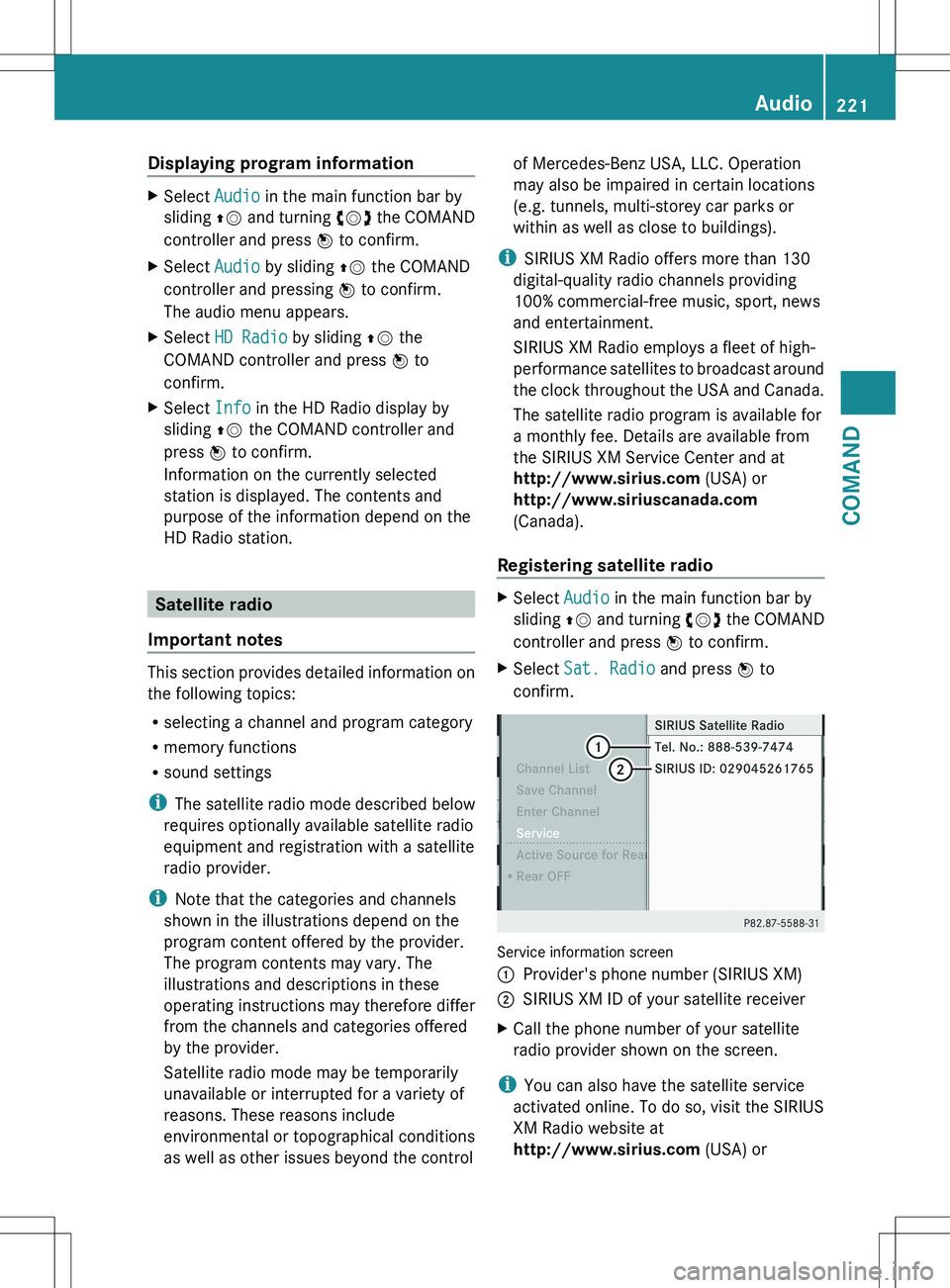
Service information screen
1Provider's phone number (SIRIUS XM)2SIRIUS XM ID of your satellite receiverXCall the phone number of your satellite
radio provider shown on the screen.
i You can also have the satellite service
activated online. To do so, visit the SIRIUS
XM Radio website at
http://www.sirius.com (USA) or
Audio221COMANDZ
Page 224 of 536
http://www.siriuscanada.com
(Canada).
Once the connection has been established:XFollow the instructions of the service staff.
The activation process may take up to ten
minutes. If the activation is completed
successfully, the No Service message
appears in the display, followed by the
satellite radio main menu.
i If registration is not included when
purchasing the system, your credit card
details will be required to activate your
account.
If the satellite receiver is not installed or is
not installed correctly, the Device not
available message will appear.
Switching on satellite radio mode
Notes
Important notes on registration, see
"Registering satellite radio" ( Y page 221).
Switching on satellite radio mode
XSelect Audio in the main function bar by
sliding ZV and turning cVd the COMAND
controller and press W to confirm.
If satellite radio mode was the last mode
selected, it will now be active.
If another audio mode is switched on, you
can now switch to satellite radio mode in
the audio menu.XSelect Audio by sliding ZV the COMAND
controller and pressing W to confirm.
The audio menu appears.XSelect Sat. Radio and press W to
confirm.
The No Service message appears when
starting up or if no signal is being received.
If the satellite receiver is not installed or is
not installed correctly, the Device not
available message will appear.Once COMAND receives the signal, the
satellite radio display appears. The station
last selected is played.
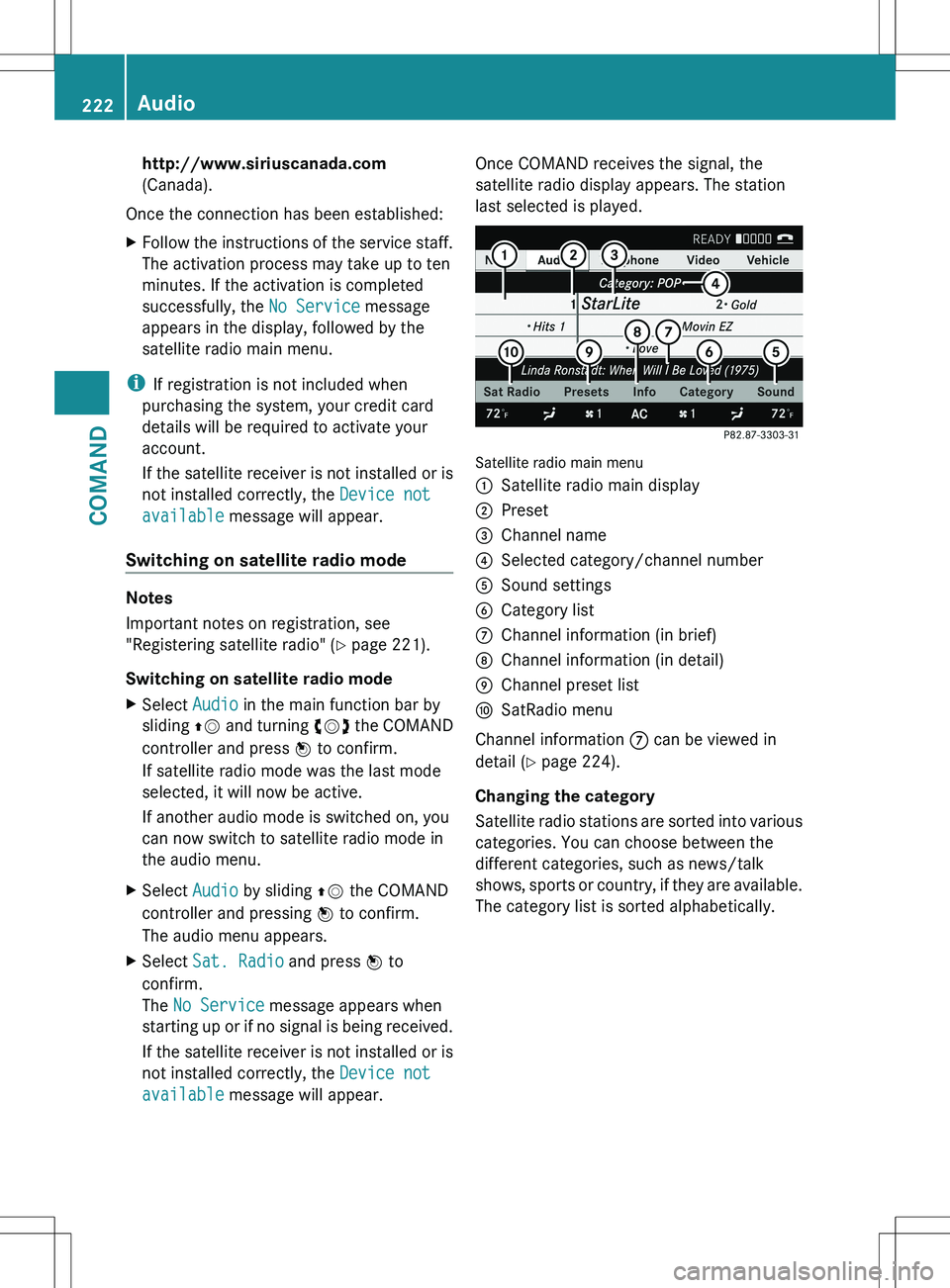
Satellite radio main menu
1Satellite radio main display2Preset3Channel name4Selected category/channel number5Sound settings6Category list7Channel information (in brief)8Channel information (in detail)9Channel preset listaSatRadio menu
Channel information 7 can be viewed in
detail ( Y page 224).
Changing the category
Satellite radio stations are sorted into various
categories. You can choose between the
different categories, such as news/talk
shows, sports or country, if they are available.
The category list is sorted alphabetically.
222AudioCOMAND
Page 226 of 536
XSelect a preset by turning cVd the
COMAND controller and press and hold
W until you hear a tone.
or
XPress and hold a number button, e.g. 4,
until you hear a tone.
The channel is stored under the preset.
Storing channels automatically
This function automatically stores channels
with adequate reception in the preset
memory. Channels stored manually in the
preset memory will be overwritten.
XOption 1: press W the COMAND controller
when the display/selection window is
active.XSelect Autostore in the presets by turning
cVd the COMAND controller and press
W to confirm.XOption 2: select Presets in the submenu
bar by sliding VÆ and turning cVd the
COMAND controller and press W to
confirm.XSelect Autostore and press W to confirm.
In both cases, COMAND searches for
channels that can be received. You will see
a message to this effect. The available
channels are automatically stored in the
preset positions.XTo cancel storing: select Cancel and
press W to confirm.
Selecting a channel from the preset list
XTo call up the channel list: select
Presets by turning cVd the COMAND
controller and press W to confirm.
The channel preset list appears.XTo set a channel: select a preset by
turning cVd the COMAND controller and
press W to confirm.
or
XPress a number key, e.g. 4.Using the multifunction steering wheelXPress = or ; to select the Audio
menu.XPress 9 or : briefly.
Displaying information
XSelect Info in the submenu bar by turning
cVd the COMAND controller and press
W to confirm.
Information on the currently received
program is displayed.XTo return to the SatRadio main display:
slide XVY the COMAND controller.
Displaying service information
The provider's customer service center is
available by phone at any time to answer any
general questions or questions on the
versions available.
XSelect Sat. Radio in the submenu bar by
turning cVd the COMAND controller and
press W to confirm.XSelect Service and press W to confirm.
The provider's details appear.XTo return to the SatRadio main display:
slide XVY the COMAND controller.
Channel list updates
When receiving a new channel list, the display
shows the Updating channel... message.
The station last selected is switched to mute
until the update has been completed.
Satellite radio mode is not available during
this process.
Once the update has been completed, the
satellite radio main menu appears. The
station last selected is played.
Sound settings
You will find details on the sound settings in
the "At a glance" section ( Y page 139).
224AudioCOMAND
Page 227 of 536
Audio CD/DVD and MP3 mode
Important safety notesGWARNING
COMAND is classified as a Class 1 laser
product. You must not open the casing. If you
open the casing, or if the casing is faulty or
damaged, there is a risk of exposure to
invisible laser radiation. This may damage
your eyes, or those of others.
COMAND does not contain any parts that can
be serviced by the user. For safety reasons,
all maintenance work must be carried out by
qualified aftersales technicians.
GWARNING
Only when the vehicle is stationary should
you:
R load a disc
R eject a disc
There is a risk of being distracted from the
road and traffic conditions if this is done while
the vehicle is in motion.
Inserting/ejecting CDs/DVDs
DVD changer
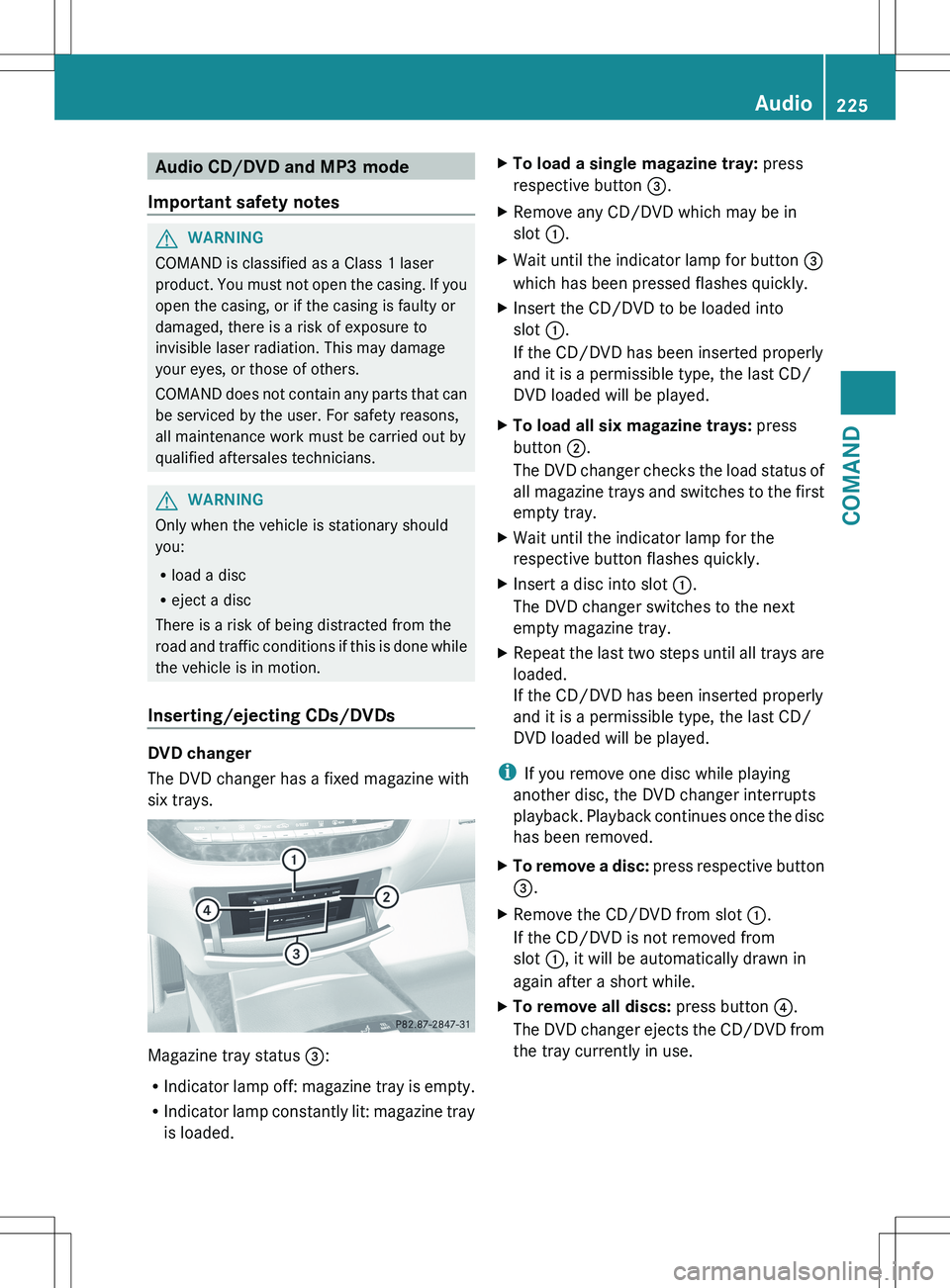
The DVD changer has a fixed magazine with
six trays.
Magazine tray status =:
R Indicator lamp off: magazine tray is empty.
R Indicator lamp constantly lit: magazine tray
is loaded.
XTo load a single magazine tray: press
respective button =.XRemove any CD/DVD which may be in
slot :.XWait until the indicator lamp for button =
which has been pressed flashes quickly.XInsert the CD/DVD to be loaded into
slot :.
If the CD/DVD has been inserted properly
and it is a permissible type, the last CD/
DVD loaded will be played.XTo load all six magazine trays: press
button ;.
The DVD changer checks the load status of
all magazine trays and switches to the first
empty tray.XWait until the indicator lamp for the
respective button flashes quickly.XInsert a disc into slot :.
The DVD changer switches to the next
empty magazine tray.XRepeat the last two steps until all trays are
loaded.
If the CD/DVD has been inserted properly
and it is a permissible type, the last CD/
DVD loaded will be played.
i If you remove one disc while playing
another disc, the DVD changer interrupts
playback. Playback continues once the disc
has been removed.
XTo remove a disc: press respective button
= .XRemove the CD/DVD from slot :.
If the CD/DVD is not removed from
slot :, it will be automatically drawn in
again after a short while.XTo remove all discs: press button ?.
The DVD changer ejects the CD/DVD from
the tray currently in use.Audio225COMANDZ
Page 247 of 536
Changing the picture formatXPress W the COMAND controller to show
the menu.XSelect Video by sliding VÆ and turning
cVd the COMAND controller and press
W to confirm.XSelect Video DVD and press W to confirm.XSelect DVD-V and press W to confirm.
The DVD-V menu appears. The ä dot in
front of a menu item indicates the current
setting.XSelect Auto, 16:9 optimized , 4:3 or
Widescreen and press W to confirm.XSelect a setting by turning cVd the
COMAND controller and press W to
confirm.
Video DVD mode
Safety notes
GWARNING
COMAND is classified as a Class 1 laser
product. You must not open the casing. If you
open the casing, or if the casing is faulty or
damaged, there is a risk of exposure to
invisible laser radiation. This may damage
your eyes, or those of others.
COMAND does not contain any parts that can
be serviced by the user. For safety reasons,
all maintenance work must be carried out by
qualified aftersales technicians.
GWARNING
Only when the vehicle is stationary should
you:
R load a disc
R eject a disc
There is a risk of being distracted from the
road and traffic conditions if this is done while
the vehicle is in motion.
Notes about discs
There may be playback problems when
playing copied discs. There are a large variety
of discs, DVD authoring software, writing
software and writers available. This variety
means that there is no guarantee that the
system will be able to play discs that you have
copied yourself.
! Do not affix stickers or labels to the discs,
as they could peel off and damage
COMAND. Stickers can cause the disc to
bend, which can result in read errors and
disc recognition problems.
! COMAND is designed to accommodate
discs which comply with the EN 60908
standard. You can therefore only use discs
with a maximum thickness of 1.3 mm.
If you insert thicker discs, e.g. those that
contain data on both sides (DVD on one
side and audio data on the other), they
cannot be ejected and can damage
COMAND.
Use round discs with a diameter of 12 cm.
Do not use discs with a diameter of 8 cm,
even with an adapter.
DVD playback conditions
If video DVDs do not conform to the NTSC or
PAL TV standards, they may create picture,
sound or other problems during playback.
COMAND can play back video DVDs
produced according to the following
standards:
R region code 1 or region code 0 (no region
code)
i If you insert a video DVD with a different
region code, you will see a message to this
effect.
R PAL or NTSC standard
You will generally find the relevant details
either on the DVD itself or on the DVD case.
i COMAND is set to region code 1 at the
factory. This setting can be changed at an
Video245COMANDZ
Page 253 of 536
gradually. This enables you to determine
whether the system is able to play the
music at high volume without distorting it.
Rear Seat Entertainment System
General information
Important safety notes
GWARNING
The RSE CD/DVD player is a Class 1 laser
product. There is a danger of invisible laser
radiation when you open or damage the cover.
Do not remove the cover. The RSE CD/DVD
player does not contain any parts which can
be serviced by the user. For safety reasons,
have any necessary service work performed
by qualified personnel.
GWARNING
The driver should not wear a Rear Seat
Entertainment headset while operating the
vehicle under any circumstances. The use of
a headset while driving the vehicle could
drastically impair the ability to react to audible
traffic conditions (e.g. emergency sirens from
police/fire/ambulance, another car's horn,
etc.).
GWARNING
When not in use, headsets or external video
sources should be stored in a safe location
(e.g. one of the vehicle's storage
compartments) so that they are not loose
within the passenger compartment during
braking, vehicle maneuvers or a traffic
accident. Objects moving within the
passenger compartment could cause serious
personal injury to vehicle occupants.
GWARNING
Due to a potential choking hazard, wired
headset usage by children should only occur
with adult supervision.
Changing batteries
Batteries are required for the remote control
and for the two sets of cordless headphones.
GWARNING
Keep the batteries out of the reach of
children. Consult a doctor immediately if a
child should swallow a battery.
Do not dismantle, short-circuit or burn a
battery.
HEnvironmental note
Dispose of discharged batteries in an
environmentally responsible manner.
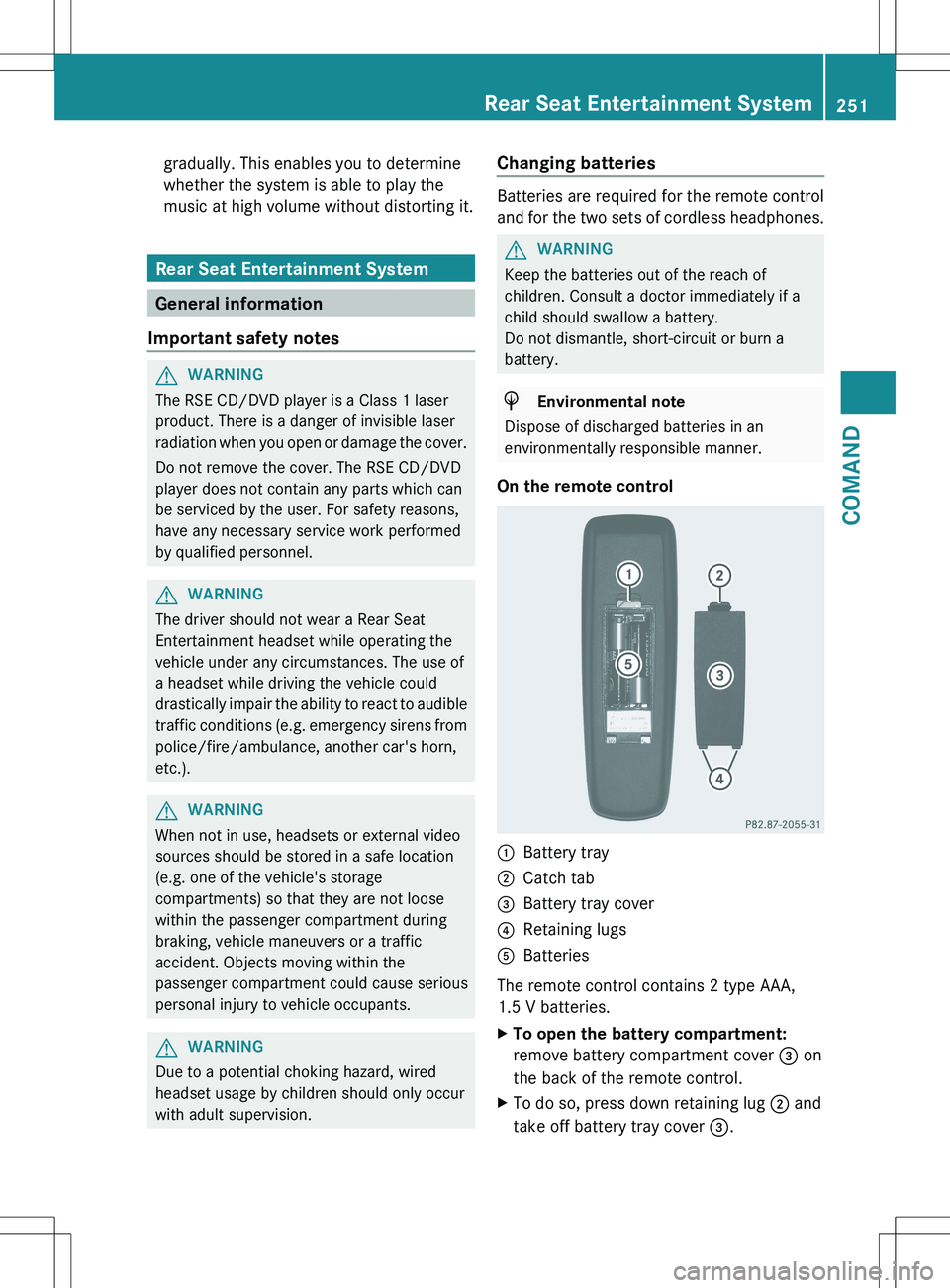
On the remote control
:Battery tray;Catch tab=Battery tray cover?Retaining lugsABatteries
The remote control contains 2 type AAA,
1.5 V batteries.
XTo open the battery compartment:
remove battery compartment cover = on
the back of the remote control.XTo do so, press down retaining lug ; and
take off battery tray cover =.Rear Seat Entertainment System251COMANDZ