2012 MERCEDES-BENZ S-CLASS SEDAN stop start
[x] Cancel search: stop startPage 126 of 536
Assigning the programmable button
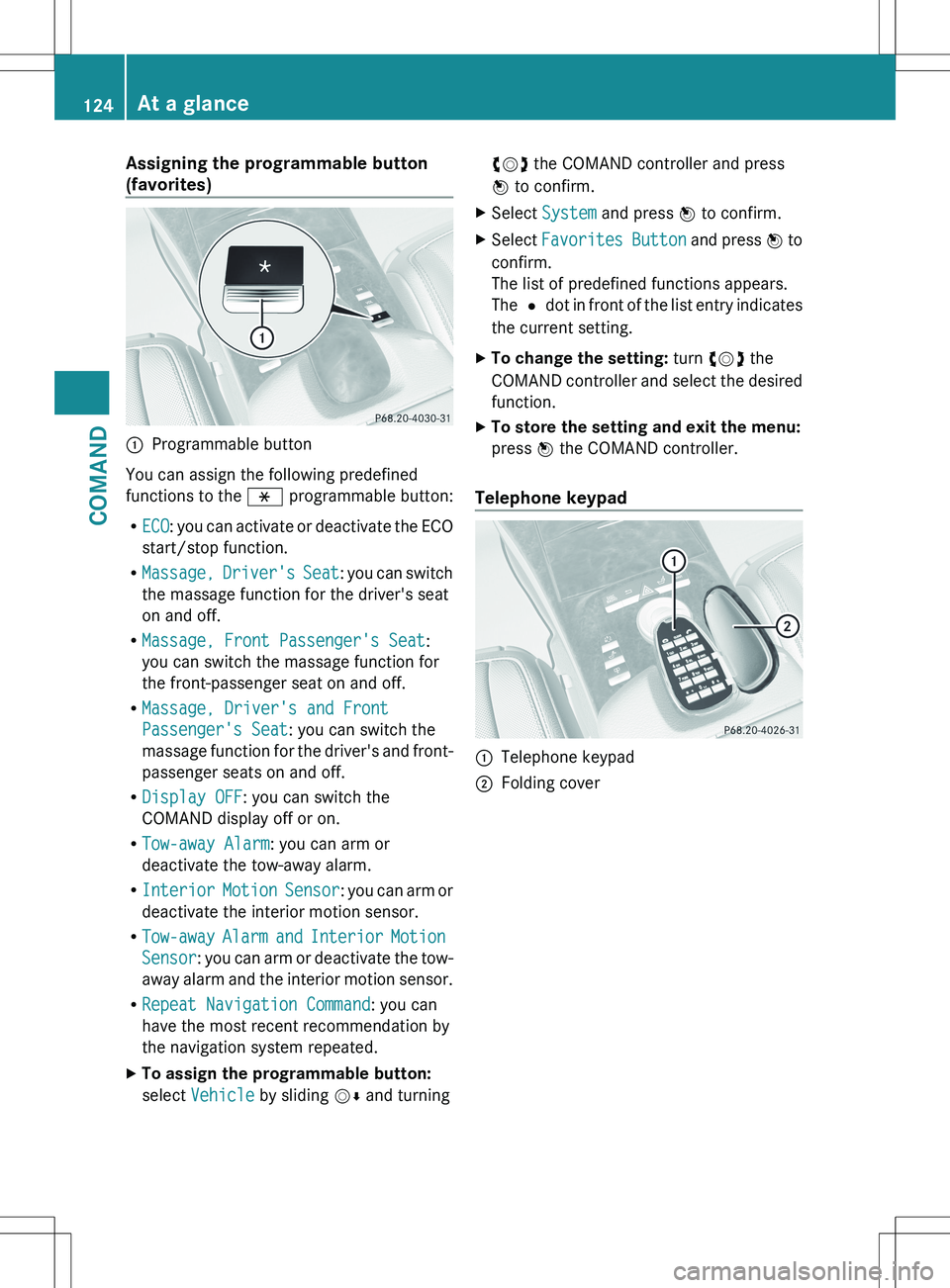
(favorites):Programmable button
You can assign the following predefined
functions to the h programmable button:
R ECO : you can activate or deactivate the ECO
start/stop function.
R Massage, Driver's Seat : you can switch
the massage function for the driver's seat
on and off.
R Massage, Front Passenger's Seat :
you can switch the massage function for
the front-passenger seat on and off.
R Massage, Driver's and Front
Passenger's Seat : you can switch the
massage function for the driver's and front-
passenger seats on and off.
R Display OFF : you can switch the
COMAND display off or on.
R Tow-away Alarm : you can arm or
deactivate the tow-away alarm.
R Interior Motion Sensor : you can arm or
deactivate the interior motion sensor.
R Tow-away Alarm and Interior Motion
Sensor : you can arm or deactivate the tow-
away alarm and the interior motion sensor.
R Repeat Navigation Command : you can
have the most recent recommendation by
the navigation system repeated.
XTo assign the programmable button:
select Vehicle by sliding VÆ and turningcVd the COMAND controller and press
W to confirm.XSelect System and press W to confirm.XSelect Favorites Button and press W to
confirm.
The list of predefined functions appears.
The # dot in front of the list entry indicates
the current setting.XTo change the setting: turn cVd the
COMAND controller and select the desired
function.XTo store the setting and exit the menu:
press W the COMAND controller.
Telephone keypad
:Telephone keypad;Folding cover124At a glanceCOMAND
Page 156 of 536
change accordingly. If the selected language
is not supported by the Voice Control System,
"English" will be selected.XSelect Vehicle by turning cVd the
COMAND controller and press W to
confirm.XSelect System and press W to confirm.XSelect Language and press W to confirm.
The list of languages appears. The # dot
indicates the current setting.XSelect the language by turning cVd the
COMAND controller and press W to
confirm.
COMAND loads the selected language and
sets it.
Reset function
You can reset COMAND to the factory
settings. Amongst other things, this will
delete all personal data (e.g. station presets,
address book entries, entries in the
destination memory and in the list of previous
destinations in the navigation system).
Resetting is recommended before selling or
transferring ownership of your vehicle, for
example.
XSelect Vehicle in the main function bar by
turning cVd the COMAND controller and
press W to confirm.XSelect System by turning cVd the
COMAND controller and press W to
confirm.XSelect Reset and press W to confirm.
A prompt appears asking whether you wish
to reset.XSelect Yes or No and press W to confirm.
If you select No, the process will be aborted.
If you select Yes, another prompt appears
asking whether you really wish to reset.XSelect Yes or No and press W to confirm.
If you select Yes, a message will be shown.
COMAND is reset and restarted.If you select No, the process will be aborted.
Navigation
Introduction
Safety notes
GWARNING
For safety reasons, only enter a destination
when the vehicle is stationary. When the
vehicle is in motion, a passenger should enter
the destination. Study manual and select
route before driving.
Bear in mind that at a speed of just 30 mph
(approximately 50 km/h), your vehicle is
covering a distance of 44 feet (approximately
14 m) every second.
COMAND calculates the route to the
destination without taking account of the
following:
R Traffic lights
R Stop and right-of-way-signs
R Lane merging
R Parking or stopping prohibited areas
R Other road and traffic rules and regulations
R Narrow bridges
GWARNING
COMAND may give incorrect navigation
commands if the data in the digital map does
not correspond with the actual road/traffic
situation. Digital maps do not cover all areas
nor all routes within an area. For example, if
the traffic routing has been changed or the
direction of a one-way road has been
reversed.
For this reason, you must always observe
applicable road and traffic rules and
regulations during your journey. Road and
traffic rules and regulations always have
priority over the navigation commands
generated by the system.
154NavigationCOMAND
Page 162 of 536
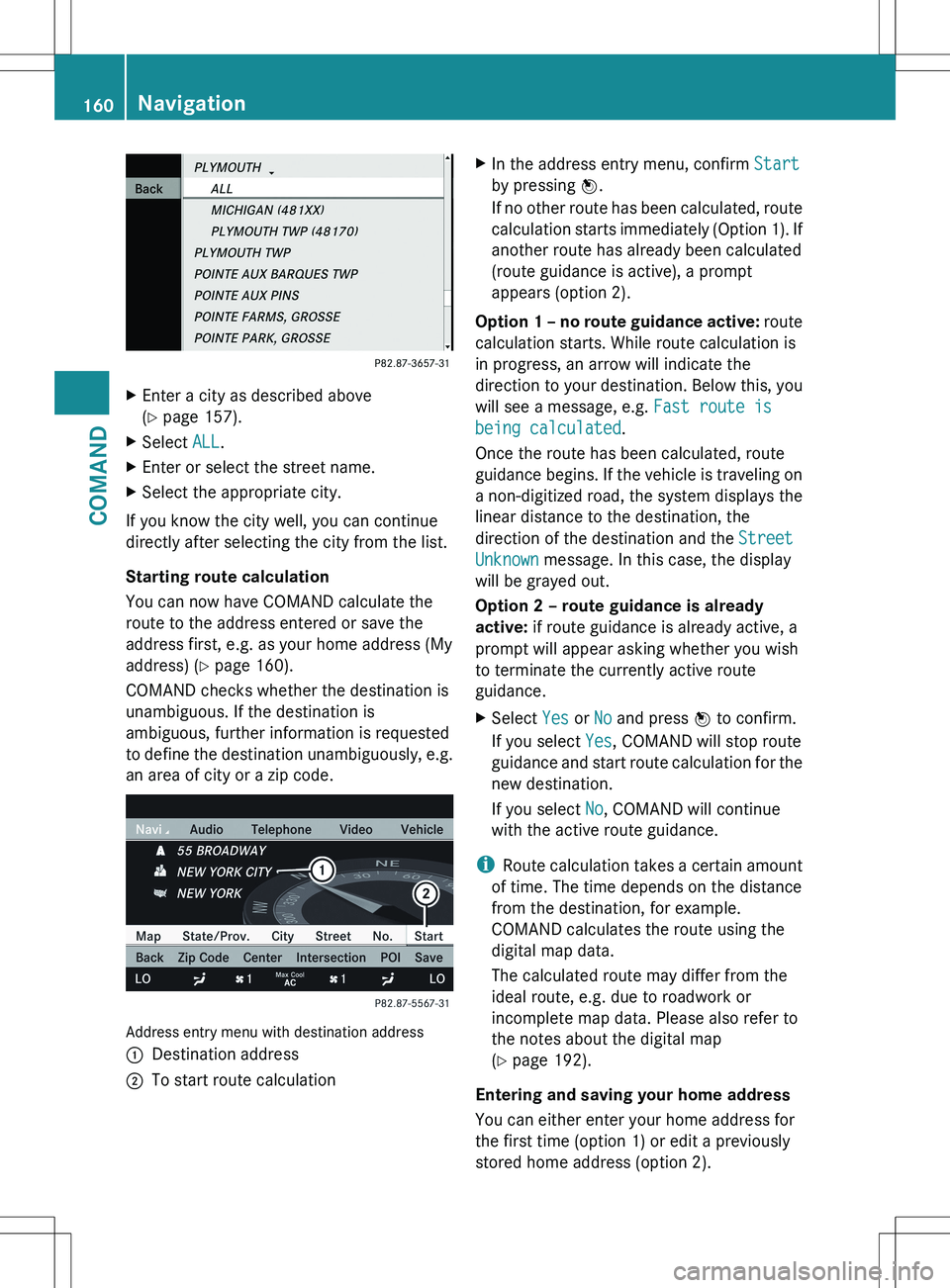
XEnter a city as described above
( Y page 157).XSelect ALL.XEnter or select the street name.XSelect the appropriate city.
If you know the city well, you can continue
directly after selecting the city from the list.
Starting route calculation
You can now have COMAND calculate the
route to the address entered or save the
address first, e.g. as your home address (My
address) ( Y page 160).
COMAND checks whether the destination is
unambiguous. If the destination is
ambiguous, further information is requested
to define the destination unambiguously, e.g.
an area of city or a zip code.
Address entry menu with destination address
:Destination address;To start route calculationXIn the address entry menu, confirm Start
by pressing W.
If no other route has been calculated, route
calculation starts immediately (Option 1). If
another route has already been calculated
(route guidance is active), a prompt
appears (option 2).
Option 1 – no route guidance active: route
calculation starts. While route calculation is
in progress, an arrow will indicate the
direction to your destination. Below this, you
will see a message, e.g. Fast route is
being calculated .
Once the route has been calculated, route
guidance begins. If the vehicle is traveling on
a non-digitized road, the system displays the
linear distance to the destination, the
direction of the destination and the Street
Unknown message. In this case, the display
will be grayed out.
Option 2 – route guidance is already
active: if route guidance is already active, a
prompt will appear asking whether you wish
to terminate the currently active route
guidance.
XSelect Yes or No and press W to confirm.
If you select Yes, COMAND will stop route
guidance and start route calculation for the
new destination.
If you select No, COMAND will continue
with the active route guidance.
i Route calculation takes a certain amount
of time. The time depends on the distance
from the destination, for example.
COMAND calculates the route using the
digital map data.
The calculated route may differ from the
ideal route, e.g. due to roadwork or
incomplete map data. Please also refer to
the notes about the digital map
( Y page 192).
Entering and saving your home address
You can either enter your home address for
the first time (option 1) or edit a previously
stored home address (option 2).
160NavigationCOMAND
Page 167 of 536
Entering an intermediate stop
Introduction
When route guidance is active, you can enter
an intermediate stop. Intermediate stops can
be predefined destinations from the following
categories that COMAND offers for selection:
R Mercedes-Benz Service Center
R Hospital
R Gas Station
R Parking Lot
R Restaurant
However, you can also enter destinations
other than the predefined ones. To do this
select the menu item Other.
You can use the intermediate stop function to
influence route guidance to the main
destination. When you have reached your
intermediate stop, COMAND automatically
recalculates the route to the main
destination.
Entering predefined destinations
XTo activate navigation mode: press the
S function button once or twice.XTo show the menu: press W the COMAND
controller.XSelect Destination in the navigation
system menu bar by turning cVd the
COMAND controller and pressing W to
confirm.XSelect Stopover and press W to confirm.
Option 1: no intermediate stop has been
entered yet.
XSelect a category; see option 2.
Option 2: an intermediate stop has
already been entered.
XSelect Change Stopover and press W to
confirm.XTo select a category: select a category by
turning cVd the COMAND controller and
pressing W to confirm.
COMAND first searches in the selected
category for destinations along the route.
If there are no destinations available there,
COMAND searches for destinations within
a radius of up to 100 km of the vehicle
position.
If COMAND finds destinations, a list
appears on the right-hand side of the
display. The currently selected point of
interest is highlighted on the left-hand side
of the map.
The intermediate stops are listed according
to increasing distance from the current
vehicle position. They are displayed in the
form of a name and their position in relation
to the route and your direction of travel.
If COMAND does not find any destinations,
you will see a message to this effect.
XConfirm OK by pressing W.XSelect a different category.XSelect the intermediate stop by turning
cVd the COMAND controller and pressing
W to confirm.XTo start route calculation: select Start
and press W to confirm.
Entering another destination as an
intermediate stop
XTo activate navigation mode: press the
S function button once or twice.XTo show the menu: press W the COMAND
controller.XSelect Destination in the navigation
system menu bar by turning cVd the
COMAND controller and pressing W to
confirm.XSelect Stopover and press W to confirm.XSelect Other and press W to confirm.Navigation165COMANDZ
Page 168 of 536
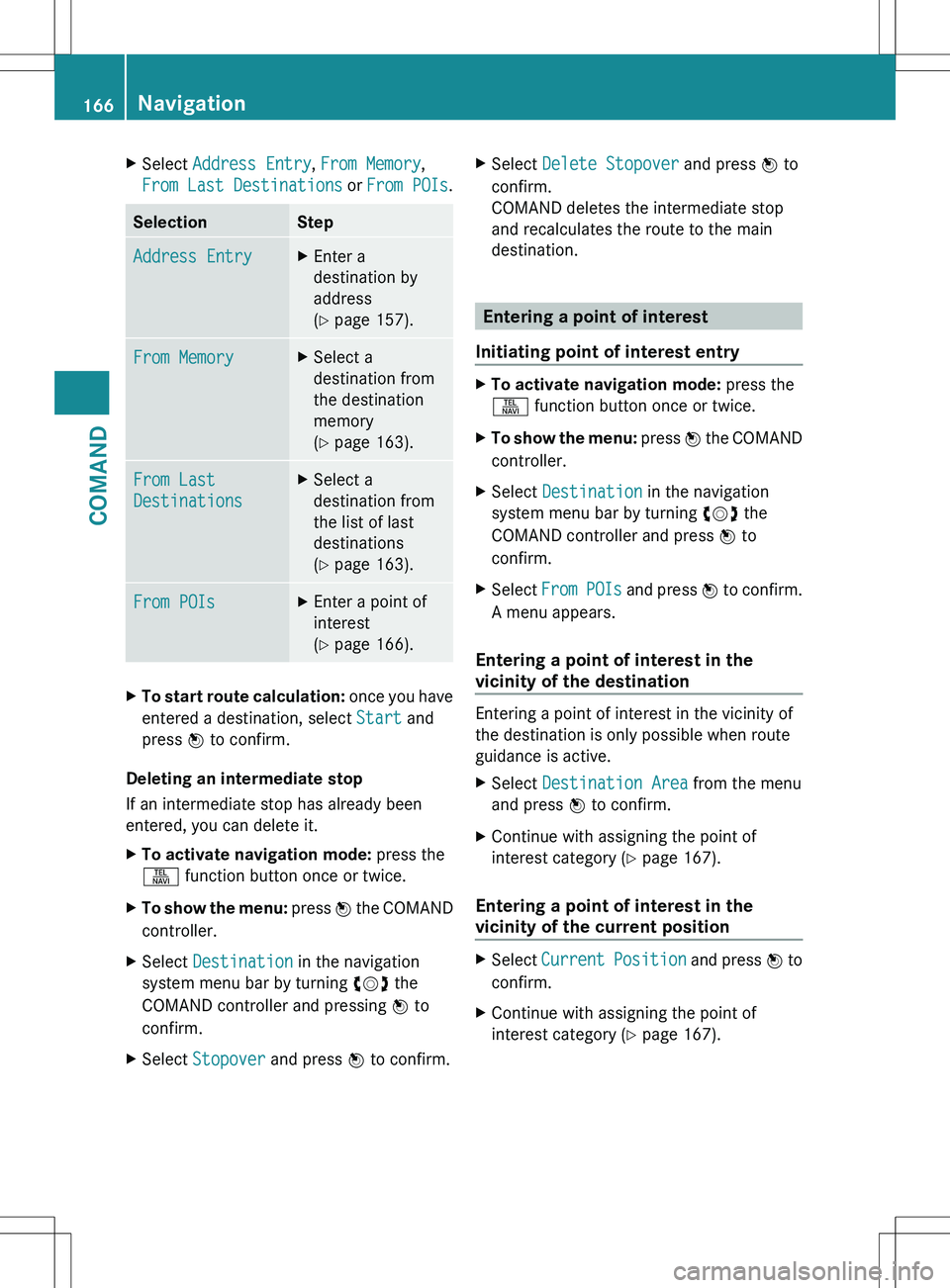
XSelect Address Entry , From Memory ,
From Last Destinations or From POIs .SelectionStepAddress EntryXEnter a
destination by
address
( Y page 157).From MemoryXSelect a
destination from
the destination
memory
( Y page 163).From Last
DestinationsXSelect a
destination from
the list of last
destinations
( Y page 163).From POIsXEnter a point of
interest
( Y page 166).XTo start route calculation: once you have
entered a destination, select Start and
press W to confirm.
Deleting an intermediate stop
If an intermediate stop has already been
entered, you can delete it.
XTo activate navigation mode: press the
S function button once or twice.XTo show the menu: press W the COMAND
controller.XSelect Destination in the navigation
system menu bar by turning cVd the
COMAND controller and pressing W to
confirm.XSelect Stopover and press W to confirm.XSelect Delete Stopover and press W to
confirm.
COMAND deletes the intermediate stop
and recalculates the route to the main
destination.
Entering a point of interest
Initiating point of interest entry
XTo activate navigation mode: press the
S function button once or twice.XTo show the menu: press W the COMAND
controller.XSelect Destination in the navigation
system menu bar by turning cVd the
COMAND controller and press W to
confirm.XSelect From POIs and press W to confirm.
A menu appears.
Entering a point of interest in the
vicinity of the destination
Entering a point of interest in the vicinity of
the destination is only possible when route
guidance is active.
XSelect Destination Area from the menu
and press W to confirm.XContinue with assigning the point of
interest category ( Y page 167).
Entering a point of interest in the
vicinity of the current position
XSelect Current Position and press W to
confirm.XContinue with assigning the point of
interest category ( Y page 167).166NavigationCOMAND
Page 182 of 536
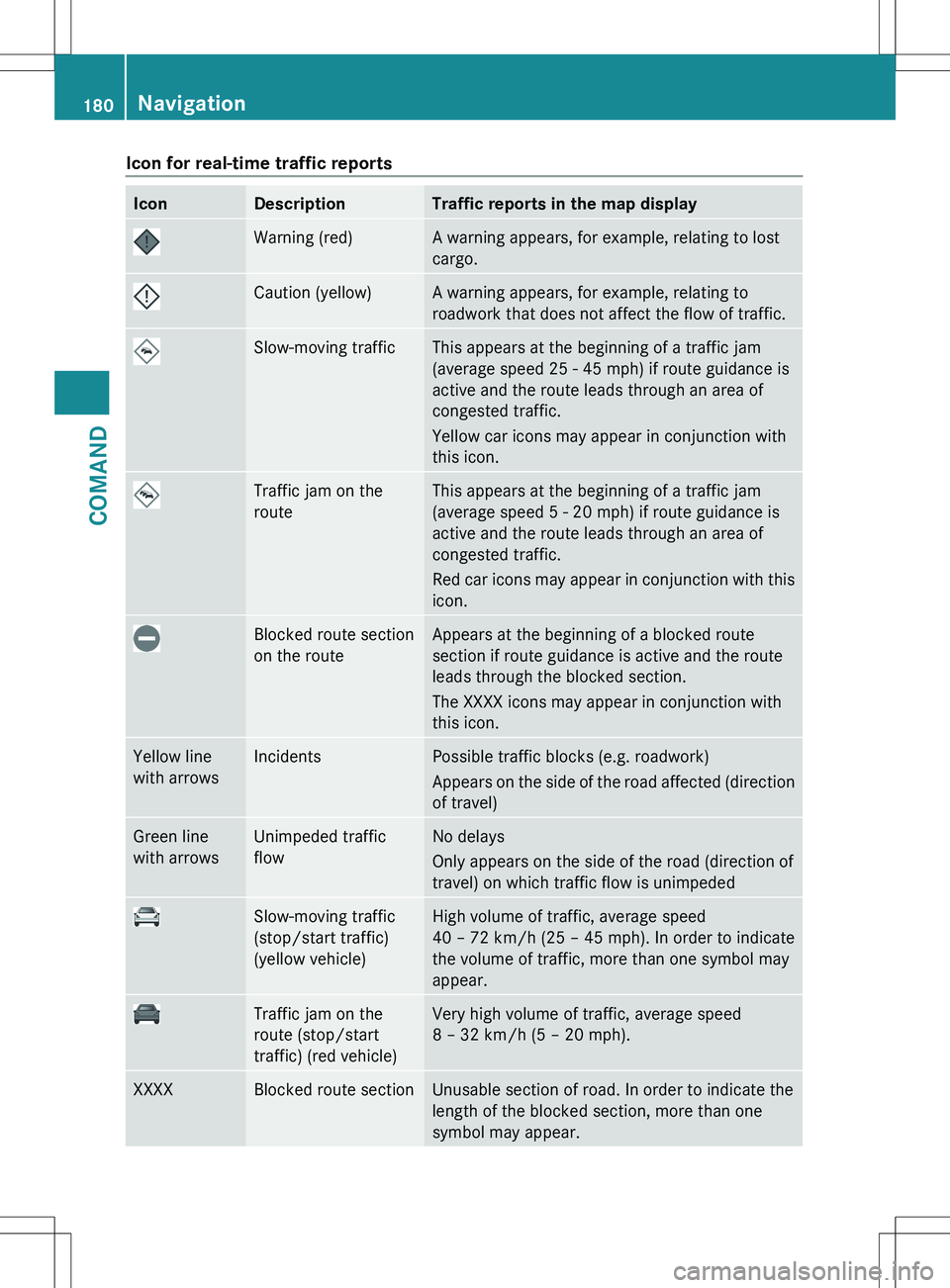
Icon for real-time traffic reportsIconDescriptionTraffic reports in the map displayWarning (red)A warning appears, for example, relating to lost
cargo.Caution (yellow)A warning appears, for example, relating to
roadwork that does not affect the flow of traffic.Slow-moving trafficThis appears at the beginning of a traffic jam
(average speed 25 - 45 mph) if route guidance is
active and the route leads through an area of
congested traffic.
Yellow car icons may appear in conjunction with
this icon.Traffic jam on the
routeThis appears at the beginning of a traffic jam
(average speed 5 - 20 mph) if route guidance is
active and the route leads through an area of
congested traffic.
Red car icons may appear in conjunction with this
icon.Blocked route section
on the routeAppears at the beginning of a blocked route
section if route guidance is active and the route
leads through the blocked section.
The XXXX icons may appear in conjunction with
this icon.Yellow line
with arrowsIncidentsPossible traffic blocks (e.g. roadwork)
Appears on the side of the road affected (direction
of travel)Green line
with arrowsUnimpeded traffic
flowNo delays
Only appears on the side of the road (direction of
travel) on which traffic flow is unimpededSlow-moving traffic
(stop/start traffic)
(yellow vehicle)High volume of traffic, average speed
40 – 72 km/h (25 – 45 mph). In order to indicate
the volume of traffic, more than one symbol may
appear.Traffic jam on the
route (stop/start
traffic) (red vehicle)Very high volume of traffic, average speed
8 – 32 km/h (5 – 20 mph).XXXXBlocked route sectionUnusable section of road. In order to indicate the
length of the blocked section, more than one
symbol may appear.180NavigationCOMAND
Page 198 of 536
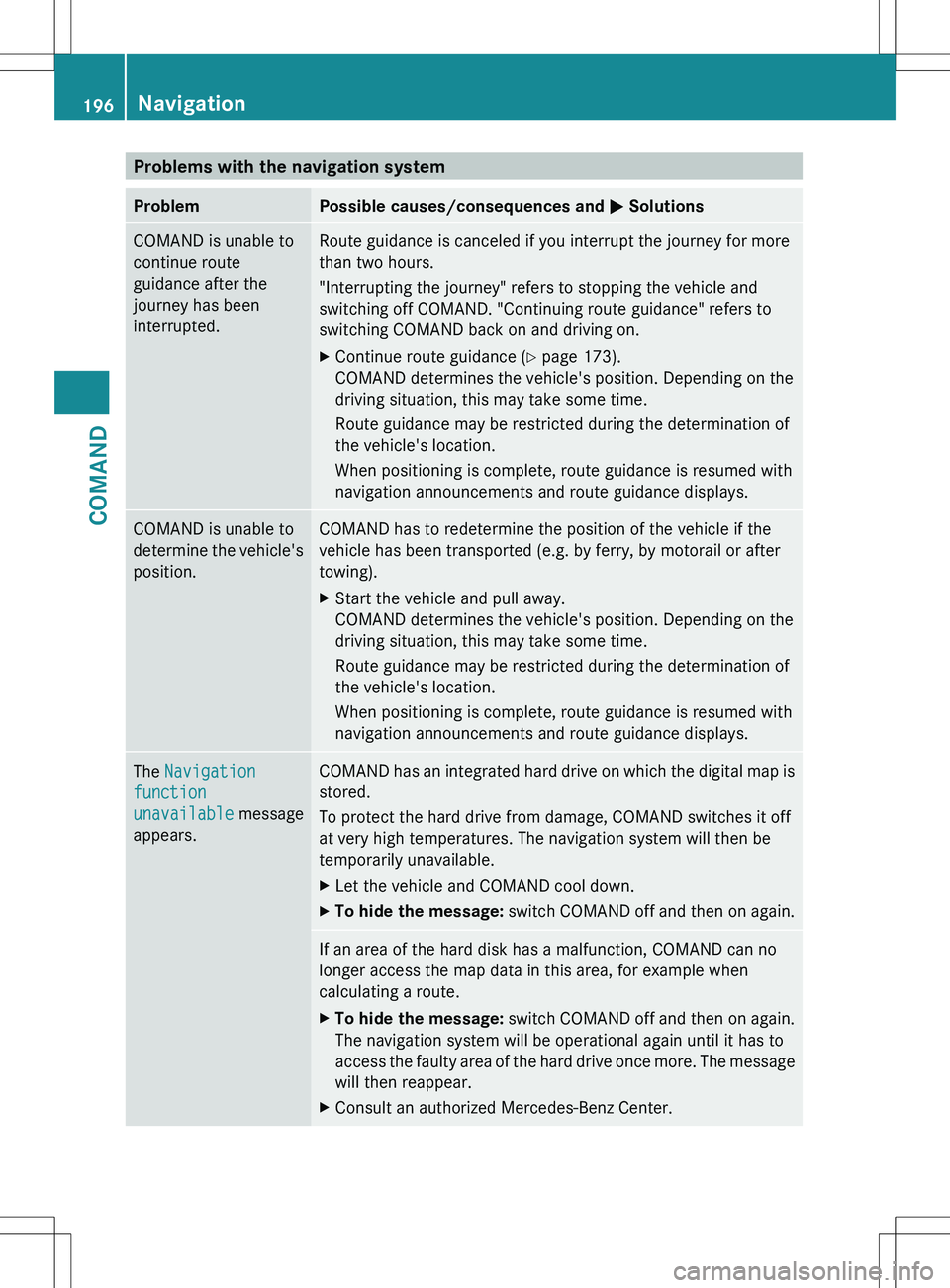
Problems with the navigation systemProblemPossible causes/consequences and M SolutionsCOMAND is unable to
continue route
guidance after the
journey has been
interrupted.Route guidance is canceled if you interrupt the journey for more
than two hours.
"Interrupting the journey" refers to stopping the vehicle and
switching off COMAND. "Continuing route guidance" refers to
switching COMAND back on and driving on.XContinue route guidance ( Y page 173).
COMAND determines the vehicle's position. Depending on the
driving situation, this may take some time.
Route guidance may be restricted during the determination of
the vehicle's location.
When positioning is complete, route guidance is resumed with
navigation announcements and route guidance displays.COMAND is unable to
determine the vehicle's
position.COMAND has to redetermine the position of the vehicle if the
vehicle has been transported (e.g. by ferry, by motorail or after
towing).XStart the vehicle and pull away.
COMAND determines the vehicle's position. Depending on the
driving situation, this may take some time.
Route guidance may be restricted during the determination of
the vehicle's location.
When positioning is complete, route guidance is resumed with
navigation announcements and route guidance displays.The Navigation
function
unavailable message
appears.COMAND has an integrated hard drive on which the digital map is
stored.
To protect the hard drive from damage, COMAND switches it off
at very high temperatures. The navigation system will then be
temporarily unavailable.XLet the vehicle and COMAND cool down.XTo hide the message: switch COMAND off and then on again.If an area of the hard disk has a malfunction, COMAND can no
longer access the map data in this area, for example when
calculating a route.XTo hide the message: switch COMAND off and then on again.
The navigation system will be operational again until it has to
access the faulty area of the hard drive once more. The message
will then reappear.XConsult an authorized Mercedes-Benz Center.196NavigationCOMAND
Page 199 of 536

ProblemPossible causes/consequences and M SolutionsYou see a message
informing you that the
DVD containing the
digital map is
incompatible with the
system software.The DVD containing the digital map cannot be used for the update.XTo confirm the message: press W the COMAND controller.XEject the DVD.XHave the system software updated at an authorized Mercedes-
Benz Center.The installation of the
map software has
failed.The DVD is dirty or scratched.XClean the DVD.XRestart installation.There is overheating due to excessive temperatures in the vehicle
interior.XWait until the vehicle interior has cooled down.XRestart installation.COMAND's integral hard drive is faulty.XConsult an authorized Mercedes-Benz Center.Telephone
General notes
Introduction
COMAND, in conjunction with a Bluetooth ®
-
capable mobile phone, enables you to make
calls via the Bluetooth ®
interface.
Using the Bluetooth ®
interface and a suitable
mobile phone, you can use the hands-free
system, import contacts from the mobile
phone and receive vCards.
More detailed information on suitable mobile
phones and on connecting Bluetooth ®
-
capable mobile phones to COMAND can be
found on the Internet at
http://www.mbusa-mobile.com . Or call
the Mercedes-Benz Customer Assistance
Center on
1-800-FOR-MERCedes(1-800-367-6372) for
the USA or on 1-800-387-0100 for Canada.
Safety notesGWARNING
A driver's attention to the road must always
be his/her primary focus when driving. For
your safety and the safety of others, we
recommend that you pull over to a safe
location and stop before placing or taking a
telephone call. If you choose to use the mobile
phone while driving, please use the handsfree
device and only use the mobile phone when
weather, road, and traffic conditions permit.
Some jurisdictions prohibit the driver from
using a cellular mobile phone while driving a
vehicle.
Bear in mind that at a speed of just 30 mph
(approximately 50 km/h), your vehicle is
covering a distance of 44 feet (approximately
14 m) every second.
Telephone197COMANDZ