2012 MERCEDES-BENZ S-Class ESP
[x] Cancel search: ESPPage 191 of 536

You can install new map software yourself
which, depending on the scope, may consist
of one or more DVDs.
The installation process can take between
10 and 120 minutes, depending on the scope
of the map software. If the radio is switched
on before you start the installation process,
you can still adjust the volume. You can also
use COMAND to operate automatic climate
control and to cancel the process. Other
functions are not operational. If possible,
carry out the installation when the vehicle is
stationary. The DVD read speed is higher
when the vehicle is stationary than when it is
in motion, so less time is required. If the
starter battery is not sufficiently charged,
COMAND may end the process automatically
in order to protect the battery. Therefore, let
the engine idle during the installation
process.GWARNING
Never leave the engine running in enclosed
spaces. The exhaust gases contain toxic
carbon monoxide. Breathing in exhaust fumes
is a health hazard and can lead to
unconsciousness or death.
Displaying information on the map
version currently in use
XTo activate navigation mode: press the
S function button once or twice.XTo show the menu: press W the COMAND
controller.XSelect Navi in the main function bar by
sliding VÆ and turning cVd the COMAND
controller and press W to confirm.XSelect Map Version and press W to
confirm.
Notes on handling DVDs
R Only hold DVDs by the edge.
R Handle DVDs carefully to prevent reading
errors.
R Avoid getting scratches, fingerprints and
dust on DVDs.
R Use a commercially-available cleaning
cloth to clean discs. When cleaning CDs,
you should wipe in straight lines from the
center outwards rather than in a circular
motion.
R Place DVDs back in their cases after use.
R Protect DVDs from heat and direct sunlight.
Map software copy protection
Map software for COMAND is subject to a
charge. The map software has just one
activation code which is usable in one vehicle
only, and is not transferable. You can obtain
the six-digit activation code from your
authorized Mercedes-Benz Center. If you
have lost the activation code, or if COMAND
does not accept the activation code that you
have received, contact your authorized
Mercedes-Benz Center.
Your vehicle is supplied with map software at
the factory. Depending on the country, map
software for your region is either pre-installed
(Europe/USA) or the map software is
supplied as a DVD (all other countries). You
do not require an activation code for the map
software that is provided with your vehicle.
If the map software on your vehicle has been
installed at the factory and you wish to
reinstall it, this also does not necessitate
entry of the activation code.
Installation processXLoad the map software DVD in the DVD
drive ( Y page 220).
COMAND checks the DVD and shows a
corresponding message in the display.
Map software is not compatible with the
navigation system
You will see a message that the map software
cannot be installed.
XTo confirm the message: press W.
COMAND ejects the DVD.XTake the DVD out of the slot.XInsert a DVD which is compatible with the
vehicle’s navigation system.Navigation189COMANDZ
Page 197 of 536

Ra valid and operational SIM card must be
inserted in the mobile phone.
R the mobile phone is connected to COMAND
via Bluetooth ®
.
If you cannot make an emergency call, you
must arrange rescue measures yourself.XEnter numbers using the number keypad
( Y page 200).XPress the 6 button.
The telephone makes the connection.XWait for the emergency call center to
respond and then describe the emergency.
i If no SIM card has been inserted in a GSM
phone or if there is no service available for
a CDMA phone, the NO SERVICE message
appears in COMAND. In this case, an
emergency call can only be transmitted via
the mobile phone itself and not via
COMAND.
Telephony via the Bluetooth ®
interface
Conditions
On the mobile phone
For telephony via COMAND's Bluetooth ®
interface, a Bluetooth ®
-capable mobile
phone is required.
i Not all mobile phones available on the
market are equally suitable. More detailed
information on suitable mobile phones and
on connecting Bluetooth ®
-capable mobile
phones with COMAND can be found on the
Internet at
http://www.mbusa-mobile.com . Or call
the Mercedes-Benz Customer Assistance
Center on
1-800-FOR-MERCedes(1-800-367-6372)
(for the USA) or Customer Relations on
1-800-387-0100 (for Canada).
The battery of the mobile phone should
always be kept sufficiently charged in order
to prevent malfunctions.
In preparation for telephoning via the
Bluetooth ®
interface, you should check the
following items on your mobile phone (see the
mobile phone operating instructions):XHands-Free Profile
The mobile phone must support Hands-
Free Profile 1.0 or above.
i Certain displays and functions (e.g. signal
strength display, conference connection)
are available, depending on the supported
version of the Hands-Free Profile.
XBluetooth ®
visibility
On certain mobile phones, the device itself
must be made "visible" for other devices,
as well as activating the Bluetooth ®
function (see the mobile phone operating
instructions).XBluetooth ®
device name
Every Bluetooth ®
device has its own
Bluetooth ®
device name. This device name
is freely definable, but can be identical for
all devices from the same manufacturer. It
is therefore recommended that you change
this name so that you can easily recognize
your mobile phone (see the mobile phone
operating instructions).XSwitch on the mobile phone and enter the
PIN when prompted to do so (see the
mobile phone operating instructions).XActivate Bluetooth ®
functions and, where
necessary, Bluetooth ®
visibility on the
mobile phone (see the mobile phone
operating instructions).
In COMAND
XActivate the Bluetooth ®
function in
COMAND ( Y page 147).
Connecting a mobile phone
General information
Before using your mobile phone with
COMAND for the first time, you will need to
connect it.
Telephone195COMANDZ
Page 201 of 536

Example display: telephone basic menu
(Bluetooth ®
interface)
:Network provider icon;Signal strength of mobile phone network
È=Receiver icon ¡ or ¢?To display the COMAND phone bookATo display call listsBCharacter bar with characters for phone
number entryCBluetooth ®
name of the currently
connected mobile phone
i Displays : and ; are shown, depending
on the mobile phone connected.
Bars ; display the current signal strength
of the mobile phone network. If all bars are
filled, you have optimum reception. If all
bars are empty, there is very poor reception
or none at all.
Receiver icon = shows whether a call is
active/being connected ¡ or not ¢.
Reception and transmission volume
Once the mobile phone has been authorized,
you can optimize the transmission and
reception volume settings. Find information
on the optimal setting for your mobile phone
on the Internet at
http://www.mbusa-mobile.com . Or call
the Mercedes-Benz Customer Assistance
Center on
1-800-FOR-MERCedes(1-800-367-6372) (for
the USA) or Customer Relations on
1-800-387-0100 (for Canada).
i Incorrect settings may have a significant
impact on the quality of calls.XPress the S function button.XSelect Data/Connections in the
telephone basic menu by sliding VÆ and
turning cVd the COMAND controller and
press W to confirm.XSelect Bluetooth Telephones and press
W to confirm.XSelect an authorized mobile phone from
the list by turning cVd.XSelect Options by sliding VY and press
W to confirm.XSelect Reception Volume or
Transmission Volume and press W to
confirm.XTo set the volume on scale: select by
sliding ZVÆ the COMAND controller and
press W to confirm.
Telephone operation
Incoming call
Rejecting or accepting a call
When there is an incoming call, you see a
corresponding window in the display.
Telephone199COMANDZ
Page 205 of 536

:Active party;Party on hold=To interconnect parties by creating a
conference connectionXTo interconnect parties by creating a
conference connection: select
Conference = by turning cVd the
COMAND controller and press W to
confirm.
Sending DTMF tones
This function is not supported by all mobile
phones.
Answering machines or other devices can be
controlled by DTMF tones, e.g. for remote
query functions.
If you would like to listen to the messages on
your answering machine, for example, select
the corresponding number.
XSelect DTMF from the telephone basic menu
during a conversation.:To transmit individual characters using
the character bar;To transmit a phone book entry as a
character stringXTo transmit individual characters: once
a connection has been established to the
answer phone, select the desired
characters in the character bar and press
W to confirm.
or
XTo send a phone book entry as a DTMF
sequence: select Name by turning cVd the
COMAND controller and press W to
confirm.XSelect the desired phone book entry and
press W to confirm.
The entry is sent as a DTMF character
string.XTo switch back to the call display: select
B .
i
You can also send DTMF tones by
pressing the corresponding button on the
telephone keypad or using the Voice
Control System (see the separate
operating instructions).
Using the phone book and address
book
The COMAND phone book is an extract of
those entries from the address book which
contain at least one telephone number.
Telephone203COMANDZ
Page 206 of 536

The address book organizes and stores
entries that are entered from different
sources (mobile phone, SD memory card,
Bluetooth ®
import, COMAND phone book,
navigation). You can use these entries to
make telephone calls and for navigation.
Importing contacts automatically
If a mobile phone is connected to COMAND
via the Bluetooth ®
interface, the contacts
(phone book entries) of the mobile phone are
automatically imported into COMAND's
phone book.
Depending on the mobile phone, this process
may take some time. Depending on the
mobile phone used, only the phone book
entries in the mobile phone or these entries
and the phone book entries from the SIM card
are imported.
The automatically imported contacts (phone
book entries) can be recognized in COMAND
by the Ã/0 symbol. They are only
available in COMAND if the corresponding
mobile phone is connected to COMAND via
the Bluetooth ®
interface.
Importing contacts manually
i The stored phone book and the vCards
remain in COMAND, even if you use
COMAND with another mobile phone. The
entries can be viewed without a mobile
phone. For this reason, delete the phone
book before selling or transferring
ownership of your vehicle.
Existing contact data can be imported from
the memory card manually.XTo import data: load the memory card.XSelect Data/connections in the
telephone basic menu by sliding VÆ and
turning cVd the COMAND controller and
press W to confirm.XSelect Download Contacts and press W
to confirm.XSelect From Memory Card and press W to
confirm.XSelect Add or Overwrite and press W to
confirm.
If the data has been imported, the Import
successful message is displayed.
If the COMAND phone book memory is full,
this message appears in the display:
Memory full. Contacts could not be
imported completely .
i
After the data has been imported,
COMAND has to process it. The entries are
only visible in the address/phone book
when this is completed.
Receiving vCards via Bluetooth ®
You can receive vCards from devices (such as
a PC) which support the transmission of
vCards via Bluetooth ®
.
This requires the device to be authorized in
COMAND. PCs must be authorized via the
Bluetooth ®
device list ( Y page 147).
Received vCards are imported into the
address book.
Please bear the following in mind:
R Bluetooth ®
must be activated in COMAND
and on the Bluetooth ®
device ( N operating
instructions of the device).
R the Bluetooth ®
device must be able to send
vCards via Bluetooth ®
(N operating
instructions of the device).
R the Bluetooth ®
device in the vehicle must
be switched on.
204TelephoneCOMAND
Page 209 of 536

p To select the character set*/E To select uppercase and
lowercase letters% BackF To delete your selection¬ To confirm your selection?Preset phone categoryXEnter the respective data in the data fields.XTo enter data in the data field: select the
respective characters from character bar
= .XTo move the cursor in the data field:
select the respective characters from
character bar =.XTo change data fields: slide ZV the
COMAND controller until the character bar
is hidden.XSlide ZVÆ the COMAND controller and
press W to confirm.
or
XPress Æ in the character bar.XTo cancel data entry: select the %
symbol in the character bar and press W
to confirm.
If one of the data fields contains data, a
prompt will appear asking whether you
wish to store the entry.XTo save data entry: select the ¬
symbol in the character bar and press W
to confirm.
The entry is created in the phone book and
in the address book.Deleting contactsXTo delete a group of contacts: select
Data/Connections in the telephone basic
menu by sliding VÆ and turning cVd the
COMAND controller and press W to
confirm.XSelect Delete Contacts and press W to
confirm.
You can select and delete the following types
of contact here:
R Internal Contacts
R Imported from Memory Card
R Imported via Bluetooth
R Delete All
XConfirm the selection by pressing W.
A prompt appears asking whether the data
should be deleted.XSelect Yes and press W to confirm.XTo delete an individual contact: select
the entry ( Y page 205).XSelect Options by sliding VY the
COMAND controller and press W to
confirm.XSelect Delete and press W to confirm.
A prompt appears asking whether the data
should be deleted.XSelect Yes and press W to confirm.
i
Automatically imported contacts cannot
be deleted ( Y page 204).
Telephone207COMANDZ
Page 211 of 536
XSearch for an address book entry with or
without a voice tag ( ¦ symbol).XSelect Options by sliding VY and turning
cVd the COMAND controller and press
W to confirm.XSelect Voice Name and press W to
confirm.XSelect Add or Edit and press W to confirm.
Subsequent operation is voice-controlled.
The Voice Control System guides you
through the menus.
Deleting a voice tag
XSearch for an address book entry with a
voice tag.XSelect Options by sliding VY and turning
cVd the COMAND controller and press
W to confirm.XSelect Voice Name and press W to
confirm.XSelect Delete and press W to confirm.
A deletion prompt appears.
Listening to a voice tag
XSearch for an address book entry with a
voice tag.XSelect Options by sliding VY and turning
cVd the COMAND controller and press
W to confirm.XSelect Voice Name and press W to
confirm.XSelect Listen and press W to confirm.
You will hear the voice tag.
Using call lists
Introduction
COMAND displays calls received (including
missed calls) and made during phone
operation in lists.
i The respective menu item can only be
selected if calls have already been made or
received in COMAND or if the call lists have
been imported from the telephone.
Opening the call list and selecting an
entryXTo call up the telephone menu: press the
S function button.XSelect Call lists in the telephone basic
menu by sliding VÆ and turning cVd the
COMAND controller and press W to
confirm.
A menu appears.XSelect Calls received or Calls
Dialed and press W to confirm.
The corresponding list appears.
i The list of calls made can also be opened
by pressing the SEND button in the menu
or on the telephone keypad as long as no
phone numbers have been entered in the
basic menu. The list of calls made can also
be opened in the on-board computer.
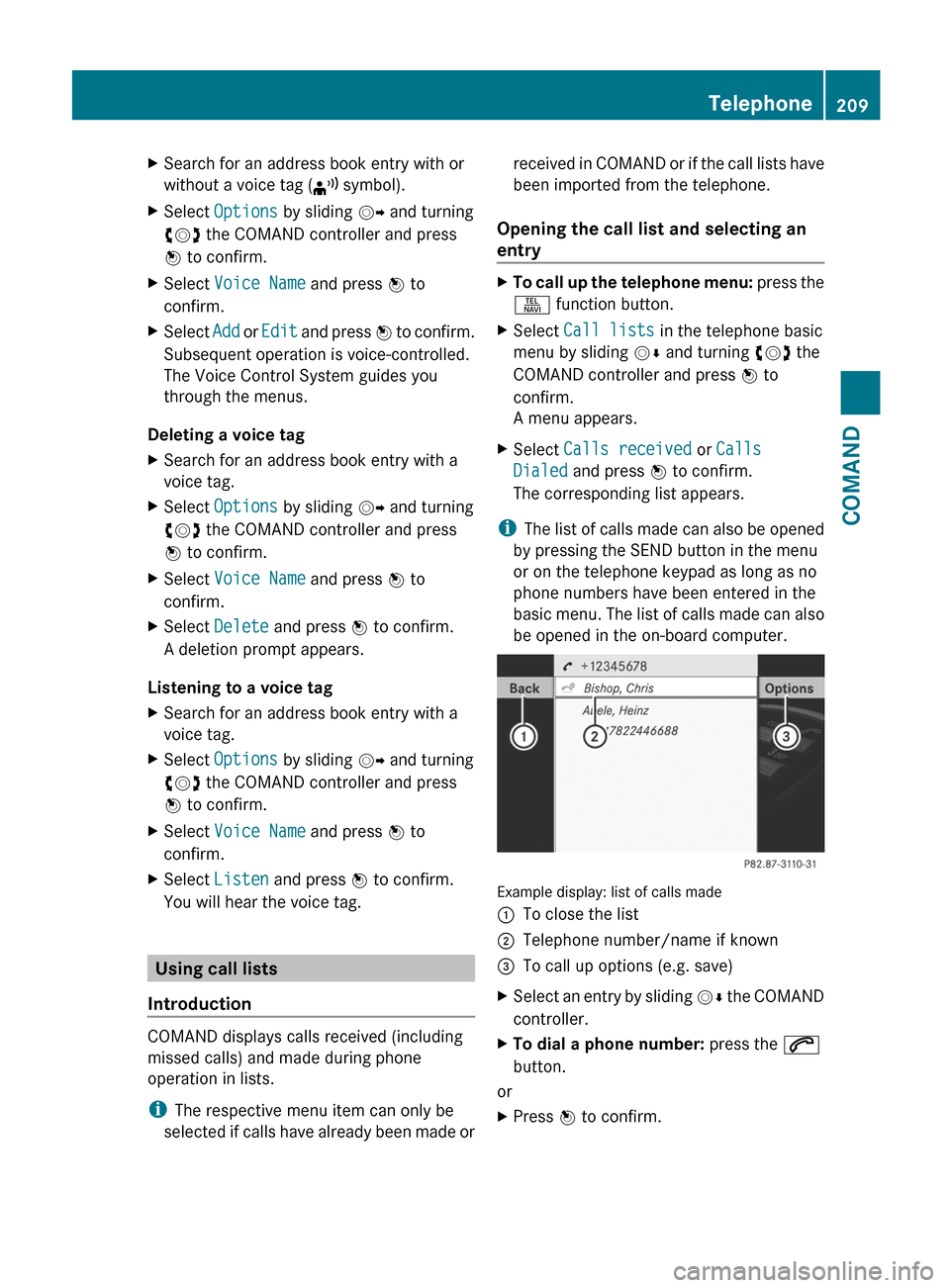
Example display: list of calls made
:To close the list;Telephone number/name if known=To call up options (e.g. save)XSelect an entry by sliding VÆ the COMAND
controller.XTo dial a phone number: press the 6
button.
or
XPress W to confirm.Telephone209COMANDZ
Page 215 of 536

XSelect Enter Frequency and press W to
confirm.
Irrespective of the option chosen, an input
menu will appear.XEnter a frequency using the number keys.
COMAND tunes in to the frequency
entered.WavebandFrequencyAM (MF)530 – 1700 kHzFM (VHF)87.7 – 107.9 MHzWB (Weather Band)Weather report
channels
i You can only enter currently permitted
numbers.
i If you enter a frequency in the FM or AM
wavebands which is outside the frequency
range, COMAND tunes in to the next lower
frequency.
Storing stations
Storing stations manually
There are twenty presets available for the FM
and AM wavebands.
XQuick save: press and hold a number key,
e.g. l , until you hear a tone.
The station is stored.XDirectly in the station presets: press W
the COMAND controller when the display/
selection window is active.
or
XSelect Presets by sliding VÆ and turning
cVd the COMAND controller and press
W to confirm.
In both cases, the station presets appear.
The # dot indicates under which preset
the currently selected station is stored.
Example display: station presets
XSelect a preset by turning cVd the
COMAND controller and press and hold
W until you hear a tone.
The station is stored under the preset.
Storing stations automatically
This function automatically stores stations
with adequate reception under the presets.
The search starts at the lowest frequency.
COMAND stores any stations found,
beginning with preset 1. The storing process
ends once the highest frequency has been
reached or once ten stations have been
found. Any stations stored manually under
the presets will be lost. COMAND may not
occupy all memory slots when storing.
XOption 1: press W the COMAND controller
when the display/selection window is
active.
The station preset memory appears.XOption 2: select Presets by sliding VÆ
and turning cVd the COMAND controller
and press W to confirm.
The station preset memory appears.XIrrespective of the option, select
Autostore and press W to confirm.
In both cases, COMAND searches for
stations that can be received. You will see
a message to this effect. The available
stations are automatically stored in the
preset positions.XTo cancel storing: select Cancel and
press W to confirm.Audio213COMANDZ