2012 MERCEDES-BENZ E-Class Comand
[x] Cancel search: ComandPage 95 of 234

Deta
ils on traffics ymbo linform ation (examp le)
X To clos ethe detai ledv iew: slide XVY the
COMAN Dcon troller. Read
ingout traff icrep ortson the
rou te
Intr oduct ion The
read- aloud functionisonly available while
rout eguidanc eis act ive. Itreads outtraffic
repor tsaffec tingthe curr entrout e.You can
set the language (Y page 45)and thetext
reader speed(Ypage 42).
You canstartthe textreader function
manually orset itto automat ic.
Sta rting thetext reader funct ion
ma nually X
To switch onnaviga tionmod e:press the
Ø function button.
X To show themenu :press Wthe COMAN D
con troller.
X Selec tTMC by
turn ingcVd theCOMAN D
con troller andpress Wtocon firm .
X Selec tRead outallmessa geson route and
press Wtocon firm .
COMAN Dreads outthereport sin sequence.
i Ifther eare noreport sfor the route, the
Read out all message
s on route menu
item isshown ingray andcann otbe
select ed. X
To switch offthe read -aloud function:
select Cancel Read-Al
oud Functio
n and
press Wtocon firm orpress the8
button .
COMAND readsthecurren treport aloud
and then exitsthe read-aloud function.
Autom aticread -aloud function X
To switch onnavigat ionmode: pressthe
Ø function button .
X To show themenu: pressWthe COMAND
con troller.
X Select Navi by
sliding ZVandturning
cVd theCOMAND controller andpress
W tocon firm.
X Select ReadTraffic Messages Automat
ically and
press Wtocon firm.
Depen dingonthe previous state,switch
the option onO oroff ª. Recalculat
ingthe rout edyna mically
The route types Dynamic Route and
Dynamic RouteOnlyAfter Request (Y
page 52)take allrelevant traffic
messages intoaccoun twhen calculating a
route.
If you have setthe route typeDynamic Route ,
COMAND guidesyouonthe updated
route toyour destination.
If you have setthe route typeDynamic Route
OnlyAfter Request ,
a prompt
appea rs.You candecide whether toaccept
the route suggested byCOMAND, orcont inue
with theoriginal route. Tr
affic report s
93Navigat ion Z
Page 96 of 234

X
To acc ept the suggeste droute :pre ss
W the COMAND controller.
X To conti nue along the original route :
sel ect Reject by
turning cVd the
CO MAND controller and pressW to
confi rm. De
stinati onmemo ry Home
addres s(My addres s)
En teri ngthe home addres svi aaddres s
en try X
Initi ally pro cee das descri bedint he
"Adopting anaddress bookentryas ahome
address" andconfirm MyAddress by
pressing W.
X To enter thehome addressforthe first
time: confirm NewEntry by
pressing W.
X To change thehome address: select
Change in
the menu showing thehome
address byturning cVdtheCOMAND
cont roller andpress Wtoconfirm .
X Confirm NewEntry by
pressing W.
X In both cases, enterthehome address asa
destination, e.g.asacity, street andhouse
number (Ypage 54).Then, savethehome
address (Ypage 57).
Adopting anadd ress book entry asa
home address X
To switch onnavigation mode:pressthe
Ø functionbutton. X
To show themenu: pressWthe COMAND
cont roller.
X Select Dest. in
the navigation system
menu barbyturning cVdtheCOMAND
cont roller andpressing Wtoconfirm .
X Select FromMemory and
press Wto
confirm .
You willsee thedestination memorylist
either withthecharacter bar(option 1)or
as aselection list(option 2).
Option 1:destination memorylistwith
character bar X
Slide ZVtheCOMAND controller
repeatedly untilthedestination memory
list appea rsas aselection list.
Option 2:destination memorylistas
selec tionlist The
MyAddress entr
yis listed asthe first
entr yin the destination memory.
X Select MyAddress by
turning cVdthe
COMAND controller andpress Wto
confirm . 94
Des
tination memoryNavigat ion
Page 97 of 234
i
Ifyou have notyetentered any
characters, theMyAddress entry
is
automa ticallyhighl ighted inthe selection
list.
If no home address hasbeen stored yet,you
can now assignanadd ress book entry. Ifa
home address already exists, itis disp layed
and youcan alter it.
i Ifyou select NewEntry ,
you arealso
offered theoption ofentering thehome
add ress forthe first time. Youcanthen
save thehome address withou thavin gto
st art rout eguidan ce.
X To ent ertheh ome address forthef irst
tim e:select Assignto Addre ssBook Entry and
press Wtocon firm .
X Choose Home ,
Work or
Not Class ified and
press Wtocon firm .
X To change thehom ead dress: select
Chang e and
press Wtocon firm .
X Selec tAssig nto Addre ssBook Entry and
press Wtocon firm .
i Ifyou select NewEntry ,
you arealso
offe red theoptio nofchanging thehome
address byenterin gan address. Youcan
then save thehome address withouthaving
to start route guidance.
X Choose Home ,
Work or
Not Classified and
press Wtoconfirm .
In both cases, youwillsee theaddress book
either withthecharacter baroras a
selection list.
X To selec tan addr essbook entry:
proceed asdescribed inthe "Searching for
an address bookentry"section
(Y page 136).
X To confirm theselec tion:press Wthe
COMAND controller.
If no home address hasbeen stored,
COMAND savestheentr y.You willsee a
message andthen theaddress menuwith
the selected address. Start is
highlighted
automatically . If
ahome address hasalready beenstored,
you willsee aprompt askingyouwhether
the MyAddress entr
yshould be
overwritten .
X Select Yes or
No and
press Wtoconfirm .
If you select Yes ,
COMAND overwrites the
destination. Youwillsee amessage and
then theaddress menuwiththeselected
address. Start is
highlighted
automatically .
If you select No ,
the listwill appea ragain.
Selec tingthehome address forrout e
guidance X
Proceed asdescribed inthe "Selectin ga
destination fromthedestination memory"
section (Ypage 60). Storing
adesti nation inthe
dest inationmem ory
Not es This
function also stores thedest inationin
th eaddre ssbook .
When theaddre ssbook isfull, nodest inations
can besaved inthedest inationmem ory.You
must first delet eaddre ssbook entries
(Y page 137).
Aft erdest inationentr y X
The dest inationhas been entered andis
shown intheaddre ssent rymen u
(Y page 57).
X Sele ctSav e by
slidin gVÆ andturnin g
cVd theCOMA NDcontroller andpres s
W tocon firm.
You cannowselec tstora geoptio ns
(Y page 96) .
Du ringrou tegui danc e X
To sho wthe men u:pre ssW the COMAND
contr oller. Dest
inationmemo ry
95Navi gatio n Z
Page 98 of 234
X
Sel ect Destination in
the navi gation
sy stem menu barb ytur ning cVd the
COMA NDcontro ller and pressing W to
co nfirm .
X Se lec tSav e Des
tin ation and
pressW to
co nfirm .
You cannowsele ctstor age options
(Y page 96).
Fro mt helisto fprev ious des tinations X
To sho wthe men u:pre ssW the COMAND
contr oller.
X Sel ect Destination in
the navigati on
sy ste mm enubarbyturn ingcVd the
COMAND controller andpressing Wto
con firm.
X Select FromLastDestina tions and
press Wtocon firm.
The listoflast destin ations appears.
X Select adestin ationbyturn ingcVd the
COMAND controller andpress Wto
con firm.
The destin ationaddress isshown.
X Select Save and
press Wtocon firm.
You cannow select storage option s.
Selecting storingoptions X
To save thedestina tionwithout a
name: selectSaveWithout Name and
press Wtocon firm.
COMAND storesthe destin ationinthe
destin ationmemory anduses theaddress
as the destin ationname.
X To save thedestina tionasMy
Addr ess:select Saveas"My Address " and
press Wtocon firm.
COMAND storesthe destin ationinthe
destin ationmemory asMy Address .
If the
select edaddress bookentryalready
con tains address datathatcanbeused for
navigation (Licon), aprompt willappear asking
whether youwish tooverwrit ethe
exist ingdata.
X Select Yes or
No and
press Wtocon firm.
If you select Yes ,
the entryisoverwrit ten.
If you select No ,
the process willbeaborted.
X To save thedestina tionwith aname:
select SaveWithName and
press Wto
con firm.
X Select acategor y,e.g. Home ,
and press W
to con firm.
The input menu appears withdata fields
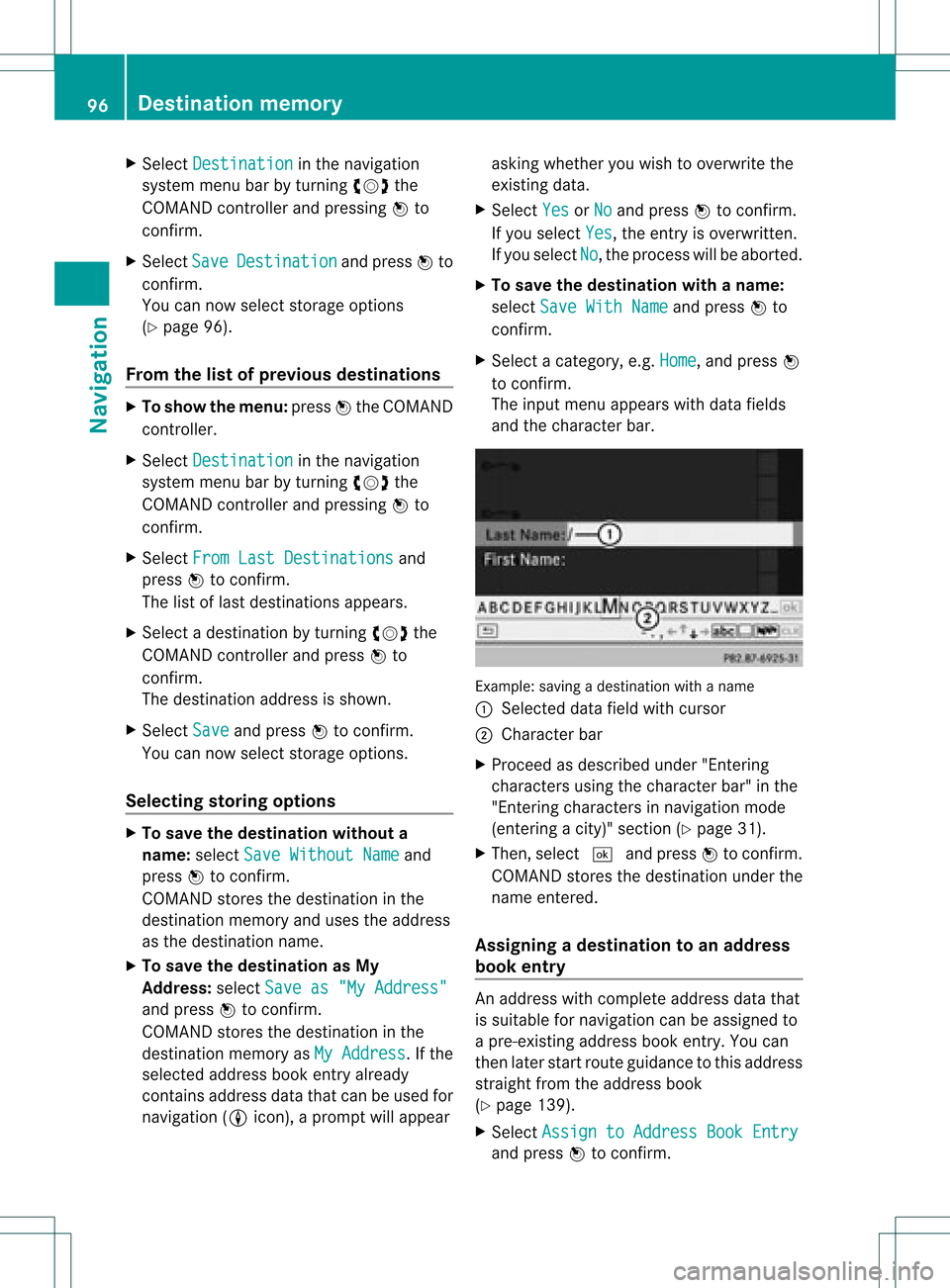
and thecharact erbar. Ex
ample: savingadestin ationwithaname
: Select eddata fieldwithcursor
; Character bar
X Proceed asdescribed under"Entering
charact ersusing thecharact erbar" inthe
"Ent ering charact ersinnavigation mode
(ent ering acity)" section(Ypage 31).
X Then, select ¬andpress Wtocon firm.
COMAND storesthe destin ationunder the
name entered.
Assigning adesti nation toan address
book entry An
addre sswith completeaddre ssdata that
is suit able fornav igat ioncan beassign edto
a pre- existing addre ssbook entry.You can
th en late rstar troute guidance tothis address
straight fromtheaddress book
(Y page 139).
X Select Assign toAddress BookEntry and
press Wtoconf irm. 96
Destination
memoryNavigation
Page 99 of 234
X
Sel ect acate gory,e.g. Home ,
and pressW
to confi rm.
Yo uwi llsee theaddre ssboo keithe rwith
the char acterbar oras aselec tionlist.
X To select anaddress book entry:
proc eedasdesc ribed inthe "Searc hingfor
an address bookentry" sect ion
(Y page 136).
COMA NDstores thedata ifthe address
book entryselec teddoes notyetcontain
navig ableaddress data.
If the selec tedaddress bookentryalready
con tain snavig ableaddress data,aprom pt
will appear askingwhet heryou wish to
over writethe exis tingdata.
X Selec tYes or
No and
press Wtocon firm .
If you selec tYes ,
COMA NDstores thedata. Deleting
adesti nation orthehom e
ad dress from thed esti nation mem ory
X To switch onnav igat ionmod e:pres sth e
Ø function butt on.
X To show themen u:pres sW theCOMA ND
con troller .
X Sele ctDes tin ation in
thenav igat ion
syst emmen ubar byturnin gcVd the
COMA NDcontroller andpres singW to
con firm.
X Sele ctFro mMem ory and
pres sW to
con firm.
You willsee thedest inationmem orylist
eit her with thechar acterbar (opt ion1)or
as aselec tionlist (opt ion2).
X Opt ion 1:dest inationmem orylistwith
char acterbar :proc eedasdesc ribed inthe
"En tering char acters using thechar acter
bar" section(Ypage 31).
X Opt ion 2:dest inationmem orylistas
selection list:selec tadestination byturn
ingcVd theCOMAND controller and
press Wtocon firm.
You seetheaddress dataofthe select ed
ent ry.
X Select Delete and
press Wtocon firm.
Ap rompt appears asking whethe ryou wish
to delete thedestination .
X Select Yes or
No and
press Wtoconf irm.
If you select Yes ,
COMAND deletesthe
destination .You will see amessage tothis
effec t.
If you select No ,
the process willbe
canc eled.
i Ifthe navigable addressdataforthe
destin ationbeing deleted isalso assigned
to an address bookentry,COMAND will
also delete thisdata from there.Ifthe
corr espondin gaddress bookentrydoes
not contain anyfurth erdata, suchas
telephon enumbers, COMAND deletesthe
ent ireaddress bookentry. Previous
destinations Introd
uction
COMAND automaticallystoresthe previous
destin ations forwhich theroute calculation
has been started.Ifthe memory isfull,
COMAND deletestheoldest destination. You
can also save adestin ationfromthelistof
previous destinations inthe destin ation
memory. Itwill bestor edther epermanen tly. Stor
ingadesti nation permanent lyin
th edest inationmem ory
X Proc eedasdesc ribed inthe"Fr om thelist
of prev ious destinations"sec tion
(Y page 96). Pr
evious destinations
97Naviga tion Z
Page 100 of 234
Storing
thevehicle position inthe list
of previous destinations
X To switch onnavigation mode:pressthe
Ø functionbutton.
X To show themenu: pressWthe COMAND
cont roller.
X Select Position in
the navigation system
menu barbyturnin gcVd theCOMAND
cont roller andpress Wtoconf irm.
X Select Save vehicle position and
press
W toconf irm.
COMAND storesthecurrent vehicle
position asadestination inthe listof
previous destinations . Storing
thecrosshair positioninthe
list ofprevious destinations
Ac rossha irapp ears onthe map ifyou have
moved themap manua lly.Y ou can store the
crosshair positionasadestinat ioninthe list
of previous destinations.
X To show themenu: pressWthe COMAND
cont roller.
X Select Position in
the navigation system
menu barbyturnin gcVd theCOMAND
cont roller andpress Wtoconf irm.
X Select Savecrosshair position and
press Wtoconf irm. Dele
ting oneofthe previous
destinat ions
X To switch onnavigation mode:pressthe
Ø functionbutton .
X To show themenu: pressWthe COMAND
cont roller.
X Select Destination in
the navigation
system menubarbyturnin gcVd the
COMAND controller andpressing Wto
conf irm. X
Select Fromlastdestinations and
press Wtoconf irm.
The listoflast destination sappears.
X Select thedesired destinationandpress
W tocon firm.
The destin ationaddress appears.
X Select Delete and
press Wtocon firm.
Ap rompt appears asking whethe rthe entr y
should bedeleted.
X Select Yes or
No and
press Wtoconfirm .
If you select Yes ,
the entr yis deleted.
If you select No ,
the process willbeaborted. Map
operation andsettings Note
Company logosdisplayedonthe map are
trademarks ofthe respective companies and
used solely forthe purpose ofindicating the
location ofthese companies. Theuseofsuch
logos onthe map does notindicate approval
of, support ofor advertising bythese
companies forthe navigation systemitself. Setting
themap scale
X To hide themenu: slideZVtheCOMAND
cont roller and,when theFull Screen menu
itemisshown, pressW.
X To call upthe scale bar:assoon asyou
turn cVd theCOMAND controller, scale
bar =appea rs.
X Turn cVd untilthedesired scaleisset. 98
Map
operat ionand settingsNavigat ion
Page 101 of 234
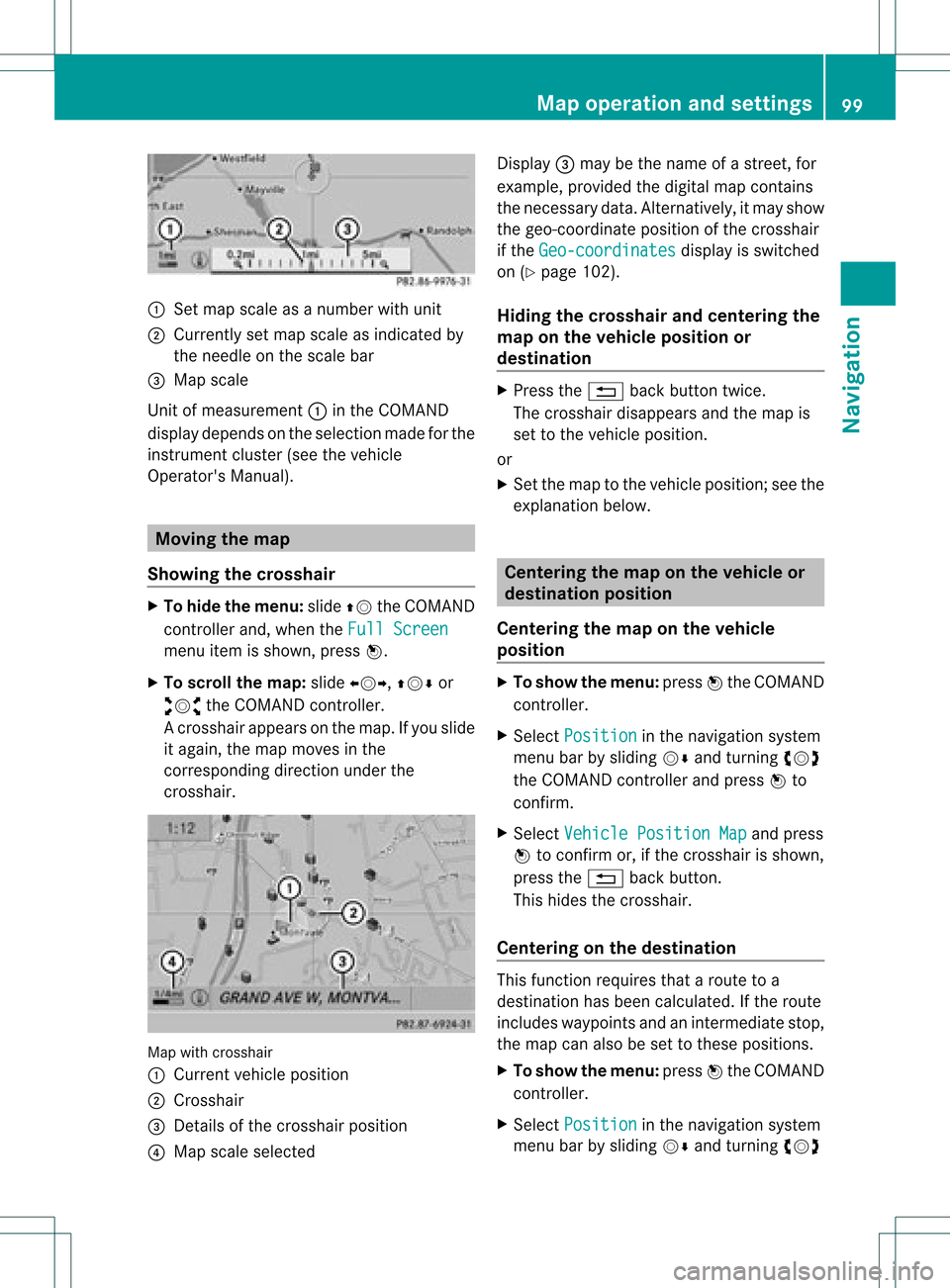
:
Set map scaleas anumb erwith uni t
; Currentl yset map scaleas ind icated by
the need leon the scaleba r
= Mapsca le
Unit ofmea sureme nt: inthe COMAND
di spl aydepends onthe selecti onmad efor the
instr umentclu ster (seethe vehicle
Ope rator'sManua l). Mov
ingthe map
Sho wing the crossh air X
To hide themen u:slide ZV theCOMAND
control lera nd, when the FullScr een menu
itemi sshown, pressW.
X To scroll themap :slide XVY, ZVÆor
aVb theCOMAND controller.
Ac rossha irapp ears onthe map. Ifyou slide
it aga in,the map moves inthe
correspo ndingdirection under the
crossha ir. Map
withcrossha ir
: Current vehicl eposi tion
; Cross hair
= Detail sof the crossha irposi tion
? Map scale selected Displ
ay= may bethe name ofastreet, for
exampl e,provid edthe digitalmap contains
the necessary data.Alter natively, itmay show
the geo- coor dinat eposit ionofthe crosshair
if the Geo- coordinates display
isswitc hed
on (Ypage 102).
Hid ing thecrossh airand center ingthe
ma ponthe vehicle position or
destina tion X
Press the% backbutton twice.
The cross hairdisappears andthemap is
set tothe vehicle position .
or
X Set themap tothe vehicle position ;see the
explanat ionbelow. Centering
themap onthe vehicle or
destina tionposition
Centering themap onthe vehicle
position X
To show themenu: pressWthe COMAND
con troller.
X Select Positio n in
the navigation system
menu barbysliding VÆandturningcVd
the COMAND controller andpress Wto
con firm.
X Select Vehicle PositionMap and
press
W tocon firm or,ifthe cross hairisshown,
press the% backbutton .
This hides thecross hair.
Centering onthe destina tion This
function requires thataroute toa
destin ationhasbeen calculated. Ifthe route
includes waypoints andanintermediate stop,
the map canalso beset tothese position s.
X To show themenu: pressWthe COMAND
con troller.
X Select Positio n in
the navigation system
menu barbysliding VÆandturningcVd Map
opera tionandsettings
99Navigation Z
Page 102 of 234
the
COMAND controllera nd pre ssW to
confi rm.
X Sel ect Destinati onPositionMap and
pre ssW toconfi rm.
The cros shairpo sitio nisset tothe relevant
destination. Map
settings
Callin gup the map settings menu X
To show themenu: pressWthe COMAND
cont roller.
X Select Navi in
the main function barby
sliding ZVandturning cVdtheCOMAND
cont roller andpress Wtoconfirm.
X Select MapSettings and
press Wto
confirm.
The map settings menuappears. Setting
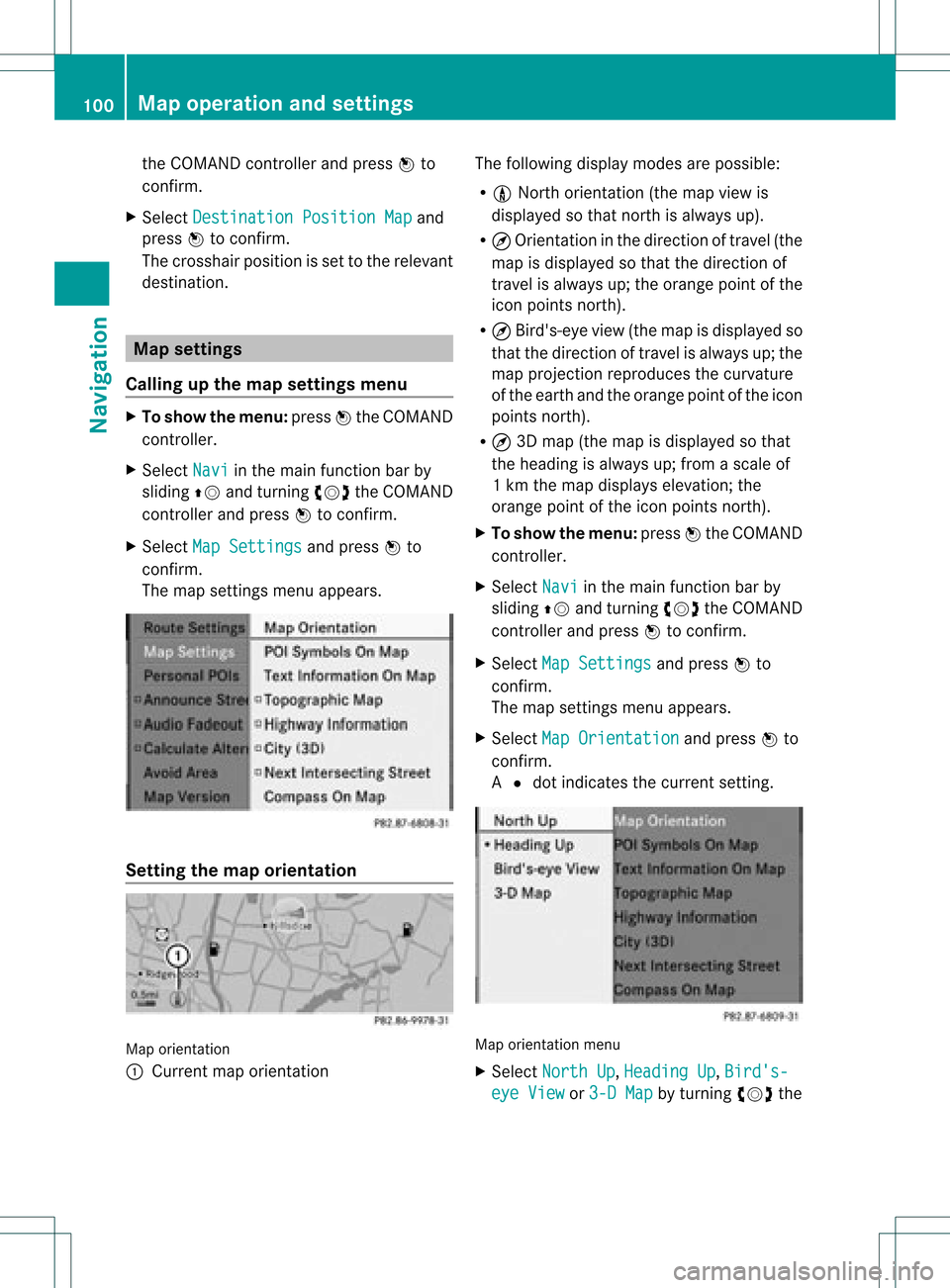
themap orientation Map
orientation
: Current maporientation The
followi ngdispla ymodes arepossible :
R 0 North orientation (themap view is
displa yedsothat north isalwa ysup).
R ¤ Orientation inthe direction oftravel (the
map isdispla yedsothat thedirection of
travel isalwa ysup; the orange pointofthe
icon points north).
R ¤ Bird's-eye view(themap isdispla yedso
that thedirection oftravel isalwa ysup; the
map project ionreproduces thecurvature
of the earth andtheorange pointofthe icon
points north).
R ¤ 3D map (themap isdispla yedsothat
the heading isalwa ysup; from ascale of
1k mt hemap displa yselevation; the
orange pointofthe icon points north).
X To show themenu: pressWthe COMAND
cont roller.
X Select Navi in
the main functionbar by
sliding ZVandturning cVdtheCOMAND
cont roller andpress Wtoconfirm .
X Select MapSettings and
press Wto
confirm .
The map settin gsmenu appears.
X Select MapOrientation and
press Wto
confirm .
A # dot indicates thecurrent setting. Map
orientation menu
X Select North Up ,
Heading Up ,
Bird's- eye
View or
3-D Map by
turning cVdthe 100
Map
operat ionand settingsNavigat ion