Page 201 of 411
![Hyundai Sonata 2012 Owners Manual 4 119
Features of your vehicle
Phone ListThe names of up to 5 paired phones will
be displayed.
A [ ] is displayed in front of the currently
connected phone.
Select the desired name to setup the
select](/manual-img/35/16810/w960_16810-200.png "Hyundai Sonata 2012 Owners Manual 4 119
Features of your vehicle
Phone ListThe names of up to 5 paired phones will
be displayed.
A [ ] is displayed in front of the currently
connected phone.
Select the desired name to setup the
select")
4 119
Features of your vehicle
Phone ListThe names of up to 5 paired phones will
be displayed.
A [ ] is displayed in front of the currently
connected phone.
Select the desired name to setup the
selected phone. Connecting a phoneSelect [Phone List] Select mobile
phone through TUNE knob Select
[Connect Phone]➀
Select a mobile phone that is not cur-
rently connected.
➁
Connect the selected mobile phone.
➂
Connection completion is displayed.
❈ If a phone is already connected, dis-
connect the currently connected
phone and select a new phone to con-
nect.
Disconnecting a connected phoneSelect [Phone List] Select mobile
phone through TUNE knob Select
[Disconnect Phone]➀
Select the currently connected mobile
phone.
➁
Disconnect the selected mobile
phone.
➂
Disconnection completion is dis-
played.
Changing connection sequence
(Priority)This is used to change the order (priori-
ty) of automatic connection for the paired
mobile phones.Select [Phone List] Select [Priority]
through TUNE knob Select No. 1
Priority mobile phone➀
Select [Priority].
➁
From the paired phones, select the
phone desired for No.1 priority.
➂
The changed priority sequence is dis-
played.
❈ Once the connection sequence (priori-
ty) is changed, the new no. 1 priority
mobile phone will be connected.
- when the no. 1 priority cannot be con- nected: Automatically attempts to con-
nect the most recently connected
phone.
- Cases when the most recently con- nected phone cannot be connected:
Attempts to connect in the order in
which paired phones are listed.
- The connected phone will automati- cally be changed to No. 1 priority.
Page 202 of 411
Features of your vehicle120
4
CAUTION
When you delete a mobile phone,
the mobile phone contacts willalso be erased.
For stable Bluetooth
®communi-
cation, delete the mobile phone from the audio and also delete theaudio from your mobile phone.
DeleteSelect [Phone List] Select mobile
phone through TUNE knob Select
[Delete]➀
Select the desired mobile phone.
➁
Delete the selected mobile phone.
➂
Deletion completion is displayed.
❈ When attempting to delete a currently
connected phone, the phone is first
disconnected.
Contacts DownloadThis feature is used to download con-
tacts and call histories into the audio sys-
tem.Select [Contacts Download] Select
through
TUNE
knob
Auto Download
When connecting a mobile phone, it is
possible to automatically download new
Contacts and Call Histories.Select [Auto Download] Set
/
through TUNE knob
Audio StreamingSongs (files) saved in your Bluetooth
®
mobile phone can be played through the
audio system.Select [Audio Streaming] Set / through TUNE knobOutgoing VolumeThis is used to set the volume of your
voice as heard by the other party while
on a Bluetooth
®handsfree call.
Select [Outgoing Volume] Set vol-
ume through
TUNE
knob
❈ Even while on a call, the volume can
be changed by using the
key.
SEEK
TRACK
Off
On
Off
On
CAUTION
The download feature may not be
supported in some mobilephones.
If a different operation is per- formed while Contacts are beingdownloaded, downloading will bediscontinued. Contacts already downloaded will be saved.
When downloading new Contacts, delete all previously savedContacts before starting down- load.
CAUTION
The Bluetooth
®
audio streaming
feature may not be supported in some mobile phones.
Page 203 of 411
![Hyundai Sonata 2012 Owners Manual 4 121
Features of your vehicle
Bluetooth System OffThis feature is used when you do not
wish to use the Bluetooth system.Select [Bluetooth System Off] Set
through TUNE knob❈ If a phone is already co](/manual-img/35/16810/w960_16810-202.png "Hyundai Sonata 2012 Owners Manual 4 121
Features of your vehicle
Bluetooth System OffThis feature is used when you do not
wish to use the Bluetooth system.Select [Bluetooth System Off] Set
through TUNE knob❈ If a phone is already co")
4 121
Features of your vehicle
Bluetooth System OffThis feature is used when you do not
wish to use the Bluetooth system.Select [Bluetooth System Off] Set
through TUNE knob❈ If a phone is already connected, dis-
connect the currently connected phone
and turn the Bluetooth
®system off.
Using the Bluetooth SystemTo use Bluetooth
®when the system is
currently off, follow these next steps.
Turning On Bluetooth
®
through the
Key
Press the key Screen Guidance❈ Moves to the screen where Bluetooth
®
functions can be used and displays
guidance. Turning On Bluetooth
®
through the
Key
Press the key Select [Phone]
through TUNE knob or key➀
A screen asking whether to turn on
Bluetooth
®will be displayed.
➁
On the screen, select to turn on
Bluetooth
®and display guidance.
❈ If the Bluetooth system is turned on,
the system will automatically try to
connect the most recently connected
Bluetooth®mobile phone.
YES
3
SETUP
SETUP
PHONE
PHONE
CAUTION
Bluetooth
®
connection may
become intermittently disconnect- ed in some mobile phones. Followthese next steps to try again.
1) Turn the Bluetooth
®
function
within the mobile phone ON/OFF and try to connect again.
2) Turn the mobile phone power ON/OFF and try to connect again.
3) Completely remove the mobile phone battery, reboot, and thentry to connect again.
4) Reboot the audio system and try to connect again
5) Delete all paired devices in your mobile phone and the audio sys-tem and pair again for use.
Page 204 of 411
![Hyundai Sonata 2012 Owners Manual Features of your vehicle122
4SYSTEM SETTINGSPress the key Select [System]
through tune knob or key Select
menu through TUNE knob
Memory InformationDisplays currently used memory and
total system me](/manual-img/35/16810/w960_16810-203.png "Hyundai Sonata 2012 Owners Manual Features of your vehicle122
4SYSTEM SETTINGSPress the key Select [System]
through tune knob or key Select
menu through TUNE knob
Memory InformationDisplays currently used memory and
total system me")
Features of your vehicle122
4SYSTEM SETTINGSPress the key Select [System]
through tune knob or key Select
menu through TUNE knob
Memory InformationDisplays currently used memory and
total system memory.Select [Memory Information] OKThe currently used memory is displayed
on the left side while the total system
memory is displayed on the right side.Prompt FeedbackThis feature is used to change voice
command feedback between Normal and
Expert modes.Select [Prompt Feedback] Set
through
TUNE
knob
Normal : This mode is for beginner
users and provides detailed instructions
during voice command operation.
Expert : This mode is for expert users and omits some information during
voice command operation. (When using
Expert mode, guidance instructions can
be heard through the [Help] or [Menu]
commands.
LanguageThis menu is used to set the display and
voice recognition language.Select [Language] Set through TUNE
knob❈ The system will reboot after the lan-
guage is changed.
❈ Language support by region
- English, Francais, Espanol
4
SETUP
Page 209 of 411
4 127
Features of your vehicle
Automatic switching between dig-
ital and analog broadcastingIf the reception of the digital signal is lost,
the system switches automatically to the
analog signal. As soon as the digital sig-
nal is available again, it will switch back.
Due to the fact that sub channels are
only broadcasted digital, the system
mutes playback if you have tuned to a
sub channel and the digital signal is lost.
The main line will shows the message No
HD signal in place of station name.
After approximately one minute with the
digital signal lost, the system will auto-
matically tune to the analog signal of the
corresponding frequency.Text based informationHD Radio
TM
stations are able to broad-
cast text based information, e.g. station
name, song title and artist name. The
Driver Information System is able to dis-
play this information. Digital, CD-quality sound. HD Radio
Technology enables local radio stations
to broadcast a clean digital signal. AM
sounds like today’s FM and FM sounds
like a CD.
Program Service Data : Contributes to the superior user experience of HD
Radio Technology. Presents song
name, artist, station IDs, HD2/HD3
Channel Guide, and other relevant data
stream.
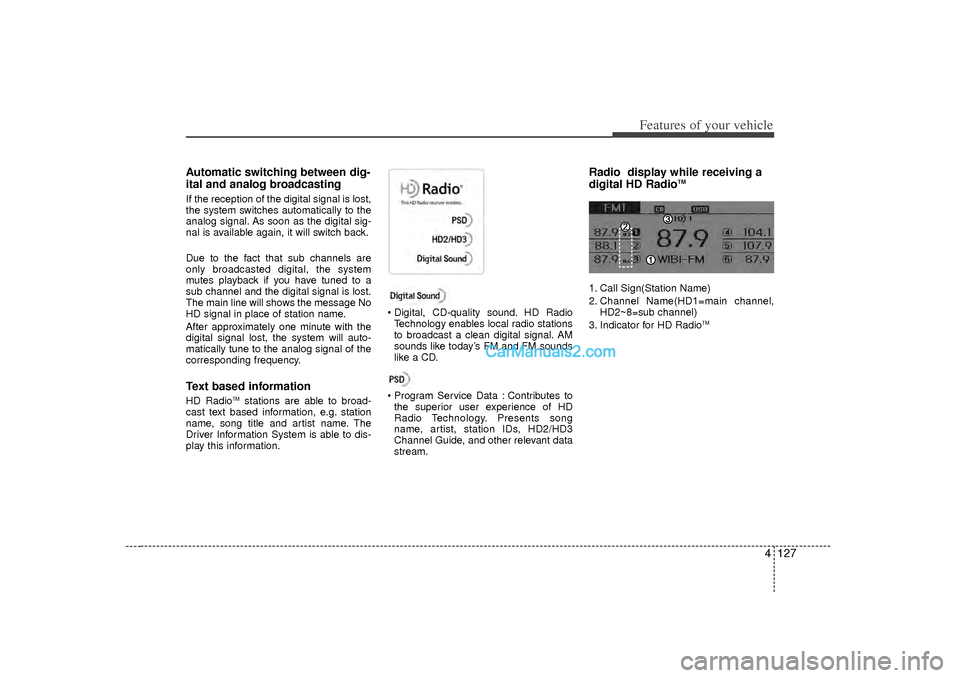
Radio display while receiving a
digital HD Radio
TM
1. Call Sign(Station Name)
2. Channel Name(HD1=main channel, HD2~8=sub channel)
3. Indicator for HD Radio
TM
Page 210 of 411
Features of your vehicle128
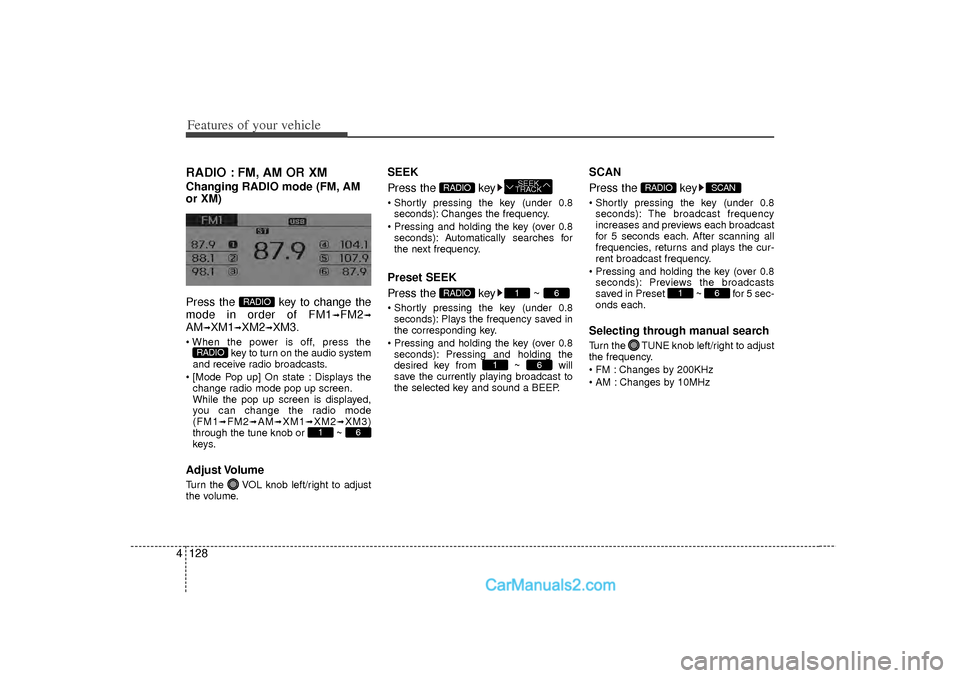
4RADIO : FM, AM OR XMChanging RADIO mode (FM, AM
or XM)
Press the key to change the
mode in order of FM1
➟FM2
➟
AM
➟XM1
➟XM2
➟XM3.
When the power is off, press the
key to turn on the audio system
and receive radio broadcasts.
[Mode Pop up] On state : Displays the change radio mode pop up screen.
While the pop up screen is displayed,
you can change the radio mode
(FM1
➟FM2
➟AM
➟XM1
➟XM2
➟XM3)
through the tune knob or ~
keys.
Adjust VolumeTurn the VOL knob left/right to adjust
the volume.
SEEK
Press the key Shortly pressing the key (under 0.8 seconds): Changes the frequency.
Pressing and holding the key (over 0.8 seconds): Automatically searches for
the next frequency.Preset SEEK
Press the key ~ Shortly pressing the key (under 0.8seconds): Plays the frequency saved in
the corresponding key.
Pressing and holding the key (over 0.8 seconds): Pressing and holding the
desired key from ~ will
save the currently playing broadcast to
the selected key and sound a BEEP.
SCAN
Press the key Shortly pressing the key (under 0.8seconds): The broadcast frequency
increases and previews each broadcast
for 5 seconds each. After scanning all
frequencies, returns and plays the cur-
rent broadcast frequency.
Pressing and holding the key (over 0.8 seconds): Previews the broadcasts
saved in Preset ~ for 5 sec-
onds each.Selecting through manual searchTurn the TUNE knob left/right to adjust
the frequency.
FM : Changes by 200KHz
AM : Changes by 10MHz
6
1
SCAN
RADIO
6
1
6
1
RADIO
SEEK
TRACK
RADIO
6
1
RADIO
RADIO
Page 211 of 411
4 129
Features of your vehicle
MENUWithin
key
are the A.Store (Auto
Store) and Info functions. A.Store
Press the key Set [A.Store]
through TUNE knob or key.Saves broadcasts with superior recep-
tion to ~ keys. If no frequen-
cies are received, then the most recently
received frequency will be broadcast.
Info (Information)Press the key Set [Info]
through TUNE knob or key.Displays details on the HD Radio.
❈ The Info menu is displayed on when
receiving HD Radio.
2
MENU
6
1
1
MENU
MENU
Page 212 of 411
Features of your vehicle130
4HD RADIOListening to HD Radio StationsHD Radio Technology is a digital radio
technology used by AM and FM radio
station to transmit audio and data via a
digital signal in conjunction with their
analog signals.
While listening to the radio, the HD
Radio icon will become displayed if
receiving an HD Radio broadcast.
❈ Press the ( ) key
to change to a different HD Radio sta-
tion.
HD Radio SetupPress the key Select [Display]
through the TUNE knob or 1 key
Select [HD Radio] Select menu through
the TUNE knob Set / HD Radio will not be received if the HD
Radio is set to Off in the Display Menu
in Setup.
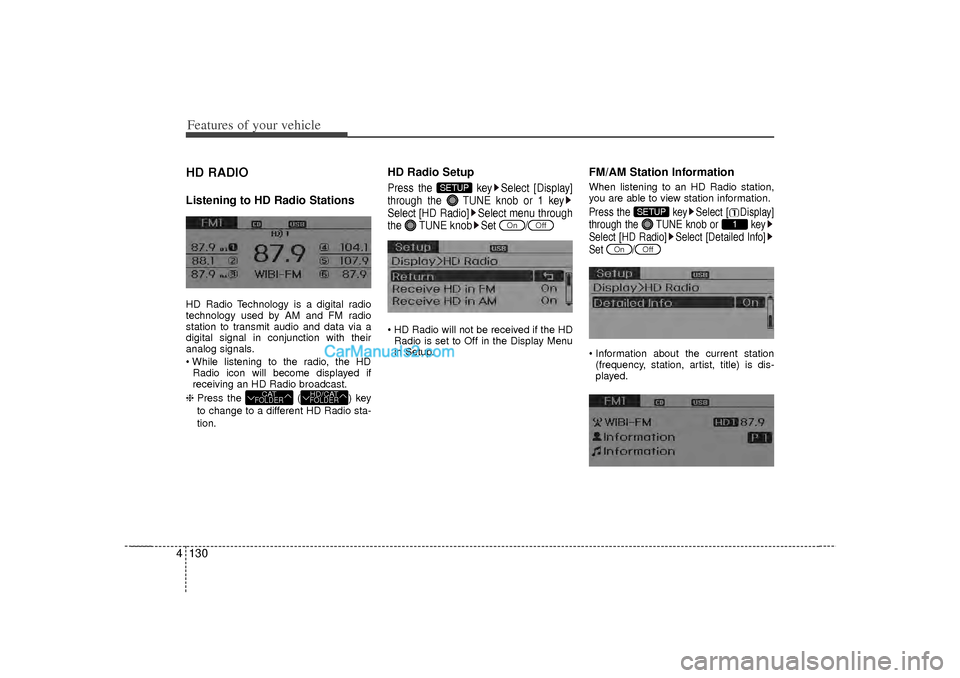
FM/AM Station InformationWhen listening to an HD Radio station,
you are able to view station information.Press the key Select [ Display]
through the TUNE knob or key
Select [HD Radio] Select [Detailed Info]
Set / Information about the current station(frequency, station, artist, title) is dis-
played.
Off
On
1
SETUP
Off
On
SETUP
HD/CATFOLDER
CATFOLDER
![Hyundai Sonata 2012 Owners Manual 4 129
Features of your vehicle
MENUWithin
key
are the A.Store (Auto
Store) and Info functions. A.Store
Press the key Set [A.Store]
through TUNE knob or key.Saves broadcasts with superior recep-
t](/manual-img/35/16810/w960_16810-210.png "Hyundai Sonata 2012 Owners Manual 4 129
Features of your vehicle
MENUWithin
key
are the A.Store (Auto
Store) and Info functions. A.Store
Press the key Set [A.Store]
through TUNE knob or key.Saves broadcasts with superior recep-
t")