2012 Hyundai Sonata ECO mode
[x] Cancel search: ECO modePage 148 of 411
Features of your vehicle66
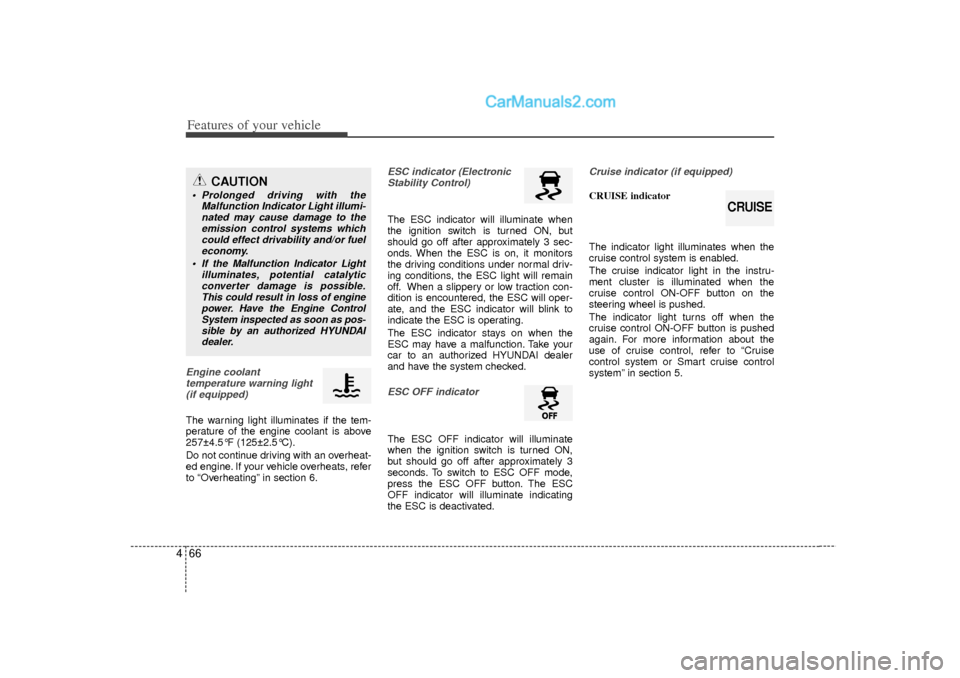
4Engine coolant
temperature warning light(if equipped)The warning light illuminates if the tem-
perature of the engine coolant is above
257±4.5°F (125±2.5°C).
Do not continue driving with an overheat-
ed engine. If your vehicle overheats, refer
to “Overheating” in section 6.
ESC indicator (ElectronicStability Control) The ESC indicator will illuminate when
the ignition switch is turned ON, but
should go off after approximately 3 sec-
onds. When the ESC is on, it monitors
the driving conditions under normal driv-
ing conditions, the ESC light will remain
off. When a slippery or low traction con-
dition is encountered, the ESC will oper-
ate, and the ESC indicator will blink to
indicate the ESC is operating.
The ESC indicator stays on when the
ESC may have a malfunction. Take your
car to an authorized HYUNDAI dealer
and have the system checked.ESC OFF indicator The ESC OFF indicator will illuminate
when the ignition switch is turned ON,
but should go off after approximately 3
seconds. To switch to ESC OFF mode,
press the ESC OFF button. The ESC
OFF indicator will illuminate indicating
the ESC is deactivated.
Cruise indicator (if equipped)CRUISE indicator
The indicator light illuminates when the
cruise control system is enabled.
The cruise indicator light in the instru-
ment cluster is illuminated when the
cruise control ON-OFF button on the
steering wheel is pushed.
The indicator light turns off when the
cruise control ON-OFF button is pushed
again. For more information about the
use of cruise control, refer to “Cruise
control system or Smart cruise control
system” in section 5.
CAUTION
Prolonged driving with the Malfunction Indicator Light illumi-nated may cause damage to the emission control systems whichcould effect drivability and/or fueleconomy.
If the Malfunction Indicator Light illuminates, potential catalyticconverter damage is possible.This could result in loss of engine power. Have the Engine ControlSystem inspected as soon as pos-sible by an authorized HYUNDAIdealer.
CRUISE
Page 173 of 411
491
Features of your vehicle
✽
✽NOTICE• While using the air conditioning sys-
tem, monitor the engine temperature
gauge closely while driving up hills or
in heavy traffic when outside temper-
atures are high. Air conditioning sys-
tem operation may cause engine over-
heating. Continue to use the blower
fan but turn the air conditioning sys-
tem off if the engine temperature
gauge indicates engine overheating.
• Opening the windows in humid weather while air conditioning oper-
ates may create water droplets inside
the vehicle. Since excessive water
droplets may cause damage to electri-
cal equipment, air conditioning
should only be used with the windows
closed.
Air conditioning system operation tips
If the vehicle has been parked in direct
sunlight during hot weather, open the
windows for a short time to let the hot
air inside the vehicle escape.
To help reduce moisture inside of the windows on rainy or humid days,
decrease the humidity inside the vehi-
cle by operating the air conditioning
system.
During air conditioning system opera- tion, you may occasionally notice a
slight change in engine speed as the
air conditioning compressor cycles.
This is a normal system operation
characteristic.
Use the air conditioning system every month only for a few minutes to ensure
maximum system performance.
When using the air conditioning sys- tem, you may notice clear water drip-
ping (or even puddling) on the ground
under the passenger side of the vehi-
cle. This is a normal system operation
characteristic. Operating the air conditioning system
in the recirculated air position provides
maximum cooling, however, continual
operation in this mode may cause the
air inside the vehicle to become stale.
During cooling operation, you may occasionally notice a misty air flow
because of rapid cooling and humid air
intake. This is a normal system opera-
tion characteristic.
If you operate air conditioner exces- sively, the difference between the tem-
perature of the outside air and that of
the windshield could cause the outer
surface of the windshield to fog up,
causing loss of visibility. In this case,
set the mode selection knob or button
to the position and fan speed con-
trol to the lower speed.
Page 186 of 411
Features of your vehicle104
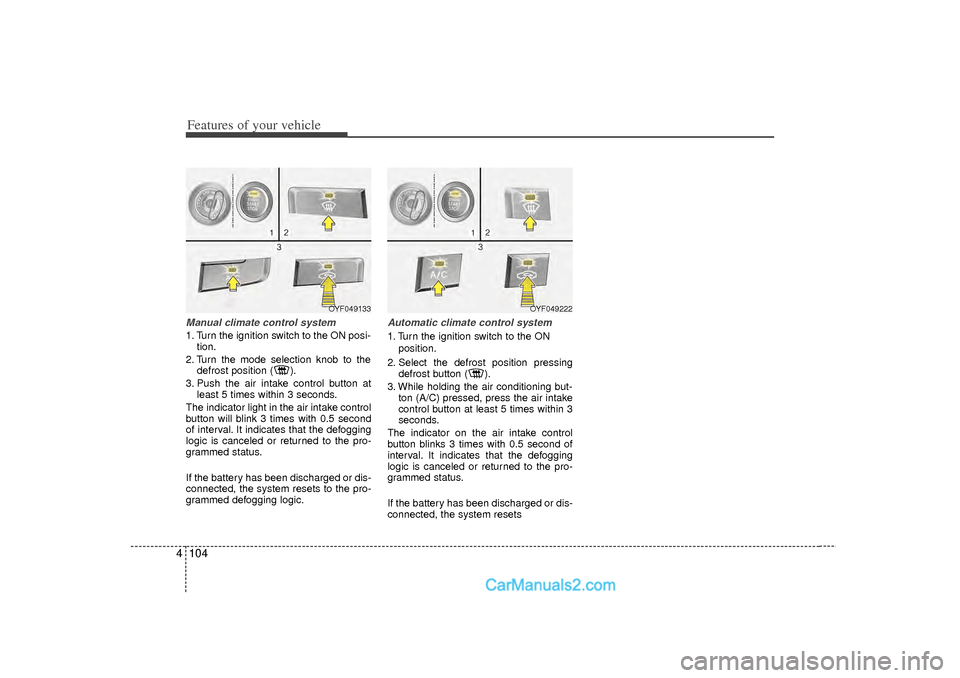
4Manual climate control system1. Turn the ignition switch to the ON posi-
tion.
2. Turn the mode selection knob to the defrost position ( ).
3. Push the air intake control button at least 5 times within 3 seconds.
The indicator light in the air intake control
button will blink 3 times with 0.5 second
of interval. It indicates that the defogging
logic is canceled or returned to the pro-
grammed status.
If the battery has been discharged or dis-
connected, the system resets to the pro-
grammed defogging logic.
Automatic climate control system1. Turn the ignition switch to the ON position.
2. Select the defrost position pressing defrost button ( ).
3. While holding the air conditioning but- ton (A/C) pressed, press the air intake
control button at least 5 times within 3
seconds.
The indicator on the air intake control
button blinks 3 times with 0.5 second of
interval. It indicates that the defogging
logic is canceled or returned to the pro-
grammed status.
If the battery has been discharged or dis-
connected, the system resets
OYF049222
OYF049133
Page 196 of 411
Features of your vehicle114
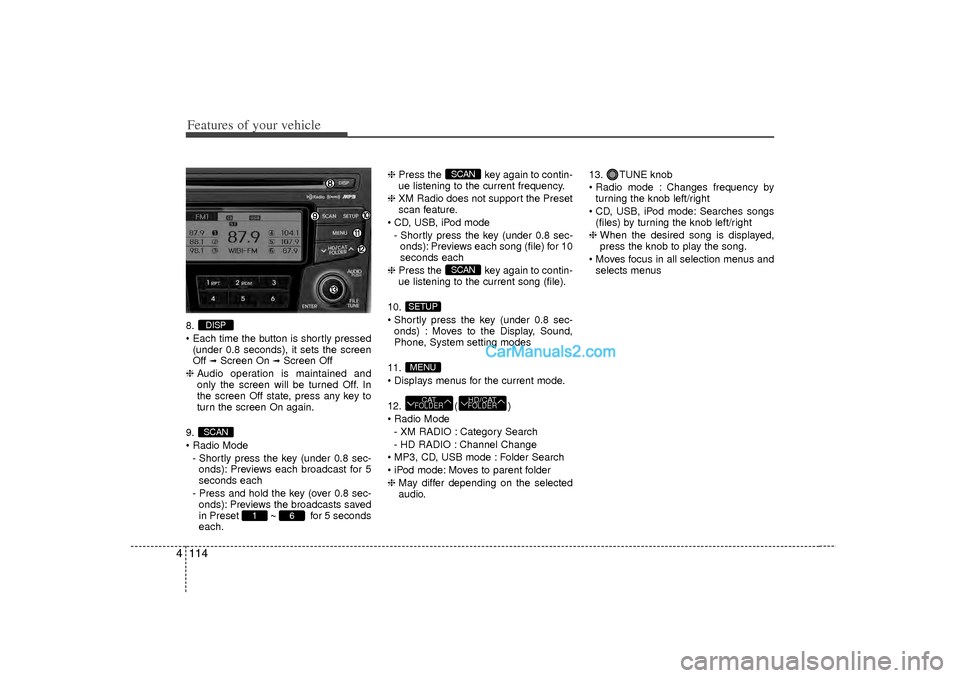
48.
Each time the button is shortly pressed
(under 0.8 seconds), it sets the screen
Off
➟Screen On
➟Screen Off
❈ Audio operation is maintained and
only the screen will be turned Off. In
the screen Off state, press any key to
turn the screen On again.
9.
Radio Mode - Shortly press the key (under 0.8 sec-onds): Previews each broadcast for 5
seconds each
- Press and hold the key (over 0.8 sec- onds): Previews the broadcasts saved
in Preset ~ for 5 seconds
each. ❈
Press the key again to contin-
ue listening to the current frequency.
❈ XM Radio does not support the Preset
scan feature.
CD, USB, iPod mode - Shortly press the key (under 0.8 sec-onds): Previews each song (file) for 10
seconds each
❈ Press the key again to contin-
ue listening to the current song (file).
10.
Shortly press the key (under 0.8 sec- onds) : Moves to the Display, Sound,
Phone, System setting modes
11.
Displays menus for the current mode.
12. ( )
Radio Mode - XM RADIO : Category Search
- HD RADIO : Channel Change
MP3, CD, USB mode : Folder Search
iPod mode: Moves to parent folder
❈ May differ depending on the selected
audio. 13. TUNE knob
Radio mode : Changes frequency by
turning the knob left/right
CD, USB, iPod mode: Searches songs (files) by turning the knob left/right
❈ When the desired song is displayed,
press the knob to play the song.
Moves focus in all selection menus and selects menus
HD/CATFOLDER
CATFOLDERMENUSETUP
SCANSCAN
6
1
SCANDISP
Page 204 of 411
![Hyundai Sonata 2012 Owners Manual Features of your vehicle122
4SYSTEM SETTINGSPress the key Select [System]
through tune knob or key Select
menu through TUNE knob
Memory InformationDisplays currently used memory and
total system me](/manual-img/35/16810/w960_16810-203.png "Hyundai Sonata 2012 Owners Manual Features of your vehicle122
4SYSTEM SETTINGSPress the key Select [System]
through tune knob or key Select
menu through TUNE knob
Memory InformationDisplays currently used memory and
total system me")
Features of your vehicle122
4SYSTEM SETTINGSPress the key Select [System]
through tune knob or key Select
menu through TUNE knob
Memory InformationDisplays currently used memory and
total system memory.Select [Memory Information] OKThe currently used memory is displayed
on the left side while the total system
memory is displayed on the right side.Prompt FeedbackThis feature is used to change voice
command feedback between Normal and
Expert modes.Select [Prompt Feedback] Set
through
TUNE
knob
Normal : This mode is for beginner
users and provides detailed instructions
during voice command operation.
Expert : This mode is for expert users and omits some information during
voice command operation. (When using
Expert mode, guidance instructions can
be heard through the [Help] or [Menu]
commands.
LanguageThis menu is used to set the display and
voice recognition language.Select [Language] Set through TUNE
knob❈ The system will reboot after the lan-
guage is changed.
❈ Language support by region
- English, Francais, Espanol
4
SETUP
Page 208 of 411
Features of your vehicle126
4HD RADIO
TM
INFORMATION
Licensing informationHD Radio
TM
Technology Manufactured
Under License From iBiquity Digital
Corporation. U.S. and Foreign Patents.
HD Radio
TM
and the HD and HD Radio
logos are proprietary trademarks of
iBiquity Digital Corporation.
Availability informationHD Radio
TM reception is available in the
United States, including Alaska and
Hawaii.
What is HD Radio
TM
technology?
The vehicle audio system (if equipped) is
able to receive standard analog FM/AM
radio broadcasting as well as digital HD
Radio
TMFM/AM broadcasting.
HD RadioTM
technology provides digital
and analog reception using existing FM
and AM broadcasting frequencies. Currently, radio stations broadcasting an
HD Radio
TM
signal are operating in a
hybrid mode of both, analog and digital,
in order to reach both receivers. In both
modes, analog and digital, the broad-
casted program contents is the
same(except of multicasting, see below).
Eventually, as analog receivers are
replaced by digital ones, radio stations
may be able to turn off their analog
broadcasting and use only digital broad-
casting.
MulticastingHD Radio
TMFM stations are able to broad-
cast multiple digital program
streams(channels) over a single FM fre-
quency. For example, a HD Radio
TM
FM
station can run a main channel of music
and a sub channel of news(or even two dif-
ferent music channels) at one frequency.
But only the program content of the main
channel is broadcasted in analog.
HD Radio
TM
signal delay
To overcome the delay that digital sys-
tems inherently produce, HD Radio
TM
technology first uses the audio signal of
the analog broadcasting when you tune
to an AM station or to the main channel
of a FM station. After that, the system will
blend from analog to digital signal.
Normally, this blending is very smooth. If
you experience a skip in program content
of several seconds, the radio station has
not implemented HD Radio
TMbroadcast-
ing correctly. This is not a problem with
your audio system.
Due to the fact that sub channels are only
broadcasting digital, blending from analog
to digital signal is not possible if you tune
to a sub channel. In this case playback of
the sub channel starts after several sec-
onds, this is a normal function.
Page 210 of 411
Features of your vehicle128
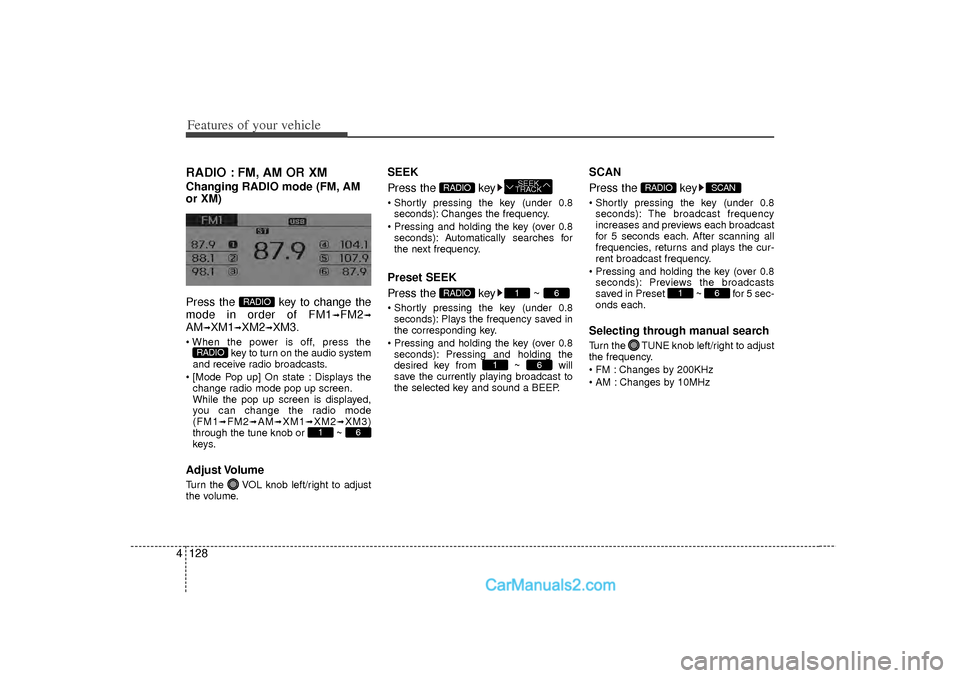
4RADIO : FM, AM OR XMChanging RADIO mode (FM, AM
or XM)
Press the key to change the
mode in order of FM1
➟FM2
➟
AM
➟XM1
➟XM2
➟XM3.
When the power is off, press the
key to turn on the audio system
and receive radio broadcasts.
[Mode Pop up] On state : Displays the change radio mode pop up screen.
While the pop up screen is displayed,
you can change the radio mode
(FM1
➟FM2
➟AM
➟XM1
➟XM2
➟XM3)
through the tune knob or ~
keys.
Adjust VolumeTurn the VOL knob left/right to adjust
the volume.
SEEK
Press the key Shortly pressing the key (under 0.8 seconds): Changes the frequency.
Pressing and holding the key (over 0.8 seconds): Automatically searches for
the next frequency.Preset SEEK
Press the key ~ Shortly pressing the key (under 0.8seconds): Plays the frequency saved in
the corresponding key.
Pressing and holding the key (over 0.8 seconds): Pressing and holding the
desired key from ~ will
save the currently playing broadcast to
the selected key and sound a BEEP.
SCAN
Press the key Shortly pressing the key (under 0.8seconds): The broadcast frequency
increases and previews each broadcast
for 5 seconds each. After scanning all
frequencies, returns and plays the cur-
rent broadcast frequency.
Pressing and holding the key (over 0.8 seconds): Previews the broadcasts
saved in Preset ~ for 5 sec-
onds each.Selecting through manual searchTurn the TUNE knob left/right to adjust
the frequency.
FM : Changes by 200KHz
AM : Changes by 10MHz
6
1
SCAN
RADIO
6
1
6
1
RADIO
SEEK
TRACK
RADIO
6
1
RADIO
RADIO
Page 213 of 411
4 131
Features of your vehicle
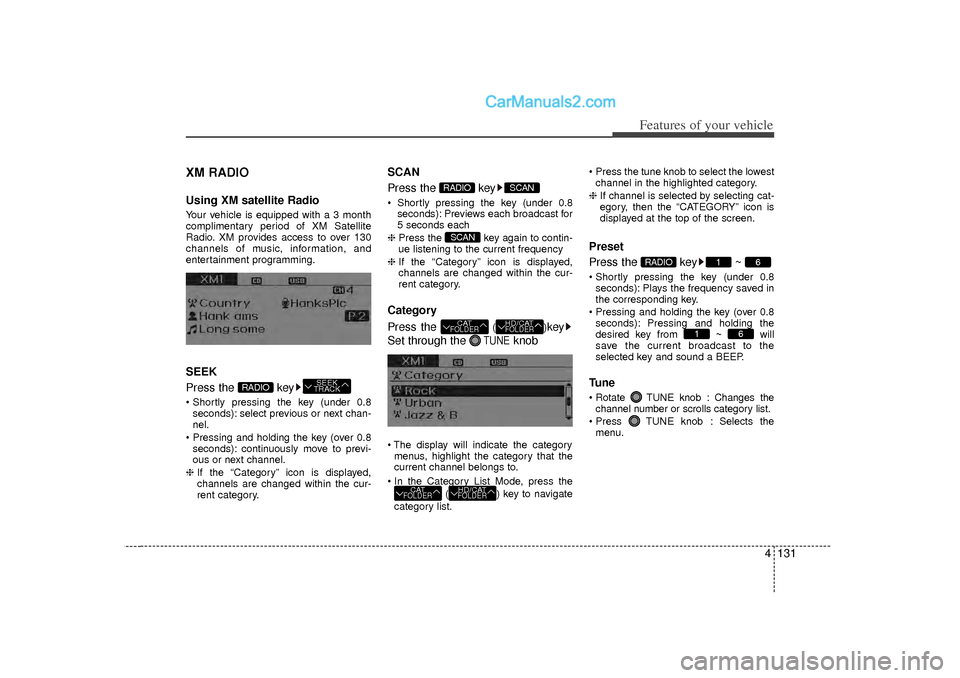
XM RADIOUsing XM satellite RadioYour vehicle is equipped with a 3 month
complimentary period of XM Satellite
Radio. XM provides access to over 130
channels of music, information, and
entertainment programming.SEEK
Press the key Shortly pressing the key (under 0.8seconds): select previous or next chan-
nel.
Pressing and holding the key (over 0.8 seconds): continuously move to previ-
ous or next channel.
❈ If the “Category” icon is displayed,
channels are changed within the cur-
rent category.
SCAN
Press the key Shortly pressing the key (under 0.8
seconds): Previews each broadcast for
5 seconds each
❈ Press the key again to contin-
ue listening to the current frequency
❈ If the “Category” icon is displayed,
channels are changed within the cur-
rent category.Category
Press the
()
key
Set through the
TUNE
knob
The display will indicate the category menus, highlight the category that the
current channel belongs to.
In the Category List Mode, press the ( ) key to navigate
category list. Press the tune knob to select the lowest
channel in the highlighted category.
❈ If channel is selected by selecting cat-
egory, then the “CATEGORY” icon is
displayed at the top of the screen.
Preset
Press the key ~ Shortly pressing the key (under 0.8
seconds): Plays the frequency saved in
the corresponding key.
Pressing and holding the key (over 0.8 seconds): Pressing and holding the
desired key from ~ will
save the current broadcast to the
selected key and sound a BEEP.Tune Rotate TUNE knob : Changes thechannel number or scrolls category list.
Press TUNE knob : Selects the menu.
6
1
6
1
RADIO
HD/CATFOLDER
CATFOLDER
HD/CATFOLDER
CATFOLDERSCAN
SCAN
RADIO
SEEK
TRACK
RADIO