2012 Hyundai Sonata ECO mode
[x] Cancel search: ECO modePage 216 of 411
Features of your vehicle134
4
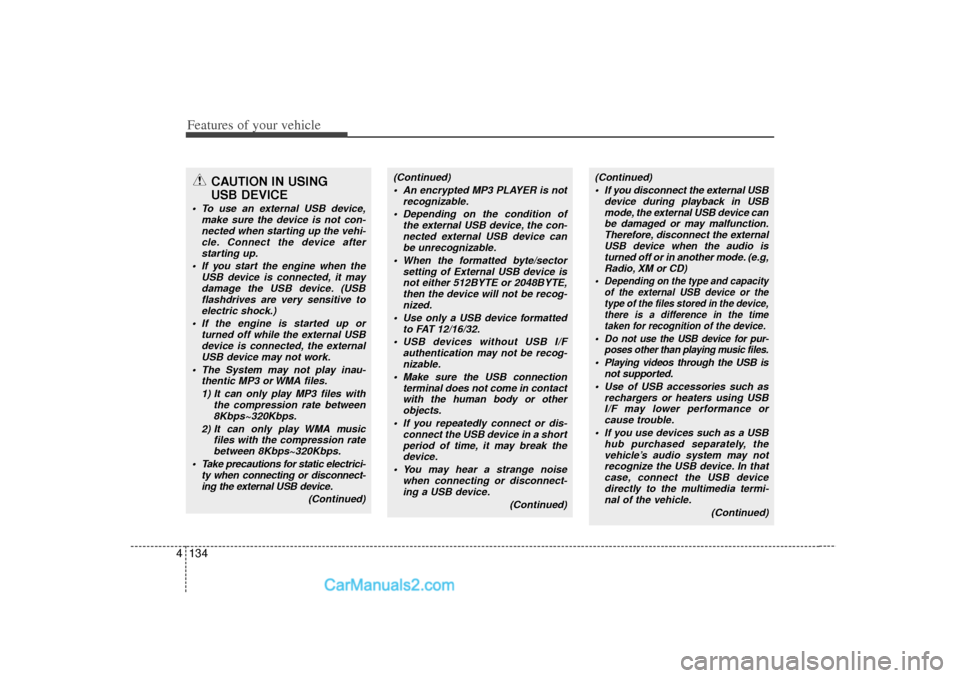
CAUTION IN USING
USB DEVICE
To use an external USB device,
make sure the device is not con-nected when starting up the vehi- cle. Connect the device afterstarting up.
If you start the engine when the USB device is connected, it maydamage the USB device. (USB flashdrives are very sensitive toelectric shock.)
If the engine is started up or turned off while the external USBdevice is connected, the externalUSB device may not work.
The System may not play inau- thentic MP3 or WMA files.
1) It can only play MP3 files with the compression rate between8Kbps~320Kbps.
2) It can only play WMA music files with the compression ratebetween 8Kbps~320Kbps.
Take precautions for static electrici- ty when connecting or disconnect-ing the external USB device.
(Continued)
(Continued) An encrypted MP3 PLAYER is not recognizable.
Depending on the condition of the external USB device, the con-nected external USB device canbe unrecognizable.
When the formatted byte/sector setting of External USB device isnot either 512BYTE or 2048BYTE, then the device will not be recog-nized.
Use only a USB device formatted to FAT 12/16/32.
USB devices without USB I/F authentication may not be recog-nizable.
Make sure the USB connection terminal does not come in contactwith the human body or otherobjects.
If you repeatedly connect or dis- connect the USB device in a shortperiod of time, it may break thedevice.
You may hear a strange noise when connecting or disconnect-ing a USB device.
(Continued)
(Continued) If you disconnect the external USB device during playback in USBmode, the external USB device canbe damaged or may malfunction. Therefore, disconnect the externalUSB device when the audio is turned off or in another mode. (e.g,Radio, XM or CD) Depending on the type and capacity of the external USB device or thetype of the files stored in the device, there is a difference in the timetaken for recognition of the device. Do not use the USB device for pur- poses other than playing music files. Playing videos through the USB isnot supported.
Use of USB accessories such as rechargers or heaters using USBI/F may lower performance or cause trouble.
If you use devices such as a USB hub purchased separately, thevehicle’s audio system may notrecognize the USB device. In that case, connect the USB devicedirectly to the multimedia termi-nal of the vehicle.
(Continued)
Page 220 of 411
Features of your vehicle138
4BASIC METHOD OF USE :
Audio CD / MP3 CD / USB /
iPod / My MusicPress the key to change the mod
mode in order of CD
➟USB(iPod)
➟AUX
➟My Music
➟BT Audio.
The folder/file name is displayed on the
screen.
❈ The CD is automatically played when
a CD is inserted.
❈ The USB music is automatically
played when a USB is connected.
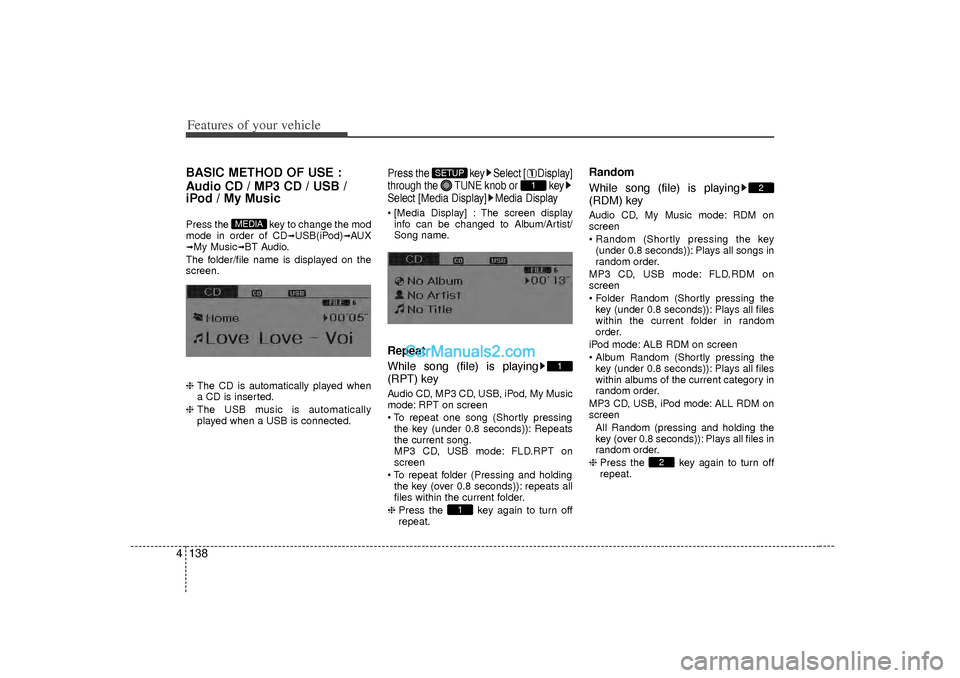
Press the key Select [ Display]
through the TUNE knob or key
Select [Media Display] Media Display [Media Display] : The screen display
info can be changed to Album/Artist/
Song name.Repeat
While song (file) is playing
(RPT) keyAudio CD, MP3 CD, USB, iPod, My Music
mode: RPT on screen
To repeat one song (Shortly pressingthe key (under 0.8 seconds)): Repeats
the current song.
MP3 CD, USB mode: FLD.RPT on
screen
To repeat folder (Pressing and holding the key (over 0.8 seconds)): repeats all
files within the current folder.
❈ Press the key again to turn off
repeat.
Random
While song (file) is playing
(RDM) keyAudio CD, My Music mode: RDM on
screen
Random (Shortly pressing the key
(under 0.8 seconds)): Plays all songs in
random order.
MP3 CD, USB mode: FLD.RDM on
screen
Folder Random (Shortly pressing the key (under 0.8 seconds)): Plays all files
within the current folder in random
order.
iPod mode: ALB RDM on screen
Album Random (Shortly pressing the key (under 0.8 seconds)): Plays all files
within albums of the current category in
random order.
MP3 CD, USB, iPod mode: ALL RDM on
screen All Random (pressing and holding thekey (over 0.8 seconds)): Plays all files in
random order.
❈ Press the key again to turn off
repeat.
2
2
1
1
1
SETUP
MEDIA
Page 221 of 411
4 139
Features of your vehicle
Changing Song/FileWhile song (file) is playing
key Shortly pressing the key (under 0.8seconds): Plays the current song from
the beginning.
❈ If the key is pressed again
within 1 second, the previous song is
played.
Pressing and holding the key (over 0.8 seconds): Rewinds the song.While song (file) is playing
key Shortly pressing the key (under 0.8seconds): Plays the next song.
Pressing and holding the key (over 0.8 seconds): Fast forwards the song.
ScanWhile song (file) is playing
keyScans all songs for 10 seconds starting
from the next song.
❈ Press the key again to turn off.
❈ The SCAN function is not supported in
iPod mode.Folder Search : MP3 CD, USB
ModeWhile file is playing
( ) (Folder Up) key Searches the next folder.While file is playing
( )(Folder Down) key Searches the previous folder.
❈ If a folder is selected by pressing the
TUNE knob, the first file within the
selected folder will be played.
❈ In iPod mode, moves to the Parent
Folder.
Searching Songs (File) Turning
TUNE
knob : Searches for
songs (files)
Pressing TUNE knob : Plays select- ed song (file).
HD/CAT
FOLDER
CAT
FOLDER
HD/CAT
FOLDER
CAT
FOLDER
SCAN
SCAN
SEEK
TRACK
SEEK
TRACK
SEEK
TRACK
Page 230 of 411

Features of your vehicle148
4PHONEBefore using the Bluetooth
®
phone
features
In order to use Bluetooth
®phone, you
must first pair and connect the
Bluetooth
®mobile phone.
If the mobile phone is not paired or con- nected, it is not possible to enter Phone
mode. Once a phone is paired or con-
nected, the guidance screen will be dis-
played.
If Priority is set upon vehicle ignition (IGN/ACC ON), the Bluetooth
®phone
will be automatically connected. Even if
you are outside, the Bluetooth®phone
will be automatically connected once
you are in the vicinity of the vehicle. If
you do not want automatic Bluetooth
®
phone connection, set the Bluetooth
®
power to OFF.
Making a call using the steering
wheel remote controller Check call history and making call➀
Shortly press (under 0.8 seconds) the key on the steering remote con-
troller .
➁
The call history list will be displayed
on the screen.
➂
Press the key again to connect a
call to the selected number.
Redialing the most recently called num- ber
➀
Press and hold (over 0.8 seconds) the key on the steering remote con-
troller.
➁
The most recently called number is
redialed. ❈
If call history does not exist, a screen
asking whether to download call histo-
ry is displayed. (The download feature
may not be supported in some mobile
phones)
Page 232 of 411
![Hyundai Sonata 2012 Owners Manual Features of your vehicle150
4
VOICE COMMANDStarting Voice Command To start voice command, shortly press
the key on the steering wheel
remote controller.
If voice command is in [Normal Mode], then](/manual-img/35/16810/w960_16810-231.png "Hyundai Sonata 2012 Owners Manual Features of your vehicle150
4
VOICE COMMANDStarting Voice Command To start voice command, shortly press
the key on the steering wheel
remote controller.
If voice command is in [Normal Mode], then")
Features of your vehicle150
4
VOICE COMMANDStarting Voice Command To start voice command, shortly press
the key on the steering wheel
remote controller.
If voice command is in [Normal Mode], then the system will say “Please say a
command. Beep”
❈ If voice command is in [Expert Mode],
then the system will only say a “Beep-”
❈ Setting Voice command [Normal
Mode]/[Expert Mode]:
Press the key Select [System]
through the TUNE knob or
key Select [Voice Command Mode]
through the TUNE knob Set
[Normal Mode]/[Expert Mode]
Say the voice command.
5
SETUP
CAUTION
For proper voice recognition, say the voice command after the guid- ance message and the “Beep”sound.
(Continued)
After do wnloading Bluetooth con-
tacts, the system requires some times to convert the contacts intovoice information. During this time, voice recognition may notoperate properly.
Upon inputting your contacts, special symbols and numberscannot be recognized by voice.For example, “# John Doe%&” willbe recognized as “John Doe”.
CAUTION IN USING
VOICE COMMAND
The voice recognition feature of this product supports recognitionof the commands listed withinthis user’s manual.
While using voice recognition, oper- ating the steering remote controlor the device will terminate voicerecognition and allow you to man-ually operate desired functions. Position the microphone above the head of the driver’s seat. For superi-or performance, maintain good pos-ture when saying voice commands. Voice recognition may not func- tion properly due to outsidenoise. The following conditions can affect the performance ofVoice Recognition:
- When the windows and sunroof are open
- When the heating/cooling sys- tem is on
- When passing a tunnel - When driving on rugged and uneven roads
(Continued)
Page 235 of 411
4 153
Features of your vehicle
Voice Command List Common Commands: These are commands that can be used in all situations. (However, some commands may not be support-ed in special circumstances.)
Command Function
More Help Provides guidance on commands that can be
used anywhere in the system.
Help Provides guidance on commands that can beused within the current mode.
Call
Phone Provides guidance on Phone related com- mands. After saying this command, say “Call
History”, “Contacts” to execute corresponding
functions.
Call History Displays the Call History screen.
Contacts Displays the Contacts screen. After sayingthis command, say the name of a contact
saved in the Contacts to automatically con-
nect the call.
RedialConnects the most recently called number.
Radio
When listening to the radio, displays the next
radio screen. (FM1
➟FM2
➟AM
➟XM1
➟
XM2
➟XM3
➟FM1)
When listening to a different mode, displaysthe most recently played radio screen.
FM When currently listening to the FM radio,
maintains the current state. When listening to a different mode, displaysthe most recently played FM screen.
Command Function
FM1(FM One) Displays the FM1 screen.FM2(FM Two) Displays the FM2 screen.AMDisplays the AM screen.
FM Preset 1~6 Plays the most recently played broadcast
saved in FM Preset 1~6.
AM Preset 1~6 Plays the broadcast saved in AM Preset 1~6.
FM 87.5~107.9 Plays the FM broadcast of the corresponding
frequency.
AM 530~1710 Plays the AM broadcast of the correspondingfrequency.
XM (Satellite) When currently listening to the XM, main-
tains the current state. When listening to a different mode, displaysthe most recently played XM screen.
XM (Satellite) 1~3
Displays the selected XM screen.
XM Channel Plays the selected XM channel.
Media Moves to the most recently played media
screen.
Play Track 1~30 If a music CD has been inserted, plays thecorresponding track.
CD Plays the music saved in the CD.
(Call by Name)
0~255
Page 241 of 411
4 159
Features of your vehicle
Blue Link
®
Hyundai aims to offer differentiated cus-
tomer values through a ‘Connected Car
Life,’ which is to provide consumers with
fast and reliable IT technology. As con-
sumers’ lifestyles become more and
more mobile in thanks to remarkable
advances in smart phones, tablet PCs
and overall wireless telecommunication,
new lifestyle patterns demand seamless
connection between one’s office, home,
outdoors and automobiles.
Automobile companies are now faced
with the task of shifting their paradigm
from vehicle-centered services to cus-
tomer value-centered services, with the
ultimate goal of securing global leader-
ship in the field of vehicle IT and telemat-
ics.
Hyundai Motor plans to achieve this by
realizing a terminal platform flexible to
changes in IT technology, cooperating
with global IT companies, creating an
eco-system and providing the latest con-
tents & services based on an open envi-
ronment.
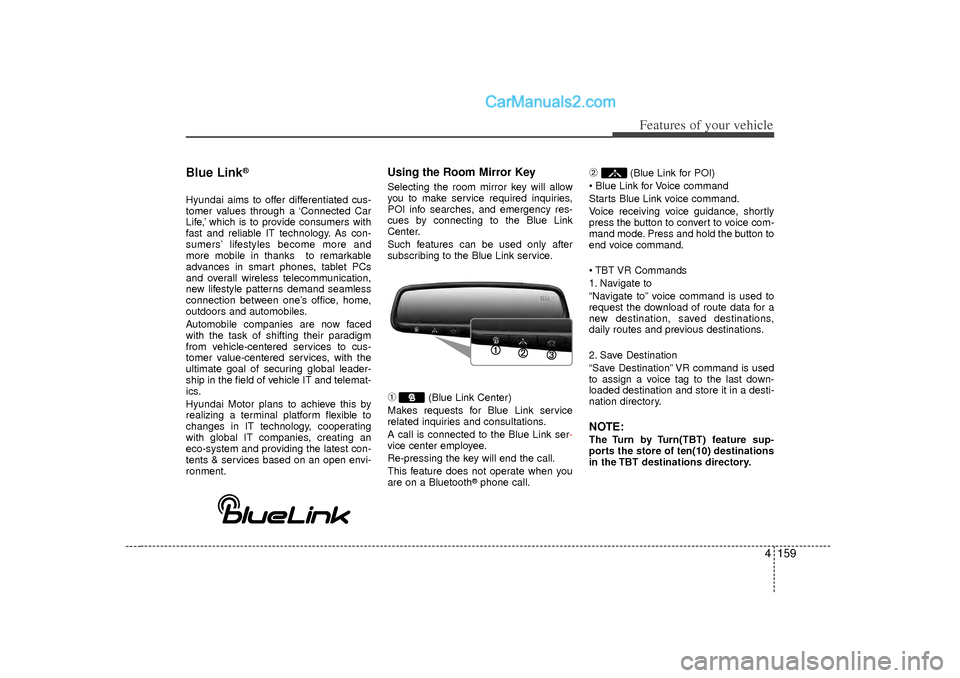
Using the Room Mirror KeySelecting the room mirror key will allow
you to make service required inquiries,
POI info searches, and emergency res-
cues by connecting to the Blue Link
Center.
Such features can be used only after
subscribing to the Blue Link service.➀
(Blue Link Center)
Makes requests for Blue Link service
related inquiries and consultations.
A call is connected to the Blue Link ser -
vice center employee.
Re-pressing the key will end the call.
This feature does not operate when you
are on a Bluetooth
®phone call.
➁
(Blue Link for POI)
Blue Link for Voice command
Starts Blue Link voice command.
Voice receiving voice guidance, shortly
press the button to convert to voice com-
mand mode. Press and hold the button to
end voice command.
TBT VR Commands
1. Navigate to
“Navigate to” voice command is used to
request the download of route data for a
new destination, saved destinations,
daily routes and previous destinations.
2. Save Destination
“Save Destination” VR command is used
to assign a voice tag to the last down-
loaded destination and store it in a desti-
nation directory.
NOTE:The Turn by Turn(TBT) feature sup-
ports the store of ten(10) destinations
in the TBT destinations directory.
Page 243 of 411
4 161
Features of your vehicle
Eco Coach What is Eco Coach?
Every 2.5 minutes, Eco Coach compares
your fuel economy against the govern-
ment tested average (EPA) or other simi-
lar Hyundai models (community), based
on your preference. Each month, or after
every tank fill up, Eco Coach rates your
extended average and gives you a
reward star if you best the average.
See your My Hyundai web page for more
information.
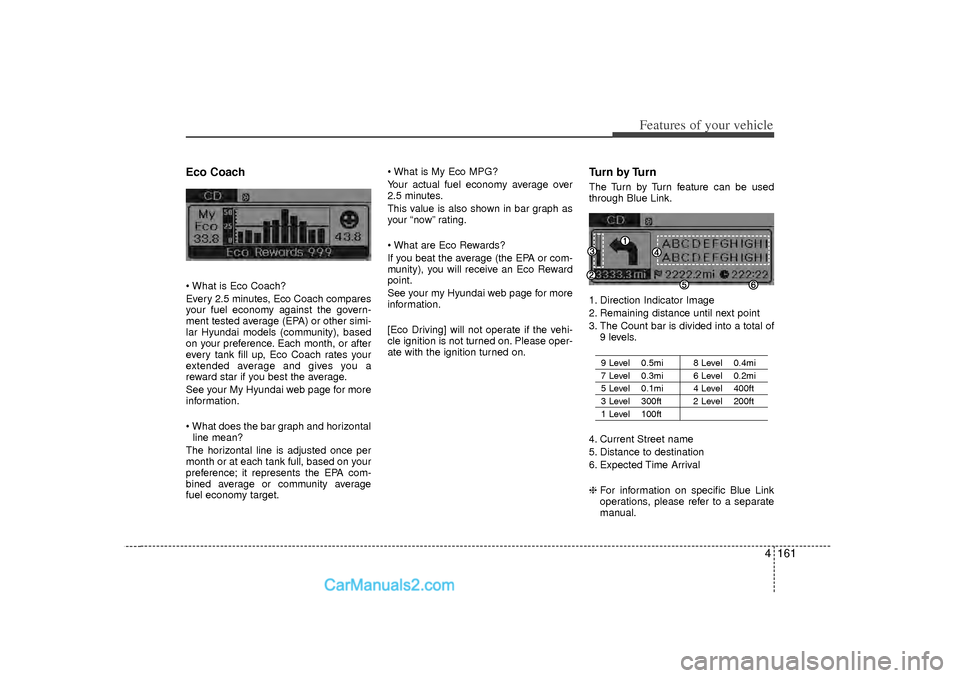
What does the bar graph and horizontalline mean?
The horizontal line is adjusted once per
month or at each tank full, based on your
preference; it represents the EPA com-
bined average or community average
fuel economy target. What is My Eco MPG?
Your actual fuel economy average over
2.5 minutes.
This value is also shown in bar graph as
your “now” rating.
What are Eco Rewards?
If you beat the average (the EPA or com-
munity), you will receive an Eco Reward
point.
See your my Hyundai web page for more
information.
[Eco Driving] will not operate if the vehi-
cle ignition is not turned on. Please oper-
ate with the ignition turned on.
Turn by TurnThe Turn by Turn feature can be used
through Blue Link.
1. Direction Indicator Image
2. Remaining distance until next point
3. The Count bar is divided into a total of
9 levels.
9 Level 0.5mi 8 Level 0.4mi7 Level 0.3mi 6 Level 0.2mi5 Level 0.1mi 4 Level 400ft 3 Level 300ft 2 Level 200ft1 Level 100ft
4. Current Street name
5. Distance to destination
6. Expected Time Arrival
❈ For information on specific Blue Link
operations, please refer to a separate
manual.