Page 167 of 361
166
uuAudio System Basic OperationuPlaying Pandora®
Features
Playing Pandora ®
Activate Pandora ®, and connect the iPhone ® using your dock connector to the USB
adapter cable, then press the AUX button.
2 USB Adapter Cable P. 151
U.S. modelsiPhone® use only
/ Buttons
Press to the next
station.
Press to the previous
station.
(Power) Button
Press to turn the audio
system on and off.
SKIP Button
Press to skip a song.
SETUP Button
Press to display menu items.
Selector Knob
Press to enter PANDORA MENU.
Turn to adjust the volume.
Press and turn to select an item, then
press to set your selection.
AUX Button
Press to select iPhone
® (if connected
when the Pandora ® application is
activated).
Album Art
Rating Icon
Page 169 of 361

168
uuAudio System Basic OperationuPlaying a USB Flash Drive
Features
Playing a USB Flash Drive
Your audio system reads and plays sound files on a USB flash drive in either MP3, WMA or AAC*1
format.
Connect your USB flash drive to the USB adapter cable, then press the AUX button.
2 USB Adapter Cable P. 151
*1:Only AAC format files recorded with iTunes ® are playable on this unit.
/ Buttons
Press to skip to the next
folder, and to skip to the
beginning of the previous
folder.
SCAN Button
You will get a 10-second
sampling of each file.● Press to sample all files in the current folder.
● Press two times to sample
the first file in each of the
main folders.
● To turn off scan, press and
hold the button. (Power) Button
Press to turn the audio system on and off.
SEEK/SKIP Buttons
Press or to change files.SETUP Button
Press to display menu items.
Selector Knob
Turn to adjust the volume.
Press and turn to select an item, then
press to set your selection.
AUX Button
Press to select USB flash drive (if connected).
USB Indicator
Comes on when a USB flash drive
is connected.
Page 172 of 361

171
uuAudio System Basic OperationuPlaying Bluetooth ® Audio
Continued
Features
Playing Bluetooth ® Audio
Your audio system allows you to listen to music from your Bluetooth®-compatible
phone.
This function is available when the phone is paired and linked to the vehicle's
Bluetooth ® HandsFreeLink ® (HFL) system.
2 Phone Setup P. 2011Playing Bluetooth ® Audio
Not all Bluetooth -enabled phones with streaming
audio capabilities are compatible with the system.
You can find an approved phone by visiting
www.handsfreelink.honda.com , or by calling the
HandsFreeLink ® consumer support at (888) 528 -
7876. In Canada, visit www.handsfreelink.ca, or call
(888) 528 -7876.
In some states, it may be illegal to perform some data
device functions while driving.
If more than one phone is paired to the HFL system,
there will be a delay before the system begins to play.
(Power) Button
Press to turn the
audio system on
and off.
SETUP Button Press to display
menu items.
Selector Knob
Turn to adjust the
volume.
Press to display the
device’s name.
AUX Button
Press to select
Bluetooth
® Audio.
SEEK/SKIP Buttons
Press or to
change files.
Bluetooth Indicator
Comes on when
your phone is
connected to HFL.
Preset 1 Button
Press to switch the
mode between
pause and resume.
Page 177 of 361

176
uuRear Entertainment System*uOperating the System
Features
■System Controls and Menus for DVD
TITLE Button
Press to display the status of the
DVD that is currently playing.
Use , , , or to highlight
a menu item, and press the
ENT
button to make a selection.
(Power) Button
Press to turn on the system.
CANCEL Button
Press to go back to the previous
display or operation.
SKIP Buttons
Press or to change
chapters.
Stop Button
Press to stop a DVD. DVD Button
Press to
watch a DVD.
AUX Button
Press to access AUX mode.
The following options appear when you play a
DVD and press the
MENU button.
Top Menu Menu
Play Mode Search Subtitle
Audio
Angle
Chapter
Title
OFF
NumInput Repeat
Chapter
Title
Return
The following options
appear when you play a
DVD and press the SETUP
button: Disp Adjust
Aspect Ratio
LanguageBrightness
Contrast
Black Level
Color
Tint
Normal Wide Zoom
Full
Rewind Button
Press and hold to reverse to
chapters.
Fast-forward Button
Press and hold to fast forward to
chapters.
Play/Pause Button
Press to pause the DVD. Press
to again resume.
Reset
MENU Button SETUP Button
Page 178 of 361

Continued177
uuRear Entertainment System*uOperating the System
Features
■
Playing a DVD
• Insert a DVD into the slot in the console compartment.
uThe system automatically starts the DVD.
• To fast forward, press and hold the fast-forward button, and to rewind, press and
hold the rewind button on the remote.
• To go to the next chapter, press the (SKIP) button, and to go to the beginning
of the current chapter, press the button on the remote. Quickly press the
button twice to go to the previous chapter.
■ TITLE button on the remote
Press the TITLE button while the DVD is playing to see the current status of title,
chapter, elapsed time, angle, subtitle, audio, and sound characteristics.
■ MENU button on the remote
Press the MENU button while the DVD is
playing to see the available options. Use the
and buttons to highlight the option and
then press the ENT button.
1Playing a DVD
DVD is available for the rear seat passengers only.
1TITLE button on the remote
Press the TITLE button again to return.
Page 180 of 361
179
uuRear Entertainment System*uOperating the System
Continued
Features
Search:
You can search for a DVD segment from the following methods.
Title Search - Select the title you want to play.
Chapter Search - Select the chapter you want to play.
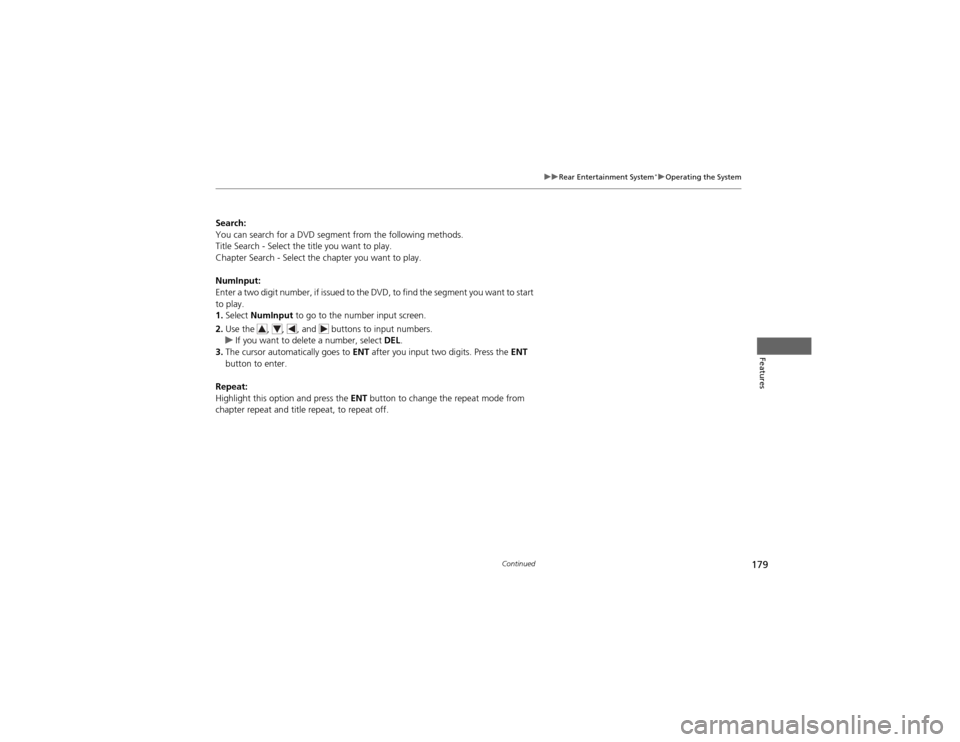
NumInput:
Enter a two digit number, if issued to the DVD, to find the segment you want to start to play. 1.
Select NumInput to go to the number input screen.
2. Use the , , , and buttons to input numbers.
uIf you want to delete a number, select DEL.
3. The cursor automatically goes to ENT after you input two digits. Press the ENT
button to enter.
Repeat:
Highlight this option and press the ENT button to change the repeat mode from
chapter repeat and title repeat, to repeat off.
Page 181 of 361
uuRear Entertainment System*uOperating the System
180
Features
■ SETUP button on the remote
Press the SETUP button while the DVD is
playing to see the available options. Use the
and buttons to highlight the option and
then press ENT.
Disp Adjust:
You can adjust the overhead screen’s Brightness, Contrast , Black Level , Color ,
and Tint. To return to the default display setting, select Reset.
After you make all the adjustments, the screen goes back to the top SETUP screen,
or press the CANCEL button to return.
Aspect Ratio:
You can select the screen mode with a different aspect ratio from Normal, Wide ,
Zoom , and Full. After you select the mode, it takes about one second to return to
the play mode with the selected ratio.
Language:
You can select the display language from English, French , and Spanish .1SETUP button on the remote
Some DVD formats do not allow for some of the
setting adjustments.
Page 183 of 361
182
uuRear Entertainment System*uOperating the System
Features
■System Controls and Menus for CD
Play/Pause Button
Press to pause the CD. Press to
again resume. (Power) Button
Press to turn the audio
system ON and OFF.
DVD Button
Press to listen
to a CD.
TITLE Button
Press to scroll titles on CD.
Use , , , or to
highlight a menu item, and
press the ENT button to make
a selection.
CANCEL Button
Press to go back to the
previous operation. Disp Adjust
LanguageBrightness
Contrast
Black Level
Appearance Black
Blue
Brown
White Red
The following options
appear when you play
a CD and press the SETUP
button:
SKIP Buttons
Press or to change tracks.
Rewind Button
Press and hold to reverse to
track. Fast-forward Button
Press and hold to fast forward to track.
SETUP Button
Reset