2012 DODGE CHARGER SRT ECO mode
[x] Cancel search: ECO modePage 165 of 546
Natural Speech
Natural speech allows the user to speak commands in
phrases or complete sentences. The system filters out
certain non-word utterances and sounds such as “ah”
and “eh”. The system handles fill-in words such as “I
would like to”.
The system handles multiple inputs in the same phrase
or sentence such as “make a phone call” and “to Kelly
Smith”. For multiple inputs in the same phrase or sen-
tence, the system identifies the topic or context and
provides the associated follow-up prompt such as “Who
do you want to call?” in the case where a phone call was
requested but the specific name was not recognized.The system utilizes continuous dialog; when the system
requires more information from the user it will ask a
question to which the user can respond without pressing
the Uconnect™ Voice Command
button.
Uconnect™ Voice Commands
The Uconnect™ Voice Command system understands
two types of commands. Universal commands are avail-
able at all times. Local commands are available if the
supported radio mode is active.
Start a dialogue by pressing the Uconnect™ Voice
Command
button.
3
UNDERSTANDING THE FEATURES OF YOUR VEHICLE 163
PAGE POSITION:163JOB:@zeta.tweddle.com/chry_pdm/CLS_chrysler/GRP_owners/JOB_918945-en-dsr-12D482-126-AA_DSR/DIV_og pubnum: 12D482-126-AB_DSR Natural Speech
Natural speech allows the user to speak commands in
phrases or complete sentences. The system filters out
certain non-word utterances and sounds such as “ah”
and “eh”. The system handles fill-in words such as “I
would like to”.
The system handles multiple inputs in the same phrase
or sentence such as “make a phone call” and “to Kelly
Smith”. For multiple inputs in the same phrase or sen-
tence, the system identifies the topic or context and
provides the associated follow-up prompt such as “Who
do you want to call?” in the case where a phone call was
requested but the specific name was not recognized.The system utilizes continuous dialog; when the system
requires more information from the user it will ask a
question to which the user can respond without pressing
the Uconnect™ Voice Command
button.
Uconnect™ Voice Commands
The Uconnect™ Voice Command system understands
two types of commands. Universal commands are avail-
able at all times. Local commands are available if the
supported radio mode is active.
Start a dialogue by pressing the Uconnect™ Voice
Command
button.
3
UNDERSTANDING THE FEATURES OF YOUR VEHICLE 163
PAGE POSITION:163JOB:@zeta.tweddle.com/chry_pdm/CLS_chrysler/GRP_owners/JOB_918945-en-dsr-12D482-126-AA_DSR/DIV_og pubnum: 12D482-126-AB_DSR
Page 166 of 546
Changing the Volume
1. Start a dialogue by pressing the Voice Command
button.
2. Say a command (e.g., “Help”).
3. Use the ON/OFF VOLUME rotary knob to adjust the
volume to a comfortable level while the Voice Command
system is speaking. Please note the volume setting for
Voice Command is different than the audio system.
Starting Voice Recognition (VR) Session in
Radio/Player Modes
In this mode, you can say the following commands:
NOTE:The commands can be said on any screen when
a call is not active after pushing the Uconnect™ Voice
Command
button.
Disc
To switch to the disc mode, say “Change source to Disc”.
This command can be given in any mode or screen:
•“Track” (#) (to change the track)
164 UNDERSTANDING THE FEATURES OF YOUR VEHICLE
PAGE POSITION:164JOB:@zeta.tweddle.com/chry_pdm/CLS_chrysler/GRP_owners/JOB_918945-en-dsr-12D482-126-AA_DSR/DIV_og pubnum: 12D482-126-AB_DSR Changing the Volume
1. Start a dialogue by pressing the Voice Command
button.
2. Say a command (e.g., “Help”).
3. Use the ON/OFF VOLUME rotary knob to adjust the
volume to a comfortable level while the Voice Command
system is speaking. Please note the volume setting for
Voice Command is different than the audio system.
Starting Voice Recognition (VR) Session in
Radio/Player Modes
In this mode, you can say the following commands:
NOTE:The commands can be said on any screen when
a call is not active after pushing the Uconnect™ Voice
Command
button.
Disc
To switch to the disc mode, say “Change source to Disc”.
This command can be given in any mode or screen:
•“Track” (#) (to change the track)
164 UNDERSTANDING THE FEATURES OF YOUR VEHICLE
PAGE POSITION:164JOB:@zeta.tweddle.com/chry_pdm/CLS_chrysler/GRP_owners/JOB_918945-en-dsr-12D482-126-AA_DSR/DIV_og pubnum: 12D482-126-AB_DSR
Page 175 of 546
second time to select LO-level heating. Press the soft-key
a third time to shut the heating elements OFF.
Front Heated Seat Operations — Vehicles
Equipped With Uconnect Touch™ 8.4 and 8.4 Nav:
Press the “Controls” soft-key located on the Uconnect
Touch™ display.
Press the “Driver” or “Passenger” seat soft-key
once to select HI-level heating. Press the soft-
key a second time to select LO-level heating.
Press the soft-key a third time to shut the
heating elements OFF.
NOTE:Once a heat setting is selected, heat will be felt
within two to five minutes.
When the HI-level setting is selected, the heater will
provide a boosted heat level during the first four minutes
of operation. Then, the heat output will drop to the
normal HI-level. If the HI-level setting is selected, thesystem will automatically switch to LO-level after a
maximum of 60 minutes of continuous operation. At that
time, the display will change from HI to LO, indicating
the change. The LO-level setting will turn OFF automati-
cally after a maximum of 45 minutes.
Vehicle Equipped With Remote Start
On models that are equipped with remote start, the
driver ’s heated seat can be programmed to come on
during a remote start. Refer to “Remote Starting System
— If Equipped” in “Things To Know Before Starting Your
Vehicle” for further information.
Rear Heated Seats
On some models, the two outboard seats are equipped
with heated seats. The heated seat switches for these
seats are located on the rear of the center console.
There are two heated seat switches that allow the rear
passengers to operate the seats independently. You can
3
UNDERSTANDING THE FEATURES OF YOUR VEHICLE 173
PAGE POSITION:173JOB:@zeta.tweddle.com/chry_pdm/CLS_chrysler/GRP_owners/JOB_918945-en-dsr-12D482-126-AA_DSR/DIV_og pubnum: 12D482-126-AB_DSR second time to select LO-level heating. Press the soft-key
a third time to shut the heating elements OFF.
Front Heated Seat Operations — Vehicles
Equipped With Uconnect Touch™ 8.4 and 8.4 Nav:
Press the “Controls” soft-key located on the Uconnect
Touch™ display.
Press the “Driver” or “Passenger” seat soft-key
once to select HI-level heating. Press the soft-
key a second time to select LO-level heating.
Press the soft-key a third time to shut the
heating elements OFF.
NOTE:Once a heat setting is selected, heat will be felt
within two to five minutes.
When the HI-level setting is selected, the heater will
provide a boosted heat level during the first four minutes
of operation. Then, the heat output will drop to the
normal HI-level. If the HI-level setting is selected, thesystem will automatically switch to LO-level after a
maximum of 60 minutes of continuous operation. At that
time, the display will change from HI to LO, indicating
the change. The LO-level setting will turn OFF automati-
cally after a maximum of 45 minutes.
Vehicle Equipped With Remote Start
On models that are equipped with remote start, the
driver ’s heated seat can be programmed to come on
during a remote start. Refer to “Remote Starting System
— If Equipped” in “Things To Know Before Starting Your
Vehicle” for further information.
Rear Heated Seats
On some models, the two outboard seats are equipped
with heated seats. The heated seat switches for these
seats are located on the rear of the center console.
There are two heated seat switches that allow the rear
passengers to operate the seats independently. You can
3
UNDERSTANDING THE FEATURES OF YOUR VEHICLE 173
PAGE POSITION:173JOB:@zeta.tweddle.com/chry_pdm/CLS_chrysler/GRP_owners/JOB_918945-en-dsr-12D482-126-AA_DSR/DIV_og pubnum: 12D482-126-AB_DSR
Page 176 of 546
choose from HI, LO or OFF heat settings. Amber indica-
tor lights in each switch indicate the level of heat in use.
Two indicator lights will illuminate for HI, one for LO
and none for OFF.
Press the switch once to select HI-level heating.
Press the switch a second time to select LO-
level heating. Press the switch a third time to
shut the heating elements OFF.
NOTE:
•Once a heat setting is selected, heat will be felt within
two to five minutes.
•The engine must be running for the heated seats to
operate.
When the HI-level setting is selected, the heater will
provide a boosted heat level during the first four minutes
of operation. Then, the heat output will drop to the
normal HI-level. If the HI-level setting is selected, thesystem will automatically switch to LO-level after a
maximum of 60 minutes of continuous operation. At that
time, the number of illuminated LEDs changes from two
to one, indicating the change. The LO-level setting will
turn OFF automatically after a maximum of 45 minutes.
Ventilated Seats
On some models, both the driver and passenger seats are
ventilated. Located in the seat cushion and seatback are
small fans that draw air from the seat surface through
fine perforations in the seat cover to help keep the driver
and front passenger cooler in higher ambient tempera-
tures.
The ventilated seats can be operated using the Uconnect
Touch™ System.
Front Ventilated Seat Operation — Uconnect
Touch™ 8.4/8.4 Nav:
Press the “Controls” soft-key located on the bottom of the
Uconnect Touch™ display.
174 UNDERSTANDING THE FEATURES OF YOUR VEHICLE
PAGE POSITION:174JOB:@zeta.tweddle.com/chry_pdm/CLS_chrysler/GRP_owners/JOB_918945-en-dsr-12D482-126-AA_DSR/DIV_og pubnum: 12D482-126-AB_DSR choose from HI, LO or OFF heat settings. Amber indica-
tor lights in each switch indicate the level of heat in use.
Two indicator lights will illuminate for HI, one for LO
and none for OFF.
Press the switch once to select HI-level heating.
Press the switch a second time to select LO-
level heating. Press the switch a third time to
shut the heating elements OFF.
NOTE:
•Once a heat setting is selected, heat will be felt within
two to five minutes.
•The engine must be running for the heated seats to
operate.
When the HI-level setting is selected, the heater will
provide a boosted heat level during the first four minutes
of operation. Then, the heat output will drop to the
normal HI-level. If the HI-level setting is selected, thesystem will automatically switch to LO-level after a
maximum of 60 minutes of continuous operation. At that
time, the number of illuminated LEDs changes from two
to one, indicating the change. The LO-level setting will
turn OFF automatically after a maximum of 45 minutes.
Ventilated Seats
On some models, both the driver and passenger seats are
ventilated. Located in the seat cushion and seatback are
small fans that draw air from the seat surface through
fine perforations in the seat cover to help keep the driver
and front passenger cooler in higher ambient tempera-
tures.
The ventilated seats can be operated using the Uconnect
Touch™ System.
Front Ventilated Seat Operation — Uconnect
Touch™ 8.4/8.4 Nav:
Press the “Controls” soft-key located on the bottom of the
Uconnect Touch™ display.
174 UNDERSTANDING THE FEATURES OF YOUR VEHICLE
PAGE POSITION:174JOB:@zeta.tweddle.com/chry_pdm/CLS_chrysler/GRP_owners/JOB_918945-en-dsr-12D482-126-AA_DSR/DIV_og pubnum: 12D482-126-AB_DSR
Page 177 of 546
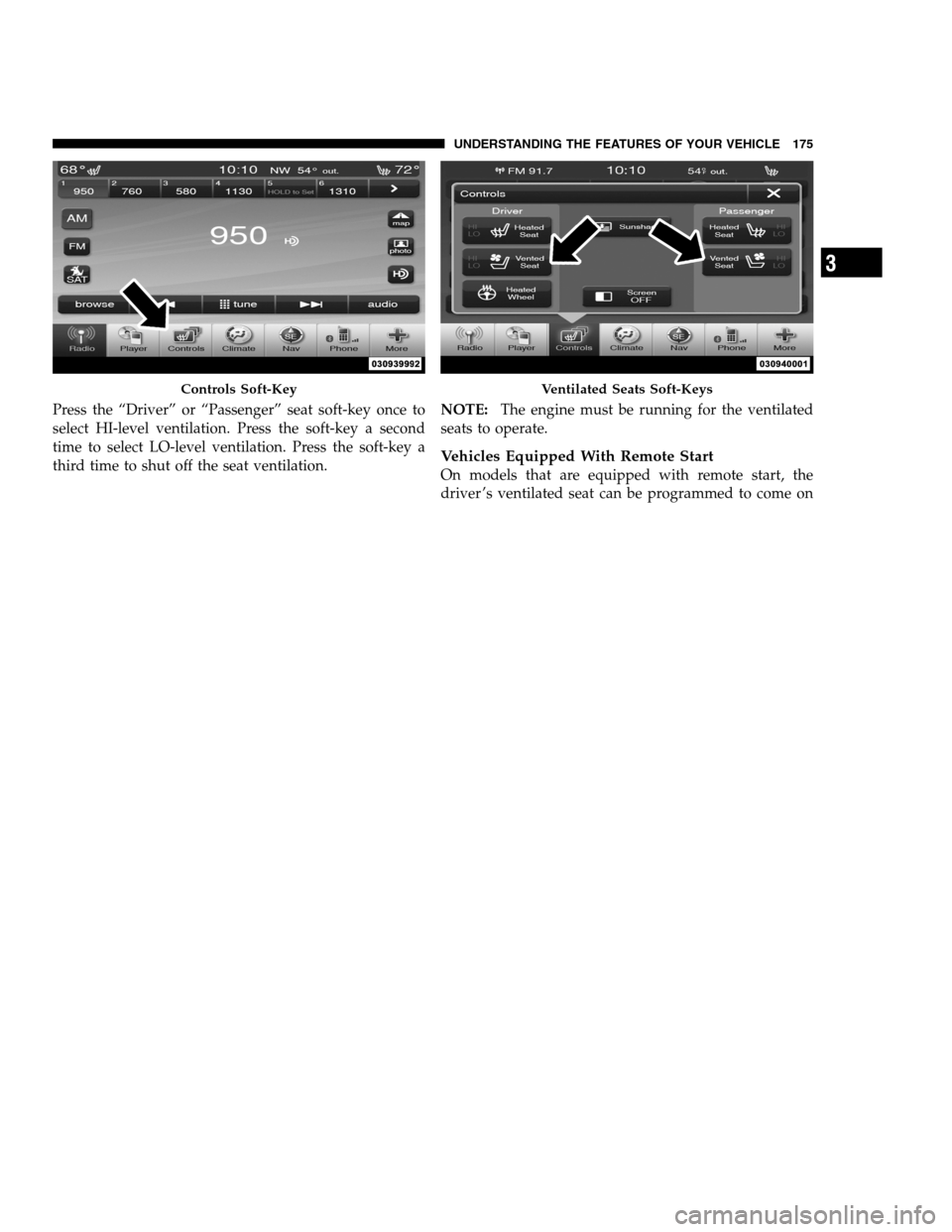
Press the “Driver” or “Passenger” seat soft-key once to
select HI-level ventilation. Press the soft-key a second
time to select LO-level ventilation. Press the soft-key a
third time to shut off the seat ventilation.NOTE:The engine must be running for the ventilated
seats to operate.
Vehicles Equipped With Remote Start
On models that are equipped with remote start, the
driver ’s ventilated seat can be programmed to come on
Controls Soft-KeyVentilated Seats Soft-Keys
3
UNDERSTANDING THE FEATURES OF YOUR VEHICLE 175
PAGE POSITION:175JOB:@zeta.tweddle.com/chry_pdm/CLS_chrysler/GRP_owners/JOB_918945-en-dsr-12D482-126-AA_DSR/DIV_og pubnum: 12D482-126-AB_DSR Press the “Driver” or “Passenger” seat soft-key once to
select HI-level ventilation. Press the soft-key a second
time to select LO-level ventilation. Press the soft-key a
third time to shut off the seat ventilation.NOTE:The engine must be running for the ventilated
seats to operate.
Vehicles Equipped With Remote Start
On models that are equipped with remote start, the
driver ’s ventilated seat can be programmed to come on
Controls Soft-KeyVentilated Seats Soft-Keys
3
UNDERSTANDING THE FEATURES OF YOUR VEHICLE 175
PAGE POSITION:175JOB:@zeta.tweddle.com/chry_pdm/CLS_chrysler/GRP_owners/JOB_918945-en-dsr-12D482-126-AA_DSR/DIV_og pubnum: 12D482-126-AB_DSR
Page 188 of 546
Rotate the headlight switch clockwise to the first detent
for parking light and instrument panel light operation.
Rotate the headlight switch to the second detent for
headlight, parking light and instrument panel light
operation.
Automatic Headlights
This system automatically turns the headlights on or off
according to ambient light levels. To turn the system on,
rotate the headlight switch counterclockwise to the
AUTO position. When the system is on, the headlight
time delay feature is also on. This means the headlights
will stay on for up to 90 seconds after you turn the
ignition switch OFF. To turn the automatic system off,
move the headlight switch out of the AUTO position.
NOTE:The engine must be running before the head-
lights will come on in the automatic mode.
Headlights On With Wipers
When this feature is active, the headlights will turn on
approximately 10 seconds after the wipers are turned on
if the headlight switch is placed in the AUTO position. In
addition, the headlights will turn off when the wipers are
turned off if they were turned on by this feature.
NOTE:The Headlights On with Wipers feature can be
turned on and off using the Uconnect Touch™ System,
refer to “Uconnect Touch™ Settings” in “Understanding
Your Instrument Panel” for further information.
SmartBeam™ — If Equipped
The SmartBeam™ system provides increased forward
lighting at night by automating high beam control
through the use of a digital camera mounted on the
inside rearview mirror. This camera detects vehicle spe-
cific light and automatically switches from high beams to
low beams until the approaching vehicle is out of view.
186 UNDERSTANDING THE FEATURES OF YOUR VEHICLE
PAGE POSITION:186JOB:@zeta.tweddle.com/chry_pdm/CLS_chrysler/GRP_owners/JOB_918945-en-dsr-12D482-126-AA_DSR/DIV_og pubnum: 12D482-126-AB_DSR Rotate the headlight switch clockwise to the first detent
for parking light and instrument panel light operation.
Rotate the headlight switch to the second detent for
headlight, parking light and instrument panel light
operation.
Automatic Headlights
This system automatically turns the headlights on or off
according to ambient light levels. To turn the system on,
rotate the headlight switch counterclockwise to the
AUTO position. When the system is on, the headlight
time delay feature is also on. This means the headlights
will stay on for up to 90 seconds after you turn the
ignition switch OFF. To turn the automatic system off,
move the headlight switch out of the AUTO position.
NOTE:The engine must be running before the head-
lights will come on in the automatic mode.
Headlights On With Wipers
When this feature is active, the headlights will turn on
approximately 10 seconds after the wipers are turned on
if the headlight switch is placed in the AUTO position. In
addition, the headlights will turn off when the wipers are
turned off if they were turned on by this feature.
NOTE:The Headlights On with Wipers feature can be
turned on and off using the Uconnect Touch™ System,
refer to “Uconnect Touch™ Settings” in “Understanding
Your Instrument Panel” for further information.
SmartBeam™ — If Equipped
The SmartBeam™ system provides increased forward
lighting at night by automating high beam control
through the use of a digital camera mounted on the
inside rearview mirror. This camera detects vehicle spe-
cific light and automatically switches from high beams to
low beams until the approaching vehicle is out of view.
186 UNDERSTANDING THE FEATURES OF YOUR VEHICLE
PAGE POSITION:186JOB:@zeta.tweddle.com/chry_pdm/CLS_chrysler/GRP_owners/JOB_918945-en-dsr-12D482-126-AA_DSR/DIV_og pubnum: 12D482-126-AB_DSR
Page 196 of 546
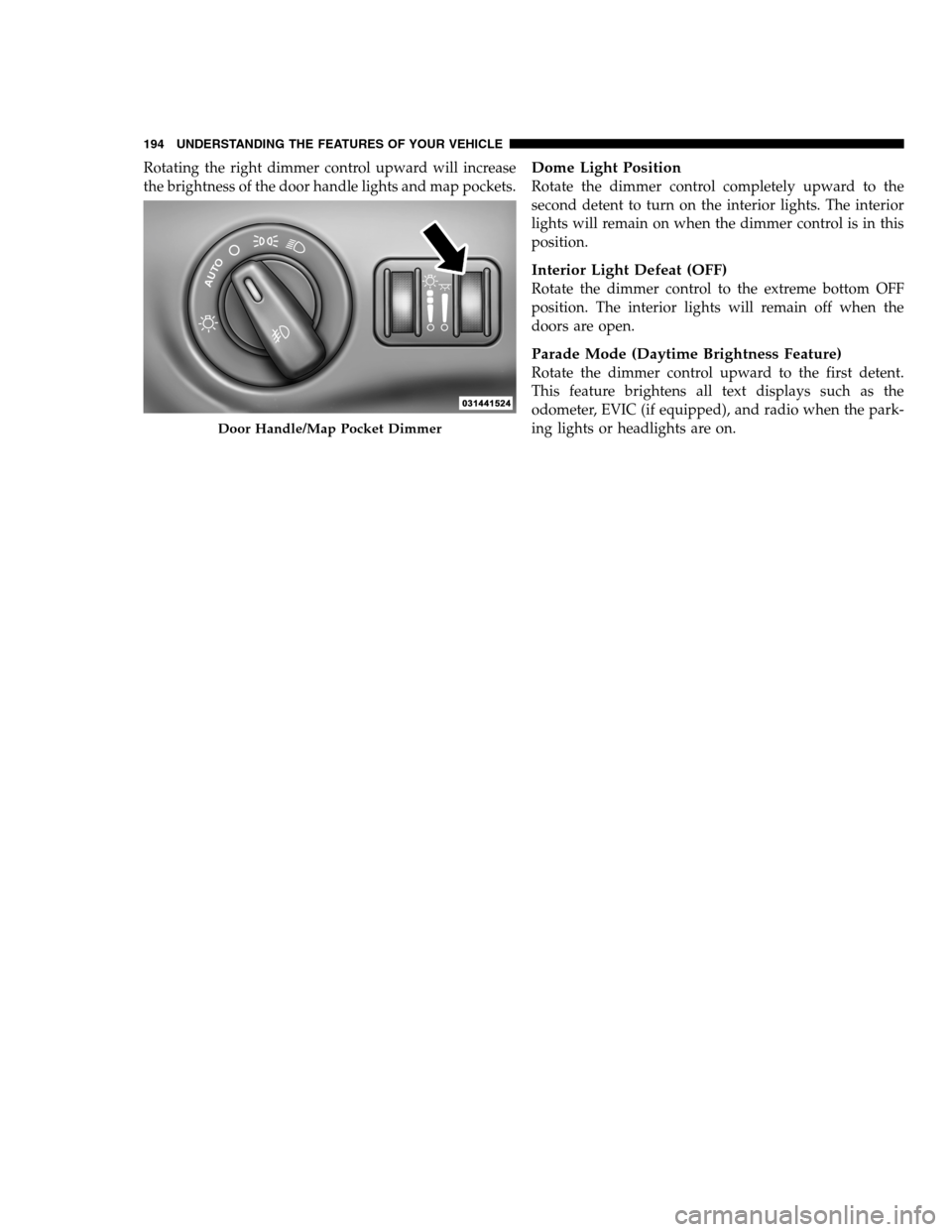
Rotating the right dimmer control upward will increase
the brightness of the door handle lights and map pockets.Dome Light Position
Rotate the dimmer control completely upward to the
second detent to turn on the interior lights. The interior
lights will remain on when the dimmer control is in this
position.
Interior Light Defeat (OFF)
Rotate the dimmer control to the extreme bottom OFF
position. The interior lights will remain off when the
doors are open.
Parade Mode (Daytime Brightness Feature)
Rotate the dimmer control upward to the first detent.
This feature brightens all text displays such as the
odometer, EVIC (if equipped), and radio when the park-
ing lights or headlights are on.
Door Handle/Map Pocket Dimmer
194 UNDERSTANDING THE FEATURES OF YOUR VEHICLE
PAGE POSITION:194JOB:@zeta.tweddle.com/chry_pdm/CLS_chrysler/GRP_owners/JOB_918945-en-dsr-12D482-126-AA_DSR/DIV_og pubnum: 12D482-126-AB_DSR Rotating the right dimmer control upward will increase
the brightness of the door handle lights and map pockets.Dome Light Position
Rotate the dimmer control completely upward to the
second detent to turn on the interior lights. The interior
lights will remain on when the dimmer control is in this
position.
Interior Light Defeat (OFF)
Rotate the dimmer control to the extreme bottom OFF
position. The interior lights will remain off when the
doors are open.
Parade Mode (Daytime Brightness Feature)
Rotate the dimmer control upward to the first detent.
This feature brightens all text displays such as the
odometer, EVIC (if equipped), and radio when the park-
ing lights or headlights are on.
Door Handle/Map Pocket Dimmer
194 UNDERSTANDING THE FEATURES OF YOUR VEHICLE
PAGE POSITION:194JOB:@zeta.tweddle.com/chry_pdm/CLS_chrysler/GRP_owners/JOB_918945-en-dsr-12D482-126-AA_DSR/DIV_og pubnum: 12D482-126-AB_DSR
Page 203 of 546
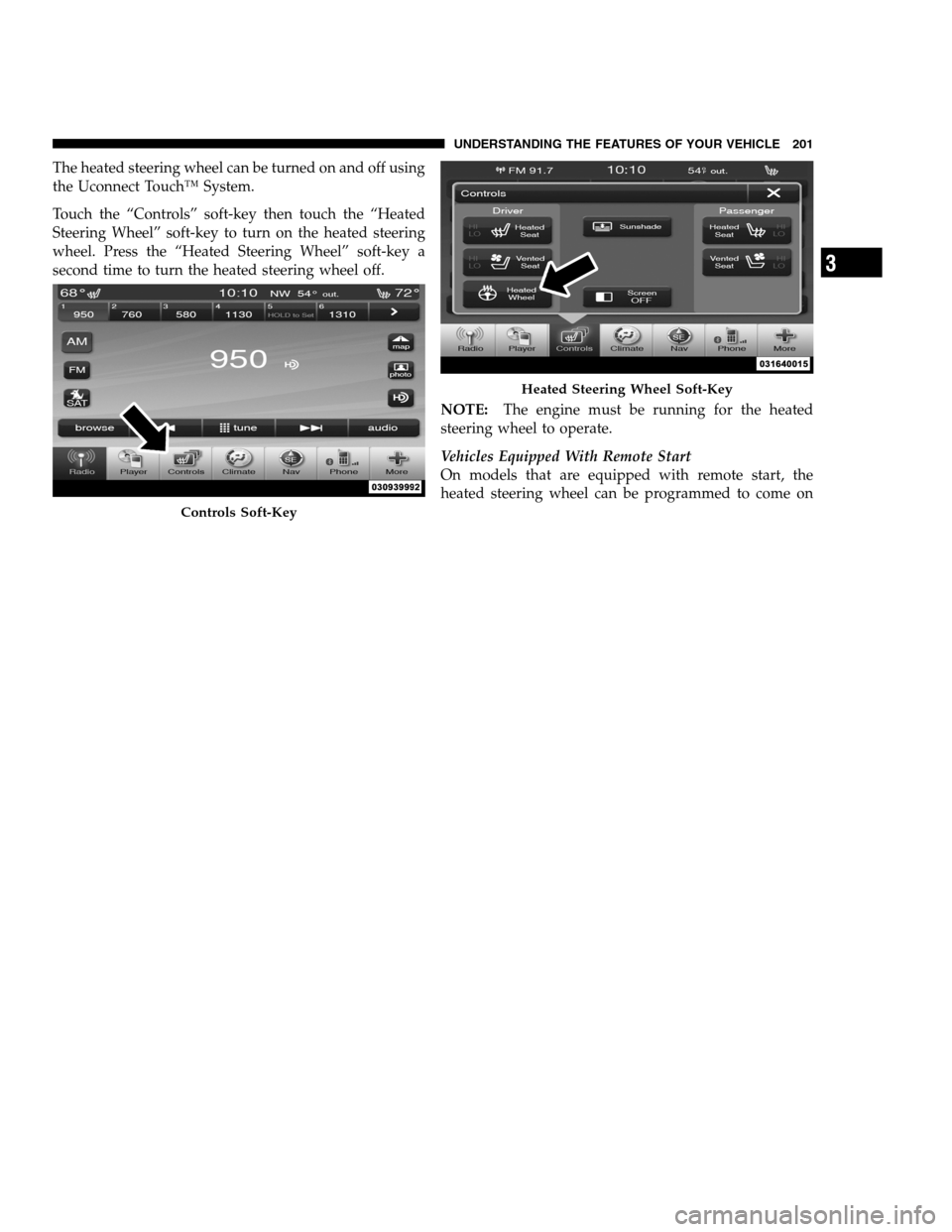
The heated steering wheel can be turned on and off using
the Uconnect Touch™ System.
Touch the “Controls” soft-key then touch the “Heated
Steering Wheel” soft-key to turn on the heated steering
wheel. Press the “Heated Steering Wheel” soft-key a
second time to turn the heated steering wheel off.
NOTE:The engine must be running for the heated
steering wheel to operate.
Vehicles Equipped With Remote Start
On models that are equipped with remote start, the
heated steering wheel can be programmed to come on
Controls Soft-Key
Heated Steering Wheel Soft-Key
3
UNDERSTANDING THE FEATURES OF YOUR VEHICLE 201
PAGE POSITION:201JOB:@zeta.tweddle.com/chry_pdm/CLS_chrysler/GRP_owners/JOB_918945-en-dsr-12D482-126-AA_DSR/DIV_og pubnum: 12D482-126-AB_DSR The heated steering wheel can be turned on and off using
the Uconnect Touch™ System.
Touch the “Controls” soft-key then touch the “Heated
Steering Wheel” soft-key to turn on the heated steering
wheel. Press the “Heated Steering Wheel” soft-key a
second time to turn the heated steering wheel off.
NOTE:The engine must be running for the heated
steering wheel to operate.
Vehicles Equipped With Remote Start
On models that are equipped with remote start, the
heated steering wheel can be programmed to come on
Controls Soft-Key
Heated Steering Wheel Soft-Key
3
UNDERSTANDING THE FEATURES OF YOUR VEHICLE 201
PAGE POSITION:201JOB:@zeta.tweddle.com/chry_pdm/CLS_chrysler/GRP_owners/JOB_918945-en-dsr-12D482-126-AA_DSR/DIV_og pubnum: 12D482-126-AB_DSR