Page 264 of 316

262
08MUSIC MEDIA PLAYERS
Insert the CD in the player, insert the USBmemory stick in the USB player or connect theUSB peripheral to the USB port using a suitablecable (not supplied)
.
The s
ystem builds playlists (in temporarymemory), an operation which can take froma few seconds to several minutes at the fi rstconnection.
R
educe the number of non-music fi les and the number of folders to reduce the waiting time.
The pla
ylists are updated every time the ignition
is switched off or connection of a USB memory stick. However, the system memorises these
lists and if they are not modifi ed, the loadingtime will be shorter.
Pla
y starts automatically after a period which
depends on the capacity of the USB memory stick. SELECTION OF SOURCE
Th
e MUSICbutton allows a direct change to the next media source.
" CD / MP3 CD
"
"
USB, iPod"
"AUX
" "
STREAMING
" "RADIO
"
Pr
ess MUSICto display the "MEDIA
" menu.
Select "Following media source " and confi rm.
Repeat the operation as many times as necessary to obtain the
desired media source (except for radio which is accessible with
RADIO).
SOURCES
Page 288 of 316

286
05
The system puts together playlists (temporary memory) createdover a period which depends on the capacity of the USB device.
The other sources are available durin
g this time.
The pla
ylists are updated each time the ignition is switched off or each time a USB memory stick is connected.
When connectin
g for the fi rst time, the classifi cation suggested
is by folder. When you reconnect, the classifi cation selected
previously is retained.
Connect the memory stick to the port, directly or using a lead. If the audio equipment is switched
on, the USB source is detected as soon as it
is connected. Pla
y begins automatically after a
delay which depends on the capacity of the USB memory stick.
The
fi le formats supported are .mp3 (mpeg1 layer 3 only), .wma (standard 9 only,
128 kbits/sec compression), .wav and .ogg.
Certain playlist formats are supported (.m3u, ...) .
On reconnection of the previous memory stickused, play is resumed automatically with the last
track played.
This unit consists o
f a USB port and an auxiliaryJack socket * . The audio fi les are transmitted
from a portable device - digital player or a USBmemory stick - to your Audio system and heard
via the vehicle's speakers.
USB memor
y stick (1.1, 1.2 and 2.0) or Apple®
player of generation 5 or later:
- U
SB memory sticks should be formatted FAT
or FAT 32 (NTFS not supported),
- the Apple ®player lead is essential,
- navi
gation through the fi le database is also
possible by means of the steering mountedcontrols.
The list of compatible equipment and the compression rates supported are available from CITROËN dealers. pqpp
USING THE USB BOX
CONNECTING A USB MEMORY STICK
Other Apple®
players of earlier generations and®
players using the MTP protocol * :
- pla
y via Jack-Jack lead only (not supplied),
- navi
gation through the fi le database is from
the portable device.
*
Accordin
g to vehicle.
Page 291 of 316

289
06BLUETOOTH FUNCTIONS
For safety reasons and because they require prolonged attentionon the part of the driver, the operations for pairing of the Bluetooth mobile telephone with the Bluetooth hands-free system of your
audio equipment must be carried out with the vehicle stationary
and the ignition on.
Pr
ess the MENU button.
A window is displayed with a message that a search is in progress.
Activate the telephone's Bluetooth
function
and ensure that it is "visible to all" (telephone confi guration.
In the menu, select:
- Bluetooth telephone
function -
Audio
- Bluetooth confi
guration
- P
erform a Bluetooth search
The services o
ffered depend on the network, the SIM card and thecompatibility of the Bluetooth equipment used.
Consult your telephone's manual and your operator to fi nd out which
services are available to you.
BLUETOOTH TELEPHONE SCREEN C
The TELEPH
ONE menu permits access to the following functions
in particular: Directory * , Call list, Pairing management.
The
fi rst 4 telephones recognised are displayed in this window.
A virtual ke
ypad is displayed in thescreen: enter a code with at least 4 digits.
Confi rm by pressing OK.
A messa
ge that the pairing has been successful appears in the screen.
Select the telephone to be connected from the list. Only one
telephone can be connected at a time.
A messa
ge is displayed in the screen of the
telephone chosen. To accept the pairing, enter the same code on the telephone, then confi rm with OK.
The automatic connection authorised is onl
y active after the
telephone has been confi gured.
The directory and the call list can be accessed a
fter thesynchronisation period.
(Available according to model and version)
*
If your telephone is fully compatible.
I
f pairing fails, the number of attempts is not limited. Go to www.citroen.co.uk for more information
(compatibility, more help, ...).
PAIRING A TELEPHONE / FIR
ST CONNECTION
Page 293 of 316
291
06
Initiate the pairing between the telephone and
the vehicle. This pairing can be initiated from
the vehicle's telephone function menu or via the
telephone's ke
ypad. See steps 1 to 9 on the previouspages. During the pairing phase, the vehicle must bestationary with the key in the ignition.
Select the telephone to be connected from the telephone function
menu.
The audio system connects to a newly paired telephone automatically.
BLUETOOTH AUDIO STREAMING *
Wireless transmission of the telephone's music fi les via the audioequipment. The telephone must be able to manage the appropriate
Bluetooth profi les (Profi les A2DP / AV RCP).
*
Depending on the compatibility of the telephone.
**
In certain cases, playing of the Audio fi les must be initiated from the
keypad.
***
If the tele
phone supports the function.
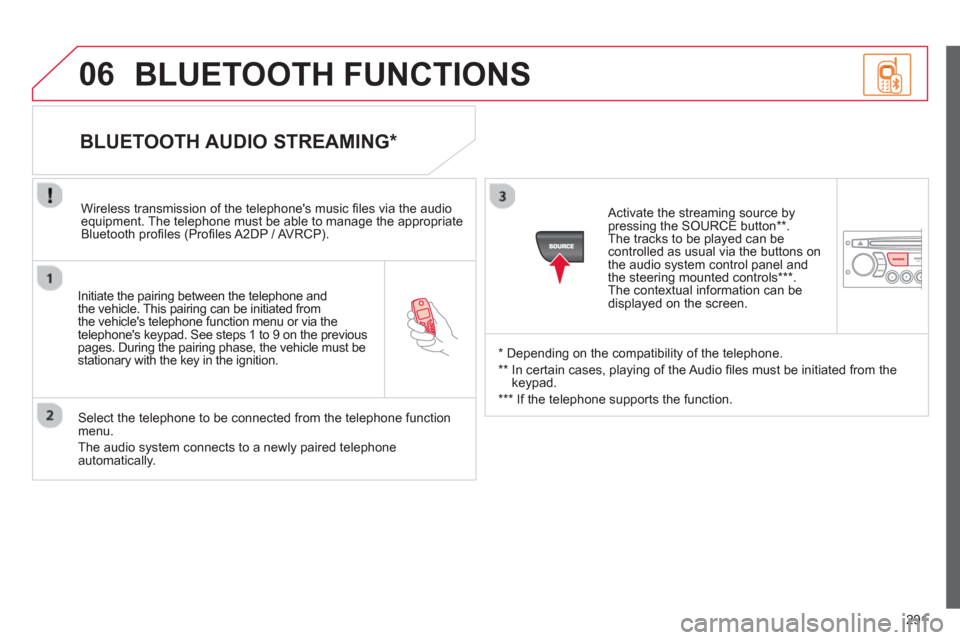
Activate the streamin
g source by
pressing the SOURCE button ** .The tracks to be played can becontrolled as usual via the buttons on
the audio system control panel andthe steering mounted controls *** .
The contextual information can bedisplayed on the screen.
BLUETOOTH FUNCTIONS