2012 CHEVROLET ORLANDO light
[x] Cancel search: lightPage 149 of 378

Black plate (3,1)Chevrolet Orlando Owner Manual - 2012
Infotainment System 7-3
D.#
.CD: Moves up one folder
level while playing an MP3.
E.
k
.CD: Pauses playback, and
stops playback.
F.
!
.CD: Moves back one folder
level while playing an MP3.
G.
l
.Radio: Seeks the next
station.
.CD: Selects the next track
or fast forwards within a
track.
H. CLOCK
.Opens the clock menu. I. INFO
.Radio: Shows available
information about the
current station.
.CD: Shows available
information about the
current track.
J. TONE
.Opens the tone menu.
K. AS
.Radio: Opens the
autostore stations list.
L. BAND
.Changes the band while
listening to the radio.
.Selects the radio when
listening to a different
audio source.
M. CD/AUX
.Selects the CD player or
an external audio source.
N. CONFIG
.Opens the settings menu. O.
5\>
.Opens the phone
main menu.
.Mutes the audio system.
P. FAV
.Radio: Opens the
favorites list.
Q. BACK
.Menu: Moves one
level back.
.Character Input: Deletes
the last character.
R. MENU
.Turn to open menus,
highlight menu items,
or set numeric values while
in a menu.
.Press to select menu
items.
.Radio: Manually selects
radio stations.
.CD: Selects tracks.
Page 151 of 378
Black plate (5,1)Chevrolet Orlando Owner Manual - 2012
Infotainment System 7-5
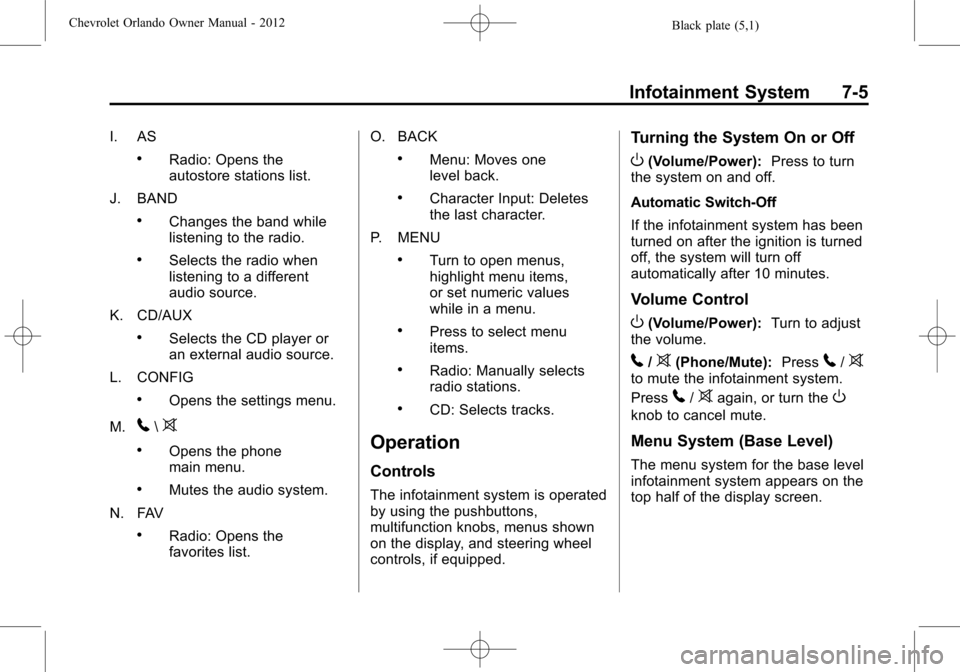
I. AS
.Radio: Opens the
autostore stations list.
J. BAND
.Changes the band while
listening to the radio.
.Selects the radio when
listening to a different
audio source.
K. CD/AUX
.Selects the CD player or
an external audio source.
L. CONFIG
.Opens the settings menu.
M.
5\>
.Opens the phone
main menu.
.Mutes the audio system.
N. FAV
.Radio: Opens the
favorites list. O. BACK
.Menu: Moves one
level back.
.Character Input: Deletes
the last character.
P. MENU
.Turn to open menus,
highlight menu items,
or set numeric values
while in a menu.
.Press to select menu
items.
.Radio: Manually selects
radio stations.
.CD: Selects tracks.
Operation
Controls
The infotainment system is operated
by using the pushbuttons,
multifunction knobs, menus shown
on the display, and steering wheel
controls, if equipped.
Turning the System On or Off
O(Volume/Power): Press to turn
the system on and off.
Automatic Switch-Off
If the infotainment system has been
turned on after the ignition is turned
off, the system will turn off
automatically after 10 minutes.
Volume Control
O(Volume/Power): Turn to adjust
the volume.
5/>(Phone/Mute): Press5/>to mute the infotainment system.
Press
5/>again, or turn theO
knob to cancel mute.
Menu System (Base Level)
The menu system for the base level
infotainment system appears on the
top half of the display screen.
Page 153 of 378
Black plate (7,1)Chevrolet Orlando Owner Manual - 2012
Infotainment System 7-7
2. Turn the MENU knob to displaythe setting.
3. Press the MENU knob to activate the setting.
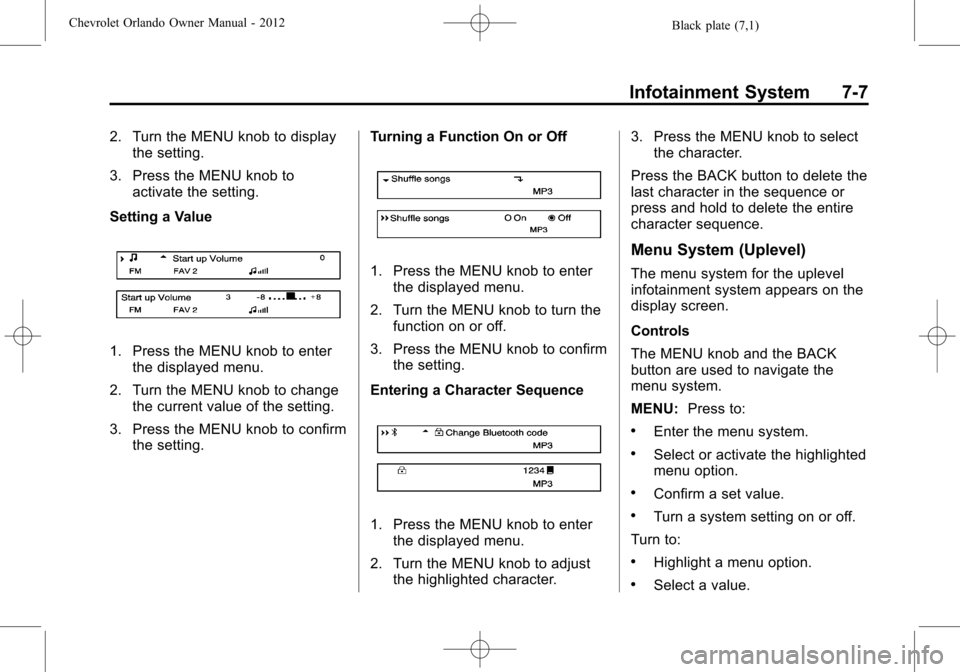
Setting a Value
1. Press the MENU knob to enter the displayed menu.
2. Turn the MENU knob to change the current value of the setting.
3. Press the MENU knob to confirm the setting. Turning a Function On or Off
1. Press the MENU knob to enter
the displayed menu.
2. Turn the MENU knob to turn the function on or off.
3. Press the MENU knob to confirm the setting.
Entering a Character Sequence
1. Press the MENU knob to enter the displayed menu.
2. Turn the MENU knob to adjust the highlighted character. 3. Press the MENU knob to select
the character.
Press the BACK button to delete the
last character in the sequence or
press and hold to delete the entire
character sequence.
Menu System (Uplevel)
The menu system for the uplevel
infotainment system appears on the
display screen.
Controls
The MENU knob and the BACK
button are used to navigate the
menu system.
MENU: Press to:
.Enter the menu system.
.Select or activate the highlighted
menu option.
.Confirm a set value.
.Turn a system setting on or off.
Turn to:
.Highlight a menu option.
.Select a value.
Page 154 of 378
Black plate (8,1)Chevrolet Orlando Owner Manual - 2012
7-8 Infotainment System
BACK:Press to:
.Exit a menu.
.Return from a submenu screen
to the previous menu screen.
.Delete the last character in a
sequence.
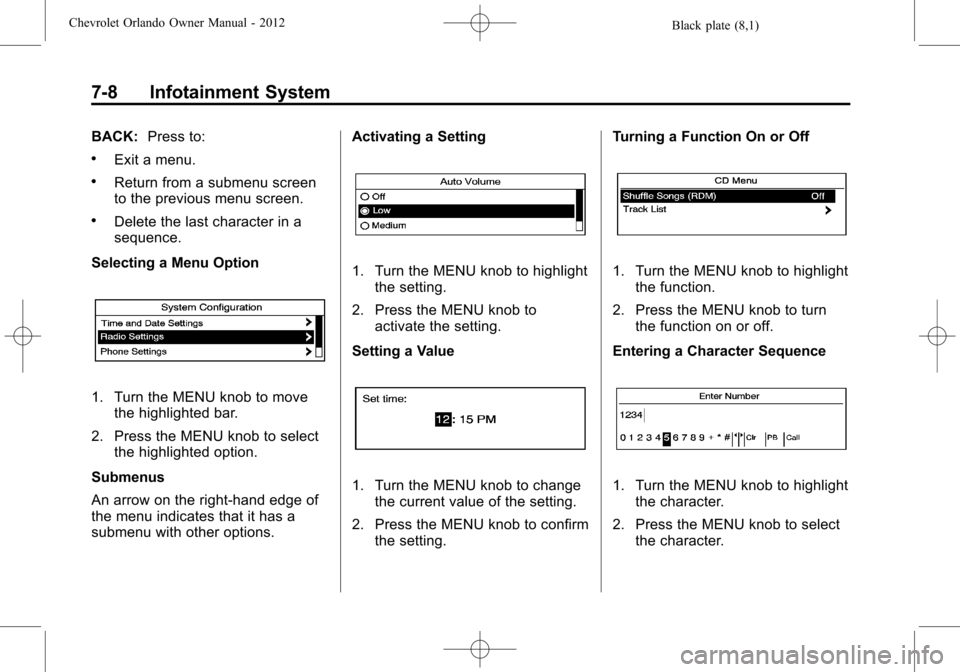
Selecting a Menu Option
1. Turn the MENU knob to move the highlighted bar.
2. Press the MENU knob to select the highlighted option.
Submenus
An arrow on the right-hand edge of
the menu indicates that it has a
submenu with other options. Activating a Setting
1. Turn the MENU knob to highlight
the setting.
2. Press the MENU knob to activate the setting.
Setting a Value
1. Turn the MENU knob to change the current value of the setting.
2. Press the MENU knob to confirm the setting. Turning a Function On or Off
1. Turn the MENU knob to highlight
the function.
2. Press the MENU knob to turn the function on or off.
Entering a Character Sequence
1. Turn the MENU knob to highlight the character.
2. Press the MENU knob to select the character.
Page 159 of 378
Black plate (13,1)Chevrolet Orlando Owner Manual - 2012
Infotainment System 7-13
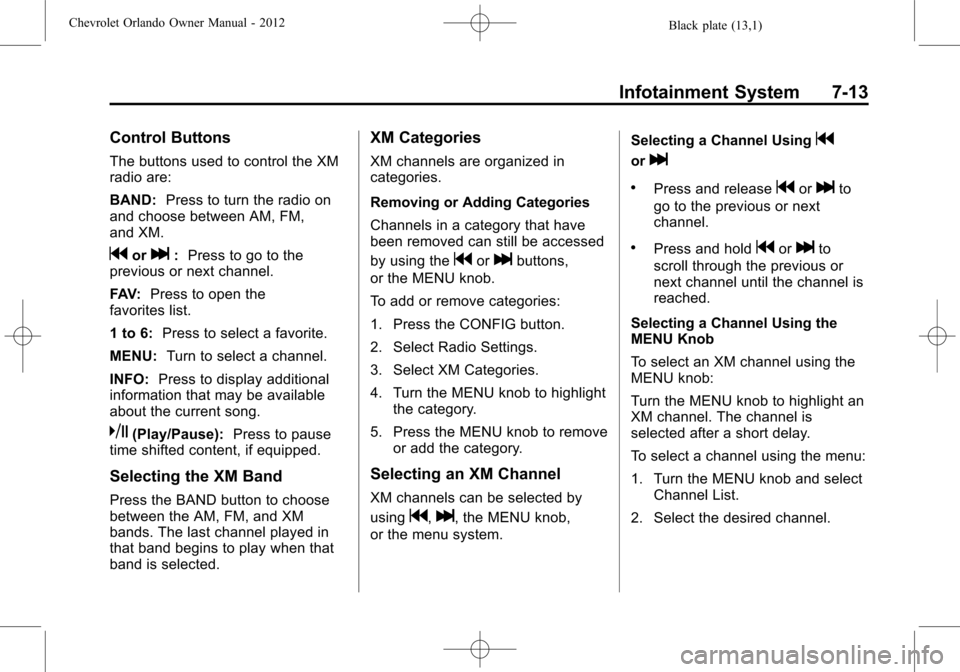
Control Buttons
The buttons used to control the XM
radio are:
BAND:Press to turn the radio on
and choose between AM, FM,
and XM.
gorl: Press to go to the
previous or next channel.
FAV: Press to open the
favorites list.
1 to 6: Press to select a favorite.
MENU: Turn to select a channel.
INFO: Press to display additional
information that may be available
about the current song.
k(Play/Pause): Press to pause
time shifted content, if equipped.
Selecting the XM Band
Press the BAND button to choose
between the AM, FM, and XM
bands. The last channel played in
that band begins to play when that
band is selected.
XM Categories
XM channels are organized in
categories.
Removing or Adding Categories
Channels in a category that have
been removed can still be accessed
by using the
gorlbuttons,
or the MENU knob.
To add or remove categories:
1. Press the CONFIG button.
2. Select Radio Settings.
3. Select XM Categories.
4. Turn the MENU knob to highlight the category.
5. Press the MENU knob to remove or add the category.
Selecting an XM Channel
XM channels can be selected by
using
g,l, the MENU knob,
or the menu system. Selecting a Channel Using
g
orl
.Press and releasegorlto
go to the previous or next
channel.
.Press and holdgorlto
scroll through the previous or
next channel until the channel is
reached.
Selecting a Channel Using the
MENU Knob
To select an XM channel using the
MENU knob:
Turn the MENU knob to highlight an
XM channel. The channel is
selected after a short delay.
To select a channel using the menu:
1. Turn the MENU knob and select Channel List.
2. Select the desired channel.
Page 162 of 378

Black plate (16,1)Chevrolet Orlando Owner Manual - 2012
7-16 Infotainment System
under heavy foliage, bridges,
garages, or tunnels may cause loss
of the XM signal for a period of time.
Cellular Phone Usage
Cellular phone usage may cause
interference with the vehicle's radio.
This interference may occur when
making or receiving phone calls,
charging the phone's battery,
or simply having the phone on. This
interference can cause an increased
level of static while listening to the
radio. If static is received while
listening to the radio, unplug the
cellular phone and turn it off.
Satellite Radio Antenna
The XM Satellite Radio antenna is
located on the roof of the vehicle.
Keep the antenna clear of
obstructions for clear radio
reception.
If the vehicle has a sunroof, the
performance of the XM system may
be affected if the sunroof is open.
Multi-Band Antenna
The multi-band antenna is on the
roof of the vehicle. The antenna is
used for the AM‐FM radio, OnStar,
the XM Satellite Radio Service
System, and GPS (Global
Positioning System), if the vehicle
has these features. Keep the
antenna clear of obstructions for
clear reception.
Audio Players
CD Player
The CD player can play audio CDs
and MP3 CDs.
The CD player will not play
8 cm (3 in) CDs.
Care of CDs
Sound quality can be reduced due
to disc quality, recording method,
quality of the music recorded, and
how the disc has been handled.
Handle discs carefully and store
them in their original cases or other
protective cases away from direct
sunlight and dust. If the bottom
surface of a disc is damaged, the
disc may not play properly or at all.
Do not touch the bottom surface of
a disc while handling it; this could
damage the surface. Pick up discs
by grasping the outer edges or the
edge of the hole and the outer edge.
If the bottom surface of a disc is
dirty, take a soft lint‐free cloth,
or dampen a clean soft cloth in a
Page 170 of 378
Black plate (24,1)Chevrolet Orlando Owner Manual - 2012
7-24 Infotainment System
4. Select Pair Device (Phone). Afour‐digit Personal Identification
Number (PIN) appears on the
display. The PIN is used in
Step 6.
5. Start the pairing process on the cell phone to be paired to the
vehicle. See the cell phone
manufacturer's user guide for
information on this process.
6. Locate the device named “Your
Vehicle” in the list on the cell
phone. Follow the instructions
on the cell phone to enter the
PIN provided in Step 4. After the
PIN is successfully entered, the
system prompts you to provide a
name for the paired cell phone.
This name will be used to
indicate which phones are
paired and connected to the
vehicle. The system responds
with “
successfully paired” after the
pairing process is complete.
7. Repeat Steps 1 through 6 to pair additional phones. Listing All Paired and Connected
Phones
1. Press the CONFIG button.
2. Select Phone Settings.
3. Select Bluetooth.
4. Select Device List.
Deleting a Paired Phone
1. Press the CONFIG button.
2. Select Phone Settings.
3. Select Bluetooth.
4. Select Device List.
5. Select the phone to delete and
follow the on screen prompts.
Linking to a Different Phone
To link to a different phone, the new
phone must be in the vehicle and
available to be connected to the
Bluetooth system before the
process is started.
1. Press the CONFIG button.
2. Select Phone Settings.
3. Select Bluetooth. 4. Select Device List.
5. Select the new phone to link to
and follow the on screen
prompts.
If delete is selected, the
highlighted phone will be
deleted.
Making a Call Using
Phone Book
For cell phones that support the
phone book feature, the Bluetooth
system can use the contacts stored
on your cell phone to make calls.
See your cell phone's owner's guide
or contact your wireless provider to
find out if this feature is supported
by your phone.
When a cell phone supports the
phone book feature, the Phone
Book and Call Lists menus are
automatically available.
The Phone Book menu allows you
to access the phone book stored in
the cell phone to make a call.
Page 184 of 378
Black plate (2,1)Chevrolet Orlando Owner Manual - 2012
8-2 Climate Controls
F. Driver and Passenger HeatedSeats (If Equipped)
G. Rear Window Defogger
H. Recirculation
I. Defog
J. Air Conditioning
K. Defrost
Fan Control: Turn to increase or
decrease the fan speed.
Temperature Control: Turn to
increase or decrease the
temperature.
Air Delivery Mode Control: To
change the current mode, press one
of the following:
F (Vent): Air is directed to the
instrument panel outlets.
* (Bi-level): Air is directed to the
instrument panel outlets and the
floor outlets.
7 (Floor): Air is directed to the
floor outlets.W(Defog): Clears the windows of
fog or moisture. Air is directed to the
windshield and floor outlets.
0(Defrost): Clears the
windshield of fog or frost more
quickly. Air is directed to the
windshield and side window outlets.
For best results, clear all snow and
ice from the windshield before
defrosting.
Do not drive the vehicle until all the
windows are clear.
Air Conditioning
#(Air Conditioning, If
Equipped): Press to turn the air
conditioning on or off. If the fan is
turned off or the outside
temperature falls below freezing, the
air conditioning compressor will
not work.
h(Recirculation, If Equipped):
Press to turn on the recirculation.
An indicator light comes on. Air is
recirculated inside the vehicle. It helps to quickly cool the air inside
the vehicle or prevent outside air
and odors from entering.
Rear Window Defogger
1(Rear Defogger):
Press to turn
the rear window defogger on or off.
The rear window defogger turns off
after about 10 minutes. It can also
be turned off by turning the ignition
to ACC/ACCESSORY or LOCK/
OFF. If turned on again it runs
for about five minutes before
turning off.
Do not drive the vehicle until all the
windows are clear.
Notice: Do not use a razor blade
or sharp object to clear the inside
rear window. Do not adhere
anything to the defogger grid
lines in the rear glass. These
actions may damage the rear
defogger. Repairs would not be
covered by your warranty.