2012 CHEVROLET EQUINOX buttons
[x] Cancel search: buttonsPage 165 of 428
Black plate (5,1)Chevrolet Equinox Owner Manual - 2012
Infotainment System 7-5
Overview (Radio with CD
and Touchscreen)
For vehicles equipped with the
MyLink®or IntelliLink®infotainment
system, see the separate MyLink/
IntelliLink Features and Functions
Guide for more information.
Keeping your eyes on the road and
your mind on the drive is important
for safe driving. The infotainment
system has built-in features
intended to help with this by
disabling some features when
driving. A grayed-out function is not
available when the vehicle is
moving. All functions are available when the
vehicle is parked. Do the following
before driving:.Become familiar with the
infotainment system operation,
buttons on the faceplate, and
touch-sensitive screen buttons.
.Set up the audio by presetting
favorite stations, setting the
tone, and adjusting the
speakers.
.Set up phone numbers in
advance so they can be called
easily by pressing a single
button or a single voice
command for vehicles equipped
with phone capability.
{WARNING
Taking your eyes off the road too
long or too often while using the
navigation system could cause a
crash and you or others could be
injured or killed. Focus your
attention on driving and limit
glances at the moving map on the
navigation screen. Use voice
guidance whenever possible.
Infotainment System Overview
The infotainment system is
controlled by using the buttons on
the faceplate and the touch screen.
See
“Infotainment Control Buttons”
in this section for more information.
Page 166 of 428
Black plate (6,1)Chevrolet Equinox Owner Manual - 2012
7-6 Infotainment System
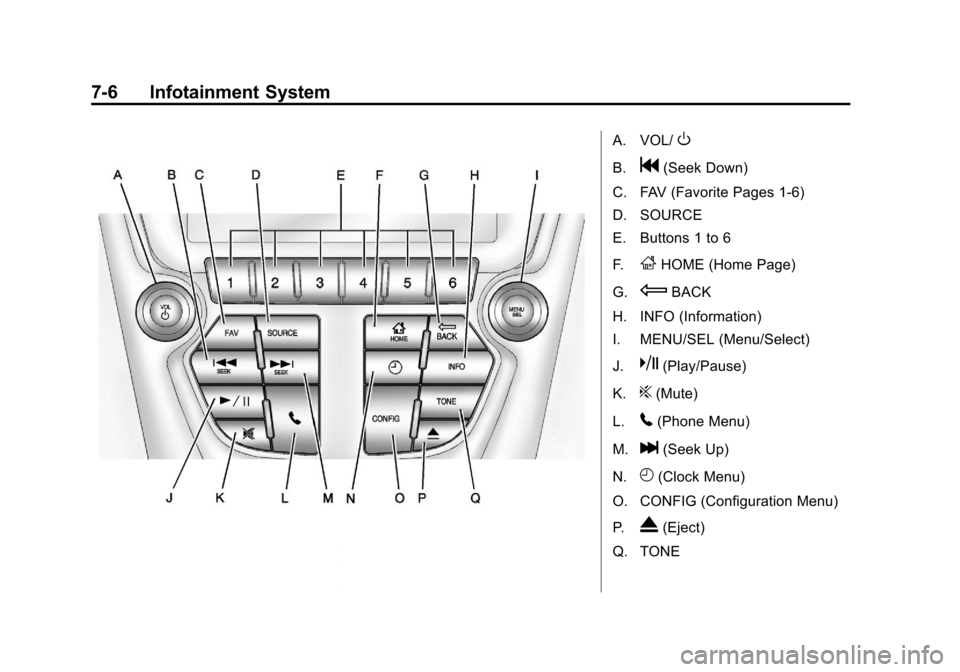
A. VOL/O
B.g(Seek Down)
C. FAV (Favorite Pages 1-6)
D. SOURCE
E. Buttons 1 to 6
F.
FHOME (Home Page)
G.
EBACK
H. INFO (Information)
I. MENU/SEL (Menu/Select)
J.
k(Play/Pause)
K.
?(Mute)
L.
5(Phone Menu)
M.
l(Seek Up)
N.
H(Clock Menu)
O. CONFIG (Configuration Menu)
P.
X(Eject)
Q. TONE
Page 167 of 428
Black plate (7,1)Chevrolet Equinox Owner Manual - 2012
Infotainment System 7-7
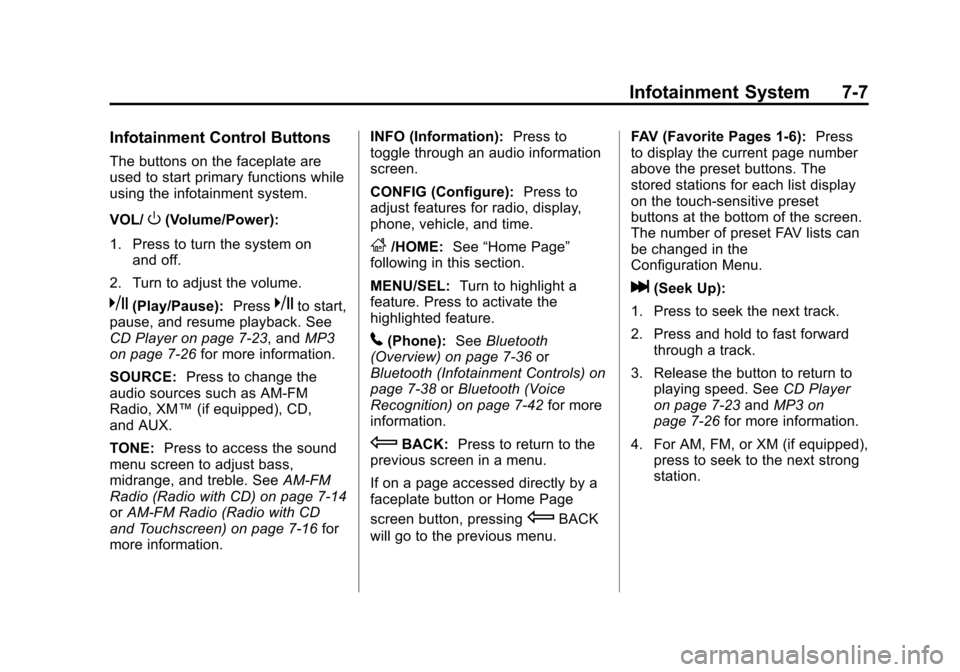
Infotainment Control Buttons
The buttons on the faceplate are
used to start primary functions while
using the infotainment system.
VOL/
O(Volume/Power):
1. Press to turn the system on and off.
2. Turn to adjust the volume.
k(Play/Pause): Presskto start,
pause, and resume playback. See
CD Player on page 7‑23, and MP3
on page 7‑26 for more information.
SOURCE: Press to change the
audio sources such as AM-FM
Radio, XM™ (if equipped), CD,
and AUX.
TONE: Press to access the sound
menu screen to adjust bass,
midrange, and treble. See AM-FM
Radio (Radio with CD) on page 7‑14
or AM-FM Radio (Radio with CD
and Touchscreen) on page 7‑16 for
more information. INFO (Information):
Press to
toggle through an audio information
screen.
CONFIG (Configure): Press to
adjust features for radio, display,
phone, vehicle, and time.
F/HOME: See“Home Page”
following in this section.
MENU/SEL: Turn to highlight a
feature. Press to activate the
highlighted feature.
5(Phone): SeeBluetooth
(Overview) on page 7‑36 or
Bluetooth (Infotainment Controls) on
page 7‑38 orBluetooth (Voice
Recognition) on page 7‑42 for more
information.
EBACK: Press to return to the
previous screen in a menu.
If on a page accessed directly by a
faceplate button or Home Page
screen button, pressing
EBACK
will go to the previous menu. FAV (Favorite Pages 1-6):
Press
to display the current page number
above the preset buttons. The
stored stations for each list display
on the touch-sensitive preset
buttons at the bottom of the screen.
The number of preset FAV lists can
be changed in the
Configuration Menu.
l(Seek Up):
1. Press to seek the next track.
2. Press and hold to fast forward through a track.
3. Release the button to return to playing speed. See CD Player
on page 7‑23 andMP3 on
page 7‑26 for more information.
4. For AM, FM, or XM (if equipped), press to seek to the next strong
station.
Page 168 of 428
Black plate (8,1)Chevrolet Equinox Owner Manual - 2012
7-8 Infotainment System
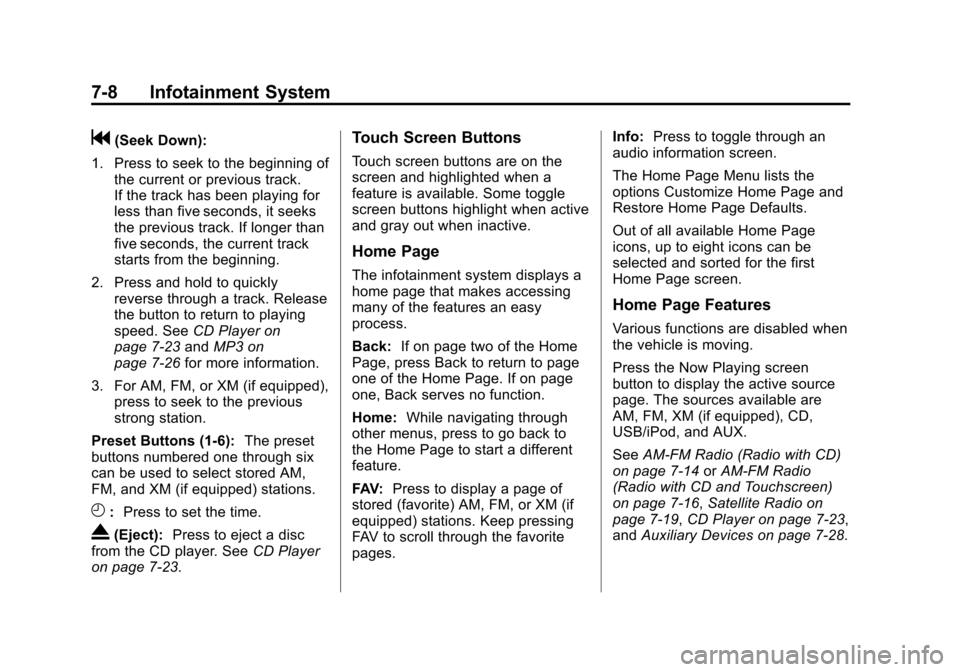
g(Seek Down):
1. Press to seek to the beginning of the current or previous track.
If the track has been playing for
less than five seconds, it seeks
the previous track. If longer than
five seconds, the current track
starts from the beginning.
2. Press and hold to quickly reverse through a track. Release
the button to return to playing
speed. See CD Player on
page 7‑23 andMP3 on
page 7‑26 for more information.
3. For AM, FM, or XM (if equipped), press to seek to the previous
strong station.
Preset Buttons (1-6): The preset
buttons numbered one through six
can be used to select stored AM,
FM, and XM (if equipped) stations.
H: Press to set the time.
X(Eject): Press to eject a disc
from the CD player. See CD Player
on page 7‑23.
Touch Screen Buttons
Touch screen buttons are on the
screen and highlighted when a
feature is available. Some toggle
screen buttons highlight when active
and gray out when inactive.
Home Page
The infotainment system displays a
home page that makes accessing
many of the features an easy
process.
Back: If on page two of the Home
Page, press Back to return to page
one of the Home Page. If on page
one, Back serves no function.
Home: While navigating through
other menus, press to go back to
the Home Page to start a different
feature.
FAV: Press to display a page of
stored (favorite) AM, FM, or XM (if
equipped) stations. Keep pressing
FAV to scroll through the favorite
pages. Info:
Press to toggle through an
audio information screen.
The Home Page Menu lists the
options Customize Home Page and
Restore Home Page Defaults.
Out of all available Home Page
icons, up to eight icons can be
selected and sorted for the first
Home Page screen.
Home Page Features
Various functions are disabled when
the vehicle is moving.
Press the Now Playing screen
button to display the active source
page. The sources available are
AM, FM, XM (if equipped), CD,
USB/iPod, and AUX.
See AM-FM Radio (Radio with CD)
on page 7‑14 orAM-FM Radio
(Radio with CD and Touchscreen)
on page 7‑16, Satellite Radio on
page 7‑19, CD Player on page 7‑23,
and Auxiliary Devices on page 7‑28.
Page 169 of 428
Black plate (9,1)Chevrolet Equinox Owner Manual - 2012
Infotainment System 7-9
Press the Phone screen button to
display the Phone main page. See
Bluetooth (Overview) on page 7‑36
orBluetooth (Infotainment Controls)
on page 7‑38 orBluetooth (Voice
Recognition) on page 7‑42.
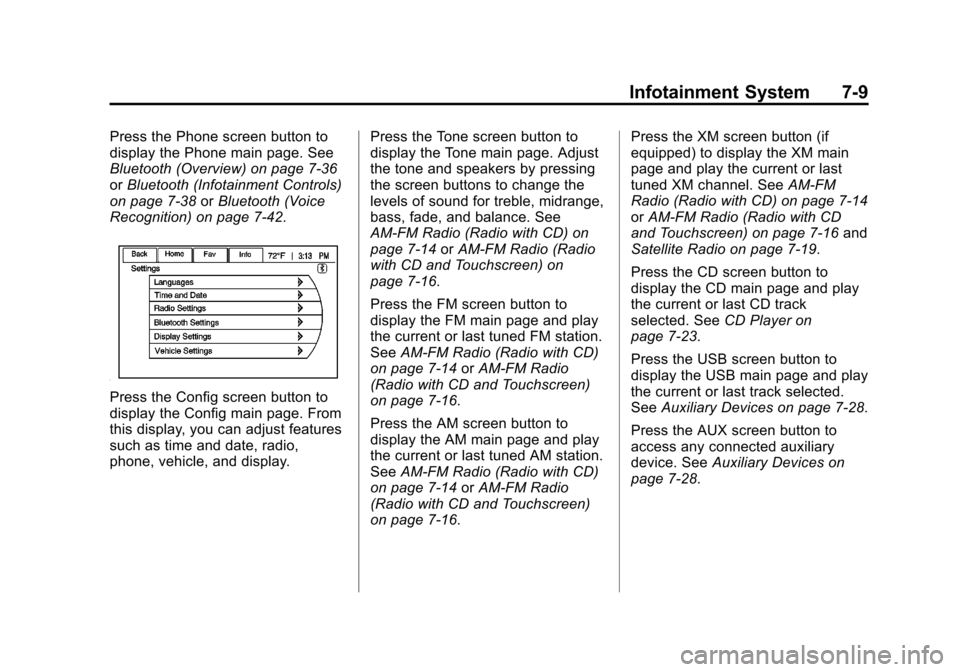
Press the Config screen button to
display the Config main page. From
this display, you can adjust features
such as time and date, radio,
phone, vehicle, and display. Press the Tone screen button to
display the Tone main page. Adjust
the tone and speakers by pressing
the screen buttons to change the
levels of sound for treble, midrange,
bass, fade, and balance. See
AM-FM Radio (Radio with CD) on
page 7‑14
orAM-FM Radio (Radio
with CD and Touchscreen) on
page 7‑16.
Press the FM screen button to
display the FM main page and play
the current or last tuned FM station.
See AM-FM Radio (Radio with CD)
on page 7‑14 orAM-FM Radio
(Radio with CD and Touchscreen)
on page 7‑16.
Press the AM screen button to
display the AM main page and play
the current or last tuned AM station.
See AM-FM Radio (Radio with CD)
on page 7‑14 orAM-FM Radio
(Radio with CD and Touchscreen)
on page 7‑16. Press the XM screen button (if
equipped) to display the XM main
page and play the current or last
tuned XM channel. See
AM-FM
Radio (Radio with CD) on page 7‑14
or AM-FM Radio (Radio with CD
and Touchscreen) on page 7‑16 and
Satellite Radio on page 7‑19.
Press the CD screen button to
display the CD main page and play
the current or last CD track
selected. See CD Player on
page 7‑23.
Press the USB screen button to
display the USB main page and play
the current or last track selected.
See Auxiliary Devices on page 7‑28.
Press the AUX screen button to
access any connected auxiliary
device. See Auxiliary Devices on
page 7‑28.
Page 170 of 428
Black plate (10,1)Chevrolet Equinox Owner Manual - 2012
7-10 Infotainment System
Languages
The vehicle supports English,
French (Canadian), and Spanish.
The default language is English.
To change the display language,
seeVehicle Personalization on
page 5‑34 for more information.
English and Metric Unit
Conversion
To change the display units between
English and metric units, see Driver
Information Center (DIC) on
page 5‑24 for more information.
Cleaning the Display
Notice:Using abrasive cleaners
when cleaning glass surfaces
could scratch the glass. Use only
a soft cloth and do not spray
cleaner directly on the system as
it could affect the mechanical
parts. Do not wipe the panel with a hard
cloth or use a volatile liquid such as
paint thinner; it could scratch the
surface or erase the characters on
the buttons.
Operation
Controls
The infotainment system is operated
by using the pushbuttons,
multifunction knobs, display menus,
and steering wheel controls,
if equipped.
Turning the System On or Off
VOL/O(Volume/Power):
Press to
turn the system on and off.
Automatic Switch‐Off
If the infotainment system has been
turned on after the ignition is turned
off, the system will turn off
automatically after 10 minutes.
Volume Control
VOL/O(Volume/Power): Turn to
adjust the volume.
5/?(Mute): For vehicles with
OnStar, press and hold
5/?to
mute the infotainment system. Press
and hold
5/?again, or turn the
VOL/
Oknob to cancel mute.
For vehicles without OnStar, press
5/?to mute the infotainment
system. Press
5/?again, or turn
the VOL/
Oknob to cancel mute.
Menu System
Controls
The MENU/SEL knob and the
E
BACK button are used to navigate
the menu system.
Page 174 of 428
Black plate (14,1)Chevrolet Equinox Owner Manual - 2012
7-14 Infotainment System
Auto Volume
The auto volume feature
automatically adjusts the radio
volume to compensate for road and
wind noise as the vehicle speeds up
or slows down, so that the volume
level is consistent.
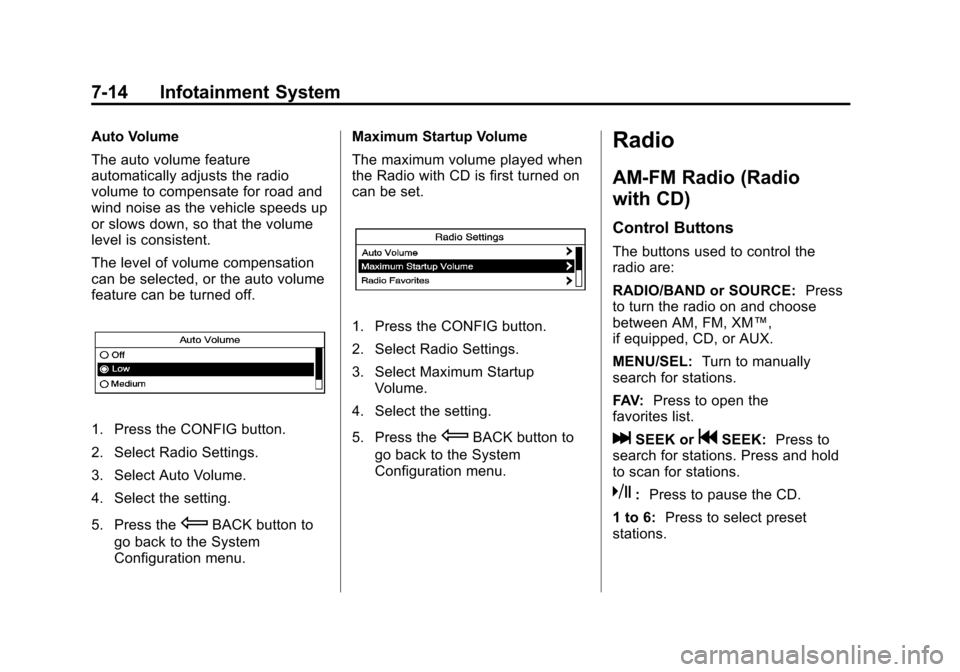
The level of volume compensation
can be selected, or the auto volume
feature can be turned off.
1. Press the CONFIG button.
2. Select Radio Settings.
3. Select Auto Volume.
4. Select the setting.
5. Press the
EBACK button to
go back to the System
Configuration menu. Maximum Startup Volume
The maximum volume played when
the Radio with CD is first turned on
can be set.
1. Press the CONFIG button.
2. Select Radio Settings.
3. Select Maximum Startup
Volume.
4. Select the setting.
5. Press the
EBACK button to
go back to the System
Configuration menu.
Radio
AM-FM Radio (Radio
with CD)
Control Buttons
The buttons used to control the
radio are:
RADIO/BAND or SOURCE: Press
to turn the radio on and choose
between AM, FM, XM™,
if equipped, CD, or AUX.
MENU/SEL: Turn to manually
search for stations.
FAV: Press to open the
favorites list.
lSEEK orgSEEK: Press to
search for stations. Press and hold
to scan for stations.
k: Press to pause the CD.
1 to 6: Press to select preset
stations.
Page 176 of 428
Black plate (16,1)Chevrolet Equinox Owner Manual - 2012
7-16 Infotainment System
To search for a programming type
determined by station:
1. Press the MENU/SEL knob.
2. Select FM category list. A list ofall programming types available
displays.
3. Select the programming type. A list of stations that transmit
programming of the selected
type displays.
4. Select the station. The category lists are updated
when the station lists are
updated.
Updating Station & Category Lists
If stations stored in the station list
can no longer be received:
1. Press the MENU/SEL knob.
2. Select Update AM or FM Station List, if the stations stored in the
station list are no longer
received. A station search will be
completed and the first station in
the updated list will play. To cancel the station search, press
the MENU/SEL knob.
Storing a Station as a Favorite
Stations from all bands can be
stored in any order in the favorite
pages.
Up to six stations can be stored in
each favorite page and the number
of available favorite pages can
be set.
Storing a Station as a Favorite
To store the station to a position in
the list, press the corresponding
button 1 to 6 until a beep is heard.
Retrieving Stations
Press the FAV button to open a
favorite page or to switch to another
favorite page. Briefly press one of
the 1 to 6 buttons to retrieve the
station.
AM-FM Radio (Radio with
CD and Touchscreen)
Playing the Radio
For vehicles equipped with the
MyLink or IntelliLink infotainment
system, see the separate MyLink/
IntelliLink Features and Functions
Guide for more information.
Audio Source
VOL/
O(Power/Volume):
1. Press to turn the radio on or off.
2. Turn to increase or decrease the volume of the active source
(i.e., current audio source, active
navigation voice guidance,
or traffic prompts).
The steering wheel controls can
also be used to adjust the volume.
See Steering Wheel Controls on
page 5‑2 for more information.