2012 CHEVROLET EQUINOX buttons
[x] Cancel search: buttonsPage 192 of 428
Black plate (32,1)Chevrolet Equinox Owner Manual - 2012
7-32 Infotainment System
USB Menu
Press any of the following buttons
on the USB Menu:
Shuffle Songs:Press to play the
tracks randomly. Press again to stop
shuffle.
Playlists: Press to view the
playlists stored on the USB. Select
a playlist to view the list of all songs
in that playlist. There might be a
delay before the list displays. Select
a song from the list to begin
playback.
Artists: Press to view the list of
artists stored on the USB. Select an
artist name to view a list of all
albums by the artist. There might be
a delay before the list displays. To
select a song, touch All Songs then
select a song or touch an album
then select a song from the list to
begin playback.
Albums: Press to view the albums
on the USB. Select the album to
view a list of all songs on the album. There might be a delay before the
list displays. Select a song from the
list to begin playback.
Song Titles:
Press to display a list
of all songs on the USB. Songs are
displayed as stored on the disc.
There might be a delay before the
list displays. To begin playback,
select a song from the list.
Genres: Press to view the genres
on the USB. Select a genre to view
a list of all songs of that genre.
Select a song from the list to begin
playback.
Folders: Press to open a folder list
to access the files within the folder
structure.
File System and Naming
The song titles, artists, albums, and
genres are taken from the file's ID3
tag and are only displayed if present
in the tag. If a song title is not
present in the ID3 tag, the radio
displays the file name as the
track name.Playing from an iPod®
This feature supports the following
iPod models:
.iPod nano (1st, 2nd, 3rd, and 4th
generation)
.iPod with video (5.0 and 5.5
generation). Video is not shown;
only audio is supported.
.iPod classic (6th generation)
.iPod touch (1st and 2nd
generation)
There may be problems with
operation and function in the
following situations:
.When connecting an iPod on
which a more recent version of
the firmware is installed than is
supported by the infotainment
system.
.When connecting an iPod on
which firmware from other
providers is installed.
Page 193 of 428
Black plate (33,1)Chevrolet Equinox Owner Manual - 2012
Infotainment System 7-33
To connect and control an iPod,
connect one end of the standard
iPod USB cable to the iPod's dock
connector. Connect the other end to
the USB port in the center console.
iPod music information displays on
the radio’s display and begins
playing through the vehicle’s audio
system.
The iPod battery recharges
automatically while the vehicle is on.
When the vehicle is off while an
iPod is connected using the iPod
USB cable, the iPod battery stops
charging and the iPod automatically
turns off.
If the iPod is an unsupported model,
it can still be listened to in the
vehicle by connecting to the
auxiliary input jack using a standard
3.5 mm (1/8 in) stereo cable.
Shuffle Songs:Press to play the
tracks randomly. Press again to stop
shuffle. Press any of the following buttons
on the iPod Menu:
Playlists:
1. Press to view the playlists stored
on the iPod.
2. Select a playlist name to view a list of all songs in the playlist.
3. Select the desired song from the list to begin playback.
Artists:
1. Press to view the artists stored on the iPod.
2. Select an artist name to view a list of all songs by the artist.
3. Select the desired song from the list to begin playback. Albums:
1. Press to view the albums stored
on the iPod.
2. Select an album name to view a list of all songs on the album or
select All Songs to view all
songsby the artist.
3. Select the desired song from the list to begin playback.
Song Titles:
1. Press to view a list of all songs stored on the iPod.
2. Select the desired song from the list to begin playback.
Genres:
1. Press to view the genres stored on the iPod.
2. Select a genre name to view a list of artists of that genre.
3. Select an artist to view albums or All Songs to view all songs of
that genre.
Page 195 of 428
Black plate (35,1)Chevrolet Equinox Owner Manual - 2012
Infotainment System 7-35
Audio can be heard through wired
headphones (not included) plugged
into the jacks on the RSA. If the
vehicle has a Rear Seat
Entertainment system with wireless
headphones, audio can also be
heard on Channel 2 of the wireless
headphones.
To listen to a portable audio device
through the RSA, attach the
portable audio device to either the
front or rear auxiliary input,
if available. Turn the device on, then
choose the front auxiliary input with
the RSA SRCE button.
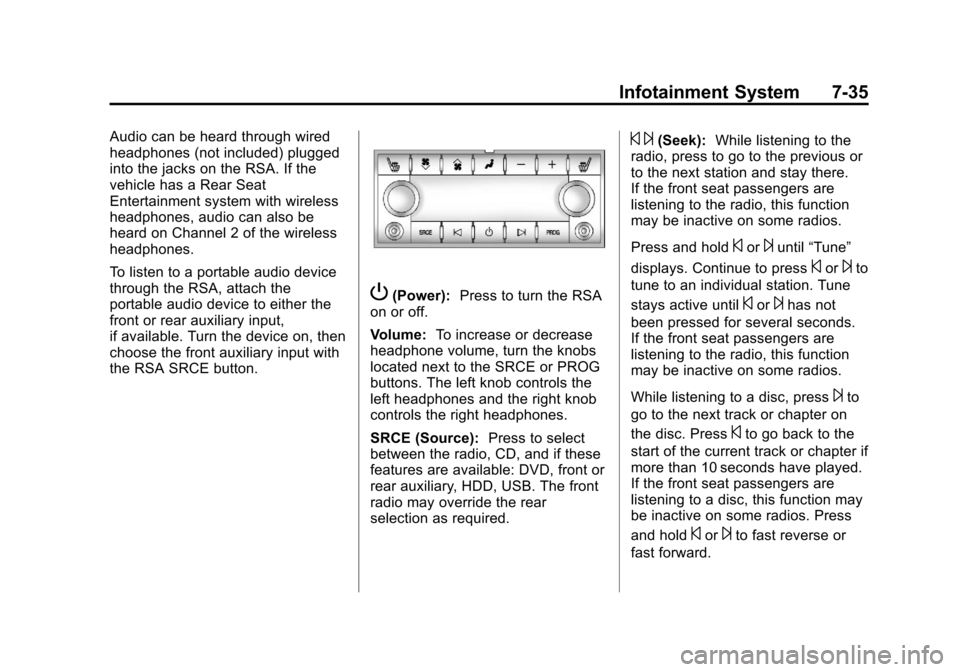
P(Power):Press to turn the RSA
on or off.
Volume: To increase or decrease
headphone volume, turn the knobs
located next to the SRCE or PROG
buttons. The left knob controls the
left headphones and the right knob
controls the right headphones.
SRCE (Source): Press to select
between the radio, CD, and if these
features are available: DVD, front or
rear auxiliary, HDD, USB. The front
radio may override the rear
selection as required.
© ¨(Seek): While listening to the
radio, press to go to the previous or
to the next station and stay there.
If the front seat passengers are
listening to the radio, this function
may be inactive on some radios.
Press and hold
©or¨until “Tune”
displays. Continue to press
©or¨to
tune to an individual station. Tune
stays active until
©or¨has not
been pressed for several seconds.
If the front seat passengers are
listening to the radio, this function
may be inactive on some radios.
While listening to a disc, press
¨to
go to the next track or chapter on
the disc. Press
©to go back to the
start of the current track or chapter if
more than 10 seconds have played.
If the front seat passengers are
listening to a disc, this function may
be inactive on some radios. Press
and hold
©or¨to fast reverse or
fast forward.
Page 197 of 428
Black plate (37,1)Chevrolet Equinox Owner Manual - 2012
Infotainment System 7-37
To minimize driver distraction,
before driving, and with the vehicle
parked:
.Become familiar with the
features of the cell phone.
Organize the phone book and
contact lists clearly and delete
duplicate or rarely used entries.
If possible, program speed dial
or other shortcuts.
.Review the controls and
operation of the infotainment
system.
.Pair cell phone(s) to the vehicle.
The system may not work with
all cell phones. See“Pairing”in
this section for more information.
.If the cell phone has voice
dialing capability, learn to use
that feature to access the
address book or contact list. See
“Voice Pass-Thru” in this section
for more information.
.See “Storing and Deleting Phone
Numbers” in this section for
more information.
{WARNING
When using a cell phone, it can
be distracting to look too long or
too often at the screen of the
phone or the infotainment
(navigation) system. Taking your
eyes off the road too long or too
often could cause a crash
resulting in injury or death. Focus
your attention on driving.
Vehicles with a Bluetooth system
can use a Bluetooth‐capable cell
phone with a Hands‐Free Profile to
make and receive phone calls. The
infotainment system and voice
recognition are used to control the
system. The system can be used
while in ON/RUN or ACC/
ACCESSORY. The range of the
Bluetooth system can be up to
9.1 m (30 ft). Not all phones support
all functions and not all phones work
with the Bluetooth system. See www.gm.com/bluetooth for more
information about compatible
phones.
Bluetooth Controls
Use the buttons located on the
infotainment system and the
steering wheel to operate the
Bluetooth system.
Steering Wheel Controls
b/g(Push To Talk) :
Press to
answer incoming calls, confirm
system information, and start voice
recognition.
$/i(End Call/Mute): Press to
end a call, reject a call, or cancel an
operation.
Page 409 of 428
Black plate (1,1)Chevrolet Equinox Owner Manual - 2012
OnStar 14-1
OnStar
OnStar Overview
OnStar Overview . . . . . . . . . . . . 14-1
OnStar Services
Emergency . . . . . . . . . . . . . . . . . . 14-2
Security . . . . . . . . . . . . . . . . . . . . . . 14-2
Navigation . . . . . . . . . . . . . . . . . . . 14-2
Connections . . . . . . . . . . . . . . . . . 14-4
Diagnostics . . . . . . . . . . . . . . . . . . 14-5
OnStar Additional Information
OnStar AdditionalInformation . . . . . . . . . . . . . . . . . 14-5
OnStar Overview
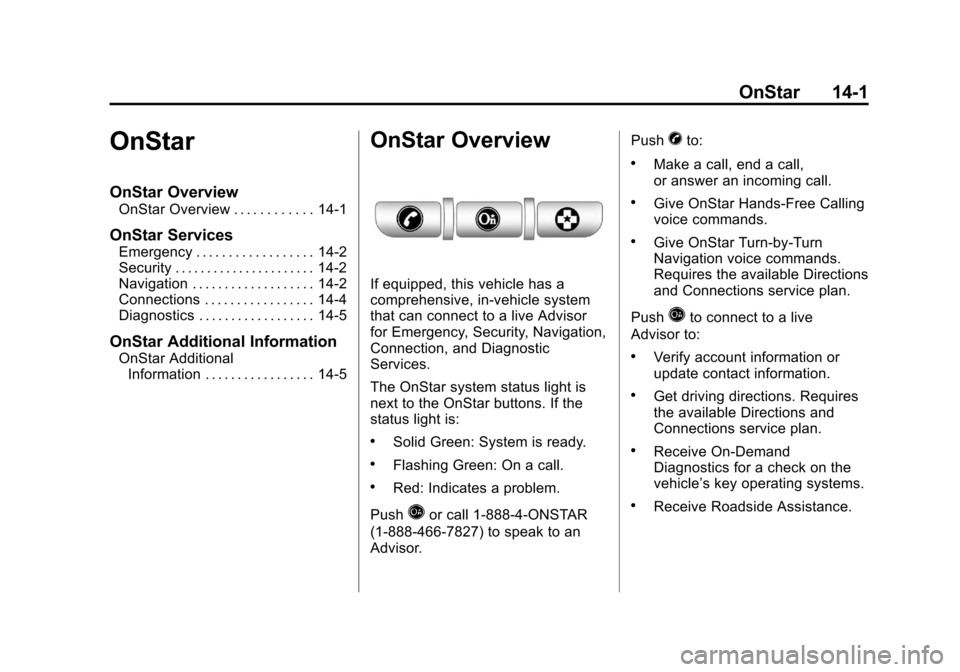
If equipped, this vehicle has a
comprehensive, in-vehicle system
that can connect to a live Advisor
for Emergency, Security, Navigation,
Connection, and Diagnostic
Services.
The OnStar system status light is
next to the OnStar buttons. If the
status light is:
.Solid Green: System is ready.
.Flashing Green: On a call.
.Red: Indicates a problem.
Push
Qor call 1‐888‐4‐ONSTAR
(1‐888‐466‐7827) to speak to an
Advisor. Push
Xto:
.Make a call, end a call,
or answer an incoming call.
.Give OnStar Hands-Free Calling
voice commands.
.Give OnStar Turn-by-Turn
Navigation voice commands.
Requires the available Directions
and Connections service plan.
Push
Qto connect to a live
Advisor to:
.Verify account information or
update contact information.
.Get driving directions. Requires
the available Directions and
Connections service plan.
.Receive On-Demand
Diagnostics for a check on the
vehicle’s key operating systems.
.Receive Roadside Assistance.