Page 154 of 400
Black plate (2,1)Chevrolet Cruze Owner Manual - 2012
7-2 Infotainment System
Introduction
Infotainment
Read the following pages to
become familiar with the audio
system's features.
{WARNING
Taking your eyes off the road for
extended periods could cause a
crash resulting in injury or death
to you or others. Do not give
extended attention to
entertainment tasks while driving.
This system provides access to
many audio and non‐audio listings. To minimize taking your eyes off the
road while driving, do the following
while the vehicle is parked:
.Become familiar with the
operation and controls of the
audio system.
.Set up the tone, speaker
adjustments, and preset radio
stations.
For more information, see Defensive
Driving on page 9‑3.
The vehicle has Retained
Accessory Power (RAP). With RAP,
the audio system can be played
even after the ignition is turned off.
See Retained Accessory Power
(RAP) on page 9‑23 for more
information.
Navigation/Radio System
For vehicles with a navigation radio
system, see the separate navigation
manual.
Theft-Deterrent Feature
The theft-deterrent feature works by
learning a portion of the Vehicle
Identification Number (VIN) to the
infotainment system. The
infotainment system does not
operate if it is stolen or moved to
a different vehicle.
Page 155 of 400
Black plate (3,1)Chevrolet Cruze Owner Manual - 2012
Infotainment System 7-3
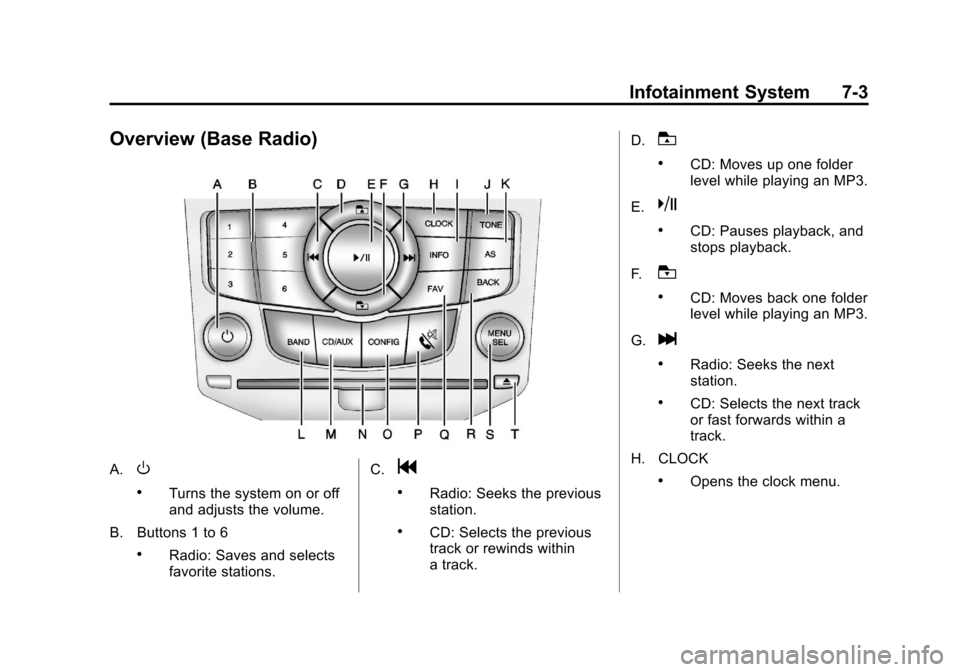
Overview (Base Radio)
A.O
.Turns the system on or off
and adjusts the volume.
B. Buttons 1 to 6
.Radio: Saves and selects
favorite stations. C.
g
.Radio: Seeks the previous
station.
.CD: Selects the previous
track or rewinds within
a track.D.
T
.CD: Moves up one folder
level while playing an MP3.
E.
k
.CD: Pauses playback, and
stops playback.
F.
U
.CD: Moves back one folder
level while playing an MP3.
G.
l
.Radio: Seeks the next
station.
.CD: Selects the next track
or fast forwards within a
track.
H. CLOCK
.Opens the clock menu.
Page 156 of 400
Black plate (4,1)Chevrolet Cruze Owner Manual - 2012
7-4 Infotainment System
I. INFO
.Radio: Shows available
information about the
current station.
.CD: Shows available
information about the
current track.
J. TONE
.Opens the tone menu.
K. AS
.Radio: Opens the
autostore stations list.
L. BAND
.Changes the band while
listening to the radio.
.Selects the radio when
listening to a different
audio source. M. CD/AUX
.Selects the CD player or
an external audio source.
N. CD Slot
.Insert a CD.
O. CONFIG
.Opens the settings menu.
P.
5\>
.Opens the phone
main menu.
.Mutes the audio system.
Q. FAV
.Radio: Opens the
favorites list.
R. BACK
.Menu: Moves one
level back.
.Character Input: Deletes
the last character. S. MENU or MENU/SEL
.Turn to open menus,
highlight menu items,
or set numeric values
while in a menu.
.Press to select menu
items.
.Radio: Manually selects
radio stations.
.CD: Selects tracks.
T.
Y
.Removes a disc from
the CD slot.
Page 157 of 400
Black plate (5,1)Chevrolet Cruze Owner Manual - 2012
Infotainment System 7-5
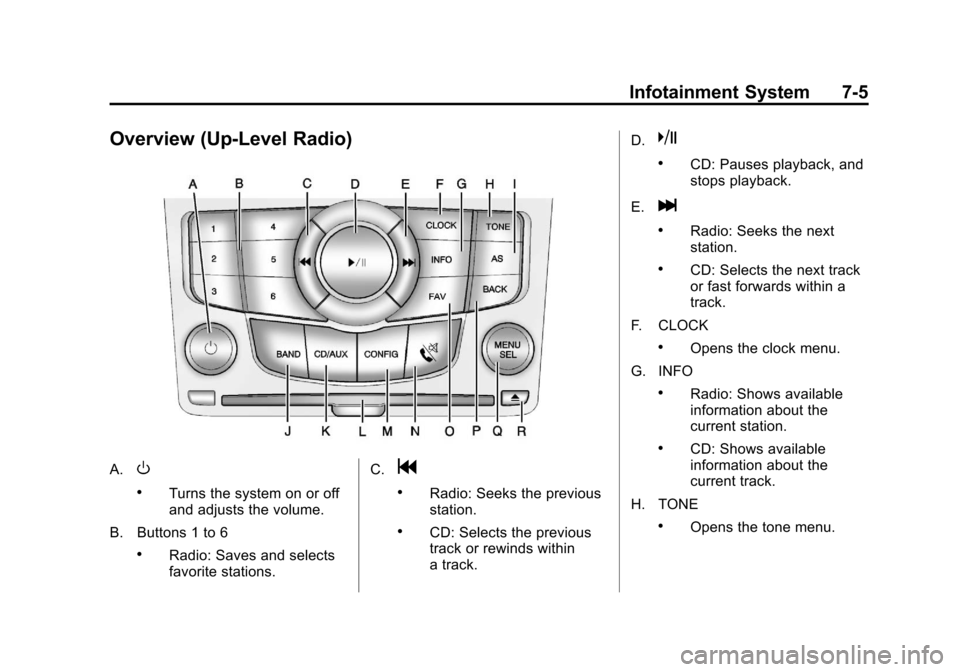
Overview (Up-Level Radio)
A.O
.Turns the system on or off
and adjusts the volume.
B. Buttons 1 to 6
.Radio: Saves and selects
favorite stations. C.
g
.Radio: Seeks the previous
station.
.CD: Selects the previous
track or rewinds within
a track.D.
k
.CD: Pauses playback, and
stops playback.
E.
l
.Radio: Seeks the next
station.
.CD: Selects the next track
or fast forwards within a
track.
F. CLOCK
.Opens the clock menu.
G. INFO
.Radio: Shows available
information about the
current station.
.CD: Shows available
information about the
current track.
H. TONE
.Opens the tone menu.
Page 158 of 400
Black plate (6,1)Chevrolet Cruze Owner Manual - 2012
7-6 Infotainment System
I. AS
.Radio: Opens the
autostore stations list.
J. BAND
.Changes the band while
listening to the radio.
.Selects the radio when
listening to a different
audio source.
K. CD/AUX
.Selects the CD player or
an external audio source.
L. CD Slot
.Insert a CD.
M. CONFIG
.Opens the settings menu.
N.
5\>
.Opens the phone
main menu.
.Mutes the audio system. O. FAV
.Radio: Opens the
favorites list.
P. BACK
.Menu: Moves one
level back.
.Character Input: Deletes
the last character.
Q. MENU or MENU/SEL
.Turn to open menus,
highlight menu items,
or set numeric values
while in a menu.
.Press to select menu
items.
.Radio: Manually selects
radio stations.
.CD: Selects tracks.
R.
Y
.Removes a disc from the
CD slot.
Operation
Controls
The infotainment system is
operated by using the pushbuttons,
multifunction knobs, menus shown
on the display, and steering wheel
controls, if equipped.
Turning the System On or Off
O(Volume/Power): Press to turn
the system on and off.
Automatic Switch‐Off
If the infotainment system has been
turned on after the ignition is turned
off, the system will turn off
automatically after 10 minutes.
Volume Control
O(Volume/Power): Turn to adjust
the volume.
5/>(Phone/Mute): Press5/>to mute the infotainment system.
Press
5/>again, or turn the
Oknob to cancel mute.
Page 162 of 400
Black plate (10,1)Chevrolet Cruze Owner Manual - 2012
7-10 Infotainment System
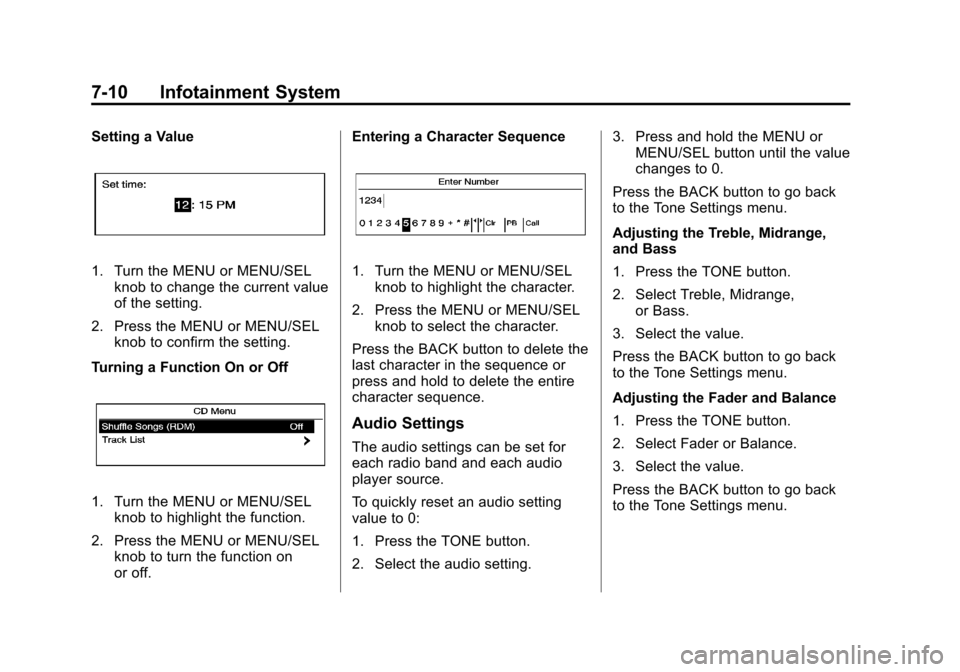
Setting a Value
1. Turn the MENU or MENU/SELknob to change the current value
of the setting.
2. Press the MENU or MENU/SEL knob to confirm the setting.
Turning a Function On or Off
1. Turn the MENU or MENU/SEL knob to highlight the function.
2. Press the MENU or MENU/SEL knob to turn the function on
or off. Entering a Character Sequence
1. Turn the MENU or MENU/SEL
knob to highlight the character.
2. Press the MENU or MENU/SEL knob to select the character.
Press the BACK button to delete the
last character in the sequence or
press and hold to delete the entire
character sequence.
Audio Settings
The audio settings can be set for
each radio band and each audio
player source.
To quickly reset an audio setting
value to 0:
1. Press the TONE button.
2. Select the audio setting. 3. Press and hold the MENU or
MENU/SEL button until the value
changes to 0.
Press the BACK button to go back
to the Tone Settings menu.
Adjusting the Treble, Midrange,
and Bass
1. Press the TONE button.
2. Select Treble, Midrange, or Bass.
3. Select the value.
Press the BACK button to go back
to the Tone Settings menu.
Adjusting the Fader and Balance
1. Press the TONE button.
2. Select Fader or Balance.
3. Select the value.
Press the BACK button to go back
to the Tone Settings menu.
Page 163 of 400
Black plate (11,1)Chevrolet Cruze Owner Manual - 2012
Infotainment System 7-11
Adjusting the EQ (Equalizer)
For vehicles that have an equalizer:
1. Press the TONE button.
2. Select EQ presets.
3. Select the setting.
Press the BACK button to go back
to the Tone Settings menu.
System Settings
Configuring the Number of
Favorite Pages
To configure the number of available
favorite pages:
1. Press the CONFIG button.
2. Select Radio Settings.
3. Select Radio Favorites.4. Select the number of available
favorite pages.
5. Press the BACK button to go back to the System
Configuration menu.
Auto Volume
The auto volume feature
automatically adjusts the radio
volume to compensate for road and
wind noise as the vehicle speeds up
or slows down, so that the volume
level is consistent.
The level of volume compensation
can be selected, or the auto volume
feature can be turned off.
1. Press the CONFIG button.
2. Select Radio Settings.
3. Select Auto Volume.
4. Select the setting.
5. Press the BACK button to go back to the System
Configuration menu. Maximum Startup Volume
The maximum volume played when
the radio is first turned on can
be set.
1. Press the CONFIG button.
2. Select Radio Settings.
3. Select Maximum Startup
Volume.
4. Select the setting.
5. Press the BACK button to go back to the System
Configuration menu.
Page 164 of 400
Black plate (12,1)Chevrolet Cruze Owner Manual - 2012
7-12 Infotainment System
Radio
AM-FM Radio
Control Buttons
The buttons used to control the
radio are:
BAND:Press to turn the radio on
and choose between AM, FM, and
XM™, if equipped.
MENU or MENU/SEL: Turn to
navigate the available menus and to
search for stations.
INFO: Press to display additional
information that may be available for
the current song.
gorl: Press to search for
stations.
FAV: Press to open the favorites
list and select the favorites page.
1 to 6: Press to select preset
stations.
AS (Autostore): Press to open the
autostore list.
RDS (Radio Data System)
The radio may have RDS. The RDS
feature is available for use only on
FM stations that broadcast RDS
information. This feature only works
when the information from the radio
station is available. In rare cases, a
radio station could broadcast
incorrect information that causes the
radio features to work improperly.
If this happens, contact the radio
station.
While the radio is tuned to an
FM-RDS station, the station name
or call letters display.
Radio Menus
Radio menus are available for AM
and FM.
Turn the MENU or MENU/SEL knob
to open the main radio menu for
that band.
Selecting a Band
Press the BAND button to choose
AM, FM, or XM, if equipped. The
last station that was playing starts
playing again.
Selecting a Station
Seek Tuning
If the radio station is not known:
Briefly press
gorlto
automatically search for the next
available station. If a station is not
found, the radio switches to a more
sensitive search level. If a station
still is not found, the frequency that
was last active begins to play.
If the radio station is known:
Press and hold
gorluntil the
station on the display is reached,
then release the button.
Manual Tuning
Turn the MENU or MENU/SEL knob
to select the frequency on the
display.