2011 SUBARU FORESTER ECO mode
[x] Cancel search: ECO modePage 200 of 446

When in the category search mode, press
the following button to change the cate-
gory up or down.
Type A and B audio:Category up by one step
Category down by
one step
Type C audio:
Category up by one step
Category down by
one step
When a category is selected, turning the “ TUNE/TRACK/CH ”dial selects channels
only within the selected category.
The control function returns to the normal
mode after approximately 10 seconds. ! Type D audio
When in the SAT mode, press the
button to change the category search mode. When in the category search mode, press
the following button to change the cate-
gory up or down.
Category up by one step
Category down by
one step
When a category is selected, turning the “ TUNE/TRACK/CH ”dial selects channels
only within the selected category. The
control function returns to the normal
mode after approximately 10 seconds. ! Channel scan
Type A and B audio
Type C audio
Type D audio
Press the “SCAN ”button briefly (type A, B
and C audio)/for more than 1.5 seconds
(type D audio) to change the radio to the
SCAN mode. In this mode, under the
selected category, the radio scans through
the channel until a station is found. The radio will stop at the station for 5 seconds
while displaying the channel number, after
which scanning will continue until the
entire channel has been scanned from
the low end to the high end.
Press the
“SCAN ”button briefly (type A, B
and C audio)/for more than 1.5 seconds
(type D audio) again to cancel the SCAN
mode and to stop on any displayedchannel. & Channel preset
! How to preset channels
1. Press the “SAT ”button to select SAT1,
SAT2 or SAT3 reception.
2. Select the desired channel.
3. Press one of the preset buttons (from
to) for more than 1.5 seconds
to store the channel. If the button is
pressed for less than 1.5 seconds, the
preceding selection will remain in memory. NOTE . Up to six SAT1, SAT2 and SAT3
channels each may be preset. . If the connection between the radio
and battery is broken for any reason
such as vehicle maintenance or radio
removal, all channels stored in the
preset buttons are cleared. If this Audio
5-21
– CONTINUED –
Page 202 of 446

–Maximum number of files on a
CD: 510 (type A, B and C audio)/999
(type D audio)
& Play file
NOTE . Copyright protected MP3/WMA/AAC
files will not be played by the system.
The player will automatically skip to the
next file (track).. WMA9 Lossless, WMA9 Profes-
sional and WMA9 voice cannot beplayed. MP3: . Based on MPEG1, 2 and 2.5 Layer3
. Sampling rate (kHz): 48, 44.1, 32, 24,
22.05, 16, 12, 11.025, 8. Bit rate (kbps): 8 to 320
. Supports variable bit rates
WMA (type A, B and C audio):. Based on Windows Media Audio 9
. Sampling rate (kHz): 48, 44.1, 32
. Bit rate (kbps): 32 to 192
WMA (type D audio):. Based on Windows Media Audio 7, 8
and 9. Sampling rate (kHz): 48, 44.1, 32
. Bit rate (kbps): 32 to 192 AAC (type C audio):.
Based on MPEG4 AAC
. Sampling rate (kHz): 48, 44.1, 32, 24,
22.05, 16, 12, 11.025, 8. Bit rate (kbps): 8 to 320
. Number of channels: 1 to 2ch
AAC (type D audio):. Based on MPEG2 AAC and MPEG4
AAC. Sampling rate (kHz): 48, 44.1, 32, 24,
22.05, 16, 12, 11.025, 8. Bit rate (kbps): 8 to 320
. Number of channels: 1 to 2ch
& How to insert a CD (type A, C
and D)
Hold a disc with a finger in the center hole
while gripping the edge of the disc, then
insert it in to the slot (with the label side
up) and the player will automatically pull
the disc into position. NOTE
DO NOT INSERT TWO DISCS INTO THE
DISC INSERTION SLOT AT THE SAMETIME. &
How to insert a CD(s) (type B)
1. Briefly press the
button. If the
magazine in the player has an idle
position where you can insert a disc, the
disc number indicator associated with the
idle position will blink.
If no indicator blinks, it means that there is
no idle position in the magazine.
2. When the “LOAD ”indicator illumi-
nates, insert the disc. Once you have
inserted the disc, the “LOAD ”indicator will
turn off. The disc will then be automatically
drawn in, and the player will begin to play
back the first track of the disc. . To insert more discs in succession,
repeat steps 1 and 2. The magazine will
be loaded with discs in the ascending
order of position number.
If you do not insert any disc in 15 seconds
after you have pressed the
button,
the player will begin to play back the first
track of the last disc you have inserted. . The disc indicator steadily lights up if a
disc is already inserted in the correspond-
ing position of the magazine. . While the player is in the loading mode,
if you press
orbutton, the
player will enter the standby mode. Press the
button to start playback. Audio
5-23
– CONTINUED –
Page 203 of 446

5-24Audio
! Inserting a disc in a desired posi- tion
1. Briefly press the
button. If the
magazine in the player has an idle
position where you can insert a disc, the
disc number indicator associated with the
idle position will blink.
The positions in the magazine the indica-
tor of which steadily lights up are already
loaded with discs.
2. Press the disc select button (from
to) at the position where you
want to insert a disc.
3. When the “LOAD ”indicator illumi-
nates, insert the disc. Once you have
inserted the disc, the “LOAD ”indicator will
turn off. The disc will then be automatically
drawn in, and the player will begin to play
the first track on the disc. . If you wish to insert another disc,
repeat the procedure beginning with step 1.
If you do not insert any disc in 15 seconds
after you have pressed the
button,
the player will begin to play back the first
track of the last disc you have inserted. . While the player is in the loading mode,
if you press
orbutton, the
player will enter standby mode. Press the
button to start playback. !
Loading all the magazine (full disc
loading mode)
1. If you continue to press the
button for more than 1.5 seconds, the
player will produce beep sound and will
enter the full disc loading mode.
2. When the disc number indicator
flashes and “ALL LOAD ”indicator illumi-
nates, insert a disc within 15 seconds. If a
disc is successfully loaded during this
period, the disc number indicator will stop
blinking and will steadily light.
3. When the loading of a disc is com-
plete, the next disc number indicator will
blink. Then repeat step 2.
4. When the magazine is filled with discs
by repeating steps 2 and 3, the player will
start playback of the discs, beginning with
the one inserted first.
If you fail to insert any disc during each 15
seconds interval, the full disc loading
mode will be canceled, and the player will
start playback of the disc inserted first. & How to play back a CD
! When there is no CD inserted
Properly insert a CD. Refer to “How to
insert a CD (type A, C and D) ”F 5-23 /
“ How to insert a CD(s) (type B) ”F 5-23.
When a CD is loaded, the player will start
playback of the CD, beginning with the first track. !
When CD is in the player (type A)
When thebutton is pressed, the
player will start playback. ! When there are CDs loaded (type B)
Press a desired one of the disc select
buttons (from
to) the disc
number indicator of which steadily lights
up. The player will then start playback of
the selected CD, beginning with the firsttrack.
If a disc that the player cannot read has
been loaded, the player will display themessage “CHECK DISC ”.
! When CD is in the player (type C
and D)
Each brief press of the
button
changes the modes in the following sequence.
*: For type C audio, “BT-A ”is displayed.
When the CD mode is selected, the player
will start playback.
Page 205 of 446

5-26Audio
&Repeating
To repeat a track/file, briefly press the
following button (repeat button) while the
track/file is playing.
Type A and B audio
Type C audio
Type D audio
Each time you briefly press the button, the
mode changes in the following se-quences.
Type A and C audio:
*: Type C audio only
Type B audio:
Type D audio:
NOTE . The “RPT ”(type A, B and C audio)/
“ One PRT ”(type D audio) indication
refers to the repeat playback of a single
track. It repeats the track that is play-ing.. The “F-RPT ”(type A, B and C audio)/
“ Folder RPT ”(type D audio) indication
refers to the repeat playback of a folder.
It repeats the all of the tracks in the
folder. It is possible to select the
function when the MP3/WMA/AAC for-
mat track is playing.. The “D-RPT ”indication refers to the
repeat playback of a disc. It repeats the
tracks on the CD. It is only possible to
select this function for type B audio.
To cancel the track/file repeat-play mode,
briefly press the “RPT ”button and select
CANCEL. The “RPT ”indication will turn
off, and the normal playback mode will beresumed.
NOTE
The repeat-play mode will be cancelled
if you perform any of the following steps. .
Press the “
”button
. Press the disc select button (type B
audio) . Press the “SCAN ”button (type A, B
and C audio). Press the “LOAD ”button when
there is free space in the CD magazine
(type B audio)
& Random playback
To playback a track/file(s) at random,
press the following button (random button)
while the track/file is playing.
Type A and B audio*
1
Type C audio*1
Type D audio*2
*1: For type A, B and C audio, press the button
for 0.5 second or longer.
*2: For type D audio, briefly press the button.
Each time you press the button, the mode
changes in the following sequences.
Page 206 of 446

Type A audio:
Type B audio:
Type C audio:
Type D audio:
NOTE .The “RDM ”(type A, B and C audio)/
“ Track RDM ”(type D audio) indication
refers to the random playback of the
tracks. It randomly repeats the tracks
on the CD. It is possible to select the
function when formats other than the MP3/WMA/AAC format CD is playing..
The “F-RDM ”(type A, B and C
audio)/ “Folder RDM ”(type D audio)
indication refers to the random play-
back in the folder. It randomly repeats
the tracks in the folder. It is possible to
select the function when an MP3/WMA/
AAC format track is playing.. The “D-RDM ”indication refers to the
random playback of a disc. It randomly
repeats the tracks in the CD. It is
possible to select the function when
an MP3/WMA format track is playing.
To cancel the random playback mode,
press the “RDM ”button again and select
CANCEL. The “RDM ”indication will turn off, and the
normal playback mode will be resumed.
NOTE
Random playback will be cancelled if
you perform any of the following steps. . Press the “
”button
. Press the disc select button (type B
audio) . Press the “SCAN ”button (type A, B
and C audio). Press the “LOAD ”button when
there is free space in the CD magazine
(type B audio) &
Scan (type A, B and C audio)
Type A and B audio
Type C audio
The scan mode lets you listen to the first
10 seconds of each track/file in succes-
sion. Press the “SCAN ”button to start
scanning upward beginning with the track/
file(s) following the currently selected one.
After all track/file(s) in the disk/folder have
been scanned, normal playback will be
resumed. To cancel the scan mode, pressthe “SCAN ”button again.
NOTE
The scan mode will be cancelled if you
perform any of the following steps. . Press the “RPT ”button
. Turn the “TUNE/TRACK/CH ”dial
. Press the “
”or “”side of the
“ FOLDER/PTY/CAT ”button
. Press the “
”button
. Press the disc select button (type B
audio) . Select the mode other than CD mode
. Press the “LOAD ”button when
there is free space in the CD magazine
(type B audio) Audio
5-27
– CONTINUED –
Page 208 of 446

Type D audio:To select the next folder
To go back to the
previous folder
& How to eject a CD from the
player (type A, C and Daudio)
When a disc is being played back or when
a disc is in the player, press the
button. The disc will be ejected. NOTE . Avoid driving the vehicle with a CD
sticking out, because vibration might
make it fall out.. If the disc is left ejected for more
than approximately 15 seconds after
the ignition switch is turned to the“ OFF ”position, a disc protection func-
tion will operate, automatically reload-
ing the disc. In this case, the disc is not played. &
How to eject CDs from the
player (type B)
! Ejecting a CD from the player
You can select and remove only one disc
at a time from the discs that are loaded.
1. Use the disc select button (from
to) to select the disc to be ejected.
2. Briefly press the
button. The
selected disc will be ejected. The disc
number indicator will flash at this time.
When you remove the ejected disc, the
disc number indicator will turn off.
To remove more discs in succession,
repeat steps 1 and 2. ! Ejecting all discs from the player
(all disc ejection mode)
1. If you continue to press the
button, the player will produce beep sound
and will enter the all disc ejection mode. At
this time, the disc number indicator and“ ALL EJECT ”indicator will flash.
2.Removethediscthathasbeen
ejected. The other discs loaded will then
be ejected one after another. If you do not
remove the disc that has been ejected, the“ All disc ejection mode ”will be canceled. NOTE .
Avoid driving the vehicle with a CD
sticking out, because vibration might
make it fall out.. If you press the
button while
the player is in all disc ejection mode,
the mode will be cancelled following
ejection of the disc that is currently
being ejected.. If you press the
button orbutton while the player is in all disc
ejection mode, the player will draw in
the discs that have been ejected and
play them. & When the following mes-
sages are displayed
If one of the following messages is
displayed while operating the CD player,
determine the cause based on the follow-
ing information. If you cannot clear those
messages, please contact your SUBARU
dealer. ! When “PUSH EJECT ”is displayed
Press the eject button to unload the disc.
Check the disc for damage or deforma-
tion, and also check that the correct disc is
inserted. Do not try to unload the disc
forcibly. Single CDs (i.e., 8 cm/3 inch CDs)
are not supported, and if inserted, they will
be immediately ejected and this message Audio
5-29
– CONTINUED –
Page 209 of 446

5-30Audio
will be displayed. If the disc cannot be
unloaded or this message remains dis-
played, please contact your SUBARU
dealer. !When “CHECK DISC ”is displayed
Press the eject button to unload the discs.
Check that the disc is not damaged or
scratched, and also check that the disc is
inserted correctly. This message may
appear when using some CD-RW discs.
Check that the disc type (i.e., 8 cm/3 inch
CDs are not supported) and data format
are correct. This player can only play
MP3, WMA (all models) and AAC (type C
and D audio) data formats. If the disc
cannot be unloaded or this message
remains displayed, please contact your
SUBARU dealer. Auxiliary input jack (if equipped)
1) Models without Hands-free system
2) Models with Hands-free system
By connecting a commercial audio pro-
duct to the vehicle, such as a portable
audio player, you can hear its sound via
the vehicle ’s speakers.
An auxiliary (AUX) input jack is present in
the center console. A stereo mini pin plug
(3.5ø) can be inserted in this jack. The
connection cable is available at electrical
appliance or similar stores.
To use the AUX input jack:
1. Connect a portable audio player to the
AUX input jack. Type A and B audio
Type C and D audio
2. Press the
“CD/AUX ”button on the
audio control panel to turn on the auxiliary
audio input.
3. Play back the portable audio player.
Refer to the Owner ’s Manual for the
portable audio player. NOTE . The AUX input jacks of the models
with the genuine SUBARU navigation
system are the RCA type. For detailed
information, refer to the Owner ’s Man-
ual supplement for the navigation sys-tem.. The output sound of the portable
audio player is not loud, and the sound
via the vehicle ’s speakers that are
connected to the vehicle audio set
may be very low. If you turn up the
volume of the audio set, the volume
becomes louder. However, when you
change from one portable audio player
to another one, the volume levels via
the vehicle ’s speakers may be signifi-
cantly louder compared to the prior
Page 212 of 446
USB storage device / iPod®
operations (type C and D audio) &Play file
Refer to “Play file ”F 5-23.
& Connectable USB storage device
Mass storage class USB memory can be
connected. USB storage devices that can
be played back are accompanied by the
following restrictions. . Maximum directory layers: 8 layers
(including the ROOT). Maximum number of files in a folder:
255. Maximum number of folders: 512 (type
C audio)/255 (type D audio) (including the ROOT) . Maximum number of files in the device:
130,560 (type C audio)/2,500 (type D audio) NOTE . HUB class USB memory cannot be
played. . ATAPI subclass USB cannot be
played.. For type C audio, High Speed USB
2.0 cannot be played. .
A USB memory that is powered by a
source other than the USB power
supply (for example, an AC power
adapter, etc.) cannot be operated.. A USB memory that is connected to
the memory card reader or multi card
reader cannot be operated.. If the USB memory consists of two
drives or more, the system will recog-
nize only one of the drives after con-
necting the USB memory.. The contents stored in the USB
memory may not be played in the same
order as they appear on a personal
computer.. A personal computer cannot be
used even if it is connected to the
system using a USB cable.. If the USB memory has a security
function, the contents stored in the
USB memory cannot be played by thesystem.. A USB memory and an iPod
®cannot
be connected to the system at the
same time. &
Connectable iPod
®models
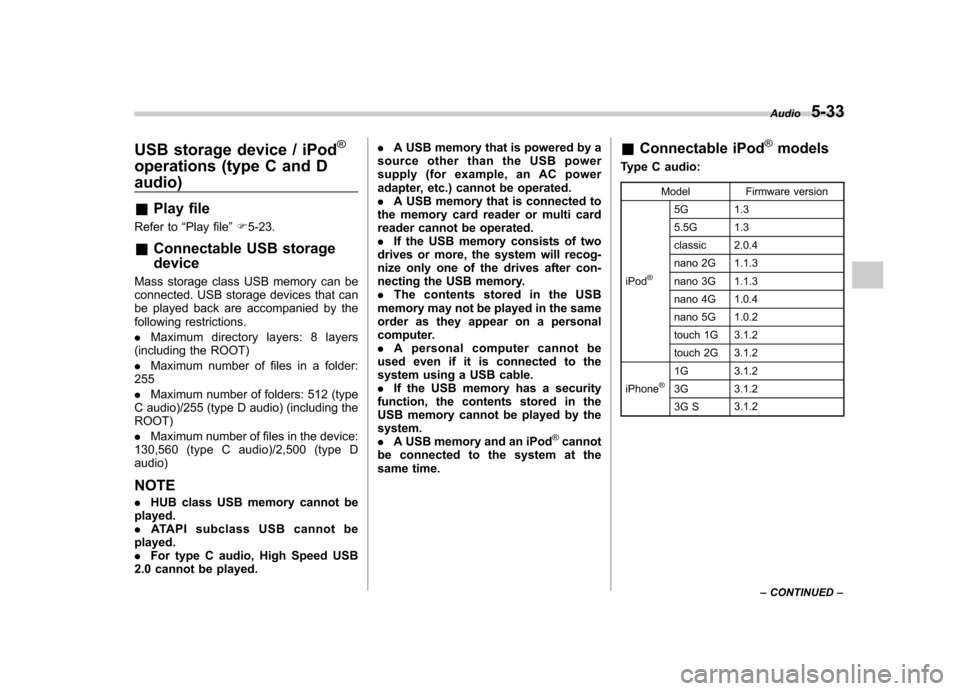
Type C audio:
Model Firmware version
iPod
®
5G 1.3
5.5G 1.3
classic 2.0.4
nano 2G 1.1.3
nano 3G 1.1.3
nano 4G 1.0.4
nano 5G 1.0.2
touch 1G 3.1.2
touch 2G 3.1.2
iPhone
®1G 3.1.2
3G 3.1.2
3G S 3.1.2Audio
5-33
– CONTINUED –