2011 NISSAN MURANO radio
[x] Cancel search: radioPage 221 of 433
Black plate (219,1)
Model "Z51-D" EDITED: 2010/ 7/ 23
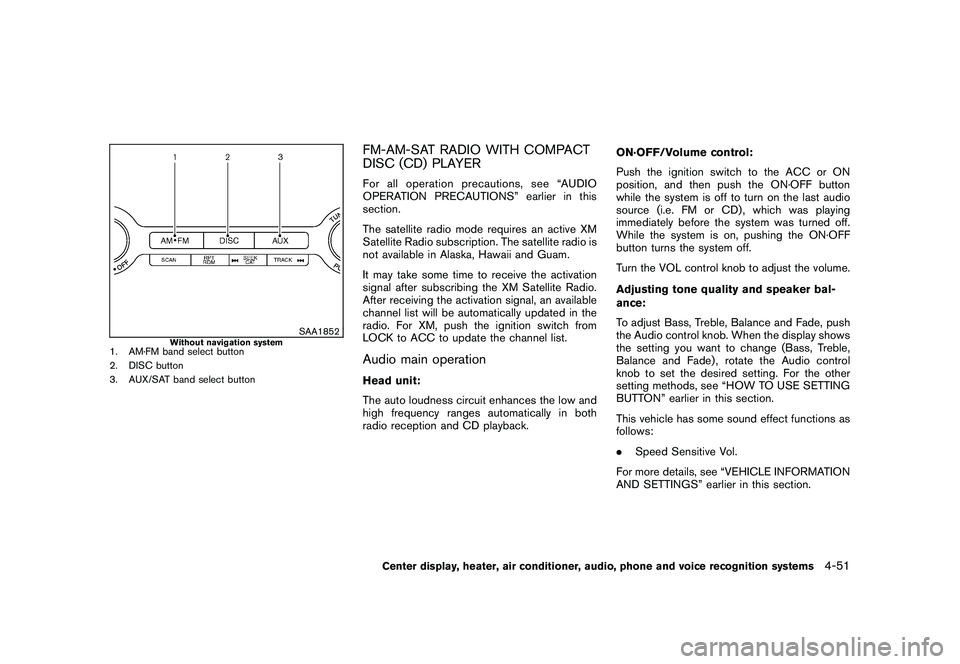
SAA1852
Without navigation system
1. AM·FM band select button
2. DISC button
3. AUX/SAT band select button
FM-AM-SAT RADIO WITH COMPACT
DISC (CD) PLAYERFor all operation precautions, see “AUDIO
OPERATION PRECAUTIONS” earlier in this
section.
The satellite radio mode requires an active XM
Satellite Radio subscription. The satellite radio is
not available in Alaska, Hawaii and Guam.
It may take some time to receive the activation
signal after subscribing the XM Satellite Radio.
After receiving the activation signal, an available
channel list will be automatically updated in the
radio. For XM, push the ignition switch from
LOCK to ACC to update the channel list.Audio main operationHead unit:
The auto loudness circuit enhances the low and
high frequency ranges automatically in both
radio reception and CD playback.ON·OFF/Volume control:
Push the ignition switch to the ACC or ON
position, and then push the ON·OFF button
while the system is off to turn on the last audio
source (i.e. FM or CD) , which was playing
immediately before the system was turned off.
While the system is on, pushing the ON·OFF
button turns the system off.
Turn the VOL control knob to adjust the volume.
Adjusting tone quality and speaker bal-
ance:
To adjust Bass, Treble, Balance and Fade, push
the Audio control knob. When the display shows
the setting you want to change (Bass, Treble,
Balance and Fade) , rotate the Audio control
knob to set the desired setting. For the other
setting methods, see “HOW TO USE SETTING
BUTTON” earlier in this section.
This vehicle has some sound effect functions as
follows:
.
Speed Sensitive Vol.
For more details, see “VEHICLE INFORMATION
AND SETTINGS” earlier in this section.
Center display, heater, air conditioner, audio, phone and voice recognition systems
4-51
Page 222 of 433
Black plate (220,1)
Model "Z51-D" EDITED: 2010/ 7/ 23
Switching the display:
.Models with navigation system
Pushing the DISC·AUX button will switch the
displays as follows:
iPod
®/USB ?CD/DVD ?Music Box
®?
Bluetooth
®Audio ?AUX ?iPod
®/USB
. Models without navigation system
Pushing the DISC button will switch the display
as follows:
CD ?Music Box
®?CD
Pushing the AUX button will switch the display
as follows:
USB/iPod
®? XM1 ?XM2 ?XM3 ?USB/
iPod
®
FM-AM-SAT radio operation
radio (FM/AM) band select:
Pushing the radio band select button will
change the band as follows:
AM ?FM1 ?FM2 ?AM
radio (SAT) band select (models with
navigation system):
Pushing the radio band select button will
change the band as follows:
XM1 ?XM2 ?XM3 ?XM1
When the radio band select button is pushed
while the ignition switch is in the ACC or ON
position, the radio will come on at the channel
last played.
The last channel played will also come on when
the ON·OFF button is pushed to ON.
The satellite radio is not available in Alaska,
Hawaii and Guam.
If another audio source is playing when the radio
band select button is turned to ON, the audio
source will automatically be turned off and the
last radio channel played will come on.
When the stereo broadcast signal is weak, the
radio will automatically change from stereo to
monaural reception.radio (SAT) band select (models
without navigation system):
Push the satellite band select button to select
the satellite radio mode XM1, XM2 or XM3. TUNE (Tuning):
.
For AM and FM radio
Turn the radio TUNE knob for manual tuning.
. For XM Satellite Radio
Turn the radio TUNE knob to seek channels
from all of the categories when any category
is not selected.
SEEK tuning/CATEGORY
(CAT):
. For AM and FM radio
Push the SEEK button
or
to tune
from low to high or high to low frequencies
and to stop at the next broadcasting station.
. For XM Satellite Radio
Push the SEEK button
or
to tune
to the first channel of the next or previous
category.
During satellite radio reception, the following
notices will be displayed under certain condi-
tions.
. NO SIGNAL (No signal is received while the
SAT tuner is connected.)
. OFF AIR (Broadcasting signed off)
4-52
Center display, heater, air conditioner, audio, phone and voice recognition systems
Page 223 of 433
Black plate (221,1)
Model "Z51-D" EDITED: 2010/ 7/ 23
.CHECK ANTENNA (Antenna connection
error)
. LOADING (When the initial setting is
performed)
. UPDATING (When the satellite radio sub-
scription is not active)
SCAN tuning:
Push the SCAN tuning button to tune from low
to high frequencies and stop at each broad-
casting station/channel for 5 seconds. Pushing
the button again during this 5 seconds period
will stop SCAN tuning and the radio will remain
tuned to that station/channel.
If the SCAN tuning button is not pushed within 5
seconds, SCAN tuning moves to the next
station/channel.
*1
to
*6
Station memory operations:
12 stations/channels can be set for the FM band
(6 each for FM1 and FM2) , 18 for XM radio (6
each for XM1, XM2 and XM3) and 6 stations
can be set for the AM band.
1. Choose the radio band using the radio band select button.
2. Tune to the desired station/channel using the SEEK/TRACK, SCAN button or the
radio TUNE knob. 3. Push and hold the desired station preset
button
*1
to*6
until the radio mutes.
4. The station indicator will then come on and the sound will resume. Memorizing is now
complete.
5. Other buttons can be set in the same manner.
If the battery cable is disconnected, or if the fuse
opens, the radio memory will be erased. In that
case, reset the desired stations/channels.
List (AM and FM radio) (models with
navigation system):
When the “List” key on the display is selected
while the FM or AM radio is being played, the
preset station list will be displayed.
If 1 of the 6 preset stations listed is touched and
held, the current station will be stored as the
new preset.
Menu (XM Satellite Radio) (models with
navigation system):
When the “Menu” key on the display is selected
while the XM Satellite Radio is being played, the
menu list will be displayed.
The following items are available.
. Preset List Displays the preset channel list. If 1 of the 6
preset stations listed is touched and held,
the current station will be stored as the new
preset.
. Customize Channel List
Selects specific channels to skip while using
the TUNE, SEEK/CATEGORY or Menu-
Categories feature.
. Favorite Artists & Songs
Stores the current artist or song that is being
played. Touch the “Alert” key to be reminded
when the stored artist or song is playing on a
station while listening to XM.
. Categories
Selecting a category will go to the first
channel in that category as defined by XM
Radio.
. Direct Tune
Inputs the channel number by using a
keypad.
Text (models without navigation system):
When the “Text” key is selected with the multi-
function controller on the display and then the
ENTER button is pushed while the satellite radio
is being played, the text information listed below
will be displayed on the screen.
Center display, heater, air conditioner, audio, phone and voice recognition systems
4-53
Page 224 of 433
Black plate (222,1)
Model "Z51-D" EDITED: 2010/ 7/ 23
.CH Name
. Category
. Name
. Title
. OtherCompact Disc (CD) player operationPush the ignition switch to the ACC or ON
position and insert the Compact Disc (CD) into
the slot with the label side facing up. The CD will
be guided automatically into the slot and start
playing.
After loading the CD, the number of tracks on
the CD and the play time will appear on the
display.
If the radio is already operating, it will auto-
matically turn off and the CD will play.
If the system has been turned off while the CD
was playing, pushing the ON·OFF button will
start the CD.
Do not use 3.1 in (8 cm) discs.
or
PLAY:
When the DISC·AUX or DISC (CD play) button
is pushed with the system off and the CD
loaded, the system will turn on and the CD will
start to play. When the DISC·AUX or DISC button is pushed
with the CD loaded and the radio playing, the
radio will automatically be turned off and the CD
will start to play.
Menu (models with navigation system):
When the “Menu” key on the display is selected
while the CD is being played, the menu screen
will be displayed. The following menu options
are available.
.
Folder List (for CD with compressed audio
files)
Displays the folder list.
. Track List
Displays the track list.
. Play Mode
Select a play mode from the following items.
— Normal
— 1 Folder Repeat (for CD with compressed audio files)
— 1 Track Repeat
— 1 Disc Random
— 1 Folder Random (for CD with com- pressed audio files) .
Record to Music Box
®(for CD)
Select to choose specific songs on the CD
to record to the Music Box
®.
. Title Text Priority (for CD)
Set the priority to CDDB (Compact Disc
Data Base) to acquire track information from
the Gracenote Database, or set the priority
to CD-TEXT to acquire the information from
CDs.
. Automatic Recording (for CD)
When this item is turned to ON, the Music
Box
®hard drive/flash memory automatically
starts recording when a CD is inserted.
. Recording Quality (for CD)
The larger number (132) will increase the
recorded sound quality while taking up more
space on the Music Box
®leaving less room
for more songs.
For the details of Music Box®, see “MUSIC
BOX
®” later in this section.
Text (models without navigation system):
When the “Text” key is selected in the screen
using the multi-function controller and then the
ENTER button is pushed while the CD is being
played, the music information below will be
displayed on the screen.
4-54
Center display, heater, air conditioner, audio, phone and voice recognition systems
Page 240 of 433
Black plate (238,1)
Model "Z51-D" EDITED: 2010/ 7/ 23
SAA2513
Models with navigation system
SAA2612
Models without navigation system
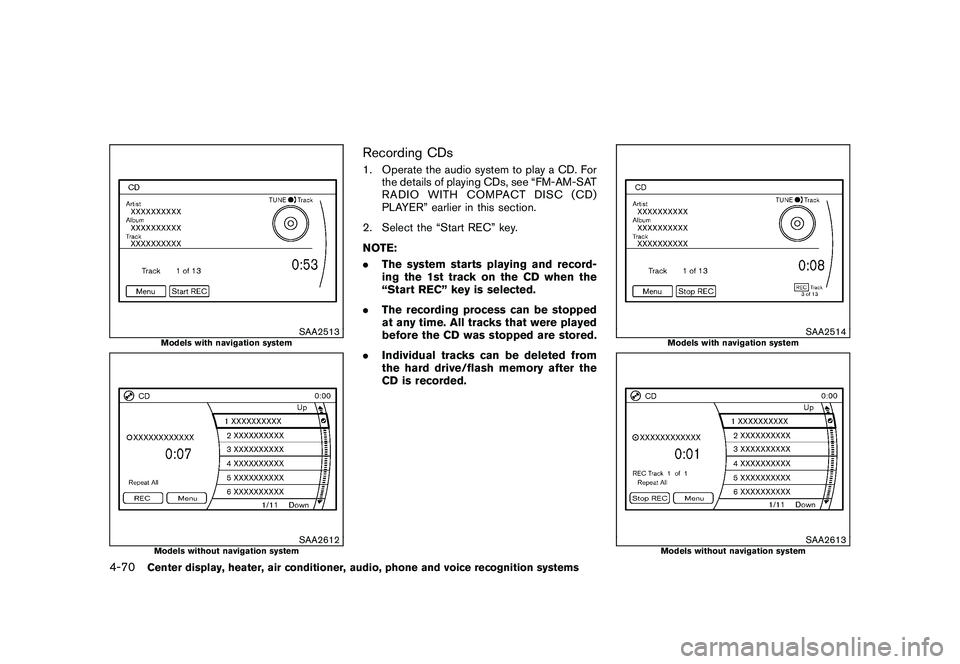
Recording CDs1. Operate the audio system to play a CD. Forthe details of playing CDs, see “FM-AM-SAT
RADIO WITH COMPACT DISC (CD)
PLAYER” earlier in this section.
2. Select the “Start REC” key.
NOTE:
. The system starts playing and record-
ing the 1st track on the CD when the
“Start REC” key is selected.
. The recording process can be stopped
at any time. All tracks that were played
before the CD was stopped are stored.
. Individual tracks can be deleted from
the hard drive/flash memory after the
CD is recorded.
SAA2514
Models with navigation system
SAA2613
Models without navigation system
4-70
Center display, heater, air conditioner, audio, phone and voice recognition systems
Page 242 of 433
Black plate (240,1)
Model "Z51-D" EDITED: 2010/ 7/ 23
Playing recorded songsSelect the Music Box
®audio system by using
one of the following methods.
. Push the audio source switch on the
steering wheel repeatedly until the center
display changes to the Music Box
®mode.
(See “STEERING-WHEEL-MOUNTED
CONTROLS FOR AUDIO” later in this
section.)
. Push the DISC·AUX or AUX button repeat-
edly until the center display changes to the
Music Box
®mode.
. Give voice commands. (See “NISSAN
VOICE RECOGNITION SYSTEM (models
with navigation system)” later in this sec-
tion.)
Stopping playback:
The system stops playing when:
a. another mode (radio, CD, DVD, USB memory, iPod®or AUX) is selected.
b. the audio system is turned off.
c. the ignition switch is pushed to the LOCK position.
Next/Previous Track and Fast
Forward/Rewind:
When the(fast forward) or
(rewind)
button is pushed for more than 1.5 seconds
while a track is being played, the track will play
while fast forwarding or rewinding. When the
button is released, the track will return to the
normal play speed.
When the
or
button is pushed for less
than 1.5 seconds while a track is being played,
the next track or the beginning of the current
track will be played.
The multi-function controller can also be used to
select tracks when a track is being played.
Play mode selection:
The TUNE/FOLDER knob will skip from album to
album unless it is playing “All Songs” from the
Music Library menu. When playing “All Songs”,
the knob will change the track instead of the
album. The upper right corner of the main screen
will indicate if the TUNE knob is changing by
track or album.
REPEAT (RPT) , RANDOM (RDM):
When the RPT·RDM button is pushed while a
track is being played, the play pattern can be
changed as follows: (Normal)
?1 Album Repeat ?1 Track Repeat
? 1 Album Random ?All Random ?(Normal)
Tag Track (models with navigation system):
Select “Tag Track” key on the screen when a
track is being played. A menu will show the 5
available playlists. Select one of the playlists to
add the current song to that playlist. If a playlist
is not selectable (text is grayed out) , it means
the song already exists in that playlist.
4-72
Center display, heater, air conditioner, audio, phone and voice recognition systems
Page 249 of 433
Black plate (247,1)
Model "Z51-D" EDITED: 2010/ 7/ 23
SAA1854
With navigation system
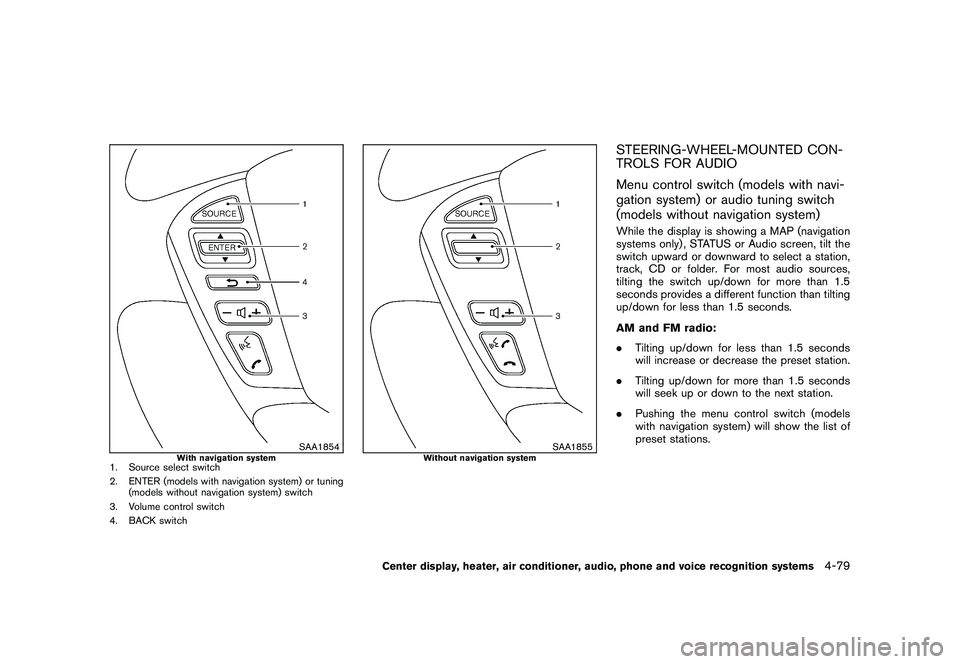
1. Source select switch
2. ENTER (models with navigation system) or tuning(models without navigation system) switch
3. Volume control switch
4. BACK switch
SAA1855
Without navigation system
STEERING-WHEEL-MOUNTED CON-
TROLS FOR AUDIO
Menu control switch (models with navi-
gation system) or audio tuning switch
(models without navigation system)While the display is showing a MAP (navigation
systems only) , STATUS or Audio screen, tilt the
switch upward or downward to select a station,
track, CD or folder. For most audio sources,
tilting the switch up/down for more than 1.5
seconds provides a different function than tilting
up/down for less than 1.5 seconds.
AM and FM radio:
. Tilting up/down for less than 1.5 seconds
will increase or decrease the preset station.
. Tilting up/down for more than 1.5 seconds
will seek up or down to the next station.
. Pushing the menu control switch (models
with navigation system) will show the list of
preset stations.
Center display, heater, air conditioner, audio, phone and voice recognition systems
4-79
Page 250 of 433
Black plate (248,1)
Model "Z51-D" EDITED: 2010/ 7/ 23
XM Satellite Radio:
.Tilting up/down for less than 1.5 seconds
will increase or decrease the preset channel.
. Tilting up/down for more than 1.5 seconds
will go to the next or previous category.
. Pushing the menu control switch (models
with navigation system) will show the XM
Menu.
iPod
®:
. Tilting up/down for less than 1.5 seconds
will increase or decrease the track number.
. Tilting up/down for more than 1.5 seconds
will skip to the next or previous index.
. Pushing the menu control switch will show
the iPod Menu.
CD:
. Tilting up/down for less than 1.5 seconds
will increase or decrease the track number.
. Tilting up/down for more than 1.5 seconds
will increase/decrease the folder number (if
playing compressed audio files) .
. Pushing the menu control switch (models
with navigation system) will show the CD
Menu. DVD (models with navigation system):
.
Tilting up/down for less than 1.5 seconds
will increase or decrease the track number.
. Tilting up/down for more than 1.5 seconds
will increase or decrease the title number.
. Pushing the menu control switch will select
an item from the DVD display.
. When the transparent operation menu ap-
pears, the switch will control the menu.
USB:
. Tilting up/down for less than 1.5 seconds
will increase or decrease the track number.
. Tilting up/down for more than 1.5 seconds
will increase/decrease the folder number
. Pushing the menu control switch will show
the USB Menu.
Music Box
®:
. Tilting up/down for less than 1.5 seconds
will increase or decrease the track number.
. Tilting up/down for more than 1.5 seconds
will increase/decrease the album (folder)
number (if playing compressed audio files) .
. Pushing the menu control switch will show
the Music Box
®Menu. Bluetooth
®Audio (models with navigation
system):
. Tilting up/down for less than 1.5 seconds
will increase or decrease the track number.
BACK switch (models with navi-
gation system)
Push this switch to go back to the previous
screen or cancel the selection if it is not
completed.Volume control switchesPush the upper (+) or lower ( ) side switch to
increase or decrease the volume.Source select switchPush the audio source switch to change the
mode as follows.
. Models with navigation system
AM ?FM ?SAT ?CD/DVD ?Music
Box
®? USB/iPod
®? Bluetooth
®Audio
. Models without navigation system
AM ?FM ?CD ?Music Box®?USB/
iPod
®? SAT
4-80
Center display, heater, air conditioner, audio, phone and voice recognition systems