2011 MITSUBISHI TRITON ESP
[x] Cancel search: ESPPage 204 of 369
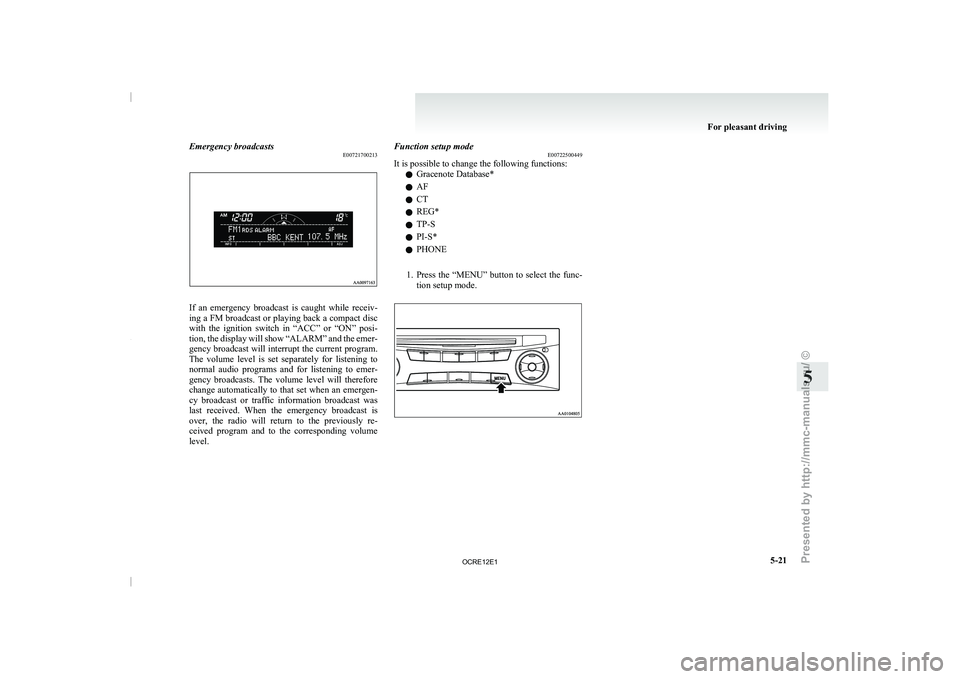
Emergency broadcasts
E00721700213If an emergency broadcast is caught while receiv-
ing a FM broadcast or
playing back a compact disc
with the ignition switch in “ACC” or “ON” posi-
tion, the display will show “ALARM” and the emer-
gency broadcast will interrupt the current program.
The volume level is set separately for listening to
normal audio programs and for listening to emer-
gency broadcasts. The volume level will therefore
change automatically to that set when an emergen-
cy broadcast or traffic information broadcast was
last received. When the emergency broadcast is
over, the radio will return to the previously re-
ceived program and to the corresponding volume
level. Function setup mode
E00722500449
It is possible to change the following functions:
l Gracenote Database*
l AF
l CT
l REG*
l TP-S
l PI-S*
l PHONE
1. Press the “MENU” button to
select the func-
tion setup mode. For pleasant driving
5-21 5
OCRE12E1
Presented by http://mmc-manuals.ru/ \251
Page 238 of 369

Speaker enrollment
E00727500196
It takes about 2 to
3 minutes to complete the speak-
er enrollment process.
To ensure the best results, run through the process
while in the driver’s seat, in an environment that is
as quiet as possible (when there is no rain or strong
winds and the vehicle windows are closed). Please
turn off your phone while in speaker enrollment to
prevent interruption of the process.
Use the following procedure for speaker enrollment. 1. Stop your vehicle in a safe area, put the gear-shift lever in the “N” (Neutral) position
(M/T), or the selector lever in the “P”
(PARK) position (A/T), and pull the parking
brake lever.
NOTE l Speaker enrollment is not possible unless the
vehicle is parked. Make sure you park the ve-
hicle in a safe area before attempting speaker
enrollment.
2. Press the SPEECH button.
3. Say “Voice training”.
4. The voice guide will say “This operation must be performed in a quiet environment
while the vehicle is stopped. See the owner’s
manual for the list of required training phra-
ses. Press and release the SPEECH button
when you are ready to begin. Press the HANG-
UP button to cancel at any time”.
Press the SPEECH button to start the speaker
enrollment process. NOTE
l If
you do not start
the speaker enrollment proc-
ess within 3 minutes of pressing the
SPEECH button, the speaker enrollment func-
tion will time out.
The voice guide will say “Speaker Enroll-
ment has timed out”. The system will then
beep and the voice recognition mode will be
deactivated.
5. The voice guide will prompt for phrase 1. Re- peat the corresponding phrase listed in table
“Enrollment commands” on page 5-66.
The system will register your voice and then
move on to the registration of the next com-
mand. Continue the process until all phrases
have been registered.
NOTE l To repeat the most recent voice training com-
mand, press and release the SPEECH button.
l If you press the HANG-UP button anytime
during the process, the system will beep and
stop the speaker enrollment process.
6. When all enrollment commands have been read out, the voice guide will say “Speaker
enrollment is complete”. The system will
then end the speaker enrollment process and
return to the main menu.
NOTE l Completing the speaker enrollment process
will turn on the voice model automatically.
l The commands “Help” and “Cancel” will not
work in this mode. Enabling and disabling the voice model and re-
training
E00727600096
You can turn a voice
model registered with the
speaker enrollment function on and off whenever
you want.
You can also retrain the system.
Use the following procedure to perform these ac-
tions. 1. Press the SPEECH button.
2. Say “Voice training”.
3. If you have completed a speaker enrollmentprocess once already, the voice guide will
say either “Enrollment is enabled. Would
you like to disable or retrain?” or “Enroll-
ment is disabled. Would you like to enable
or retrain?”
4. When enrollment is “enabled”, the voice mod- el is on; when enrollment is “disabled”, the
voice model is off. Say the command that
fits your needs.
Say “Retrain” to start the speaker enrollment
process and recreate a new voice model. (Re-
fer to “Speaker enrollment” on page 5-55.)
Connecting the Bluetooth ®
2.0 inter-
face and Bluetooth ®
device
E00760600204
Before you can make or receive hands-free calls or
play music using the Bluetooth ®
2.0 interface func-
tion, you must pair the
Bluetooth®
device and Blue-
tooth ®
2.0 interface. For pleasant driving
5-55 5
OCRE12E1
Presented by http://mmc-manuals.ru/ \251
Page 239 of 369

NOTE
l Pairing
is required only when
the device is
used for the first time. Once the device has
been paired with the Bluetooth ®
2.0 inter-
face, you only need to bring the device into
the vehicle next time and the device will au-
tomatically connect to the Bluetooth ®
2.0 in-
terface (if supported by the device).
Up to 7 Bluetooth ®
devices can be paired with the
Bluetooth ®
2.0 interface.
If multiple paired Bluetooth ®
devices are available
in the vehicle, the cellular phone or music player
most recently connected is automatically connected
to the Bluetooth ®
2.0 interface.
You can also change a Bluetooth ®
device to be con-
nected.
To pair
To pair a Bluetooth ®
device with the Bluetooth ®
2.0 interface, follow the steps below. 1. Stop your vehicle in a safe area, put the gear-shift lever in the “N” (Neutral) position
(M/T), or the selector lever in the “P”
(PARK) position (A/T), and pull the parking
brake lever.
NOTE l You cannot pair Bluetooth ®
devices with the
Bluetooth ®
2.0 interface unless the vehicle is
parked. Before pairing a Bluetooth ®
device
with the Bluetooth ®
2.0 interface, confirm
that the vehicle is parked in a safe location.
2. Press the SPEECH button.
3. Say “Setup”. 4. Say “Pairing options.”
5. The
voice guide will
say
“Select one of the
following: pair, edit, delete, or list.” Say
“Pair.”
NOTE l If 7 devices have already been paired, the
voice guide will say “Maximum devices
paired” and then the system will end the pair-
ing process. To register a new device, delete
one device and then repeat the pairing process.
(Refer to “Deleting a device” on page 5-57.)
6. The voice guide will say “Please say a 4-dig- it pairing code.” Say a 4-digit number.
When the confirmation function is on, the sys-
tem will confirm whether the number said is
acceptable. Answer “Yes.”
Answer “No” to return to pairing code selec-
tion.
NOTE l Some Bluetooth ®
devices require a specific
pairing code.
Please refer to the device manual for pairing
code requirements. l
The
pairing code entered here is only used
for the Bluetooth ®
connection certification.
It is any 4-digit number the user would like
to select.
Remember the pairing code as it needs to be
keyed into the Bluetooth ®
device later in the
pairing process.
Depending on the connection settings of the
Bluetooth ®
device, this code may have to be
entered each time you connect the Blue-
tooth ®
device to the Bluetooth ®
2.0 inter-
face. For the default connection settings, re-
fer to the instructions for the device.
7. The voice guide will say “Start pairing proce- dure on the device. See the device manual
for instructions.” Enter in the Bluetooth ®
de-
vice the 4-digit number you have registered
in Step 6.
NOTE l According to the corresponding device to
Bluetooth ®
, it might take a few minutes to
pair the Bluetooth ®
device with the Blue-
tooth ®
2.0 interface.
l If the Bluetooth ®
2.0 interface cannot recog-
nize the Bluetooth ®
device, the voice guide
will say “Pairing has timed out” and the pair-
ing process will be cancelled.
Confirm that the device you are pairing sup-
ports Bluetooth ®
, and try pairing it again.
l If you enter the wrong number, the voice
guide will say “Pairing failed” and the pair-
ing process will be cancelled. Confirm the
number is right, and try pairing it again. For pleasant driving
5-56
5
OCRE12E1
Presented by http://mmc-manuals.ru/ \251
Page 240 of 369
8. The voice guide will say “Please say the
name of the device after the beep.” You can
assign a desired name for the Bluetooth ®
de-
vice and register it as a device tag. Say the
name you want to register after the beep.
NOTE l When the confirmation function is on, after
repeating the device tag you have said, the
voice guide will ask “Is this correct?” An-
swer “Yes.”
To change the device tag, answer “No” and
then say the device tag again.
9. The voice guide will say “Pairing complete,” after which a beep will be played and the pair-
ing process will end.
Selecting a device E00760700016
If multiple paired Bluetooth ®
devices
are available
in the
vehicle, the cellular phone or music player
most recently connected is automatically connected
to the Bluetooth ®
2.0 interface.
You can connect to the other cellular phone or mu-
sic player by following setting change procedures.
To select a cellular phone
1. Press the SPEECH button.
2. Say “Setup”.
3. Say “Select phone.”
4. After the voice guide says “Please say,” thenumbers of the cellular phones and device
tags of corresponding cellular phones will be
read out in order, starting with the cellular
phone that has been most recently connected.
Say the number of the cellular phone that
you want to connect to. When the confirmation function is on, the sys-
tem
will ask
you again
whether the phone
that you want to connect to is correct. An-
swer “Yes” to continue and connect to the cel-
lular phone.
Answer “No,” and the voice guide will say
“Please say.” Say the number of the phone
that you want to connect to.
NOTE l You can connect to a phone at any time by
pressing the SPEECH button and saying the
number, even before all of the paired num-
bers and device tags of corresponding cellu-
lar phones are read out by the system.
5. The selected phone will be connected to the Bluetooth ®
2.0 interface. The voice guide
will say “
system will return to the main menu.
To select a music player 1. Press the SPEECH button.
2. Say “Setup”.
3. Say “Select music player.”
4. After the voice guide says “Please say,” thenumbers of the music players and device tags
of corresponding music players will be read
out in order, starting with the music player
that has been most recently connected.
Say the number of the music player that you
want to connect to.
When the confirmation function is on, the sys-
tem will ask you again whether the music
player that you want to connect to is correct.
Answer “Yes” to continue and connect to the
music player. Answer “No,” and the voice guide will say
“Please say.” Say the number
of the music
player that you want to connect to.
NOTE l You can connect to a music player at any
time by pressing the SPEECH button and say-
ing the number, even before all of the paired
numbers and device tags of corresponding mu-
sic players are read out by the system.
5. The selected music player will be connected to the Bluetooth ®
2.0 interface.
The voice guide will say “
ted” and then the system will return to the
main menu.
Deleting a device
Use the following procedure to delete a paired Blue-
tooth ®
device from the Bluetooth ®
2.0 interface.
1. Press the SPEECH button.
2. Say “Setup”.
3. Say “Pairing options.”
4. The voice guide will say “Select one of the following: pair, edit, delete, or list.” Say “De-
lete.”
5. After the voice guide says “Please say,” the numbers of the devices and device tags of cor-
responding devices will be read out in order,
starting with the device that has been most re-
cently connected. After it completes reading
all pairs, the voice guide will say “or all.”
Say the number of the device that you want
to delete from the system.
If you want to delete all paired phones from
the system, say “All.” For pleasant driving
5-57 5
OCRE12E1
Presented by http://mmc-manuals.ru/ \251
Page 241 of 369
6. For confirmation purposes, the voice guide
will say “Deleting
Is this correct?” or “Deleting all devices. Is
this correct?”
Answer “Yes” to delete the phone(s).
Answer “No” to return to Step 4.
7. The voice guide will say “Deleted,” and then the system will end the device deletion proc-
ess.
NOTE l If the device deletion process fails for some
reason, the voice guide will say “Delete
failed” and then the system will cancel delet-
ing the device.
To check a paired Bluetooth ®
device
E00760800017
You can check a paired Bluetooth ®
device by fol-
lowing the steps below. 1.Press the SPEECH button.
2.
Say “Setup”.
3. Say “Pairing options.”
4. The voice guide will say “Select one of the following: pair, edit, delete, or list.” Say
“List.”
5. The voice guide will read out device tags of corresponding devices in order, starting with
the Bluetooth ®
device that has been connec-
ted most recently.
6. After the device tags of all paired Bluetooth ®
devices have been read, the system will say
“End of list, would you like to start from the
beginning?”
To hear the list again from the beginning , an-
swer “Yes.”
When you are done, answer “No” to return to
the main menu. NOTE
l If
you press
and release
the SPEECH button
and say “Continue” or “Previous” while the
list is being read, the system will advance or
rewind the list.
Say “Continue” to proceed to the device with
the next highest number or “Previous” to re-
turn to the phone with the previous number.
l You can change the device tag by pressing
and releasing the SPEECH button and then
saying “Edit” while the list is being read.
l You can change the phone to be connected
by pressing and releasing the SPEECH but-
ton and then saying “Select phone” while the
list is being read.
l You can change the music player to be con-
nected by pressing and releasing the
SPEECH button and then saying “Select mu-
sic player” while the list is being read.
Changing a device tag E00760900018
You can change the device tag of a paired cellular
phone or music player.
Follow the steps below to change a device tag.
1.Press the SPEECH button.
2. Say “Setup”.
3. Say “Pairing options.”
4. The
voice guide will say “Select one of the
following: pair, edit, delete, or list.” Say “Ed-
it.”
5. The voice guide will say “Please say,” and
read out the numbers of the Bluetooth ®
devi-
ces and device tags of corresponding devices
in order, starting with the Bluetooth ®
that
has been most recently connected.
After all paired device tags have been read,
the voice guide will say “Which device, please?” Say the number of the device tag
you want to change.
NOTE l You can press and
release
the SPEECH but-
ton while the list is being read, and immedi-
ately say the number of the device tag you
want to change.
6. The voice guide will say “New name, please.” Say the name you want to register as
a new device tag.
When the confirmation function is on, the
voice guide will say “
this correct?” Answer “Yes.”
Answer “No,” to say the new device tag you
want to register again.
7. The device tag is changed. When the change is complete, the voice
guide will say “New name saved” and then
the system will return to the main menu.
Operating a music player connected
via Bluetooth ®
E00761000016
For the operation of a music player connected via
Bluetooth ®
, refer to “To play
tracks from a Blue-
tooth ®
device” on page 5-36.
How to make or receive hands-free calls E00761100020
You can make or receive hands-free calls using a
Bluetooth ®
compatible cellular phone connected
to
the Bluetooth ®
2.0 interface.
You can also use the phone books in the Blue-
tooth ®
2.0 interface to make calls without dialling
telephone numbers.
For pleasant driving
5-58
5
OCRE12E1
Presented by http://mmc-manuals.ru/ \251
Page 243 of 369

l
If the name you
selected has matching data
in the mobile phone book but no telephone
number is registered under the selected loca-
tion, the voice guide will say “{home/work/
mobile/other} not found for
you like to try again?”
Answer “Yes,” and the system will return to
Step 3.
Answer “No,” and the call will be cancelled.
Start over again from Step 1.
6. The voice guide will say “Calling
telephone number.
NOTE l When the confirmation function is on, the sys-
tem will ask if the name and location of the
receiver are correct.
If the name is correct, answer “Yes.”
To change the name or location to call, an-
swer “No.” The system will return to Step 3.
Redialing
You can redial the last number called, based on the
history of dialed calls in the paired cellular phone.
Use the following procedure to redial. 1. Press the SPEECH button.
2. Say “Redial.”
SEND function E00761300035
During a call, press the SPEECH button to enter
voice recognition mode, then say
“
SEND” to generate DTMF tones. For example, if during a call you need to simulate
the press of a
phone
button as a response to an auto-
mated system, press the SPEECH button and speak
“1 2 3 4 pound SEND” and the 1234# will be sent
on your cellular phone.
Receiving calls E00761600012
If an incoming phone call is received while the ig-
nition switch is in the “ACC” or “ON” position, the
audio system will be automatically
turned on and
switched to the incoming call, even when the audio
system was originally off.
The voice guide announcement for the incoming
call will be output from the front passenger’s seat
speaker.
If the CD player or radio was playing when the in-
coming call was received, the audio system will
mute the sound from the CD player or radio and out-
put only the incoming call.
To receive the call, press the PICK-UP button on
the steering wheel control switch.
When the call is over, the audio system will return
to its previous state.
MUTE function E00760300041
At any time during a call, you can mute the vehicle
microphone.
Pressing the SPEECH button and
then saying
“Mute” during a call will turn ON the MUTE func-
tion and mute the microphone.
Saying “Mute off” in the same way will turn off
the MUTE function and cancel the mute on the mi-
crophone. Switching between hands-free mode and private
mode
E00761400036
The Bluetooth ®
2.0 interface can
switch between
Hands-free mode (Hands-free calls) and private
mode (calls using cellular phone).
If you press the SPEECH button and say “Transfer
call” during a Hands-free call, you can stop the
Hands-free mode and talk in private mode.
To return to Hands-free mode, press the SPEECH
button again and say “Transfer call”.
Phone book function E00763700017
The Bluetooth ®
2.0 interface has 2
types of unique
phone books that are different from the phone book
stored in the cellular phone. They are the vehicle
phone book and the mobile phone book.
These phone books are used to register telephone
numbers and to make calls to desired numbers via
the voice recognition function.
NOTE
l Disconnecting the battery cable will not de-
lete information registered in the phone book.
Vehicle phone book E00763800177
This phone book is used when making calls with
the voice recognition function.
Up to 32 names can
be registered in the vehicle
phone book per language.
Also, each entry has 4 locations associated with:
home, work, mobile and other. You can register
one telephone number for each location.
You can register a desired name as a name for any
phone book entry registered in the vehicle phone
book. For pleasant driving
5-60
5
OCRE12E1
Presented by http://mmc-manuals.ru/ \251
Page 255 of 369
CAUTION
l
When the cigarette lighter socket is used
as a power source for an electric appli-
ance, be sure that the electric appliance
operates at 12 V and has an electric ca-
pacity of 120 W or less. In addition, long
use of the electric appliance without run-
ning the engine may run down the battery. Accessory socket*
E00711601160
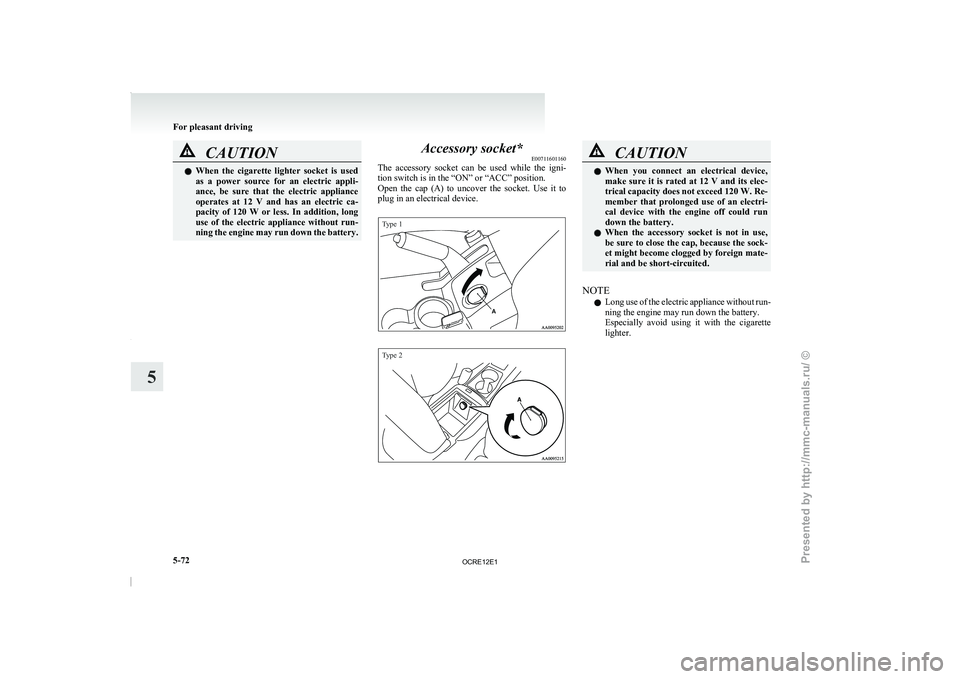
The accessory socket can be
used while the igni-
tion switch is in the “ON” or “ACC” position.
Open the cap (A) to uncover the socket. Use it to
plug in an electrical device.
Type 1
Type 2 CAUTION
l
When you connect an electrical
device,
make sure it is rated at 12 V and its elec-
trical capacity does not exceed 120 W. Re-
member that prolonged use of an electri-
cal device with the engine off could run
down the battery.
l When the accessory socket is not in use,
be sure to close the cap, because the sock-
et might become clogged by foreign mate-
rial and be short-circuited.
NOTE l Long
use of the electric
appliance without run-
ning the engine may run down the battery.
Especially avoid using it with the cigarette
lighter. For pleasant driving
5-72
5
OCRE12E1
Presented by http://mmc-manuals.ru/ \251
Page 294 of 369
NOTE
l If
genuine leather is wet
with water or is wash-
ed in water, wipe off water as quickly as pos-
sible with a dry, soft cloth. If left damp, mil-
dew may grow.
l The genuine leather surface may be damaged
if a nylon brush or synthetic fibre is rubbed
hard against it.
l Organic solvents such as benzine, kerosene,
alcohol and petrol, acid or alkaline solvents
may discolour the genuine leather surface.
Be sure to use neutral detergents.
l Remove dirty patches or oil substances quick-
ly as they can stain genuine leather.
l The genuine leather surface may harden and
shrink if it is exposed to direct sun for long
hours. When your vehicle is parked, place it
in the shade as much as possible.
l When the temperature of the vehicle interior
rises in summer, vinyl products left on the
genuine leather seat may deteriorate and
stick to the seat. Cleaning the exterior of your
vehicle E00900700010
If the following is
left
on your vehicle, it may
cause corrosion, discolouration and stains, wash
the vehicle as soon as possible.
l Seawater, anti-freeze for road use.
l Soot and dust, iron powder from factories,
chemical substance (acids, alkalis, coal-tar,
etc.).
l Droppings from birds, carcasses of insects,
tree sap, etc.
Washing E00900902016
Chemicals contained in the dirt and dust picked up
from the road surface can
damage the paint coat
and body of your vehicle if left in prolonged contact.
Frequent washing and waxing is the best way to pro-
tect your vehicle from this damage. This will also
be effective in protecting it from environmental el-
ements such as rain, snow, salt air, etc.
Do not wash the vehicle in direct sunlight. Park the
vehicle in the shade and spray it with water to re-
move dust. Next, using an ample amount of clean
water and a car washing brush or sponge, wash the
vehicle from top to bottom.
Use a mild car washing soap if necessary. Rinse
thoroughly and wipe dry with a soft cloth. After
washing the vehicle, carefully clean the joints and
flanges of the doors, bonnet, etc., where dirt is like-
ly to remain. CAUTION
l
When washing the under side
of your ve-
hicle or wheel, be careful not to injure
your hands.
l Refrain from using a car wash as its brush-
es may scratch the paint surface, causing
it to lose its gloss.
Scratches will be especially visible on
darker coloured vehicles.
l Never spray or splash water on the electri-
cal components in the engine compart-
ment, as this may adversely affect engine
starting.
Exercise caution also when washing the
underbody; be careful not to spray water
into the engine compartment.
l Some types of hot water washing equip-
ment apply high pressure and heat to the
vehicle. They may cause heat distortion
and damage to the vehicle resin parts and
may result in flooding of the vehicle inte-
rior. Therefore; observe the following.
• Maintain a distance of approx. 50 cmor more between the vehicle body and
the washing nozzle.
• When washing around the door glass, hold the nozzle at a distance of more
than 50 cm and at right angles to the
glass surface. Vehicle care
7-03 7
OCRE12E1
Presented by http://mmc-manuals.ru/ \251