2011 MITSUBISHI PAJERO IV Indicator
[x] Cancel search: IndicatorPage 201 of 377
AF (Alternative Frequencies) function
E00720900090
The AF function
finds a station broadcasting the
same program and selects the station with the stron-
gest signal of AF lists.
The AF function is turned on at all times unless
you manually switch it off.
The AF function can be turned ON and OFF.
Refer to “Adjusting the time” on page 3-13.
CT (Clock Time) function E00721000085
The clock can be set automatically by using the sig-
nal from the
local RDS stations. Refer to “Adjust-
ing the time” on page 3-13.
REG (Regional) function E00721100028
REG function limits to receive the stations broad-
casting regional programs.
Regional programming and
regional networks are
organized differently depending on the country or
area (they may be changed according to the hour,
state, or broadcast area), so if you don’t want to re-
ceive the regional programs automatically, you can
set up REG ON not to receive regional programs.
The REG function can be turned ON and OFF. Re-
fer to “Function setup mode” on page 5-20.
PI (Program Identification) search function E00721200247
When travelling long distance and the recalled pre-
set station is
weak, the radio searches another fre-
quency broadcasting the same programming with
the same PI code in AF list. If there are no frequencies broadcasting the same
programming, the
radio
searches a frequency broad-
casting the regional programming. The radio suc-
ceeds in searching the regional programming, then
the display shows the REG indicator (13).
If the radio does not succeed in searching the re-
gional programming, the radio returns to the recal-
led preset station.
The PI function can be turned ON and OFF.
Refer to “Function setup mode” on page 5-35.
NOTE
l While searching, the audio system is muted.
The display shows “WAIT” or “SEARCH”.
PTY (Program type) E00721300277
RDS broadcasts are classified according to pro-
gram type (PTY)
as follows. Use the TUNE button
(7 or 8) to select your desired PTY. 1. NEWS
2. AFFAIRS (Current affairs)
3. INFO (Information)
4. SPORT
5. EDUCATE (Education)
6. DRAMA
7. CULTURE
8. SCIENCE
9. VARIED
10. POP M (Pop music)
11. ROCK M (Rock music)
12. EASY M (Easy music)
13. LIGHT M (Light classics)
14. CLASSICS
15. OTHER M (Other music)
16. WEATHER (Weather information)
17. FINANCE
18. CHILDREN 19. SOCIAL
20. RELIGION
21.
PHONE IN
22.
TRAVEL
23. LEISURE
24. JAZZ
25. COUNTRY
26. NATION M (National music)
27. OLDIES
28. FOLK M (Folk music)
29. DOCUMENT
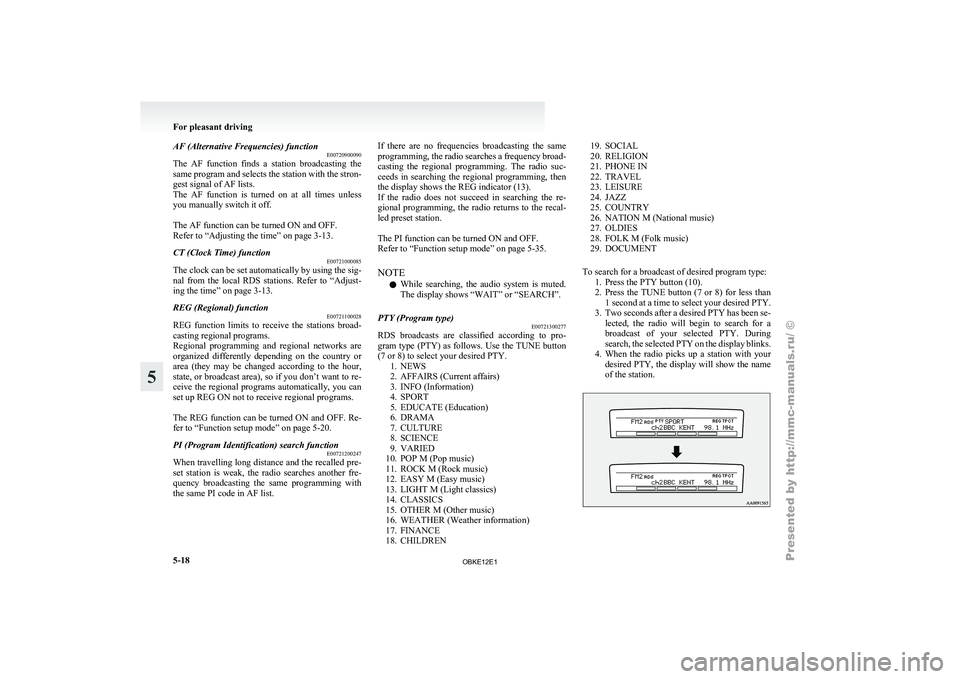
To search for a broadcast of desired program type: 1. Press the PTY button (10).
2. Press the TUNE button (7 or 8) for less than1 second at a time to select your desired PTY.
3. Two seconds after a desired PTY has been se- lected, the radio will begin to search for a
broadcast of your selected PTY. During
search, the selected PTY on the display blinks.
4. When the radio picks up a station with your desired PTY, the display will show the name
of the station. For pleasant driving
5-18
5
OBKE12E1
Page 202 of 377
NOTE
l If
the SEEK
button (5 or 6) is pressed for
less than 1 second,the radio will try to find
out another broadcast of the same program
type as currently selected.
l If no station is found with your desired PTY,
the display will show “EMPTY” for about
5 seconds and the radio will return to the pre-
vious station.
How to enter PTYs in the memory E00721400089
As many as 6 PTYs can be entered in the memory.
Follow the steps described below.
1. Press either
the
TUNE button (7 or 8) to tune
the PTY to be entered in the memory.
2. Press one of the memory select buttons (3) for 2 seconds or longer. The sound will be
momentarily interrupted while the PTY is be-
ing entered into the memory. The number of
the button corresponding to the entry into the
memory and the PTY are displayed.
3. The preset memory setting is retrieved by pressing the button and then releasing it with-
in about 2 seconds.
Traffic information E00721600195
The radio will automatically tune in to traffic infor-
mation broadcasts while
receiving FM broadcasts
or playing compact discs.
To select this function: 1. Press the TP button (9). The display willshow TP indicator (14). If the RDS data can
be read, the display will show RDS indicator
(11). If not, the display will show “NO RDS”
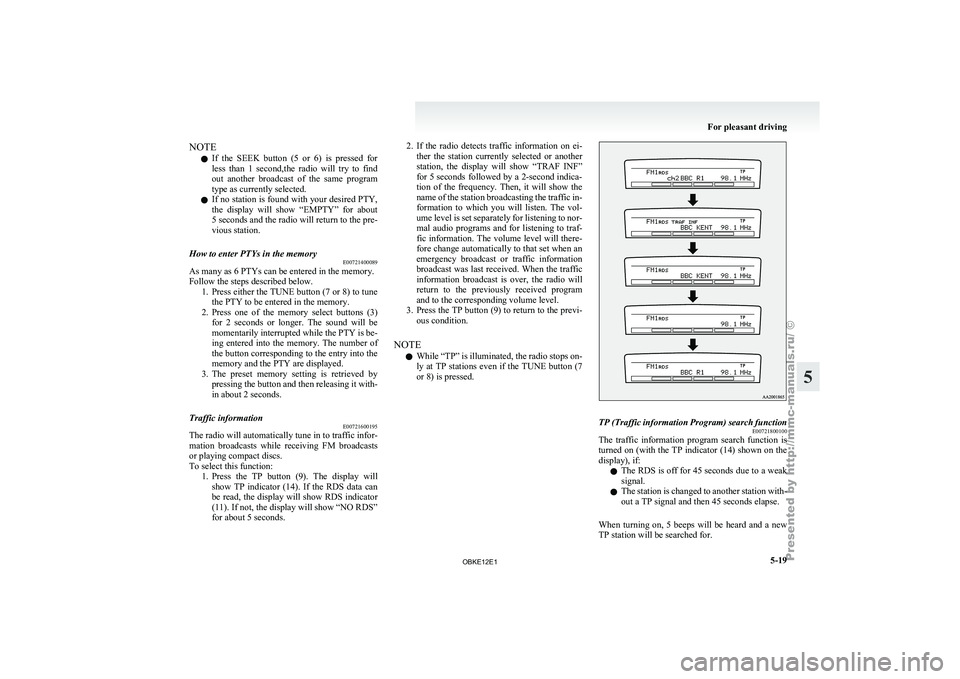
for about 5 seconds. 2. If the radio detects traffic information on ei-
ther the
station currently selected or another
station, the display will show “TRAF INF”
for 5 seconds followed by a 2-second indica-
tion of the frequency. Then, it will show the
name of the station broadcasting the traffic in-
formation to which you will listen. The vol-
ume level is set separately for listening to nor-
mal audio programs and for listening to traf-
fic information. The volume level will there-
fore change automatically to that set when an
emergency broadcast or traffic information
broadcast was last received. When the traffic
information broadcast is over, the radio will
return to the previously received program
and to the corresponding volume level.
3. Press the TP button (9) to return to the previ- ous condition.
NOTE l While “TP” is illuminated, the radio stops on-
ly at TP stations even if the TUNE button (7
or 8) is pressed. TP (Traffic information Program) search function
E00721800100
The traffic information program search function is
turned on (with
the TP indicator (14) shown on the
display), if:
l The RDS is off for 45 seconds due to a weak
signal.
l The station is changed to another station with-
out a TP signal and then 45 seconds elapse.
When turning on, 5 beeps will be heard and a new
TP station will be searched for. For pleasant driving
5-19 5
OBKE12E1
Page 205 of 377
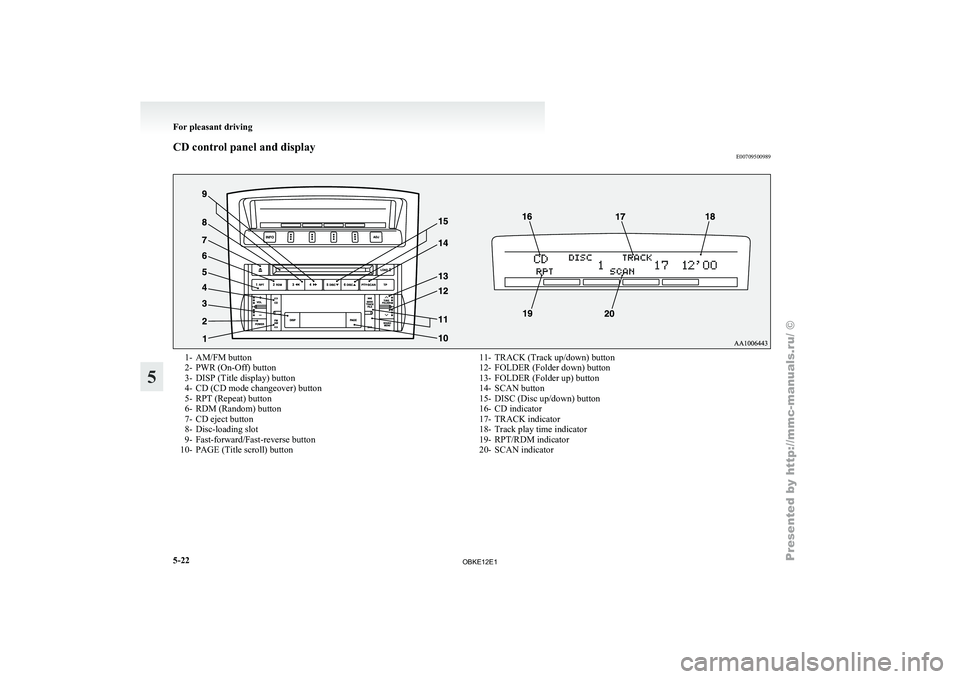
CD control panel and display
E007095009891- AM/FM button
2- PWR (On-Off) button
3-
DISP (Title display) button
4-
CD (CD mode changeover) button
5- RPT (Repeat) button
6- RDM (Random) button
7- CD eject button
8- Disc-loading slot
9- Fast-forward/Fast-reverse button
10- PAGE (Title scroll) button 11- TRACK (Track up/down) button
12- FOLDER (Folder down) button
13- FOLDER (Folder up) button
14-
SCAN button
15- DISC (Disc up/down) button
16- CD indicator
17- TRACK indicator
18- Track play time indicator
19- RPT/RDM indicator
20- SCAN indicator For pleasant driving
5-22
5
OBKE12E1
Page 206 of 377

To listen to a CD
E00709601958
1. Insert a disc
with the label facing up, and the
CD player will begin playing even if the ra-
dio is being used. The CD indicator (16), the
track number and the playing time will ap-
pear on the display. The CD player will also
start playback when the CD button (4) is press-
ed with a disc in the player.
2. To stop the CD, turn off the power by press- ing the PWR button (2) or change over to ra-
dio mode by pressing the AM/FM button (1),
or eject the disc by pressing the eject button
(7).
NOTE l To adjust the volume and tone, refer to “To
adjust the volume” on page 5-13 and “To ad-
just the tone” on page 5-13.
l For information concerning the handling of
compact discs, refer to “Handling of compact
discs” on page 5-65. To listen to an MP3 CD
This
CD player
allows you to play MP3 (MPEG Au-
dio Layer- 3) files recorded on CD-ROMs, CD-Rs
(recordable CDs), and CD-RWs (rewritable CDs)
in ISO9660 Level 1/Level 2, Joliet, and Romeo for-
mats. Each disc may have a maximum of 16 trees,
100 folders, and 255 files per disc. During MP3
playback, the unit can display ID3 tag information.
For information concerning ID3 tag, refer to “CD
text and MP3 title display” on page 5-25. 1. Insert
a disc containing MP3 files into the slot.
2. Press
the CD button (4) for 2 seconds or lon-
ger to switch to MP3 CD mode from normal
music CD mode. The display shows “READ-
ING”, then playback will begin. The folder
number and the track number will appear on
the display. NOTE
l While
listening to
a disc on which CD-DA
(CD-Digital Audio) and MP3 files have both
been recorded, you can switch between read-
ing of the CD-DA, reading of the MP3 files,
and the external audio input mode (AUX) by
pressing the CD button for 2 seconds or lon-
ger (until you hear a beep).
For information on the external audio input,
refer to “To use the external audio input func-
tion” on page 5-56.
l With a disc that contains both CD-DA and
MP3 files, the CD-DA files are automatical-
ly played first.
l The playback sound quality differs depend-
ing on the encoding software and the bit rate.
For details, refer to the user manual of your
encoding software.
l Depending on file/folder configurations on a
disc, it may take some time before playback
starts.
l MP3 encoding software and writing software
are not supplied with this unit.
l You may encounter trouble in playing an
MP3 or displaying the information of MP3
files recorded with certain writing software
or CD recorders (CD-R/RW drivers).
l If you record too many folders or files other
than MP3 onto a disc, it may take some time
before playback starts.
l This unit does not record MP3 files.
l For information concerning CD-Rs/RWs, re-
fer to “Notes on CD-Rs/RWs” on page 5-66. For pleasant driving
5-23 5
OBKE12E1
Page 209 of 377

NOTE
l The
display can
show up to 16 characters. If
a disc name or track name has more than 16
characters, press the PAGE button (10) to
view the next 16 characters.
l When there is no title information to be dis-
played, the display shows “NO TITLE”.
l Characters that the CD player cannot display
are shown as “ ”.
MP3 title
The CD player can display folder and track titles
for discs encoded with folder and track informa-
tion. Press the DISP button (3) for less than
1 second repeatedly to make selections in the fol-
lowing sequence: folder name → track name → nor-
mal display mode.
Track
name Folder
name Example ID3 tag information
The CD
player
can display ID3 tag information for
files that have been recorded with ID3 tag informa-
tion. 1. Press the DISP button (3) for 2 seconds or lon-ger to switch to the ID3 tag information.
“TAG” indicator will appear on the display. 2. Then press the DISP button for less than
1 second
repeatedly to make selections in the
following sequence: album name → track
name → artist name → normal display mode.
NOTE l To return from ID3 tag information to the
folder name, press the DISP button (3) again
for 2 seconds or longer.
l When there is no title information to be dis-
played, the display shows “NO TITLE”.
l The display can show up to 16 characters. If
a folder name, track name, or item of ID3 tag
information has more than 16 characters,
press the PAGE button (10) to view the next
16 characters.
l Folder names and track names can each be
displayed up to a length of 32 characters.
Items of ID3 tag information can each be dis-
played up to a length of 30 characters.
l Characters that the CD player cannot display
are shown as “ ”. LW/MW/FM electronic tuning
radio with CD autochanger* E00708501947
The audio system
can be used when the ignition
switch is in the “ON” or “ACC” position.
NOTE
l To listen to the audio system while the en-
gine is stopped, turn the ignition switch to
the “ACC” position.
l If a cellular phone is used inside the vehicle,
it may create noise from the audio equip-
ment. This does not mean that anything is
wrong with your audio equipment. In such a
case, use the cellular phone at a place as far
as possible from the audio equipment.
l If foreign objects or water get into the audio
equipment, or if smoke or a strange odour
comes from it, immediately turn off the au-
dio system. We recommend you to have it
checked. Never try to repair it by yourself.
Avoid continuous usage without inspection
by a qualified person. For pleasant driving
5-26
5
OBKE12E1
Page 213 of 377
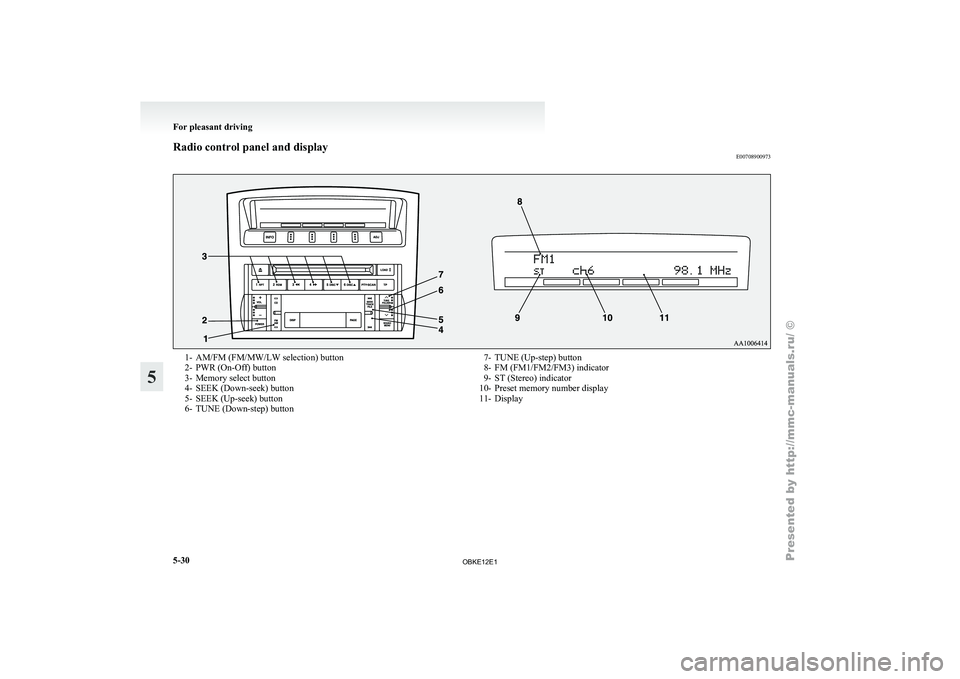
Radio control panel and display
E007089009731- AM/FM (FM/MW/LW selection) button
2- PWR (On-Off) button
3-
Memory select button
4-
SEEK (Down-seek) button
5- SEEK (Up-seek) button
6- TUNE (Down-step) button 7- TUNE (Up-step) button
8- FM (FM1/FM2/FM3) indicator
9- ST (Stereo) indicator
10-
Preset memory number display
11- Display For pleasant driving
5-30
5
OBKE12E1
Page 215 of 377

Radio data system (RDS)
E007092003641- AM/FM (FM/MW/LW selection) button
2- PWR (On-Off) button
3-
Memory select buttons
4-
MENU button
5- SEEK (Down-seek) button
6- SEEK (Up-seek) button
7- TUNE (Down-step) button
8- TUNE (Up-step) button 9- TP (Traffic program) button
10- PTY (Program type) button
11- RDS (Radio data system) indicator
12-
PTY (Program type) indicator
13- REG (Regional program) indicator
14- TP (Traffic program identification) indicator
15- CT (Clock time) indicator
16- Display
RDS uses PI (program identification) signal and AF (alternative frequency) list transmitted in addition to the normal FM broadcasting programs, and picks up the
FM stations that are transmitting the same program from the AF list and automatically tunes to the station with the strongest signal intensity.
Therefore, you can
continue listening to one program in, for example, a long distance driving without retuning to the other station transmitting the same program
when you are leaving the service area of the currently receiving station.
The RDS radio also features the limited reception of the program types, the break-in reception of the traffic announcement to the EON (enhanced other network)
and emergency broadcast, and the limited/unlimited reception of the regional programs. For pleasant driving
5-32
5
OBKE12E1
Page 216 of 377

AF (Alternative Frequencies) function
E00720900104
The AF function
finds a station broadcasting the
same program and selects the station with the stron-
gest signal of AF lists.
The AF function is turned on at all times unless
you manually switch it off.
The AF function can be turned ON and OFF. Refer
to “Function setup mode” on page 5-20.
CT (Clock Time) function E00721000098
The clock can be set automatically by using the sig-
nal from the
local RDS stations. Refer to “Adjust-
ing the time” on page 3-13.
REG (Regional) function E00721100015
REG function limits to receive the stations broad-
casting regional programs.
Regional programming and
regional networks are
organized differently depending on the country or
area (they may be changed according to the hour,
state, or broadcast area), so if you don’t want to re-
ceive the regional programs automatically, you can
set up REG ON not to receive regional programs.
The REG function can be turned ON and OFF. Re-
fer to “Function setup mode” on page 5-20.
PI (Program Identification) search function E00721200234
When travelling long distance and the recalled pre-
set station is
weak, the radio searches another fre-
quency broadcasting the same programming with
the same PI code in AF list. If there are no frequencies broadcasting the same
programming, the
radio
searches a frequency broad-
casting the regional programming. The radio suc-
ceeds in searching the regional programming, then
the display shows the REG indicator (13). If the ra-
dio does not succeed in searching the regional pro-
gramming, the radio returns to the recalled preset
station.
The PI function can be turned ON and OFF.
Refer to “Function setup mode” on page 5-20.
NOTE
l While searching, the audio system is muted.
The display shows “WAIT” or “SEARCH”.
PTY (Program type) E00721300280
RDS broadcasts are classified according to pro-
gram type (PTY)
as follows. Use the TUNE button
(7 or 8) to select your desired PTY. 1. NEWS
2. AFFAIRS (Current affairs)
3. INFO (Information)
4. SPORT
5. EDUCATE (Education)
6. DRAMA
7. CULTURE
8. SCIENCE
9. VARIED
10. POP M (Pop music)
11. ROCK M (Rock music)
12. EASY M (Easy music)
13. LIGHT M (Light classics)
14. CLASSICS
15. OTHER M (Other music)
16. WEATHER (Weather information)
17. FINANCE
18. CHILDREN 19. SOCIAL
20. RELIGION
21. PHONE IN
22.
TRAVEL
23. LEISURE
24. JAZZ
25. COUNTRY
26. NATION M (National music)
27. OLDIES
28. FOLK M (Folk music)
29. DOCUMENT
To search for a broadcast of desired program type: 1. Press the PTY button (10).
2. Press the TUNE button (7 or 8) for less than1 second at a time to select your desired PTY.
3. Two seconds after a desired PTY has been se- lected, the radio will begin to search for a
broadcast of your selected PTY. During
search, the selected PTY on the display blinks.
4. When the radio picks up a station with your desired PTY, the display will show the name
of the station. For pleasant driving
5-33 5
OBKE12E1