Page 338 of 618

Features and controls
3-253
3
NOTE�Depending on the type of the USB memory device or
other device connected, the connected device may not
function properly or the available functions may be lim-
ited.
�Use the iPod whose firmware has been updated to the lat-
est version.
�You can charge your iPod by connecting it to the USB
input terminal when the ignition switch is in the “ACC” or
“ON” position.
�Do not keep your USB memory device or iPod in your
vehicle.
�It is recommended that you back up the files in case of
data damage.
�Do not connect to the USB input terminal any device
(hard disk, card reader, memory reader, etc.) other than
the connectable devices specified in the previous section.
The device and/or data may be damaged. If any of these
devices was connected by mistake, remove it after turning
the ignition switch to the “LOCK” position.
File specifications
N00567200017
You can play music files of the following specifications that
are saved in a USB memory device or other device supporting
mass storage class.Item
Condition
File format MP3, WMA, AAC, WAV
Maximum number of levels
(including the root)Level 8
Number of folders 700
Number of files 65,535
BK0123500US.book 253 ページ 2010年6月4日 金曜日 午後5時1分
Page 350 of 618
Features and controls
3-265
3
Glove compartment
N00551500220
To open the glove compartment, pull the lever (A).NOTE�The USB input terminal is located in the glove compart-
ment (if so equipped). For details, refer to “USB input ter-
minal” on page 3-248.
Card holderThere is a card holder on the inside of the glove compartment.NOTE�Up to 2 cards will fit in the card holder.
WA R N I N G
!�An open glove compartment door can cause a seri-
ous injury or death to the front passenger in an acci-
dent, even if the passenger is wearing his/her seat
belt. Always keep the glove compartment door
closed when driving.
BK0123500US.book 265 ページ 2010年6月4日 金曜日 午後5時1分
Page 370 of 618

5
Comfort controls
Vents. . . . . . . . . . . . . . . . . . . . . . . . . . . . . . . . . . . .5- 2
Heater without air conditioning function
(if so equipped) . . . . . . . . . . . . . . . . . . . . . . . . . .5- 6
Automatic air conditioning with Fahrenheit scale
(if so equipped) . . . . . . . . . . . . . . . . . . . . . . . . . .5- 12
Automatic air conditioning with Celsius scale
(if so equipped) . . . . . . . . . . . . . . . . . . . . . . . . . .5- 22
Important air conditioning operating tips . . . . . . .5- 32
Air purifier . . . . . . . . . . . . . . . . . . . . . . . . . . . . . . .5- 33
AM/FM electronically tuned radio with CD player
(RBDS and MP3 compatible) (if so equipped) .5- 33
AM/FM electronically tuned radio with 6 CD
autochanger (RBDS and MP3 compatible)
(if so equipped) . . . . . . . . . . . . . . . . . . . . . . . . . .5- 52
To play tracks from USB device
(if so equipped) . . . . . . . . . . . . . . . . . . . . . . . . . .5- 82
To play tracks from a Bluetooth® device
(vehicles with Bluetooth® 2.0 interface) . . . . . .5- 99
To use the external audio input function
(if so equipped) . . . . . . . . . . . . . . . . . . . . . . . . . .5-103
Steering wheel audio remote control switch
(if so equipped) . . . . . . . . . . . . . . . . . . . . . . . . . .5-105Error codes . . . . . . . . . . . . . . . . . . . . . . . . . . . . . . 5- 108
Error codes (SIRIUS Satellite Radio)
(if so equipped) . . . . . . . . . . . . . . . . . . . . . . . . . 5- 110
Error codes (iPod) . . . . . . . . . . . . . . . . . . . . . . . . . 5- 112
Error codes (USB memory device) . . . . . . . . . . . . 5- 114
Handling of compact discs . . . . . . . . . . . . . . . . . . 5- 116
Antenna . . . . . . . . . . . . . . . . . . . . . . . . . . . . . . . . . 5- 119
Digital clock (if so equipped) . . . . . . . . . . . . . . . . 5- 119
General information about your radio . . . . . . . . . . 5- 120
BK0123500US.book 1 ページ 2010年6月4日 金曜日 午後5時1分
Page 451 of 618

5-82 Comfort controls
5
ID3 tag information
The autochanger can display ID3 tag information for files that
have been recorded with ID3 tag information.
1. Press the DISP button (7) for 2 seconds or longer to
switch to the ID3 tag information. “TAG” indicator will
appear on the display.
2. Press the DISP button repeatedly to make selections in the
following sequence: album name → track name → artist
name → normal display mode.NOTE�To return from ID3 tag information to the folder name,
press the DISP button (7) again for 2 seconds or longer.
�When there is no title information to be displayed, the dis-
play shows “NO TITLE”.
�The display can show up to 12 characters. If a folder
name, track name, or item of ID3 tag information has
more than 12 characters, press the PAGE button (6) to
view the next 12 characters.
�Folder names and track names can each be displayed up to
a length of 32 characters. Items of ID3 tag information
can each be displayed up to a length of 30 characters.
�Characters that the autochanger cannot display are shown
as “•”.
To play tracks from USB device (if so
equipped)
N00762200027
You can connect your iPod or USB memory device to the USB
input terminal and play music files stored in the iPod or USB
memory device.
See the following section for the types of connectable devices
and supported files.
Refer to “Types of connectable devices and supported file
specifications” on page 3-252.
See the following sections for the connecting methods, “How
to connect an iPod” on page 3-250 and “How to connect a USB
memory device” on page 3-248.
If your vehicle is equipped with a Bluetooth
® 2.0 interface,
you can play music files in your iPod or USB memory device
via voice operation.
Refer to “To play iPod tracks via voice operation” on page 5-87
and “To play USB memory device tracks via voice operation”
on page 5-98.
BK0123500US.book 82 ページ 2010年6月4日 金曜日 午後5時1分
Page 453 of 618

5-84 Comfort controls
5
To play from an iPod
N00762400061
1. Press the PWR button (3) to turn on the audio system. The
system turns on in the last mode used.
2. Connect your iPod to the USB input terminal.
Refer to “How to connect an iPod” on page 3-250.
3. Press the CD button (2) several times to switch to the iPod
mode. The input mode changes every time the CD button
is pressed.
CD mode → iPod mode → Bluetooth
® mode (if so
equipped)
NOTE�If your vehicle is equipped with audio/video input RCA
terminals, pressing and holding the CD button for 2 sec-
onds or more switches the system to the AUX mode.
4. Once the device is selected, playback starts and “i”
appears on the display.NOTE�Depending on the condition of your iPod, it may take a
longer time before the playback starts.5. To stop the playback, press the RADIO button (1) or CD
button (2) to switch to a different mode.
NOTE�Buttons on the iPod are disabled while the iPod is con-
nected to the audio system.
�To adjust the volume and tone, refer to “To adjust the vol-
ume” on page 5-35, 5-55 and “To adjust the tone” on page
5-35, 5-55.To fast-forward/reverse the track
N00762500017
To fast-forward/reverse the current track, press the button
(9) or button (8).
Fast-forward
To fast-forward the current track, press the button (9).
While the button is pressed, the track will be fast-forwarded.
Fast-reverse
To fast-reverse the current track, press the button (8). While
the button is pressed, the track will be fast-reversed.
BK0123500US.book 84 ページ 2010年6月4日 金曜日 午後5時1分
Page 461 of 618
5-92 Comfort controls
5
USB control panel and display
N00763900047
1- RADIO button
2- CD (Mode change) button
3- PWR (On-Off) button
4- PAGE (Title scroll) button
5- DISP (Title display) button
6- RPT (Repeat) button
7- RDM (Random) button
8- (Fast-reverse) button
9- (Fast-forward) button
10- DISC UP button
11- SCAN button
12- FOLDER switch
13- TRACK (Track up/down) button
14- U (USB) indicator
15- FOLDER indicator
16- TRACK indicator
17- RPT/D-RPT/RDM/D-RDM/SCAN/F-SCAN indicator
BK0123500US.book 92 ページ 2010年6月4日 金曜日 午後5時1分
Page 462 of 618

Comfort controls
5-93
5
To play from a USB memory device
N00764000061
1. Press the PWR button (3) to turn on the audio system. The
system turns on in the last mode used.
2. Connect your USB memory device to the USB input ter-
minal.
Refer to “How to connect a USB memory device” on page
3-248.
3. Press the CD button (2) several times to switch to the USB
mode. The input mode changes as follows every time the
CD button is pressed.
CD mode → USB mode → Bluetooth
® mode (if so
equipped)
NOTE�If your vehicle is equipped with audio/video input RCA
terminals, pressing and holding the CD button for 2 sec-
onds or more switches the system to the AUX mode.
4. Once the device is selected, playback starts and “U”
appears on the display.NOTE�Depending on the condition of your USB device, it may
take a longer time before the playback starts.
5. To stop the playback, press the RADIO button (1) or CD
button (2) to switch to a different mode.NOTE�To adjust the volume and tone, refer to “To adjust the vol-
ume” on page 5-35, 5-55 and “To adjust the tone” on page
5-35, 5-55.
Supported compressed music files
N00764100062
This audio can play MP3, WMA, AAC and WAV files
recorded in a USB memory device. This audio supports up to
65,535 files in 700 folders on 8 levels.
BK0123500US.book 93 ページ 2010年6月4日 金曜日 午後5時1分
Page 463 of 618
5-94 Comfort controls
5
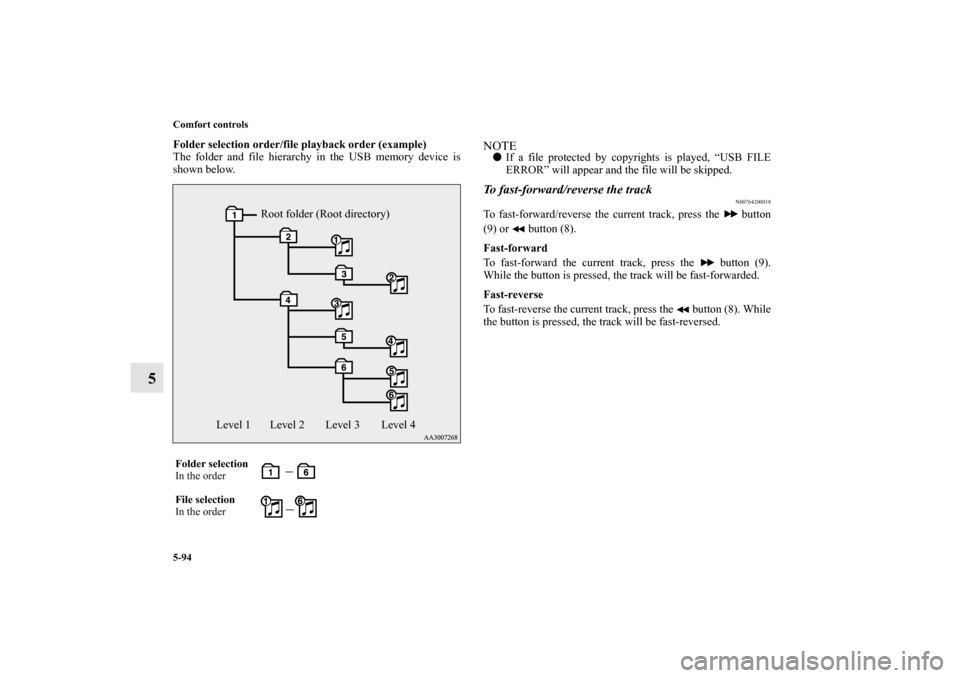
Folder selection order/file playback order (example)
The folder and file hierarchy in the USB memory device is
shown below.
NOTE�If a file protected by copyrights is played, “USB FILE
ERROR” will appear and the file will be skipped.To fast-forward/reverse the track
N00764200018
To fast-forward/reverse the current track, press the button
(9) or button (8).
Fast-forward
To fast-forward the current track, press the button (9).
While the button is pressed, the track will be fast-forwarded.
Fast-reverse
To fast-reverse the current track, press the button (8). While
the button is pressed, the track will be fast-reversed.
Folder selection
In the order
File selection
In the order
Root folder (Root directory)
Level 1 Level 2 Level 3 Level 4
BK0123500US.book 94 ページ 2010年6月4日 金曜日 午後5時1分