2011 MERCEDES-BENZ SLS navigation system
[x] Cancel search: navigation systemPage 211 of 436

XPress the W or X button.
The volume increases or decreases during
voice output.
or
XSet the volume for the voice output on the
volume control for COMAND.
Display Messages
The audible help function can be
supplemented by visual help on the display
( Y page 95). If the help function is switched
on, the most important commands that are
currently possible appear in the display when
you start the dialog.
In the address book and navigation system, a
selection list is shown in the display if voice
control requires additional information from
you.
Entering Numbers
R Digits from “zero” to “nine” are permitted.
R Say the phone number in groups of three
to five digits.
Spell
R The letters of the alphabet and the numbers
0 to 9 are permitted.
R Say the letters in groups of five to seven
letters.
R Say each individual letter clearly.
i Using individualization, you can fine-tune
voice control to your own voice and thus
improve voice recognition. The process of
individualization is described in chapter
“System Settings” ( Y page 95).
i If you use individualization, it may impair
recognition of other users. Switch off
individualization if it makes recognition of
other users worse.
PhoneGWarning
Some jurisdictions prohibit the driver from
using a cellular telephone while driving.
Whether or not prohibited by law, for safety
reasons, the driver should not use the cellular
telephone while the vehicle is in motion. Stop
the vehicle in a safe location before placing or
answering a call.
If you nonetheless choose to use the mobile
phone while driving, please use the handsfree
feature and be sure to pay attention to the
traffic situation at all times. Use the mobile
phone only when road, weather and traffic
conditions permit. Otherwise, you may not be
able to observe traffic conditions and could
endanger yourself and others.
Bear in mind that at a speed of just 30 mph
(approximately 50 km/h), your vehicle is
covering a distance of 44 feet (approximately
14 m) every second.
Operation
You can use voice control to:
R place a call by using your voice to input a
phone number
R store names and numbers in the address
book
R dial a number from the address book
R dial a number from the received calls or
latest calls list
R listen to the phone book
R retrieve and manage your voice mail and
recorded announcement services
R redial
Voice control recognizes whether:
R your phone is switched on
R your phone is connected via Bluetooth ®
R the car phone is registered with the
relevant mobile phone network
R it is possible to dial
If it is not possible to dial, voice control issues
a message to this effect.
Voice Control209COMAND APSBA 197 USA, CA Edition A 2011; 1; 27, en-UShereepeVersion: 3.0.3.52010-03-24T15:31:10+01:00 - Seite 209Z
Page 214 of 436

NavigationGWarning!
For safety reasons, you should only select a
destination when the vehicle is stationary.
While the navigation system provides
directional assistance, the driver must remain
focused on safe driving behavior, especially
pay attention to traffic and street signs, and
should utilize the system’s audio cues while
driving.
The navigation system does not supply any
information on stop signs, yield signs, traffic
regulations or traffic safety rules. Their
observance always remains in the driver’s
personal responsibility. DVD maps do not
cover all areas nor all routes within an area.
Traffic regulations always have priority over
any route recommendations given. Bear in
mind that at a speed of just 30 mph
(approximately 50 km/h), your vehicle is
covering a distance of 44 feet (approximately
14 m) every second.
During route guidance, you will not receive
information on:
R traffic lights
R stop and yield signs
R parking or stopping zones
R one-way streets
R narrow bridges
R other traffic regulation data
You should therefore always strictly observe
traffic regulations while driving. Drive
carefully and always obey traffic laws and
road signs, even if they contradict navigation
system instructions.
GWarning!
Please do not use the Voice Control System
in an emergency, as the tone of your voice
may change in a stressful situation. This could
cause a delay in completing your phone call
in a timely manner. This could distract you in
an emergency situation and cause you to be
involved in an accident.
Operation
You can use voice control to:
R enter a state
R enter a province
R enter a city
R enter a district (center)
R enter a street
R enter an intersection
R enter a house number
R enter an entire address
R enter a zip code
R find address
R enter a point of interest
R select one of your previous destinations
R call up route information
R store a destination
R display the map
R enlarge/reduce the size of the map
R listen to the destination memory
R start and stop route guidance
R switch the guidance instructions on and off
XTo select the navigation application press
the ? button on the multifunction
steering wheel.XGive the “Navigation” command.XPress the ? button.XGive one of the navigation commands
explained below.
Commands
You cannot start the route guidance until all
the necessary address data has been
entered.
“Help Navigation”/“Help”
Using the “Help navigation” command, you
can have all the essential commands for the
navigation system read out.
212Voice ControlCOMAND APS
BA 197 USA, CA Edition A 2011; 1; 27, en-UShereepeVersion: 3.0.3.52010-03-24T15:31:10+01:00 - Seite 212
Page 215 of 436
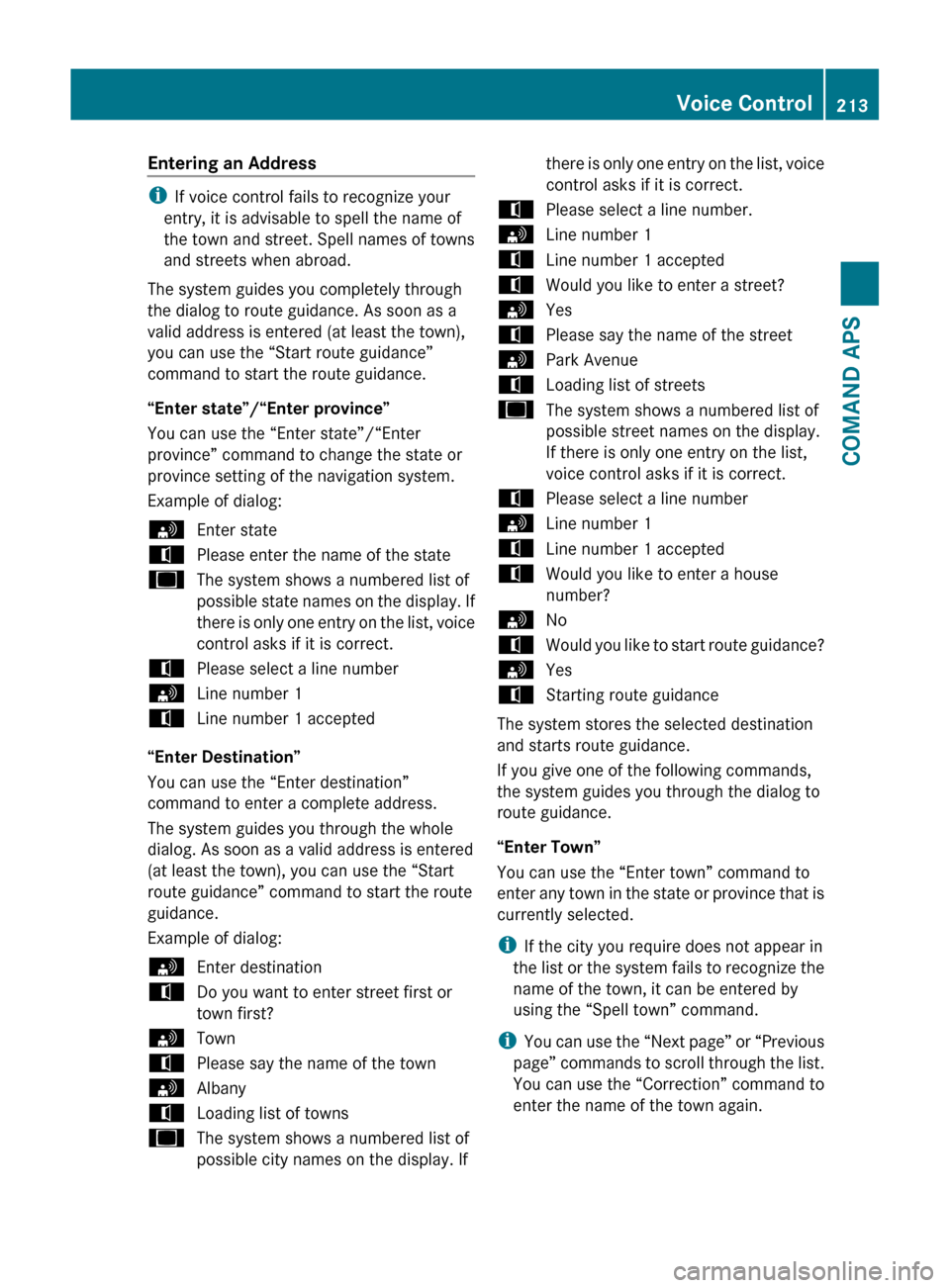
Entering an Address
iIf voice control fails to recognize your
entry, it is advisable to spell the name of
the town and street. Spell names of towns
and streets when abroad.
The system guides you completely through
the dialog to route guidance. As soon as a
valid address is entered (at least the town),
you can use the “Start route guidance”
command to start the route guidance.
“Enter state”/“Enter province”
You can use the “Enter state”/“Enter
province” command to change the state or
province setting of the navigation system.
Example of dialog:
sEnter statetPlease enter the name of the stateuThe system shows a numbered list of
possible state names on the display. If
there is only one entry on the list, voice
control asks if it is correct.tPlease select a line numbersLine number 1tLine number 1 accepted
“Enter Destination”
You can use the “Enter destination”
command to enter a complete address.
The system guides you through the whole
dialog. As soon as a valid address is entered
(at least the town), you can use the “Start
route guidance” command to start the route
guidance.
Example of dialog:
sEnter destinationtDo you want to enter street first or
town first?sTowntPlease say the name of the townsAlbanytLoading list of townsuThe system shows a numbered list of
possible city names on the display. Ifthere is only one entry on the list, voice
control asks if it is correct.tPlease select a line number.sLine number 1tLine number 1 acceptedtWould you like to enter a street?sYestPlease say the name of the streetsPark AvenuetLoading list of streetsuThe system shows a numbered list of
possible street names on the display.
If there is only one entry on the list,
voice control asks if it is correct.tPlease select a line numbersLine number 1tLine number 1 acceptedtWould you like to enter a house
number?sNotWould you like to start route guidance?sYestStarting route guidance
The system stores the selected destination
and starts route guidance.
If you give one of the following commands,
the system guides you through the dialog to
route guidance.
“Enter Town”
You can use the “Enter town” command to
enter any town in the state or province that is
currently selected.
i If the city you require does not appear in
the list or the system fails to recognize the
name of the town, it can be entered by
using the “Spell town” command.
i You can use the “Next page” or “Previous
page” commands to scroll through the list.
You can use the “Correction” command to
enter the name of the town again.
Voice Control213COMAND APSBA 197 USA, CA Edition A 2011; 1; 27, en-UShereepeVersion: 3.0.3.52010-03-24T15:31:10+01:00 - Seite 213Z
Page 218 of 436

Example of dialog:sPoint of interestuThe system shows the following list in
the display:tPlease select a line numbersLine number 1 ...tLine number 1 accepteduThe system shows a numbered list of
POI categoriestPlease select a line number or say the
category namesLine number 5uThe system shows a numbered list
with destinations from the selected
categorytPlease select a line numbersLine number 1tLine number 1 accepted
The specific destination which has the
number one is stored for route guidance.
i Depending on the selected area, other
lists may be shown.
You can only select points of interest in the
state or province the navigation system is set
for.
Selecting next point of interest
You can use the following commands to
select nearby points of interest:
R “Next gas station”
R “Next car park”
R “Next Mercedes-Benz Service”
R “Next restaurant”
R “Next hospital”
Example of dialog:
sNext gas stationuThe system shows a numbered list of
gas stations on the displaytPlease select a line number.sLine number 1uLine number one accepted. Would you
like to start route guidance?sYes
The route guidance for this point of interest
is started.
or
sNotDo you want to save the destination?sYes
The dialog continues as shown in the section
“Save destination”.
“Last Destinations”
You can use the “Last destinations”
command to reselect a destination from a list
of the previously selected destinations.
Example of dialog:
sLast destinationsuThe system shows a numbered list of
the previously selected destinationstPlease select a line numbersLine number 1uLine number one accepted. Would you
like to start route guidance?sYes
The route guidance for this destination is
started.
“Save Destination”
You can use the “Save destination” command
to save the current destination in the address
book by means of a voice name.
i If the desired voice name already exists in
the address book, the system asks if you
want to add the address.
Example of dialog:
sSave destinationtPlease say the namesSmithtPlease repeat the namesSmith216Voice ControlCOMAND APS
BA 197 USA, CA Edition A 2011; 1; 27, en-UShereepeVersion: 3.0.3.52010-03-24T15:31:10+01:00 - Seite 216
Page 227 of 436
“DVD Video”
With the “DVD video” command, you can start
a Video DVD on the COMAND system.
“Music Register”
With the “Music register” command, you can
change to the internal music register (hard
disk) of COMAND.
“Media Interface”
With the “Media interface” command, you
can change to the external device that is
connected to the media interface of
COMAND.
External Equipment (Aux)
“Audio Aux”
You can use the “Audio Aux” command to
activate the Aux input.
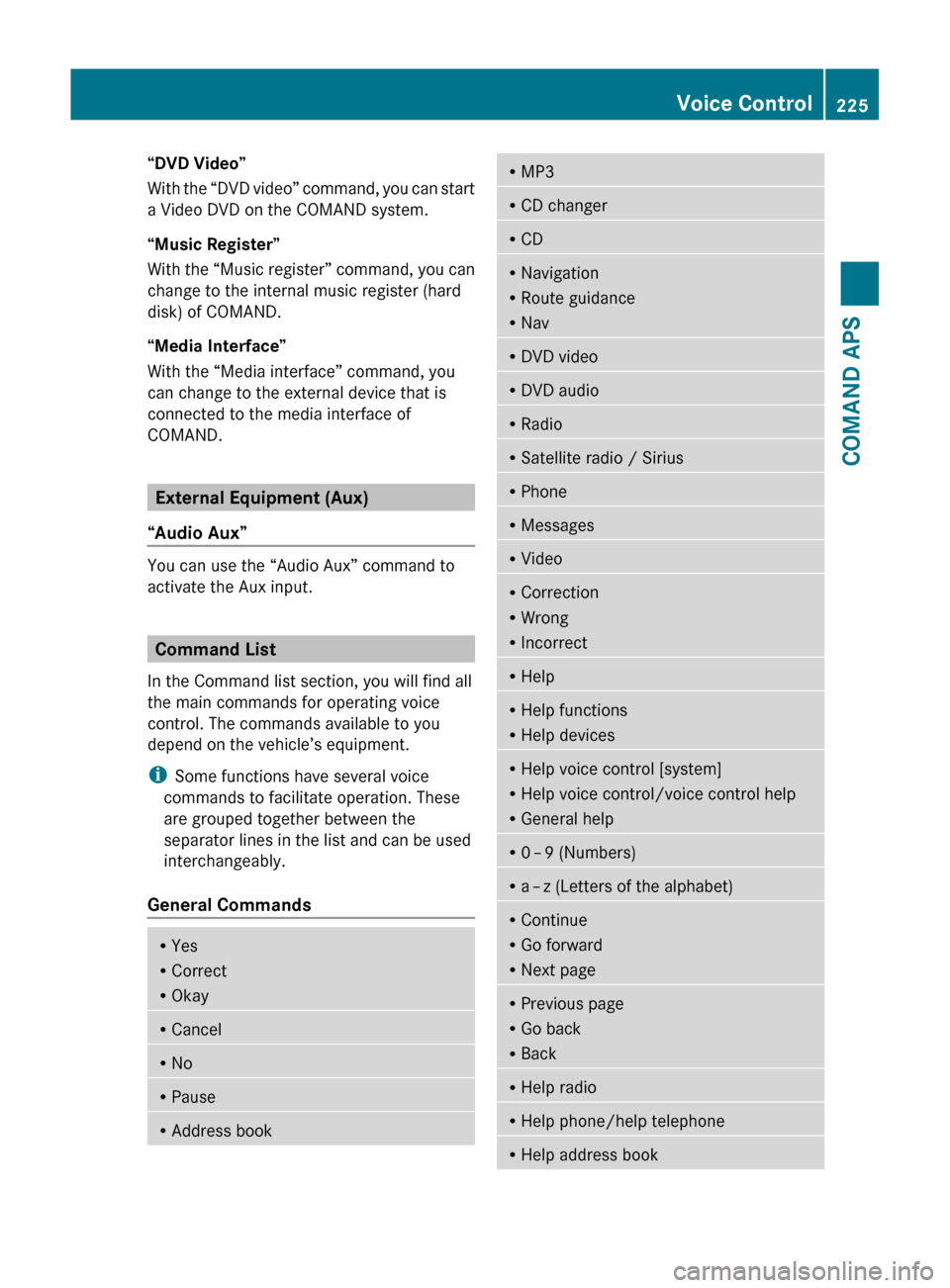
Command List
In the Command list section, you will find all
the main commands for operating voice
control. The commands available to you
depend on the vehicle’s equipment.
i Some functions have several voice
commands to facilitate operation. These
are grouped together between the
separator lines in the list and can be used
interchangeably.
General Commands
R Yes
R Correct
R OkayRCancelRNoRPauseRAddress bookRMP3RCD changerRCDRNavigation
R Route guidance
R NavRDVD videoRDVD audioRRadioRSatellite radio / SiriusRPhoneRMessagesRVideoRCorrection
R Wrong
R IncorrectRHelpRHelp functions
R Help devicesRHelp voice control [system]
R Help voice control/voice control help
R General helpR0 – 9 (Numbers)R
a – z (Letters of the alphabet)R
Continue
R Go forward
R Next pageRPrevious page
R Go back
R BackRHelp radioRHelp phone/help telephoneRHelp address bookVoice Control225COMAND APSBA 197 USA, CA Edition A 2011; 1; 27, en-UShereepeVersion: 3.0.3.52010-03-24T15:31:10+01:00 - Seite 225Z
Page 279 of 436
XPress button : to select Yes.XPress button a to confirm.
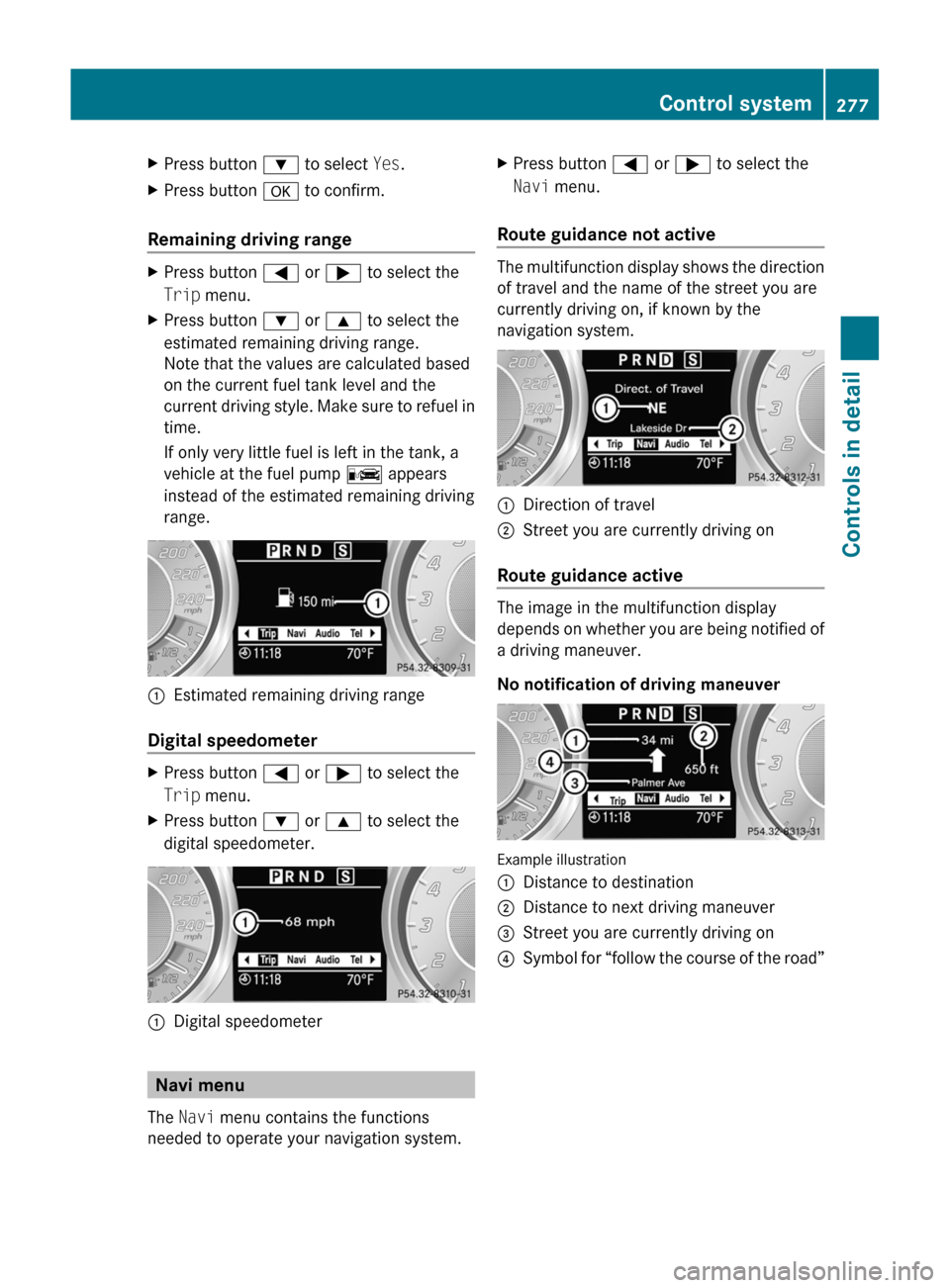
Remaining driving range
XPress button = or ; to select the
Trip menu.XPress button : or 9 to select the
estimated remaining driving range.
Note that the values are calculated based
on the current fuel tank level and the
current driving style. Make sure to refuel in
time.
If only very little fuel is left in the tank, a
vehicle at the fuel pump C appears
instead of the estimated remaining driving
range.:Estimated remaining driving range
Digital speedometer
XPress button = or ; to select the
Trip menu.XPress button : or 9 to select the
digital speedometer.:Digital speedometer
Navi menu
The Navi menu contains the functions
needed to operate your navigation system.
XPress button = or ; to select the
Navi menu.
Route guidance not active
The multifunction display shows the direction
of travel and the name of the street you are
currently driving on, if known by the
navigation system.
:Direction of travel;Street you are currently driving on
Route guidance active
The image in the multifunction display
depends on whether you are being notified of
a driving maneuver.
No notification of driving maneuver
Example illustration
:Distance to destination;Distance to next driving maneuver=Street you are currently driving on?Symbol for “follow the course of the road”Control system277Controls in detailBA 197 USA, CA Edition A 2011; 1; 27, en-UShereepeVersion: 3.0.3.52010-03-24T15:31:10+01:00 - Seite 277Z
Page 280 of 436
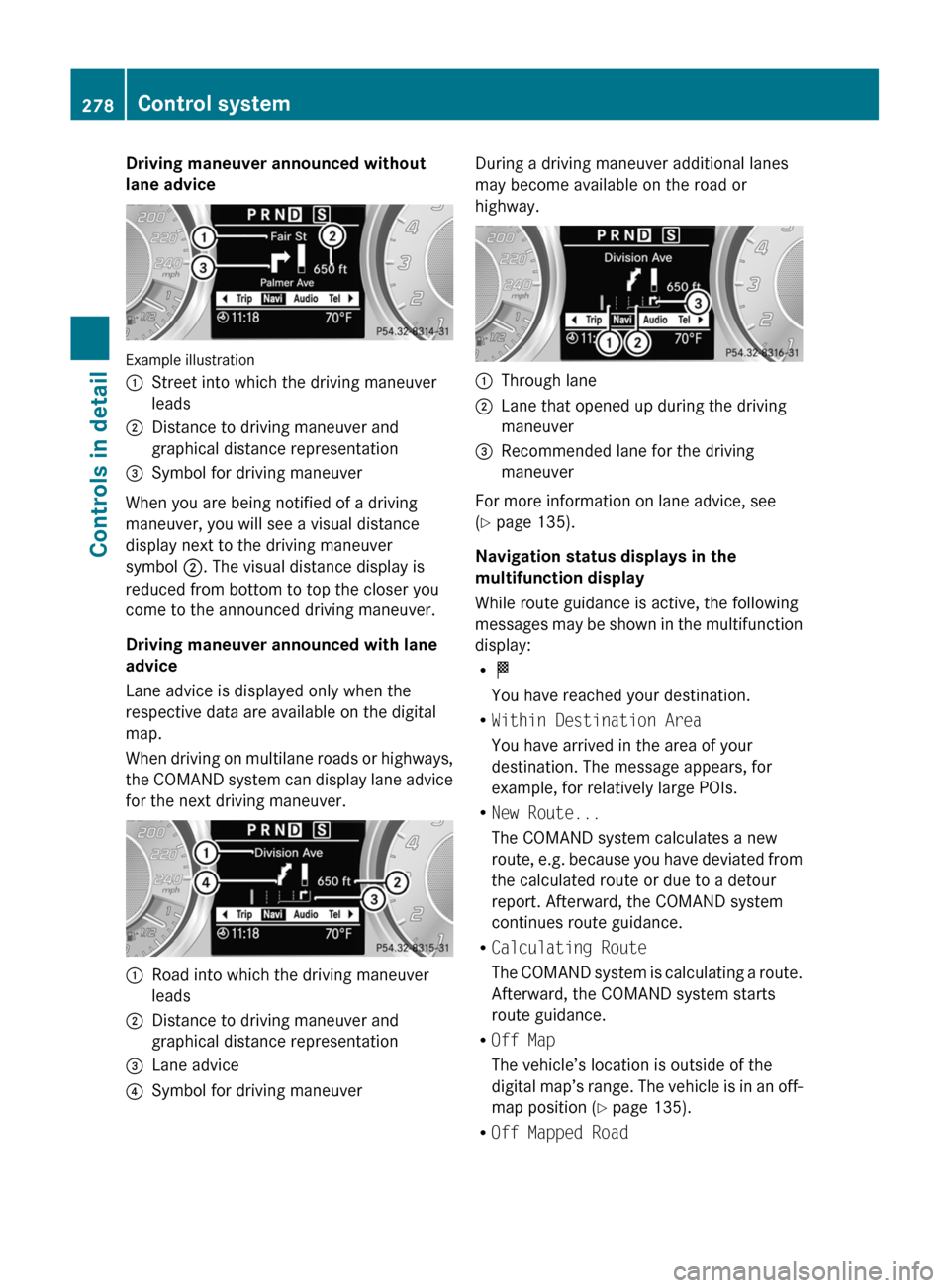
Driving maneuver announced without
lane advice
Example illustration
:Street into which the driving maneuver
leads;Distance to driving maneuver and
graphical distance representation=Symbol for driving maneuver
When you are being notified of a driving
maneuver, you will see a visual distance
display next to the driving maneuver
symbol ;. The visual distance display is
reduced from bottom to top the closer you
come to the announced driving maneuver.
Driving maneuver announced with lane
advice
Lane advice is displayed only when the
respective data are available on the digital
map.
When driving on multilane roads or highways,
the COMAND system can display lane advice
for the next driving maneuver.
:Road into which the driving maneuver
leads;Distance to driving maneuver and
graphical distance representation=Lane advice?Symbol for driving maneuverDuring a driving maneuver additional lanes
may become available on the road or
highway.:Through lane;Lane that opened up during the driving
maneuver=Recommended lane for the driving
maneuver
For more information on lane advice, see
( Y page 135).
Navigation status displays in the
multifunction display
While route guidance is active, the following
messages may be shown in the multifunction
display:
R O
You have reached your destination.
R Within Destination Area
You have arrived in the area of your
destination. The message appears, for
example, for relatively large POIs.
R New Route...
The COMAND system calculates a new
route, e.g. because you have deviated from
the calculated route or due to a detour
report. Afterward, the COMAND system
continues route guidance.
R Calculating Route
The COMAND system is calculating a route.
Afterward, the COMAND system starts
route guidance.
R Off Map
The vehicle’s location is outside of the
digital map’s range. The vehicle is in an off-
map position ( Y page 135).
R Off Mapped Road
278Control systemControls in detail
BA 197 USA, CA Edition A 2011; 1; 27, en-UShereepeVersion: 3.0.3.52010-03-24T15:31:10+01:00 - Seite 278
Page 286 of 436
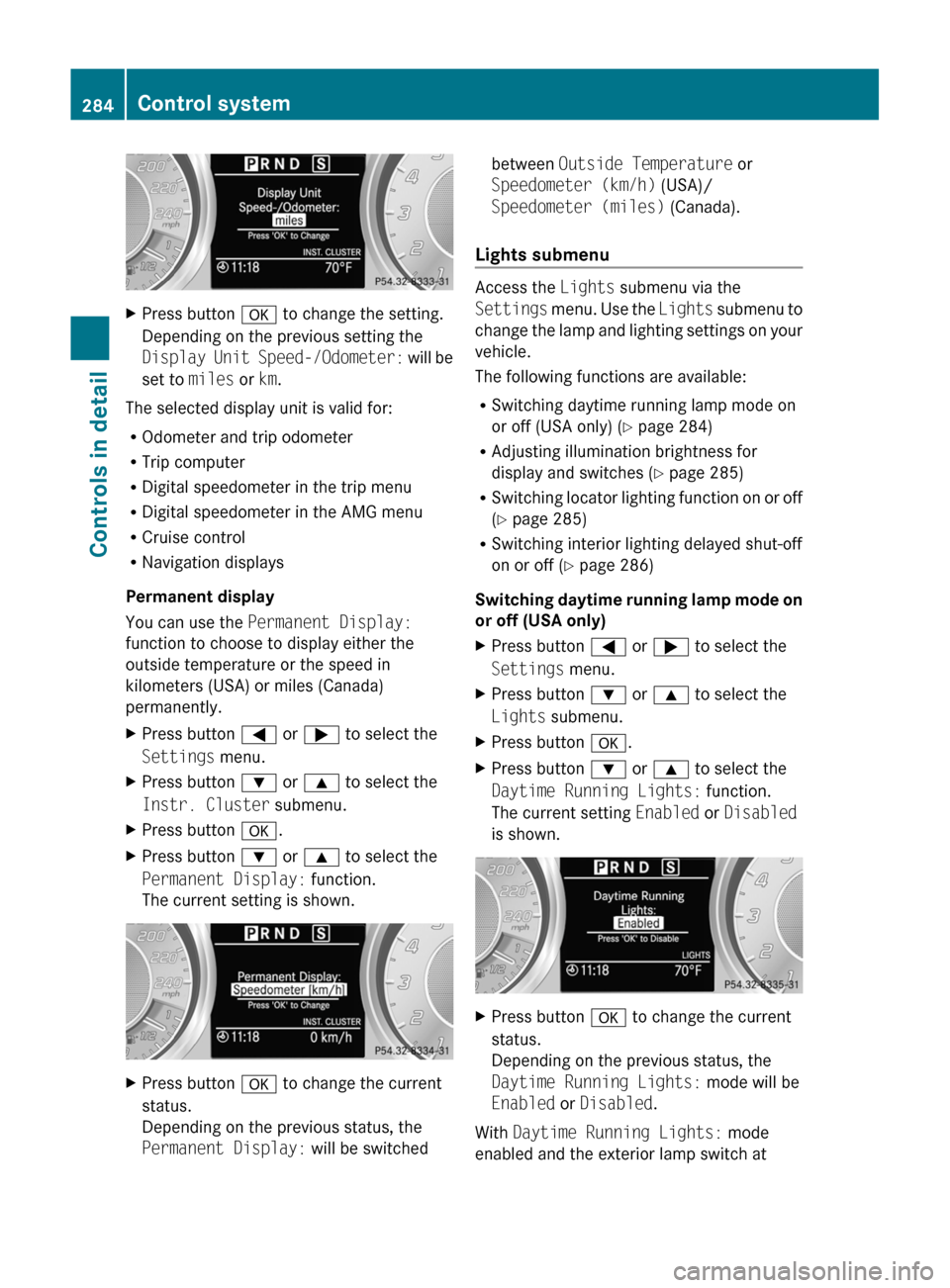
XPress button a to change the setting.
Depending on the previous setting the
Display Unit Speed-/Odometer: will be
set to miles or km.
The selected display unit is valid for:
R Odometer and trip odometer
R Trip computer
R Digital speedometer in the trip menu
R Digital speedometer in the AMG menu
R Cruise control
R Navigation displays
Permanent display
You can use the Permanent Display:
function to choose to display either the
outside temperature or the speed in
kilometers (USA) or miles (Canada)
permanently.
XPress button = or ; to select the
Settings menu.XPress button : or 9 to select the
Instr. Cluster submenu.XPress button a.XPress button : or 9 to select the
Permanent Display: function.
The current setting is shown.XPress button a to change the current
status.
Depending on the previous status, the
Permanent Display: will be switchedbetween Outside Temperature or
Speedometer (km/h) (USA)/
Speedometer (miles) (Canada).
Lights submenu
Access the Lights submenu via the
Settings menu. Use the Lights submenu to
change the lamp and lighting settings on your
vehicle.
The following functions are available:
R Switching daytime running lamp mode on
or off (USA only) ( Y page 284)
R Adjusting illumination brightness for
display and switches ( Y page 285)
R Switching locator lighting function on or off
( Y page 285)
R Switching interior lighting delayed shut-off
on or off ( Y page 286)
Switching daytime running lamp mode on
or off (USA only)
XPress button = or ; to select the
Settings menu.XPress button : or 9 to select the
Lights submenu.XPress button a.XPress button : or 9 to select the
Daytime Running Lights: function.
The current setting Enabled or Disabled
is shown.XPress button a to change the current
status.
Depending on the previous status, the
Daytime Running Lights: mode will be
Enabled or Disabled .
With Daytime Running Lights: mode
enabled and the exterior lamp switch at
284Control systemControls in detail
BA 197 USA, CA Edition A 2011; 1; 27, en-UShereepeVersion: 3.0.3.52010-03-24T15:31:10+01:00 - Seite 284