2011 MERCEDES-BENZ SLS AMG navigation system
[x] Cancel search: navigation systemPage 104 of 436
Map Data is not yet installed
The version release and a query as to whether
the update should be carried out will be given
on the display.XSelect Yes or No.
If No is selected, COMAND ejects the DVD
automatically and the map data is not
updated.XRemove the DVD from the slot.
If Yes is selected, the map data is updated.
Updating the Map Data
While the update is in progress, a
corresponding message and a progress bar
are displayed. The progress bar fills from left
to right over the course of the update. The
navigation system is not functional until the
update is complete.
You cannot eject the DVD during the update.
If you switch COMAND off during the update,
this will interrupt the update and the update
will resume at the point of interruption when
the system is restarted.
While updating, COMAND may prompt you to
change the DVD. A corresponding message
is then displayed.
XPress the Load button 003B.
The magazine menu appears. The magazine
compartment containing the current disc is
highlighted.XPress 008B.
COMAND ejects the DVD.XRemove the DVD from the slot.XInsert the DVD requested by COMAND.
If the update has been completed
successfully, a corresponding message is
displayed.XTo confirm message: Press n.
COMAND ejects the DVD.XRemove the DVD from the slot.
The update is complete.
If the update has not been completed
successfully, a message is displayed
indicating that the map update is not
possible.
XTo confirm message: Press n.
COMAND ejects the DVD.XRemove the DVD from the slot.
An unsucessful update may be caused by one
of the following:
R DVD dirty or scratched.
R Overheating as a result of excessively high
temperatures in the passenger
compartment.
Input Restriction
There is an input restriction for vehicles in
certain countries.
The restriction is active for vehicle speeds
above approx. 3 mph. The restriction is
deactivated as soon as the speed falls below
approx. 2 mph.
Certain entries cannot be made when the
restriction is active, e.g. a city or road entry.
This is indicated by the fact that certain menu
items cannot be selected.
General Information
Operational Readiness of the
Navigation System after the System
Software Update
Sometimes the installed map software is no
longer compatible following a system
software update by an authorized Mercedes-
Benz Center. In this case, the navigation
system is not operational.
XTo update map software: Proceed as
described in the “Update Process” section
( Y page 101). Use map software
compatible with the system software.
i Please note that in this case the update
must run through right to the end. If you
cancel beforehand, the navigation system
will still not be ready for operation.
After start-up or initial start-up, the navigation
system must perform a position finding
102Navigation (Introduction)COMAND APS
BA 197 USA, CA Edition A 2011; 1; 27, en-UShereepeVersion: 3.0.3.52010-03-24T15:31:10+01:00 - Seite 102
Page 105 of 436
operation. As a result, you may have to drive
for some time until precise route guidance
takes place.
GPS Reception
The correct functioning of the navigation
system is also dependent on the GPS
reception. In certain situations, the GPS
reception may be impaired, distorted or even
impossible, e.g. in tunnels, multi-storey car
parks or due to snow on the GPS antenna. If
there is snow on the GPS antenna, you should
remove it. The GPS antenna is at the rear on
the vehicle's roof.
Route Guidance after Vehicle Transport
After vehicle transport (e.g. by ferry, car train
or by towing) COMAND must determine the
vehicle location again.
Position finding takes place automatically
when the vehicle is driven off again, even if
COMAND is switched off. The actual length of
time may vary from case to case.
While the vehicle is determining its position,
route guidance is subject to the following
restrictions:
R Navigation announcements, route
guidance displays and displayed street
names do not match the actual location.
R COMAND does not issue any navigation
announcements.
R The message Off Mapped Road and a
direction arrow are displayed instead of the
route guidance displays. The arrow
indicates the direction of the destination.
i Direction arrow accuracy is also
dependent on correct vehicle position
and/or direction.
Once the position finding operation has been
completed, route guidance takes place again
via navigation announcements and route
guidance displays.
Interrupting Journey during Route
Guidance
i An interruption in the journey means
parking the vehicle and switching off the
vehicle.
The continuation of the journey means
switching the vehicle on again and
continuing to drive.
If you interrupt the journey during route
guidance and continue it later, the following
applies:
R If you continue the journey within 2 hours,
COMAND automatically continues route
guidance.
R If you continue the journey after 2 hours,
route guidance is canceled. You will have
to continue the canceled route guidance
again manually ( Y page 137).
Measurement Units
The measurement units displayed in
navigation mode are identical to those set in
the instrument cluster.
Menu Overview
NaviSetting route calculation modeSelecting map orientationSelecting POI symbols on mapSelecting traffic information on mapSelecting text information on mapSwitching topographic map display on/offSwitching highway information on/offSwitching the automatic reading of traffic
messages on/offSwitching Audio Fadeout on/offNavigation (Introduction)103COMAND APSBA 197 USA, CA Edition A 2011; 1; 27, en-UShereepeVersion: 3.0.3.52010-03-24T15:31:10+01:00 - Seite 103Z
Page 108 of 436
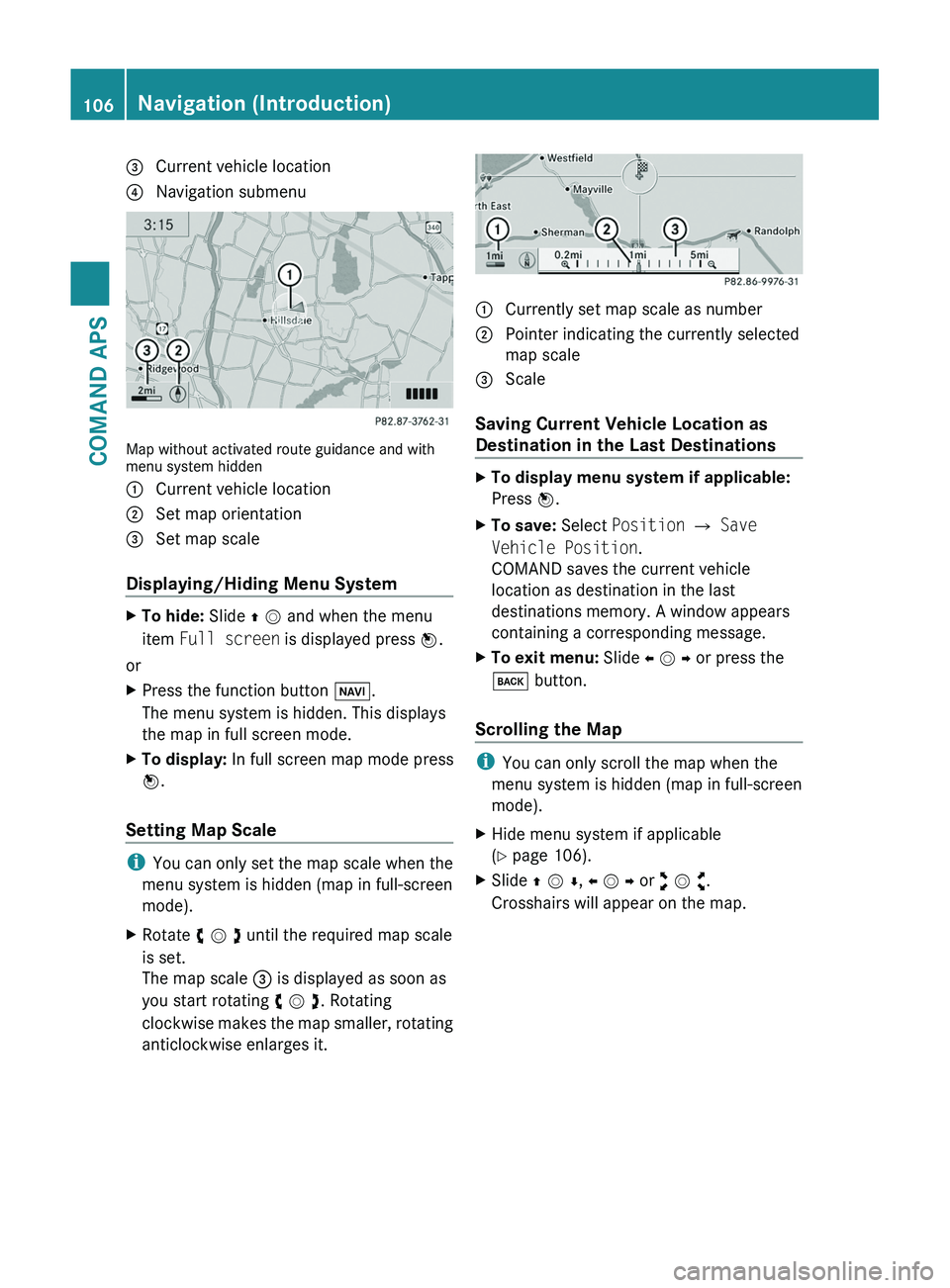
3 Current vehicle location4 Navigation submenu
Map without activated route guidance and withmenu system hidden
1 Current vehicle location2 Set map orientation3 Set map scale
Displaying/Hiding Menu System
XTo hide: Slide q m and when the menu
item Full screen is displayed press n.
or
XPress the function button \000
Page 109 of 436
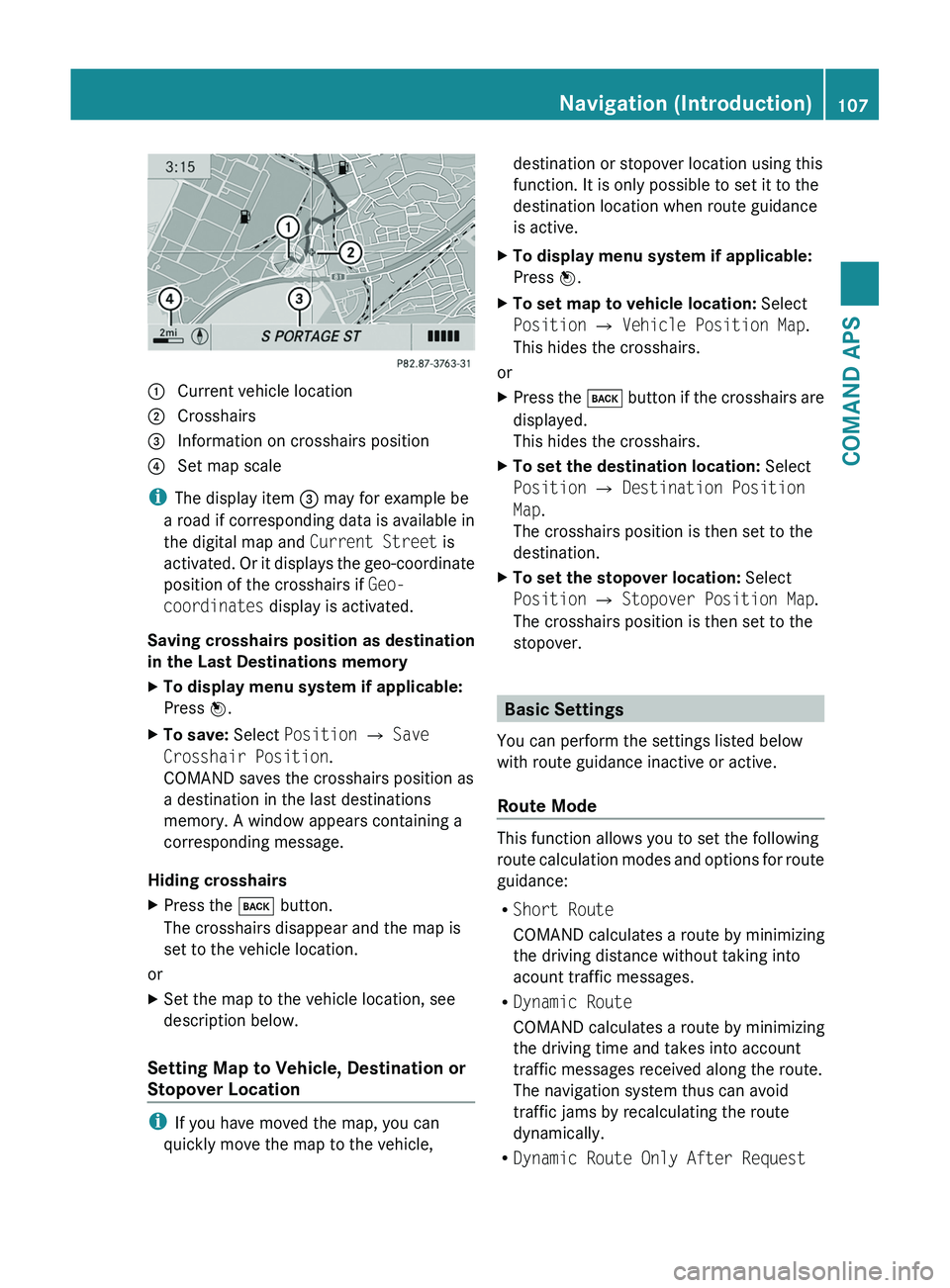
1 Current vehicle location2 Crosshairs3 Information on crosshairs position4 Set map scale
iThe display item 3 may for example be
a road if corresponding data is available in
the digital map and Current Street is
activated. Or it displays the geo-coordinate
position of the crosshairs if Geo-
coordinates display is activated.
Saving crosshairs position as destination
in the Last Destinations memory
XTo display menu system if applicable:
Press n.
XTo save: Select Position £ Save
Crosshair Position.
COMAND saves the crosshairs position as
a destination in the last destinations
memory. A window appears containing a
corresponding message.
Hiding crosshairs
XPress the \000= button.
The crosshairs disappear and the map is
set to the vehicle location.
or
XSet the map to the vehicle location, see
description below.
Setting Map to Vehicle, Destination or
Stopover Location
iIf you have moved the map, you can
quickly move the map to the vehicle,
destination or stopover location using this
function. It is only possible to set it to the
destination location when route guidance
is active.
XTo display menu system if applicable:
Press n.
XTo set map to vehicle location: Select
Position £ Vehicle Position Map.
This hides the crosshairs.
or
XPress the \000= button if the crosshairs are
displayed.
This hides the crosshairs.
XTo set the destination location: Select
Position £ Destination Position
Map.
The crosshairs position is then set to the
destination.
XTo set the stopover location: Select
Position £ Stopover Position Map.
The crosshairs position is then set to the
stopover.
Basic Settings
You can perform the settings listed below
with route guidance inactive or active.
Route Mode
This function allows you to set the following
route calculation modes and options for route
guidance:
RShort Route
COMAND calculates a route by minimizing
the driving distance without taking into
acount traffic messages.
RDynamic Route
COMAND calculates a route by minimizing
the driving time and takes into account
traffic messages received along the route.
The navigation system thus can avoid
traffic jams by recalculating the route
dynamically.
RDynamic Route Only After Request
Navigation (Introduction)107COMAND APSBA 197 USA, CA Edition A 2011; 1; 27, en-UShereepeVersion: 3.0.3.52010-03-24T15:31:10+01:00 - Seite 107Z
Page 110 of 436
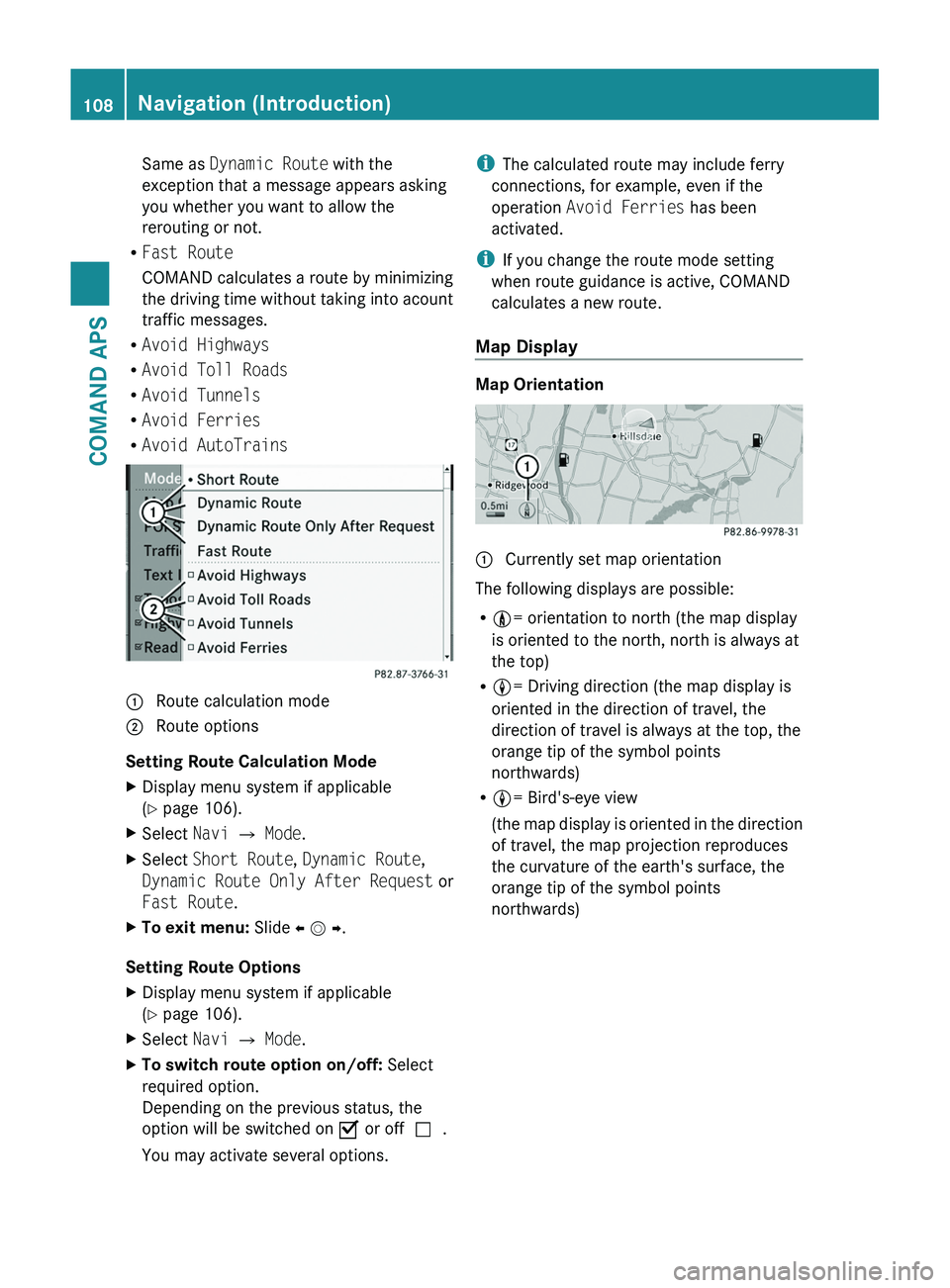
Same as Dynamic Route with the
exception that a message appears asking
you whether you want to allow the
rerouting or not.
RFast Route
COMAND calculates a route by minimizing
the driving time without taking into acount
traffic messages.
RAvoid Highways
RAvoid Toll Roads
RAvoid Tunnels
RAvoid Ferries
RAvoid AutoTrains
1 Route calculation mode\000G Route options
Setting Route Calculation Mode
XDisplay menu system if applicable
(Y page 106).
XSelect Navi £ Mode.XSelect Short Route, Dynamic Route,
Dynamic Route Only After Request or
Fast Route.
XTo exit menu: Slide o m p.
Setting Route Options
XDisplay menu system if applicable
(Y page 106).
XSelect Navi £ Mode.XTo switch route option on/off: Select
required option.
Depending on the previous status, the
option will be switched on Ç or offc.
You may activate several options.
iThe calculated route may include ferry
connections, for example, even if the
operation Avoid Ferries has been
activated.
iIf you change the route mode setting
when route guidance is active, COMAND
calculates a new route.
Map Display
Map Orientation
1 Currently set map orientation
The following displays are possible:
R9= orientation to north (the map display
is oriented to the north, north is always at
the top)
R8= Driving direction (the map display is
oriented in the direction of travel, the
direction of travel is always at the top, the
orange tip of the symbol points
northwards)
R8= Bird's-eye view
(the map display is oriented in the direction
of travel, the map projection reproduces
the curvature of the earth's surface, the
orange tip of the symbol points
northwards)
108Navigation (Introduction)COMAND APS
BA 197 USA, CA Edition A 2011; 1; 27, en-UShereepeVersion: 3.0.3.52010-03-24T15:31:10+01:00 - Seite 108
Page 111 of 436
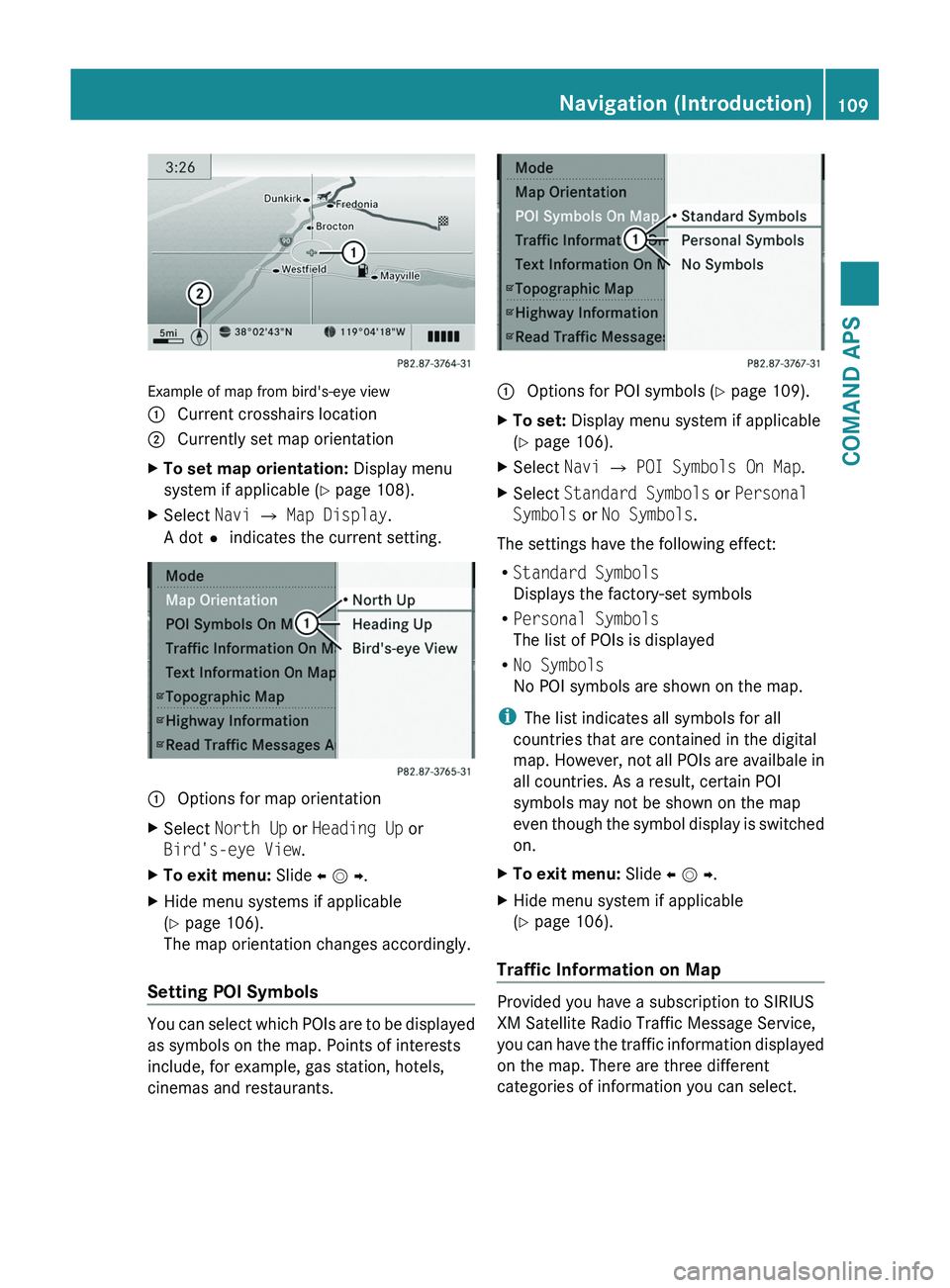
Example of map from bird's-eye view
1 Current crosshairs location2 Currently set map orientationXTo set map orientation: Display menu
system if applicable (Y page 108).
XSelect Navi £ Map Display.
A dotR indicates the current setting.
1 Options for map orientationXSelect North Up or Heading Up or
Bird's-eye View.
XTo exit menu: Slide o m p.XHide menu systems if applicable
(Y page 106).
The map orientation changes accordingly.
Setting POI Symbols
You can select which POIs are to be displayed
as symbols on the map. Points of interests
include, for example, gas station, hotels,
cinemas and restaurants.
1 Options for POI symbols (Y page 109).XTo set: Display menu system if applicable
(Y page 106).
XSelect Navi £ POI Symbols On Map.XSelect Standard Symbols or Personal
Symbols or No Symbols.
The settings have the following effect:
RStandard Symbols
Displays the factory-set symbols
RPersonal Symbols
The list of POIs is displayed
RNo Symbols
No POI symbols are shown on the map.
iThe list indicates all symbols for all
countries that are contained in the digital
map. However, not all POIs are availbale in
all countries. As a result, certain POI
symbols may not be shown on the map
even though the symbol display is switched
on.
XTo exit menu: Slide o m p.XHide menu system if applicable
(Y page 106).
Traffic Information on Map
Provided you have a subscription to SIRIUS
XM Satellite Radio Traffic Message Service,
you can have the traffic information displayed
on the map. There are three different
categories of information you can select.
Navigation (Introduction)109COMAND APSBA 197 USA, CA Edition A 2011; 1; 27, en-UShereepeVersion: 3.0.3.52010-03-24T15:31:10+01:00 - Seite 109Z
Page 113 of 436
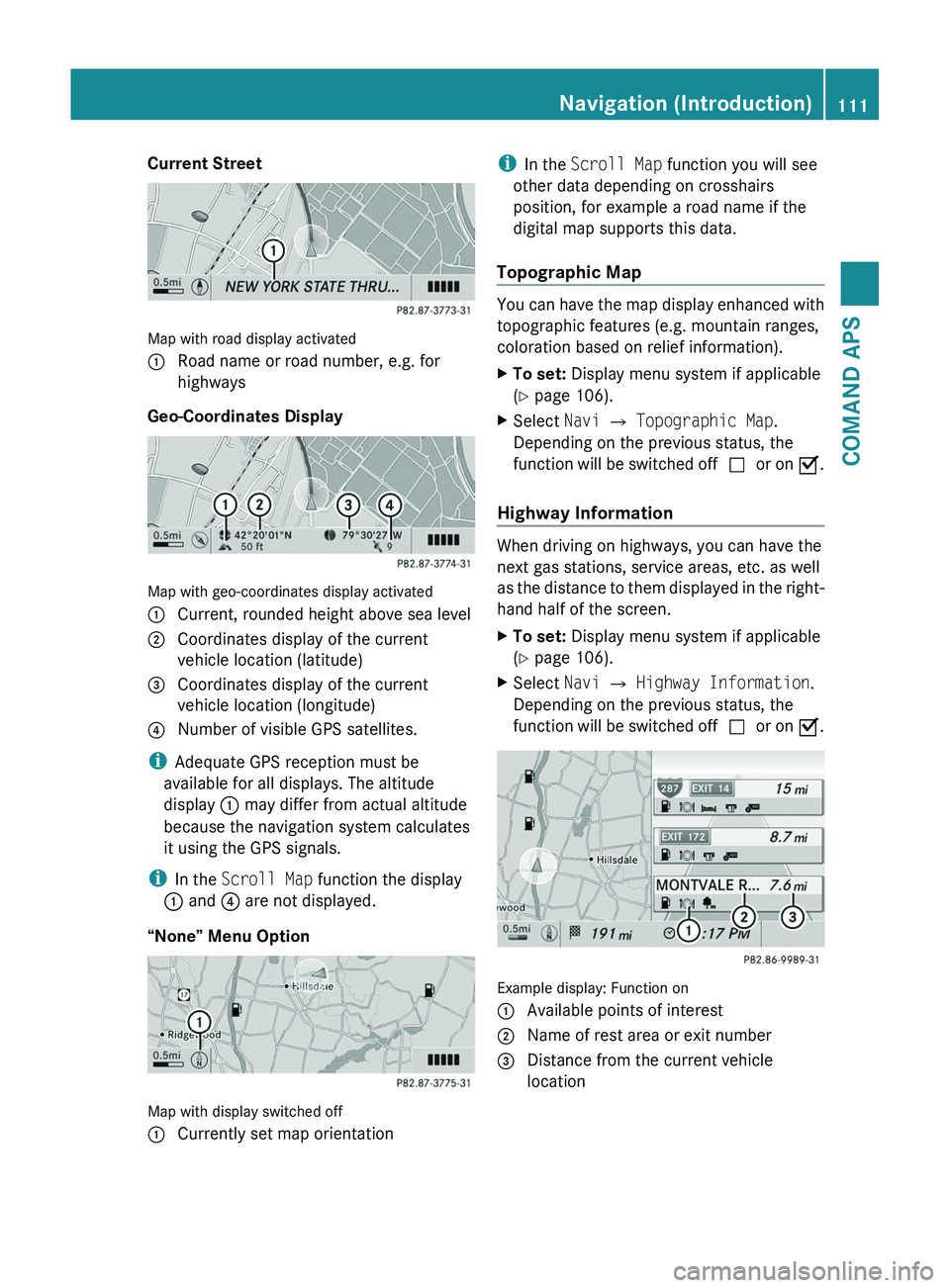
Current Street
Map with road display activated
1 Road name or road number, e.g. for
highways
Geo-Coordinates Display
Map with geo-coordinates display activated
1 Current, rounded height above sea level2 Coordinates display of the current
vehicle location (latitude)
3 Coordinates display of the current
vehicle location (longitude)
4 Number of visible GPS satellites.
iAdequate GPS reception must be
available for all displays. The altitude
display 1 may differ from actual altitude
because the navigation system calculates
it using the GPS signals.
iIn the Scroll Map function the display
1 and 4 are not displayed.
“None” Menu Option
Map with display switched off
1 Currently set map orientationiIn the Scroll Map function you will see
other data depending on crosshairs
position, for example a road name if the
digital map supports this data.
Topographic Map
You can have the map display enhanced with
topographic features (e.g. mountain ranges,
coloration based on relief information).
XTo set: Display menu system if applicable
(Y page 106).
XSelect Navi £ Topographic Map.
Depending on the previous status, the
function will be switched offcor on Ç.
Highway Information
When driving on highways, you can have the
next gas stations, service areas, etc. as well
as the distance to them displayed in the right-
hand half of the screen.
XTo set: Display menu system if applicable
(Y page 106).
XSelect Navi £ Highway Information.
Depending on the previous status, the
function will be switched offcor on Ç.
Example display: Function on
1 Available points of interest2 Name of rest area or exit number3 Distance from the current vehicle
location
Navigation (Introduction)111COMAND APSBA 197 USA, CA Edition A 2011; 1; 27, en-UShereepeVersion: 3.0.3.52010-03-24T15:31:10+01:00 - Seite 111Z
Page 114 of 436
Read Traffic Messages Automatically
You can choose whether the traffic messages
relevant for the route are read automatically
or whether you have to start the reading
manually using the Traffic submenu.
XTo set: Display menu system if applicable
(Y page 106).
XSelect Navi £ Read Traffic
Messages Automatically.
Depending on the previous status, the
function will be switched offcor on Ç.
Audio Fadeout
The Audio Fadeout function, if activated,
lowers the volume of the current audio source
when a navigation announcement is issued.
As soon as the navigation announcement has
ended, the audio source will be played with
the previous volume.
XTo activate: Display menu system if
applicable (Y page 106).
XSelect Navi £ Audio Fadeout.
Depending on the previous status, the
function will be switched offcor on Ç.
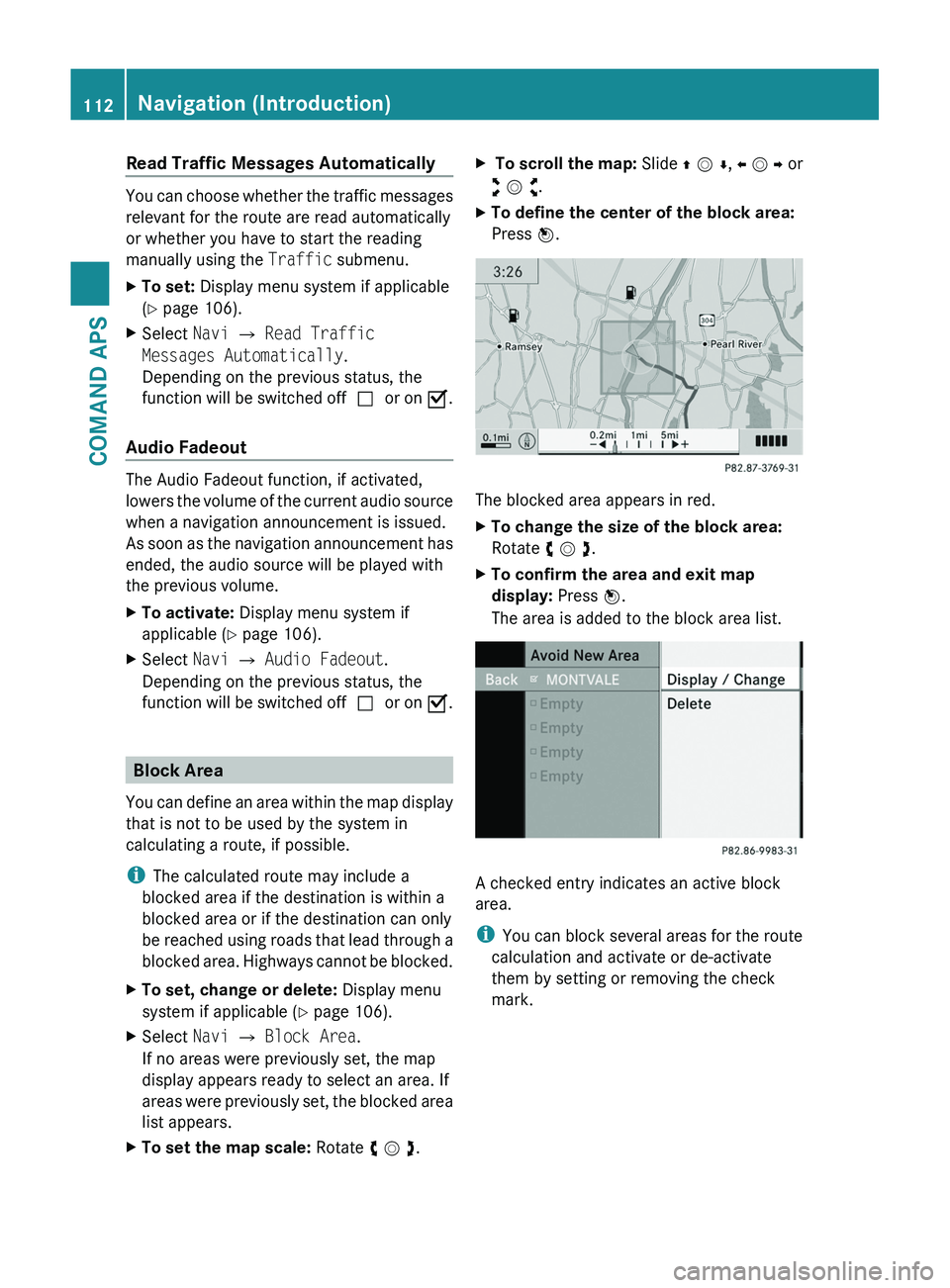
Block Area
You can define an area within the map display
that is not to be used by the system in
calculating a route, if possible.
iThe calculated route may include a
blocked area if the destination is within a
blocked area or if the destination can only
be reached using roads that lead through a
blocked area. Highways cannot be blocked.
XTo set, change or delete: Display menu
system if applicable (Y page 106).
XSelect Navi £ Block Area.
If no areas were previously set, the map
display appears ready to select an area. If
areas were previously set, the blocked area
list appears.
XTo set the map scale: Rotate y m z.X To scroll the map: Slide q m r, o m p or
w m x.
XTo define the center of the block area:
Press n.
The blocked area appears in red.
XTo change the size of the block area:
Rotate y m z.
XTo confirm the area and exit map
display: Press n.
The area is added to the block area list.
A checked entry indicates an active block
area.
iYou can block several areas for the route
calculation and activate or de-activate
them by setting or removing the check
mark.
112Navigation (Introduction)COMAND APS
BA 197 USA, CA Edition A 2011; 1; 27, en-UShereepeVersion: 3.0.3.52010-03-24T15:31:10+01:00 - Seite 112