2011 MERCEDES-BENZ S-Class start stop button
[x] Cancel search: start stop buttonPage 222 of 524
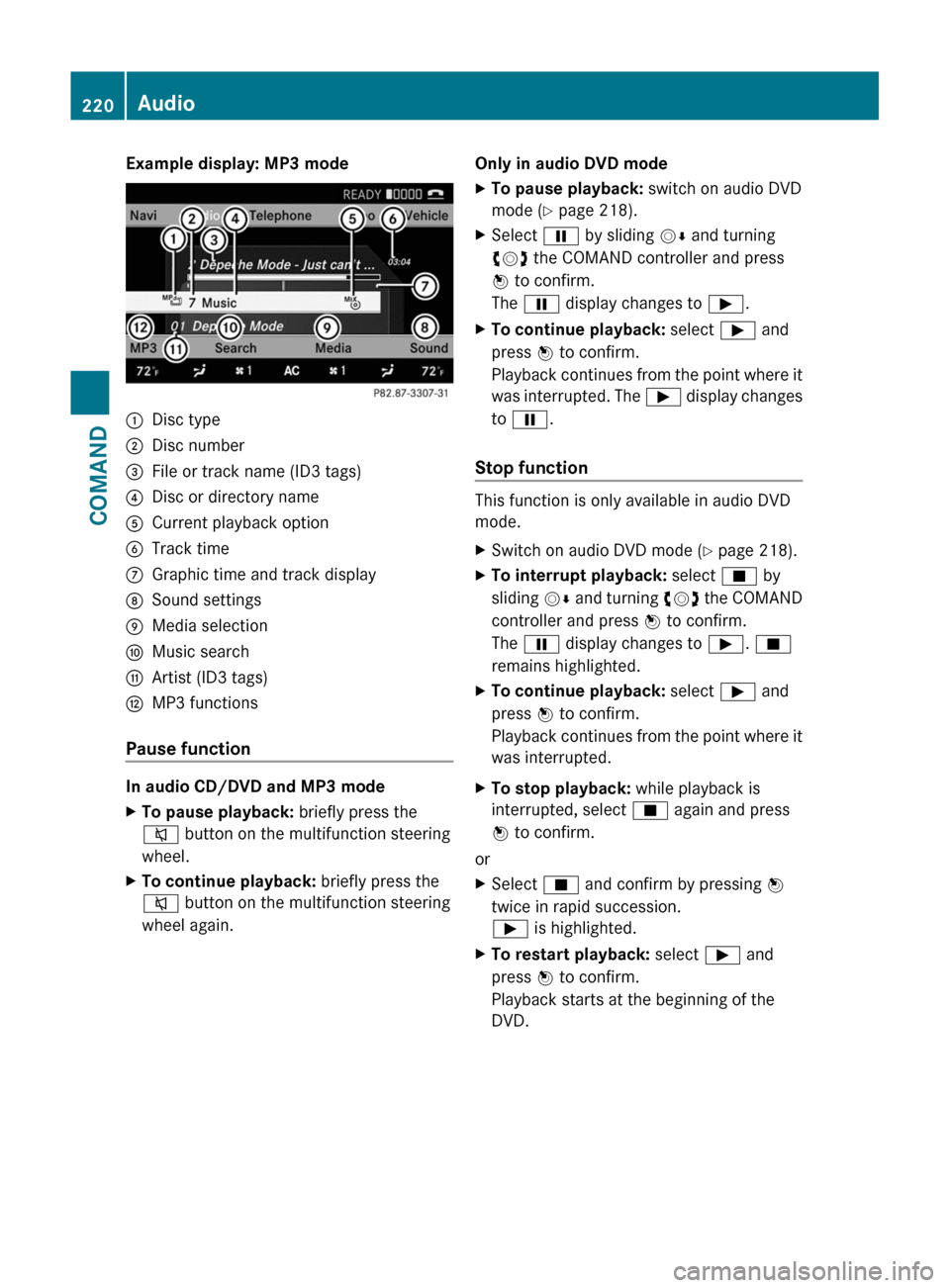
Example display: MP3 mode:Disc type;Disc number=File or track name (ID3 tags)?Disc or directory nameACurrent playback optionBTrack timeCGraphic time and track displayDSound settingsEMedia selectionFMusic searchGArtist (ID3 tags)HMP3 functions
Pause function
In audio CD/DVD and MP3 mode
XTo pause playback: briefly press the
8 button on the multifunction steering
wheel.XTo continue playback: briefly press the
8 button on the multifunction steering
wheel again.Only in audio DVD modeXTo pause playback: switch on audio DVD
mode ( Y page 218).XSelect Ë by sliding VÆ and turning
cVd the COMAND controller and press
W to confirm.
The Ë display changes to Ì.XTo continue playback: select Ì and
press W to confirm.
Playback continues from the point where it
was interrupted. The Ì display changes
to Ë .
Stop function
This function is only available in audio DVD
mode.
XSwitch on audio DVD mode ( Y page 218).XTo interrupt playback: select É by
sliding VÆ and turning cVd the COMAND
controller and press W to confirm.
The Ë display changes to Ì. É
remains highlighted.XTo continue playback: select Ì and
press W to confirm.
Playback continues from the point where it
was interrupted.XTo stop playback: while playback is
interrupted, select É again and press
W to confirm.
or
XSelect É and confirm by pressing W
twice in rapid succession.
Ì is highlighted.XTo restart playback: select Ì and
press W to confirm.
Playback starts at the beginning of the
DVD.220AudioCOMAND
Page 241 of 524
Stop functionXPress W the COMAND controller to show
the menu.
XTo interrupt playback: select ± by
turning cVd the COMAND controller and
press W to confirm.
The « display changes to M. The video
image is hidden.
XTo continue playback: select M and press
W to confirm.
Playback continues from the point where it
was interrupted.
XTo stop playback: while playback is
interrupted, select ± again and press W
to confirm.
or
XDuring playback, confirm ± by pressing
W twice in quick succession.
M is selected.
XTo restart playback: confirm M by
pressing W.
Playback restarts from the beginning.
Pause function
XPress W the COMAND controller to show
the menu.
XTo pause: select « by turning cVd the
COMAND controller and press W to
confirm.
The « display changes to M.
XTo continue playback: select M and press
W to confirm.
The menu is hidden.
Selecting a scene/chapter
If the film is divided into scenes or chapters,
you can select them directly while the film is
running, or skip forwards step-by-step. Some
DVDs do not permit this at certain points (e.g.
during the opening credits).
It may also be possible to select the scene/
chapter from within the menu stored on the
DVD.
XTo skip forwards or back: turn cVd or
slide XVY the COMAND controller.
The navigation menu (Y page 237) appears
for approximately eight seconds.
XOn the multifunction steering wheel:
switch on video DVD mode in COMAND
(Y page 237).
XUse the = or ; button to select the
Audio menu.
XPress 9 or : to select a scene/
chapter.
If you press and hold 9 or : for an
extended period, rapid scroll begins.
Selecting a film/title
This function is only available if the DVD is
divided into several films/tracks. If the DVD
contains several films, these can be selected
directly. A film can be selected either when
the DVD is being played back or when it is
stopped.
The film can also be selected from the menu
on the DVD itself.
XPress W the COMAND controller to show
the menu.
XSelect DVD-V by turning cVd the COMAND
controller and press W to confirm.
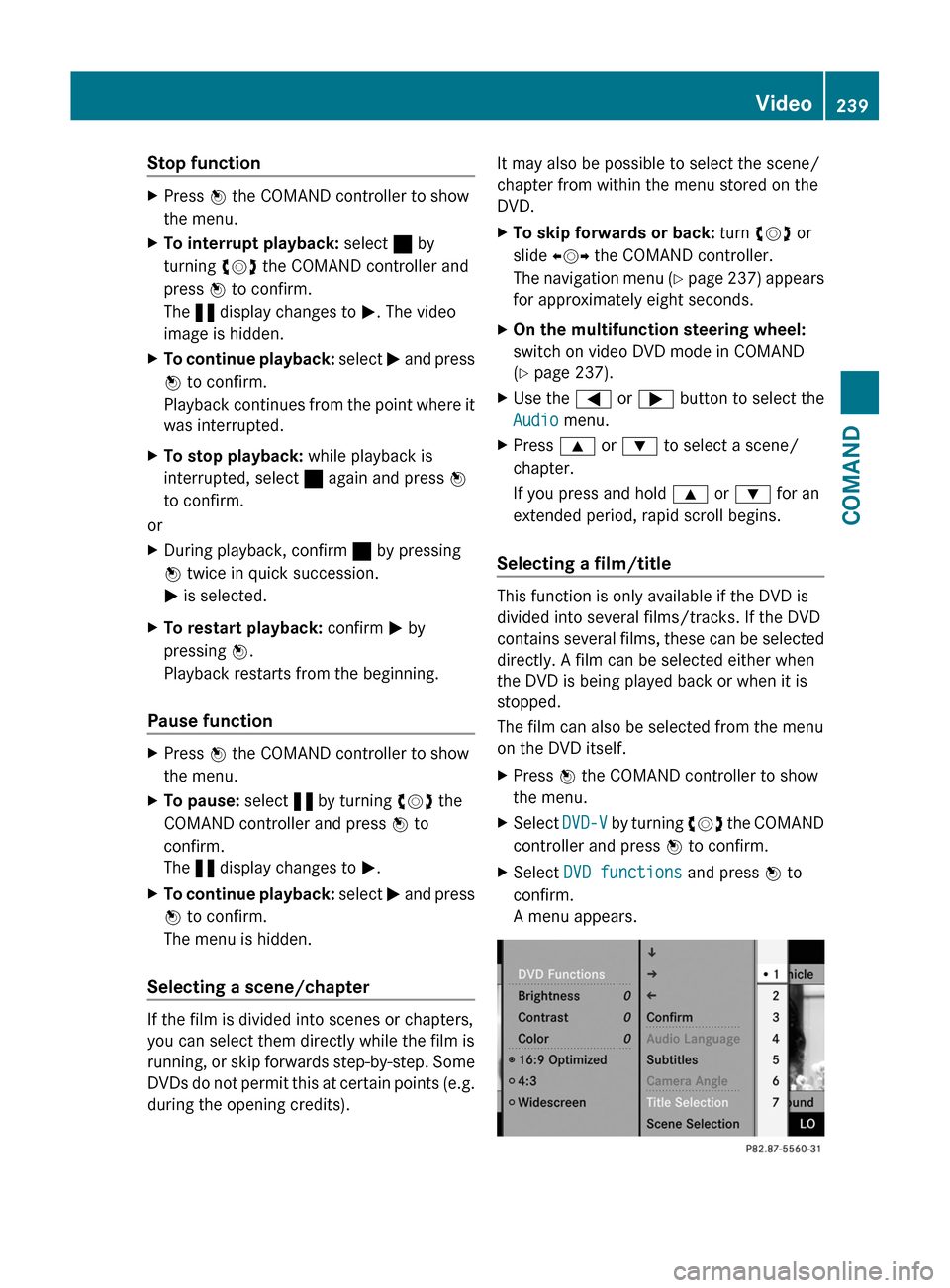
XSelect DVD functions and press W to
confirm.
A menu appears.
Video239COMANDZ
Page 252 of 524
XTo interrupt playback: select ± using
the :=; buttons on the remote
control and press the 9 button to confirm.
The « display changes to M.XTo continue playback: select M and press
the 9 button to confirm.
Playback continues from the point where it
was interrupted.XTo stop playback: while playback is
interrupted, select ± again and press the
9 button to confirm.
Playback stops and returns to the
beginning of the DVD. M is highlighted.XTo restart playback: select M and press
the 9 button to confirm.
Playback starts from the beginning of the
DVD.
Setting the audio format
Further information on audio formats is
available in the Audio section ( Y page 223).
XSelect DVD-A using the :=;
buttons on the remote control and press
the 9 button to confirm.XSelect Group using the 9: buttons
and press the 9 button to confirm.
The list of available audio formats appears.
The # dot indicates the format currently
selected.XSelect an audio format using the
9: buttons and press the 9 button
to confirm.XTo exit the menu: press the =
or ; button.
Playback options
Further information on playback options is
available in the Audio section ( Y page 224).
XSelect CD, DVD-A or MP3 using
the :=; buttons on the remote
control and press the 9 button to confirm.
The options list appears. The # dot
indicates the option selected.XSelect Normal track sequence , Random
tracks or Random folder using the
9: buttons and press the 9 button
to confirm.
The option is switched on. All options
except Normal track sequence will be
indicated in the display/selection window.
i If you change the disc, the Normal
track sequence option is activated
automatically. If an option is selected, it
remains selected after the Rear Seat
Entertainment System is switched on or
off.
Switching track information on/off
(MP3 mode only)
If the function is switched on, folder and track
names are displayed.
If the function is switched off, disc and file
names are displayed.
XSelect MP3 using the :=;
buttons on the remote control and press
the 9 button to confirm.XSelect Show track information using
the 9: buttons and press the 9
button to confirm.
The function is switched on O or off ª,
depending on the previous status.
DVD video mode
General notes
Here you will find further information on the
following topics:
R safety notes ( Y page 217)
R notes on DVDs ( Y page 236)
250Rear Seat Entertainment SystemCOMAND
Page 254 of 524
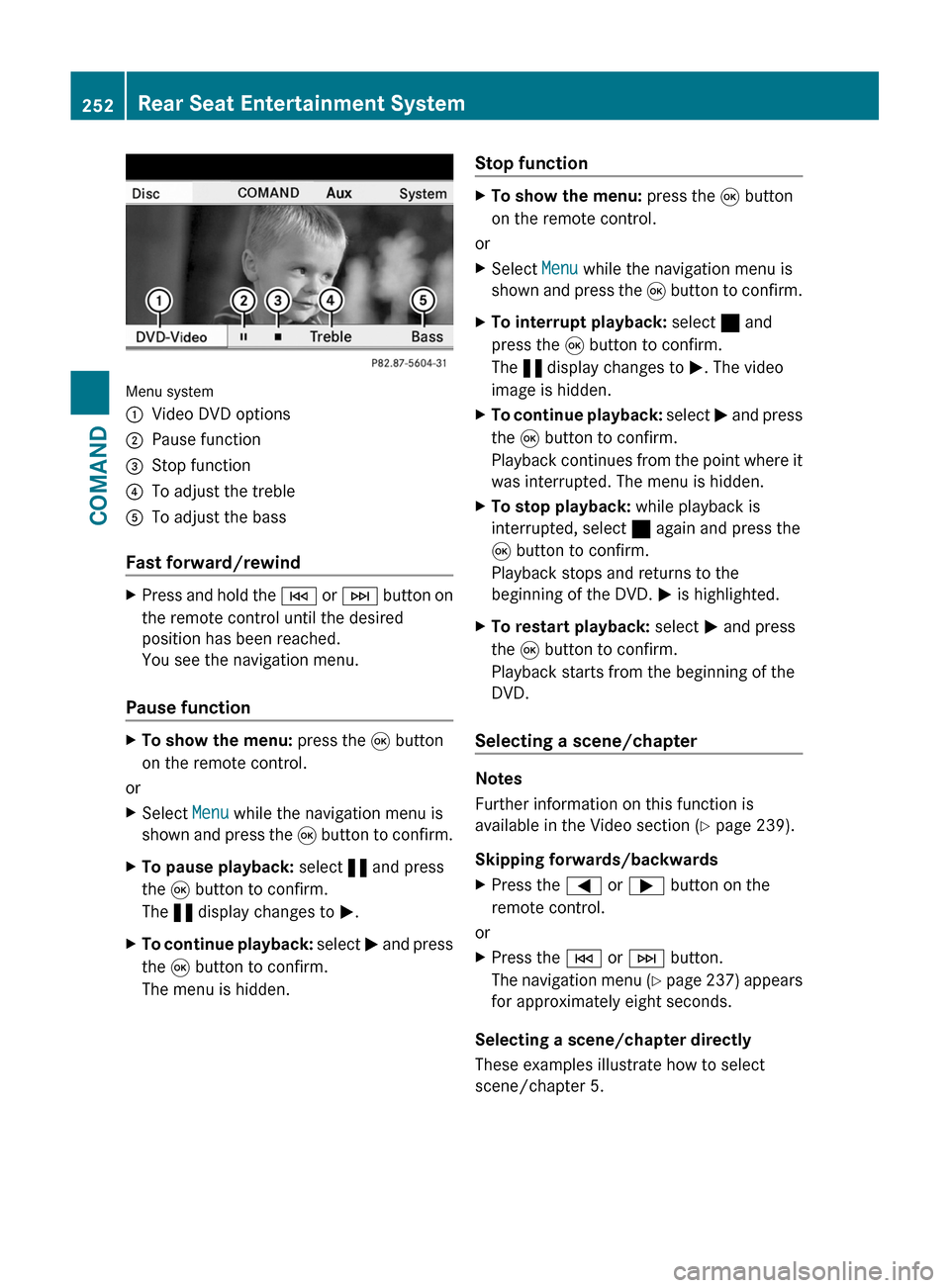
Menu system
:Video DVD options;Pause function=Stop function?To adjust the trebleATo adjust the bass
Fast forward/rewind
XPress and hold the E or F button on
the remote control until the desired
position has been reached.
You see the navigation menu.
Pause function
XTo show the menu: press the 9 button
on the remote control.
or
XSelect Menu while the navigation menu is
shown and press the 9 button to confirm.
XTo pause playback: select « and press
the 9 button to confirm.
The « display changes to M.
XTo continue playback: select M and press
the 9 button to confirm.
The menu is hidden.
Stop functionXTo show the menu: press the 9 button
on the remote control.
or
XSelect Menu while the navigation menu is
shown and press the 9 button to confirm.
XTo interrupt playback: select ± and
press the 9 button to confirm.
The « display changes to M. The video
image is hidden.
XTo continue playback: select M and press
the 9 button to confirm.
Playback continues from the point where it
was interrupted. The menu is hidden.
XTo stop playback: while playback is
interrupted, select ± again and press the
9 button to confirm.
Playback stops and returns to the
beginning of the DVD. M is highlighted.
XTo restart playback: select M and press
the 9 button to confirm.
Playback starts from the beginning of the
DVD.
Selecting a scene/chapter
Notes
Further information on this function is
available in the Video section (Y page 239).
Skipping forwards/backwards
XPress the = or ; button on the
remote control.
or
XPress the E or F button.
The navigation menu (Y page 237) appears
for approximately eight seconds.
Selecting a scene/chapter directly
These examples illustrate how to select
scene/chapter 5.
252Rear Seat Entertainment SystemCOMAND
Page 260 of 524
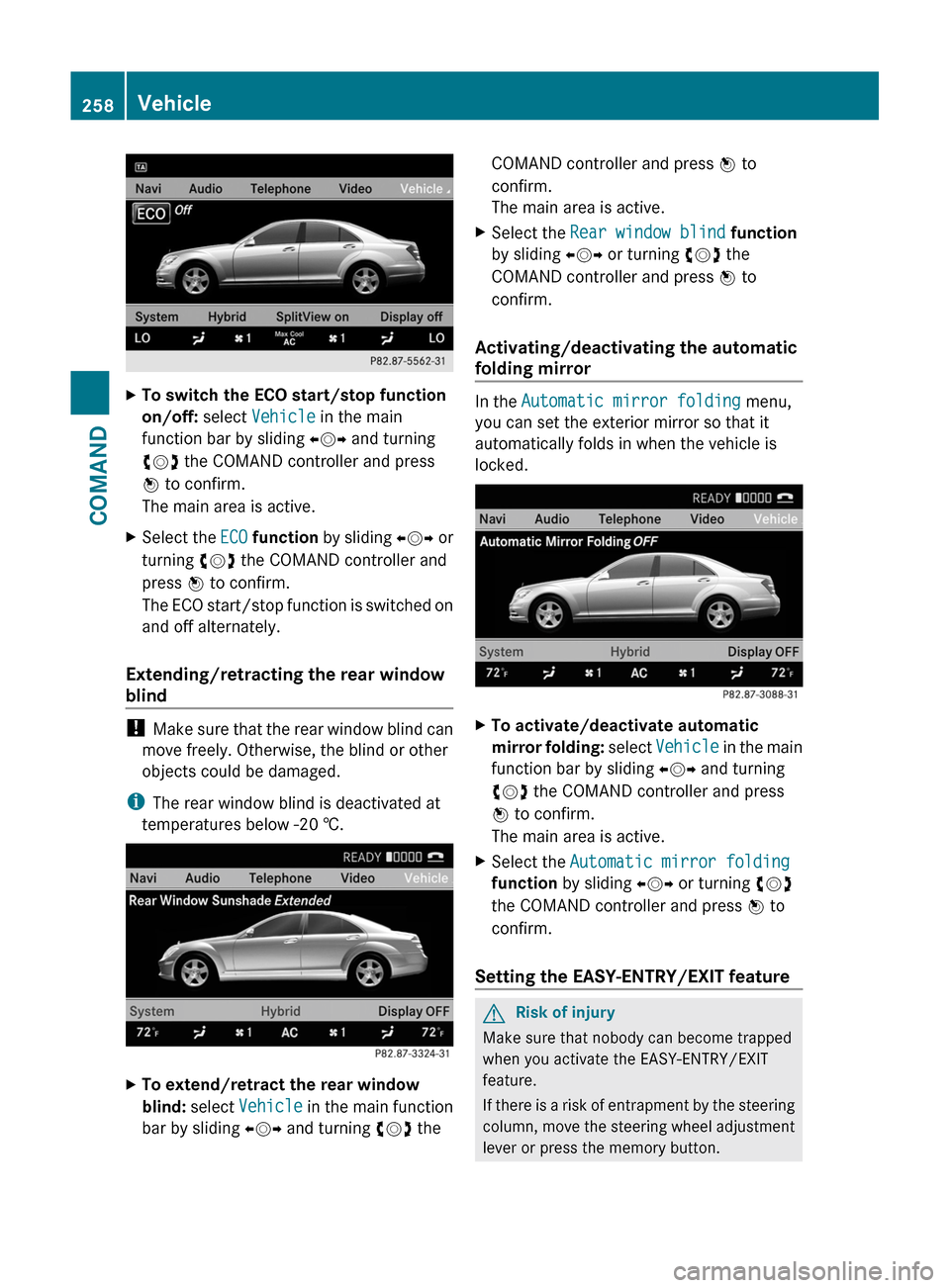
XTo switch the ECO start/stop function
on/off: select Vehicle in the main
function bar by sliding XVY and turning
cVd the COMAND controller and press
W to confirm.
The main area is active.
XSelect the ECO function by sliding XVY or
turning cVd the COMAND controller and
press W to confirm.
The ECO start/stop function is switched on
and off alternately.
Extending/retracting the rear window
blind
! Make sure that the rear window blind can
move freely. Otherwise, the blind or other
objects could be damaged.
iThe rear window blind is deactivated at
temperatures below -20 †.
XTo extend/retract the rear window
blind: select Vehicle in the main function
bar by sliding XVY and turning cVd the
COMAND controller and press W to
confirm.
The main area is active.
XSelect the Rear window blind function
by sliding XVY or turning cVd the
COMAND controller and press W to
confirm.
Activating/deactivating the automatic
folding mirror
In the Automatic mirror folding menu,
you can set the exterior mirror so that it
automatically folds in when the vehicle is
locked.
XTo activate/deactivate automatic
mirror folding: select Vehicle in the main
function bar by sliding XVY and turning
cVd the COMAND controller and press
W to confirm.
The main area is active.
XSelect the Automatic mirror folding
function by sliding XVY or turning cVd
the COMAND controller and press W to
confirm.
Setting the EASY-ENTRY/EXIT feature
GRisk of injury
Make sure that nobody can become trapped
when you activate the EASY-ENTRY/EXIT
feature.
If there is a risk of entrapment by the steering
column, move the steering wheel adjustment
lever or press the memory button.
258VehicleCOMAND
Page 284 of 524
Never fold a windshield wiper arm without
a wiper blade back onto the windshield.
Hold the windshield wiper arm firmly when
you change the wiper blade. If you release
the windshield wiper arm without a wiper
blade and it falls onto the windshield, the
windshield can be damaged by the force of
the impact.
Mercedes-Benz recommends that you have
the wiper blades replaced by a qualified
specialist workshop, e.g. at an authorized
Mercedes-Benz Center.
! Always position the windshield wiper
arms vertically before folding them away
from the windshield. By doing so, you will
avoid damage to the hood.
Replacing the windshield wiper blades
Moving the wiper arms to a vertical
position
Vehicles without KEYLESS-GO
XTurn the key to position 1 or 2 in the ignition
lock.
XSet the windshield wipers to
position ° on the combination switch.
XWhen the wiper arms have reached a
vertical position, turn the key to position
0 and remove it from the ignition lock.
Vehicles with KEYLESS-GO
XSwitch off the engine.XTake your foot off the brake pedal.XSet the windshield wipers to
position ° on the combination switch.
XPress the Start/Stop button repeatedly
until the windshield wipers start.
XWhen the wiper arms have reached a
vertical position, press the Start/Stop
button.
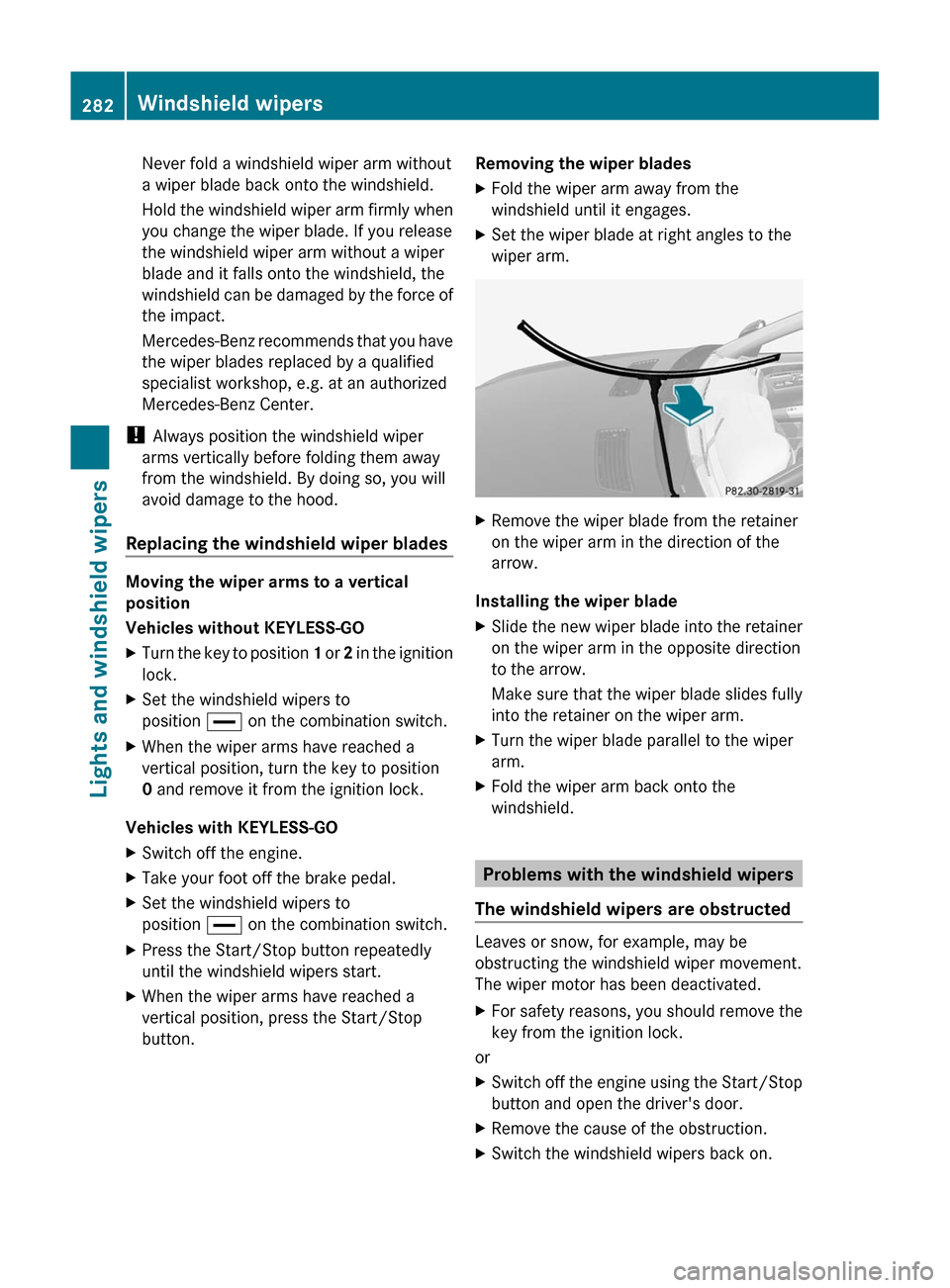
Removing the wiper bladesXFold the wiper arm away from the
windshield until it engages.
XSet the wiper blade at right angles to the
wiper arm.
XRemove the wiper blade from the retainer
on the wiper arm in the direction of the
arrow.
Installing the wiper blade
XSlide the new wiper blade into the retainer
on the wiper arm in the opposite direction
to the arrow.
Make sure that the wiper blade slides fully
into the retainer on the wiper arm.
XTurn the wiper blade parallel to the wiper
arm.
XFold the wiper arm back onto the
windshield.
Problems with the windshield wipers
The windshield wipers are obstructed
Leaves or snow, for example, may be
obstructing the windshield wiper movement.
The wiper motor has been deactivated.
XFor safety reasons, you should remove the
key from the ignition lock.
or
XSwitch off the engine using the Start/Stop
button and open the driver's door.
XRemove the cause of the obstruction.XSwitch the windshield wipers back on.282Windshield wipersLights and windshield wipers
Page 301 of 524

gear when the engine is idling normally and
when your right foot is firmly on the brake
pedal.GWarning!
HYBRID vehicles: It is imperative that you read
the HYBRID Supplemental Operating
Instructions included in your vehicle literature
portfolio. You may otherwise not receive all
necessary safety information and warning for
the operation of your vehicle.
! Warm up the engine quickly. Do not use
the engine's full performance until it has
reached operating temperature.
Only shift the automatic transmission to
the desired drive position when the vehicle
is stationary.
Where possible, avoid spinning the drive
wheels when pulling away on slippery
roads. You could otherwise damage the
drive train.
! S 63 AMG: at low engine oil temperatures
below 68 ‡ (+20 † ), the maximum engine
speed is restricted in order to protect the
engine. To protect the engine and maintain
smooth engine operation, avoid driving at
full throttle when the engine is cold.
SmartKey positions
SmartKey
gTo remove the SmartKey1Power supply for some consumers, such
as the windshield wipers2Ignition (power supply for all consumers)
and drive position3To start the engine
As soon as the ignition is switched on, all the
indicator lamps in the instrument cluster light
up. The indicator lamps of the high-beam
headlamps or the turn signal lamps only light
up if the high-beam headlamps or the turn
signal lamps are switched on. If an indicator
lamp does not light up when the ignition is
switched on, check it and replace it if
necessary. If an indicator lamp does not go
out after the engine is started or if it lights up
while the vehicle is in motion, see
( Y page 413).
XRemove the SmartKey when the engine is
switched off.
The battery may otherwise discharge.
If you cannot turn the SmartKey in the ignition
lock, the vehicle battery may not be charged
sufficiently.
XCheck the vehicle battery and charge if
necessary ( Y page 470).
or
XJump-start the vehicle ( Y page 471).
i
The SmartKey can be turned in the
ignition lock even if it is not the correct
SmartKey for the vehicle. The ignition is not
switched on. The engine cannot be started.
KEYLESS-GO
Vehicles with KEYLESS-GO are equipped with
a SmartKey with an integrated KEYLESS-GO
function and a detachable Start/Stop button.
The Start/Stop button must be inserted in the
ignition lock and the SmartKey must be in the
vehicle.
Pressing the Start/Stop button several times
in succession corresponds to the different
key positions in the ignition lock. This is only
Driving299Driving and parkingZ
Page 302 of 524

the case if you are not depressing the brake
pedal.
If you depress the brake pedal and press the
Start/Stop button, the engine starts
immediately.
The Start/Stop button can be removed from
the ignition lock. Then you can insert the
SmartKey in the ignition lock.
i You do not have to remove the Start/Stop
button from the ignition lock when you
leave the vehicle. However, you should
always take the SmartKey with you when
leaving the vehicle. The vehicle can be
started with the Start/Stop button and the
electrical equipment can be operated while
the SmartKey is in the vehicle.:Start/Stop button;Ignition lockXInsert Start/Stop button : into ignition
lock ;.
i
When you insert Start/Stop button :
into ignition lock ;, the system requires a
detection time of two seconds before you
can use Start/Stop button :.
XShift the transmission to position P.XDo not press the brake pedal.
Start/Stop button
=USA only?Canada onlyXPosition 0: if Start/Stop button : has not
yet been pressed, this corresponds to the
SmartKey being removed from the ignition.XPosition 1: press Start/Stop button :.
You can now activate the windshield
wipers, for example.
i If you then open the driver's door when in
this position, the power supply is
deactivated.
XPosition 2 (ignition): press Start/Stop
button : twice.
i
If you press Start/Stop button : once
when in this position and the driver's door
is open, the power supply is deactivated
again.
As soon as the ignition is switched on, all the
indicator lamps in the instrument cluster light
up. The indicator lamps of the high-beam
headlamps or the turn signal lamps only light
up if the high-beam headlamps or the turn
signal lamps are switched on. If an indicator
lamp does not light up when the ignition is
switched on, check it and replace it if
necessary. If an indicator lamp does not go
out after the engine is started or if it lights up
while the vehicle is in motion, see
( Y page 413).
300DrivingDriving and parking