2011 MERCEDES-BENZ S-Class start stop button
[x] Cancel search: start stop buttonPage 81 of 524

X To unlock the vehicle: pull the door
handle.XTo lock the vehicle: touch sensor
surface :.
If you pull on the handle of the trunk lid, only
the trunk of the vehicle is unlocked.
Changing the settings of the locking
system
You can change the setting of the locking
system in such a way that only the driver's
door and the fuel filler flap are unlocked. This
is useful if you frequently travel on your own.
XTo change the setting: press and hold
down the % and & buttons
simultaneously for approximately six
seconds until the battery check lamp
( Y page 80) flashes twice.
The SmartKey now functions as follows:
XTo unlock the driver's door: press the
% button once.XTo unlock centrally: press the %
button twice.XTo lock centrally: press the & button.
The KEYLESS-GO function is changed as
follows:
XTo unlock the driver's door : pull the door
handle on the driver's door.XTo unlock centrally: pull the door handle
on the front-passenger door or on the rear
doors.XTo lock centrally: touch sensor
surface : on one of the door handles.
Restoring the factory settings
XPress the % and & buttons
simultaneously for approximately six
seconds until the battery check lamp
flashes twice.Mechanical key
General notes
If you use the mechanical key to unlock and
open the driver's door or the trunk lid, the
anti-theft alarm system will be triggered
( Y page 73).
There are several ways to turn off the alarm:
XPress the % or & button on the
SmartKey.
or
XInsert the SmartKey into the ignition lock.
or
XPress the Start/Stop button in the ignition
lock. The SmartKey must be in the vehicle.
or
XLock or unlock the vehicle using KEYLESS-
GO. The SmartKey must be outside the
vehicle.
Removing the mechanical key
XPush release catch : in the direction of
the arrow and at the same time, remove
mechanical key ; from the SmartKey.
SmartKey battery
Important safety notes
It is advisable to have batteries replaced at a
qualified specialist workshop, e.g. at an
authorized Mercedes-Benz Center.
SmartKey79Opening and closingZ
Page 88 of 524

Opening and closing manually
Opening
You can only open the trunk lid after
unlocking it first.
XPress the % button on the SmartKey.XPull handle :.
Closing
GWarning
To prevent possible personal injury, always
keep hands and fingers away from the trunk
opening when closing the trunk lid. Be
especially careful when small children are
around.
XPull the trunk lid down using recess :.XLock the vehicle if necessary with
the & button on the SmartKey or with
KEYLESS-GO (Y page 77).
Automatic opening and closing from
the outside
Important safety guidelines
GWarning
Make sure the trunk lid is closed when the
engine is running and while driving. Among
other dangers, deadly carbon monoxide (CO)
gases may enter the vehicle interior resulting
in unconsciousness and death.
! The trunk lid swings upwards when
opened. Therefore, make sure that there is
sufficient clearance above the trunk lid.
For the trunk lid to be opened fully, there must
be a minimum clearance from floor to ceiling
of 5.90 ft (1.80 m).
Opening
You can open the trunk lid with the SmartKey.
XPress and hold the F button on the
SmartKey until the trunk lid opens.
Closing
GWarning!
Monitor the closing procedure carefully to
make sure no one is in danger of being
injured. To prevent possible personal injury,
always keep hands and fingers away from the
trunk opening when closing the trunk lid. Be
especially careful when small children are
around. To stop the closing procedure, do one
of the following:
RPress button F on the SmartKey.
RPress the remote trunk opening/closing
switch (on the driver's door).
RPress the trunk closing switch.
RPress the KEYLESS-GO locking/closing
switch.
RPull the trunk lid handle.
Even with the SmartKey removed from the
starter switch or the SmartKey with KEYLESS-
GO removed from the vehicle, the remote
86TrunkOpening and closing
Page 92 of 524

Opening and closing the side
windows
:Front left;Front right=Rear right?Rear left
The switches for all side windows are located
on the driver's door. There is also a switch on
each door for the corresponding side window.
iIt is not possible to operate the door
windows from the rear compartment when
the override feature is activated for the
door windows.
XTurn the SmartKey to position 1 in the
ignition lock.
iThe switches on the driver's door take
precedence over the switches on the other
doors.
XTo open: press the corresponding switch.XTo close: pull the corresponding switch.
iIf you press the switch beyond the point
of resistance, an automatic opening/
closing process is started in the
corresponding direction. You can stop
automatic operation by pressing again.
iYou can continue to operate the side
windows after you switch off the engine.
This function remains active for five
minutes or until one of the front doors is
opened.
Sunblinds on the rear side windowsXTo close fully: pull the corresponding
switch when the side window is closed.
iThe roller sunblinds on the rear door
windows are always closed fully.
XTo open fully: press the corresponding
switch.
iYou can use the switches on the rear
doors to close the roller sunblind on the
rear door window on the opposite side of
the vehicle.
Convenience opening
You can ventilate the vehicle before you start
driving. To do this, you can use the SmartKey
to simultaneously:
Ropen the side windows
Ropen the roller sunblinds on the rear side
windows
Ropen the sliding sunroof or the panorama
roof with power tilt/sliding panel and the
roller sunblinds
Rswitch on the seat ventilation of the driver's
seat
iThe convenience opening feature can
only be operated using the SmartKey. The
SmartKey must be close to the driver's
door handle.
XPoint the tip of the SmartKey at the driver's
door handle.
XUnlock the vehicle by pressing the %
button.
XPress and hold the % button until the
side windows and the sliding sunroof or the
panorama roof with power tilt/sliding
panel are in the desired position.
If one of the sunblinds is closed, the sunblind
will open first.
iThe roller sunblinds of the panorama roof
with power tilt/sliding panel and the roller
sunblinds on the rear side windows are
opened at the same time.
90Side windowsOpening and closing
Page 98 of 524
XTurn the SmartKey to position 2 in the
ignition lock.
XPush or pull the 3 switch in the
corresponding direction.
iIf you press the 3 switch beyond the
point of resistance, an automatic opening/
closing process is started in the
corresponding direction. You can stop
automatic operation by pressing again.
Operating the rear roller sunblind
Operating from the front
GWarning
When opening or closing the rear roller
sunblind, make sure no one is in danger of
being injured by the opening or closing
procedure.
The rear roller sunblind is equipped with
automatic operation and the anti-entrapment
feature. If the movement of the rear roller
sunblind is blocked during the closing
procedure, the rear roller sunblind will stop
and retract slightly.
The opening and closing of the rear roller
sunblind can be immediately halted by
pressing the sunblind switch again.
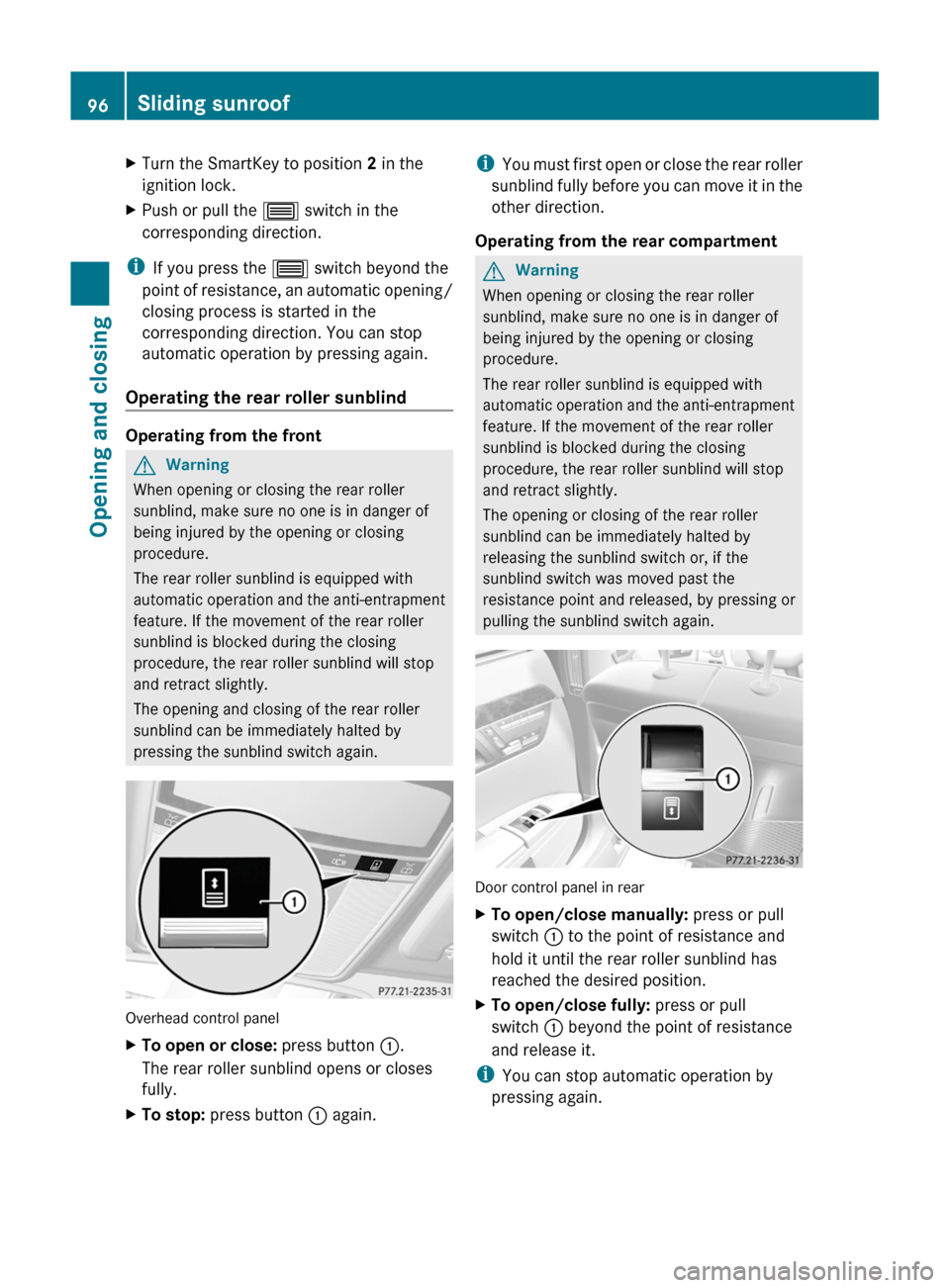
Overhead control panel
XTo open or close: press button :.
The rear roller sunblind opens or closes
fully.
XTo stop: press button : again.iYou must first open or close the rear roller
sunblind fully before you can move it in the
other direction.
Operating from the rear compartment
GWarning
When opening or closing the rear roller
sunblind, make sure no one is in danger of
being injured by the opening or closing
procedure.
The rear roller sunblind is equipped with
automatic operation and the anti-entrapment
feature. If the movement of the rear roller
sunblind is blocked during the closing
procedure, the rear roller sunblind will stop
and retract slightly.
The opening or closing of the rear roller
sunblind can be immediately halted by
releasing the sunblind switch or, if the
sunblind switch was moved past the
resistance point and released, by pressing or
pulling the sunblind switch again.
Door control panel in rear
XTo open/close manually: press or pull
switch : to the point of resistance and
hold it until the rear roller sunblind has
reached the desired position.
XTo open/close fully: press or pull
switch : beyond the point of resistance
and release it.
iYou can stop automatic operation by
pressing again.
96Sliding sunroofOpening and closing
Page 120 of 524

Assigning the programmable button
(favorites):Programmable button
You can assign the following predefined
functions to the h programmable button:
RECO: you can activate or deactivate the ECO
start/stop function.
RMassage, driver's seat: you can switch
the massage function for the driver's seat
on and off.
RMassage, front-passenger's seat:
you can switch the massage function for
the front-passenger seat on and off.
RMassage, driver's and front
passenger seat: you can switch the
massage function for the driver's and front-
passenger seats on and off.
RDisplay off: you can switch the
COMAND display off or on.
RTow-away protection: you can arm or
deactivate tow-away protection.
RInterior motion sensor: you can arm or
deactivate the interior motion sensor.
RTow-away protection/interior
motion sensor: you can arm or deactivate
tow-away protection and the interior
motion sensor.
RRepeat navigation command: you can
have the most recent recommendation by
the navigation system repeated.
XTo assign the programmable button:
select Vehicle by sliding VÆ and turning
cVd the COMAND controller and press
W to confirm.
XSelect System and press W to confirm.XSelect Favorites Button and press W to
confirm.
The list of predefined functions appears.
The # dot in front of the list entry indicates
the current setting.
XTo change the setting: turn cVd the
COMAND controller and select the desired
function.
XTo store the setting and exit the menu:
press W the COMAND controller.
Telephone keypad
:Telephone keypad;Folding cover118At a glanceCOMAND
Page 161 of 524
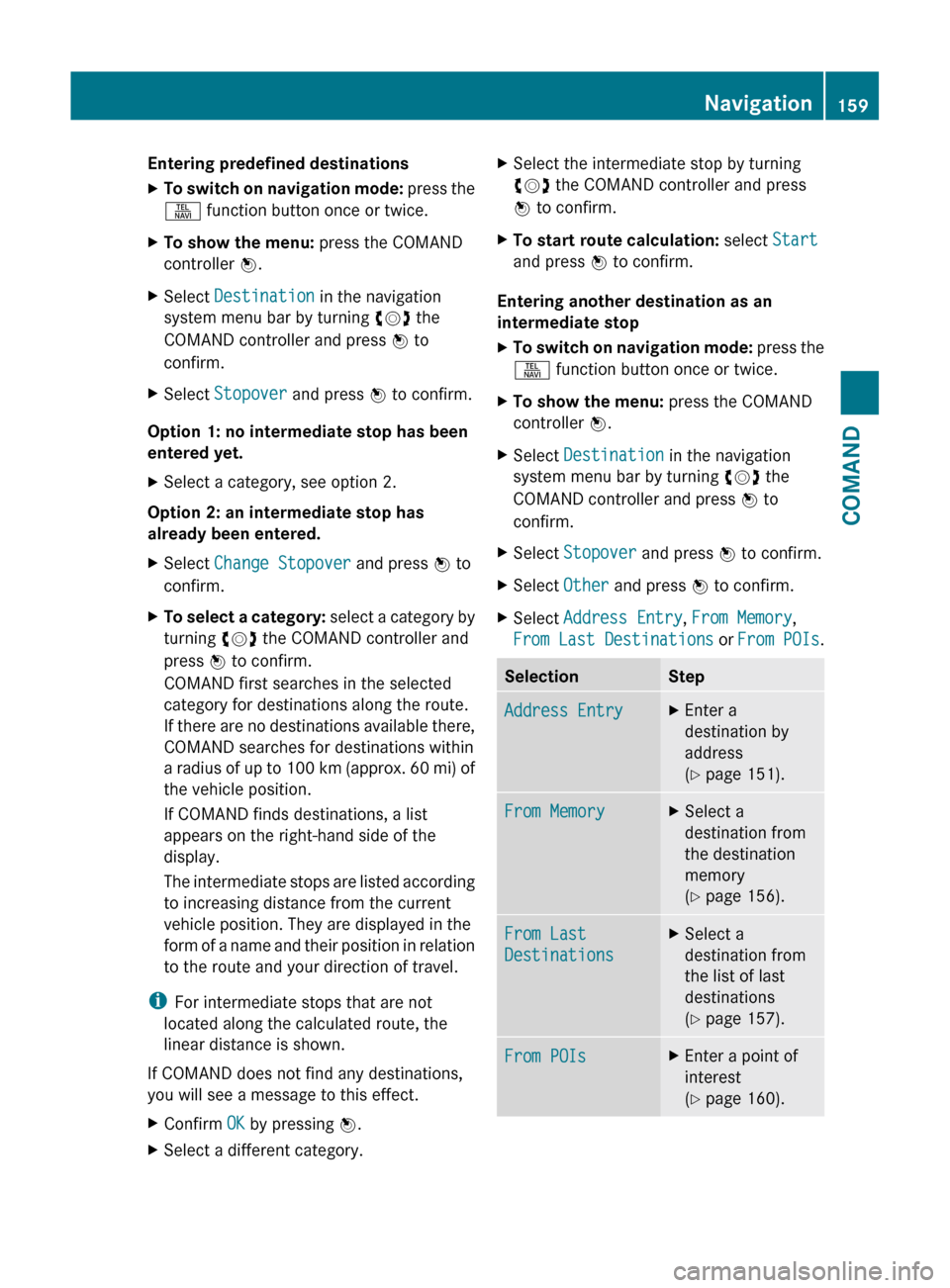
Entering predefined destinationsXTo switch on navigation mode: press the
S function button once or twice.XTo show the menu: press the COMAND
controller W.XSelect Destination in the navigation
system menu bar by turning cVd the
COMAND controller and press W to
confirm.XSelect Stopover and press W to confirm.
Option 1: no intermediate stop has been
entered yet.
XSelect a category, see option 2.
Option 2: an intermediate stop has
already been entered.
XSelect Change Stopover and press W to
confirm.XTo select a category: select a category by
turning cVd the COMAND controller and
press W to confirm.
COMAND first searches in the selected
category for destinations along the route.
If there are no destinations available there,
COMAND searches for destinations within
a radius of up to 100 km (approx. 60 mi) of
the vehicle position.
If COMAND finds destinations, a list
appears on the right-hand side of the
display.
The intermediate stops are listed according
to increasing distance from the current
vehicle position. They are displayed in the
form of a name and their position in relation
to the route and your direction of travel.
i For intermediate stops that are not
located along the calculated route, the
linear distance is shown.
If COMAND does not find any destinations,
you will see a message to this effect.
XConfirm OK by pressing W.XSelect a different category.XSelect the intermediate stop by turning
cVd the COMAND controller and press
W to confirm.XTo start route calculation: select Start
and press W to confirm.
Entering another destination as an
intermediate stop
XTo switch on navigation mode: press the
S function button once or twice.XTo show the menu: press the COMAND
controller W.XSelect Destination in the navigation
system menu bar by turning cVd the
COMAND controller and press W to
confirm.XSelect Stopover and press W to confirm.XSelect Other and press W to confirm.XSelect Address Entry , From Memory ,
From Last Destinations or From POIs .SelectionStepAddress EntryXEnter a
destination by
address
( Y page 151).From MemoryXSelect a
destination from
the destination
memory
( Y page 156).From Last
DestinationsXSelect a
destination from
the list of last
destinations
( Y page 157).From POIsXEnter a point of
interest
( Y page 160).Navigation159COMANDZ
Page 162 of 524
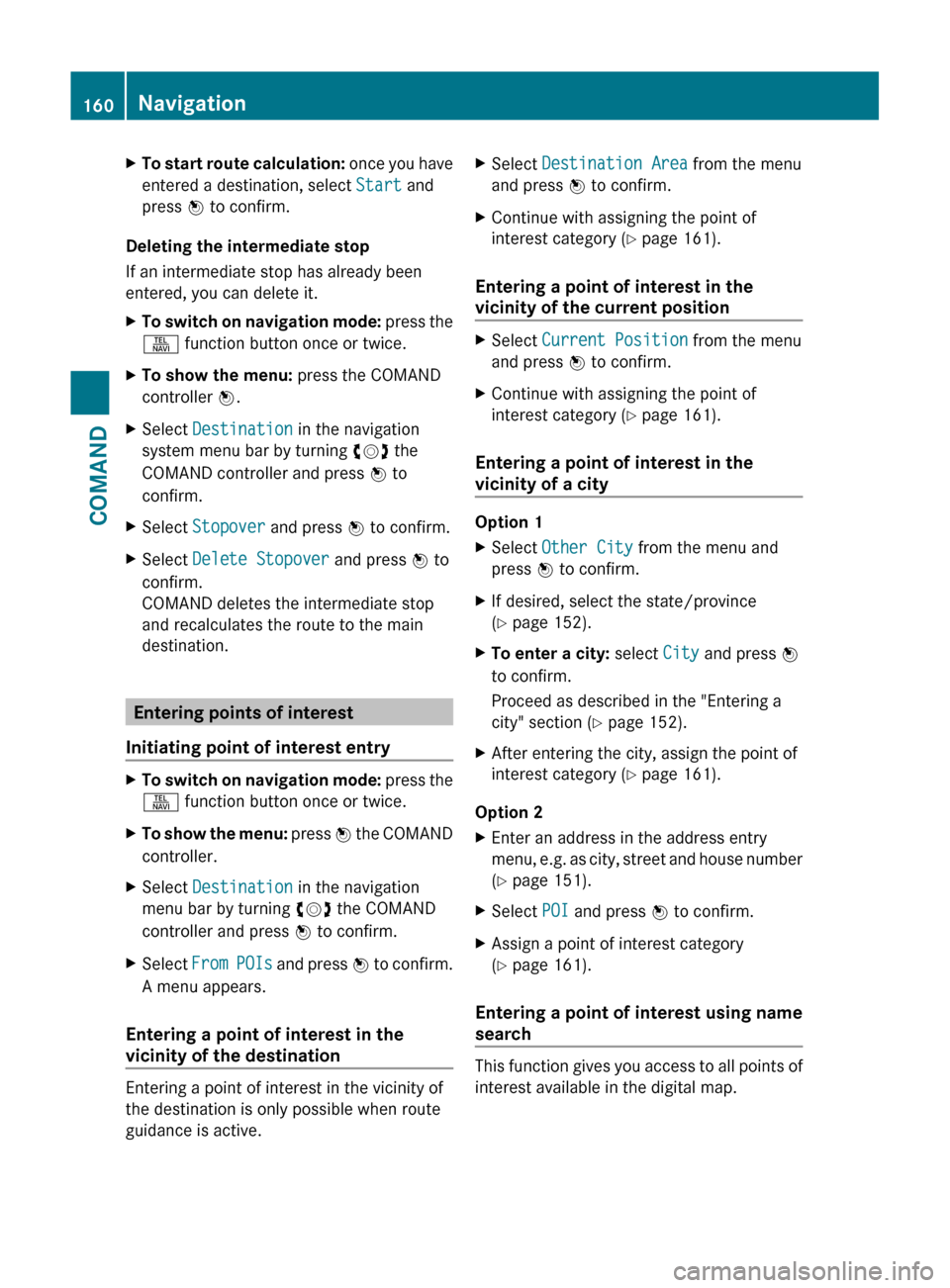
XTo start route calculation: once you have
entered a destination, select Start and
press W to confirm.
Deleting the intermediate stop
If an intermediate stop has already been
entered, you can delete it.
XTo switch on navigation mode: press the
S function button once or twice.XTo show the menu: press the COMAND
controller W.XSelect Destination in the navigation
system menu bar by turning cVd the
COMAND controller and press W to
confirm.XSelect Stopover and press W to confirm.XSelect Delete Stopover and press W to
confirm.
COMAND deletes the intermediate stop
and recalculates the route to the main
destination.
Entering points of interest
Initiating point of interest entry
XTo switch on navigation mode: press the
S function button once or twice.XTo show the menu: press W the COMAND
controller.XSelect Destination in the navigation
menu bar by turning cVd the COMAND
controller and press W to confirm.XSelect From POIs and press W to confirm.
A menu appears.
Entering a point of interest in the
vicinity of the destination
Entering a point of interest in the vicinity of
the destination is only possible when route
guidance is active.
XSelect Destination Area from the menu
and press W to confirm.XContinue with assigning the point of
interest category ( Y page 161).
Entering a point of interest in the
vicinity of the current position
XSelect Current Position from the menu
and press W to confirm.XContinue with assigning the point of
interest category ( Y page 161).
Entering a point of interest in the
vicinity of a city
Option 1
XSelect Other City from the menu and
press W to confirm.XIf desired, select the state/province
( Y page 152).XTo enter a city: select City and press W
to confirm.
Proceed as described in the "Entering a
city" section ( Y page 152).XAfter entering the city, assign the point of
interest category ( Y page 161).
Option 2
XEnter an address in the address entry
menu, e.g. as city, street and house number
( Y page 151).XSelect POI and press W to confirm.XAssign a point of interest category
( Y page 161).
Entering a point of interest using name
search
This function gives you access to all points of
interest available in the digital map.
160NavigationCOMAND
Page 171 of 524

XSelect Route in the navigation menu bar by
turning cVd the COMAND controller and
press W to confirm.
XSelect Detour and press W to confirm.XTo block a section of the route: select
More or Less repeatedly and confirm using
the W button until the desired section has
been selected.
iThe length of the blockable route section
is predetermined by the digital map. The
menu items are available accordingly.
XTo start route calculation: select Start
and press W to confirm.
XTo delete the blocked section: select
Delete while the message is shown and
press W to confirm.
COMAND calculates the route without the
block.
Selecting an alternative route
With the "Alternative route" function, routes
other than the original one can be calculated.
XTo switch on navigation mode: press the
S function button once or twice.
XTo show the menu: press W the COMAND
controller.
XSelect Route in the navigation menu bar by
turning cVd the COMAND controller and
press W to confirm.
XSelect Alternative Route and press W
to confirm.
You see the selected route. The display now
shows a split-screen view. On the left-hand
side, one or more alternative routes are
shown from start to destination. The
current route is highlighted dark blue; other
alternative routes appear light blue.
:Distance, estimated time of arrival and
estimated remaining driving time
;Display of events on the route=Display of selected route settingXTo select the next or previous
alternative route: select Next or
Previous and press W to confirm.
The possible alternative routes are shown
in this order: Current Route, Fast
Route, Eco Route, Short Route and
Alternative Route.
XTo select the original route: select Back
as often as necessary and press W to
confirm.
XTo start route guidance using the
selected alternative route: select Start
and press W to confirm.
COMAND accepts the alternative route.
Displaying destination information
Requirement: you have entered a destination
(Y page 151) and possibly an intermediate
stop (Y page 158).
XTo switch on navigation mode: press the
S function button once or twice.
XTo show the menu: press W the COMAND
controller.
XSelect Info in the navigation menu bar by
turning cVd the COMAND controller and
press W to confirm.
Destination information is displayed.
Navigation169COMANDZ