2011 MERCEDES-BENZ E300 BLUETEC Display message
[x] Cancel search: Display messagePage 219 of 400
If the coolant temperature rises above
248 ‡(120 †), do not drive any further as
this could damage the engine.
Tachometer
The red band in the tachometer indicates the
engine's overrevving range.
! Do not drive in the overrevving range, as
this could damage the engine.
The fuel supply is interrupted to protect the
engine when the red band is reached.
Outside temperature display
The outside temperature display is in the
multifunction display.
GWarning!
The outside temperature indicator is not
designed to serve as an ice-warning device
and is therefore unsuitable for that purpose.
Indicated temperatures just above the
freezing point do not guarantee that the road
surface is free of ice. The road may still be icy,
especially in wooded areas or on bridges.
Changes in the outside temperature are
displayed after a short delay.
Speedometer with segments
The segments in the speedometer indicate
which speed range is available.
Cruise control mode:
The segments light up from the stored speed
to the maximum speed.
DISTRONIC PLUS mode:
One or two segments around the stored
speed light up.
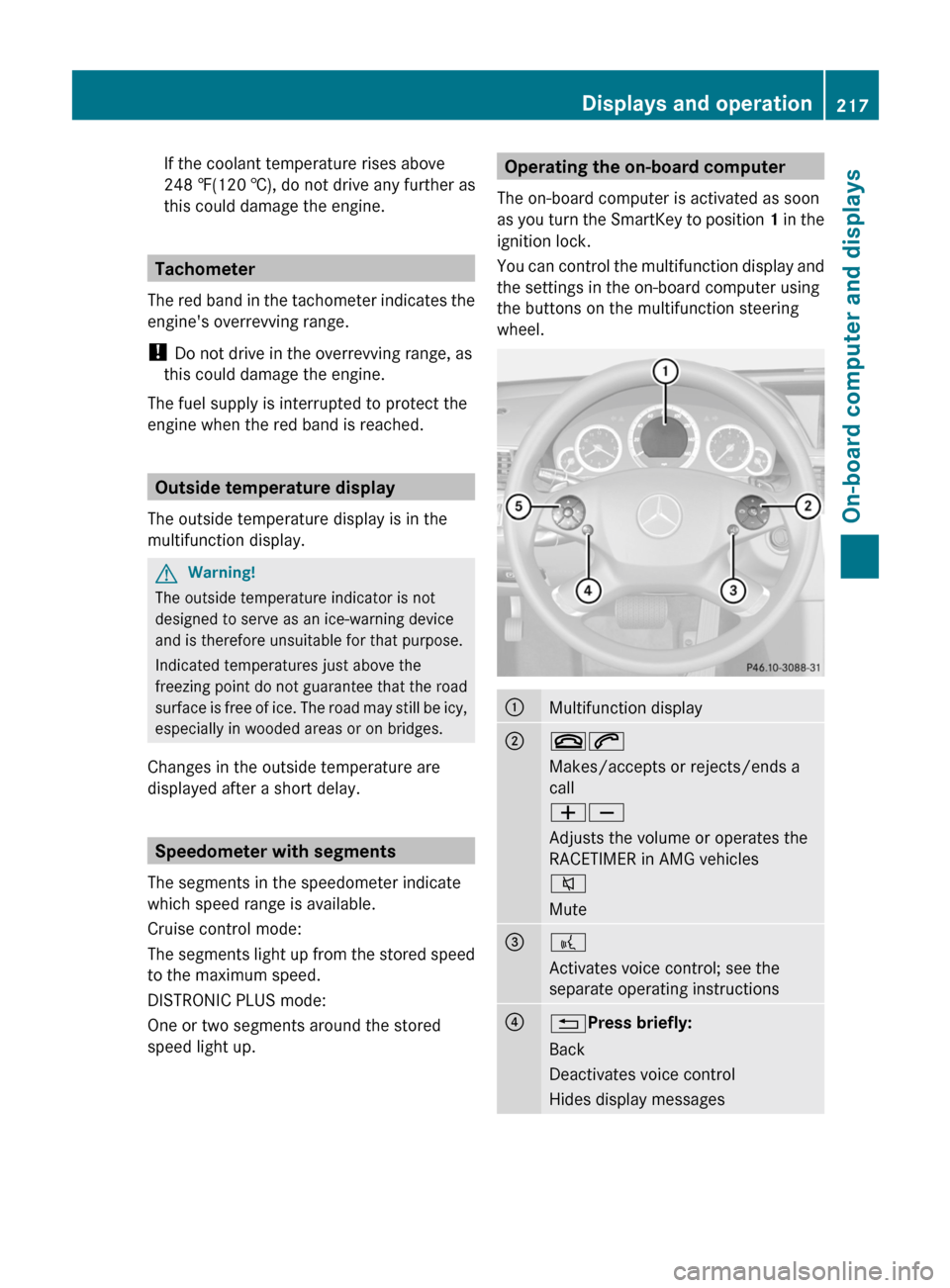
Operating the on-board computer
The on-board computer is activated as soon
as you turn the SmartKey to position 1 in the
ignition lock.
You can control the multifunction display and
the settings in the on-board computer using
the buttons on the multifunction steering
wheel.:Multifunction display;~6
Makes/accepts or rejects/ends a
call
WX
Adjusts the volume or operates the
RACETIMER in AMG vehicles
8
Mute=?
Activates voice control; see the
separate operating instructions?% Press briefly:
Back
Deactivates voice control
Hides display messagesDisplays and operation217On-board computer and displaysBA 212 USA, CA Edition B 2011; 1; 5, en-USdimargiVersion: 3.0.3.62010-05-20T13:33:46+02:00 - Seite 217Z
Page 220 of 400

%Press and hold:
Selects the standard displayA=;
Calls up the menu and menu bar9: Press briefly:
Selects the submenu or scrolls
through lists
In the Audio menu: selects a stored
station, an audio track or a video
scene
In the Tel (telephone) menu:
switches to the phone book and
selects a name or telephone number9: Press and hold:
In the Audio menu: selects the
previous/next station or selects an
audio track or a video scene using
rapid scrolling
In the Tel (telephone) menu: starts
rapid scrolling through the phone
booka
Confirms selections and hides
display messages
In the Tel (telephone) menu:
switches to the phone book and
starts dialing
Multifunction display
To activate the multifunction display:
R switch on the ignition
R switch on the lights
R open the driver's door
Values and settings as well as display
messages are shown in the multifunction
display.
:Text field;Menu bar=Drive program indicator?Gear indicatorAOutside temperature or speedXTo display menu bar ;: press the =
or ; button on the steering wheel.
i
In AMG vehicles, the status indicator
differs from the display shown here
( Y page 155).
Further information on the gear indicator
( Y page 155).
218Displays and operationOn-board computer and displays
BA 212 USA, CA Edition B 2011; 1; 5, en-USdimargiVersion: 3.0.3.62010-05-20T13:33:46+02:00 - Seite 218
Page 221 of 400

Menus and submenus
Menu overview
The number of menus shown depends on the optional equipment in the vehicle.
Function:Trip menu ( Y page 220);AMG menu in AMG vehicles ( Y page 221)=Navi menu (navigation instructions) ( Y page 224)?Audio menu ( Y page 225)ATel menu (telephone) ( Y page 226)BDriveAssist menu (assistance) ( Y page 227)CServ. menu ( Y page 229)
R call up display messages ( Y page 234)
R tire pressure loss warning system (Canada only) ( Y page 355)
R tire pressure monitor ( Y page 357)
R ASSYST PLUS service interval display ( Y page 313)DSettings menu (Y page 229)Menus and submenus219On-board computer and displaysBA 212 USA, CA Edition B 2011; 1; 5, en-USdimargiVersion: 3.0.3.62010-05-20T13:33:46+02:00 - Seite 219Z
Page 223 of 400

Resetting values
You can reset the values of the following
functions:
R Trip odometer
R Trip computer "From start"
R Trip computer "From reset"
XPress = or ; on the steering wheel
to select the Trip menu. XPress 9 or : to select the function
that you wish to reset.XPress a.
Resetting the trip computer "From start" (example)
XPress the : button to select Yes and
press the a button to confirm.
AMG menu in AMG vehicles
AMG displays
XPress = or ; on the steering wheel
to select the AMG menu. :Digital speedometer;Gear indicator=Upshift instruction?Engine oil temperatureACoolant temperature
Shift UP instruction = indicates that the
engine has reached the overrevving range
when in the manual gearshift program. Shift
up instruction = overrides other messages
in the multifunction display until you have
shifted up.
When the engine temperature is below
80 †, the oil temperature gauge flashes.
Avoid driving at full engine output during this
time.
SETUP
SETUP shows the drive program, the ESP ®
(Electronic Stability Program) mode and the
SPORT handling mode.
XPress = or ; on the steering wheel
to select the AMG menu.XPress the 9 button repeatedly until
SETUP is displayed.
or
XBriefly press the AMG button on the center
console.Menus and submenus221On-board computer and displaysBA 212 USA, CA Edition B 2011; 1; 5, en-USdimargiVersion: 3.0.3.62010-05-20T13:33:46+02:00 - Seite 221Z
Page 228 of 400

XSwitch on COMAND and select the audio
player or medium (see the separate
operating instructions).XPress the = or ; button on the
steering wheel to select the Audio menu.
CD player display (example)
:Current trackXTo select the next/previous track:
briefly press the 9 or : button.XTo select a track from the track list
(rapid scrolling): press and hold the
9 or : button until the desired track
has been reached.
If you press and hold 9 or : , the rapid
scrolling speed is increased. Not all audio
players or media support this function.
If track information is stored on the audio
player or medium, the multifunction display
will show the number and name of the track.
The current track does not appear in audio
AUX mode ( Auxiliary audio mode: external
audio source connected).
Video DVD operation
XSwitch on COMAND APS and select video
DVD (see the separate operating
instructions).XPress the = or ; button on the
steering wheel to select the Audio menu.:Current sceneXTo select the next or previous scene:
briefly press the 9 or the : button.XTo select a scene from the scene list
(rapid scrolling): press and hold the
9 or : button until the desired
scene has been reached.
Telephone menu
Introduction
You can establish a Bluetooth ®
wireless
connection to COMAND APS (see the
separate operating instructions).
GWarning
A driver's attention to the road must always
be his/her primary focus when driving. For
your safety and the safety of others, we
recommend that you pull over to a safe
location and stop before placing or taking a
telephone call. If you choose to use the
telephone while driving, please use the hands-
free device and only use the telephone when
weather, road and traffic conditions permit.
Some jurisdictions prohibit the driver from
using a mobile phone while driving a vehicle.
Bear in mind that at a speed of just 30 mph
(approximately 50 km/h ), your vehicle is
covering a distance of 44 feet (approximately
14 m) every second.
XSwitch on the mobile phone and COMAND
APS (see the separate operating
instructions).XPress the = or ; button on the
steering wheel to select the Tel menu.
You will see one of the following display
messages in the multifunction display:
R Telephone Ready or the name of the
network provider: the mobile phone has
found a network and is ready to receive.
R No Service : No network is available.
226Menus and submenusOn-board computer and displays
BA 212 USA, CA Edition B 2011; 1; 5, en-USdimargiVersion: 3.0.3.62010-05-20T13:33:46+02:00 - Seite 226
Page 229 of 400
Accepting a call
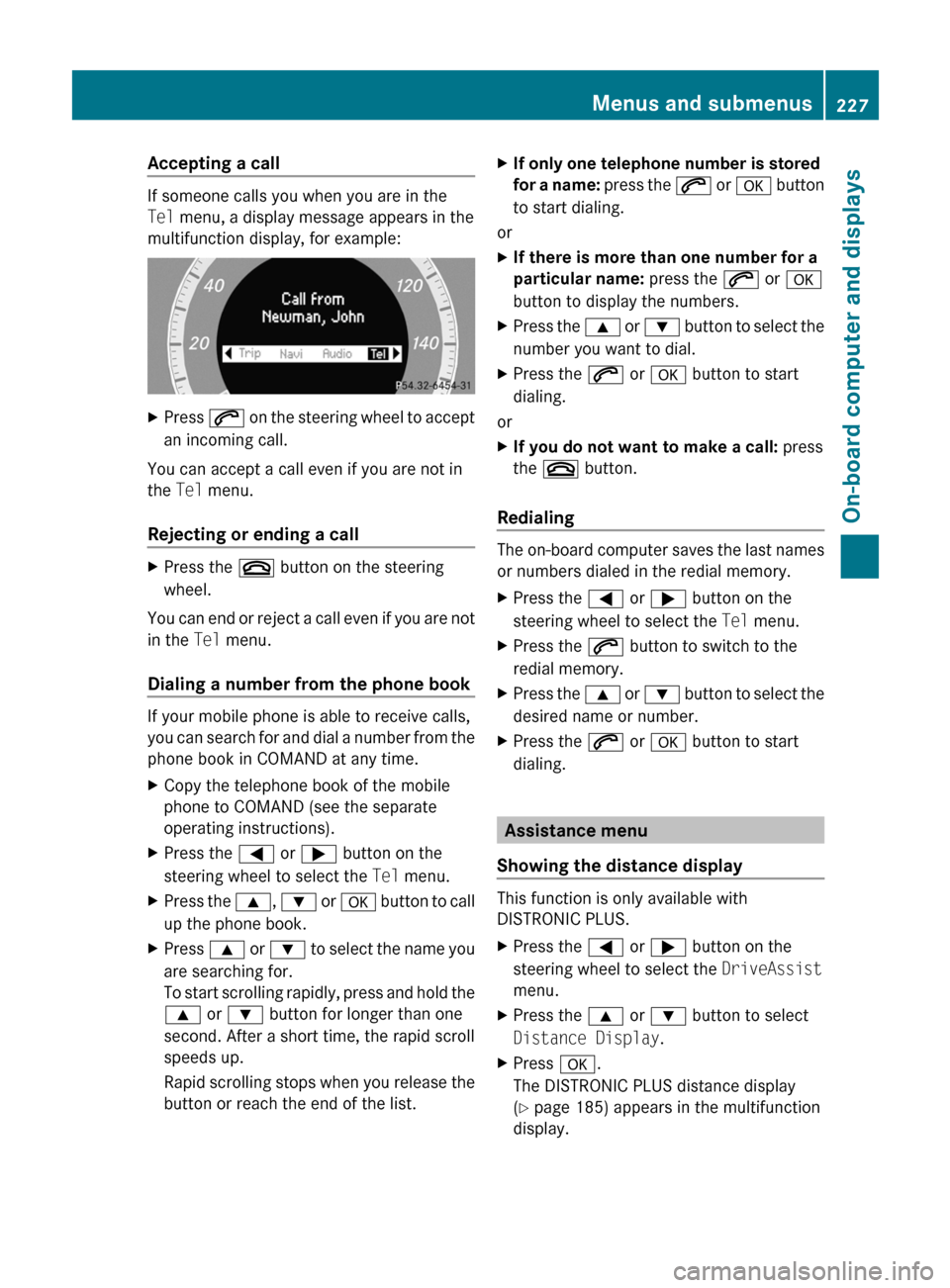
If someone calls you when you are in the
Tel menu, a display message appears in the
multifunction display, for example:
XPress 6 on the steering wheel to accept
an incoming call.
You can accept a call even if you are not in
the Tel menu.
Rejecting or ending a call
XPress the ~ button on the steering
wheel.
You can end or reject a call even if you are not
in the Tel menu.
Dialing a number from the phone book
If your mobile phone is able to receive calls,
you can search for and dial a number from the
phone book in COMAND at any time.
XCopy the telephone book of the mobile
phone to COMAND (see the separate
operating instructions).XPress the = or ; button on the
steering wheel to select the Tel menu.XPress the 9, : or a button to call
up the phone book.XPress 9 or : to select the name you
are searching for.
To start scrolling rapidly, press and hold the
9 or : button for longer than one
second. After a short time, the rapid scroll
speeds up.
Rapid scrolling stops when you release the
button or reach the end of the list.XIf only one telephone number is stored
for a name: press the 6 or a button
to start dialing.
or
XIf there is more than one number for a
particular name: press the 6 or a
button to display the numbers.XPress the 9 or : button to select the
number you want to dial.XPress the 6 or a button to start
dialing.
or
XIf you do not want to make a call: press
the ~ button.
Redialing
The on-board computer saves the last names
or numbers dialed in the redial memory.
XPress the = or ; button on the
steering wheel to select the Tel menu.XPress the 6 button to switch to the
redial memory.XPress the 9 or : button to select the
desired name or number.XPress the 6 or a button to start
dialing.
Assistance menu
Showing the distance display
This function is only available with
DISTRONIC PLUS.
XPress the = or ; button on the
steering wheel to select the DriveAssist
menu.XPress the 9 or : button to select
Distance Display .XPress a.
The DISTRONIC PLUS distance display
( Y page 185) appears in the multifunction
display.Menus and submenus227On-board computer and displaysBA 212 USA, CA Edition B 2011; 1; 5, en-USdimargiVersion: 3.0.3.62010-05-20T13:33:46+02:00 - Seite 227Z
Page 231 of 400

XPress the = or ; button on the
steering wheel to select the DriveAssist
menu.XPress the 9 or : button to select
Blind Spot Asst. .XPress a.
The current selection is displayed.XTo activate/deactivate: press a
again.
Activating/deactivating Lane Keeping
Assist
You can use the Lane Keep. Asst. function
to activate/deactivate Lane Keeping Assist
( Y page 207) or Active Lane Keeping Assist
( Y page 211).
XPress the = or ; button on the
steering wheel to select the DriveAssist
menu.XPress the 9 or : button to select
Lane Keep. Asst. .XPress a.
The current selection is displayed.XTo activate/deactivate: press a
again.
When Lane Keeping Assist is activated, the
à symbol appears in the multifunction
display when the ignition is on.
Maintenance menu
In the Serv. menu, you can:
R call up display messages ( Y page 234)
R restart the tire pressure loss warning
system (Canada only) ( Y page 355)
R
check the tire pressure electronically
( Y page 357)
R call up the service due date ( Y page 313)
Settings menu
Introduction
In the Settings menu, you have the following
options:
R Changing the instrument cluster settings
R Changing the lighting settings
R Changing the vehicle settings
R Changing the convenience settings
R Restoring the factory settings
Instrument cluster
Selecting the unit of measurement for
distance
The Display Unit Speed-/Odometer:
function allows you to choose whether
certain displays appear in km/h or mph.
The selected unit of measurement for
distance applies to:
R the digital speedometer in the Trip menu
R the odometer and the trip odometer
R the trip computer
R the navigation instructions in the Navi
menu
R DISTRONIC PLUS
XPress the = or ; button on the
steering wheel to select the Settings
menu.XPress the : or 9 button to select the
Instr. Cluster submenu.XPress the a button to confirm.Menus and submenus229On-board computer and displaysBA 212 USA, CA Edition B 2011; 1; 5, en-USdimargiVersion: 3.0.3.62010-05-20T13:33:46+02:00 - Seite 229Z
Page 235 of 400
wheel when the easy-entry/exit feature is
activated.
To stop steering wheel movement, move
steering wheel adjustment lever or press one
of the memory position buttons.
Do not leave children unattended in the
vehicle, or with access to an unlocked vehicle.
Children could open the driver's door and
unintentionally activate the easy-entry/exit
feature, which could result in an accident
and/or serious personal injury.XPress the = or ; button on the
steering wheel to select the Settings
menu.XPress the : or 9 button to select the
Convenience submenu.XPress the a button to confirm.XPress the : or 9 button to select the
Easy Entry/Exit: feature.
You will see the selected setting: Enabled
or Disabled .XPress the a button to save the setting.
Switching the belt adjustment on/off
Further information on belt adjustment
( Y page 56).
XPress the = or ; button on the
steering wheel to select the Settings
menu.XPress the : or 9 button to select the
Convenience submenu.XPress the a button to confirm.XPress the : or 9 button to select the
Belt Adjustment: function.
You will see the selected setting: Enabled
or Disabled .XPress the a button to save the setting.
Resetting to factory settings
For safety reasons, the Daytime Running
Lights: function in the Lights submenu is
only reset if the vehicle is stationary.
XPress the = or ; button on the
steering wheel to select the Settings
menu.XPress the : or 9 button to select the
Factory Setting submenu.XPress the a button to confirm.
The Reset All Settings? message
appears.XPress the : or 9 button to select
No or Yes .XPress the a button to confirm the
selection.
If you have selected Yes, the multifunction
display shows a confirmation message.Menus and submenus233On-board computer and displaysBA 212 USA, CA Edition B 2011; 1; 5, en-USdimargiVersion: 3.0.3.62010-05-20T13:33:46+02:00 - Seite 233Z