2011 MERCEDES-BENZ E-Class COUPE steering
[x] Cancel search: steeringPage 196 of 344

between 50 mph (80 km/h) and 112 mph
(180 km/h).
If ATTENTION ASSIST detects fatigue or
increasing lapses in concentration on the part
of the driver, it suggests taking a break.GWarning!
The ATTENTION ASSIST is only an aid to the
driver. It might not recognize fatigue or
increasing inattentiveness in time or fail to
recognize them at all. The system cannot
substitute a rested and attentive driver.
Fatigue can cause you to recognize dangers
too late, to misjudge potential dangers, or to
react slower. Therefore, make sure to be
rested before and during your trip. Take rests
early enough and regularly, especially during
long trips. Failure to do so could cause you to
recognize dangers too late which could result
in an accident and serious injury to you and/
or others.
ATTENTION ASSIST assesses your level of
fatigue or lapses in concentration by taking
the following criteria into account:
R your personal driving style, e.g. steering
characteristics
R journey details, e.g. time of day and length
of journey
The functionality of ATTENTION ASSIST is
restricted and warnings may be delayed or
not occur at all:
R if the road condition is poor, e.g. if the
surface is uneven or if there are potholes
R if there is a strong side wind
R if you have adopted a sporty driving style
with high cornering speeds or high rates of
acceleration
R if you predominantly drive at speeds under
50 mph (80 km/h) or over 112 mph
(180 km/h)
R if you are currently using COMAND or
making a telephone call with it
R if the time has been set incorrectly
R in active driving situations, such as when
you change lanes or change your speed
Warning and display messages in the
multifunction displayXActivate ATTENTION ASSIST using the on-
board computer ( Y page 207).
Symbol : appears in the multifunction
display.
If ATTENTION ASSIST is active, it will not warn
you until at least 20 minutes after your
journey has begun. You then hear an
intermittent warning tone twice and the
Attention Assist: Time for a rest?
message appears in the multifunction
display.
XIf necessary, take a break.XPress a to confirm the message.
On long journeys, take regular breaks in good
time to allow yourself to rest properly. If you
do not take a break and ATTENTION ASSIST
still detects fatigue or increasing lapses in
concentration, you will be warned again after
15 minutes at the earliest.
ATTENTION ASSIST is reset when you
continue your journey; it reassesses your
tiredness if:
R you switch off the engine.
R you take off your seat belt and open the
driver's door, e.g. for a change of drivers or
to take a break.
Blind Spot Assist
Important safety notes
Blind Spot Assist uses a radar sensor system
to monitor the areas on both sides of your
vehicle. It is active at speeds above
approximately 20 mph (30 km/h). A warning
display in the exterior mirrors draws your
194Driving systemsDriving and parking
BA 207 USA, CA Edition B 2011; 1; 3, en-USd2sboikeVersion: 3.0.3.62010-05-20T10:38:09+02:00 - Seite 194
Page 200 of 344

Vehicle equipment
i This manual describes all the standard
and optional equipment of your vehicle
which was available at the time of
purchase. Country-specific differences are
possible. Bear in mind that your vehicle
may not feature all functions described
here. This also refers to safety-related
systems and functions.
Important safety notes
You will find an illustration of the instrument
cluster in the "At a glance" section
( Y page 26).
GWarning
A driver's attention to the road and traffic
conditions must always be his/her primary
focus when driving.
For your safety and the safety of others,
selecting features through the multifunction
steering wheel should only be done by the
driver when traffic and road conditions permit
it to be done safely.
Bear in mind that at a speed of just 30 mph
(approximately 50 km/h ), your vehicle is
covering a distance of 44 feet (approximately
14 m) every second.
GWarning!
No messages will be displayed if either the
instrument cluster or the multifunction
display is inoperative.
As a result, you will not be able to see
information about your driving conditions,
such as
R speed
R outside temperature
R warning/indicator lamps
R malfunction/warning messages
R failure of any systems
Driving characteristics may be impaired.
If you must continue to drive, do so with added
caution. Contact an authorized Mercedes-
Benz Center as soon as possible.GWarning
Malfunction and warning messages are only
indicated for certain systems and are
intentionally not very detailed. The
malfunction and warning messages are
simply a reminder with respect to the
operation of certain systems. They do not
replace the owner's and/or driver's
responsibility to maintain the vehicle's
operating safety. Have all required
maintenance and safety checks performed on
the vehicle. Bring the vehicle to an authorized
Mercedes-Benz Center to address the
malfunction and warning messages.
Displays and operation
Coolant temperature gauge
GWarning
Driving when your engine is overheated can
cause some fluids which may have leaked into
the engine compartment to catch fire. You
could be seriously burned.
Steam from an overheated engine can cause
serious burns which can occur just by opening
the engine hood. Stay away from the engine
if you see or hear steam coming from it.
Stop the vehicle in a safe location away from
other traffic. Turn off the engine, get out of the
vehicle and do not stand near the vehicle until
the engine has cooled down.
The coolant temperature gauge is in the
instrument cluster on the right-hand side.
Under normal operating conditions and with
the specified coolant level, the coolant
temperature may rise to 248 ‡ (120 †).
! If the coolant temperature is too high a
display message is shown.
198Displays and operationOn-board computer and displays
BA 207 USA, CA Edition B 2011; 1; 3, en-USd2sboikeVersion: 3.0.3.62010-05-20T10:38:09+02:00 - Seite 198
Page 201 of 344
If the coolant temperature rises above
248 ‡(120 †), do not drive any further as
this could damage the engine.
Tachometer
The red band in the tachometer indicates the
engine's overrevving range.
! Do not drive in the overrevving range, as
this could damage the engine.
The fuel supply is interrupted to protect the
engine when the red band is reached.
Outside temperature display
The outside temperature display is in the
multifunction display.
GWarning!
The outside temperature indicator is not
designed to serve as an ice-warning device
and is therefore unsuitable for that purpose.
Indicated temperatures just above the
freezing point do not guarantee that the road
surface is free of ice. The road may still be icy,
especially in wooded areas or on bridges.
Changes in the outside temperature are
displayed after a short delay.
Speedometer with segments
The segments in the speedometer indicate
which speed range is available.
Cruise control mode:
The segments light up from the stored speed
to the maximum speed.
DISTRONIC PLUS mode:
One or two segments around the stored
speed light up.
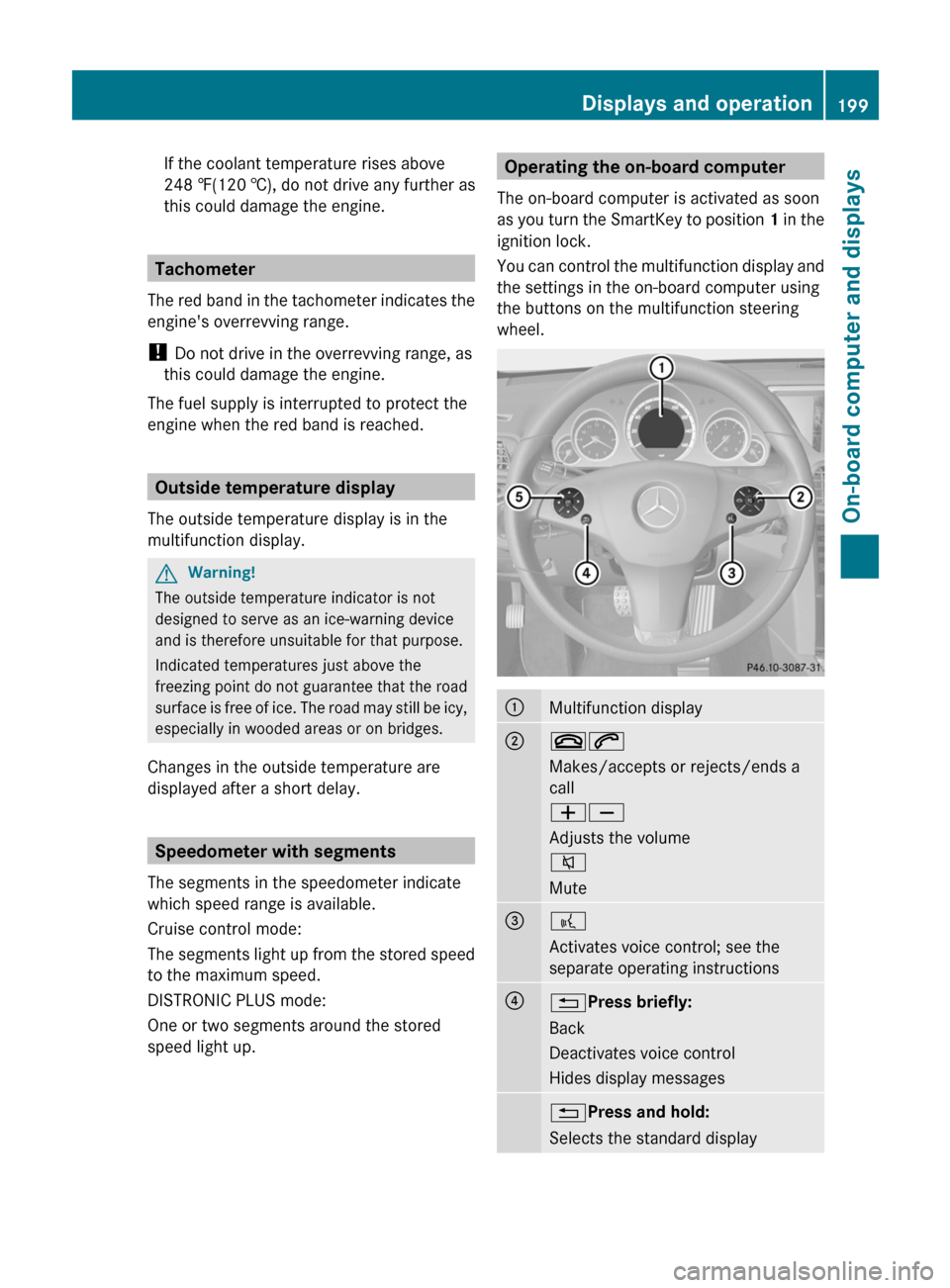
Operating the on-board computer
The on-board computer is activated as soon
as you turn the SmartKey to position 1 in the
ignition lock.
You can control the multifunction display and
the settings in the on-board computer using
the buttons on the multifunction steering
wheel.:Multifunction display;~6
Makes/accepts or rejects/ends a
call
WX
Adjusts the volume
8
Mute=?
Activates voice control; see the
separate operating instructions?% Press briefly:
Back
Deactivates voice control
Hides display messages% Press and hold:
Selects the standard displayDisplays and operation199On-board computer and displaysBA 207 USA, CA Edition B 2011; 1; 3, en-USd2sboikeVersion: 3.0.3.62010-05-20T10:38:09+02:00 - Seite 199Z
Page 202 of 344
A=;
Calls up the menu and menu bar9: Press briefly:
Selects the submenu or scrolls
through lists
In the Audio menu: selects a stored
station, an audio track or a video
scene
In the Tel (telephone) menu:
switches to the phone book and
selects a name or telephone number9: Press and hold:
In the Audio menu: selects the
previous/next station or selects an
audio track or a video scene using
rapid scrolling
In the Tel (telephone) menu: starts
rapid scrolling through the phone
booka
Confirms selections and hides
display messages
In the Tel (telephone) menu:
switches to the phone book and
starts dialing
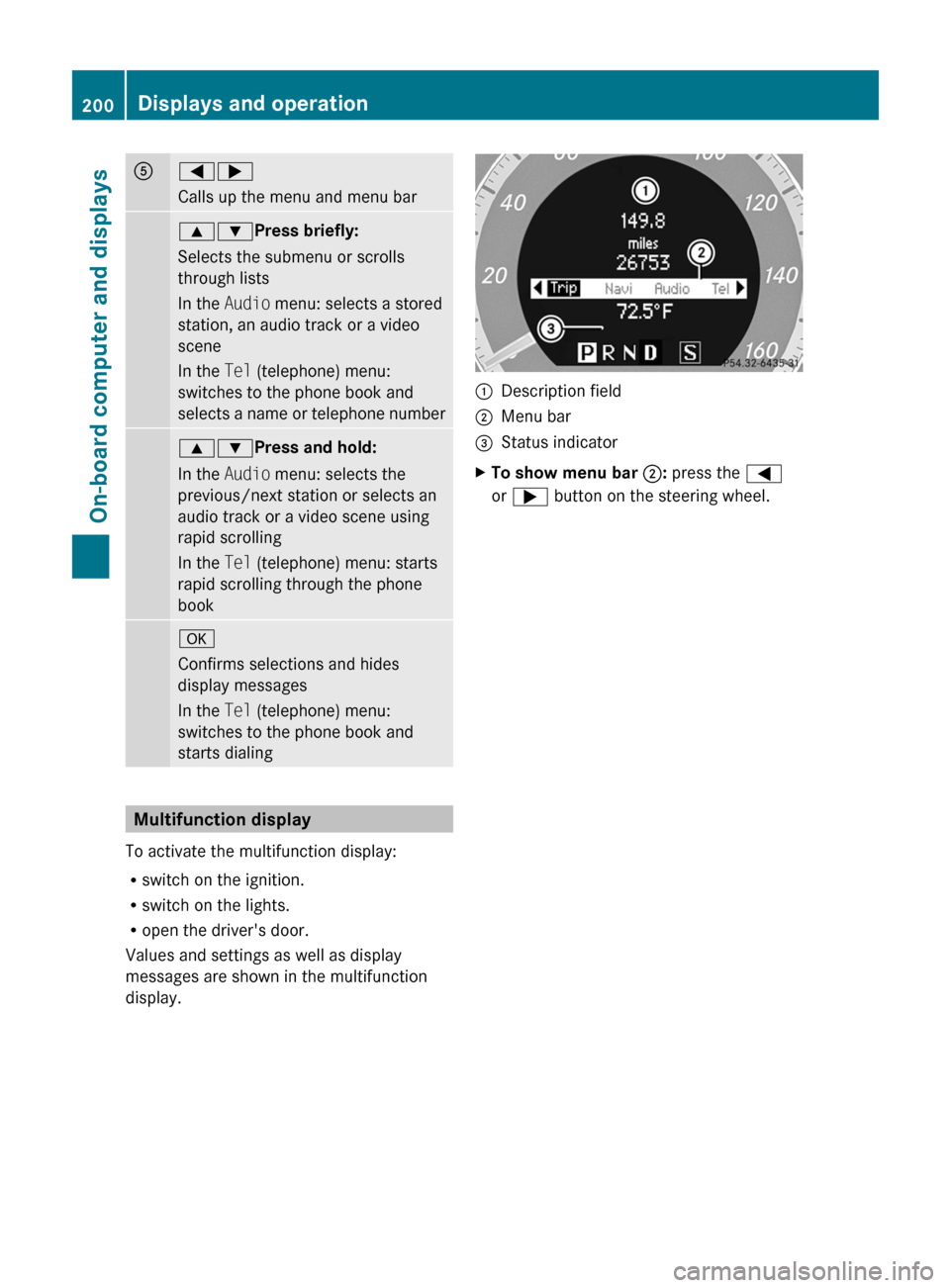
Multifunction display
To activate the multifunction display:
R switch on the ignition.
R switch on the lights.
R open the driver's door.
Values and settings as well as display
messages are shown in the multifunction
display.
:Description field;Menu bar=Status indicatorXTo show menu bar ;: press the =
or ; button on the steering wheel.200Displays and operationOn-board computer and displays
BA 207 USA, CA Edition B 2011; 1; 3, en-USd2sboikeVersion: 3.0.3.62010-05-20T10:38:09+02:00 - Seite 200
Page 204 of 344
Trip menu
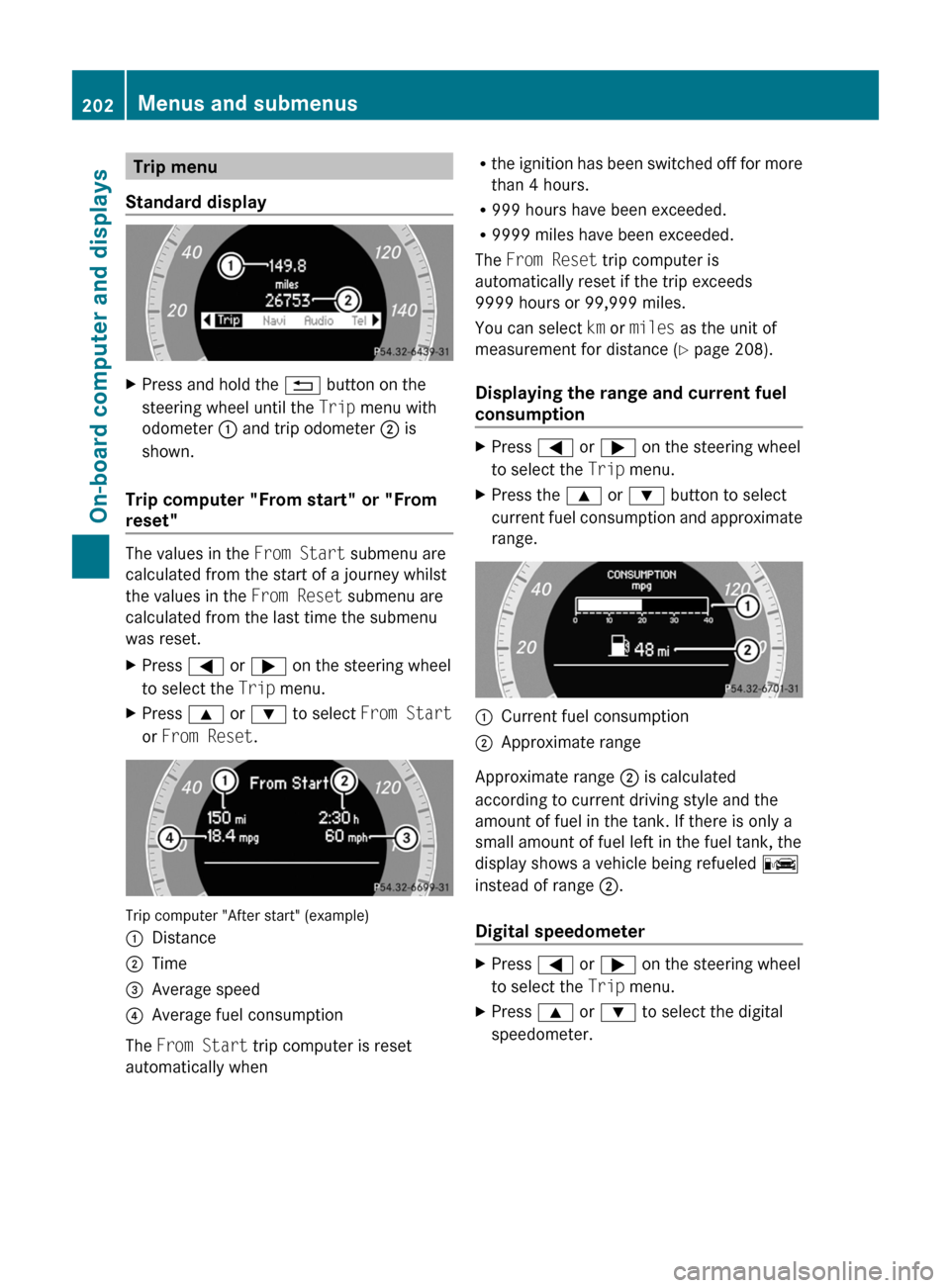
Standard displayXPress and hold the % button on the
steering wheel until the Trip menu with
odometer : and trip odometer ; is
shown.
Trip computer "From start" or "From
reset"
The values in the From Start submenu are
calculated from the start of a journey whilst
the values in the From Reset submenu are
calculated from the last time the submenu
was reset.
XPress = or ; on the steering wheel
to select the Trip menu.XPress 9 or : to select From Start
or From Reset .
Trip computer "After start" (example)
:Distance;Time=Average speed?Average fuel consumption
The From Start trip computer is reset
automatically when
R the ignition has been switched off for more
than 4 hours.
R 999 hours have been exceeded.
R 9999 miles have been exceeded.
The From Reset trip computer is
automatically reset if the trip exceeds
9999 hours or 99,999 miles.
You can select km or miles as the unit of
measurement for distance ( Y page 208).
Displaying the range and current fuel
consumptionXPress = or ; on the steering wheel
to select the Trip menu. XPress the 9 or : button to select
current fuel consumption and approximate
range.:Current fuel consumption;Approximate range
Approximate range ; is calculated
according to current driving style and the
amount of fuel in the tank. If there is only a
small amount of fuel left in the fuel tank, the
display shows a vehicle being refueled C
instead of range ;.
Digital speedometer
XPress = or ; on the steering wheel
to select the Trip menu. XPress 9 or : to select the digital
speedometer.202Menus and submenusOn-board computer and displays
BA 207 USA, CA Edition B 2011; 1; 3, en-USd2sboikeVersion: 3.0.3.62010-05-20T10:38:09+02:00 - Seite 202
Page 205 of 344
Resetting values
You can reset the values of the following
functions:
R Trip odometer
R Trip computer "From start"
R Trip computer "From reset"
XPress = or ; on the steering wheel
to select the Trip menu. XPress 9 or : to select the function
that you wish to reset.XPress a.
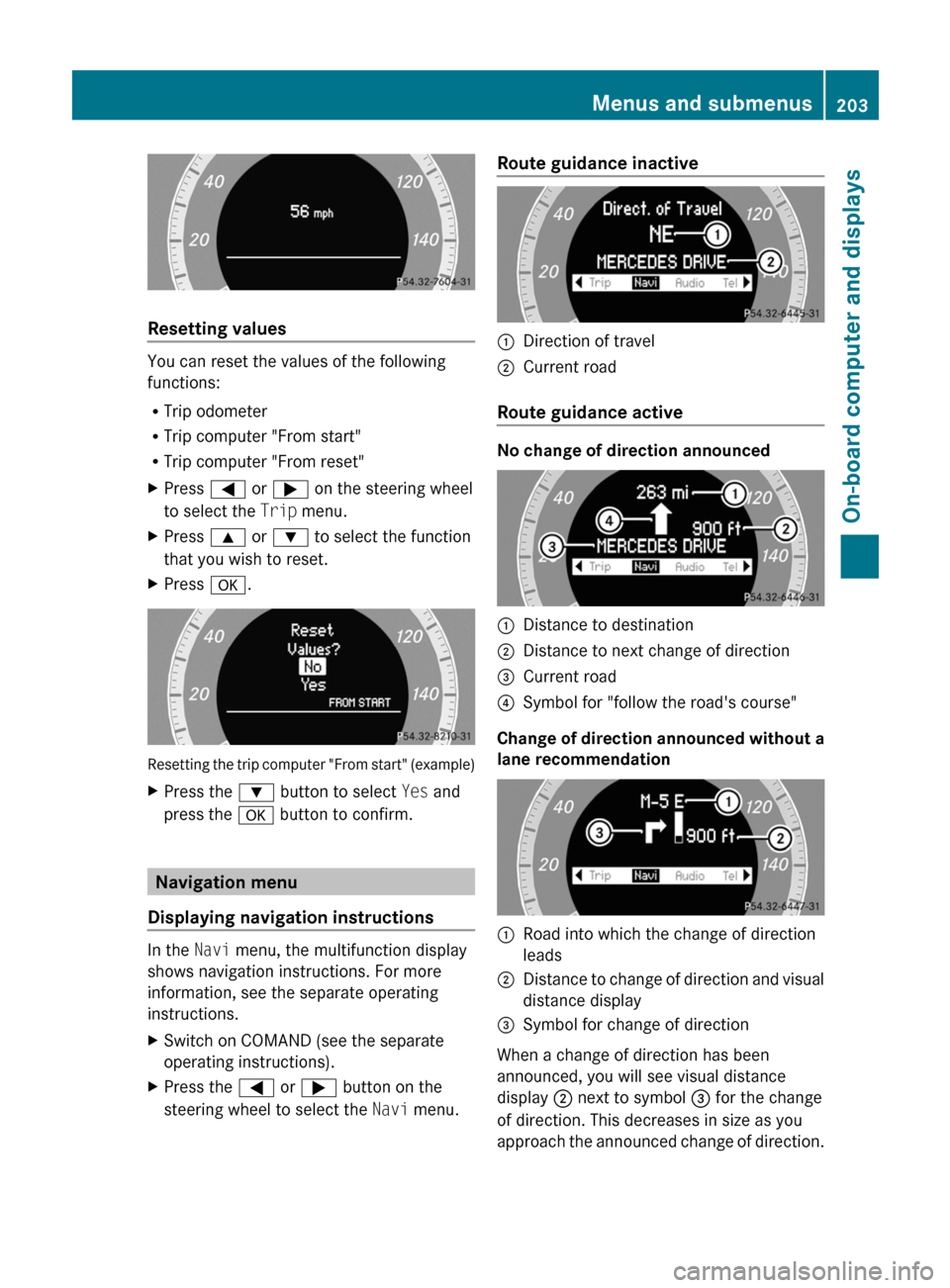
Resetting the trip computer "From start" (example)
XPress the : button to select Yes and
press the a button to confirm.
Navigation menu
Displaying navigation instructions
In the Navi menu, the multifunction display
shows navigation instructions. For more
information, see the separate operating
instructions.
XSwitch on COMAND (see the separate
operating instructions).XPress the = or ; button on the
steering wheel to select the Navi menu.Route guidance inactive:Direction of travel;Current road
Route guidance active
No change of direction announced
:Distance to destination;Distance to next change of direction=Current road?Symbol for "follow the road's course"
Change of direction announced without a
lane recommendation
:Road into which the change of direction
leads;Distance to change of direction and visual
distance display=Symbol for change of direction
When a change of direction has been
announced, you will see visual distance
display ; next to symbol = for the change
of direction. This decreases in size as you
approach the announced change of direction.
Menus and submenus203On-board computer and displaysBA 207 USA, CA Edition B 2011; 1; 3, en-USd2sboikeVersion: 3.0.3.62010-05-20T10:38:09+02:00 - Seite 203Z
Page 206 of 344
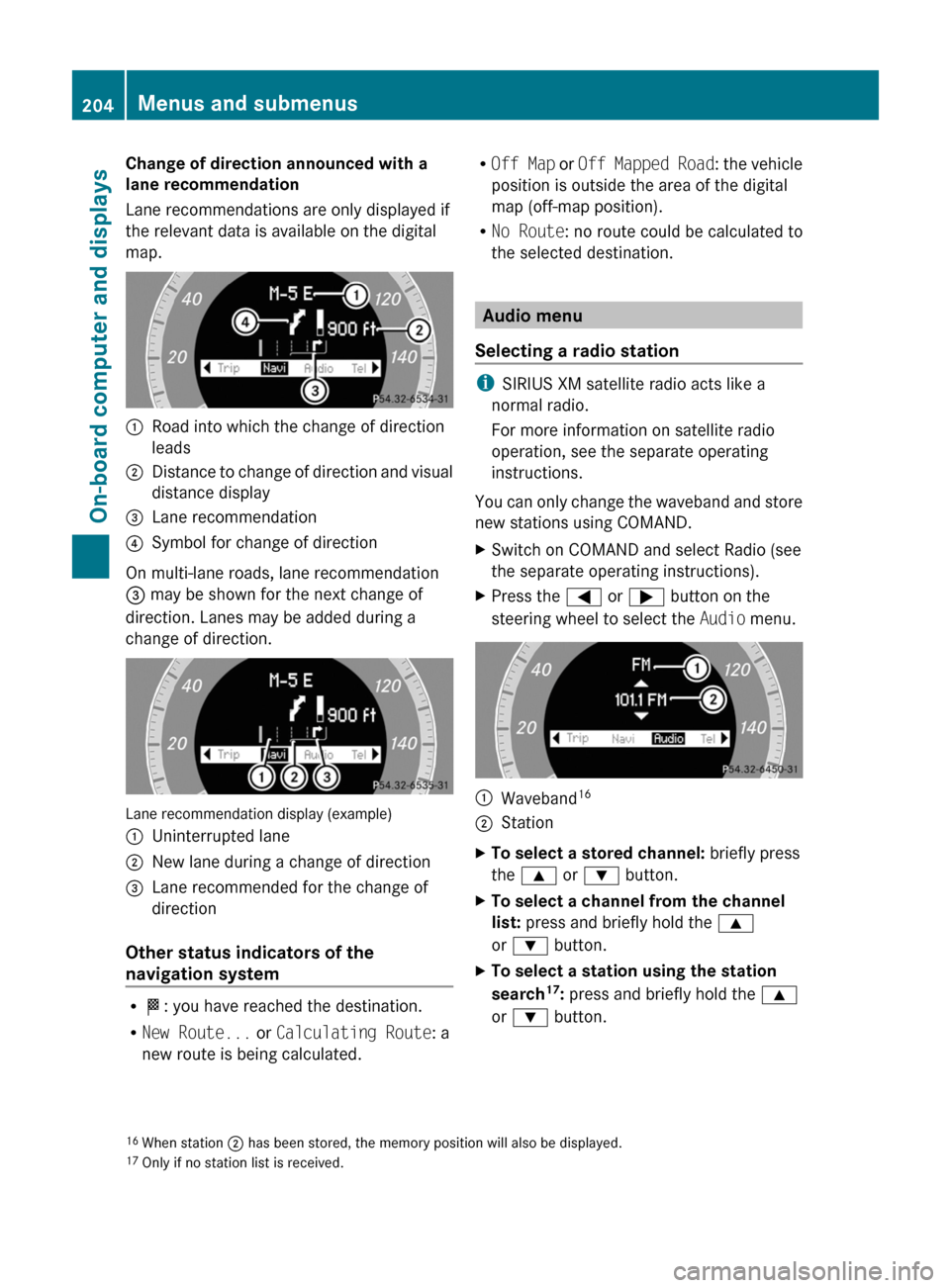
Change of direction announced with a
lane recommendation
Lane recommendations are only displayed if
the relevant data is available on the digital
map.:Road into which the change of direction
leads;Distance to change of direction and visual
distance display=Lane recommendation?Symbol for change of direction
On multi-lane roads, lane recommendation
= may be shown for the next change of
direction. Lanes may be added during a
change of direction.
Lane recommendation display (example)
:Uninterrupted lane;New lane during a change of direction=Lane recommended for the change of
direction
Other status indicators of the
navigation system
R O : you have reached the destination.
R New Route... or Calculating Route : a
new route is being calculated.
R Off Map or Off Mapped Road : the vehicle
position is outside the area of the digital
map (off-map position).
R No Route : no route could be calculated to
the selected destination.
Audio menu
Selecting a radio station
i SIRIUS XM satellite radio acts like a
normal radio.
For more information on satellite radio
operation, see the separate operating
instructions.
You can only change the waveband and store
new stations using COMAND.
XSwitch on COMAND and select Radio (see
the separate operating instructions).XPress the = or ; button on the
steering wheel to select the Audio menu.:Waveband 16;StationXTo select a stored channel:
briefly press
the 9 or : button.XTo select a channel from the channel
list: press and briefly hold the 9
or : button.XTo select a station using the station
search 17
: press and briefly hold the 9
or : button.16
When station ; has been stored, the memory position will also be displayed.
17 Only if no station list is received.204Menus and submenusOn-board computer and displays
BA 207 USA, CA Edition B 2011; 1; 3, en-USd2sboikeVersion: 3.0.3.62010-05-20T10:38:09+02:00 - Seite 204
Page 207 of 344
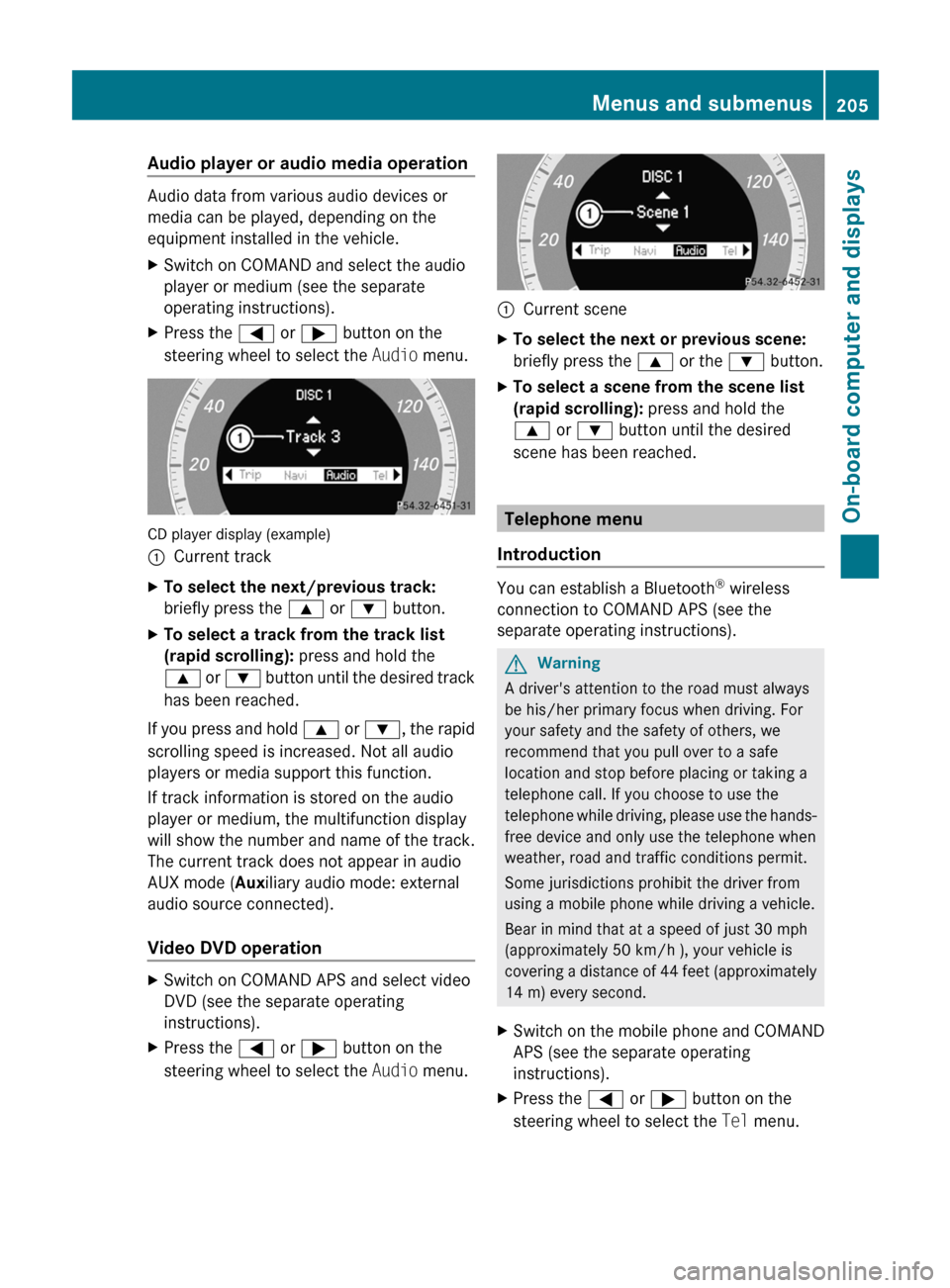
Audio player or audio media operation
Audio data from various audio devices or
media can be played, depending on the
equipment installed in the vehicle.
XSwitch on COMAND and select the audio
player or medium (see the separate
operating instructions).XPress the = or ; button on the
steering wheel to select the Audio menu.
CD player display (example)
:Current trackXTo select the next/previous track:
briefly press the 9 or : button.XTo select a track from the track list
(rapid scrolling): press and hold the
9 or : button until the desired track
has been reached.
If you press and hold 9 or : , the rapid
scrolling speed is increased. Not all audio
players or media support this function.
If track information is stored on the audio
player or medium, the multifunction display
will show the number and name of the track.
The current track does not appear in audio
AUX mode ( Auxiliary audio mode: external
audio source connected).
Video DVD operation
XSwitch on COMAND APS and select video
DVD (see the separate operating
instructions).XPress the = or ; button on the
steering wheel to select the Audio menu.:Current sceneXTo select the next or previous scene:
briefly press the 9 or the : button.XTo select a scene from the scene list
(rapid scrolling): press and hold the
9 or : button until the desired
scene has been reached.
Telephone menu
Introduction
You can establish a Bluetooth ®
wireless
connection to COMAND APS (see the
separate operating instructions).
GWarning
A driver's attention to the road must always
be his/her primary focus when driving. For
your safety and the safety of others, we
recommend that you pull over to a safe
location and stop before placing or taking a
telephone call. If you choose to use the
telephone while driving, please use the hands-
free device and only use the telephone when
weather, road and traffic conditions permit.
Some jurisdictions prohibit the driver from
using a mobile phone while driving a vehicle.
Bear in mind that at a speed of just 30 mph
(approximately 50 km/h ), your vehicle is
covering a distance of 44 feet (approximately
14 m) every second.
XSwitch on the mobile phone and COMAND
APS (see the separate operating
instructions).XPress the = or ; button on the
steering wheel to select the Tel menu.Menus and submenus205On-board computer and displaysBA 207 USA, CA Edition B 2011; 1; 3, en-USd2sboikeVersion: 3.0.3.62010-05-20T10:38:09+02:00 - Seite 205Z