Page 314 of 587
SETUP Button
Pressing the SETUP button allows you to select the
following items:
•Display Sirius ID number — Press the AUDIO/
SELECT button to display the Sirius ID number. This
number is used to activate, deactivate, or change the
Sirius subscription.
SET Button – To Set the Pushbutton Memory
When you are receiving a channel that you wish to
commit to pushbutton memory, press the SET button.
The symbol SET 1 will now show in the display window.
Select the button (1-6) you wish to lock onto this channel
and press and release that button. If a button is not
selected within five seconds after pressing the SET but-
ton, the channel will continue to play but will not be
stored into pushbutton memory.You may add a second channel to each pushbutton by
repeating the above procedure with this exception: Press
the SET button twice and SET 2 will show in the display
window. Each button can be set for SET 1 and SET 2. This
allows a total of 12 Satellite channels to be stored into
pushbutton memory. The channels stored in SET 2
memory can be selected by pressing the pushbutton
twice.
Every time a preset button is used, a corresponding
button number will display.
Buttons1-6
These buttons tune the radio to the channels that you
commit to pushbutton memory (12 Satellite stations).
Operating Instructions (Uconnect™ Phone) —
If Equipped
Refer to “Uconnect™ Phone” in the Uconnect™ User
Manual located on the DVD for further details.
312 UNDERSTANDING YOUR INSTRUMENT PANEL
Page 317 of 587
•The audio device can be controlled using the radio
buttons to Play, Browse, and List the iPod�contents.
•The audio device battery charges when plugged into
the USB/AUX connector (if supported by the specific
audio device)
Controlling The iPod�or External USB Device
Using Radio Buttons
To get into the iPod�/USB/MP3 control mode and access
a connected audio device, either press the “AUX” button
on the radio faceplate or press VR button and say �USB�
or �Switch to USB�. Once in the iPod�/USB/MP3 control
mode, audio tracks (if available from audio device) start
playing over the vehicle’s audio system.
Play Mode
When switched to iPod�/USB/MP3 control mode, the
iPod� or external USB device automatically starts Play
mode. In Play mode, the following buttons on the radio
faceplate may be used to control the iPod� or external
USB device and display data:
•Use the TUNE control knob to select the next or
previous track.
•Turning it clockwise (forward) by one click, while
playing a track, skips to the next track or press VR
button and say �Next Track�.
•Turning it counterclockwise (backward) by one
click, will jump to the previous track in the list or
press VR button and say �Previous Track�
•Jump backward in the current track by pressing and
holding the <
button long enough will jump to the beginning of
the current track.
4
UNDERSTANDING YOUR INSTRUMENT PANEL 315
Page 319 of 587

List Or Browse Mode
During Play mode, pressing any of the buttons described
below, will bring up List mode. List mode enables
scrolling through the list of menus and tracks on the
audio device.
•TUNEcontrol knob: The TUNEcontrol knob functions
in a similar manner as the scroll wheel on the or
external USB device.
•Turning it clockwise (forward) and counterclock-
wise (backward) scrolls through the lists, displaying
the track detail on the radio display. Once the track
to be played is highlighted on the radio display,
press the TUNEcontrol knob to select and start
playing the track. Turning the TUNEcontrol knob
fast will scroll through the list faster. During fast
scroll, a slight delay in updating the information on
the radio display may be noticeable.
•During all List modes, the iPod� displays all lists in
“wrap-around” mode. So if the track is at the
bottom of the list, just turn the wheel backwards
(counter-clockwise) to get to the track faster.
•In List mode, the radio PRESETbuttons are used as
shortcuts to the following lists on the iPod� or
external USB device.
•Preset 1 – Playlists
•Preset 2 – Artists
•Preset 3 – Albums
•Preset 4 – Genres
•Preset 5 – Audiobooks
•Preset 6 – Podcasts
4
UNDERSTANDING YOUR INSTRUMENT PANEL 317
Page 329 of 587
NOTE:
•Continuous use of the recirculation mode may make
the inside air stuffy and window fogging may occur.
Extended use of this mode is not recommended.
•The use of the recirculation mode in cold or damp
weather could cause windows to fog on the inside,
because of moisture buildup inside the vehicle. Select
the Outside Air position for maximum defogging.
•The A/C will engage automatically to prevent fogging
when the recirculation button is pressed and the mode
control is set to panel or panel / floor.
•The A/C can be deselected manually without disturb-
ing the mode control selection.
•When the ignition switch is turned to the LOCK
position or the ignition switch START/STOP button is
cycled to OFF, the recirculation feature will be
cancelled.
Air Conditioning Control
Press this button to engage the Air
Conditioning. A light will illuminate
when the Air Conditioning System is
engaged. Rotating the dial left into the
blue area of the scale indicates cooler
temperatures while rotating right into
the red area indicates warmer tem-
peratures.
NOTE: The air conditioning compressor will not engage
until the engine has been running for about 10 seconds.
•MAX A/C
For maximum cooling use the A/C and recirculation
buttons at the same time.
•ECONOMY MODE
If economy mode is desired, press the A/C button to turn
OFF the indicator light and the A/C compressor. Then,
move the temperature control to the desired temperature.
4
UNDERSTANDING YOUR INSTRUMENT PANEL 327
Page 333 of 587

3. When the system is set up for your comfort level, it is
not necessary to change the settings. You will experience
the greatest efficiency by simply allowing the system to
function automatically.
NOTE:
•It is not necessary to move the temperature settings for
cold or hot vehicles. The system automatically adjusts
the temperature, mode and fan speed to provide
comfort as quickly as possible.
•The temperature can be displayed in U.S. or Metric
units by selecting the US/M customer-programmable
feature. Refer to the “Electronic Vehicle Information
Center (EVIC) — Customer-Programmable Features
(SETUP)” in this section of the manual.
To provide you with maximum comfort in the Automatic
mode, during cold start-ups the blower fan will remain
on low until the engine warms up. The blower will
increase in speed and transition into Auto mode.
Manual Operation
This system offers a full complement of manual override
features.
NOTE: Each of these features operate independently
from each other. If any one feature is controlled manually,
temperature control will continue to operate automati-
cally.
There are seven fixed blower speeds.
Use the outer dial control to regulate
the amount of air forced through the
system in any mode you select. The
blower speed increases as you move
the control clockwise and decreases
when you move the control counter-
clockwise.
Blower Control
4
UNDERSTANDING YOUR INSTRUMENT PANEL 331
Page 339 of 587
STARTING AND OPERATING
CONTENTS
�Starting Procedures .................... 343
▫ Automatic Transmission ............... 343
▫ Keyless Enter-N-Go ................... 344
▫ Normal Starting ..................... 345
▫ Extreme Cold Weather
(Below –20°F Or �29°C)............... 346
▫ If Engine Fails To Start ................ 347
▫ After Starting ....................... 348
� Engine Block Heater — If Equipped ........ 348�
Automatic Transmission ................. 349
▫ Key Ignition Park Interlock ............. 349
▫ Brake/Transmission Shift Interlock System . . 350
▫ Five-Speed Automatic Transmission ....... 350
▫ Gear Ranges ........................ 350
� Four-Wheel Drive Operation ............. 357
▫ Quadra-Trac I� Operating Instructions/
Precautions – If Equipped .............. 357
▫ Quadra-Trac II� Operating Instructions/
Precautions – If Equipped .............. 358
5
Page 341 of 587
�Multi-Displacement System (MDS)
(If Equipped) — 5.7L Engine Only .......... 379
� Parking Brake ........................ 379
� Electronic Brake Control System ........... 381
▫ Anti-Lock Brake System (ABS) ........... 381
▫ Traction Control System (TCS) ........... 382
▫ Brake Assist System (BAS) .............. 382
▫ Electronic Roll Mitigation (ERM) ......... 383
▫ Electronic Stability Control (ESC) ......... 384
▫ Trailer Sway Control (TSC) ............. 387
▫ Hill Start Assist (HSA) ................ 387
▫ Ready Alert Braking – If Equipped ........ 390
▫ Rain Brake Support – If Equipped ........ 390▫
Hill Descent Control (HDC) — Four-Wheel
Drive Models With MP3023 Two-Speed
Transfer Case Only ................... 390
▫ ESC Activation/Malfunction Indicator Light
And ESC Off Indicator Light ............ 392
� Tire Safety Information ................. 394
▫ Tire Markings ....................... 394
▫ Tire Identification Number (TIN) ......... 397
▫ Tire Terminology And Definitions ......... 398
▫ Tire Loading And Tire Pressure .......... 399
� Tires — General Information ............. 403
▫ Tire Pressure ....................... 403
▫ Tire Inflation Pressures ................ 404
▫ Tire Pressures For High Speed Operation . . . 406
5
STARTING AND OPERATING 339
Page 346 of 587
Do notpress the accelerator. Use the Fob with Integrated
Key to briefly turn the ignition switch to the START
position and release it as soon as the starter engages. The
starter motor will continue to run, and it will disengage
automatically when the engine is running. If the engine
fails to start, the starter will disengage automatically in
10 seconds. If this occurs, turn the ignition switch to the
LOCK position, wait 10 to 15 seconds, then repeat the
“Normal Starting” procedure.
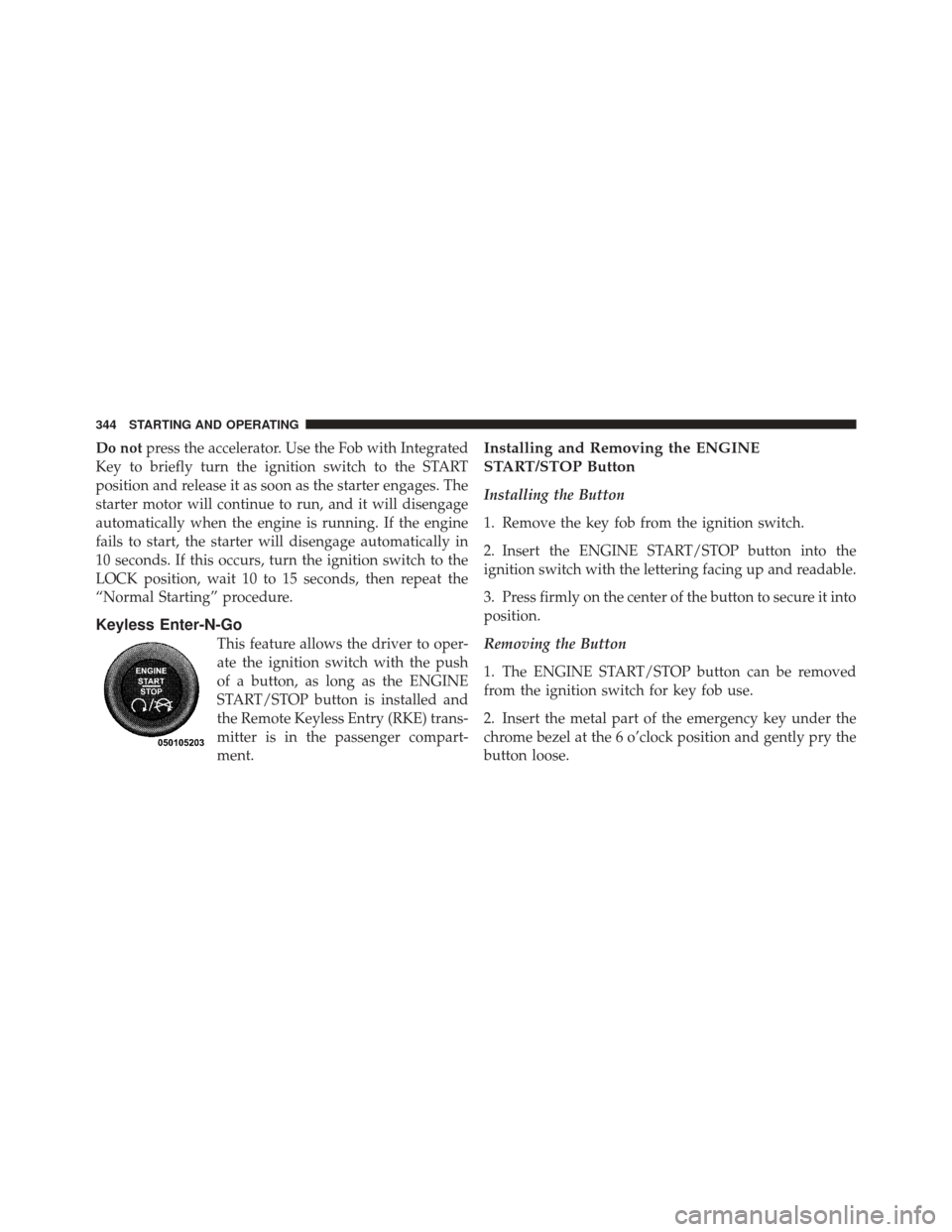
Keyless Enter-N-Go
This feature allows the driver to oper-
ate the ignition switch with the push
of a button, as long as the ENGINE
START/STOP button is installed and
the Remote Keyless Entry (RKE) trans-
mitter is in the passenger compart-
ment.
Installing and Removing the ENGINE
START/STOP Button
Installing the Button
1. Remove the key fob from the ignition switch.
2. Insert the ENGINE START/STOP button into the
ignition switch with the lettering facing up and readable.
3. Press firmly on the center of the button to secure it into
position.
Removing the Button
1. The ENGINE START/STOP button can be removed
from the ignition switch for key fob use.
2. Insert the metal part of the emergency key under the
chrome bezel at the 6 o’clock position and gently pry the
button loose.
344 STARTING AND OPERATING