Page 127 of 566
You can also send stored mobile phonebook entries as
tones for fast and easy access to voice mail and pager
entries. For example, if you previously created a Phone-
book entry and/or Last Name as “Voice Password”, then
if you press the
button and say “Send Voicemail
Password”, the Uconnect™ Phone will then send the
corresponding phone number associated with the phone-
book entry, as tones over the phone.
NOTE:
•The first number encountered for that contact will be
sent. All other numbers entered for that contact will be
ignored.
•You may not hear all of the tones due to mobile phone
network configurations. This is normal.
•Some paging and voice mail systems have system time
out settings that are too short and may not allow the
use of this feature.
•Pauses, wait or other characters that are supported by
some phones are not supported over Bluetooth�.
These additional symbols will be ignored in the dial-
ing a numbered sequence.
Barge In — Overriding Prompts
Thebutton can be used when you wish to skip
part of a prompt and issue your voice command imme-
diately. For example, if a prompt is asking “There are 2
numbers with the name John. Say the full name” you
could press the
button and say, “John Smith” to
select that option without having to listen to the rest of
the voice prompt.
Voice Response Length
It is possible for you to choose between Brief and
Detailed Voice Response Length.
•Touch the “More” hard-key, then touch the “Settings”
soft-key,
3
UNDERSTANDING THE FEATURES OF YOUR VEHICLE 125
Page 128 of 566
•Touch the “Display” soft-key, then scroll down to
Voice Response Length,
•Select either “Brief” or “Detailed” by touching the box
next to the selection. A check-mark will appear to
show your selection.
Phone And Network Status Indicators
Uconnect™ Phone will provide notification to inform
you of your phone and network status when you are
attempting to make a phone call using Uconnect™
Phone. The status is given for roaming, network signal
strength and phone battery strength.
Dialing Using The Mobile Phone Keypad
You can dial a phone number with your mobile phone
keypad and still use the Uconnect™ Phone (while dialing
via the mobile phone keypad, the user must exercise
caution and take precautionary safety measures). By
dialing a number with your paired Bluetooth�mobile
phone, the audio will be played through your vehicle’s audio system. The Uconnect™ Phone will work the same
as if you dial the number using voice command.
NOTE:
Certain brands of mobile phones do not send the
dial ring to the Uconnect™ Phone to play it on the vehicle
audio system, so you will not hear it. Under this situa-
tion, after successfully dialing a number the user may feel
that the call did not go through even though the call is in
progress. Once your call is answered, you will hear the
audio.
Mute/Un-Mute (Mute OFF)
When you mute the Uconnect™ Phone, you will still be
able to hear the conversation coming from the other
party, but the other party will not be able to hear you. In
order to mute the Uconnect™ Phone simply touch the
“Mute” button on the Phone main screen.
126 UNDERSTANDING THE FEATURES OF YOUR VEHICLE
Page 131 of 566
•operation from the driver’s seat.
•Performance, such as audio clarity, echo, and loudness
to a large degree rely on the phone and network, and
not the Uconnect™ Phone.
•Echo at the far end can sometimes be reduced by
lowering the in-vehicle audio volume.
•In a convertible vehicle, system performance may be
compromised with the convertible top down.
Bluetooth�Communication Link
Mobile phones have been found to lose connection to the
Uconnect™ Phone. When this happens, the connection
can generally be reestablished by switching the phone
OFF/ON. Your cellular phone is recommended to remain
in Bluetooth� ON mode.
Power-Up
After switching the ignition key from OFF to either the
ON or ACC position, or after a language change, you
must wait at least 15 seconds prior to using the system.
3
UNDERSTANDING THE FEATURES OF YOUR VEHICLE 129
Page 134 of 566
•Searching Contacts phone number (“Search for John
Smith Mobile”).
Screen Activated Features:
•
Dialing via Keypad using touch-screen.
•Viewing and Calling contacts from Phonebooks dis-
played on the touch-screen.
•Setting Favorite Contact Phone numbers so the are
easily accessible on the Main Phone screen.
•Viewing and Calling contacts from Recent Call logs.
•Reviewing your recent Incoming SMS.
•Sending a text message via the touch-screen.
•Listen to Music on your Bluetooth�Device via the
touch-screen.
•Pairing up to 10 phones/audio devices for easy access
to connect to them quickly. NOTE:
Your phone must be capable of SMS messaging
via Bluetooth� for messaging features to work properly.
Your mobile phone’s audio is transmitted through your
vehicle’s audio system; the system will automatically
mute your radio when using the Uconnect™ Phone.
For Uconnect™ customer support, visit the following
websites:
•www.chrysler.com/uconnect
•www.dodge.com/uconnect
•www.jeep.com/uconnect
•or call 1–877–855–8400
Uconnect™ Phone allows you to transfer calls between
the system and your mobile phone as you enter or exit
your vehicle and enables you to mute the system’s
microphone for private conversation.
132 UNDERSTANDING THE FEATURES OF YOUR VEHICLE
Page 138 of 566
To activate the Uconnect™ Phone from idle, simply press
the
button and say a command or say “help”. All
Uconnect™ Phone sessions begin with a press of the
button on the radio control head.
Cancel Command
At any prompt, after the beep, you can say “Cancel” and
you will be returned to the main menu.
You can also press the
orbuttons when the
system is listening for a command and be returned to the
main or previous menu.
NOTE: Pressing the
orbuttons while the
system is playing is known as “Barging In”, refer to
“Barge In — Overriding Prompts” for further
information.
Pair (Link) Uconnect™ Phone To A Mobile Phone
To begin using your Uconnect™ Phone, you must pair
your compatible Bluetooth� enabled mobile phone.
To complete the pairing process, you will need to refer-
ence your mobile phone Owner’s Manual. The
Uconnect™ website may also provide detailed instruc-
tions for pairing.
NOTE:
•You must have Bluetooth� enabled on your phone to
complete this procedure.
•The vehicle must be in PARK.
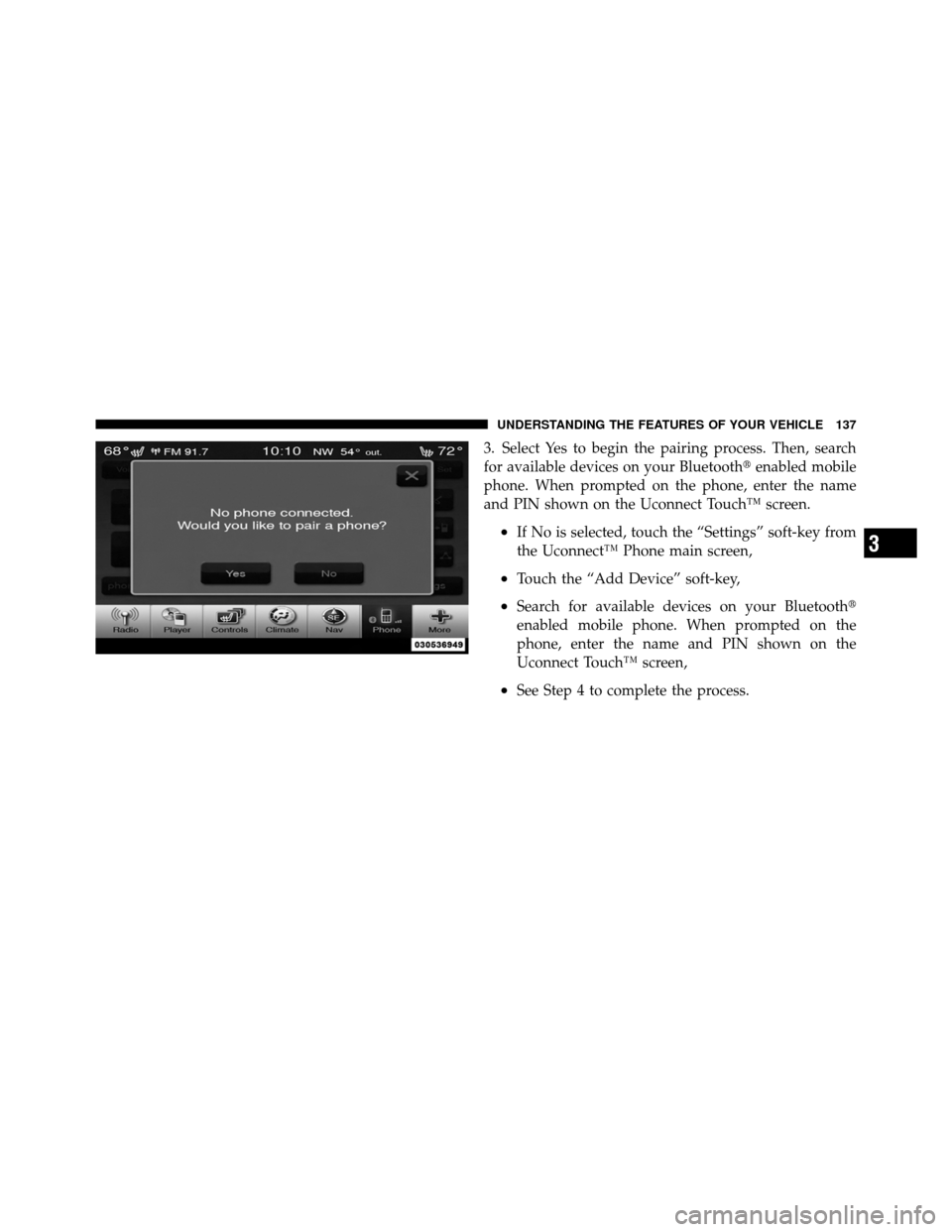
1. Press the “Phone” soft-key on the screen to begin.
2. If there is no phone currently connected with the
system, a pop-up will appear.
136 UNDERSTANDING THE FEATURES OF YOUR VEHICLE
Page 139 of 566
3. Select Yes to begin the pairing process. Then, search
for available devices on your Bluetooth�enabled mobile
phone. When prompted on the phone, enter the name
and PIN shown on the Uconnect Touch™ screen.
•If No is selected, touch the “Settings” soft-key from
the Uconnect™ Phone main screen,
•Touch the “Add Device” soft-key,
•Search for available devices on your Bluetooth�
enabled mobile phone. When prompted on the
phone, enter the name and PIN shown on the
Uconnect Touch™ screen,
•See Step 4 to complete the process.
3
UNDERSTANDING THE FEATURES OF YOUR VEHICLE 137
Page 140 of 566
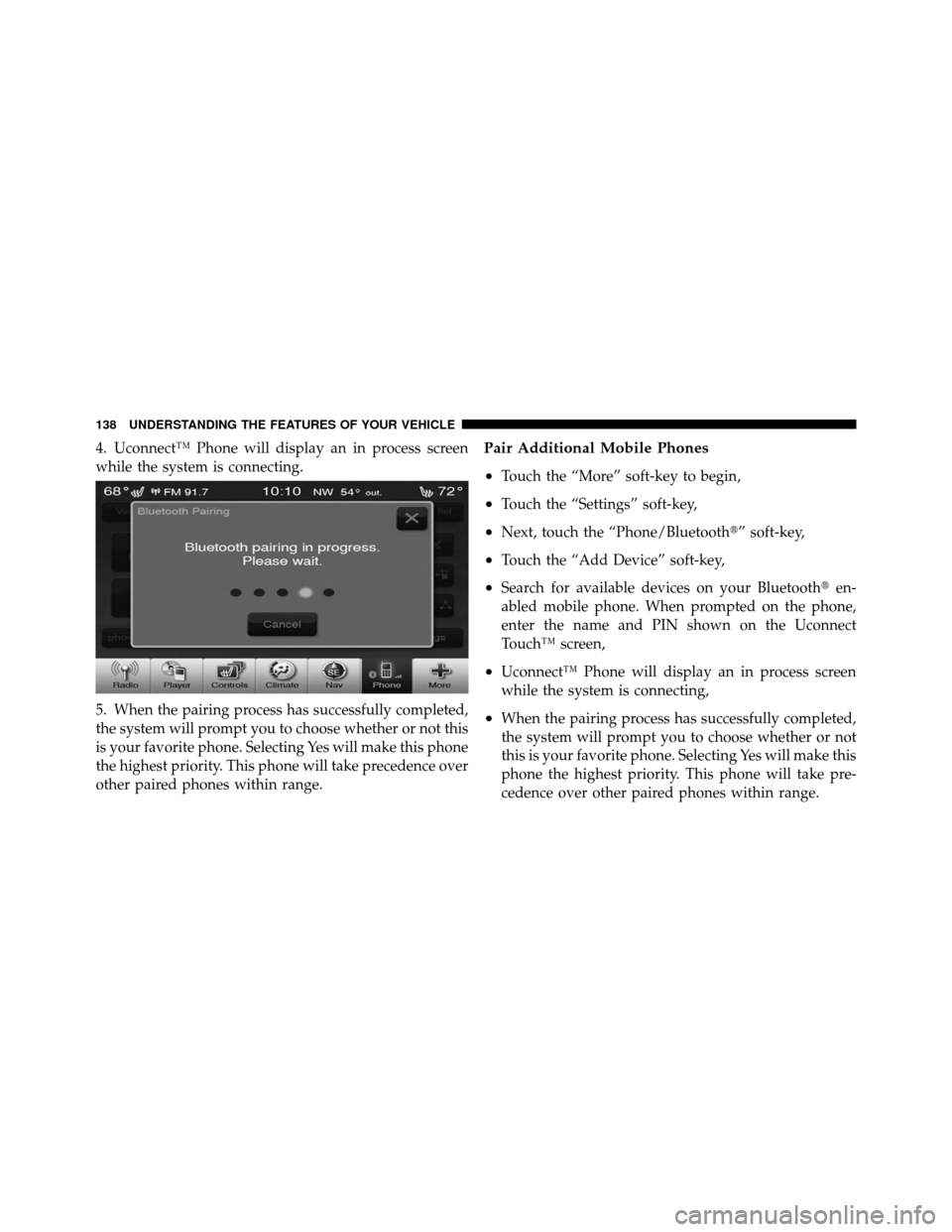
4. Uconnect™ Phone will display an in process screen
while the system is connecting.
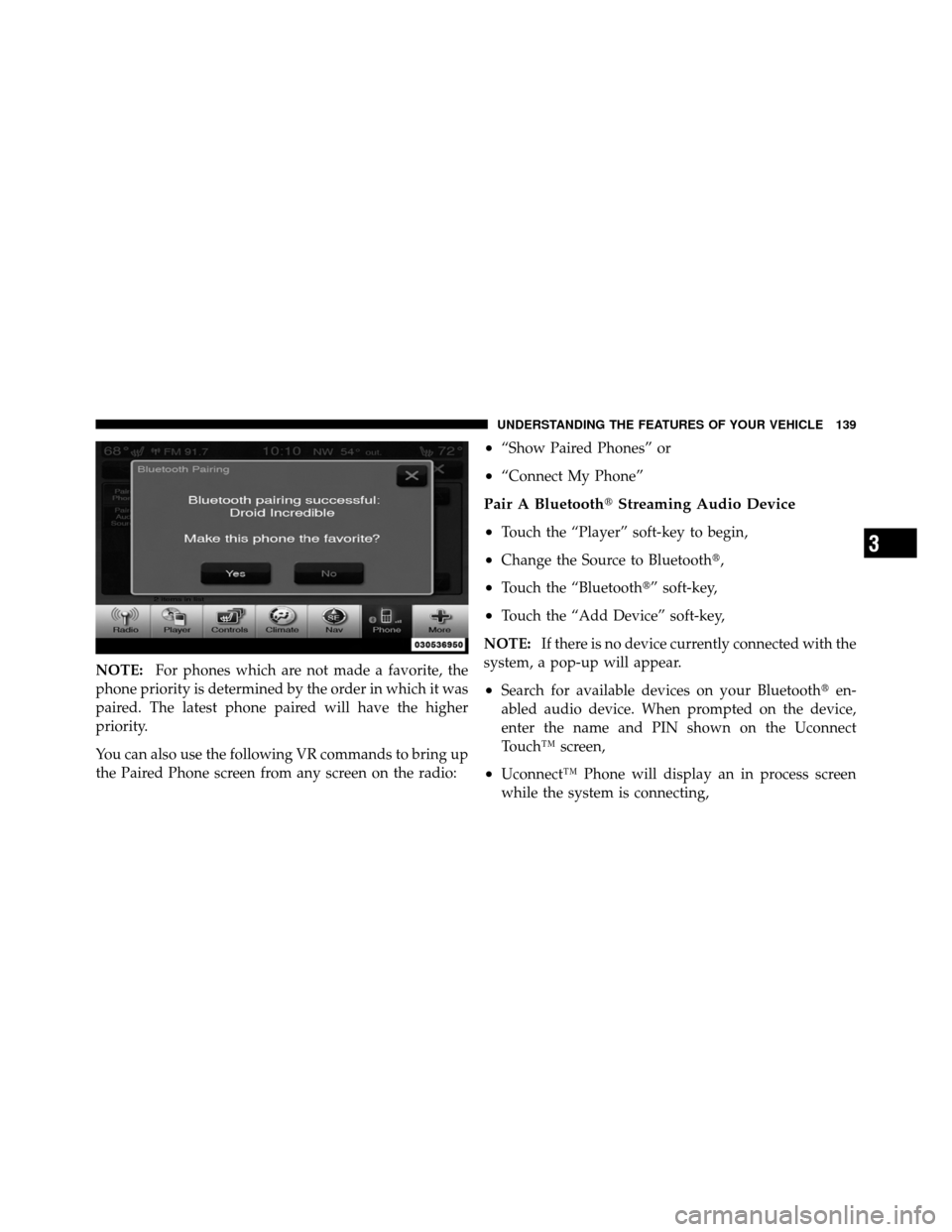
5. When the pairing process has successfully completed,
the system will prompt you to choose whether or not this
is your favorite phone. Selecting Yes will make this phone
the highest priority. This phone will take precedence over
other paired phones within range.Pair Additional Mobile Phones
•
Touch the “More” soft-key to begin,
•Touch the “Settings” soft-key,
•Next, touch the “Phone/Bluetooth�” soft-key,
•Touch the “Add Device” soft-key,
•Search for available devices on your Bluetooth�en-
abled mobile phone. When prompted on the phone,
enter the name and PIN shown on the Uconnect
Touch™ screen,
•Uconnect™ Phone will display an in process screen
while the system is connecting,
•When the pairing process has successfully completed,
the system will prompt you to choose whether or not
this is your favorite phone. Selecting Yes will make this
phone the highest priority. This phone will take pre-
cedence over other paired phones within range.
138 UNDERSTANDING THE FEATURES OF YOUR VEHICLE
Page 141 of 566
NOTE:For phones which are not made a favorite, the
phone priority is determined by the order in which it was
paired. The latest phone paired will have the higher
priority.
You can also use the following VR commands to bring up
the Paired Phone screen from any screen on the radio:
•“Show Paired Phones” or
•“Connect My Phone”
Pair A Bluetooth� Streaming Audio Device
•
Touch the “Player” soft-key to begin,
•Change the Source to Bluetooth�,
•Touch the “Bluetooth�” soft-key,
•Touch the “Add Device” soft-key,
NOTE: If there is no device currently connected with the
system, a pop-up will appear.
•Search for available devices on your Bluetooth� en-
abled audio device. When prompted on the device,
enter the name and PIN shown on the Uconnect
Touch™ screen,
•Uconnect™ Phone will display an in process screen
while the system is connecting,
3
UNDERSTANDING THE FEATURES OF YOUR VEHICLE 139