Page 255 of 316

08
CD, MP3 CD, USB PLAYER
The audio equipment will only play audio fi les with ".m4a, .m4b, .aac,.fl ac, .ogg and .mp3" fi le extensions and with a bit rate of between32 Kbps and 320 Kbps.
It also supports the VBR
(Variable Bit Rate) mode.
No other t
ype of fi le (.wma, .mp4, .m3u...) can be played.
The samplin
g rates supported are 11, 22, 44 and 48 KHz.
It is advisable to restrict
fi le names to 20 characters, without using of special characters (e.g.: " " ? ; ˘) to avoid any playing and
displaying problems.
In order to be able to pla
y a recorded CDR or CDRW, when recording
it is preferable to select the ISO 9660 level 1, 2 or Joliet standard.
If the disc is recorded in another format it ma
y not be played correctly.
It is recommended that the same recording standard is always used for an individual disc, with as low a speed as possible (4x maximum)for optimum sound quality.
In the particular case o
f a multi-session CD, the Joliet standard isrecommended.
INFORMATION AND ADVICE
The s
ystem supports USB mass storage or IPod
devices via the USB port (suitable cable not supplied).
Control of the peripheral device is with the audiosystem controls.
Other peripherals, not recognised on connection, must
be connected to the auxiliary socket using a Jack cable (not supplied).
In order to be read, a USB memor
y stick must be formatted FAT 16 or 32.
Page 258 of 316

256
1
2
1
2
08
AUDIO STREAMING
Streaming allows audio fi les on your telephone to be played via the
vehicle's speakers.
Connect the telephone: see "USING THE TELEPHONE".
Select " Audio" or " All" profi le.
If pla
y does not start automatically, it may be necessary to start the audio playback from the telephone.
Control is from the peripheral device only.
Once connected in streaming mode, the telephone is considered
to be a media source.
It is recommended that
you activate " Repeat" on the Bluetooth
peripheral.
MUSIC MEDIA PLAYERS
IPOD/IPHONE
Connect the IPod or IPhone to the USB port using a suitable cable (not supplied).
Play starts automatically.
Control is via the audio system.
The classifi cations available are those of the portable device
connected (artists/albums/genres/playlists/audiobooks/podcasts).
The de
fault classifi cation used is by artist. To modify the classifi cationused, return to the fi rst level of the menu then select the desired classifi cation (playlists for example) and confi rm to go down through
the menu to the desired track.
Page 259 of 316
257
08
12
3
MUSIC MEDIA PLAYERS
USING THE AUXILIARY INPUT (AUX)
Cable not supplied
Connect the portable device (MP3 player…) to the auxiliary JACK
socket using an audio cable. Press MUSICto display the " MEDIA"menu.
Select "Activate/Deactivate AUX input"and confi rm.
First ad
just the volume of your portable
device (to a high level). Then adjust the
volume of your audio system.
Displa
y and management of the controls are via the portable device.
Page 260 of 316
258
09
1
2
AUDIO SETTINGS
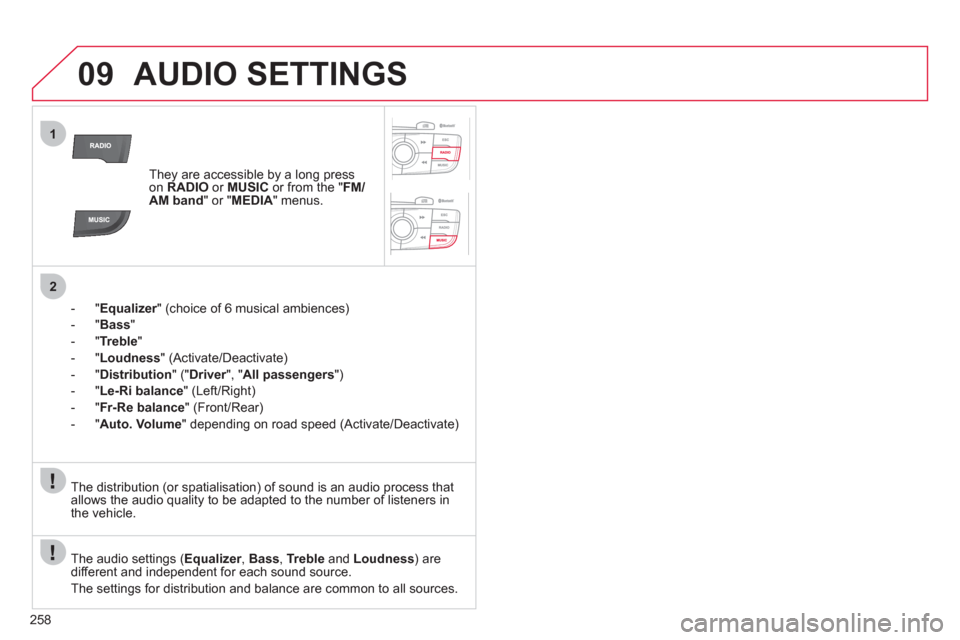
They are accessible by a long press on RADIOor MUSIC
or from the "FM/AM band " or " MEDIA" menus.
-"
Equalizer" (choice of 6 musical ambiences) r
-"Bass"
-
"Treble"
-"Loudness" (Activate/Deactivate)
- "
Distribution" (" Driver
", "rAll passengers
")
- " Le-Ri balanc
e
" (Left/Right)
- " Fr-Re balanc
e
" (Front/Rear)
-"Auto. Volume
" depending on road speed (Activate/Deactivate)
The audio settings ( Equalizer, rBass , Trebleand Loudness) are
different and independent for each sound source.
The settings
for distribution and balance are common to all sources. The distribution
(or spatialisation) of sound is an audio process that allows the audio quality to be adapted to the number of listeners in
the vehicle.
Page 264 of 316
262
11 SCREEN MENU MAP
"SETUP" MENU
Audio settings
Equalizer
Following media source
Eject USB support
Read mode
Normal
Random
Random on all media
Repetition
Audio settings (same as
RADIO)
Activate/Deactivate AUX
input
None
Classical
Jazz
Rock
Techno
Vocal
Bass
Treble
Lou
dness
Distribution
Driver
All passengers
Le-Ri balance
Fr-Re balance
Auto. Volume
Update radio list
"MEDIA" MENU
Display configuration
Choose colour
Harmony
Cartography
Day mode
Night mode
Auto Da
y/Night
Adjust luminosity
Set date and time
Voice synthesis
Guidance instructions volume
Select male voice/Select female voice
1
1
12
1
2
3
3
1
1
1
3
2
2
2
4
3
3
3
3
3
2
2
2
2
2
3
3
2
2
2
1
2
2
1
4
4
2
2
Page 265 of 316

263
FREQUENTLY ASKED QUESTIONS
The following tables groups together the answers to the most frequently asked questions concerning your audio system.
QUESTIONANSWERSOLUTION
The route calculation is notsuccessful. The guidance criteria may confl ict with the current location (exclusion of
toll roads on a toll motorway).
Check the guidance criteria on the NavigationMenu, "Guidance options"\"Defi ne calculation criteria".
The Risk area P
OIs do not
appear. The Risk area P
OIs have not been selected.Select the Risk area POIs in the list of POIs.
Th
e Risk area POIs have not been downloaded. Download the Risk area POIs from the
CITROÀN website.
The s
peed camera audible
warning does not work. The audible warning is not active. Activate audible warnings in the Guidance
options menu, "Navigation - guidance", "Set
parameters for risk areas".
The s
ystem does not
suggest a detour around an incident on the route. The guidance criteria do not take account of TMC messages. Select the "Traffi c info" function in the list of guidance criteria.
I receive a speed camera
alert
for a speed camera
which is not on my route.
Other than guidance, the system announces all speed cameras
positioned in a cone located in front of the vehicle. It may provide an alertfor speed cameras located on nearby or parallel roads.Zoom in on the ma
p to view the exact position of
the speed camera. Select "On the route" to nolonger receive alerts other than guidance or toreduce the time for the announcement.
Page 266 of 316
264
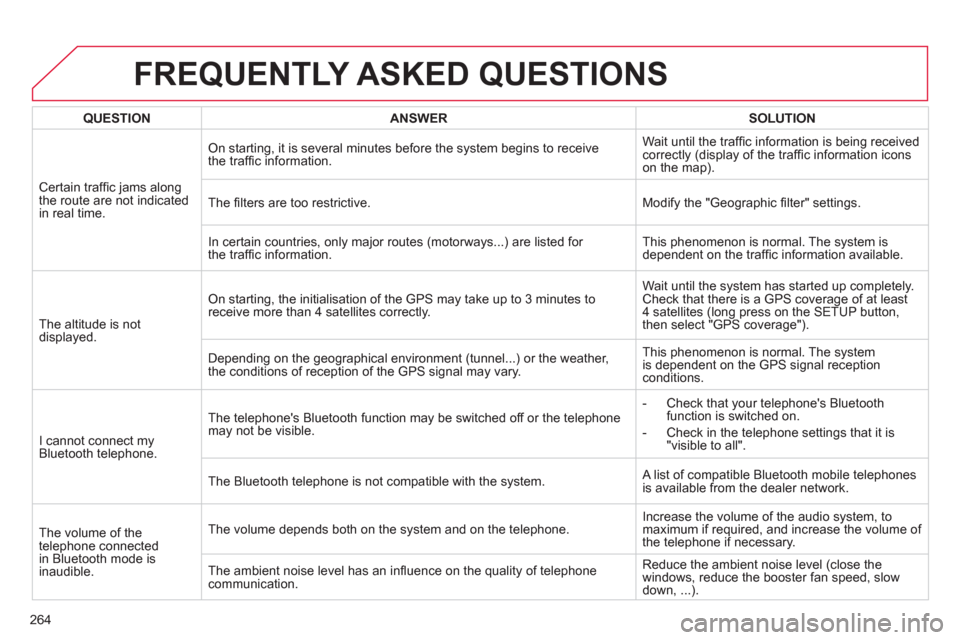
FREQUENTLY ASKED QUESTIONS
QUESTIONANSWERSOLUTION
Certain traffi c jams alongthe route are not indicatedin real time. On startin
g, it is several minutes before the system begins to receive
the traffi c information.Wait until the traffi c information is bein
g received correctly (display of the traffi c information icons
on the map).
Th
e fi lters are too restrictive. Modify the "Geographic fi lter" settings.
In certain countries, onl
y major routes (motorways...) are listed for
the traffi c information.This phenomenon is normal. The system is
dependent on the traffi c information available.
Th
e altitude is not
displayed.
On starting, the initialisation of the GPS may take up to 3 minutes to
receive more than 4 satellites correctly.Wait until the s
ystem has started up completely.
Check that there is a GPS coverage of at least
4 satellites (long press on the SETUP button,
then select "GPS coverage").
Dependin
g on the geographical environment (tunnel...) or the weather,
the conditions of reception of the GPS signal may vary. This phenomenon is normal. The s
ystem
is dependent on the GPS signal receptionconditions.
I cannot connect my Bluetooth telephone. The telephone's Bluetooth function ma
y be switched off or the telephone
may not be visible. - Check that
your telephone's Bluetooth
function is switched on.
-
Check in the telephone settings that it is "visible to all".
The Bluetooth telephone is not compatible with the s
ystem. A list of compatible Bluetooth mobile telephones
is available from the dealer network.
Th
e volume of the
telephone connected in Bluetooth mode isinaudible. The volume depends both on the s
ystem and on the telephone. Increase the volume of the audio system, to
maximum if required, and increase the volume of
the telephone if necessary.
The ambient noise level has an infl uence on the qualit
y of telephonecommunication.Reduce the ambient noise level
(close the
windows, reduce the booster fan speed, slow
down, ...).
Page 267 of 316

265
FREQUENTLY ASKED QUESTIONS
QUESTIONANSWERSOLUTION
Some contacts are
duplicated in the list. The options for synchronizing contacts are synchronizing the contactson the SIM card, the contacts on the telephone, or both. When both synchronizations are selected, some contacts may be duplicated.
Select "Display SIM card contacts" or "Display
telephone contacts".
Contacts are not shown in
alphabetical order. Some telephones offer display options. Depending on the settingschosen, contacts can be transferred in a specifi c order.Modify the display setting in the telephone
directory.
The s
ystem does not receiveSMS text messages. The Bluetooth mode does not permit sending SMS text messages to the system.
The
CD is ejected
automatically or is notplayed by the player. The CD is inserted upside down, is unpla
yable, does not contain any
audio data or contains an audio format which the player cannot play.
Le CD has been recorded in a format that is not compatible with
t
he player.
The
CD is protected by an anti-pirating protection system which is not
recognised by the audio system.- Check that the CD is inserted in the pla
yer
the right way up.
-
Check the condition of the CD: the CD cannot be played if it is too damaged.
-
Check the content in the case of a recordedCD: consult the advice in the "Audio" section.
- The audio s
ystem's CD player does not play
DVDs.
- Some recorded CDs will not be pla
yed by
the audio system because they are not of
the correct quality.
There is a long waiting periodfollowing the insertion of a CD or connection of a USBmemory stick. When a new medium is inserted, the s
ystem reads a certain amount of
data (directory, title, artist, etc.). This may take from a few seconds to a
few minutes.This phenomenon is normal.
The CD pla
yer sound ispoor. The
CD used is scratched or of poor quality.Insert good quality CDs and store them in suitable conditions.
The audio equipment settin
gs (bass, treble, ambiences) are unsuitable.Set the treble or bass level to 0, without
selecting an ambience.