Page 208 of 316
11
PRACTICAL INFORMATION
206
Installation of radio
communication transmitters
Before installing any after-market
radio communication transmitter,
you can contact a CITROËN dealer
for the specifi cation of transmitters
which can be fi tted (frequency, maxi-
mum power, aerial position, specifi c
installation requirements), in line
with the Vehicle Electromagnetic
Compatibility Directive (2004/104/EC).
Depending on the legislation in
force in the country, it may be
compulsory to have a high vis-
ibility safety vest, warning triangle
and spare bulbs and fuses avail-
able in the vehicle.
The fi tting of electrical equipment
or accessories which are not rec-
ommended by CITROËN may
result in a failure of your vehicle's
electronic system and excessive
electrical consumption.
Please note this precaution. You
are advised to contact a CITROËN
representative to be shown the
range of recommended equipment
and accessories.
"Multimedia":
audio systems, steering mounted audio
controls, speakers, Hi-Fi module, Bluetooth
hands-free system, portable satellite naviga-
tion system, semi-integral support bracket for
portable navigation system, speed camera
detector, USB Box, reversing camera, por-
table video screen, portable video support
bracket, 230 V/50 Hz socket, 230 V/50 Hz
adaptor, Wi-Fi on board...
By going to a CITROËN dealer, you
can also obtain cleaning and mainte-
nance products (interior and exterior) -
including ecological products in the
"TECHNATURE" range -, products for
topping up (screenwash...), touch-up
pens and paint aerosols for the exact
colour of your vehicle, recharges (car-
tridge for the temporary puncture repair
kit...), ...
Page 219 of 316
217
The system is protected in such a way that it will onlyoperate in your vehicle. If it is to be installed in another vehicle, contact a CITROËN dealer for confi guration of py
the system.
eMyWay
01 First steps - Control panel
For safety reasons, the driver must carry out operations
which require prolonged attention while the vehicle is stationary.
When the en
gine is switched off and to prevent
discharging of the battery, the system switches off following the activation of the energy economy mode.
CONTENTS
02 Steering mounted controls
03 General operation
04 Navigation - Guidance
05 Traffic information
06 Using the telephone
07 Radio
08 Music media players
09 Audio settings
10 Configuration
11 Screen menu map
Frequently asked questions p.
p.
p.
p.
p.
p.
p.
p.
p.
p.
p.
p.
218
220
221
223
236
239
249
252
258
259
260
263
SATELLITE NAVIGATION SYSTEM
MULTIMEDIA BLUETOOTH TELEPHONE AUDIO
SYSTEM
Page 221 of 316

219
01
1. Rotary control:
-
Short press engine not running: on/off.
-
Short press engine running: mute on/off.
- Rotation: volume ad
justment(each source is independant,
including TA messages and navigation
information).
2. Radio source
, access to the FM/AM band
menu and display the list of stations.
3. Access to the MEDIAmenu and display
the list of tracks.
4. A
ccess to the Navigation - guidancemenu and display the last destinations.
5. Access to the Traffi c informationmenuand display the current traffi c alerts.
6. Access to the "
Telephone " menu anddisplay the recent calls list.
2 - 3. Lon
g press: access to the Audio settings:music ambiance, bass, treble, loudness,left/right balance, front/rear fader, automatic volume adjustment. 7.
Access to the " Confi guration" menu.
Lon
g press: access to the GPS coverage and
the navigation demonstration mode.
8. MODE button:
Selection of the t
ype of permanent display.
Lon
g press: black screen (DARK).
9. ESC: abandon the operation in pro
gress,
up one level in the menu.
Long press: return to permanent display.
10.
CD eject.
Continuous press: reinitialisation of thesystem.
11. Accordin
g to context:
Selection of the previous/next line in a list or
menu.
Selection of the previous/next media folder.
Step by step selection of the previous/next
radio frequency.
Move up
/down in Move the map
mode.
12. Accordin
g to context:
Automatic selection o
f the next lower/higher radio frequency
Selection of the previous/next CD or media
track
Selection of left/ri
ght on the screen when a
menu is displayed.
Move left/ri
ght in Move the map mode.
1
3. Buttons 1 to 6:
Short press: selection of the stored radio station.
Lon
g press: store the current radio station.
14. Dial for selection and
OK confi rmation:
Selection of an item on the screen or in alist in a menu, then confi rmation with a shortpress.
Other than for menus and lists, a short press
displays a contextual menu depending on the
current screen.
Rotation with map displa
yed: zoom the mapscale in and out.
FIRST STEPS
Page 222 of 316
220
02 STEERING MOUNTED CONTROLS
- Change the audio source.
Long press: mute.
-
Volume increase.
- V
olume decrease.
- Radio: displa
y the list of stations.
Media: display the list o
f tracks.
-
Rotation
Radio - automatic selection of next/previous frequency.
Media: previous/next track.
- Pr
ess then rotation: access to 6 preset stations.
- TEL button:
Access to the telephone menu:
Call list/Contacts/Hands-freemode/Answer/Hang up.
Accept an incoming call/
Long press: reject an incoming callor end the current call.
-
Move in the menus.
Zoom the map in and out
Pr
ess: confi rmation
-
Abandon the current operation.
Page 223 of 316
221
03
For a detailed global view of the menus available, refer to the"Screen menu map" section.
For cleaning the screen, the use of a soft, non-abrasive cloth (spectacles cloth) is recommended, with no additional product. "RADIO
/MEDIA"
"
TELEPHONE"
(If conversation in progress)
SETUP
: PARAMETERS
date and time, display parameters, sound.
Changing the audio source:
RADIO:RADIObroadcasts.
MUSIC :playing MEDIA.
Press the MODE
button several times in succession for access to the following displays:
GENERAL OPERATION
"FULL SCREEN MAP"
"MAP IN WINDOW"
Page 240 of 316
238
05
2 1
1
2
3
TRAFFIC INFORMATION
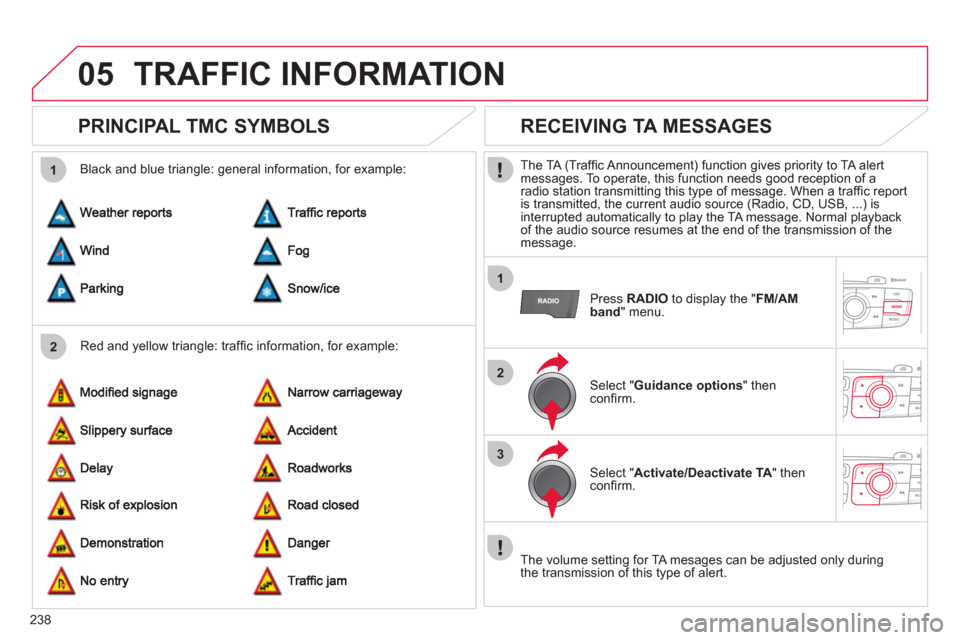
PRINCIPAL TMC SYMBOLS
Red and yellow triangle: traffi c information, for example:
Black and blue trian
gle: general information, for example:
RECEIVING TA MESSAGES
The TA (Traffi c Announcement) function gives priority to TA alert messages. To operate, this function needs good reception of a radio station transmitting this type of message. When a traffi c report
is transmitted, the current audio source (Radio, CD, USB, ...) isinterrupted automatically to play the TA message. Normal playbackof the audio source resumes at the end of the transmission of themessage.
Press RADIO
to display the "FM/AMband " menu.
Select " Guidance options
" then confi rm.
Select " Activate/Deactivate TA
" then confi rm.
The volume settin
g for TA mesages can be adjusted only during
the transmission of this type of alert.
Page 242 of 316
240
1
25
6
3
4
06
PAIRING A TELEPHONE
For reasons of safety and because they require prolonged attention
on the part of the driver, the operations for pairing the Bluetooth mobile telephone to the hands-free system of the audio unit must be carried out with the vehicle stationary.
Activate the telephone's Bluetoothfunction and ensure that it is "shown to all" (telephone confi guration).
Pr
ess PHONE.
Select the name of the desired peripheral from the list of devices detected then select "Connect
" and confi rm.
The s
ystem offers to connect the
telephone:
-
in"Hands-free mode" (telephoneonly),
-
in " Audio" mode (streaming: playingmusic fi les on the telephone),
-
or "All
" (for selection of both
modes).
Select " OK
" and confi rm.
Select " Bluetooth functions
" and confi rm.
Select "Peripherals search" andconfi rm.
The list of peripherals detected is
displayed. Wait until the " Connect"button is available.
USING THE TELEPHONE
Page 252 of 316

07
1a
1b
1c
1
2
By alphabetical list
Pr
ess RADIOor LIST , select the station
of your choice and confi rm.
B
y automatic frequency search
Press �or �for the automatic searchfor a lower or higher radio frequency.
Or turn the thumb wheel on the steering
mounted control.
B
y manual frequency search
Pr
ess �or �to adjust the radiofrequency step by step.Pr
ess the button on the numericalkeypad to recall a preset station.
Or press then turn the thumb wheel at
the steering mounted controls.
SELECTING A STATION
The external environment (hill, building, tunnel, underground car park...) may interfere with the reception, including in RDS station tracking mode.
This phenomenon is a normal result of the way in which radio waves are transmitted and does not in any way indicate a fault with the audio system.
PRESETTING A STATION
Press one of the buttons on thenumerical keypad for 2 seconds topreset the current station.
An audible si
gnal confi rms that thestation has been preset. The qualit
y of reception is represented by this symbol.