2011 CHEVROLET SUBURBAN ECO mode
[x] Cancel search: ECO modePage 244 of 542
Black plate (24,1)Chevrolet Tahoe/Suburban Owner Manual - 2011
7-24 Infotainment System
The CD player supports:
.Up to 512 files and folders.
.Up to 8 folders in depth.
.Playlists with an .m3u or .wpl
extension.
.Files with an .mp3, .wma, or .cda
file extension.
Root Directory
The root directory of the disc is
treated as a folder. If the root
directory has compressed audio
files, the directory displays as
F1 ROOT on the radio.
If a disc contains both
uncompressed CD audio and MP3/
WMA files, a folder under the root
directory called CD accesses all of
the CD audio tracks on the disc.
Empty Folder
Folders that do not contain files are
skipped, and the player advances to
the next folder that contains files. No Folder
When the disc contains only
compressed files, the files are
located under the root folder. The
next and previous folder function
does not function on a disc that was
recorded without folders or playlists.
When displaying the name of the
folder, the radio displays ROOT.
When the disc contains only
playlists and compressed audio
files, but no folders, all files are
located under the root folder. The
folder down and the folder up
buttons search playlists first and
then go to the root folder. When the
radio displays the name of the
folder, the radio displays ROOT.
Order of Play
Compressed audio files are
accessed in the following order:
.Playlists (Px).
.Files stored in the root directory.
.Files stored in folders in the root
directory.Tracks are played in the following
order:
.Play begins from the first track in
the first playlist and continues
sequentially through all tracks in
each playlist. When the last
track of the last playlist has
played, play continues from the
first track of the first playlist.
.Play begins from the first track in
the first folder and continues
sequentially through all tracks in
each folder. When the last track
of the last folder has played,
play continues from the first
track of the first folder.
When play enters a new folder, the
display does not automatically show
the new folder name unless the
folder mode has been chosen as
the default display. The new track
name displays.
Page 246 of 542
Black plate (26,1)Chevrolet Tahoe/Suburban Owner Manual - 2011
7-26 Infotainment System
h(Music Navigator):Press the
softkey below the
htab to play
files in order by artist or album.
The player scans the disc to sort the
files by artist and album ID3 tag
information. It can take several
minutes to scan the disc depending
on the number of files on the disc.
The radio may begin playing while it
is scanning in the background.
When the scan is finished, the disc
begins playing files in order by
artist. The current artist playing is
shown on the second line of the
display. Once all songs by that artist
are played, the player moves to the
next artist in alphabetical order and
begins playing files by that artist.
To listen to files by another artist,
press the softkey located below
either arrow tab. The disc goes to
the next or previous artist in
alphabetical order. Continue
pressing either softkey below the
arrow tab until the artist displays. To change from playback by artist to
playback by album:
1. Press the softkey below the Sort
By tab.
2. Press one of the softkeys below the Album tab from the sort
screen.
3. Press the softkey below the Back tab to return to the main
music navigator screen.
The album name displays on the
second line between the arrows,
and songs from the current album
begin to play. Once all songs from
that album have played, the player
moves to the next album in
alphabetical order on the CD and
begins playing MP3 files from that
album.
To exit music navigator mode, press
the softkey below the Back tab to
return to normal MP3 playback.
Using the DVD Player
The DVD player can be controlled
by the buttons on the remote
control, the RSA system, or by the
buttons on the radio faceplate. See
“Remote Control” underRear Seat
Entertainment (RSE) System on
page 7‑36 andRear Seat Audio
(RSA) System on page 7‑46 for
more information.
The DVD player is only compatible
with DVDs of the appropriate region
code printed on the jacket of
most DVDs.
The DVD slot of the radio is
compatible with most audio CDs
and CD-R/RW, DVD-Video,
DVD-Audio, DVD-R/RW, and DVD
+R/RW media, along with MP3 and
WMA formats.
If an error message displays on the
video screen or the radio, see “DVD
Display Error Messages” under,
Rear Seat Entertainment (RSE)
System on page 7‑36, and “CD/DVD
Player Messages” later in this
section for more information.
Page 248 of 542

Black plate (28,1)Chevrolet Tahoe/Suburban Owner Manual - 2011
7-28 Infotainment System
A lock symbol displays next to the
clock display. The Parental Control
feature remains on until the knob is
pressed and held for more than
two seconds again, or until the
driver turns the ignition off and exits
the vehicle.
f(Tune):Turn to select tracks on
a CD or DVD.
©SEEK: Press to return to the start
of the current track or chapter.
Press again to go to the previous
track or chapter. This button might
not work when the DVD is playing
the copyright information or the
previews.
¨SEEK: Press to go to the next
track or chapter. This button might
not work when the DVD is playing
the copyright information or the
previews.
sREV (Fast Reverse): Press to
quickly reverse the CD or DVD at
five times the normal speed. To stop
fast reversing, press again. This
button might not work when the
DVD is playing the copyright
information or the previews.
\FWD (Fast Forward): Press to
fast forward the CD or DVD at
five times the normal speed. To stop
fast forwarding, press again. This
button might not work when the
DVD is playing the copyright
information or the previews.
Using Softkeys to Play a DVD-V
(Video)
Once a DVD-V is inserted, the radio
display menu shows several tab
options for playback. Press the
softkey located under any tab option
during DVD-V playback.
r/j(Play/Pause): Press either
the Play or Pause tab displayed on
the radio, to toggle between pausing
or restarting playback of a DVD.
If the forward arrow is showing on
the display, the system is in pause
mode. If the Pause tab is showing
on the display, the system is in
playback mode. If the DVD screen
is off, press the play button to turn
the screen on.
Some DVDs begin playing after the
previews have finished, although
there could be a delay of up to
30 seconds. If the DVD does not
begin playing the movie
automatically, press the softkey
located under the play/pause
symbol tag displayed on the radio.
If the DVD still does not play, refer
to the on-screen instructions,
if available.
c(Stop): Press to stop playing,
rewinding, or fast forwarding a DVD.
Page 253 of 542
Black plate (33,1)Chevrolet Tahoe/Suburban Owner Manual - 2011
Infotainment System 7-33
automatically powers off and will not
charge or draw power from the
vehicle's battery.
If you have an older iPod model that
is not supported, it can still be used
by connecting it to the Auxiliary
Input Jack using a standard 3.5 mm
(1/8 in) stereo cable. See“Using the
Auxiliary Input Jack” earlier for more
information.
Using the Radio to Control a
USB Storage Device or iPod
The radio can control a USB
storage device or an iPod using the
radio buttons and knobs and display
song information on the radio’s
display.
f(Tune): Turn to select files.
©SEEK:Press to go to the start of
the track, if more than ten seconds
have played. Press and hold or
press multiple times to continue
moving backward through tracks.
¨SEEK: Press to go to the next
track. Press and hold or press
multiple times to continue moving
forward through tracks.
sREV (Reverse): Press and hold
to reverse playback quickly. Sound
is heard at a reduced volume.
Release
sREV to resume playing.
The elapsed time of the file
displays.
\FWD (Fast Forward): Press
and hold to advance playback
quickly. Sound is heard at a reduced
volume. Release
\FWD to
resume playing. The elapsed time of
the file displays.
4(Information): Press to display
additional information about the
selected track.
Using Softkeys to Control a
USB Storage Device or iPod
The five softkeys below the radio
display are used to control the
functions listed below.
To use the softkeys:
1. Press the first or fifth softkey below the radio display to
display the functions listed
below, or press the softkey
below the function if it is
currently displayed.
2. Press the softkey below the tab with the function on it to use that
function.
j(Pause): Press the softkey belowjto pause the track. The tab
appears raised when pause is being
used. Press the softkey below
j
again to resume playback.
Back: Press the softkey below the
back tab to go back to the main
display screen on an iPod, or the
root directory on a USB storage
device.
Page 255 of 542
Black plate (35,1)Chevrolet Tahoe/Suburban Owner Manual - 2011
Infotainment System 7-35
To skip through large lists, the five
softkeys can be used to navigate in
the following order:
.First softkey, first item in the list.
.Second softkey, 1% through the
list each time the softkey is
pressed.
.Third softkey, 5% through the list
each time the softkey is pressed.
.Fourth softkey, 10% through the
list each time the softkey is
pressed.
.Fifth softkey, end of the list.
Repeat Functionality
To use Repeat:
Press the softkey below
"or'
to select between Repeat All and
Repeat Track.
"(Repeat All): Press the softkey
below
"to repeat all tracks. The
tab appears lowered when Repeat
All is being used. This is the default
mode when a USB storage device
or iPod is first connected.
'(Repeat Track): Press the
softkey below
'to repeat one
track. The tab appears raised when
Repeat Track is being used.
Shuffle Functionality
To use Shuffle:
Press the softkey below
>,2,
Shuffle Songs, Shuffle Album,
or Shuffle Folder.
>(Shuffle Off): Press the
softkey below
2to turn shuffle
off. This is the default mode when a
USB storage device or iPod is first
connected.
2(Shuffle All Songs / Shuffle
Songs): Press the softkey below
=or
<(Shuffle Album): Press the
softkey below
>to shuffle all
songs in the current album on
an iPod.
=(Shuffle Folder): Press the
softkey below
>to shuffle all
songs in the current folder on a USB
storage device.
Page 261 of 542

Black plate (41,1)Chevrolet Tahoe/Suburban Owner Manual - 2011
Infotainment System 7-41
Objects blocking the line of sight
could also affect the function of the
remote control.
If a CD or DVD is in the Radio DVD
slot, the remote control
O(power)
button can be used to turn on the
video screen display and start the
disc. The radio can also turn on the
video screen display. See CD/DVD
Player on page 7‑20 for more
information.
Notice: Storing the remote
control in a hot area or in direct
sunlight can damage it, and the
repairs will not be covered by the
warranty. Storage in extreme cold
can weaken the batteries. Keep
the remote control stored in a
cool, dry place.
If the remote control becomes lost
or damaged, a new universal
remote control can be purchased.
If this happens, make sure the
universal remote control uses a
code set of Toshiba
®. Remote Control Buttons
O(Power):
Press this button to
turn the video screen on and off.
P(Illumination): Press this button
to turn the remote control backlight
on. The backlight automatically
times out after 7 to 10 seconds if no
other button is pressed while the
backlight is on.
v(Title): Press this button to
return the DVD to the main menu of
the DVD. This function could vary
for each disc.
y(Main Menu): Press this button
to access the DVD menu. The DVD
menu is different on every DVD.
Use the navigation arrows to move
the cursor around the DVD menu.
After making a selection press the
enter button. This button only
operates when using a DVD.
n,q,p,o(Menu Navigation
Arrows): Use the arrow buttons to
navigate through a menu.
r(Enter): Press this button to
select the choice that is highlighted
in any menu.
z(Display Menu): Press this
button to adjust the brightness,
screen display mode (normal, full,
or zoom), and display the
language menu.
q(Return): Press this button to
exit the current active menu and
return to the previous menu. This
button operates only when the
display menu or a DVD menu is
active.
c(Stop): Press this button to stop
playing, fast reversing, or fast
forwarding a DVD. Press this button
twice to return to the beginning of
the DVD.
Page 264 of 542
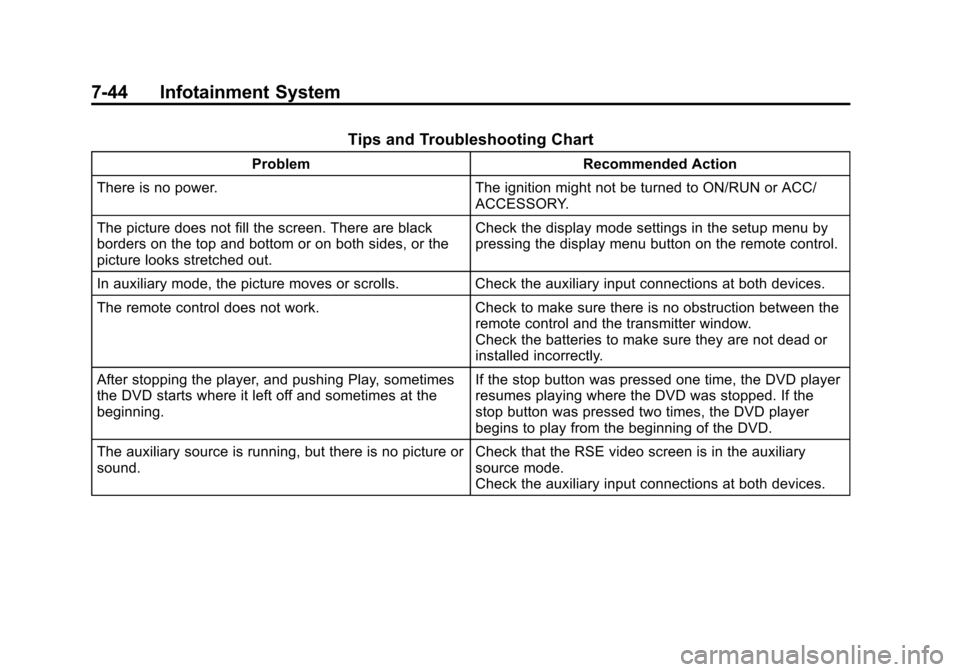
Black plate (44,1)Chevrolet Tahoe/Suburban Owner Manual - 2011
7-44 Infotainment System
Tips and Troubleshooting Chart
ProblemRecommended Action
There is no power. The ignition might not be turned to ON/RUN or ACC/
ACCESSORY.
The picture does not fill the screen. There are black
borders on the top and bottom or on both sides, or the
picture looks stretched out. Check the display mode settings in the setup menu by
pressing the display menu button on the remote control.
In auxiliary mode, the picture moves or scrolls. Check the auxiliary input connections at both devices.
The remote control does not work. Check to make sure there is no obstruction between the
remote control and the transmitter window.
Check the batteries to make sure they are not dead or
installed incorrectly.
After stopping the player, and pushing Play, sometimes
the DVD starts where it left off and sometimes at the
beginning. If the stop button was pressed one time, the DVD player
resumes playing where the DVD was stopped. If the
stop button was pressed two times, the DVD player
begins to play from the beginning of the DVD.
The auxiliary source is running, but there is no picture or
sound. Check that the RSE video screen is in the auxiliary
source mode.
Check the auxiliary input connections at both devices.
Page 276 of 542

Black plate (2,1)Chevrolet Tahoe/Suburban Owner Manual - 2011
8-2 Climate Controls
Temperature Control:Move the
thumbwheels up or down to
increase or decrease the
temperature on the driver side
or the passenger side of the vehicle
for the dual zone system.
9(Fan Control): Turn the left
knob clockwise or counterclockwise
to increase or decrease the fan
speed. Turn the knob all the way
counterclockwise to turn the front
system off.
Air Delivery Mode Control: Turn
clockwise or counterclockwise to
change the airflow direction inside
the vehicle. By positioning the knob
between two modes, a combination
of those modes is selected.
Select from the following modes:
H(Vent): Air is directed to the
instrument panel outlets.
)(Bi-Level): Air is divided
between the instrument panel and
floor outlets. Some air is directed
towards the windshield and side
window outlets. Cooler air is
directed to the upper outlets and
warmer air to the floor outlets.
6(Floor): Air is directed to the
floor outlets, with some of the air
directed to the windshield, side
window, and second row floor
outlets. In this mode, the system
automatically selects outside air.
Recirculation cannot be selected
when in Floor Mode.
-(Defog): The defog mode is
used to clear the windows of fog or
moisture. Air is directed to the
windshield, floor outlets, and side
window vents. In this mode, the
system turns off recirculation and
runs the air conditioning compressor
unless the outside temperature is
close to freezing. The recirculation
mode cannot be selected while in
the defog mode.
0(Defrost): The defrost mode is
used to remove fog or frost from the
windshield more quickly. Air is
directed to the windshield and side
window vents, with some directed to
the floor vents. In this mode, the
system automatically forces outside
air into the vehicle. The recirculation
mode cannot be selected while in
the defrost mode. The air
conditioning compressor runs
automatically in this setting, unless
the outside temperature is close to
freezing.
Do not drive the vehicle until all the
windows are clear.
#(Air Conditioning): Press this
button to turn the air conditioning
system on or off. An indicator light
comes on to show that the air
conditioning is on. The air
conditioning can be selected in any
mode as long as the fan switch
is on.