2011 CHEVROLET EQUINOX radio
[x] Cancel search: radioPage 183 of 446
Black plate (15,1)Chevrolet Equinox Owner Manual - 2011
Infotainment System 7-15
Selecting the XM Band
Press the RADIO/BAND button to
choose between the AM, FM, and
XM bands. The last channel played
in that band begins to play when
that band is selected.
XM Categories
XM channels are organized in
categories.
Removing or Adding Categories
Channels in a category that have
been removed can still be accessed
by using the
gSEEK orlSEEK
buttons, or the MENU/SEL knob.
To add or remove categories:
1. Press the CONFIG button.
2. Select Radio Settings.
3. Select XM Categories.
4. Turn the MENU/SEL knob to highlight the category.
5. Press the MENU/SEL knob to remove or add the category.
Selecting an XM Channel
XM channels can be selected by
using
gSEEK,lSEEK, the
MENU/SEL knob, or the menu
system.
Selecting a Channel Using
gSEEK orlSEEK
(Radio with CD)
.Press and releasegSEEK or
lSEEK to go to the previous
or next channel.
.Press and holdgSEEK or
lSEEK to scroll through the
previous or next channel until
the channel is reached.
Selecting a Channel Using
gSEEK orlSEEK (Radio with
CD/DVD and MEM)
Press and release
gSEEK or
lSEEK to go to the previous or
next channel. Selecting a Channel Using the
MENU/SEL Knob
To select an XM channel using the
MENU/SEL knob:
Turn the MENU/SEL knob to
highlight an XM channel.
The channel is selected after
a short delay.
To select a channel using the menu:
1. Turn the MENU/SEL knob and
select Channel List.
2. Select the desired channel.
Selecting a Channel Using the
Menu System
1. Turn the MENU/SEL knob.
2. Select XM Category List.
3. Select the category.
4. Select the channel.
Page 184 of 446
Black plate (16,1)Chevrolet Equinox Owner Manual - 2011
7-16 Infotainment System
Storing an XM Channel as a
Favorite
Channels from all bands can be
stored in any order in the favorite
pages.
Up to six channels can be stored in
each favorite page and the number
of available favorite pages can
be set.
Storing a Channel as a Favorite
To store the channel to a position
in the list, press and hold the
corresponding 1 to 6 button until
the channel can be heard again.
Retrieving Channels
Press the FAV button to open a
favorite page or to change to
another favorite page. Briefly press
one of the 1 to 6 buttons to retrieve
the channel.
Time Shifting (Radio with
CD/DVD and MEM)
The radio with MEM time shift
feature can rewind 20 minutes of
XM content. While listening to the
radio, the content from the current
channel is always being buffered.
Press
kto pause the radio. The
radio displays the time shift status
bar. The status bar shows the
amount of content stored in the
buffer and the current pause point.
To resume playback from the
current pause point, press
kagain.
The radio is no longer live, but
played from the time shift buffer.
A status bar displays below the
channel number.
Press and hold
gSEEK or
lSEEK to fast forward or
rewind through the time shift buffer.
Hold
lSEEK until the end of the
recorded buffer resumes live
playback. Press and release
gSEEK or
lSEEK to go to the next or
previous song in the time shift
buffer.
When the channel is changed, the
buffer is cleared and automatically
restarted for the current channel.
Content from a previously tuned
station is no longer available.
The time shift feature is not
available while recording or with
other sources of playback.
Pausing XM with the Vehicle
Turned Off
If XM is paused when the vehicle is
turned off, the radio continues to
buffer the current radio station for
up to 20 minutes. If the vehicle is
turned back on within 20 minutes,
the radio resumes playback from the
paused point.
Page 185 of 446

Black plate (17,1)Chevrolet Equinox Owner Manual - 2011
Infotainment System 7-17
XM Messages
XL (Explicit Language
Channels):These channels, or any
others, can be blocked by request,
by calling 1-800-929-2100 in the
U.S. and 1-877-438-9677 in
Canada.
XM Updating: The encryption code
in the receiver is being updated, no
action is required. This process
should take no longer than
30 seconds.
Loading XM: The audio system is
acquiring and processing audio and
text data; no action is needed. This
message should disappear shortly.
Channel Off Air: This channel is
not currently in service. Tune in to
another channel.
Channel Unauth: This channel is
blocked or cannot be received with
your XM Subscription package. Channel Unavailable:
This
previously assigned channel is no
longer assigned. Tune to another
station.
No Artist Info: The system is
working properly. No artist
information is available at this
time on this channel.
No Title Info: The system is
working properly. No song title
information is available at this
time on this channel.
No CAT Info: The system is
working properly. No category
information is available at this time
on this channel.
No Information: The system is
working properly. No text or
informational messages are
available at this time on this
channel. No Subscription Please Renew:
XM subscription needs to be
reactivated. Contact XM at
www.xmradio.com or call
1-800-929-2100 in the U.S. and
www.xmradio.ca or call
1-877-438-9677 in Canada.
No XM Signal:
The system is
working properly. The vehicle may
be in a location where the XM signal
is being blocked. When the vehicle
is moved into an open area, the
signal should return.
CAT Not Found: The system is
working properly. There are no
channels available for the selected
category.
XM Radio ID: If tuned to channel 0,
this message alternates with the
XM Radio 8‐digit radio ID label.
This label is needed to activate
the service.
Page 186 of 446
Black plate (18,1)Chevrolet Equinox Owner Manual - 2011
7-18 Infotainment System
Unknown:If this message is
received when tuned to channel 0,
there could be a receiver fault.
Consult with your dealer.
Check Antenna: If this message
does not clear within a short period
of time, the receiver could have a
fault. Consult with your dealer.
XM Not Available: If this message
does not clear within a short period
of time, the receiver could have a
fault. Consult with your dealer.
Radio Reception
Frequency interference and static
can occur during normal radio
reception if items such as cell phone
chargers, vehicle convenience
accessories, and external electronic
devices are plugged into the
accessory power outlet. If there is
interference or static, unplug the
item from the accessory power
outlet.
FM
FM signals only reach about 16 to
65 km (10 to 40 miles). Although the
radio has a built-in electronic circuit
that automatically works to reduce
interference, some static can occur,
especially around tall buildings or
hills, causing the sound to fade in
and out.
AM
The range for most AM stations is
greater than for FM, especially at
night. The longer range can cause
station frequencies to interfere with
each other. Static can occur when
things like storms and power lines
interfere with radio reception. When
this happens, try reducing the treble
on the radio.
XM™ Satellite Radio Service
XM Satellite Radio Service gives
digital radio reception from coast to
coast in the 48 contiguous United
States, and in Canada. Just as with FM, tall buildings or hills can
interfere with satellite radio signals,
causing the sound to fade in and
out. In addition, traveling or standing
under heavy foliage, bridges,
garages, or tunnels may cause loss
of the XM signal for a period of time.
Cellular Phone Usage
Cellular phone usage can cause
interference with the vehicle's radio.
Multi-Band Antenna
The multi-band antenna is on the
roof of the vehicle. The antenna is
used for the AM/FM radio, OnStar,
the XM Satellite Radio Service
System, and GPS (Global
Positioning System), if the vehicle
has these features. Keep the
antenna clear of obstructions for
clear reception.
Page 192 of 446
Black plate (24,1)Chevrolet Equinox Owner Manual - 2011
7-24 Infotainment System
Changing the Audio Stream
1. Press the MENU/SEL knob.
2. Select Audio Stream.
3. Select Change Audio Stream.
4. Press MENU/SEL to change theselection.
5. Select Cancel to exit the menu.
Pausing a DVD
1. Press the MENU/SEL knob.
2. Select Pause, to pause the disc. Select Pause to start playback.
Navigating the DVD‐V Disc Menu
Use the following actions to
navigate the title menu on a
DVD‐V Disc.
.Select/Enter
.Cursor UP
.Cursor DOWN
.Cursor RIGHT
.Cursor LEFT
.Up Menu
Use the following actions to
navigate the menu on a DVD‐V Disc
while playing chapters.
.Pause (Play)
.Chapter List
.Title List
.DVD/DVD
.DVD/AUX
.AUX/DVD
.AUX/AUX
To navigate the menu:
1. Press the MENU/SEL knob.
2. Select the action.
Mass Storage
Media (MEM)
Infotainment systems with MEM
storage are able to record up to
1.1 GB (gigabyte) of music from
Audio CDs, MP3/WMA/AAC discs,
and USB storage devices. The MEM
player can also time shift audio from
AM, FM, and XM™ radio.
Music or content stored in MEM that
you did not create, or have the right
to distribute, must be deleted before
the sale or end of the lease of the
vehicle.
Control Buttons
The buttons used to control the
MEM player are:
MEM/DVD/AUX: Press to select
the MEM player.
lSEEK orgSEEK: Press to
select tracks or to fast forward or
rewind within a track.
Page 195 of 446
Black plate (27,1)Chevrolet Equinox Owner Manual - 2011
Infotainment System 7-27
To search for tracks:
1. Press the MENU/SEL knob.
2. Select Search.
3. Select: Playlists, Artists, Albums,Song Titles, or Genres.
4. Select the track. The search rate increases if the MENU/SEL knob
is continuously turned while
searching in a list.
Shuffle Songs
Select the Shuffle Songs option
from the MEM menu to randomly
play back tracks stored in MEM.
Configuring MEM Favorites
During MEM playback, press the
FAV button to change between
favorite categories. The favorite
categories are:
.Playlists
.Artists
.Albums
.Genres To remove MEM favorites
categories:
1. Press the CONFIG button.
2. Select Radio Settings.
3. Select MEM Favorites.
4. Remove the check mark from
the box to remove that MEM
favorites category.
Replace the check mark to re-add
the removed category.
Saving MEM Tracks as
Favorites
Favorites can be saved by
pressing and holding one of the
1 to 6 buttons. Favorites can be
stored according to the following list:
Playlist: Adds the currently playing
track to the playlist selected.
Artist: Saves the artist associated
with the currently playing track in
the indicated favorites position. Album:
Saves the album
associated with the currently playing
track in the indicated favorites
position.
Genre: Saves the genre associated
with the currently playing track in
the indicated favorites position.
Creating Playlists
To create a playlist using tracks
stored in MEM:
1. Select Playlist from the MEM
favorites.
2. Select the track to be stored in the playlist.
3. Press and hold one of the 1 to 6 buttons until the track
can be heard again to store
the track.
4. Repeat Steps 1 though 3 to store additional tracks in the
playlist.
Page 196 of 446
Black plate (28,1)Chevrolet Equinox Owner Manual - 2011
7-28 Infotainment System
Auxiliary Devices
(Radio with CD)
The auxiliary input allows portable
devices to be connected using the
3.5 mm (1/8 in) input jack or the
optional USB port.
Portable devices are controlled by
using the menu system described in
Operation on page 7‑7.
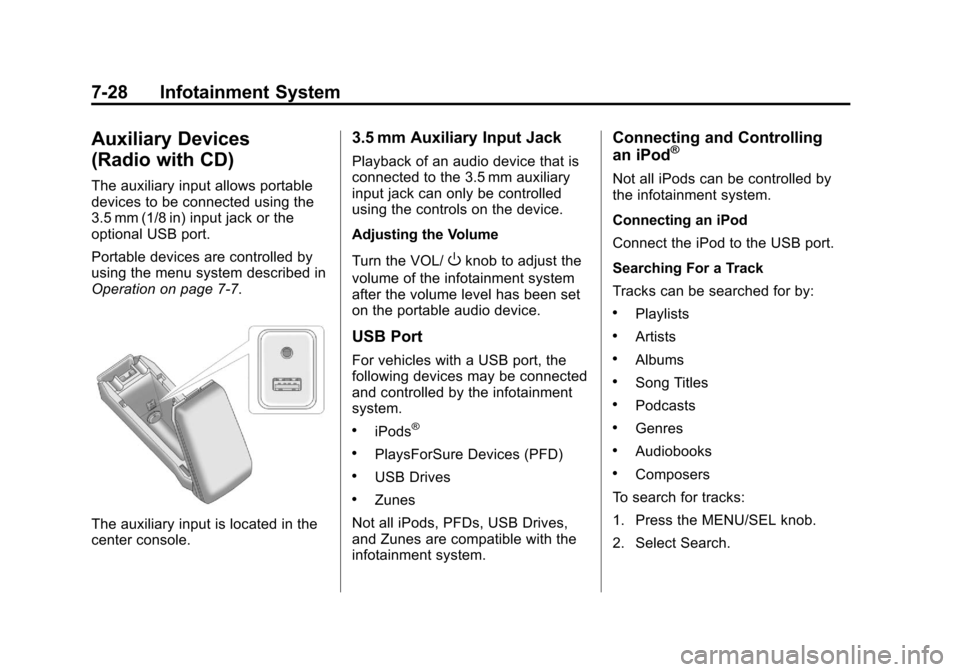
The auxiliary input is located in the
center console.
3.5 mm Auxiliary Input Jack
Playback of an audio device that is
connected to the 3.5 mm auxiliary
input jack can only be controlled
using the controls on the device.
Adjusting the Volume
Turn the VOL/
Oknob to adjust the
volume of the infotainment system
after the volume level has been set
on the portable audio device.
USB Port
For vehicles with a USB port, the
following devices may be connected
and controlled by the infotainment
system.
.iPods®
.PlaysForSure Devices (PFD)
.USB Drives
.Zunes
Not all iPods, PFDs, USB Drives,
and Zunes are compatible with the
infotainment system.
Connecting and Controlling
an iPod®
Not all iPods can be controlled by
the infotainment system.
Connecting an iPod
Connect the iPod to the USB port.
Searching For a Track
Tracks can be searched for by:
.Playlists
.Artists
.Albums
.Song Titles
.Podcasts
.Genres
.Audiobooks
.Composers
To search for tracks:
1. Press the MENU/SEL knob.
2. Select Search.
Page 199 of 446
Black plate (31,1)Chevrolet Equinox Owner Manual - 2011
Infotainment System 7-31
Auxiliary Devices
(Radio with
CD/DVD/MEM)
The auxiliary input allows portable
devices to be connected using the
3.5 mm (1/8 in) input jack or the
optional USB port.
Portable devices are controlled by
using the menu system described in
Operation on page 7‑7.
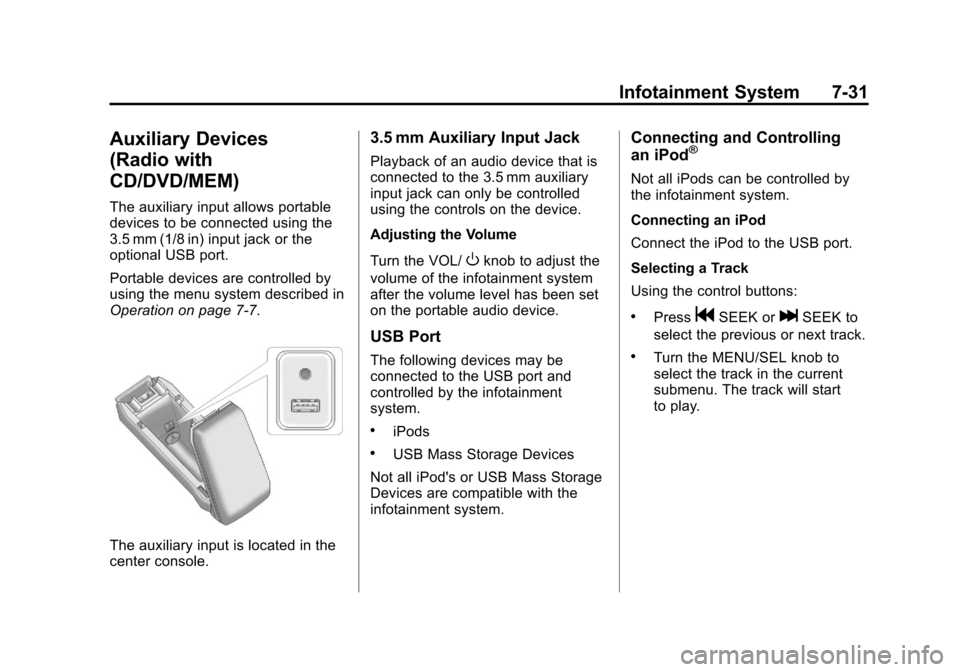
The auxiliary input is located in the
center console.
3.5 mm Auxiliary Input Jack
Playback of an audio device that is
connected to the 3.5 mm auxiliary
input jack can only be controlled
using the controls on the device.
Adjusting the Volume
Turn the VOL/
Oknob to adjust the
volume of the infotainment system
after the volume level has been set
on the portable audio device.
USB Port
The following devices may be
connected to the USB port and
controlled by the infotainment
system.
.iPods
.USB Mass Storage Devices
Not all iPod's or USB Mass Storage
Devices are compatible with the
infotainment system.
Connecting and Controlling
an iPod®
Not all iPods can be controlled by
the infotainment system.
Connecting an iPod
Connect the iPod to the USB port.
Selecting a Track
Using the control buttons:
.PressgSEEK orlSEEK to
select the previous or next track.
.Turn the MENU/SEL knob to
select the track in the current
submenu. The track will start
to play.