2011 CHEVROLET EQUINOX navigation
[x] Cancel search: navigationPage 226 of 446
Black plate (58,1)Chevrolet Equinox Owner Manual - 2011
7-58 Infotainment System
2. Say“Delete all name tags”. The
system responds “You are about
to delete all name tags stored in
your phone directory and your
route destination directory. Are
you sure you want to do this?
Please say yes or no.”
.Say “Yes” to delete all
name tags.
.Say “No” to cancel the
function and return to the
main menu.
Making a Call
Calls can be made using the
following commands:
.Dial
.Digit Dial
.Call
.Re‐dial Using the Dial Command
1. Press
b/g.
.For vehicles without a
navigation system, the
system responds
“Ready”,
followed by a tone.
.For vehicles with a
navigation system, the
system responds with a
tone. After the tone say
“Hands Free”. The system
responds “Ready”, followed
by a tone.
2. Say “Dial”. The system responds
“Dial using
“Number please”, followed by
a tone. 3. Say the entire number without
pausing.
.If the system recognizes
the number, it responds
with “OK, Dialing” and dials
the number.
.If the system does not
recognize the number, it
confirms the numbers
followed by a tone. If the
number is correct, say
“Yes”. The system responds
“OK, Dialing” and dials the
number. If the number is
not correct, say “No”. The
system will ask for the
number again.
Page 227 of 446

Black plate (59,1)Chevrolet Equinox Owner Manual - 2011
Infotainment System 7-59
Using the Digit Dial Command
1. Press
b/g.
.For vehicles without a
navigation system, the
system responds“Ready”,
followed by a tone.
.For vehicles with a
navigation system, the
system responds with a
tone. After the tone say
“Hands Free”. The system
responds “Ready”, followed
by a tone.
2. Say “Digit Dial”. The system
responds “Digit dial using
first digit to dial”, followed by
a tone. 3. Say the digits to be dialed one at
a time. The system repeats back
the digit it heard followed by
a tone.
4. Continue entering digits until the number to be dialed is complete.
After the whole number has
been entered, say “Dial”. The
system responds “OK, Dialing”
and dials the number.
.If an unwanted number is
recognized by the system,
say “Clear” at any time to
clear the last number.
.To hear all of the numbers
recognized by the system,
say “Verify” at any time. Using the Call Command
1. Press
b/g.
.For vehicles without a
navigation system, the
system responds
“Ready”,
followed by a tone.
.For vehicles with a
navigation system, the
system responds with a
tone. After the tone say
“Hands Free”. The system
responds “Ready”, followed
by a tone.
2. Say “Call”. The system responds
“Call using
Please say the name tag”,
followed by a tone.
Page 228 of 446
Black plate (60,1)Chevrolet Equinox Owner Manual - 2011
7-60 Infotainment System
3. Say the name tag of the personto call.
.If the system recognizes
the name tag it responds
“OK, calling,
and dials the number.
.If the system does not
recognize the name tag, it
confirms the name tag
followed by a tone. If the
name tag is correct, say
“Yes”. The system responds
with “OK, calling,
If the name tag is not
correct, say “No”. The
system will ask for the
name tag again.
Once connected, the person called
will be heard through the audio
speakers. Using the Re‐dial Command
1. Press
b/g.
.For vehicles without a
navigation system, the
system responds
“Ready”,
followed by a tone.
.For vehicles with a
navigation system, the
system responds with a
tone. After the tone say
“Hands Free”. The system
responds with “Ready”,
followed by a tone.
2. After the tone, say “Re‐dial”. The
system responds “Re‐dial using
last number called from the
connected Bluetooth phone.
Once connected, the person called
will be heard through the audio
speakers.
Receiving a Call
When an incoming call is received,
the audio system mutes and a ring
tone is heard in the vehicle.
.Pressb gto answer the call.
.Press$/ito ignore a call.
Call Waiting
Call waiting must be supported on
the Bluetooth phone and enabled by
the wireless service carrier.
.Pressbgto answer an
incoming call when another call
is active. The original call is
placed on hold.
.Pressb gagain to return to the
original call.
.To ignore the incoming call, no
action is required.
.Press$/ito disconnect the
current call and switch to the call
on hold.
Page 230 of 446
Black plate (62,1)Chevrolet Equinox Owner Manual - 2011
7-62 Infotainment System
To Transfer Audio to the In-Vehicle
Bluetooth System
The cell phone must be paired and
connected with the Bluetooth
system before a call can be
transferred. The connection process
can take up to two minutes after the
ignition is turned to ON/RUN or
ACC/ACCESSORY.
For vehicles without a navigation
system, press
bgduring a call
with the audio on the cell phone.
The audio transfers to the vehicle.
For vehicles with a navigation
system, press
b gduring a call
with the audio on the cell phone.
If the audio does not transfer to the
vehicle, use the audio transfer
feature on the cell phone. See the
cell phone manufacturer's user
guide for more information.
Voice Pass-Thru
Voice pass‐thru allows access to the
voice recognition commands on the
cell phone. See the cell phone
manufacturer's user guide to see if
the cell phone supports this feature.
To access contacts stored in the cell
phone:
1. Press
b/g.
.For vehicles without a
navigation system, the
system responds “Ready”,
followed by a tone.
.For vehicles with a
navigation system, the
system responds with a
tone. After the tone say
“Hands Free”. The system
responds “Ready”, followed
by a tone. 2. Say
“Bluetooth”. The system
responds “Bluetooth ready”,
followed by a tone.
3. Say “Voice”. The system
responds “OK, accessing
.The cell phone's normal
prompt messages will go
through their cycle
according to the phone's
operating instructions.
Dual Tone Multi-Frequency
(DTMF) Tones
The in‐vehicle Bluetooth system can
send numbers and the numbers
stored as name tags during a call.
Use this feature when calling a
menu‐driven phone system.
Account numbers can also be
stored for use.
Page 287 of 446
Black plate (49,1)Chevrolet Equinox Owner Manual - 2011
Driving and Operating 9-49
WARNING (Continued)
Do not back the vehicle by only
looking at the RVC screen, or use
the screen during longer, higher
speed backing maneuvers or
where there could be cross-traffic.
Your judged distances using the
screen will differ from actual
distances.
If you do not use proper care
before backing up, you could hit a
vehicle, child, pedestrian,
bicyclist, or pet, resulting in
vehicle damage, injury, or death.
Even though the vehicle has the
RVC system, always check
carefully before backing up by
checking behind and around
the vehicle.
Vehicles Without a Navigation
System
When the key is in the ON/RUN
position and the driver shifts the
vehicle into R (Reverse), the video
image automatically appears in the
inside rearview mirror. Once the
driver shifts out of R (Reverse), the
video image automatically
disappears from the inside
rearview mirror.
Turning the Rear Vision Camera
System Off or On
To turn off the RVC system, press
and hold
z, located on the inside
rearview mirror, until the left
indicator light turns off. The RVC
display is now disabled.
To turn the RVC system on again,
press and hold
zuntil the left
indicator light illuminates. The RVC
system display is now enabled and
the display will appear in the mirror
normally.
Vehicles With a Navigation
System
An image appears on the navigation
screen with the message Check
Surroundings for Safety when the
vehicle is shifted into R (Reverse).
The navigation screen goes to the
previous screen after approximately
10 seconds once the vehicle is
shifted out of R (Reverse).
To cancel the delay, do one of the
following:
.Press a hard key on the
navigation system.
.Shift into P (Park).
.Reach a vehicle speed of
8 km/h (5 mph).
Page 288 of 446
Black plate (50,1)Chevrolet Equinox Owner Manual - 2011
9-50 Driving and Operating
Turning the Rear Vision Camera
System On or Off
To turn the rear vision camera
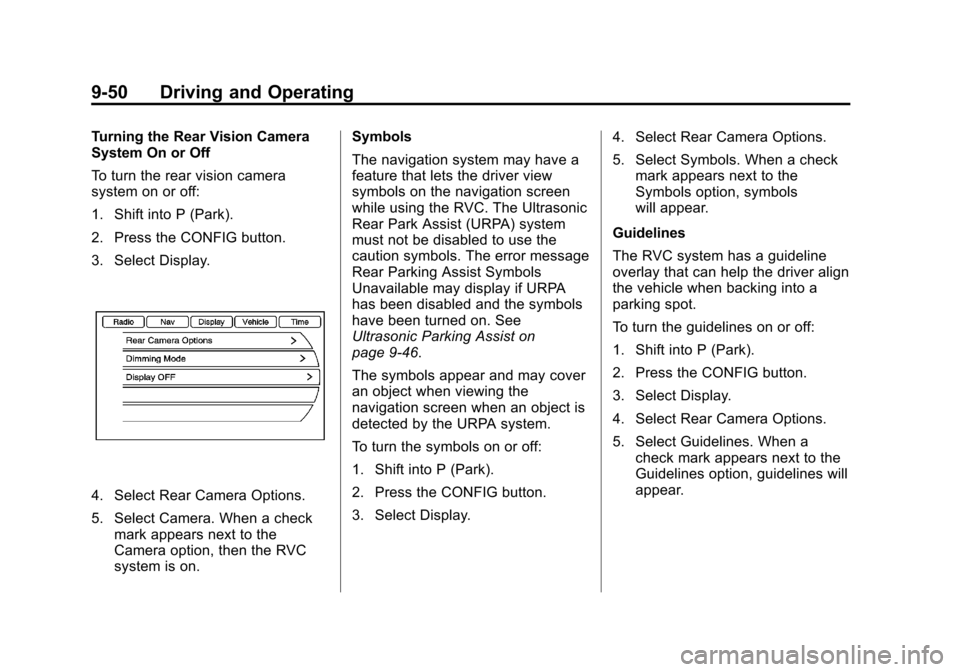
system on or off:
1. Shift into P (Park).
2. Press the CONFIG button.
3. Select Display.
4. Select Rear Camera Options.
5. Select Camera. When a checkmark appears next to the
Camera option, then the RVC
system is on. Symbols
The navigation system may have a
feature that lets the driver view
symbols on the navigation screen
while using the RVC. The Ultrasonic
Rear Park Assist (URPA) system
must not be disabled to use the
caution symbols. The error message
Rear Parking Assist Symbols
Unavailable may display if URPA
has been disabled and the symbols
have been turned on. See
Ultrasonic Parking Assist on
page 9‑46.
The symbols appear and may cover
an object when viewing the
navigation screen when an object is
detected by the URPA system.
To turn the symbols on or off:
1. Shift into P (Park).
2. Press the CONFIG button.
3. Select Display.
4. Select Rear Camera Options.
5. Select Symbols. When a check
mark appears next to the
Symbols option, symbols
will appear.
Guidelines
The RVC system has a guideline
overlay that can help the driver align
the vehicle when backing into a
parking spot.
To turn the guidelines on or off:
1. Shift into P (Park).
2. Press the CONFIG button.
3. Select Display.
4. Select Rear Camera Options.
5. Select Guidelines. When a check mark appears next to the
Guidelines option, guidelines will
appear.
Page 289 of 446
Black plate (51,1)Chevrolet Equinox Owner Manual - 2011
Driving and Operating 9-51
Rear Vision Camera Error
Messages
SERVICE REAR VISION CAMERA
SYSTEM:This message can
display on the navigation screen
when the system is not receiving
information it requires from other
vehicle systems.
If any other problem occurs or if a
problem persists, see your dealer.
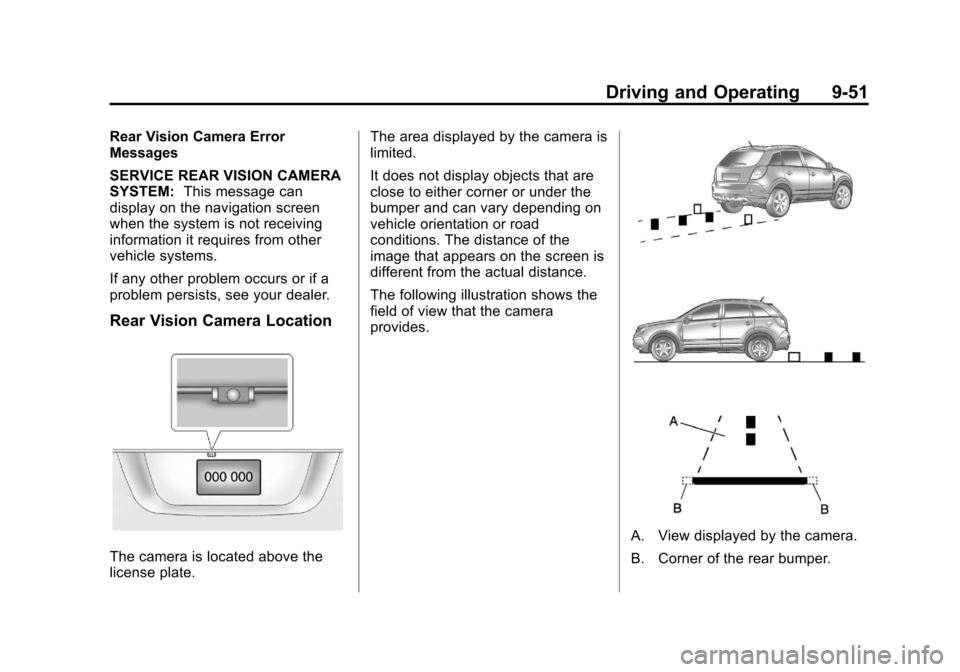
Rear Vision Camera Location
The camera is located above the
license plate. The area displayed by the camera is
limited.
It does not display objects that are
close to either corner or under the
bumper and can vary depending on
vehicle orientation or road
conditions. The distance of the
image that appears on the screen is
different from the actual distance.
The following illustration shows the
field of view that the camera
provides.
A. View displayed by the camera.
B. Corner of the rear bumper.
Page 417 of 446
Black plate (1,1)Chevrolet Equinox Owner Manual - 2011
Customer Information 13-1
Customer
Information
Customer Information
Customer SatisfactionProcedure . . . . . . . . . . . . . . . . . . 13-1
Customer Assistance Offices . . . . . . . . . . . . . . . . . . . . . 13-3
Customer Assistance for Text Telephone (TTY) Users . . . . . 13-4
Online Owner Center . . . . . . . . 13-5
GM Mobility Reimbursement Program . . . . . . . . . . . . . . . . . . . . 13-6
Roadside Assistance Program . . . . . . . . . . . . . . . . . . . . 13-6
Scheduling Service Appointments . . . . . . . . . . . . . . 13-9
Courtesy Transportation Program . . . . . . . . . . . . . . . . . . . . 13-9
Collision Damage Repair . . . 13-11
Service Publications Ordering Information . . . . . . 13-13
Reporting Safety Defects
Reporting Safety Defects tothe United States
Government . . . . . . . . . . . . . . . 13-14
Reporting Safety Defects to the Canadian
Government . . . . . . . . . . . . . . . 13-15
Reporting Safety Defects to General Motors . . . . . . . . . . . 13-15
Vehicle Data Recording and
Privacy
Vehicle Data Recording andPrivacy . . . . . . . . . . . . . . . . . . . . 13-15
Event Data Recorders . . . . . . 13-16
OnStar
®. . . . . . . . . . . . . . . . . . . . 13-17
Navigation System . . . . . . . . . 13-17
Radio Frequency Identification (RFID) . . . . . . . 13-17
Radio Frequency Statement . . . . . . . . . . . . . . . . . 13-17
Customer Information
Customer Satisfaction
Procedure
Your satisfaction and goodwill are
important to the dealer and to
Chevrolet. Normally, any concerns
with the sales transaction or the
operation of the vehicle will be
resolved by the dealer's sales or
service departments. Sometimes,
however, despite the best intentions
of all concerned, misunderstandings
can occur. If your concern has not
been resolved to your satisfaction,
the following steps should be taken:
STEP ONE: Discuss your concern
with a member of dealership
management. Normally, concerns
can be quickly resolved at that level.
If the matter has already been
reviewed with the sales, service,
or parts manager, contact the owner
of the dealership or the general
manager.