2011 CHEVROLET EQUINOX navigation
[x] Cancel search: navigationPage 201 of 446
Black plate (33,1)Chevrolet Equinox Owner Manual - 2011
Infotainment System 7-33
Selecting a track in a different
folder:
1. Press the MENU/SEL knob.
2. Select Folder List.
3. Select the folder.
4. Select the track.
Searching for Tracks
It is normal for the search feature
to take some time to display the
information after reading the device
due to the amount of information
stored.
Files that do not have any meta
data stored in the ID3 tag display
as Unknown.
Tracks can be searched by:
.Playlists
.Artists
.Albums
.Song Titles
.GenresThe number of objects in each
category is shown in parentheses
after the category.
To search for tracks:
1. Press the MENU/SEL knob.
2. Select Search.
3. Select: Playlists, Artists,
Albums, Song Titles, Genres,
Composers, or Audiobooks.
4. Select the track. The search rate increases if the MENU/SEL knob
is continuously turned while
searching in a list.
Recording Tracks to MEM
See Mass Storage Media (MEM) on
page 7‑24 for more information.
Rear Seat
Infotainment
Rear Seat Entertainment
(RSE) System
The vehicle may have a DVD Rear
Seat Entertainment (RSE) system.
The RSE system works with the
vehicle's infotainment system. The
DVD player is part of the front radio.
The RSE system includes a radio
with a DVD player, two rear seat
video display screens, audio/video
jacks, two wireless headphones,
and a remote control. See CD/DVD
Player on page 7‑21 or the separate
navigation system manual for more
information on the vehicle's DVD
system.
Page 206 of 446
Black plate (38,1)Chevrolet Equinox Owner Manual - 2011
7-38 Infotainment System
Remote Control
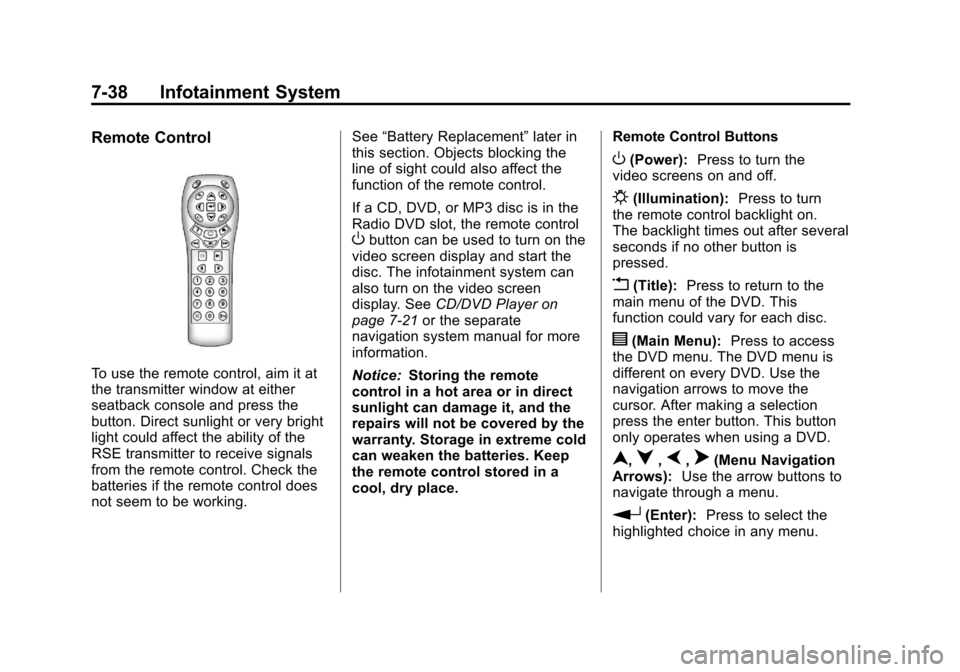
To use the remote control, aim it at
the transmitter window at either
seatback console and press the
button. Direct sunlight or very bright
light could affect the ability of the
RSE transmitter to receive signals
from the remote control. Check the
batteries if the remote control does
not seem to be working.See
“Battery Replacement” later in
this section. Objects blocking the
line of sight could also affect the
function of the remote control.
If a CD, DVD, or MP3 disc is in the
Radio DVD slot, the remote control
Obutton can be used to turn on the
video screen display and start the
disc. The infotainment system can
also turn on the video screen
display. See CD/DVD Player on
page 7‑21 or the separate
navigation system manual for more
information.
Notice: Storing the remote
control in a hot area or in direct
sunlight can damage it, and the
repairs will not be covered by the
warranty. Storage in extreme cold
can weaken the batteries. Keep
the remote control stored in a
cool, dry place. Remote Control Buttons
O(Power):
Press to turn the
video screens on and off.
P(Illumination): Press to turn
the remote control backlight on.
The backlight times out after several
seconds if no other button is
pressed.
v(Title): Press to return to the
main menu of the DVD. This
function could vary for each disc.
y(Main Menu): Press to access
the DVD menu. The DVD menu is
different on every DVD. Use the
navigation arrows to move the
cursor. After making a selection
press the enter button. This button
only operates when using a DVD.
n,q,p,o(Menu Navigation
Arrows): Use the arrow buttons to
navigate through a menu.
r(Enter): Press to select the
highlighted choice in any menu.
Page 220 of 446
Black plate (52,1)Chevrolet Equinox Owner Manual - 2011
7-52 Infotainment System
Pairing Information:
.Up to five cell phones can be
paired to the Bluetooth system.
.The pairing process is disabled
when the vehicle is moving.
.The Bluetooth system links with
the first available paired cell
phone in the order the phone
was paired.
.Only one paired cell phone can
be connected to the Bluetooth
system at a time.
.Pairing only needs to be
completed once, unless the
pairing information changes or
the phone is deleted.
To link to a different paired phone,
see “Linking to a Different Phone”
later in this section. Pairing a Phone
1. Press
b/g.
.For vehicles without a
navigation system, the
system responds
“Ready”,
followed by a tone.
.For vehicles with a
navigation system, the
system responds with a
tone. After the tone say
“Hands Free”. The system
responds “Ready”, followed
by a tone.
2. Say “Bluetooth”. The system
responds “Bluetooth ready”,
followed by a tone.
3. Say “Pair”. The system responds
with instructions and a four‐digit
Personal Identification Number
(PIN). The PIN will be used in
Step 4. 4. Start the pairing process on the
cell phone that will be paired to
the vehicle. Reference the cell
phone manufacturer's user guide
for information on this process.
Locate the device named “Your
Vehicle” in the list on the cell
phone and follow the instructions
on the cell phone to enter the
four‐digit PIN number that was
provided in Step 3.
5. The system prompts for a name for the phone. This name will be
used to indicate which phone is
connected. The system confirms
the name.
6. The system responds with “
successfully paired” after the
pairing process is complete.
7. Repeat Steps 1 through 7 for additional phones to be paired.
Page 221 of 446

Black plate (53,1)Chevrolet Equinox Owner Manual - 2011
Infotainment System 7-53
Listing All Paired and Connected
Phones
1. Press
b/g.
.For vehicles without a
navigation system, the
system responds“Ready”,
followed by a tone.
.For vehicles with a
navigation system, the
system responds with a
tone. After the tone say
“Hands Free”. The system
responds “Ready”, followed
by a tone.
2. Say “Bluetooth”. The system
responds “Bluetooth ready”,
followed by a tone.
3. Say “List”. The system lists all
paired Bluetooth devices.
The system will respond “is
connected” if a phone is
connected to the vehicle. Deleting a Paired Phone
1. Press
b/g.
.For vehicles without a
navigation system, the
system responds
“Ready”,
followed by a tone.
.For vehicles with a
navigation system, the
system responds with a
tone. After the tone say
“Hands Free”. The system
responds “Ready”, followed
by a tone.
2. Say “Bluetooth”. The system
responds “Bluetooth ready”,
followed by a tone.
3. Say “Delete”. The system asks
which phone to delete followed
by a tone. 4. Say the name of the phone to be
deleted. If the phone name is
unknown, use the “List”
command for a list of all paired
phones. The system responds
“Would you like to delete
a tone.
5. Say “Yes”to delete the phone.
The system responds “OK,
deleting
Page 222 of 446
Black plate (54,1)Chevrolet Equinox Owner Manual - 2011
7-54 Infotainment System
Linking to a Different Phone
1. Press
b/g.
.For vehicles without a
navigation system, the
system responds“Ready”,
followed by a tone.
.For vehicles with a
navigation system, the
system responds with a
tone. After the tone say
“Hands Free”. The system
responds “Ready”, followed
by a tone.
2. Say “Bluetooth”. The system
responds “Bluetooth ready”,
followed by a tone. 3. Say
“Change phone”. The
system responds “Please wait
while I search for other phones”.
.If another phone is found,
the response will be
“
connected”.
.If another phone is not
found, the original phone
remains connected.
Storing Name Tags
The system can store up to
30 phone numbers as name tags
that are shared between the
Bluetooth and OnStar systems.
The system uses the following
commands to store and retrieve
phone numbers:
.Store
.Digit Store
.Directory Using the Store Command
The store command allows a phone
number to be stored without
entering the digits individually.
1. Press
b/g.
.For vehicles without a
navigation system, the
system responds
“Ready”,
followed by a tone.
.For vehicles with a
navigation system, the
system responds with a
tone. After the tone say
“Hands Free”. The system
responds “Ready”, followed
by a tone.
2. Say “Store”. The system
responds “Store, number
please”, followed by a tone.
Page 223 of 446

Black plate (55,1)Chevrolet Equinox Owner Manual - 2011
Infotainment System 7-55
3. Say the complete phone numberto be stored at once with no
pauses.
.If the system recognizes
the number, the response is
“OK, Storing”.
.If the system does not
recognize the phone
number, the response is
“Store
Please say yes or no.” If
the number is correct, say
“Yes”. If the number is not
correct, say “No”. The
system will ask for the
number again. 4. After the system stores the
phone number, it responds
“Please say the name tag”,
followed by a tone.
5. Say a name tag for the phone number. The name tag is
recorded and the system
responds “About to store
.If the name tag does not
sound correct, say “No”and
repeat Step 5.
.If the name tag sounds
correct, say “Yes”and the
name tag is stored. After
the number is stored the
system returns to the
main menu. Using the Digit Store Command
The digit store command allows a
phone number to be stored by
entering the digits individually.
1. Press
b/g.
.For vehicles without a
navigation system, the
system responds
“Ready”,
followed by a tone.
.For vehicles with a
navigation system, the
system responds with a
tone. After the tone say
“Hands Free”. The system
responds “Ready”, followed
by a tone.
2. Say “Digit Store”. The system
responds with “Please say the
first digit to store”, followed by
a tone.
Page 224 of 446

Black plate (56,1)Chevrolet Equinox Owner Manual - 2011
7-56 Infotainment System
3. Say the first digit to be stored.The system will repeat back the
digit it heard followed by a tone.
Continue entering digits until the
number to be stored is complete.
.If an unwanted number is
recognized by the system,
say “Clear” at any time to
clear the last number.
.To hear all of the numbers
recognized by the system,
say “Verify” at any time.
4. After the complete number has been entered, say “Store”. The
system responds “Please say
the name tag”, followed by
a tone. 5. Say a name tag for the phone
number. The name tag is
recorded and the system
responds “About to store
.If the name tag does not
sound correct, say “No”and
repeat Step 5.
.If the name tag sounds
correct, say “Yes”and the
name tag is stored. After
the number is stored the
system returns to the
main menu. Using the Directory Command
The directory command lists all of
the name tags stored by the system.
To use the directory command:
1. Press
b/g.
.For vehicles without a
navigation system, the
system responds
“Ready”,
followed by a tone.
.For vehicles with a
navigation system, the
system responds with a
tone. After the tone say
“Hands Free”. The system
responds “Ready”, followed
by a tone.
2. Say “Directory”. The system
responds “Directory” and lists all
stored name tags. The system
returns to the main menu when
the list is complete.
Page 225 of 446
Black plate (57,1)Chevrolet Equinox Owner Manual - 2011
Infotainment System 7-57
Deleting Name Tags
The system uses the following
commands to delete name tags:
.Delete
.Delete all name tags
Using the Delete Command
The delete command is used to
delete specific name tags.
To delete name tags:
1. Press
b/g.
.For vehicles without a
navigation system, the
system responds “Ready”,
followed by a tone.
.For vehicles with a
navigation system, the
system responds with a
tone. After the tone say
“Hands Free”. The system
responds “Ready”, followed
by a tone. 2. Say
“Delete”. The system
responds “Delete, please say
the name tag”, followed by
a tone.
3. Say the name tag to be deleted. The system responds “Would
you like to delete,
Please say yes or no”.
.If the name tag is correct,
say “Yes” to delete the
name tag. The system
responds with “OK, deleting
the main menu.”
.If the name tag is incorrect,
say “No”. The system
responds with “No. OK, let's
try again, please say the
name tag.” Using the Delete All Name Tags
Command
The Delete All Name Tags
command deletes all stored phone
book name tags and route name
tags for OnStar, if stored.
To delete all name tags:
1. Press
b/g.
.For vehicles without a
navigation system, the
system responds
“Ready”,
followed by a tone.
.For vehicles with a
navigation system, the
system responds with a
tone. After the tone say
“Hands Free”. The system
responds “Ready”, followed
by a tone.