2011 BMW ACTIVEHYBRID X6 driver
[x] Cancel search: driverPage 65 of 312
Controls
63Reference
At a glance
Driving tips
Communications
Navigation
Entertainment
Mobility
Procedure
1.Switch on the ignition.
2.Press the button with the brake depressed.
The indicator lamp in the instrument
panel goes out as soon as the parking
brake is ready for operation again.
Indicator lamp on Canadian models.
Any noises which occur are normal. Startup
may take several seconds.
Automatic transmission with
Steptronic
In addition to fully automatic operation, you can
also manually shift with the Steptronic, refer to
page64.
Transmission positions
P R N D M/S + –
To prevent the vehicle from creeping
after you select a driving position, main-
tain pressure on the brake pedal until you are
ready to start.<
Displays in instrument panel
The transmission position is indicated and, in
manual mode, the gear currently engaged, e.g.
M3.
Engaging transmission position
>You can only engage transmission posi-
tions D, R or N when the engine is running.>With the vehicle stationary, depress the
brake pedal before shifting out of P or N;
otherwise the shift command will not be
executed: shiftlock.
To prevent the vehicle from creeping
after you select a driving position,
maintain pressure on the brake pedal until
you are ready to start.<
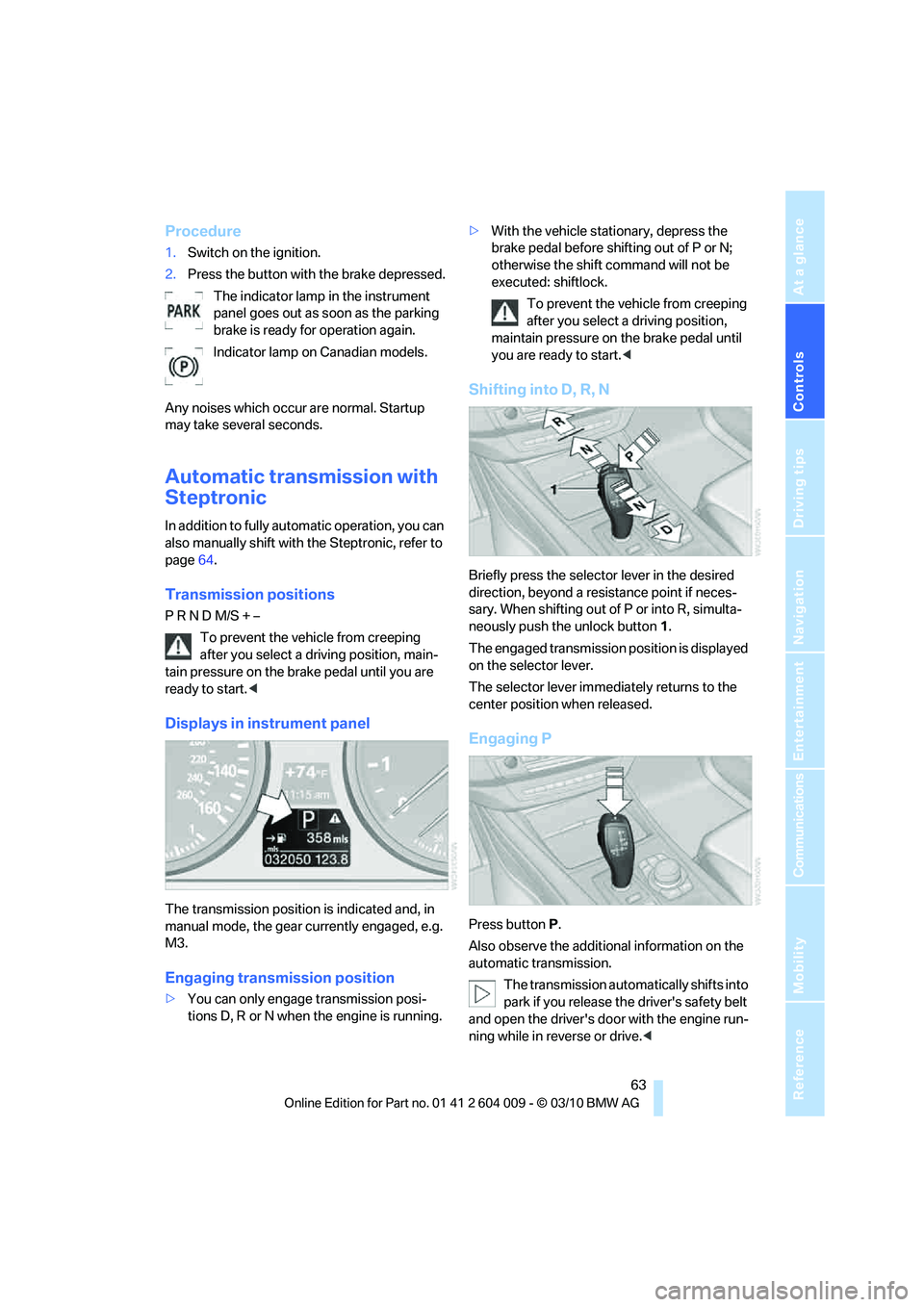
Shifting into D, R, N
Briefly press the selector lever in the desired
direction, beyond a resistance point if neces-
sary. When shifting out of P or into R, simulta-
neously push the unlock button1.
The engaged transmission position is displayed
on the selector lever.
The selector lever immediately returns to the
center position when released.
Engaging P
Press buttonP.
Also observe the additional information on the
automatic transmission.
The transmission automatically shifts into
park if you release the driver's safety belt
and open the driver's door with the engine run-
ning while in reverse or drive.<
Page 71 of 312

Controls
69Reference
At a glance
Driving tips
Communications
Navigation
Entertainment
Mobility
cruise control will, within limits, adjust your
vehicle's speed automatically so that you can
flow with the traffic without having to make con-
stant adjustments. If, for example, while cruis-
ing at the selected speed, you begin to
approach a slower vehicle ahead of you in the
same lane, the system will reduce your vehicle's
speed to the same as that of the vehicle ahead
to maintain your selected distance setting. You
can vary the following distance, which will vary
with speed. Based on your selected distance
setting, the system automatically decreases the
throttle setting and lightly applies the brakes if
necessary. In addition, if the vehicle ahead of
you slows to a complete stop, the system can
follow this action within the given scope and
can also accelerate from a complete stop if the
vehicle ahead of you drives off again shortly
thereafter. During braking, your vehicle brake
lamps will automatically illuminate to alert a fol-
lowing driver to take action. In addition, it may
be necessary for your vehicle to downshift the
automatic transmission to maintain the dis-
tance setting selected. As soon as the road in
front of you has no moving vehicles, the system
will accelerate to your desired speed. This set
speed is also maintained on downhill grades,
however the vehicle speed can drop below the
set speed when driving uphill if the engine out-
put is not sufficient.
Active cruise control cannot detect stop
signs, red lights, or any object that is
stopped or is blocking the road.
Active cruise control is not and must not be
used as a collision avoidance/warning system.
Since this active cruise control system is a new
technology and operates differently from con-
ventional cruise control systems to which you
may be accustomed, it is necessary that you
read all of the pages relating to this system
before use. Carefully read and observe the
information on the system limitations beginning
on page73 to obtain a good command of the
system and its range of applications.
the brake pedal, a somewhat different braking
feel results.
Professional navigation system*
If the vehicle is equipped with a Professional
navigation system, the system adapts the
acceleration and deceleration behavior of the
vehicle to the road on which you are currently
driving.
To ensure that the system has the latest
information on the course of the road, use
the most recent version of the navigation
data.<
If the vehicle position is unknown, e. g. if you
have left the region covered by the map, the
navigation system ceases to influence vehicle
behavior.
Applications
Please try the system first during sparse traffic
and clear road conditions so that you can get
used to the system. After you have experience
and understand the system, only then use it
during normal traffic.
As with conventional cruise control systems,
active cruise control in no way reduces or sub-
stitutes for the driver's own personal experi-
ence, responsibility, alertness and awareness in
adjusting speed, braking or otherwise control-
ling the vehicle. The driver should decide when
to use the system on the basis of road, traffic,
visibility, and weather conditions. Active cruise
control is intended for use on highway-type
roadways where traffic is moving relatively
smoothly as well as in slow-moving traffic con-
gestion. Do not use the system in city driving; in
complex driving situations; heavy traffic such as
during rush hour; on curvy, winding roads, slip-
pery roads or roads with sharp curves such as
highway off-ramps; during inclement weather
such as snow, strong rain or fog; or when enter-
ing interchanges, service/parking areas or toll
booths. It is also important to regulate your
vehicle's speed and distance setting within
applicable legal limits. Always be ready to take
Page 73 of 312

Controls
71Reference
At a glance
Driving tips
Communications
Navigation
Entertainment
Mobility
The selected distance is displayed in the instru-
ment panel.
Use good judgement to select the appro-
priate following distance given road con-
ditions, traffic, applicable laws and State driving
recommendations for safe following distance.
Otherwise, a violation of the law or risk of an
accident could result.<
Interrupting the system
Press the lever up or down and additionally
depress the brake if the vehicle is stationary.
The mark in the speedometer changes color
and the distance indicator goes out.
In addition, the system is interrupted:
>When the brakes are applied
>When transmission position D is disen-
gaged>When DTC is activated or DSC is deacti-
vated
>When DSC is activated
>When the safety belt is unbuckled and the
driver's door is opened while the vehicle is
stationary
>When the system has not detected objects
for an extended period, e. g. on a road with
very little traffic without road edge mark-
ings, or if the radar sensors are dirty, refer to
page72
If the system is interrupted, actively inter-
vene by braking and, if necessary, with
evasive maneuvers; otherwise, there is the dan-
ger of an accident occurring.<
Calling up the stored desired speed and
distance
While driving
Press button4, refer to page68.
All of the displays in the instrument panel lights
up.
While standing
Before leaving the vehicle with the engine
running, engage position P of the auto-
matic transmission and apply the parking brake.
Otherwise, the vehicle may begin to roll.<
If a vehicle detected ahead of you slows to a halt
and your vehicle is also brought to a halt by the
system:
>If the vehicle ahead of you drives away, your
vehicle accelerates automatically as long as
mark 1 for the desired speed in the speed-
ometer is green.
>If the vehicle ahead of you drives away when
mark 1 is orange, depress the accelerator
briefly or press button 4.
Rolling bars in the distance indicator 3
mean that the vehicle ahead of you has
driven away.
If you are standing behind a vehicle with your
brake pedal depressed and the system is deac-
tivated or interrupted: Distance 1, closest
Distance 2
Distance 3
Distance 4, furthest
This distance is set when you acti-
vate the system.
Page 74 of 312

Driving
72 1.Select the desired speed using the lever,
arrow 1 or arrow 2, or press button 4 to
retrieve a stored speed.
2.Release the brake pedal.
3.When the vehicle ahead of you drives away,
press on the accelerator briefly or press
button 4.
Deactivating the system
>When driving, press the lever up or down
twice.
>When stationary, do the same while
depressing the brake pedal.
>Switch off the ignition.
The displays go out, and the stored desired
speed and distance are deleted.
Displays in instrument cluster
1Stored desired speed
>Green: the system is active.
>Orange: the system is interrupted.
2Lights up yellow: vehicle detected ahead
Display also used for warnings, please read
all information on warnings.
3Selected distance to vehicle ahead
The indicator lights up as soon as the sys-
tem is activated
The bars roll: the vehicle in front of you has
driven off
4Brief display of stored desired speed
If the display --- mph/---km/h appears
briefly, the conditions necessary for oper-
ation may currently not be met.<
Warning lamps
Display 2 flashes red and a signal
sounds.
The system requests that the you
intervene by braking and carrying
out evasive maneuvers, if neces-
sary. The system cannot independently restore
the distance to the vehicle ahead.
This display does not relieve the driver of the
responsibility to adapt his or her desired driving
speed and style to the traffic conditions.
Display 2 flashes yellow.
The conditions necessary for
operation of the system are no
longer met, e. g. due to ABS or
DSC intervention. The system
applies the brakes until you actively assume
control.
Radar sensor
Position
The radar sensor is integrated in the bumper.
Dirty or covered sensor
A dirty or covered sensor may hinder the detec-
tion of vehicles.
>If necessary, clean the radar sensor.
Remove layers of snow and ice carefully.
>Do not cover the view field of the radar sen-
sor.
Malfunction
The system cannot be activated if the radar
sensor is not aligned correctly. This may be
Page 76 of 312
Driving
74
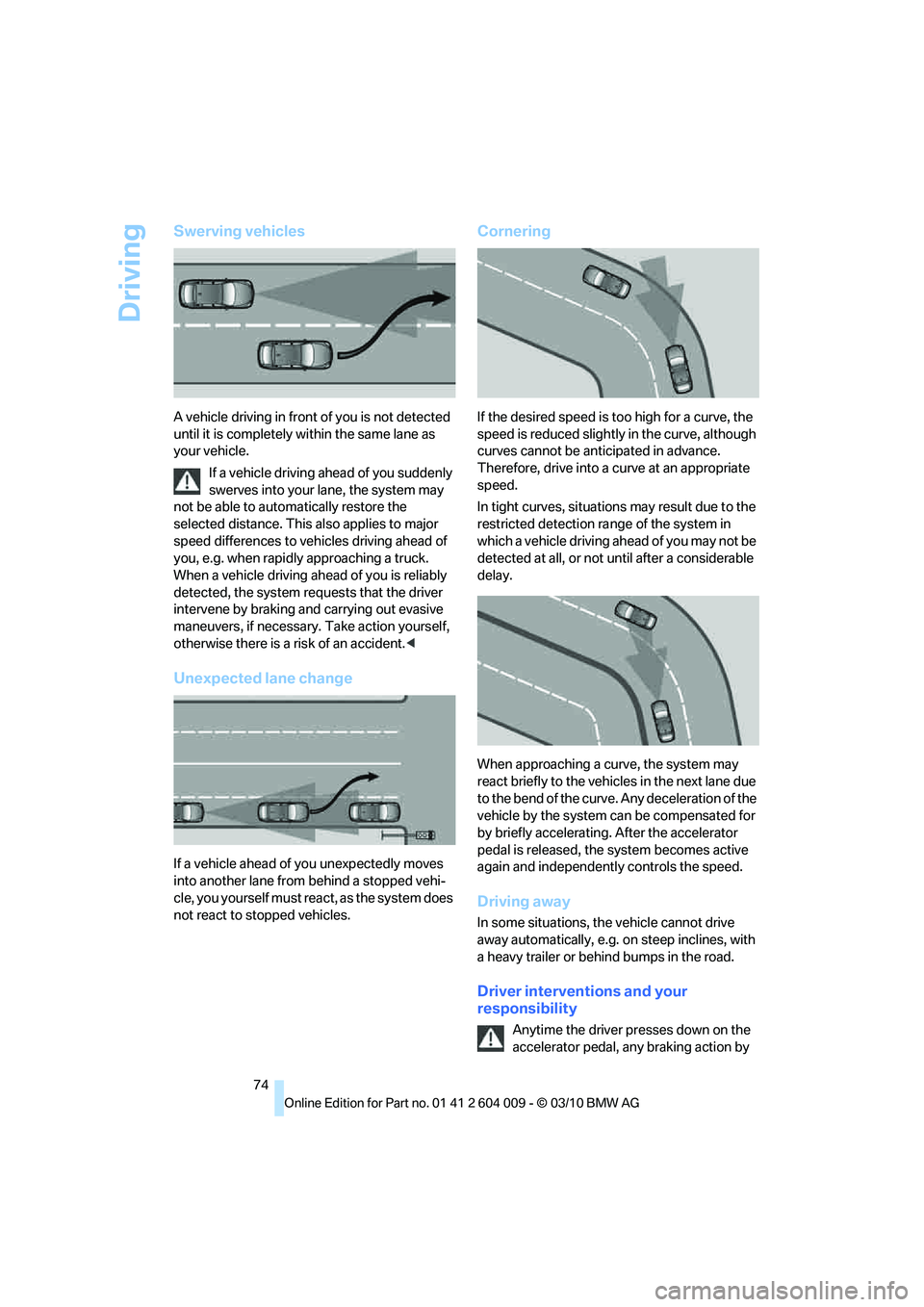
Swerving vehicles
A vehicle driving in front of you is not detected
until it is completely within the same lane as
your vehicle.
If a vehicle driving ahead of you suddenly
swerves into your lane, the system may
not be able to automatically restore the
selected distance. This also applies to major
speed differences to vehicles driving ahead of
you, e.g. when rapidly approaching a truck.
When a vehicle driving ahead of you is reliably
detected, the system requests that the driver
intervene by braking and carrying out evasive
maneuvers, if necessary. Take action yourself,
otherwise there is a risk of an accident.<
Unexpected lane change
If a vehicle ahead of you unexpectedly moves
into another lane from behind a stopped vehi-
cle, you yourself must react, as the system does
not react to stopped vehicles.
Cornering
If the desired speed is too high for a curve, the
speed is reduced slightly in the curve, although
curves cannot be anticipated in advance.
Therefore, drive into a curve at an appropriate
speed.
In tight curves, situations may result due to the
restricted detection range of the system in
which a vehicle driving ahead of you may not be
detected at all, or not until after a considerable
delay.
When approaching a curve, the system may
react briefly to the vehicles in the next lane due
to the bend of the curve. Any deceleration of the
vehicle by the system can be compensated for
by briefly accelerating. After the accelerator
pedal is released, the system becomes active
again and independently controls the speed.
Driving away
In some situations, the vehicle cannot drive
away automatically, e.g. on steep inclines, with
a heavy trailer or behind bumps in the road.
Driver interventions and your
responsibility
Anytime the driver presses down on the
accelerator pedal, any braking action by
Page 94 of 312
Technology for comfort, convenience and safety
92
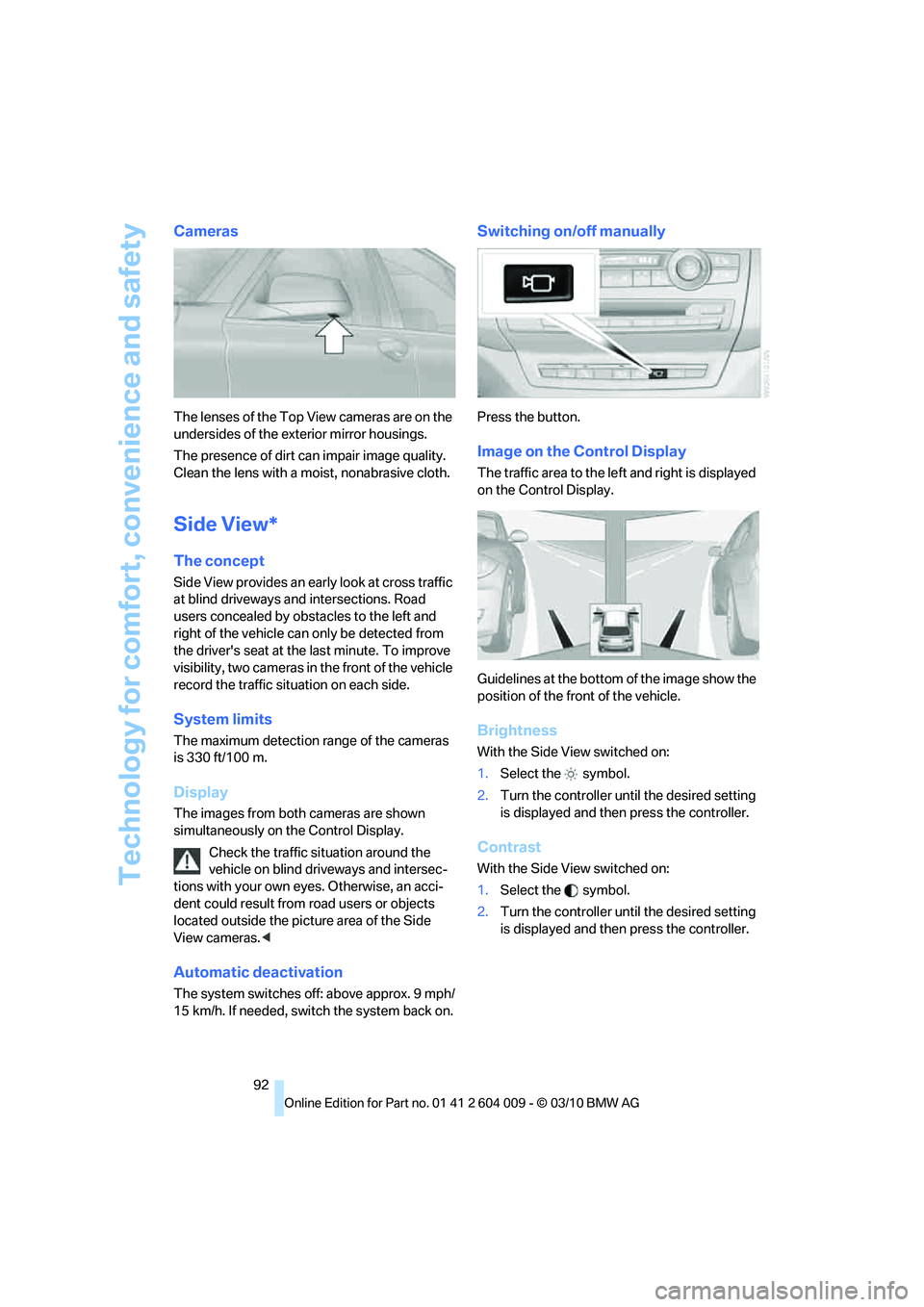
Cameras
The lenses of the Top View cameras are on the
undersides of the exterior mirror housings.
The presence of dirt can impair image quality.
Clean the lens with a moist, nonabrasive cloth.
Side View*
The concept
Side View provides an early look at cross traffic
at blind driveways and intersections. Road
users concealed by obstacles to the left and
right of the vehicle can only be detected from
the driver's seat at the last minute. To improve
visibility, two cameras in the front of the vehicle
record the traffic situation on each side.
System limits
The maximum detection range of the cameras
is 330 ft/100 m.
Display
The images from both cameras are shown
simultaneously on the Control Display.
Check the traffic situation around the
vehicle on blind driveways and intersec-
tions with your own eyes. Otherwise, an acci-
dent could result from road users or objects
located outside the picture area of the Side
View cameras.<
Automatic deactivation
The system switches off: above approx. 9 mph/
15 km/h. If needed, switch the system back on.
Switching on/off manually
Press the button.
Image on the Control Display
The traffic area to the left and right is displayed
on the Control Display.
Guidelines at the bottom of the image show the
position of the front of the vehicle.
Brightness
With the Side View switched on:
1.Select the symbol.
2.Turn the controller until the desired setting
is displayed and then press the controller.
Contrast
With the Side View switched on:
1.Select the symbol.
2.Turn the controller until the desired setting
is displayed and then press the controller.
Page 97 of 312
Controls
95Reference
At a glance
Driving tips
Communications
Navigation
Entertainment
Mobility
Three-dimensionally-shaped markings are dis-
played.
Image on the Control Display
Switching on the rear view camera
using iDrive
With PDC activated:
1.Select the "Rear view camera" symbol.
2.Press the controller.
The image of the rear view camera is displayed.
The setting is stored for the remote control cur-
rently in use.
Brightness
With the rear view camera switched on:
1.Select the symbol.
2.Turn the controller until the desired setting
is displayed and then press the controller.
Contrast
With the rear view camera switched on:
1.Select the symbol.
2.Turn the controller until the desired setting
is displayed and then press the controller.
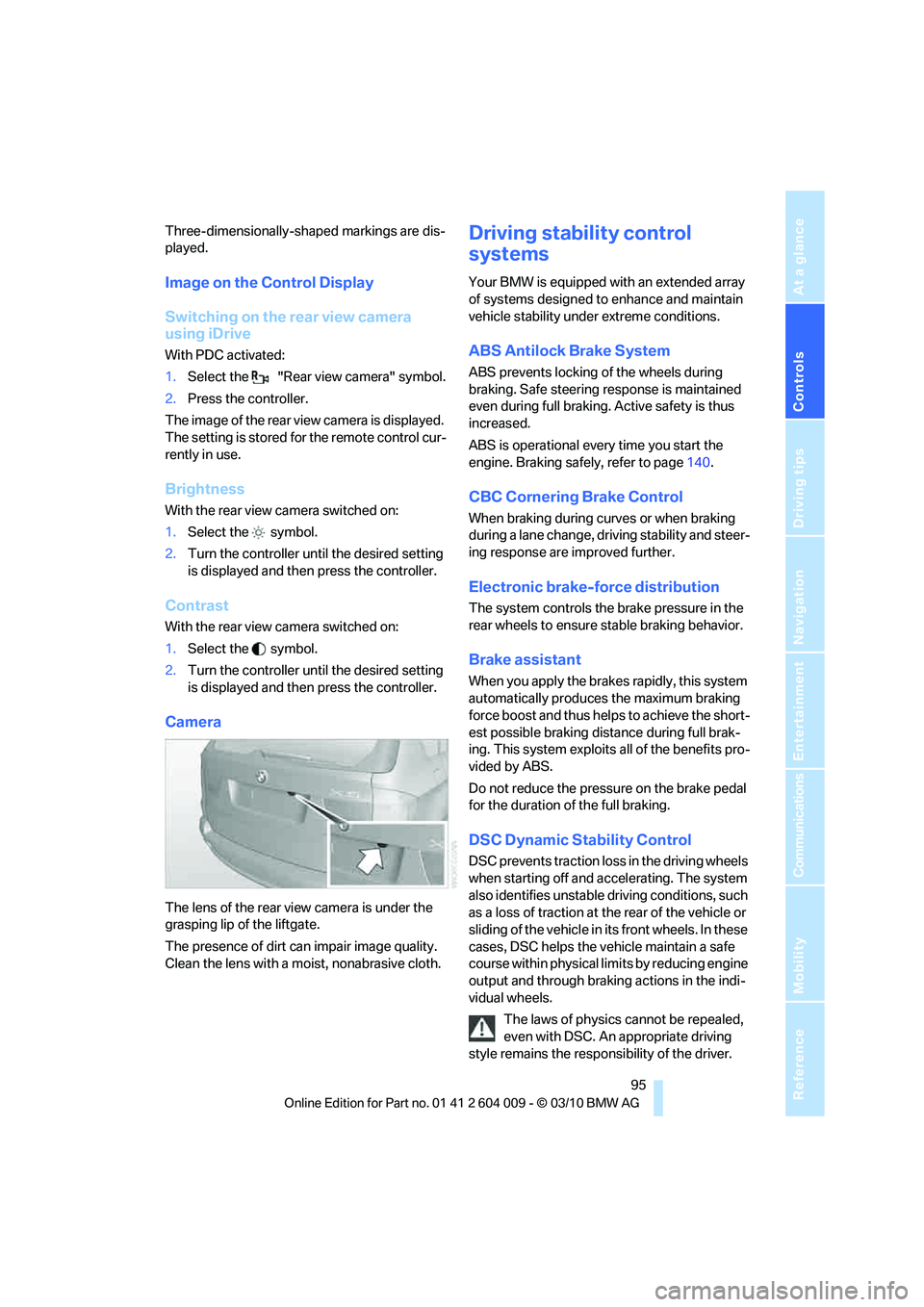
Camera
The lens of the rear view camera is under the
grasping lip of the liftgate.
The presence of dirt can impair image quality.
Clean the lens with a moist, nonabrasive cloth.
Driving stability control
systems
Your BMW is equipped with an extended array
of systems designed to enhance and maintain
vehicle stability under extreme conditions.
ABS Antilock Brake System
ABS prevents locking of the wheels during
braking. Safe steering response is maintained
even during full braking. Active safety is thus
increased.
ABS is operational every time you start the
engine. Braking safely, refer to page140.
CBC Cornering Brake Control
When braking during curves or when braking
during a lane change, driving stability and steer-
ing response are improved further.
Electronic brake-force distribution
The system controls the brake pressure in the
rear wheels to ensure stable braking behavior.
Brake assistant
When you apply the brakes rapidly, this system
automatically produces the maximum braking
force boost and thus helps to achieve the short-
est possible braking distance during full brak-
ing. This system exploits all of the benefits pro-
vided by ABS.
Do not reduce the pressure on the brake pedal
for the duration of the full braking.
DSC Dynamic Stability Control
DSC prevents traction loss in the driving wheels
when starting off and accelerating. The system
also identifies unstable driving conditions, such
as a loss of traction at the rear of the vehicle or
sliding of the vehicle in its front wheels. In these
cases, DSC helps the vehicle maintain a safe
course within physical limits by reducing engine
output and through braking actions in the indi-
vidual wheels.
The laws of physics cannot be repealed,
even with DSC. An appropriate driving
style remains the responsibility of the driver.
Page 99 of 312
Controls
97Reference
At a glance
Driving tips
Communications
Navigation
Entertainment
Mobility
For better control
The indicator lamp flashes:
DTC is controlling the drive forces and
brake forces.
The indicator lamp lights up:
DSC and DTC are malfunctioning.
DTC activated:
The indicator lamp lights up and TRAC-
TION appears in the instrument panel.
DTC is activated.
Deactivating DTC
Press the button again: the indicator lamp in the
instrument panel goes out.
xDrive
xDrive is the 4-wheel drive system of your
BMW. The combined effects of xDrive and DSC
further optimize the traction and dynamic driv-
ing characteristics. The 4-wheel drive system
xDrive variably distributes the drive forces to
the front and rear axle depending on the driving
situation and prevailing road conditions.
Dynamic Performance Control*
The concept
Dynamic Performance Control optimizes the
handling characteristics of your BMW when
starting off, cornering, and during evasive
maneuvers. To achieve this, the system variably
distributes the drive torque of the rear axle to
the two rear wheels. This further increases the steering precision and tracking stability of your
vehicle.
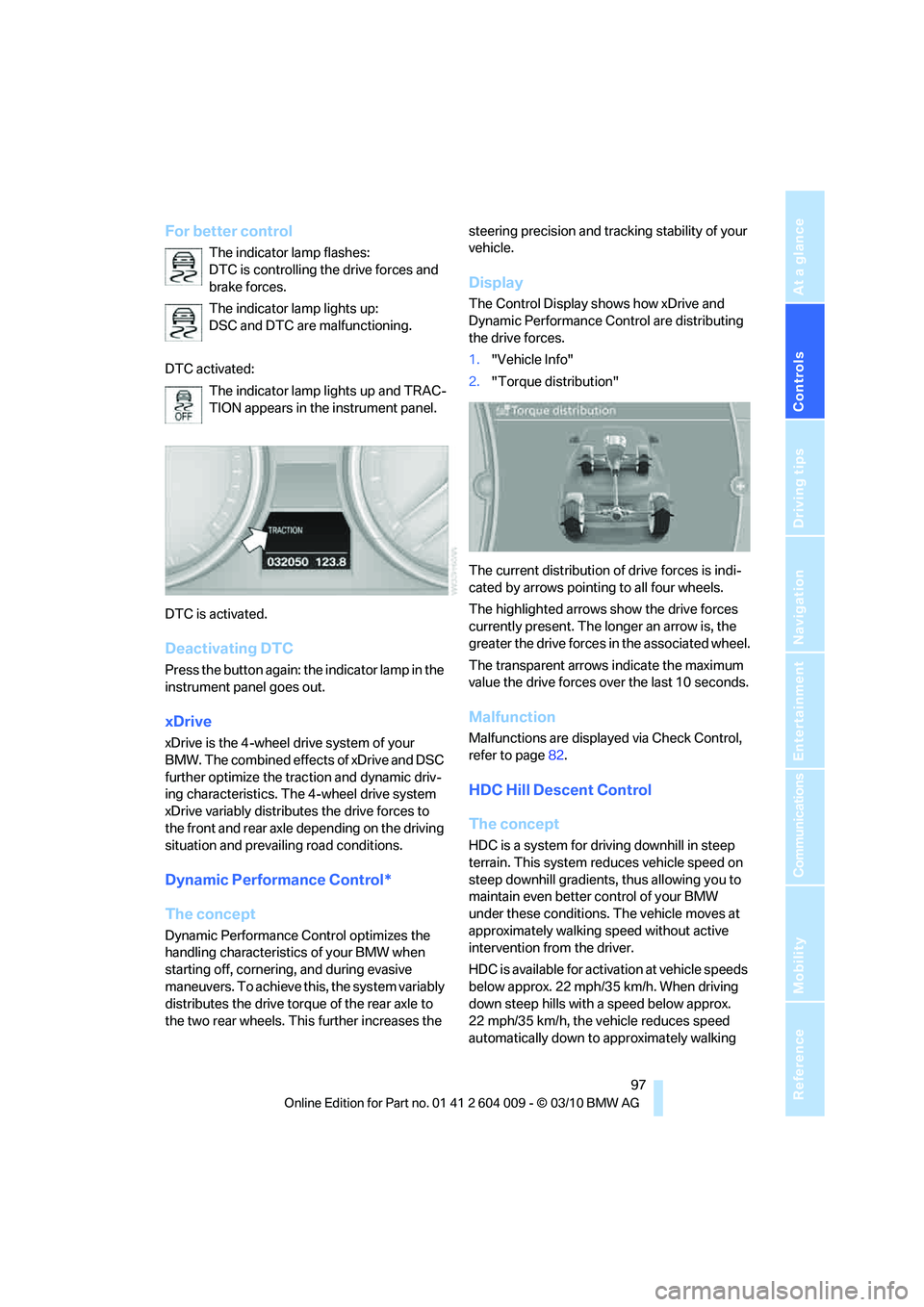
Display
The Control Display shows how xDrive and
Dynamic Performance Control are distributing
the drive forces.
1."Vehicle Info"
2."Torque distribution"
The current distribution of drive forces is indi-
cated by arrows pointing to all four wheels.
The highlighted arrows show the drive forces
currently present. The longer an arrow is, the
greater the drive forces in the associated wheel.
The transparent arrows indicate the maximum
value the drive forces over the last 10 seconds.
Malfunction
Malfunctions are displayed via Check Control,
refer to page82.
HDC Hill Descent Control
The concept
HDC is a system for driving downhill in steep
terrain. This system reduces vehicle speed on
steep downhill gradients, thus allowing you to
maintain even better control of your BMW
under these conditions. The vehicle moves at
approximately walking speed without active
intervention from the driver.
HDC is available for activation at vehicle speeds
below approx. 22 mph/35 km/h. When driving
down steep hills with a speed below approx.
22 mph/35 km/h, the vehicle reduces speed
automatically down to approximately walking